

Open Android Studio for the first time and the toolbar alone looks like it belongs to something far more complicated than “write an app.” Most of it makes sense within a week. None of it means much until you know what the program is actually for.
Google builds and maintains Android Studio itself, and gives it away free for Windows, macOS, Linux, and ChromeOS. It’s the official environment for writing, testing, and publishing native Android apps, not one option among several equally supported ones.
The Android Developers Blog reported in 2026 that more than 68% of the top 1,000 apps on Google Play now build their interfaces with Jetpack Compose. That default alone changes what a new project looks like from the first line of code, before you’ve written anything yourself.
What Is Android Studio?
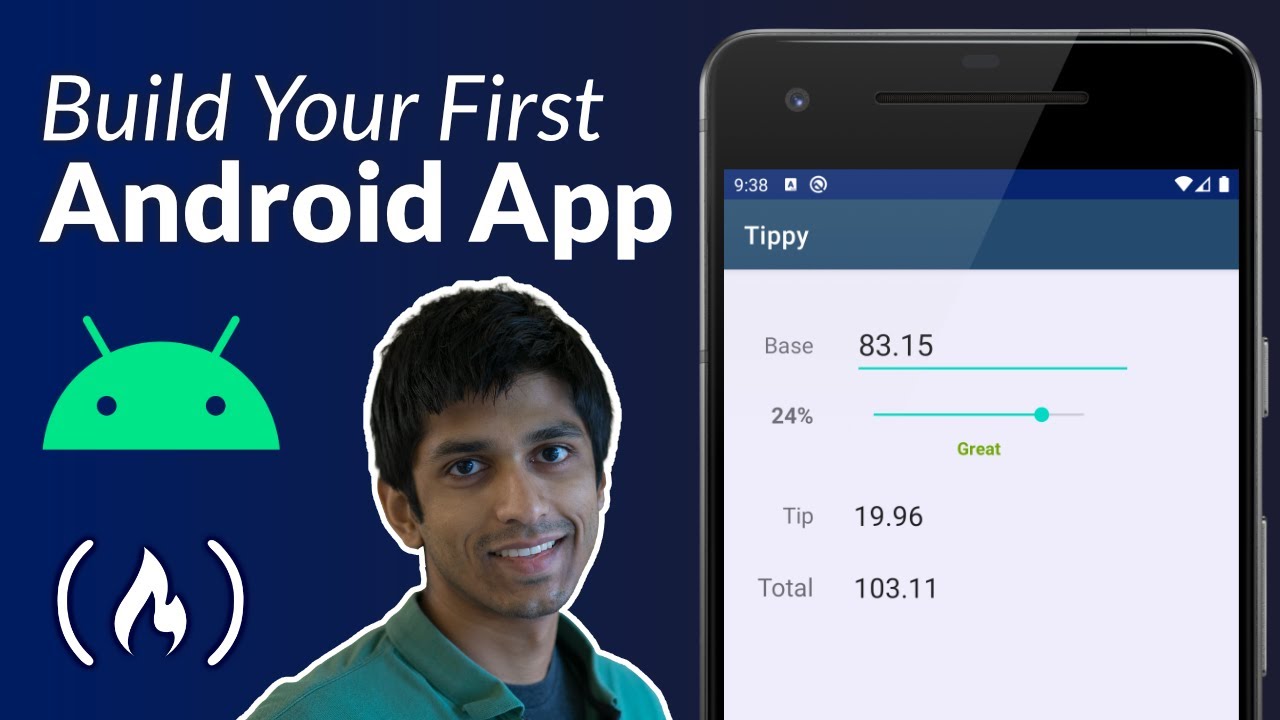
Strip away the branding and Android Studio is three tools stitched into one window: a code editor, the Android SDK, and the Gradle build system. You could technically assemble those pieces yourself with a text editor and some scripts. Almost nobody does, because the bundling is the entire point.
A general-purpose code editor gives you syntax highlighting and calls it a day. Android Studio ships with an emulator, a layout designer, and profiling tools built around Android’s specific quirks (memory limits, screen fragmentation, background process restrictions) that a generic editor has no reason to know about.
Under the hood, the editor runs on the same code base as JetBrains’ IntelliJ IDEA. The two diverge once you look past the text editor itself, which the IntelliJ IDEA vs Android Studio comparison covers in more detail.
Google introduced the tool at Google I/O in May 2013. It replaced Eclipse as the officially supported IDE by the end of 2015, a switch documented more fully in Eclipse vs Android Studio.
Kotlin is the primary language now, used by over 50% of professional Android developers as their main language, per Google’s developer documentation. Every screen, every build, every test run in a native app tends to pass through this one tool somewhere along the way.
How to Install Android Studio
Most of the installation time isn’t spent installing anything. It’s spent waiting while the setup wizard downloads SDK packages in the background, which takes somewhere between ten and twenty minutes on a normal connection.
What actually happens during that wait: the installer checks your system against Google’s minimum requirements, pulls down the right build for your OS, and lets the setup wizard grab the SDK components it needs on first launch.
System Requirements for Windows, macOS, and Linux
Google’s own installation guide lists the same baseline across all three desktop platforms.
| Platform | Minimum RAM | Disk Space | Notes |
|---|---|---|---|
| Windows | 8 GB | 8 GB free | 64-bit Windows 8 or later required |
| macOS | 8 GB | 8 GB free | Intel or Apple Silicon supported |
| Linux | 8 GB | 8 GB free | 64-bit distro with glibc 2.31 or newer |
A minimum screen resolution of 1280 by 800 pixels applies everywhere, and Google recommends extra memory once the emulator runs alongside the IDE itself, since both compete for the same RAM.
Installing the program follows the same order no matter which OS you’re on.
- Download the installer from the official Android Studio page for your operating system
- Run the installer and accept the Android SDK license agreement
- Let the Setup Wizard install the SDK, platform tools, and a default emulator image
- Launch Android Studio and sign in with a Google account if you want cloud backed settings
For a closer walkthrough of each screen in the wizard, the dedicated Android Studio installation guide covers platform-specific quirks this overview skips.
Once installed, Android Studio checks for new stable releases on its own. You can also trigger that check manually, a process covered in the guide on how to update Android Studio.
Android Studio Interface Overview
The default layout looks intimidating for about a week. Then it becomes muscle memory and you stop noticing it’s even a layout.
The editor pane sits in the center and handles the actual reading and writing of Kotlin, Java, and XML files. The Project window runs down the left side for browsing modules and resources. Logcat and the other tool windows live along the bottom. The toolbar up top runs, debugs, and syncs whatever configuration is currently active.
| Panel | Location | What It Does |
|---|---|---|
| Editor | Center | Write and read Kotlin, Java, and XML files |
| Project window | Left | Browse modules, source folders, and resources |
| Logcat | Bottom | Stream real time system and app log output |
| Toolbar | Top | Run, debug, and sync the current configuration |
Every one of those tool windows can be dragged, docked, or hidden, and a layout you’ve broken beyond recognition is one click away from resetting through the Window menu.
The SDK Manager sits under that same menu, controlling the Android SDK tools your project compiles against, which is a separate thing from the IDE itself.
There’s also a version control panel that tracks changes, diffs, and commit history for whatever source control system the project already uses. Git, in most cases.
How to Create a New Project in Android Studio
New Project opens to a template picker, not a blank canvas, and that’s on purpose. Most apps share the same starting skeleton underneath whatever they end up looking like, so Android Studio just hands you that skeleton already assembled instead of making you type it out.
- Choose a template, such as Empty Activity or a Compose based starter
- Name the app and set the package name, which doubles as its unique identifier
- Pick a save location and a minimum SDK version your app will support
- Wait for the initial Gradle sync to finish before touching any code
Starting from a template is a small, practical version of rapid app development: you skip boilerplate that would otherwise cost you an afternoon.
Even the Empty Activity template, the plainest option on the list, already wires up the basic callbacks tied to Android’s app lifecycle. onCreate fires the moment the activity loads, before you’ve added a single line yourself.
Pick the minimum SDK carefully here. Set it too high and you shut out older devices. Set it too low and you lose access to newer platform features. There’s no setting that avoids the trade-off entirely, just a range where it hurts less.
Project Structure and the Gradle Build System
A new project is really just a folder of specific files that Android Studio happens to know how to read. The manifest declares what the app is allowed to do. The res folder holds layouts and strings. The module’s build.gradle file lists everything the app depends on to compile.
Together, these files make up the app’s codebase, and the Project window on the left is really just a filtered view over that same folder structure sitting on disk.
Gradle Files and What They Control
The project-level build.gradle file sets repositories and shared plugin versions for everything underneath it. The module-level build.gradle file is more specific: it lists that particular module’s dependencies, SDK targets, and build variants.
Gradle itself functions as the project’s build automation tool. It compiles the source, sorts out dependencies, then packages everything into something you can actually run. A sync happens automatically after most dependency changes, though you can trigger one by hand from the toolbar when Android Studio doesn’t catch it on its own.
| File | Scope | Typical Contents |
|---|---|---|
| settings.gradle | Whole project | List of included modules |
| build.gradle (project) | Whole project | Repositories, shared plugin versions |
| build.gradle (module) | Single module | Dependencies, SDK versions, build variants |
Writing and Editing Code in Kotlin and Java
The editor itself is where Android Studio earns its keep day to day. Code completion, quick fixes, and refactoring tools work across both supported languages, though the two feel noticeably different once you start typing.
Kotlin or Java: Which to Choose
Kotlin code now shows up in over 95% of the top 1,000 Android apps on Google Play, according to Google’s own developer documentation. For new projects specifically, it’s not really a contest anymore.
Kotlin cuts down on boilerplate for things like data classes and null checks, which matters more than it sounds like once you’ve written the same getter and setter pattern for the fortieth time. Coroutines handle async work without the callback chains that made older Android code so hard to read back later. And new Jetpack libraries increasingly ship Kotlin-first, sometimes Kotlin-only, so sticking with Java eventually locks you out of certain APIs.
Java hasn’t gone anywhere, though. It’s still fully supported, and it’s the language you’ll find running through older, larger codebases built before Kotlin became the default in 2019. Teams hiring from a broader Java talent pool also tend to stick with it, if only because that pool is genuinely bigger. The two languages interoperate cleanly enough that a single project can mix both, file by file, without anything breaking.
The fuller trade-off breakdown, syntax and performance differences included, lives in the dedicated Kotlin or Java comparison.
One data point worth knowing: Google’s own Home team saw a 33% drop in null pointer exception crashes after shifting new feature development to Kotlin, according to Google’s developer documentation. That’s not a universal guarantee for every codebase, but it’s a real result from a large one.
AI Code Suggestions with Gemini in Android Studio
Gemini lives inside the editor itself, not in a separate chat window bolted onto the side. Start typing and it offers inline completions tuned to whatever file you actually have open, rather than generic autocomplete guesses.
Ask it something in plain language and it’ll explain an error message, or draft a function from a comment describing what you want. Build failures and Logcat errors get explained right where they show up too, so you’re not copy-pasting stack traces into a browser tab quite as often.
That puts Android Studio in the same category as other AI pair programming tools now common across the industry. Its real edge is context. It already knows your actual project, not just the general shape of Android development.
Building the App UI with Layout Editor and Jetpack Compose
Every screen starts as either an XML layout or a Compose function, and Android Studio renders a live preview of either one without you needing to run the app on an actual device.
Plenty of teams still sketch the screen on paper, or in a wireframing tool, before opening the Layout Editor at all, especially once a screen has more than two or three states to account for.
Whichever approach you pick, Android’s templates lean on Material Design principles for spacing, color, and component behavior by default.
XML Layouts or Jetpack Compose: Which to Use
| Aspect | XML Layout | Jetpack Compose |
|---|---|---|
| How UI is built | Markup file plus ConstraintLayout | Kotlin functions describe the UI |
| Live preview | Layout Editor renders the file | @Preview annotation renders the composable |
| Best fit | Legacy screens, simple static layouts | New projects, dynamic or animated UI |
More than 68% of the top 1,000 apps on Google Play now use Jetpack Compose in production, according to the Android Developers Blog. Google Drive is a decent real-world example of why: its engineering team rebuilt the app’s home screen with Compose and cut the feature’s code and development time roughly in half, according to a separate Android Developers Blog case study.
Practically, that means the XML file disappears entirely with Compose, since the UI gets described directly in Kotlin instead. The live preview updates as you type rather than after a full rebuild, which sounds minor until you’ve sat through enough rebuilds to notice the difference. And nothing stops a team from mixing both approaches inside one project while they migrate gradually, since Android Studio supports that without complaint.
Setting Up and Using the Android Emulator
Every new project needs somewhere to run before it reaches a real user. Android Studio gives you two paths here: a virtual device built into the IDE, or a physical phone plugged in over USB.
Physical Device or Emulator: Which to Use
Neither one wins outright, honestly. They cover different gaps.
A real phone gives you battery behavior, sensor readings, and camera output that software can’t fully fake, plus actual network conditions instead of a simulated connection, and no RAM or CPU competing against the emulator process itself.
The emulator’s case is different. You can test dozens of screen sizes and Android versions without buying the hardware for each one. Snapshots let you jump back to a saved state instantly instead of resetting an app by hand. No cable needed either, and you can run several instances side by side if you need to.
Plugging in real hardware still needs a driver and USB debugging switched on, which is walked through in how to connect a phone to Android Studio with USB.
How to Create a Virtual Device
The AVD Manager handles virtual device creation from a single dialog.
- Open the Device Manager from the toolbar and select Create Device
- Pick a hardware profile, such as Pixel 8 or a tablet sized screen
- Choose a system image matching the Android version you want to test
- Finish the wizard and press the play icon to boot the emulator
A full walkthrough of each dialog in that wizard lives in how to use the Android Studio emulator.
Debugging and Profiling an App
Bugs mostly surface in the same few spots: the Logcat window, a breakpoint you’ve set, or the Profiler. Each one answers a different question about what the app is actually doing right now, rather than what you assumed it was doing.
Logcat streams every system and app log line, and you can filter it by tag, process, or log level once the noise gets overwhelming. A breakpoint pauses execution on a specific line so you can inspect variables at that exact moment, and stepping through code line by line usually reveals exactly where a value went wrong. Sounds tedious. It’s still faster than guessing.
| Profiler Tab | Tracks | Common Use |
|---|---|---|
| CPU | Method traces, thread activity | Finding what causes a janky frame |
| Memory | Heap size, allocations, garbage collection | Spotting a memory leak before it crashes the app |
| Network | Request timing, payload size | Catching slow or oversized API calls |
A memory leak tends to show up as a heap graph that keeps climbing after garbage collection runs, rather than dropping back down the way it should.
Google Play’s quality bar gives these tools some actual stakes. A user-perceived crash rate above 1.09% of daily active users counts as bad behavior on Play, and a user-perceived ANR rate above 0.47% triggers the same kind of warning, per Google Play Console documentation.
Once you’ve traced a bug to its source, code refactoring cleans up the fix so the same pattern doesn’t quietly resurface somewhere else in the codebase. Re-running the same user flow after that fix is a small-scale version of regression testing, just confirming the patch didn’t break something sitting next to it.
Building and Exporting the App for Release
A finished app still has to become a file that Google Play, or a tester, can actually install. Android Studio produces two output formats, and at this point the choice between them isn’t really optional.
| Format | Who Builds the Final APK | Current Status |
|---|---|---|
| APK | You, locally, one file per configuration | Still used for direct installs and testing |
| Android App Bundle (AAB) | Google Play, per device configuration | Required for new apps on Google Play since August 2021 |
Google’s own developer documentation frames this as an APK or AAB decision, though “decision” undersells it a bit. The App Bundle format has been mandatory for new apps on Google Play since August 2021.
- Open Build in the menu bar and choose Generate Signed Bundle or APK
- Create or select a keystore file and enter its credentials
- Pick release as the build variant, not debug
- Let R8 shrink and obfuscate the code, then locate the output file in the build folder
R8 replaced ProGuard as Android Studio’s default shrinker back in Android Gradle Plugin 3.4.0, and ProGuard itself stopped being supported starting with AGP 8. Worth knowing if you’re still following an old ProGuard tutorial somewhere.
App Bundles run 15% smaller on average than a universal APK, according to the Android Developers Blog, and Netflix was among the developers who saw higher install success rates after making the switch.
The step-by-step version of this process, keystore setup included, sits in how to build an APK in Android Studio.
When Android Studio Does Not Work as Expected
Every one of these problems has a known, boring cause behind it. None of them mean the IDE itself is broken beyond repair, whatever the error message makes you feel in the moment.
| Symptom | Likely Cause | Fix |
|---|---|---|
| Gradle sync fails | Outdated dependency version or no access to Maven | Check the error panel, update the version, retry sync |
| Emulator will not launch | Hardware acceleration disabled or a corrupted AVD | Enable HAXM or Hypervisor Framework, or wipe the device’s data |
| IDE runs slow or freezes | Low RAM, too many open projects, or heavy plugins | Close unused projects, disable unused plugins, add RAM |
| Build blocked entirely | Unaccepted SDK license or a missing SDK component | Open SDK Manager, accept the license, install the missing piece |
A Gradle sync failure is probably the single most common complaint among new Android Studio users, and it’s almost never actually the IDE’s fault. The deeper walkthrough for that specific error lives in how to sync Gradle in Android Studio.
If none of the usual fixes work, a clean reinstall clears out corrupted caches and settings files that build up over time without you noticing. That process is covered in how to uninstall Android Studio, followed by a fresh install from the official page.
FAQ on How To Use Android Studio
Is Android Studio the same thing as the Android SDK?
No, and mixing the two up trips people up more than you’d expect. The SDK is what actually supplies the platform APIs, tools, and device system images. Android Studio is the editor and build environment wrapped around all of that, managing and updating the SDK through its own SDK Manager rather than being the SDK itself.
What is the difference between Android Studio and a general code editor?
A general code editor just edits text. Android Studio actually understands the project underneath that text: it parses your Gradle files, resolves Android SDK APIs for autocomplete, flags Android-specific lint warnings, and renders XML and Compose previews live. None of that happens in a plain editor, because a plain editor has no idea it’s looking at an Android project in the first place.
Stable or Canary, which channel should a beginner install?
Stable, without much debate. Fewer releases, but each one has gone through far more testing before it reaches you. Canary ships experimental features within days of being built and can break a project without warning, which suits people specifically testing future releases, not someone just getting started.
What keyboard shortcuts save time?
Four cover most of the daily work: Shift+F10 runs the app, Shift+F9 launches debug mode, Ctrl+Alt+L reformats a file, and Alt+Enter opens quick fixes for whatever the editor has underlined. Double-tapping Shift searches the entire project instantly, and that one ends up used more than any of the others once it becomes a habit.
How do you connect a Git repository to a project?
Through VCS in the menu bar. Choosing Enable Version Control Integration links the open project to Git, and Git > GitHub > Clone Repository pulls down an existing remote project once you’re signed into a GitHub account.
What Should You Do First in How To Use Android Studio?
Android Studio rewards patience in a specific order, and skipping it is the most common way beginners make their own lives harder. Get the SDK Manager fully finished, then run something, anything, on an emulator or device before touching a single Gradle file or custom layout.
- Finish SDK Manager downloads before anything else
- Build and run the default template project
- Confirm the app launches on an emulator or device
Jump ahead to customize UI theming or Gradle configuration first and you’re stacking unknowns on top of unknowns. A broken build becomes much harder to trace back to its actual cause. Following the order instead costs you a slower first hour, in exchange for a codebase you can actually debug once real features start breaking on their own.
Once that base build works, moving into Android development itself is the next step, since Android Studio exists to support that discipline, not replace it.

- MongoDB Cheat Sheet - October 20, 2026
- Adding AI Video Generation to a Software Product: Architecture, Cost Guardrails and QA - October 20, 2026
- Show Hidden Characters, Spaces, and Line Endings in Notepad++ - October 19, 2026


