

Ask ten Android developers what Android Studio actually is and you’ll get the same answer ten times: Google’s official IDE for the platform, built on top of JetBrains’ IntelliJ IDEA. It bundles the Android SDK tools, an emulator, and a Gradle based build system into a single workspace, so nobody has to stitch those pieces together by hand.
Google treats it as the default entry point into Android work. General purpose code editors and cross-platform frameworks cover parts of the SDK, but not all of it, and that gap is part of why Android Studio stays the default recommendation.
Release cadence changed recently too. As of August 2025, Android Studio ships stable builds monthly, twice the pace of the year before, according to Google’s Android Developers Blog (2025).
What Is Android Studio?
Google publishes Android Studio on top of JetBrains’ IntelliJ IDEA, and pretty much everything inside it points at one job: taking a project from an empty folder to a package an Android device can install. A code editor, a layout editor, an emulator, and a Gradle based build system all live in that one workspace instead of getting spread across four or five separate programs.
Developers open one project folder and stay there for the whole job, from the first line of code to the file a phone actually installs.
Here’s what’s on record, before anything else:
- Developer: Google, built on JetBrains IntelliJ IDEA
- Announced: May 15, 2013, at Google I/O
- First stable release: version 1.0 in December 2014
- Current release line: Quail 4, version 2026.1.4
- License: Apache License 2.0 for the source code, freeware for the compiled binary
Android Studio sits inside the wider field of mobile application development, narrowed down to just the Android side of that work.
Every feature the IDE ships points at turning Kotlin, Java, or C++ source code into something a device can install. That narrow focus is what separates it from a general purpose editor doing double duty across Android development and three other platforms at once.
Who Developed Android Studio, and What Is It Built On?
Google owns and publishes Android Studio, but the code editor underneath it isn’t Google’s own work. That part comes from JetBrains, the company behind IntelliJ IDEA.
Android Studio layers an Android SDK manager and a layout editor on top of that IntelliJ core. An emulator gets bundled in too, and none of these three pieces exist in the base IntelliJ product.
A closer, feature by feature look at how IntelliJ IDEA and Android Studio differ covers what each side brings to the pairing.
Google announced the tool on May 15, 2013, at its Google I/O developer conference. The first stable build, version 1.0, didn’t arrive until December 2014, a year and a half later.
Before that, Eclipse running the Android Development Tools plugin was the standard choice.
Google pulled official support for that setup by the end of 2015. Teams weighing the switch at the time usually worked from a direct comparison between Eclipse and Android Studio before moving their projects over.
Source code for Android Studio ships under the Apache License 2.0, though a handful of bundled SDK components carry their own, more restrictive terms.
What Programming Languages Does Android Studio Support?
Kotlin, Java, and C++ all compile natively inside Android Studio, and each one plays a different role in a typical project.
Kotlin has carried the preferred language label since Google made the switch official at Google I/O on May 7, 2019.
Over 95% of the top 1,000 Android apps on Google Play now contain Kotlin code. More than half of professional Android developers name it their primary language, against roughly a quarter who still pick Java, according to Google’s Android Developers Blog (2023).
Java hasn’t gone anywhere. It stays common in older, larger codebases that predate the Kotlin shift, and plenty of teams aren’t in a hurry to migrate working code just to chase a trend.
A closer look at how Kotlin and Java compare for Android work covers syntax, null safety, and build time differences in more depth.
C++ enters through the Android NDK, the toolkit that compiles native code for parts of an app that need direct hardware access. Games lean on it. So does anything doing heavy signal processing.
| Language | Role in Android Studio |
|---|---|
| Kotlin | Preferred language for new projects |
| Java | Fully supported, common in legacy codebases |
| C++ | Used through the Android NDK for native code |
Readers new to the first of those three can start with a plain rundown of what Kotlin actually is before opening the IDE.
How Does the Android Studio Build System Work?
Gradle handles the actual compiling. The Android Gradle Plugin sits on top of it and adds the tasks specific to packaging an Android app, things Gradle alone doesn’t know how to do on its own.
Every Android Studio release supports a defined range of plugin versions. The current Quail 4 release, version 2026.1.4, works with Android Gradle Plugin 7.1 through 9.4, according to the 2026 release notes (Google, developer.android.com).
| Component | Role | Maintained By |
|---|---|---|
| Gradle | General purpose build automation engine | Gradle Inc. |
| Android Gradle Plugin | Adds Android specific build tasks | |
| R8 | Shrinks and obfuscates the compiled code |
Build variants let one project output a debug version and a release version from the same source files, each carrying its own settings.
Gradle itself is a general purpose build automation tool. Google didn’t build it for Android specifically; the Android Gradle Plugin is what makes it Android aware.
R8 replaced ProGuard as the default step handling code obfuscation, and it strips unused code out of the final package while it’s at it.
What Are the Core Features of Android Studio?

A code editor, a layout editor, and a set of runtime debugging tools all live inside the same window, and a plugin ecosystem sits on top extending each one.
| Feature | What It Does |
|---|---|
| Code editor | Completion, refactoring, and lint checks as you type |
| Layout editor | Drag and drop UI building with a live preview |
| Profiler | Tracks CPU, memory, and network use while the app runs |
| Git and GitHub integration | Commits, branches, and pull requests without leaving the editor |
Each row in that table is really its own toolset. The sections below go through them one at a time.
Code Editor and Refactoring Tools
The editor checks code as it’s typed. Android specific lint rules catch performance and accessibility problems as they happen, plus anything that breaks compatibility with an older API level.
Renaming a class, extracting a method, moving code between files, all of that runs through the same code refactoring engine IntelliJ IDEA uses. Change a name once and it updates everywhere that name gets referenced.
A plugin ecosystem sits on top of this editor. Developers add extra framework and language support through it without waiting on Google to build that support in directly.
- Code completion for Kotlin, Java, and XML
- Automated import management
- Quick fixes triggered directly from a warning
None of this replaces a linter run inside continuous integration, but it catches most issues before a build even starts.
Layout Editor, Material Design and Jetpack Compose
UI elements get dragged into place while the layout editor renders a live preview of the screen right next to them.
Its default component set follows Material Design principles, Google’s visual language for spacing, color, and motion across Android apps.
Jetpack Compose is the newer, declarative alternative to XML layouts, and Google now recommends it as the default approach. Over 60% of the top 1,000 apps on Google Play use it, according to Google’s Android Developers Blog (2025).
One data point stands out here: the team behind the Clue app told Google their development speed increased up to 3x after rewriting their screens in Compose.
XML layouts haven’t been retired, though. Both approaches stay available side by side, so an XML based screen and a Compose based screen can sit in the same project without conflict.
Debugging, Logcat and the Profiler
A stack trace alone rarely explains why an app crashed on somebody else’s phone. That’s the reason Android Studio pairs a debugger with a dedicated log viewer instead of leaving developers to guess.
Logcat streams system and app level log messages in real time, and it can be filtered by process, tag, or severity when the output gets noisy, which it usually does within about ten seconds of launching anything.
The Profiler runs alongside it, tracking CPU load, memory allocation, and network calls while the app is running, whether that’s on the emulator or a device plugged in over USB.
The App Quality Insights panel folds Firebase Crashlytics data directly into the editor, so a crash report links straight back to the line of code that caused it.
None of these tools require leaving the IDE window to check some separate dashboard.
How Does the Android Studio Emulator Work?
The Android Virtual Device Manager builds emulator profiles from system images downloaded per API level. One machine can run Android 12 and Android 15 side by side this way, without needing two separate computers on the desk.
Each profile behaves like a real phone or tablet. It boots, installs the app, and reports crashes back to the IDE the same way a physical device does.
- Test across multiple screen sizes and API levels without owning the hardware
- Simulate network conditions, GPS location, and battery states
- Render graphics through Vulkan when the host machine supports it, which speeds up animation heavy apps
A physical device connected over USB debugging still gives more accurate results for camera, sensor, or performance heavy testing. The emulator is convenient, not a full replacement, and anyone who’s shipped a camera feature knows the difference shows up fast.
The full sequence, from creating a virtual device to launching it, is covered in this walkthrough on using the Android Studio emulator.
Developers who only need the panel open, not a new device configured, can jump straight to the steps for opening the emulator in Android Studio.
How Does Gemini Work Inside Android Studio?

86% of developers surveyed said AI powered code completion in Android Studio made them more productive, according to Google’s Android Developers Blog (October 2024). That’s a fairly striking number for a feature that’s still relatively new to most teams.
Gemini lives in a sidebar panel inside the IDE, answering coding questions with the context of whatever project happens to be open at the time.
- AI code completion that suggests entire functions, not just single lines
- Error explanations paired with a one click fix suggestion
- Journeys, which runs natural language test descriptions against a real or virtual device
Agent Mode goes a step further. Given a goal, fixing a bug or adding a dependency, say, it builds a multi file execution plan and shows each change as a diff before anything actually gets applied.
Entri, an edtech company reaching over 15 million learners across India, cut its overall UI development time by 40% after adopting Gemini in Android Studio. One sign up flow rebuild dropped from hours to under 45 minutes (Google, September 2025).
That kind of screenshot to code workflow counts as one of the newer AI code generation tools now sitting inside mainstream IDEs, not some separate app developers have to switch over to.
The crash fix suggestions inside App Quality Insights put Gemini among the AI debugging tools developers now reach for before opening a search engine.
Android Studio Version Names and Release History

Every Android Studio release carries a dessert free codename plus a year based version number. Quail 4, for instance, is version 2026.1.4.
A codename doesn’t reach a developer’s machine as a stable build overnight. It moves through a fixed sequence of channels first.
- Canary: early builds, released frequently, features still in active development
- Release Candidate: feature set locked, final testing before stable
- Stable: the tested, general availability build
- Patch: bug fix updates to an already stable release, occasionally with small new features
Google restructured that software release cycle in August 2025, moving from roughly two major releases a year to monthly stable releases. That’s twice the frequency of the year before (Google, Android Developers Blog, August 2025).
A platform version such as Narwhal ships first as a merge release carrying the latest IntelliJ platform update, then gets monthly Feature Drops until the next platform version takes over.
| Codename | Version | Year |
|---|---|---|
| Quail 4 | 2026.1.4 | 2026 |
| Panda | 2025.3.1 | 2025 |
| Otter | 2025.2.1 | 2025 |
| Narwhal | 2025.1.1 | 2025 |
Is Android Studio Free to Use?
Downloading, installing, and running Android Studio costs nothing, on any of the three desktop operating systems it supports.
What the Apache License Covers
The Apache License 2.0 covering the IDE’s source code grants a broad set of permissions, not some narrow trial style grant that expires or limits what gets built with it.
- Modify the source code for private or commercial use
- Redistribute modified or unmodified copies
- Use it inside a paid product without owing Google a royalty
There’s a patent grant built in too, so a contributor can’t later sue a user over patents covering their own contributed code.
That said, none of this applies to every file in the download. Certain bundled SDK components still ship under narrower, non open terms set by their own publishers.
Costs Outside the IDE Itself
Installing and running Android Studio costs $0. Shipping an app through it usually does not stay free.
Google charges a one time $25 registration fee to open a Play Console developer account. That’s payable once per account, regardless of how many apps eventually get published through it (Google Play support documentation).
Gemini’s core chat and code completion features inside the IDE stay free for individual developers. Heavier team usage requires a paid Gemini Enterprise subscription or Google Developer Program membership, billed separately from Android Studio itself (Google, developer.android.com).
Budgeting for a release also means accounting for app pricing models on the store side, which is a separate decision from anything the IDE charges.
What Are the System Requirements for Android Studio?
Android Studio runs on Windows, macOS, and Linux, each with its own minimum and recommended hardware profile.
8 GB of RAM is the floor for the IDE by itself. That rises to 16 GB once the built in emulator runs alongside it, per Google’s official installation guide.
Disk space follows a similar split. 8 GB covers the IDE, SDK, and a single emulator image at minimum, but Google recommends 16 GB or more on solid state storage for day to day comfort rather than the bare minimum.
| Operating System | Minimum RAM | Minimum Disk | Recommended |
|---|---|---|---|
| Windows 10 (64-bit) or newer | 8 GB, 16 GB with emulator | 8 GB | 16 GB RAM, SSD storage |
| macOS 12 (Monterey) or newer | 8 GB, 16 GB with emulator | 8 GB | 16 GB RAM, SSD storage |
| Linux, 64-bit, glibc 2.31+ | 8 GB, 16 GB with emulator | 8 GB | 16 GB RAM, SSD storage |
A CPU with hardware virtualization support, Intel VT-x or AMD-V, is mandatory on every platform. Without it, the emulator simply refuses to boot, no matter how much RAM is sitting idle.
How Does Android Studio Compare to Other IDEs?

Android Studio, IntelliJ IDEA, Eclipse, and Visual Studio Code can all technically open an Android project. Only one of them wires the Android tooling in by default, though.
| IDE | Android SDK Manager | Built In Emulator | Cost |
|---|---|---|---|
| Android Studio | Built in | Built in | Free |
| IntelliJ IDEA | Via plugin | Via plugin | Free (Community) or paid (Ultimate) |
| Eclipse (with ADT) | No longer maintained by Google | No longer maintained by Google | Free |
| Visual Studio Code | Via extension | Not available | Free |
IntelliJ IDEA’s Community edition is free. The Ultimate edition, which adds framework and database tooling, sits behind a paid subscription. Android Studio, by comparison, ships every one of its Android specific tools at no cost regardless of team size.
Developers already comfortable in a lighter editor sometimes ask whether that comfort is worth losing the built in emulator and layout tools. A side by side look at VS Code against an IntelliJ based IDE breaks that trade off down feature by feature.
Eclipse and its ADT plugin still open old projects fine. New SDK releases just aren’t tested against it anymore, so bugs there go unpatched.
When Does Android Studio Not Apply?
Android Studio outputs a fully native Android app. It isn’t built for shipping one codebase to iOS at the same time, and it was never meant to be.
Teams that need a single codebase across both mobile platforms usually reach for cross-platform app development tools instead, keeping Android Studio around only for native modules or final polish.
What ships out of that native path counts among true native apps, not a wrapped web view or a hybrid bridge layer.
A few things work in Android Studio’s favor. Google backs it directly, now on a monthly update cycle that’s more predictable than it used to be, and every Android specific tool needed for the job is already wired together in one window. None of it costs anything at any team size for the core IDE.
It doesn’t fit everywhere, though. A team that wants a single codebase running on iOS and Android from day one is fighting the tool’s whole design. An underpowered machine will grind through builds and drag on the emulator both, no matter how clean the code is. And for a quick tweak to one config file or script, a plain text editor just opens faster, so firing up a full IDE for that is overkill.
How Do You Install Android Studio and Set Up a First Project?

Getting from a fresh download to a running app means downloading the installer, running the setup wizard, creating a project, syncing Gradle, then launching on the emulator or a device.
Google’s own step by step install guide covers platform specific download links and installer options in more depth than the summary below.
- Download the installer for your operating system from the official Android Developer site
- Run the setup wizard, which installs the base SDK, an initial system image, and the AVD Manager alongside the IDE
- Open Android Studio, select New Project, then pick a template and a minimum SDK version
- Wait for the initial Gradle sync to finish before touching any code
- Create or select an Android Virtual Device, then click Run to build and launch the app
The Gradle step trips up more first timers than any other part of setup, honestly.
A dedicated walkthrough on how to sync Gradle in Android Studio covers what to do when that step stalls or fails outright.
FAQ on Android Studio
What Did Android Studio Replace as the Primary Android IDE?
Eclipse, running the Android Development Tools plugin, held that role before Android Studio existed, and it stayed Google’s supported toolchain right up until 2013. Eclipse ADT lost official backing by the end of 2015, which left Android Studio as the only IDE actually tested against new SDK and Gradle Plugin releases going forward.
Is Android Studio a Programming Language or an Operating System?
Neither. It’s an integrated development environment, a program for writing and building software. That puts it in a different category entirely from a language like Kotlin or Java, and from an operating system like Android itself, which runs independently on phones and tablets once an app gets installed.
What Does the Android Studio Interface Look Like When It First Opens?
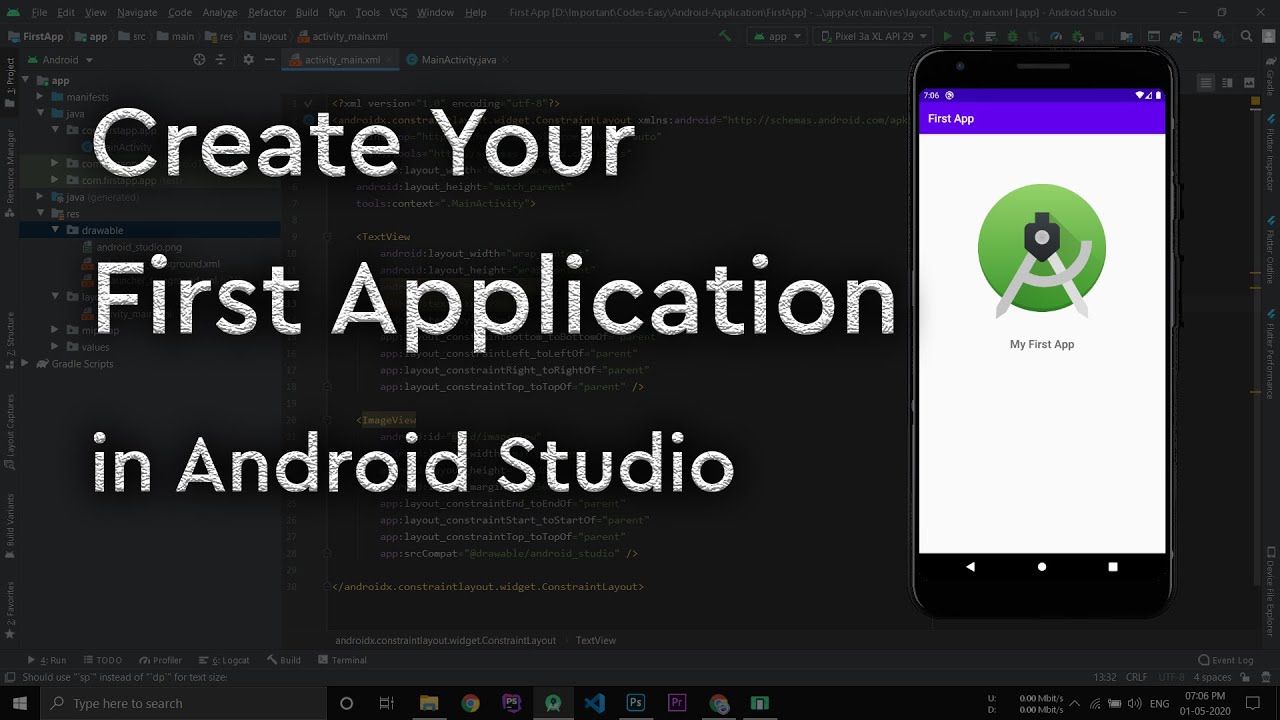
A fresh install opens to a Welcome screen offering New Project or Open. Once you’re inside a project, the main window splits into a project file tree, a central code or layout editor, and a Logcat panel below for output and debugging.
Who Should Choose Android Studio Over a Cross-Platform Framework?
Teams shipping one native app per platform fit Android Studio best, and so do teams that need deep Android API access or care most about having the fastest emulator and profiling tools available. A side by side look at native, hybrid, and cross-platform apps helps teams choose with more confidence.
What Commonly Goes Wrong During Android Studio Setup?
Gradle sync failures top the list, usually caused by a mismatched JDK version or a rejected SDK license. Missing virtualization support blocks the emulator from booting entirely, and a stale Android Gradle Plugin version tends to cause build errors right after an update.
How Do You Update Android Studio to a Newer Version?
Android Studio checks for updates on its own and prompts inside the IDE under Help, Check for Updates. A full walkthrough on how to update Android Studio covers switching channels from Stable to Beta or Canary for early access to new features.
What Should You Prioritize First in What Is Android Studio?
Two decisions matter more than everything else in the setup process combined: getting the JDK and Gradle versions to match whatever Android Gradle Plugin version the project actually requires, and defaulting new modules to Kotlin instead of Java. Turning on Gemini’s code suggestions before writing the first screen helps too, though it matters less than getting the build versions right.
A project compiled against Android Gradle Plugin 8.0 keeps building fine on every point release between that floor and version 9.4. Faster monthly IDE releases don’t force a Gradle Plugin bump every month, in other words, so there’s less to worry about here than the release cadence might suggest at first glance.
Once those priorities are settled, the practical next step is learning how to use Android Studio day to day.

- MongoDB Cheat Sheet - October 20, 2026
- Adding AI Video Generation to a Software Product: Architecture, Cost Guardrails and QA - October 20, 2026
- Show Hidden Characters, Spaces, and Line Endings in Notepad++ - October 19, 2026


