

Open Android Studio and the emulator doesn’t live where you might expect. You start it from Device Manager, not from some standalone app sitting elsewhere on your machine, and that trips up a fair number of people coming from other IDEs where the simulator opens as its own separate thing.
The emulator itself is a virtual device tool built into Android Studio. It boots a full Android system image on your computer and stands in for a physical phone, tablet, or wearable while you’re testing against it.
Most Android developers open it several times a day, and not because booting a virtual phone is thrilling. Checking an app against a dozen API levels and screen sizes is a lot cheaper than owning a dozen actual phones. How well any of that performs comes down to one thing more than anything else: whether your machine’s hardware acceleration is genuinely turned on. Get that wrong and a session that should feel like a real device instead crawls.
Android Studio’s current stable release, Quail 4, carries version 2026.1.4, and the emulator ships bundled with it already. Nothing extra to install (Android Developers, 2026).
What Is the Android Studio Emulator?
Under the hood, it’s QEMU doing the actual work, the same open source virtualization engine that runs a handful of other desktop emulators you’ve probably used before without realizing it. Google forked that engine and built graphics, sensor, and networking layers on top of it specifically for Android, and what shows up in Device Manager as a runnable device is the result.
People throw around “emulator” and “AVD” like they’re interchangeable, and they aren’t quite. An AVD, an Android Virtual Device, is the saved configuration: the phone profile, the system image, the storage settings, all of it. The emulator is just the program that boots whatever that configuration describes. You could have a dozen AVDs sitting unused on a machine and the emulator itself is still just one tool reading them, one at a time.
Worth clearing up what it isn’t, too:
- Not Genymotion or BlueStacks, both third party tools built outside the official Android SDK
- Not a browser based emulator, and not a cloud device farm, even though people mix those up constantly
- Not the AVD configuration itself either, which again is the blueprint, not the thing actually running
Because it ships bundled inside every install of Android Studio, there’s nothing extra to download once the IDE and SDK Tools are already in place. Most developers meet it for the first time early on in Android development, usually right after setting up their first project, and from there it quietly becomes the thing standing between “does this work” and buying a shelf of test phones.
Which System Image and API Level Should You Choose?
The system image is the actual Android build the emulator boots up, and picking the right one comes down to matching your app’s target API level against whatever kind of testing you’re actually trying to do. Get either one wrong and you’ll either waste a download or end up testing against a version nobody in your user base is running anymore.
Android Studio pulls these images through the SDK Manager, and here’s the part that catches people off guard the first time: not every image includes the Google Play Store.
| Image Type | Includes | Best For |
|---|---|---|
| Google Play | Play Store, Google Play services | In-app purchases, Play-dependent features |
| Google APIs | Google services, no Play Store | Maps, location, Firebase testing |
| AOSP | Open source Android only | Testing without Google dependencies |
Image Types
Google Play images are the only ones that are fully CTS compliant, and they’re also the only ones carrying the actual Play Store app. If a hardware profile shows a Play Store icon sitting in Device Manager, that’s your signal this image type is attached to it. Nothing else triggers that icon.
Google Play gets you the closest match to a device someone would actually buy off a shelf. Google APIs images are lighter and skip the Play Store itself, though Maps and Firebase still work fine on them. AOSP strips Google services out entirely, which some teams want specifically so they’re not accidentally depending on something Google-specific without realizing it.
CPU Architecture and Apple Silicon
The system image also has to match your host machine’s processor, and this trips up more people than the API level ever does. x86\_64 is the default for Intel and AMD machines running Windows or Linux. ARM64 is what you need on Apple Silicon Macs, because an x86 image on one of those runs through instruction translation and drags noticeably the whole time.
Both architectures sit side by side in the SDK Manager’s list, and once you know your way around the Android SDK tools, picking the right one stops being a guessing game.
How Do You Create a Virtual Device in Android Studio?
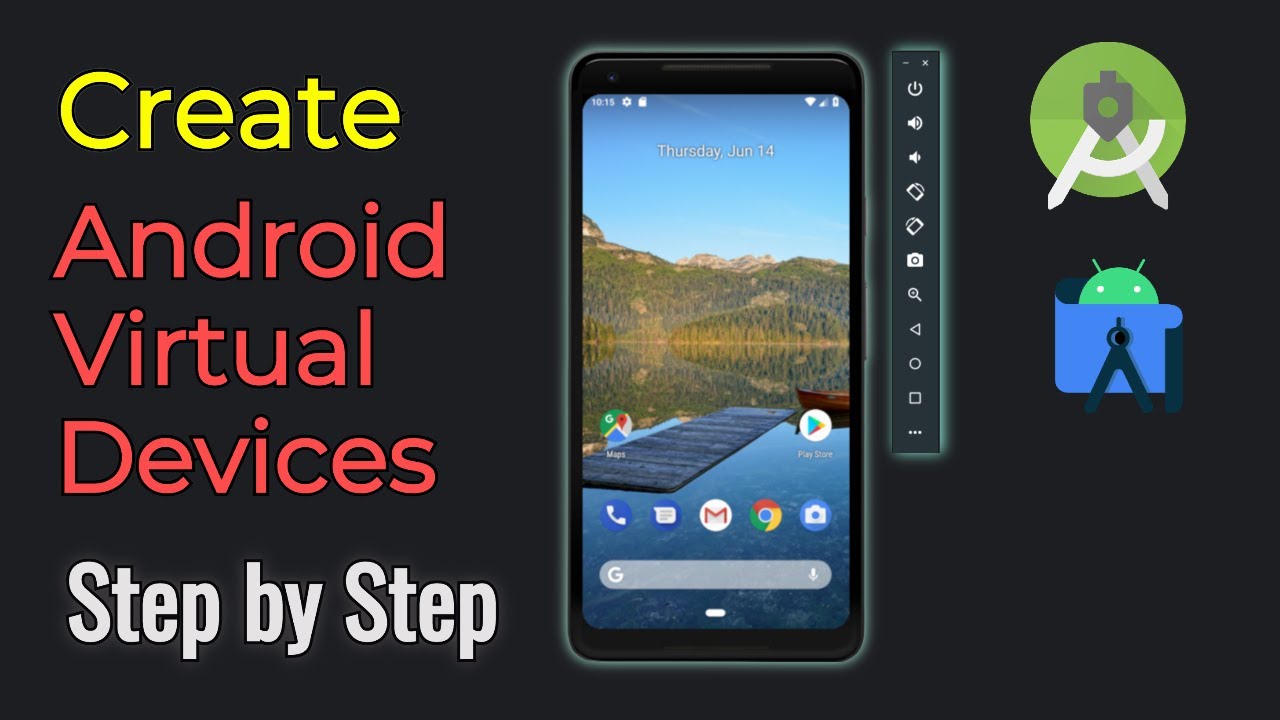
Google renamed the old AVD Manager to Device Manager a few versions back, though plenty of developers still call it the AVD Manager out of habit. Whatever you call it, this is where a new virtual device gets built.
- Open Device Manager from the Welcome screen, or from View, Tool Windows, Device Manager if you already have a project open
- Click the plus icon and select Create Virtual Device
- Pick a hardware profile. Pixel devices are the default, and Google tends to keep those the most current
- Select a system image for the API level you need, downloading it first if it isn’t already sitting on your machine
- Check the AVD name and storage settings on the verification screen, then click Finish
The new AVD then shows up in the Virtual tab of Device Manager, and it’ll also appear in the target device menu the next time you go to run something.
Every AVD’s files live under a hidden .android/avd folder on the host machine, tucked away separately from the Android Studio installation itself. Worth knowing if you ever need to manually clear space or move things around later.
Actually launching an AVD once it exists is its own topic, covered in more depth in this guide on opening the emulator in Android Studio.
How Do You Enable Hardware Acceleration and Improve Performance?
If there’s one setting that decides whether the emulator feels like a real phone or a slideshow, it’s hardware acceleration. It lets the emulator hand off to the host machine’s own processor virtualization instead of falling back to software emulation, and the difference in speed isn’t subtle.
Which accelerator you end up using depends entirely on which operating system you’re running, so a mixed team, some people on Windows, some on Mac, ends up with slightly different setup steps for each person.
Accelerator by Operating System
| Operating System | Accelerator | Notes |
|---|---|---|
| Windows | WHPX | Replacing AEHD, which is being retired |
| macOS | Hypervisor.Framework | Native to macOS, no separate driver |
| Linux | KVM | Built into most modern kernels |
Android Emulator 37.1.11, released July 30, 2026, now walks Windows users through switching to WHPX on its own, no manual digging through settings required.
AEHD, the older driver Windows used to rely on, is scheduled to sunset on December 31, 2026. Running an update to Android Studio now is the easiest way to get ahead of that before it turns into a problem (Android Developers, 2026).
Performance Settings in AVD Manager
A handful of settings inside the AVD’s advanced configuration screen matter more than the rest. RAM and VM heap control how much memory the virtual device itself gets, and that’s completely separate from your host machine’s total RAM, easy to assume otherwise until you check. CPU cores help too, mostly during heavy builds or when you’re multitasking inside the guest OS, though the gains taper off fast past four cores. Graphics rendering is its own decision entirely. Hardware, Software, and Auto modes determine whether your GPU or your CPU ends up drawing the screen, and picking Hardware when you’ve got a decent GPU is usually the obvious call.
A few numbers worth knowing before touching any of these settings. Google’s documentation puts the minimum RAM for a smooth session at 16 GB, and the minimum free disk space at the same figure, 16 GB (Android Developers documentation). The current stable emulator build sits at 37.1.11, released July 30, 2026 (Android Emulator release notes), and that AEHD sunset date on Windows lands December 31, 2026 (Android Emulator release notes, 2026).
None of this is academic once you’re running things at any real scale. Yelp’s Android team once pushed roughly 10,000 emulator instances a day through Firebase Test Lab just to cover eight production apps, and a number like that doesn’t hold up if acceleration isn’t switched on across the board (Yelp Engineering Blog, 2017).
How Do You Run Your App on the Emulator?
Running your app doesn’t happen inside the emulator window at all. It starts from the Run toolbar back in Android Studio itself. Select the running AVD as your deployment target, hit Run, and the build installs exactly the way it would on a physical phone plugged in over USB.
There’s a second way in too: drag an APK file straight onto the emulator window and it installs without needing a full project build. That only works once a build already exists somewhere, obviously, which is where knowing how to build an APK in Android Studio actually matters.
Once it’s installed, checking Logcat for the app’s process starting without a crash is the quickest way to confirm things actually worked. If you’d rather work from the command line, an ADB commands cheat sheet handles checking installed packages directly, no GUI needed.
Stability during repeated installs matters more than it sounds like it should, especially for teams doing this constantly. Nutrient, formerly PSPDFKit, moved its whole CI test suite off Genymotion and onto the Android Emulator after finding it held up better for automated installs (Nutrient Engineering Blog).
Most apps landing on the emulator are written in Kotlin or Java these days, though the emulator doesn’t care either way. And when you’re just tweaking a bit of UI, Apply Changes pushes that edit straight to the already running app, no full reinstall needed, which saves a surprising amount of time over a full day of iteration.
How Do You Control and Navigate the Emulator Window?
Once something’s actually running, you’re not limited to tapping the screen like it’s a real touchscreen. Control runs through the side toolbar, your keyboard, and your mouse just as much.
That side panel carries Home, Back, Recent Apps, volume, and rotate buttons, basically mirroring the hardware buttons on a real device. Click and drag to fake a swipe or a scroll. Hold Ctrl (or Cmd on macOS) while dragging for pinch and zoom. And if you forget any of it, F1 (or Command plus slash on a Mac) pulls up the full shortcut list.
Resizing the window is nothing special, just drag any edge or corner the way you’d resize any other window on your desktop. Resolution and DPI are a different story though. Those get changed from the AVD’s own configuration screen, not the running window, because the window only ever scales whatever the AVD already defines.
None of this is really unique to Android Studio, it behaves like any other desktop app window would. Which, honestly, is kind of the point.
How Do You Simulate Location, Sensors, and Device Conditions with Extended Controls?
Click the three dot More icon in the emulator toolbar and you land on Extended Controls, the panel built specifically to fake real world hardware states the emulator otherwise has no way to produce. A few of its tabs only work when the emulator’s running in its own separate window rather than docked inside the main Android Studio frame, worth knowing before you go hunting for a missing tab.
Location and Sensors
The Location tab fakes GPS coordinates through an embedded Google Maps view, basically the same as searching a place on your actual phone. Drop a pin or search for one and send that single coordinate straight to the running AVD. Or, if you’re testing a navigation app, load an entire route with multiple waypoints and play it back at whatever speed you set.
Virtual Sensors picks up the rest of a phone’s physical state. That covers the accelerometer and gyroscope, including simulated tilt. It covers magnetic field readings broken into north, east, and vertical components. Temperature, light, pressure, humidity, all of it is in there too, and proximity is included for testing what happens to the screen during a call.
Battery, Cellular, and Camera
Google’s documentation notes the same panel can add up to two secondary displays to a running AVD, handy for testing multi-window and foldable layouts (Android Developers documentation).
Battery gets a slider for charge level, plus separate toggles covering charger connection, battery health, and charging status. Cellular lets you pick a network type and signal strength, or force something like roaming, so you can actually watch how the app reacts instead of guessing. Camera is the odd one out. Instead of relying on your webcam feed, you load a still image straight into the simulated camera scene, which turns out to be genuinely useful for AR feature testing.
None of it requires touching a real device. That’s the entire reason the panel exists in the first place.
What Is the Difference Between Cold Boot and Quick Boot, and How Do Snapshots Work?
A cold boot loads the entire operating system from scratch, basically the same thing that happens the moment you power on a real phone. It’s slow for the same reason a real phone’s first boot after a restart is slow.
Quick Boot skips all of that. It restores a saved snapshot of wherever the last session left off, and that’s the whole reason it feels almost instant next to a cold boot. You’ll hit a cold boot automatically the first time an AVD launches, and after that only if you manually pick it from the dropdown next to the run arrow. Every launch after the first defaults to Quick Boot instead, picking up exactly where things were closed, open apps and all, which is genuinely one of the more pleasant surprises for anyone coming from an older Android Studio setup.
It’s a similar idea to how a virtual machine suspends and resumes, though an AVD isn’t quite the same kind of construct under the hood.
Snapshots aren’t only saved automatically on close, you can save and load them manually from Extended Controls whenever you want a specific checkpoint to return to. Just know each one adds to the AVD’s disk footprint, sometimes by several gigabytes, so an AVD that’s been running for months can quietly balloon in size. Deleting the old ones from the AVD’s file location is the fix, and it’s easy to forget until you’re staring at a full disk warning.
How Do You Configure Networking and Connect the Emulator to Other Devices?
A running AVD reaches the internet through your host machine’s own connection by default, nothing to configure. If you need something more specific, a proxy, a DNS override, those get set through the emulator’s command line flags or through Extended Controls instead.
Emulator 36.5.10, released April 2, 2026, shipped a new networking stack that finally lets separate AVD instances discover and talk to each other on their own (Android Developers, 2026). That quietly replaced what used to be a genuine annoyance: manually setting up port forwarding just to get two virtual devices talking to one another.
The new stack means Wi-Fi Direct and Network Service Discovery now work between AVDs right out of the box, and the connection drops and data loss issues the older networking stack was known for show up a lot less often too.
And unlike wiring a real phone up over USB to connect it to Android Studio, none of this multi device testing needs a cable anywhere in sight.
How Do You Fix Common Android Studio Emulator Problems?
When the emulator breaks, the cause is almost always boring. Nine times out of ten it traces back to the accelerator not being active, a graphics driver that’s out of date, or a disk that’s quietly filled up.
| Problem | Likely Cause | Fix |
|---|---|---|
| Emulator won’t start | Accelerator not installed or disabled | Check SDK Tools, confirm WHPX, KVM, or Hypervisor.Framework is active |
| Black screen on launch | Intel GPU rendering bug | Update to emulator 36.5.11 or later |
| Storage full error | AVD data partition maxed out | Wipe data, or resize storage in AVD settings |
| Multiple instances conflict | Port or lock file collisions | Close stale instances, restart Device Manager |
The black screen issue that shows up on Intel GPUs, tracked as issue 492228020, got fixed in emulator version 36.5.11, released April 23, 2026 (Android Emulator release notes, 2026). If you’re still seeing it, updating through the SDK Manager is the fix, not some workaround someone posted on a forum years ago.
Before you go filing a bug report, check Logcat first for the actual crash reason rather than just the symptom staring back at you on screen. Confirm the system image and the accelerator actually match your host machine’s architecture too, that mismatch causes more phantom bugs than people realize. And try a cold boot once before anything else, since a corrupted snapshot can look exactly like a hang.
When Does the Android Studio Emulator Not Work, and When Should You Use a Physical Device Instead?
There are two situations where the emulator just won’t cut it. One is when your app needs hardware the emulator has no way of faking. The other is when the app itself is actively checking whether it’s running on real hardware, and reacting accordingly.
Google actually documents the hardware gaps directly rather than leaving developers to stumble onto them one crash at a time. As of the documentation last confirmed current in 2025, the emulator has no Bluetooth, no NFC, no SD card insert or eject events, no simulated headphones being physically plugged in, and no USB.
Root and emulator detection is the other wall people run into. Banking apps and anything with DRM protected content tend to check build properties, sensors, and known package names to spot Genymotion, BlueStacks, or the Android emulator itself, then block or limit functionality the moment something looks virtual. It’s standard practice at this point, and it’s covered in mobile application penetration testing tools guidance, including OWASP’s Mobile Application Security Testing Guide.
The emulator wins on cost and convenience. It’s free, fast to reset, and lets you run a dozen API levels side by side without a shelf full of phones. What it can’t do is test Bluetooth, NFC, or actual battery drain, and any app doing root or emulator detection is going to block it outright.
A physical device flips most of that around. It’s the only accurate way to test NFC, Bluetooth accessories, or a real network handoff between towers, and it passes root and emulator detection by default since, well, it’s real. The tradeoff is cost. Every device costs money, and none of it scales the way spinning up ten emulator instances does for parallel test runs.
Neither one replaces the other. Most teams end up needing both, whether they planned for that or not.
How Does the Android Studio Emulator Compare to Genymotion, BlueStacks, and Firebase Test Lab?
All three of these run virtual Android devices in some form, but none of them are really solving the same problem the built in emulator solves.
| Tool | Type | Best For | Cost |
|---|---|---|---|
| Android Studio Emulator | Local, bundled with the IDE | Day to day development | Free |
| Genymotion | Desktop and cloud virtual devices | QA teams needing many device profiles | $239.99/year per computer, Individual plan |
| BlueStacks | Consumer Android player | Running mobile games on a PC | Free, with paid tiers |
| Firebase Test Lab | Cloud device farm | CI pipelines and release testing at scale | Free tier, then metered |
Genymotion’s Individual desktop license runs $239.99 a year per computer, and the Business tier jumps to $479.99 a year per user and workstation (Genymotion, 2026).
BlueStacks, meanwhile, is built around gaming performance and Google Play access on a desktop screen. It’s not really aimed at automated app debugging, so it rarely shows up anywhere in a developer’s actual test workflow, no matter how popular it is with consumers.
Firebase Test Lab’s free Spark plan gives you 10 test runs a day on virtual devices, plus a separate 5 run daily allowance on physical hardware (Firebase documentation, 2025). Once you’re past that free quota, Blaze plan billing kicks in, priced per device hour.
Which one makes sense usually comes down to where the testing needs to happen rather than which tool is objectively better. Local and free work stays with the Android Studio emulator. Paid desktop or cloud devices at real scale point toward Genymotion. Gaming or consumer use has nothing to do with development, so that’s BlueStacks territory. And cloud CI with release gating is what Firebase Test Lab is actually built for.
How Do You Run the Android Studio Emulator Headless for Automated Testing?
Headless just means starting the emulator with no visible window at all, which is exactly what most CI systems need since there’s nothing there capable of displaying a GUI in the first place. The -no-window flag on the emulator command line handles that.
A typical headless launch adds a few more flags alongside it:
- -no-window, to skip rendering a GUI
- -no-audio, since CI runners have no sound hardware anyway
- -no-boot-anim, to shave a few seconds off startup
Docker is the usual way people package this for a CI pipeline, though the container needs to run in privileged mode or KVM based acceleration won’t work on Linux runners. Getting these flags right the first time saves you from rebuilding the whole image later, which is exactly where a Docker cheat sheet earns its keep.
FlowBinding, an open source Android UI testing library, runs over 160 instrumented tests across 10 library modules through a headless emulator on every single pull request (FlowBinding project documentation). Wiring that into GitHub Actions rather than a self hosted Jenkins box has become the more common setup for smaller teams these days.
Hardware acceleration is still the limiting factor even here. A CI host with no nested virtualization support will technically still run the emulator. It’s just slow enough that the whole exercise stops being worth it.
FAQ on How To Use Android Studio Emulator
Is the Android Studio Emulator Built on QEMU?
It is, yes. QEMU is the open source virtualization engine underneath it, and it’s used well outside of Android development too. Google forked it and added graphics, sensor, and networking layers built specifically for Android virtual devices on top.
Do You Need 16 GB of RAM to Run the Android Studio Emulator?
Google’s stated minimum is 16 GB of host RAM, and that’s the RAM on your actual machine, not what you assign to the AVD itself. You can get it running on less than that. Just expect longer cold boots, sluggish rendering, and the occasional freeze once things get heavier.
Is the Android Studio Emulator Free to Use?
Completely free. It’s bundled inside Android Studio at no cost, no license key, no seat limit, no subscription tier hiding behind it anywhere. That alone sets it apart from Genymotion’s paid desktop plans or Firebase Test Lab’s metered pricing once you burn through the free quota.
Can You Test Wear OS, Android TV, or Foldable Apps in the Emulator?
You can, each one gets its own device profile inside Device Manager. Wear OS images simulate round and square watch faces, Android TV profiles switch to a remote control input model, and foldable profiles let you toggle between folded and unfolded screen states.
What Should You Fix First in How To Use Android Studio Emulator?
If your Android Studio emulator setup feels off, start with the accelerator. Not the AVD’s RAM slider, not the graphics rendering mode, the accelerator, because literally everything else you might tune depends on that piece already working correctly on the machine running it.
- Enable the accelerator for your host operating system first
- Confirm RAM and rendering mode only once acceleration is actually active
- Troubleshoot individual app behavior last, after you’ve ruled out the AVD itself
Prioritizing the accelerator this way does mean accepting default memory and VM heap values that aren’t perfectly optimized for every single app you’ll ever run. That’s a trade worth making anyway. Acceleration failures burn more debugging time than heap tuning ever saves you back, and it’s not particularly close.
That same order of operations carries over into the wider guide on using Android Studio once the emulator itself stops being the thing slowing you down.

- MongoDB Cheat Sheet - October 20, 2026
- Adding AI Video Generation to a Software Product: Architecture, Cost Guardrails and QA - October 20, 2026
- Show Hidden Characters, Spaces, and Line Endings in Notepad++ - October 19, 2026


