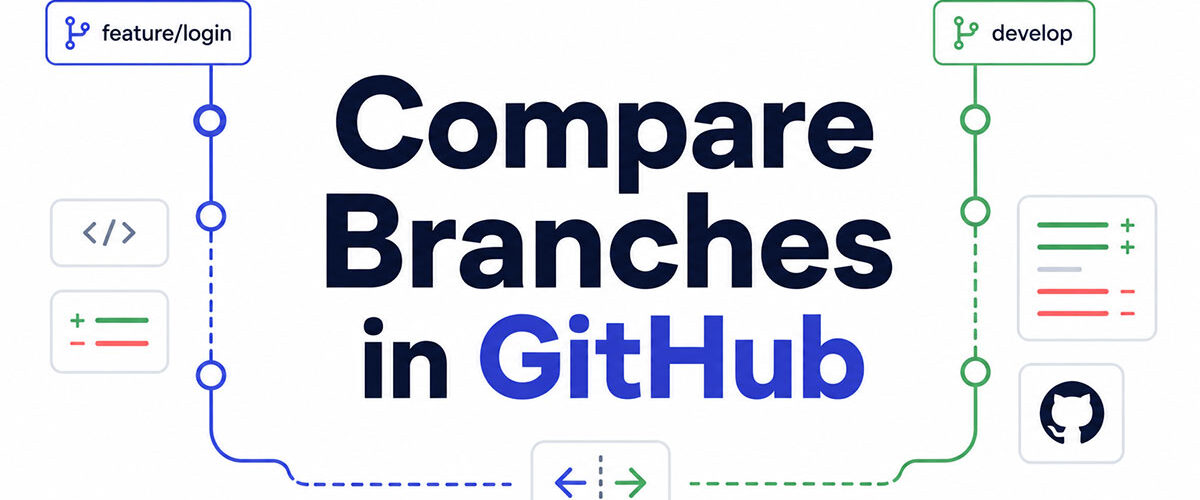
Branch divergence is one of the most common sources of broken merges, missed changes, and wasted review time in collaborative development.
Knowing how to compare branches in GitHub, whether through the compare page, the Git CLI, or the GitHub API, gives you a clear picture of what changed before anything gets merged.
This guide covers every method: the GitHub UI, git diff commands, pull request diffs, cross-fork comparison, the gh CLI, VS Code with GitLens, programmatic API access, common errors, and automating branch comparison inside GitHub Actions workflows.
What Is Branch Comparison in GitHub?

Branch comparison in GitHub is the process of identifying differences in commits, file changes, and line-level code between 2 branches in a git repository.
GitHub surfaces these differences through 2 primary methods: the Compare page (a standalone view accessible via URL) and the pull request diff view (embedded inside a PR). Both pull from the same underlying data, but serve different points in the development workflow.
The comparison always involves 2 roles: a base branch (what you’re comparing against) and a compare branch (the branch containing your changes). GitHub calculates the diff between them using the merge base as the reference point, not the current tip of the base branch.
This distinction matters. Git diff compares endpoints directly, while GitHub’s compare view uses the 3-dot method by default, showing only what the compare branch introduced since the 2 branches diverged.
What Is the Difference Between Local and Remote Branch Comparison?
Local comparison runs entirely through the Git CLI against your local copy of the repository. You need the branch fetched to your machine for the diff to work.
Remote comparison happens in the GitHub UI or via the GitHub API. No local checkout needed. GitHub reads directly from its hosted version of the repository.
| Method | Where It Runs | Requires Local Branch | Best For |
|---|---|---|---|
| Git CLI | Local machine / CI environment | Yes (for most operations) | Scripting, automation, advanced Git control, CI workflows |
| GitHub UI | Browser | No | Code review, pull requests, repository management, quick inspections |
| GitHub API | Remote (programmatic) | No | Automation, integrations, bots, bulk operations |
| VS Code | Local machine (or remote via Codespaces) | Not always | In-editor development, diff review, PR browsing, remote repo inspection |
GitHub Octoverse 2025 data shows monthly pull request merges averaged 43.2 million, a 23% increase year-over-year. Most of that activity involves branch comparison at some stage.
What Does the GitHub Compare Page Show?

The GitHub compare page outputs 4 data points for any 2 branches: the commit list, the number of files changed, total line additions, and total line deletions.
It also flags merge conflicts directly in the view, showing which files have conflicting changes before you attempt a merge. This is one of the most useful parts of the compare page that developers overlook.
The URL structure follows this pattern:
github.com/{owner}/{repo}/compare/{base}...{compare}
You can edit this URL directly in your browser to swap branches without navigating through the GitHub UI. Useful when you already know the branch names.
Two-Dot vs. Three-Dot Diff in GitHub
This is where most developers get confused, and it’s worth being precise about.
Two-dot diff (git diff A..B): compares the tip of branch A directly against the tip of branch B. Shows every difference between the 2 current states.
Three-dot diff (git diff A…B): finds the common ancestor of A and B, then compares that ancestor against the tip of B. Shows only what branch B introduced since the divergence point.
GitHub’s pull request view uses the 3-dot method by default (GitHub Docs, 2024). This means the PR diff shows what your feature branch added, not what differs between the 2 branch tips right now.
According to GitHub Docs, if the base branch receives new commits after your feature branch was created, the 3-dot diff still shows only your changes. The 2-dot diff would show your changes plus everything added to the base branch since you branched off.
| Notation | Reference Point | What It Shows | GitHub Default |
|---|---|---|---|
A..B | From A to B (range) | Commits reachable from B but not A (what B has that A doesn’t) | No |
A...B | Symmetric difference | Commits reachable from either A or B, but not both | No (Git uses it in CLI diffs, not PR view directly) |
For most code review scenarios, the 3-dot view is what you actually want. You care about what the feature branch adds, not the cumulative state difference between 2 moving targets.
How to Compare Branches in GitHub Using the UI
GitHub’s compare page gives you a full visual branch diff in 3 steps: navigate to the compare URL, select your branches, read the output.
92% of projects using Git enforce code review before merging changes (Hutte, 2024). The GitHub UI is the most common interface for that review process.
Navigating to the Compare Page
3 ways to get there:
- Go to github.com/{owner}/{repo}/compare directly
- Click the “branches” tab inside a repository, then select “Compare” next to any branch
- Edit the compare URL manually with your branch names
Once on the page, 2 dropdowns appear: base and compare. Select your branches. GitHub loads the diff immediately.
Reading the Compare View Output
The compare page is split into 2 tabs: Commits and Files changed.
The Commits tab lists every commit present in the compare branch but not in the base branch. Each commit links to its full diff view.
The Files changed tab shows the line-level diff for every modified file. Green lines with a + prefix are additions. Red lines with a – prefix are deletions.
At the top of the page, GitHub shows the summary counts: how many commits ahead, how many files changed, and the total additions and deletions. This summary is the fastest way to gauge the size of a change before reading any code.
Unified Diff vs. Split Diff View
Unified view shows the old and new code in a single column, interleaved. Additions and deletions appear in sequence. Compact but harder to read for large changes.
Split view shows old code on the left, new code on the right. Much easier to track what changed in complex edits. Toggle between them using the gear icon in the Files changed tab.
GitHub remembers your preference per pull request, but not across all compare views globally.
How to Compare Branches Using Git CLI
Git diff is the primary command for branch comparison in the terminal. It outputs line-level changes between any 2 references, including branches, commits, and tags.
Around 60% of teams use a feature-branch workflow where branch comparison via CLI is a daily operation (Hutte, 2024).
Core Git Diff Commands for Branch Comparison
Line-level diff between 2 branches:
git diff branch1..branch2
Changes since common ancestor (mirrors GitHub’s PR view):
git diff branch1...branch2
File-level summary only (no line content):
git diff --stat branch1..branch2
List of changed filenames only:
git diff --name-only branch1..branch2
Filenames with change type (M=modified, A=added, D=deleted):
git diff --name-status branch1..branch2
GitClear analyzed 12,638 pull requests in 2024 and found that better diff tooling reduced lines a reviewer needs to read by over 20% compared to the default Myers algorithm. The –stat flag is the quickest way to get that overview before diving into line-level content.
Comparing a Local Branch Against a Remote Branch
First, fetch the remote branch to make it available locally:
git fetch origin
Then run the diff against the remote tracking branch directly:
git diff main..origin/feature-branch
No checkout needed. The origin/ prefix tells Git to use the remote tracking reference instead of a local branch. About 70% of developers run git fetch daily to keep their local state current (Hutte, 2024). This is exactly why.
Filtering the Diff by File or Directory
Append a path after — to scope the diff to a specific file or folder:
git diff branch1..branch2 -- src/components/
This is one of the most underused features in the Git command set. On large repositories where a branch diff runs hundreds of files, filtering by directory cuts the output down to what actually matters for your review.
How to Compare Branches in a Pull Request
A pull request on GitHub is, at its core, a branch comparison view with a conversation layer on top. The Files changed tab shows the same 3-dot diff as the compare page, but with inline commenting and review tracking built in.
85% of collaborative projects use pull or merge requests in their workflow (Hutte, 2024). The PR diff view is the most widely used branch comparison interface in software development.
What the PR Diff View Shows
The pull request splits into 3 tabs that serve different comparison needs:
- Conversation: comments, reviews, and merge history
- Commits: each individual commit on the compare branch
- Files changed: the full line-level diff across all modified files
The Files changed tab is where the branch comparison happens. GitHub uses the 3-dot diff method here, comparing the compare branch against the merge base, not the current tip of the base branch.
How GitHub Calculates the Diff Base When Main Has Moved Forward
This trips people up. If the base branch receives new commits after your PR was opened, GitHub does not automatically update the diff base. The PR still shows your changes relative to the original merge base.
The result: files modified in both the base branch and your feature branch may appear in the diff even if the conflict was resolved. Merging the base branch into your feature branch recalculates the merge base and clears the diff of those stale entries.
GitHub Docs recommends merging the base branch into your topic branch frequently for this reason. When the branches are in sync, the 2-dot and 3-dot diffs produce identical output.
Tracking File Changes Across Commits in a PR
The Files changed tab aggregates changes across all commits in the PR. Individual commits are listed in the Commits tab.
GitHub marks reviewed files with a checkmark in the Files changed tab. Once you check a file, it collapses and the progress bar at the top of the PR updates. On large PRs with dozens of files, this is the only practical way to track your review progress.
The pull request approval process sits at the end of this review flow.
How to Compare Branches Across Forks
Comparing branches across forks requires a different URL format than same-repository comparison. GitHub supports cross-fork diffs natively, but the syntax changes.
About 55% of open-source projects on GitHub prefer contributors to fork the repository before submitting pull requests (Hutte, 2024). Cross-fork comparison is therefore a routine part of open-source contribution review.
The Cross-Fork Compare URL Format
The standard compare URL uses this structure for cross-fork comparison:
github.com/{owner}/{repo}/compare/{owner}:{base}...{other-owner}:{compare}
For example, comparing the main branch of the original repo against a feature branch on a fork:
github.com/original-owner/repo/compare/original-owner:main...fork-owner:feature
The colon syntax tells GitHub which repository each branch belongs to. Without it, GitHub assumes both branches are in the same repository.
Using the “Compare Across Forks” Toggle
The GitHub compare page shows a “compare across forks” link below the base branch dropdown. Clicking it expands both dropdowns to include forks of the repository.
This is the easiest path if you’re doing this manually. Select the fork from the dropdown, then select the branch within that fork. GitHub builds the cross-fork URL automatically.
Fetching a Fork’s Branch Locally for Full Diff Access
The GitHub UI truncates very large diffs. For complete diff access on a large fork branch, fetch it locally:
git remote add fork https://github.com/fork-owner/repo.git git fetch fork feature-branch git diff main..fork/feature-branch
This gives you the full git diff output without truncation, plus access to all filtering flags (–stat, –name-only, directory scoping) that the GitHub UI doesn’t support.
Understanding what a fork is in GitHub is the prerequisite for this workflow. A fork is an independent copy of a repository under a different owner, not just a branch.
How to Compare Branches Using GitHub CLI (gh)
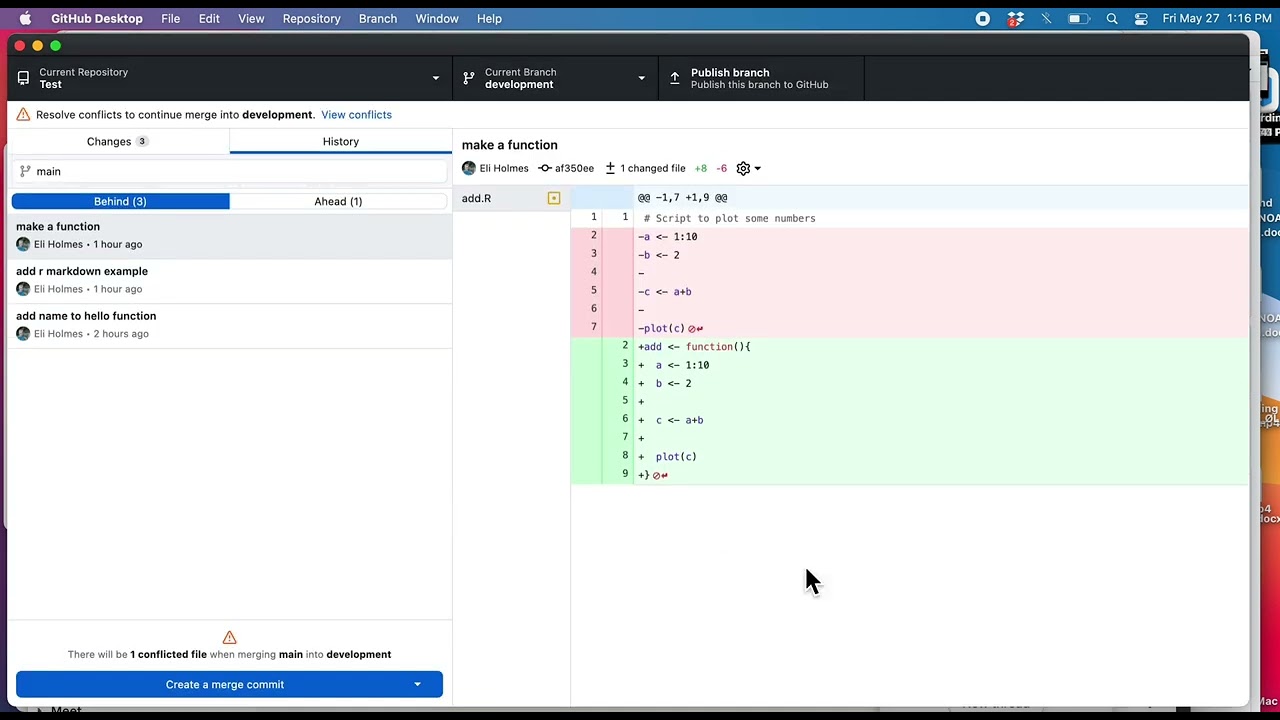
The GitHub CLI (gh) gives you branch comparison output from the terminal without opening a browser. It’s faster than navigating the UI when you already know what you’re looking for.
GitHub Actions workflows reached over 5 million daily in 2025, up from 4 million the year before (Hutte research via GitHub data). The gh CLI fits directly into those automated workflows alongside the UI.
Comparing a Branch Against Its PR Base
If a pull request exists for the current branch, this command shows the full diff against the PR’s base branch:
gh pr diff
Run it from inside the repository with the feature branch checked out. No branch names needed. gh detects the PR automatically.
To view a specific PR by number:
gh pr diff 42
Output Format Options
Default output: unified diff format, same as git diff.
Patch file: pipe the output to a file for sharing or applying elsewhere.
gh pr diff 42 > changes.patch
The patch file is compatible with git apply. Useful when you want someone to test your changes without access to your branch.
When gh CLI Is Faster Than the Browser
3 scenarios where gh wins over the GitHub UI:
- You need the diff as a file, not a visual view
- You’re already in the terminal and switching to a browser breaks focus
- You want to pipe the diff output into another tool (grep, wc, a script)
The gh CLI installation takes under 2 minutes and requires only a gh auth login to connect to your GitHub account. After that, gh pr diff works from any repository directory.
How to Compare Branches in VS Code with GitHub Integration
VS Code has 3 layers of branch comparison built in: the native Source Control panel, the GitHub Pull Requests and Issues extension, and GitLens for deeper inspection.
Each one covers a different scenario. The native panel works for quick local diffs. The GitHub extension brings PR review into the editor. GitLens handles commit graph, line history, and reference comparisons that neither of the others support.
Using the Source Control Panel
Built-in diff access, no extensions needed:
- Open the Source Control panel (Ctrl+Shift+G)
- Click any modified file to open a side-by-side diff editor
- Switch branches to compare different branch states
VS Code’s split diff editor shows old code on the left and new code on the right, same layout as GitHub’s split view. The comparison is against your current working tree, not a remote branch reference.
If you need to compare against a remote branch, connect VS Code to GitHub first and fetch the remote branches to make them available locally.
GitHub Pull Requests and Issues Extension
78% of projects using Git integrate with a CI/CD tool, and the GitHub Pull Requests extension brings that integration directly into the editor (Hutte, 2024).
Once installed, the extension adds a dedicated PR view to the activity bar. Opening a PR inside VS Code loads the branch diff in the editor with inline commenting enabled. You can approve, request changes, and submit reviews without leaving the IDE.
Key difference from the browser: the in-editor review lets you use VS Code’s full search, navigation, and debugging tools on the diff files while you’re reviewing them. That context is something the GitHub browser UI can’t match.
GitLens Branch Comparison
GitLens adds a dedicated “Compare References” command to the VS Code command palette. Select any 2 branches, tags, or commits and GitLens opens a comparison view showing commits ahead, commits behind, and file-level diffs between them.
The Commits view inside GitLens also has a branch comparison tool built directly into it, showing which commits are ahead of or behind the selected reference. This is the fastest way to answer “what does this branch have that main doesn’t?” without leaving your editor.
GitLens also tracks line history, so you can see when a specific line was changed and on which branch. That’s useful during review when a changed line has unclear context.
How to Compare Branches Programmatically Using the GitHub API
The GitHub REST API exposes a compare endpoint that returns the full branch diff as structured data. This is the foundation for any automated branch comparison: CI pipelines, deployment guards, changelog generators, or custom tooling.
GitHub Actions workflows exceeded 5 million daily runs in 2025, a 50% increase in continuous deployment usage year-over-year (electroiq.com). Most of that automation relies on the same API endpoints under the hood.
REST API Endpoint and Response Fields
Endpoint:
GET /repos/{owner}/{repo}/compare/{base}...{head}
The response returns 6 key fields for branch sync status and diff content:
| Field | Type | What It Returns |
|---|---|---|
status | string | Relationship between refs: "ahead", "behind", "diverged", or "identical" |
ahead_by | integer | Number of commits in head not in base |
behind_by | integer | Number of commits in base not in head |
commits | array | List of commit objects in the comparison range |
files | array | Changed files with additions/deletions and patch data (may be truncated in large diffs) |
The ahead_by and behind_by fields are especially useful in CI/CD logic. A pipeline can check whether a feature branch is behind main by more than N commits and block a merge until the branch is brought up to date.
Using the API in CI/CD Pipeline Logic
Teams that automate branch checks in CI catch divergence before it becomes a merge conflict, rather than at review time.
A common pattern uses the compare endpoint in a workflow step:
- name: Check branch sync
  env:
    GH_TOKEN: ${{ github.token }}
  run: |
    RESULT=$(gh api "repos/${{ github.repository }}/compare/main...${{ github.head_ref }}")
    BEHIND=$(echo "$RESULT" | jq '.behind_by')
    if [ "$BEHIND" -gt 10 ]; then
      echo "Branch is $BEHIND commits behind main. Sync required."
      exit 1
    fi
The non-zero exit fails the job, which blocks the deployment when the branch has drifted too far from its base. This is most useful on large teams, where long-lived branches accumulate merge risk quietly.
GraphQL vs REST for Branch Comparison Data
REST API: works with arbitrary SHAs, returns the full diff including patch text. No field filtering available, which can cause large payloads for branches with many changed files.
GraphQL API: supports field selection, so you can request only filenames without pulling the full patch. Better for metadata-only comparisons where you just need the file list, not line-level content (GitHub Community, 2025).
For most automation use cases, the REST endpoint is the practical choice. It works immediately with branch names, no GraphQL schema knowledge needed, and the response includes everything required for continuous integration checks.
What Are Common Errors When Comparing Branches in GitHub?
Nearly 90% of developers have faced merge conflicts, and a significant portion of those first surface during branch comparison (Hutte, 2024).
Most branch comparison errors fall into 4 categories: missing common history, UI truncation, stale state issues, and CLI context problems. Each has a specific fix.
“There Isn’t Anything to Compare” Error
This error has 2 distinct causes that look identical in the UI but require different fixes.
Cause 1: Branches are identical. The compare branch has no commits that the base branch doesn’t already have. Check the commit history of both branches to confirm.
Cause 2: Branches have entirely different commit histories. This happens when a repository is initialized locally and pushed to a remote that already has content, creating 2 unrelated histories with no common ancestor.
Fix for Cause 2:
git fetch origin git merge origin/main --allow-unrelated-histories
After merging the unrelated histories, the branches share a common ancestor and the compare view works normally.
GitHub Diff Truncation on Large Branches
GitHub truncates diffs in the browser UI when a branch comparison involves too many files or too many changed lines. The page displays a warning and hides the remaining files.
How to get the full diff: use the CLI or API instead.
- CLI: git diff branch1..branch2 (no truncation limit)
- API: GET /repos/{owner}/{repo}/compare/{base}…{head} with pagination on the files array
- Raw diff URL: append .diff to the compare URL for a plain text output
Detached HEAD State Affecting Local Diff
Running git diff while in a detached HEAD state compares against the current commit, not a named branch.
Check your state with git status. If the output says “HEAD detached at [commit hash],” reattach to a branch before running branch comparisons:
git checkout main
Understanding what a detached HEAD is in Git prevents this from causing confusion during comparison workflows.
How to Compare Branches in GitHub Actions

GitHub Actions can run branch comparisons automatically as part of any workflow: on pull request open, on push, or on a schedule. The comparison data feeds conditional logic that controls whether subsequent jobs run.
Over 5 million GitHub Actions workflows run daily as of 2025, with continuous deployment usage up 50% year-over-year (electroiq.com). Branch comparison steps are a standard component in most CI pipelines.
Using git diff Inside a Workflow Step
The most direct approach. Add a checkout step first, then run git diff against the base branch:
- uses: actions/checkout@v4
  with:
    fetch-depth: 0
- name: Compare branches
  run: |
    git diff "origin/${{ github.base_ref }}...origin/${{ github.head_ref }}" --name-only
Critical detail: set fetch-depth: 0 in the checkout step. The default shallow clone fetches only the most recent commit, so git diff has no merge base to compare against and the step fails.
github.baseref and github.headref Context Variables
These 2 context variables replace hardcoded branch names in comparison commands:
- github.baseref: the target branch of the pull request (e.g., main
)
- github.headref: the source branch being compared (e.g., feature/login
)
Both are available on pullrequest events. On push events, use github.ref and github.event.before instead to get the before-and-after commit SHAs.
Running Conditional Steps Based on Changed Files
Skipping work that the diff makes unnecessary is one of the highest-impact optimizations available in a pipeline.
The pattern uses git diff --name-only to check which directories changed, then sets an output variable that controls downstream steps:
- name: Check changed paths
  id: changes
  run: |
    CHANGED=$(git diff "origin/${{ github.base_ref }}...HEAD" --name-only)
    if echo "$CHANGED" | grep -q "^src/api/"; then
      echo "api_changed=true" >> "$GITHUB_OUTPUT"
    else
      echo "api_changed=false" >> "$GITHUB_OUTPUT"
    fi

- name: Run API tests
  if: steps.changes.outputs.api_changed == 'true'
  run: npm run test:api
This requires fetch-depth: 0 on the checkout step, since the diff needs the base branch history. To gate a separate job rather than a step, promote the value to a job-level outputs: block and reference it from the dependent job’s needs context.
The build pipeline only runs the API test suite when files inside src/api/ actually changed. On a large monorepo, this can cut workflow run time by 60-80% on most PRs.
The GitHub Actions paths trigger filter does something similar at the workflow level, but the manual approach above gives more granular control over individual job conditions within a single workflow file.
FAQ on How To Compare Branches In GitHub
How do I compare two branches in GitHub?
Go to github.com/{owner}/{repo}/compare, select your base branch and compare branch from the dropdowns. GitHub loads the commit list and file-level diff immediately. You can also edit the compare URL directly with your branch names.
What does the GitHub compare page show?
It shows 4 outputs: the commit list, files changed count, line additions, and line deletions. GitHub also flags merge conflicts directly in the view. The URL follows the pattern {repo}/compare/{base}…{compare}.
What is the difference between two-dot and three-dot diff in GitHub?
A two-dot diff (A..B) compares branch tips directly. A three-dot diff (A…B) compares branch B against the common ancestor of both branches. GitHub pull requests use the three-dot method by default.
How do I compare branches using the Git CLI?
Run git diff branch1..branch2 for a line-level diff. Use –stat for a file summary, –name-only for filenames only. Append a path after — to scope the diff to a specific directory.
How do I compare a local branch against a remote branch?
Run git fetch origin first, then use git diff main..origin/feature-branch. The origin/ prefix references the remote tracking branch. No local checkout of the remote branch is required.
Can I compare branches across forks on GitHub?
Yes. Use the “compare across forks” toggle on the compare page, or edit the URL directly: {owner}:{base}…{fork-owner}:{compare}. For large diffs, fetch the fork locally and run git diff to avoid UI truncation.
How do I compare branches inside VS Code?
Use the built-in Source Control panel for local diffs. Install the GitHub Pull Requests extension for in-editor PR review. GitLens adds a dedicated “Compare References” command for comparing any 2 branches, tags, or commits directly.
How do I use the GitHub API to compare branches?
Call GET /repos/{owner}/{repo}/compare/{base}…{head}. The response includes aheadby, behindby, status, commits, and files. Use aheadby and behindby values to drive CI/CD pipeline logic programmatically.
Why does GitHub show “There isn’t anything to compare”?
Either the branches are identical, or they have entirely different commit histories with no common ancestor. For unrelated histories, run git merge origin/main –allow-unrelated-histories locally to create a shared base before comparing.
How do I compare branches in GitHub Actions?
Use actions/checkout@v4 with fetch-depth: 0, then run git diff origin/${{ github.baseref }}…${{ github.headref }} –name-only. Use github.baseref and github.headref context variables to avoid hardcoding branch names.
Conclusion
This conclusion is for an article presenting every practical method to run a branch comparison in GitHub, from the compare URL and pull request diff view to git diff commands, the gh CLI, and the REST API compare endpoint.
The right method depends on context. Quick visual check? Use the GitHub compare page. Scripting or automating? Reach for the API or a GitHub Actions workflow step with github.base_ref.
Understanding the distinction between commit history comparison and file-level diff output, and knowing when branch divergence becomes a merge risk, saves time across the entire code review process.
Pick the method that fits your workflow and use it consistently.

- VS Code Extensions That Are Actually Worth Installing - October 13, 2026
- Google Play App Signing Explained - October 11, 2026
- 5 Best NinjaOne Alternatives for Focused Endpoint Management - October 10, 2026