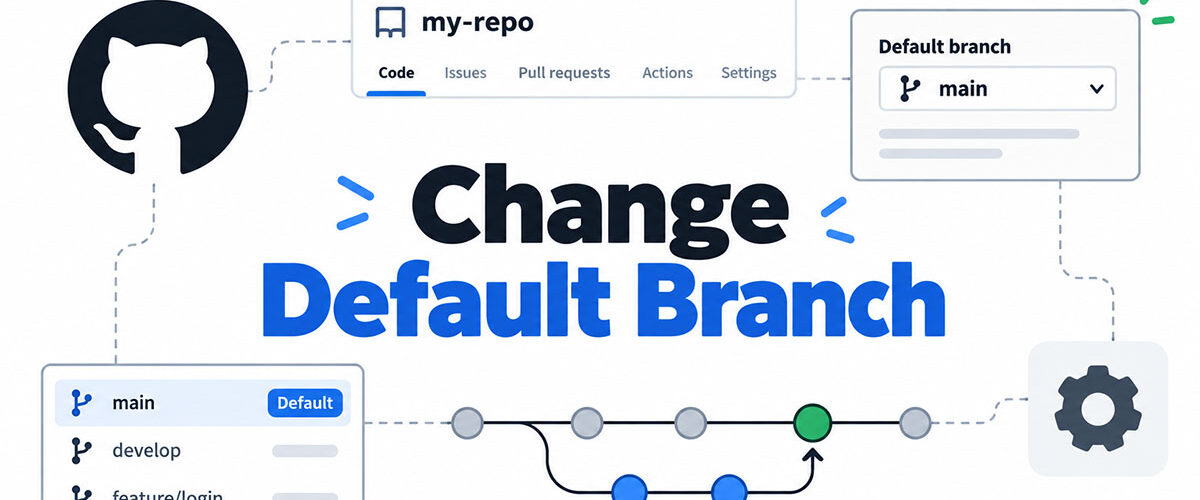
Anyone with admin access can change the default branch from the repository’s Settings page, as long as there’s a second branch to switch to. GitHub CLI and the REST API can do it too, for people who’d rather skip the browser.
Switching and renaming aren’t the same thing. Switching hands the default role to a branch that already exists. Renaming just changes the name of the current default. And only GitHub’s renaming page promises that open pull requests, forks included, move to the new base branch automatically.
How to Change the Default Branch in GitHub

Open the repository, go to Settings, and click the switch icon next to the current branch name under “Default branch.” Pick the new branch, click Update, and confirm the warning.
Whatever you pick is what visitors see when they open the repository. It’s also the branch Git checks out first on a fresh clone, and the base for new pull requests and commits unless someone chooses another (GitHub Docs).
Before you start
The setting only appears if the repository has more than one branch and you have admin access.
Rulesets add a catch. If an organization or enterprise ruleset targets branches in the repository, an organization or enterprise administrator has to make the change for you.
Steps in the web interface
- On GitHub, open the main page of the repository.
- Click Settings under the repository name. If the tab is hidden, open the dropdown menu and choose Settings.
- Under “Default branch,” click the switch icon to the right of the current branch name.
- Open the branch dropdown and select the new branch.
- Click Update.
- Read the warning, then click I understand, update the default branch.
Switching or Renaming the Default Branch: Which One Do You Need?

If the branch you want already exists and has the right history, switch to it. If the branch is right and only the name is off (master that should read main, say), rename.
| Aspect | Switch | Rename |
|---|---|---|
| What it does | Gives the default role to an existing branch | Changes the name of the current default branch |
| Old branch afterwards | Stays, under its own name | Gone under the old name, old URLs redirect |
| Open pull requests | Not covered in GitHub’s docs, so verify | Base branch updated automatically, forks included |
| Best when | The target branch already has the right content | Only the name is wrong |
GitHub’s page on changing the default branch says nothing about what happens to open pull requests after a switch. The page on renaming says the base branch updates on its own.
So after a switch, open the pull request list and look at each base branch. You can edit them by hand, though GitHub warns that some commits may drop from the timeline and review comments may go outdated.
That warning is why I’d rename whenever a rename gets you to the same end state.
How to Rename master to main as the Default Branch

Open the branch dropdown and click View all branches. Open the menu beside master, choose Rename branch, type main, read the note about local environments, and confirm.
Renaming the default branch takes admin access. Write permission is enough for ordinary branches, but not for the default branch or protected ones (GitHub Docs).
GitHub made main the default for new repositories on October 1, 2020 and left existing ones untouched, according to the GitHub changelog. That’s why older repositories still carry master.
thoughtbot described its own move in an August 2020 post: rename the local branch, push it, switch the default setting in GitHub, then delete master. The rename button now does that in one step and keeps the redirects.
What GitHub updates for you
- URLs containing the old branch name redirect to the renamed branch.
- Branch protection policies follow the new name.
- The base branch of open pull requests, forks included, and of draft releases changes.
- The repository home page shows contributors how to update their local Git environments.
What a rename breaks
- Raw file URLs don’t redirect, even though regular file URLs do.
- Running git pull against the old name gets no redirect either.
- GitHub Actions workflows don’t follow renames, so anyone using your published action with
@old-branch-namebreaks. - Pull requests headed by the renamed branch get closed.
For a published action, GitHub suggests creating a new branch under the old name. It holds the original content plus a commit that announces the branch is closing down and points users to the new name. Search your own workflow files for the old name too.
Each collaborator also has to update their local clone after a rename. The commands are covered below.
Can You Change the Default Branch With GitHub CLI or the REST API?
Yes. GitHub CLI does it with gh repo edit and its --default-branch flag, and the REST API does it with a PATCH request that carries a default_branch field.
| Method | Entry point | Fits best |
|---|---|---|
| Web interface | Settings, then Default branch | One repository, with the warning dialog in front of you |
| GitHub CLI | gh repo edit --default-branch NAME | Terminal work and short scripts |
| REST API | PATCH /repos/{owner}/{repo} | Many repositories, or automation with a token |
GitHub CLI

The gh manual lists the flag under repo edit as the setting for the repository’s default branch. The repository argument is optional.
For a single repository the browser is honestly just as quick. The command earns its place when the same change has to hit a whole list of repositories.
REST API
Send a PATCH /repos/OWNER/REPO request with default_branch set to the new name in the JSON body.

Fine-grained tokens need the “Administration” repository permission set to write. Fine-grained personal access tokens qualify, and so do GitHub App tokens, both user and installation.
Add the X-GitHub-Api-Version header. 2026-03-10 is the latest version in GitHub’s docs as of October 2026. The documented non-200 responses are 307, 403, 404 and 422.
Create the target branch first, the same way the web interface requires it. A 422 means validation failed, so check the branch name before anything else.
How to Update Your Local Clone After the Default Branch Changes

After a rename, a clone needs realigning in a set order: rename the local branch, fetch, re-point upstream tracking, then refresh origin/HEAD. GitHub’s renaming page lists the commands in that sequence.
Commands for a rename
git branch -m OLD-BRANCH-NAME NEW-BRANCH-NAMErenames the local branch.git fetch originbrings the new name down as a remote-tracking branch.git branch -u origin/NEW-BRANCH-NAME NEW-BRANCH-NAMEpoints upstream tracking at it.git remote set-head origin -arefreshes origin/HEAD from the remote.- Optionally,
git remote prune origindeletes stale tracking references to the old name.
Order matters here. Git’s documentation says set-head -a only works when the remote-tracking branch already exists locally, and that it has to be fetched first if not.
Skip step 3 and the renamed local branch keeps tracking a name that no longer exists on origin.
After a switch
Local branch names stay the same. Fetch, check out the new default branch, then run git remote set-head origin -a so origin/HEAD points to it.
Do existing clones update on their own?
Graphite’s Git guide says changing the default branch on GitHub automatically updates new clones and existing checkouts. GitHub Docs say that after a rename, every collaborator with a local clone has to update it.
Both are partly right. A new clone checks out the new default branch by itself (GitHub Docs, Branches page). An existing clone keeps its own branch names and its own origin/HEAD, which is the pointer git remote set-head exists to move by hand.
For existing clones, trust GitHub’s page and run the commands.
Why You Can’t Change the Default Branch
Missing admin access is the usual blocker, and an organization ruleset is the one that needs someone else to clear it.
A repository with a single branch has nothing to switch to, so create a second branch. Without the admin role, ask a repository admin to make the change or grant you the role. Organization or enterprise rulesets need an organization or enterprise administrator, unless the owner has opened the exception below.
That exception sits under Member privileges, in the “Branch renames” section: “Allow repository administrators to rename branches protected by organization rules.” It is disabled by default for existing organizations and enabled by default for newly created ones (GitHub Docs, as of October 2026).
Even when it’s on, a repository admin can only use it if the new branch name stays targeted by every organization ruleset the current name falls under, or if that admin holds bypass permission. GitHub’s renaming page says changing the default branch works the same way.
What can still break after a successful change
Scheduled workflows run on the latest commit on the default branch, and workflow\_dispatch only receives events when the workflow file sits on the default branch (GitHub Docs, workflow syntax, as of October 2026).
A pull request into the new default branch skips any workflow whose pull\_request branches filter still lists the old name. GitHub then leaves the required checks Pending and blocks the merge.
Rulesets split in two. One that targets the default branch follows the setting, while one that targets a name pattern keeps matching that name.
Tools outside GitHub that hard-code the old name need their own edit.
Armory’s Spinnaker documentation recorded this class of breakage in 2020: artifacts and dinghyfiles pulled from GitHub needed extra configuration once main became the default branch for new repositories.
GitHub Default Branch FAQ
How do I set the default branch name for new repositories?
Open your profile Settings, click Repositories in the sidebar, type the name in the text field, and click Update.
It only applies to repositories you create afterward. Existing ones keep their current default branch.
Should I delete the old branch after changing the default branch?
Not right away. Keep it until workflows, rulesets and external links no longer point at it.
GitHub blocks deletion while an open pull request references the branch, and a closed pull request offers a Restore branch button for its head branch.
Can I change the default branch back?
Yes. Any branch can be the default as long as the repository has more than one, so repeat the same steps and pick the original.
Local clones need the update commands again after the second change.
Do organizations and enterprises have their own default branch name settings?
Yes. GitHub documents a separate organization setting and an enterprise policy for the default branch name, alongside the personal one.
They all cover new repositories, not branches that already exist.
Finding Leftover References to the Old Default Branch
Searching the repository and connected tools for the old branch name shows what still points away from the new default. The order of that search matters.
Start with workflow files. A stale branch filter leaves required checks Pending and blocks pull request merges right away, so it’s the most urgent one.
Rulesets and branch protection rules that target the old name come next. They stop covering the new default branch without raising any error, which makes them easy to miss.
Badges, saved links and any external tool that hard-codes the name come last.
Leave the old branch in place and stale references keep working, which also hides them. Delete it and whatever the search missed breaks.
This sequence reflects GitHub Docs as read in October 2026. A change to how Actions or rulesets target the default branch would reorder it.

- How to Change Default Branch in GitHub Safely - November 1, 2026
- Best AI Customer Service Software for 2027 - October 31, 2026
- How to Install Pandas in VS Code (pip, venv and Conda) - October 30, 2026