Most developers already have a terminal open. The browser tab for GitHub is the one nobody asked for.
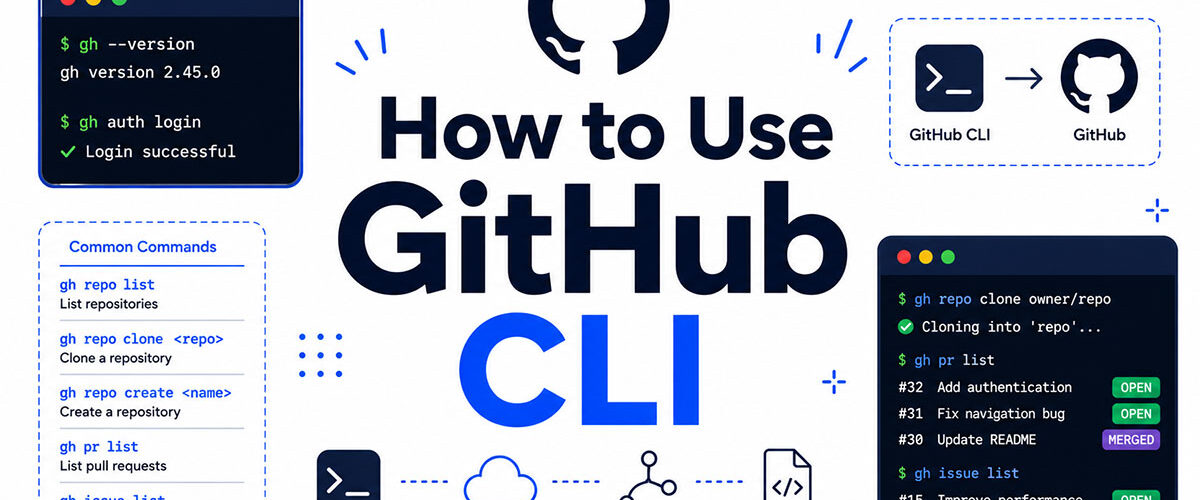
Learning how to use GitHub CLI means managing pull requests, issues, releases, and GitHub Actions workflows without leaving your terminal. The gh command line tool connects directly to GitHub, covering the full repository workflow from a single session.
This guide walks through every core area: installation, authentication, repository management, the code review process via gh pr, issue tracking, continuous integration with GitHub Actions, scripting with JSON output, and fixing the errors most people hit first.
What Is GitHub CLI?

GitHub CLI, known as gh, is a standalone command-line tool that brings GitHub operations directly into your terminal. It handles pull requests, issues, releases, workflows, and repository management without opening a browser.
There is an important distinction to understand upfront. Git handles version control locally. gh handles GitHub-specific operations like creating pull requests, managing issues, triggering GitHub Actions, and interacting with the GitHub API. They work alongside each other, not as replacements.
GitHub reached 180 million developers by 2025 and recorded over 5 billion contributions across public and private repositories in 2024 (CoinLaw, 2025). At that scale, switching between the terminal and browser for routine GitHub tasks adds friction to every software development process.
The gh command structure follows a consistent pattern: gh <command> <subcommand> [flags]. Every major GitHub concept maps to a command group.
| Command Group | What It Handles | Example |
|---|---|---|
gh repo | Repositories | create, clone, fork, view |
gh pr | Pull requests | create, merge, checkout, review |
gh issue | Issues | create, list, close, comment |
gh workflow | GitHub Actions | run, list, view |
gh release | Releases | create, list, delete |
GitHub Actions workflows now run at over 5 million per day across the platform (CoinLaw, 2025). Managing those workflows from the terminal, without context-switching to the web UI, is a real use case for gh in active teams.
The gh CLI is 100% open-source, free to use, and pre-installed on all GitHub-hosted runners. It supports GitHub.com and GitHub Enterprise Server via the --hostname flag.
How Do You Install GitHub CLI?

GitHub CLI supports macOS, Windows, and Linux, with installation handled through each platform’s native package manager. The current stable release is available at cli.github.com, with new versions published weekly on GitHub-hosted runners.
93.87% of developers globally use Git as their primary version control system as of 2025 (CommandLinux, 2025). Most of them already have a package manager configured, which makes the gh install process straightforward.
Installing GitHub CLI on macOS
Homebrew is the standard install path on macOS:
brew install ghMacPorts users can run sudo port install gh instead. After installation, confirm the binary is available:
gh --versionInstalling GitHub CLI on Windows
WinGet is the recommended method on Windows 10 and 11:
winget install --id GitHub.cliThe Windows installer modifies your PATH automatically. When using Windows Terminal, open a new window (not just a new tab) for the PATH change to take effect.
Scoop and Chocolatey also work. The MSI installer is available from the GitHub CLI releases page for teams that prefer not to use a package manager.
Installing GitHub CLI on Linux
The install command varies by distribution. On Debian/Ubuntu:
sudo apt install ghOn Fedora and RPM-based distros, use DNF. On Alpine, use APK. The full list of distribution-specific commands lives in the official cli/cli repository on GitHub.
Linux accounts for 63.1% of the global server OS market, making it the dominant platform for hosted Git repositories and CI/CD pipeline execution (CommandLinux, 2025). Getting gh running on Linux is something most DevOps engineers do early in their environment setup.
How Do You Authenticate GitHub CLI?
Authentication connects your local gh installation to a GitHub account. Without it, every command that touches GitHub resources will fail.

Run this single command to start the auth flow:
gh auth loginGitHub CLI gives you 2 options: authenticate through a web browser (OAuth) or paste a Personal Access Token directly. The browser flow is simpler. The PAT option is useful for headless environments where opening a browser is not possible.
OAuth vs Personal Access Token
OAuth (browser flow): gh opens a device activation URL, you log in, and the token is stored securely. No manual token management required.
Personal Access Token (PAT): Generate a token at github.com/settings/tokens, then paste it when gh prompts. Useful in Docker containers, CI environments, or SSH-only servers where token-based authentication is the only option.
After authentication, check your status at any time:
gh auth statusGitHub Enterprise Server Authentication
Connecting to a self-hosted GitHub Enterprise Server instance requires one extra flag:
gh auth login --hostname your.enterprise.hostnameKey detail: gh stores separate credentials per hostname. You can authenticate to both GitHub.com and an Enterprise Server instance simultaneously and switch between them with the GH_HOST environment variable.
GitHub Enterprise is adopted by 92% of Fortune 100 companies as of 2025 (CoinLaw, 2025). Teams operating in those environments will run gh against an Enterprise Server hostname rather than GitHub.com.
What Are the Core GitHub CLI Commands?

Every gh command follows the same structure: gh <command> <subcommand> [flags]. There are 5 primary command groups that cover the majority of day-to-day GitHub work.
| Command | Core Subcommands | Common Flags |
|---|---|---|
gh repo | create, clone, fork, view, list | --public, --private, --clone |
gh pr | create, list, checkout, merge, review | --base, --reviewer, --squash |
gh issue | create, list, close, comment, view | --label, --assignee, --milestone |
gh workflow / gh run | run, list, watch, view, cancel | --log, --json |
gh release | create, list, delete, upload | --draft, --prerelease, --generate-notes |
GitHub merged 43.2 million pull requests per month in 2025 and developers created 230+ repositories per minute (Panto, 2025). At that volume, running gh pr create and gh repo clone from the terminal removes the overhead of navigating the web UI repeatedly.
Repository Commands
3 commands cover most repo work:
gh repo createinitializes a new repo on GitHub with optional local cloninggh repo clone owner/repoclones a repo and sets up the git remote automaticallygh repo forkforks a repo and optionally clones the fork locally
gh repo view --web opens the repository in your default browser. Handy when you need the UI for something gh does not cover.
Pull Request Commands
Full PR lifecycle from the terminal: create, review, approve, and merge without touching the browser.
gh pr create --title "Fix auth bug" --body "Details here" --reviewer teammategh pr checkout 42checks out PR #42 locally for testinggh pr review --approveor--request-changesgh pr merge --squashmerges with squash strategy
The code review process gets faster when reviewers can check out, test, and approve a PR without switching contexts.
Issue Commands
GitHub Actions cut deployment times by an average of 30% in 2024 (electroiq.com, 2024). But issues still pile up. gh issue handles them without leaving the terminal.
gh issue create --title "Bug: login fails on Safari" --label bug --assignee @meListing, viewing, closing, and commenting all follow the same pattern. gh issue list --state open --label "needs-triage" filters down to what you need.
GitHub Actions Commands
Daily GitHub Actions workflows climbed to over 5 million in 2025, up from 4 million (CoinLaw, 2025).
Managing those runs from the terminal is practical for teams already working in the CLI:
gh workflow run deploy.ymlmanually triggers a workflowgh run watchstreams live output from the current rungh run view --logretrieves full logs after a run completesgh run cancelstops a running workflow
Release Commands
One command creates a full release with assets and auto-generated notes:
gh release create v1.2.0 ./dist/*.zip --generate-notes --title "v1.2.0"The --generate-notes flag pulls merged PR titles and contributors automatically. No manual changelog writing required for routine releases.
--draft creates the release without publishing it. --prerelease marks it as a pre-release. Both are useful for software release cycles with staging steps before a production push.
How Do You Create and Manage Repositories with GitHub CLI?
Repository management via gh covers creation, cloning, forking, and inspection. All of it works from a single terminal session.
GitHub now hosts 630 million total repositories, with 121 million new ones added in 2025 alone (Panto, 2025). Teams creating new repos daily benefit from a repeatable CLI workflow rather than clicking through the GitHub web UI every time.
Creating a New Repository
Basic creation with immediate local clone:
gh repo create my-project --public --cloneAdd --template owner/template-repo to spin up a new repo from an existing template. Useful for standardized project setups across a team.
Flags that matter:
--publicor--privatesets visibility--add-readmeinitializes with a README--gitignore Node(or any language) adds a pre-built .gitignore--license MITadds a license file
Cloning and Forking
gh repo clone is not just a wrapper around git clone. It sets the remote, configures authentication, and works with private repos without extra setup.
gh repo clone microsoft/vscodeForking follows a similar pattern:
gh repo fork cli/cli --cloneThe --clone flag forks and immediately clones the fork locally. Without it, gh creates the fork on GitHub but does not clone it. The fork in GitHub stays connected to the upstream, so you can sync changes later.
Viewing and Listing Repositories
Check a repo’s details without leaving the terminal:
gh repo view owner/repoAdd --web to open it in the browser instead. List your own repos with gh repo list, filtered by --visibility private or --language python.
Teams managing a shared codebase across many repos use gh repo list org-name --limit 50 to get a quick overview without navigating the GitHub web interface.
How Do You Work with Pull Requests Using GitHub CLI?

The full pull request lifecycle, from branch creation to merge, runs entirely through gh. No browser required.
GitHub merged 43.2 million pull requests per month in 2025 (Panto, 2025). For teams working at any meaningful velocity, shaving 30 seconds off each PR interaction adds up.
Creating a Pull Request
Minimal creation (interactive mode):
gh pr creategh prompts for title, body, and base branch. Pass flags to skip the prompts:
gh pr create --title "Add OAuth support" --body "Closes #42" --base main --reviewer alice,bobThe --fill flag auto-populates the title and body from your commit messages. Handy for small, single-commit PRs.
Reviewing and Checking Out Pull Requests
Check out a PR locally to test it:
gh pr checkout 84This switches your local branch to the PR branch automatically. No need to look up the branch name or add the contributor’s fork as a remote.
Review actions available:
gh pr review --approveapproves the PRgh pr review --request-changes --body "Please fix the null check"gh pr review --comment --body "Left a note"
This is where the gh CLI integrates tightly with source control management workflows. The checkout, test, and review loop stays entirely in the terminal.
Merging Pull Requests
3 merge strategies available directly from the command line:
gh pr merge --squashsquashes commits into onegh pr merge --rebaserebases commits onto the base branchgh pr merge --mergecreates a standard merge commit
Add --delete-branch to remove the PR branch after merging. This is the default behavior on most teams anyway, and forgetting it creates branch clutter over time.
Listing and Filtering Pull Requests
Find what you need fast:
gh pr list --state open --author "@me" --label "needs-review"The --json flag outputs structured JSON instead of a table. Combine with jq to filter programmatically in shell scripts or build pipelines:
gh pr list --json number,title,author | jq '.[] | select(.author.login == "alice")'How Do You Manage Issues with GitHub CLI?
Issue management through gh covers creation, assignment, labeling, filtering, and closing. The full workflow stays in the terminal.
GitHub processed 1.128 billion public contributions in 2025 (Panto, 2025). A significant portion of that activity involves issues. Teams that manage issues through the web UI context-switch constantly between code and browser.
Creating and Assigning Issues
Full issue creation in one command:
gh issue create --title "Login fails on Safari 17" --body "Steps to reproduce..." --assignee alice --label bug --milestone "v2.0"Interactive mode works too. Just run gh issue create and gh walks through the fields with prompts.
Listing, Viewing, and Filtering
The --json flag combined with jq turns gh issue list into a data source for scripts.
gh issue list --state open --label "good first issue" --limit 20View a specific issue in detail:
gh issue view 42Add --web to open it in the browser. This is the one case where the browser view is actually faster, since it shows all comments and history in a better layout.
Closing, Reopening, and Commenting
Closing and commenting take one line each:
gh issue close 42 --comment "Fixed in PR #87"gh issue reopen 42reopens a closed issuegh issue comment 42 --body "Confirmed on macOS 14.4"
The defect tracking loop gets tighter when closing issues and linking them to PRs happens without switching tools. gh issue close with a comment keeps the context in one place.
How Do You Manage GitHub Actions with GitHub CLI?
GitHub Actions workflows now exceed 5 million daily runs across the platform, up from 4 million the year before (CoinLaw, 2025).
Managing that volume from the terminal, without switching to the browser for every trigger and log check, is where gh workflow and gh run earn their place.
Triggering and Listing Workflows
List all workflows in a repo:
gh workflow listManually trigger a workflow that has a workflow_dispatch event defined:
gh workflow run deploy.yml --field environment=stagingGitHub Actions cut deployment times by an average of 30% in 2024 (electroiq.com, 2024). Triggering a continuous deployment run directly from the terminal, without loading the GitHub web UI, removes one more point of friction from that pipeline.
Monitoring Runs in Real Time
Stream live output from the current run:
gh run watchThis blocks the terminal and updates in real time until the run completes. Useful for short workflows where you want immediate feedback.
For a run that already finished:
gh run listshows recent runs with status, duration, and triggergh run view 12345678 --logretrieves full logs by run IDgh run cancel 12345678stops a run mid-execution
Integrating with CI/CD Pipelines
Teams using continuous integration pipelines authenticate gh inside GitHub Actions using the built-in GITHUB_TOKEN environment variable.
env:
  GH_TOKEN: ${{ secrets.GITHUB_TOKEN }}
No manual token setup required when running gh inside a GitHub Actions workflow. The token is already available in the runner environment.
Self-hosted runner usage grew 38% in 2025 as enterprises moved sensitive build artifacts behind their own network perimeters (tech-insider.org, 2025). Teams running gh on self-hosted runners can still use this same auth pattern.
How Do You Create Releases with GitHub CLI?

Release creation via gh covers the full process: tagging, attaching assets, writing release notes, and publishing, all from one command.
GitHub merged 43.2 million pull requests per month in 2025 (Panto, 2025). Each merged PR that ships a feature or fix eventually needs a release. Doing that from the terminal keeps the software release cycle inside a single workflow.
Creating a Release
Standard release with auto-generated notes:
gh release create v2.1.0 --title "v2.1.0" --generate-notesThe --generate-notes flag pulls merged PR titles and contributor names automatically. For most teams, this replaces manual changelog writing on routine releases.
Key flags:
--draft: creates the release without publishing it--prerelease: marks it as a pre-release--target main: sets the target branch or commit
Attaching Build Artifacts
Attach binaries, zip files, or any build output directly in the create command:
gh release create v2.1.0 ./dist/app-linux-amd64 ./dist/app-darwin-arm64 --generate-notesGlob patterns work too. ./dist/*.zip attaches all matching files in one shot. No separate upload step needed.
The build artifact goes straight from your local dist folder to the GitHub release page. Teams using automated release scripts include this command at the end of their deployment pipeline.
Managing Existing Releases
List, view, and delete releases without leaving the terminal.
| Command | What It Does |
|---|---|
gh release list | Lists all releases with their tags, publish dates, and status |
gh release view v2.1.0 | Shows detailed information and attached assets for release v2.1.0 |
gh release delete v2.1.0 | Deletes the release but keeps the Git tag intact |
gh release upload v2.1.0 file.zip | Uploads file.zip as an asset to the existing v2.1.0 release |
The tag created by gh release create remains in the repository even if you delete the release. Delete the tag separately with git push origin :refs/tags/v2.1.0 if needed.
How Do You Use GitHub CLI with GitHub Codespaces?
GitHub Codespaces provides cloud-based development environments that spin up in seconds. The gh CLI manages the full Codespaces lifecycle from your local terminal.
Gartner Peer Insights reviewers consistently cite Codespaces for reducing onboarding time and eliminating environment drift across distributed teams (Gartner, 2024-2025). Managing those environments via gh avoids the GitHub web UI entirely.
Creating and Connecting to a Codespace
Create a codespace for a specific repo:
gh codespace create --repo owner/repo --machine basicLinux32gbConnect via SSH after creation:
gh codespace sshIf you have multiple codespaces, gh prompts you to select one. Add -c codespace-name to skip the prompt.
Listing and Managing Codespaces
Check what’s running across all your repos:
gh codespace listStop and delete codespaces to avoid storage charges. Codespace storage accrues continuously from creation to deletion, even when the environment is suspended (GitHub Docs, 2024).
gh codespace stop -c my-codespacegh codespace delete -c my-codespace
Port Forwarding from a Codespace
Forward a port from a remote codespace to your local machine:
gh codespace ports forward 3000:3000 -c my-codespaceThis lets you access a dev server running inside the codespace at localhost:3000 locally. Works for any port the application exposes. The connection stays active as long as the terminal session is open.
How Do You Extend GitHub CLI with Extensions?

GitHub CLI extensions are community-maintained repositories that add extra gh subcommands. Any executable named gh-something on your PATH qualifies as an extension.
The gh-extension topic on GitHub currently lists over 640 community extensions across Shell, Go, Python, and other languages (GitHub Topics, 2025).
Installing and Managing Extensions
Install an extension from any GitHub repository:
gh extension install dlvhdr/gh-dashOnce installed, gh dash runs as a native gh subcommand. List what’s installed with gh extension list, upgrade all with gh extension upgrade --all, and remove with gh extension remove gh-dash.
Notable Extensions Worth Installing
gh-dash (dlvhdr/gh-dash): A terminal dashboard for browsing PRs and issues across multiple repos. Displays review status, CI checks, and draft state in a single interactive TUI view (Mike Ball, 2023).
gh-markdown-preview (yusukebe/gh-markdown-preview): Renders Markdown files in your browser exactly as GitHub would display them. Saves the guess-and-push cycle when writing READMEs.
gh-poi: Safely deletes local branches that have already been merged and have no open PRs. Runs one command instead of manually identifying and deleting stale branches.
Creating a Custom Extension
An extension is just an executable file. The simplest version is a one-line shell script:
gh extension create my-extensiongh scaffolds the directory and executable. The extension name must start with gh-. Anything more complex, multi-step workflows with conditional logic, is better written as a shell function or Go binary rather than a bare script.
Extensions are not verified or endorsed by GitHub. Review the source of any extension before installing it (GitHub CLI docs, 2024).
How Do You Script and Automate Tasks with GitHub CLI?
gh becomes a scripting tool the moment you add --json to any command. Every core gh command supports structured JSON output, which makes it usable in shell scripts, build automation tools, and build pipelines.
Using –json and jq for Structured Output
Get a JSON list of open PRs authored by you:
gh pr list --json number,title,author,labelsPipe to jq to filter:
gh pr list --json number,title,author | jq '.[] | select(.author.login == "alice")'The --jq flag runs the jq expression inline without a separate pipe:
gh pr list --json number,title --jq '.[].title'Teams embedding gh into their source control automation use this pattern to pull PR data, check run status, or query issue labels without hitting the GitHub API directly.
Running gh Inside GitHub Actions
gh is pre-installed on all GitHub-hosted runners and updated weekly. Authentication uses GITHUB_TOKEN, which is already present in every workflow run.
- name: Close stale issues
  run: |
    gh issue list --label stale --json number --jq '.[].number' | xargs -I {} gh issue close {}
  env:
    GH_TOKEN: ${{ secrets.GITHUB_TOKEN }}
No extra setup. That script finds every issue labeled “stale” and closes them in one pipeline step.
Non-Interactive Mode and Automation Flags
Automation breaks when gh prompts for confirmation. Use these flags to prevent that:
| Flag | Purpose |
|---|---|
--yes | Skips confirmation prompts for destructive or automated actions |
GITHUB_TOKEN environment variable | Authenticates CLI commands without interactive login |
--no-maintainer-edit | Prevents repository maintainers from editing the pull request branch |
--json | Returns machine-readable JSON output instead of formatted tables |
Setting up aliases for frequently used commands also reduces repetition. gh alias set bugs 'issue list --label bug --state open' creates a reusable shortcut stored in ~/.config/gh/config.yml.
What Are the Most Common GitHub CLI Errors and How Are They Fixed?
Most gh errors fall into 5 categories. Knowing which one you hit saves a lot of time tracing the wrong cause.
“gh: command not found” After Installation
This is a PATH problem, not an installation failure. The binary installed correctly but the shell cannot find it.
Fix on macOS/Linux: Run which gh. If it returns nothing, add the Homebrew bin directory to your PATH:
export PATH="/opt/homebrew/bin:$PATH"Fix on Windows: Open a new window in Windows Terminal after installation. Opening a new tab in the same window is not enough. The PATH change only takes effect in a fresh window (GitHub CLI docs, 2024).
Authentication Errors: Token Scope Problems
The minimum required scopes for gh are repo, read:org, and admin:publickey (GitHub CLI, 2022).
A PAT missing these scopes will authenticate successfully but fail on specific commands. The error message usually mentions a resource not being found or a permission denied response.
- Run
gh auth statusto see the current token and its scopes - Run
gh auth refresh -s repo,read:orgto add missing scopes - For organization repos with SSO enabled, run
gh auth loginand authorize the token for the org
HTTP 422 on Pull Request Creation
A 422 Unprocessable Entity on gh pr create almost always means the branch has not been pushed to the remote yet.
GitHub cannot create a pull request for a branch that does not exist on the remote. Push the branch first:
git push -u origin your-branch-name
gh pr create
A 422 can also appear when the token lacks the repo scope, or when the base branch specified via --base does not exist in the repository (GitHub community, 2022).
Rate Limiting and Permission Errors on Organization Repos
Rate limiting: GitHub’s REST API allows 5,000 requests per hour for authenticated users. Scripts that loop over large datasets can hit this. The response headers X-RateLimit-Remaining and X-RateLimit-Reset show how many requests remain and when the limit resets (GitHub community, 2024).
Add a sleep between iterations in high-volume scripts, or use the --paginate flag to let gh handle pagination automatically rather than making hundreds of individual calls.
Permission errors on org repos: If gh repo clone org/repo returns a 403, the token needs the read:org scope and, if SSO is enforced, the token must be authorized for that organization at github.com/settings/tokens.
FAQ on GitHub CLI
What is GitHub CLI and how is it different from Git?
Git handles local version control: commits, branches, merges. GitHub CLI (gh) handles GitHub-specific operations like pull requests, issues, releases, and Actions workflows. They work alongside each other, not as substitutes.
How do you install GitHub CLI?
On macOS, run brew install gh. On Windows, use winget install --id GitHub.cli. On Linux, use your distribution’s package manager. Verify the install with gh --version after completing setup.
How do you authenticate GitHub CLI with your account?
Run gh auth login and follow the prompts. Choose browser-based OAuth for simplicity, or paste a Personal Access Token directly. Check your connection status anytime with gh auth status.
How do you create a pull request using GitHub CLI?
Push your branch first, then run gh pr create. Add --title, --body, --base, and --reviewer flags to skip the interactive prompts. Use --fill to auto-populate from your commit messages.
How do you clone a repository with GitHub CLI?
Run gh repo clone owner/repo. Unlike git clone, this sets up authentication automatically. Use gh repo fork owner/repo --clone to fork and clone a repository in one step.
How do you trigger a GitHub Actions workflow from the terminal?
Use gh workflow run workflow-name.yml for workflows with a workflow_dispatch trigger. Monitor the run with gh run watch, view logs with gh run view --log, and cancel with gh run cancel.
How do you use GitHub CLI in scripts and automation?
Add --json to any command for structured output, then pipe to build automation scripts or jq for filtering. Inside GitHub Actions, set GH_TOKEN: ${{ secrets.GITHUB_TOKEN }} for authentication. No interactive login needed.
How do you manage GitHub Codespaces with GitHub CLI?
Create a codespace with gh codespace create --repo owner/repo. Connect via gh codespace ssh. Forward ports locally using gh codespace ports forward 3000:3000. Delete unused codespaces with gh codespace delete to avoid storage charges.
How do you install and use GitHub CLI extensions?
Run gh extension install owner/repo to add any community extension. Popular options include gh-dash for a terminal PR dashboard. List installed extensions with gh extension list and upgrade all with gh extension upgrade --all.
How do you fix the “gh: command not found” error?
The binary installed correctly but your shell cannot find it. On macOS and Linux, add the install directory to your PATH. On Windows, open a new terminal window after installation. A new tab in the same window is not enough.
Conclusion
This conclusion is for an article presenting the full gh command line tool workflow, from gh auth login to scripting with JSON output and managing releases from the terminal.
The pattern across every section is the same: fewer context switches, more repeatable workflows.
Whether you’re running gh pr merge --squash, triggering a continuous deployment workflow, or forwarding ports from a GitHub Codespace, the gh CLI commands keep the work inside one session.
Start with installation and gh auth status. Add pull request and issue management next. Build up to scripting and pipeline automation once the basics feel solid.
The Git commands you already know stay exactly where they are. gh just fills the gap GitHub left in the terminal.

- How to Run a React App in VS Code Step by Step - October 23, 2026
- Transactional or marketing email: which messages your app should send itself - October 23, 2026
- How Software Teams Write SOPs for Releases and Deployments - October 22, 2026