

Setting up a local development environment still eats hours that could go toward actual coding.
GitHub Codespaces is a cloud-based development environment that runs directly inside your browser or Visual Studio Code, eliminating local setup entirely. It provisions a fully configured, containerized workspace from any GitHub repository in under 30 seconds.
This guide covers everything you need to know: how Codespaces works, what a dev container is, available machine types, pricing, security, dotfiles customization, and how prebuilds cut startup time by up to 95%.
By the end, you will know exactly whether Codespaces fits your workflow and how to get the most out of it.
What Is GitHub Codespaces?

GitHub Codespaces is a cloud-based development environment hosted on Microsoft Azure and accessed directly through a browser or Visual Studio Code desktop app.
Each codespace runs inside an isolated Linux virtual machine. It spins up a fully configured workspace in under 30 seconds using a Docker container, with VS Code Server running inside and the client connecting remotely. The whole setup lives in the cloud. Your local machine just provides the interface.
GitHub launched Codespaces for all users in late 2022. It now supports machine types from 2-core/8GB RAM up to 32-core/128GB RAM, with storage up to 128GB per codespace.
GitHub hosts more than 150 million users and over 420 million repositories (GitHub, 2025). Codespaces sits inside that ecosystem, meaning every codespace has direct access to repository permissions, pull requests, GitHub Actions, and secrets without extra configuration.
For anyone involved in software development, the core value is simple: no local setup, no environment drift, and no “works on my machine” failures.
How Does GitHub Codespaces Work?
GitHub Codespaces provisions a Linux VM on Azure the moment you create a codespace. That VM runs a Docker container built from your repository’s configuration files, and VS Code Server starts inside that container.
Your browser or local VS Code editor connects to VS Code Server over a secure WebSocket. The code runs on Azure. You just see the interface.
By late 2025, GitHub Actions (which powers Codespaces prebuilds) was handling 71 million jobs per day across the platform (DEV Community, 2025).
How a Codespace Is Provisioned
Provisioning sequence:
- GitHub reads the
.devcontainer/devcontainer.jsonfile from the repository - If no config exists, GitHub falls back to a universal default Linux image
- A VM is allocated from the selected machine type on Azure infrastructure
- The Docker container builds (or loads from a prebuild snapshot)
- Repository code is cloned into the container
- Post-create commands run automatically (dependency installs, script execution)
- VS Code Server starts and the browser client connects
The whole sequence takes under 30 seconds with a prebuild. Without one, build time depends on container complexity and repository size.
What Happens When You Open a Codespace in the Browser
The browser loads a full VS Code interface connected to the remote container. No local runtime, no local compiler, nothing installed on your machine.
Port forwarding handles running services. If your app starts on port 3000 inside the container, Codespaces forwards that port to a local URL your browser can reach.
Codespaces auto-suspends after 30 minutes of inactivity by default. Compute billing stops when suspended. Storage billing continues until the codespace is deleted.
What Is a Dev Container and Why Does It Matter?
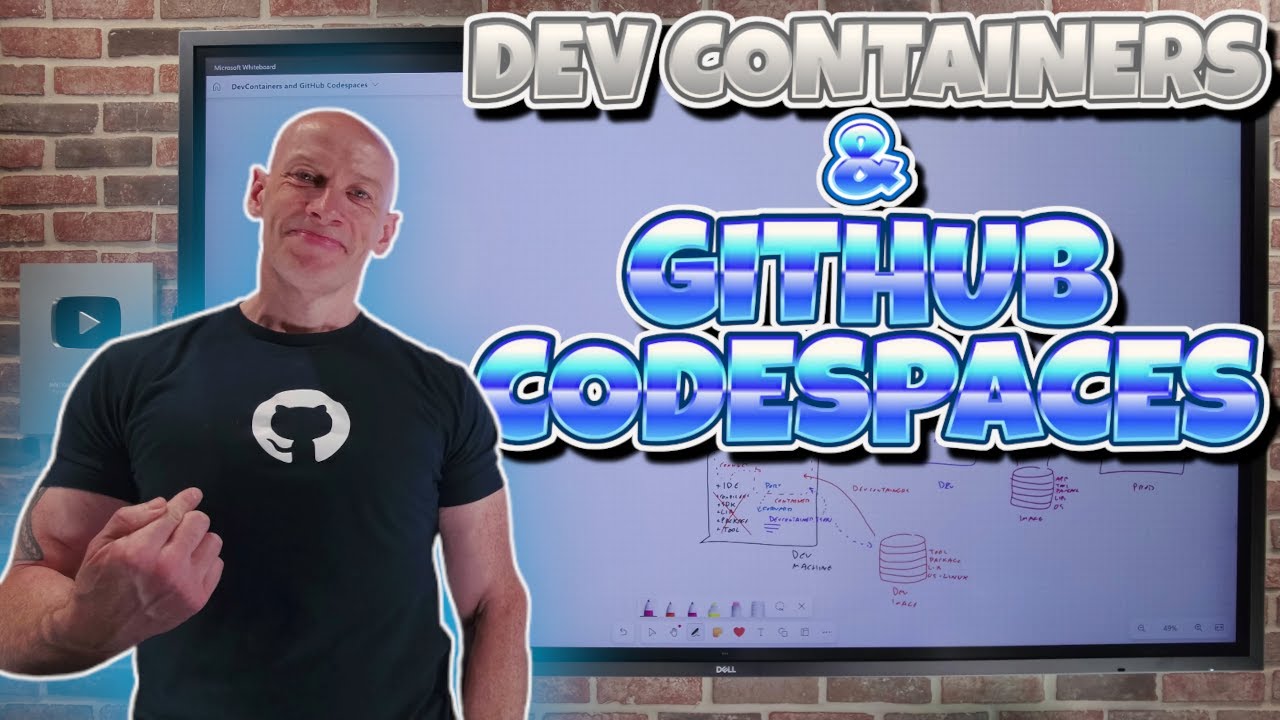
A dev container is a Docker-based, reproducible environment defined by configuration files in a .devcontainer/ folder in your repository. The primary file is devcontainer.json.
This file is the reason Codespaces works reliably across teams. Every developer who opens the repository gets the exact same environment, same runtimes, same VS Code extensions, same port forwarding rules.

According to Gartner Peer Insights (2025), organizations using Codespaces reduced onboarding time from one to two weeks down to near-instant by committing a devcontainer configuration to their repositories.
devcontainer.json Setting | What It Controls | Example Value |
|---|---|---|
image | Base Docker image used for the development container | mcr.microsoft.com/devcontainers/python:3.11 |
features | Preconfigured tool and runtime installers | ghcr.io/devcontainers/features/node:1 |
customizations.vscode.extensions | VS Code extensions automatically installed in the container | ms-python.python |
forwardPorts | Container ports exposed to the local machine or browser | [3000, 8080] |
postCreateCommand | Commands executed automatically after the container is created | npm install |
Without a devcontainer.json, GitHub uses a default image with common runtimes pre-installed including Node, Python, and Java. It works, but you lose the reproducibility that makes Codespaces genuinely useful for teams.
The npm engineering team moved to Codespaces for local development on npm registry services. Their devcontainer setup meant new contributors could start working within minutes, with the full toolchain already in place (GitHub Blog, 2023).
Containerization is what makes this possible. The container acts as a portable, version-controlled description of your entire development environment, not just your code.
What Machine Types and Specs Are Available in GitHub Codespaces?
Codespaces offers 5 machine types. Larger machines consume core hours faster, which directly affects billing.
| Machine Type | RAM | Storage | Compute Rate |
|---|---|---|---|
| 2-core | 8 GB | 32 GB | $0.18/hr |
| 4-core | 16 GB | 32 GB | $0.36/hr |
| 8-core | 32 GB | 64 GB | $0.72/hr |
| 16-core | 64 GB | 128 GB | $1.44/hr |
| 32-core | 128 GB | 128 GB | $2.88/hr |
The 2-core machine handles most solo development work without issues. One developer who ran Codespaces as their exclusive development environment for over a year found the 2-core instance sufficient for all personal and professional projects, billing around $1 per day for heavy use (Tempered Works, 2025).
Machine type is selected at codespace creation. You can change it by stopping the codespace and restarting with a different size. Organization admins can restrict available machine types to control costs across teams.
How Is GitHub Codespaces Priced?
Billing splits into 2 components: compute (core hours) and storage (GB-month).
Personal GitHub accounts include a free tier of 120 core hours per month and 15 GB of storage per month. Usage beyond that is billed to the account. Organizations on GitHub Team and Enterprise plans pay directly for all usage with no free quota (GitHub Docs, 2025).
Storage note: Storage is billed at $0.07/GB-month for the entire time a codespace exists, including when stopped. A default 2-core codespace with 32 GB storage costs $2.24/month in storage alone (GitHub Docs, 2025). Delete codespaces you are not using.
Prebuilds add a third cost layer. They run on GitHub Actions minutes, which bill separately. A team that enables prebuilds on multiple branches should account for this in their GitHub Actions budget.
For the pricing model decision: individuals and open source contributors usually stay within the free tier. Teams and enterprises need to set spending limits and monitor core hour usage through the billing settings page.
What Are the Main Use Cases for GitHub Codespaces?
Codespaces works best in scenarios where environment setup or consistency is the bottleneck, not the actual coding.
A Coder survey (DevOps.com, 2024) found that 15% of teams adopt cloud development environments primarily to reduce setup friction, and another 14% cite easier onboarding and remote access management as the primary driver.
Team Onboarding
The problem it solves: GitHub’s own core repository had over 1 million commits, and onboarding a new engineer took almost half a day in 2021 (GitHub, 2021).
With Codespaces and a committed devcontainer.json, that process collapses to a few minutes. The new hire opens the repository, clicks “Open in Codespaces,” and gets a fully configured environment without reading setup docs or resolving dependency conflicts.
Standardized Team Environments
Environment drift is a real problem on teams where each developer maintains their own local setup. The OS version, Node version, database client, and linter config all diverge over time.
- devcontainer.json becomes the single source of truth for the environment
- Every developer runs the same container image, same tool versions
- Debugging stops being about “what’s installed on your machine”
This directly supports environment parity across development, which reduces the gap between dev and production behavior.
Pull Request Review and Bug Fixes
Opening a Codespace from a pull request gives you a live, isolated environment for that branch. You can run the code, reproduce the bug, and test the fix without touching your main development setup.
This is particularly useful for reviewing code changes on large repositories where checking out a branch locally would require a long rebuild or dependency install.
Low-Spec Device Development
Codespaces runs on Azure. The local device only renders the interface.
A developer on a Chromebook, iPad, or aging laptop gets access to the same 32-core, 128 GB RAM environment as a colleague on a high-spec workstation. The compute lives in the cloud, not on the device.
Open Source Contributions
External contributors can open a Codespace on any public repository without cloning it locally, installing dependencies, or configuring anything. They get a working environment, make their changes, and open a pull request, all without touching their local machine.
How Does GitHub Codespaces Compare to Local Development?

Neither approach is universally better. The right choice depends on what your workflow actually needs.
Microsoft estimates that usage of cloud development environments delivers savings of 156 hours per year per developer on local environment setup and upkeep alone (Microsoft Community Hub, 2026).
Where Codespaces Wins
Hardware ceiling: Local machines are fixed. A 2019 MacBook Pro maxes out at whatever RAM it shipped with. Codespaces scales on demand to 32-core VMs, no hardware upgrade required.
On environment consistency and onboarding, Codespaces is not close. A new developer opening a repository with a devcontainer config is coding in minutes, not hours. That same setup works identically on any device with a browser.
- No OS-specific dependency conflicts (Windows path issues, macOS permission quirks)
- Isolated environments per branch or task, discarded when done
- Security: malicious packages in a codespace can only access what that codespace has permission for
Where Local Development Wins
Local development has near-zero file I/O latency. Codespaces adds network round-trip time for every keystroke and file save. On connections above 150ms latency, this becomes noticeable.
Offline work is not possible. No internet means no codespace. That is a hard constraint with no workaround.
- Local dev runs without any connection dependency
- File operations are faster on local NVMe storage than over a network
- No compute billing while idle
For teams building production software, the most practical answer is often both: Codespaces for onboarding and isolated task work, local dev for latency-sensitive, high-frequency editing sessions. Microsoft internally uses this exact hybrid approach with Dev Box handling persistent workstations and Codespaces handling ephemeral, project-specific environments (Microsoft Community Hub, 2026).
The VS Code experience in Codespaces is designed to feel identical to the local desktop app. Extensions, settings, themes, keybindings, and the integrated terminal all behave the same way. Most developers report the switch feels seamless within the first session.
How Does GitHub Codespaces Compare to Gitpod?

Both GitHub Codespaces and Gitpod are cloud-based development environments built on container technology. The difference comes down to ecosystem lock-in, platform support, and self-hosting flexibility.
Gitpod dropped its self-hosted option entirely in 2024, leaving teams that need on-premises control without that path (Bunnyshell, 2025).
| Criteria | GitHub Codespaces | Gitpod |
|---|---|---|
| Git platform support | GitHub only | GitHub, GitLab, and Bitbucket |
| Config file | devcontainer.json | .gitpod.yml |
| Self-hosting | Not available | Discontinued in 2024 |
| IDE support | VS Code (browser and desktop) | VS Code and JetBrains IDEs |
| GitHub Actions integration | Native support | Not available |
Where Codespaces Has the Advantage
Native GitHub integration is the clearest differentiator. Codespaces connects directly to pull requests, repository secrets, GitHub Actions pipelines, and GitHub Copilot without any extra configuration.
For teams already using GitHub for source control management, the workflow is genuinely tighter. Opening a Codespace from a pull request, running tests inside it, and pushing back through the same interface takes seconds.
Where Gitpod Has the Advantage
Gitpod supports GitLab and Bitbucket natively. Teams not on GitHub have no practical path to Codespaces.
JetBrains IDE support is also a real gap. Codespaces works with VS Code only (browser and desktop). Developers who live in IntelliJ or PyCharm get a better out-of-the-box experience with Gitpod (DevZero, 2024).
Pricing comparison: Codespaces starts at $0.18/hour for compute. Gitpod’s paid plans start at $9/month for fixed workspace hours. For light, intermittent use, Gitpod is often cheaper. For teams running Codespaces through an organization account with usage controls, total costs become comparable (AISO Tools, 2025).
What Are the Security Considerations for GitHub Codespaces?
Codespaces runs each environment in an isolated VM with its own virtual network. Firewalls block all incoming connections from the internet and prevent codespaces from communicating with each other on internal networks (GitHub Docs, 2025).
A 2022 security report by Ophion Security found a vulnerability in GitHub’s Repository Security Advisory feature that allowed secrets extraction from organization codespaces. GitHub patched the issue after responsible disclosure, but it’s a reminder that the security model has real-world edge cases worth understanding (Ophion Security, 2023).
How Secrets Are Handled
GitHub uses Libsodium sealed boxes to encrypt secrets before they reach GitHub servers. Secrets remain encrypted until used inside an active codespace (GitHub Docs, 2025).
3 secret scopes exist:
- Personal secrets: created by the user, available across their own codespaces
- Repository secrets: linked to specific repositories, accessible to any user with write access
- Organization secrets: set at the org level, scoped to specific repositories via access policies
Secrets are not injected into environments created from forks with read-only access. That boundary matters when external contributors open pull request codespaces.
Port Forwarding and Network Access
Forwarded ports are private by default. Only the codespace creator can access them after authenticating to GitHub.
A common mistake: adding Codespaces IP ranges to private network allowlists. Those IPs are shared across all GitHub Codespaces users globally, which means doing this effectively opens the private network to every Codespaces user, not just your team (Legit Security, 2025).
Use a VPN solution instead of IP allowlisting for any private network access from a codespace.
Organization-Level Controls
Org admins control 4 key access dimensions:
- Which users can create codespaces paid for by the organization
- Which machine types are available
- Port forwarding visibility (private, org-only, or public)
- Spending limits and billing caps
Codespaces activity is written to GitHub’s audit logs. Monitoring those logs for unexpected codespace creation or unusual port forwarding activity is worth adding to any software compliance checklist.
How Do You Customize GitHub Codespaces With Dotfiles?

Dotfiles handle personal environment customization. They apply to every codespace a developer creates, across all repositories, without modifying any project’s devcontainer.json.
The separation matters. The devcontainer.json defines team-wide setup. Dotfiles define what that environment feels like to the individual.
How the Dotfiles System Works
GitHub Codespaces looks for a repository named dotfiles in your personal GitHub account. When a new codespace starts, GitHub clones that repository into the environment and runs an install script automatically (GitHub Docs, 2025).
Install script lookup order:
install.shinstallbootstrap.shbootstrapsetup.shorsetup
If none of those files exist, any file starting with . gets symlinked to the home directory automatically.
What Dotfiles Can Configure
Dotfiles apply per user, not per project. Changes update for new codespaces only. Existing ones need a rebuild.
Common dotfile configurations:
- Shell config:
.bashrc,.zshrc,.profile - Git identity:
.gitconfig - Editor behavior:
.vimrc,.editorconfig - Aliases and PATH modifications
Thoughtbot’s engineering team published a working example of running their full neovim/tmux dotfiles setup inside Codespaces, including shell changes, custom tool installs, and rcm for dotfile management (Thoughtbot, 2024).
What Dotfiles Should Not Contain
Secrets in plaintext should never go into a dotfiles repository.
API keys, tokens, and passwords belong in Codespaces secrets, not committed to a public or private dotfiles repo. Project-specific config (build outputs, local paths, feature flags) belongs in the repository’s devcontainer.json, not in personal dotfiles (Microsoft FluidFramework, 2026).
What Are the Known Limitations of GitHub Codespaces?
Codespaces has real constraints that don’t show up in the feature list. Some are hard limits. Others are tradeoffs worth knowing before committing to it as a primary environment.
Internet Dependency
No internet, no codespace. Full stop.
Local dev works on a plane, in a basement, or during an outage. Codespaces does not. Teams in regions with unstable connectivity report session disconnections and slow file I/O that make the tool difficult to use consistently (GitHub Community, 2023).
Codespaces is available in 4 Azure regions only: US West, US East, Europe West, and Southeast Asia. Developers far from those regions experience noticeably higher latency (GitHub Docs, 2025).
Storage Constraints
Default storage per codespace is 32GB. Large monorepos, Docker layers, and package caches fill this faster than expected.
Common storage culprits on a single codespace:
- Base system image
node_modulesor similar dependency folders- Docker image layers and build cache
- VS Code Remote server and extension caches
Storage billing accrues continuously while a codespace exists, even when stopped. An unused codespace sitting idle for 30 days consumes 30 days of GB-month billing. Delete codespaces you are not actively using (GitHub Community, 2023).
Prebuild and Free Tier Limits
Free tier caps: 120 core hours per month and 15 GB storage per month for personal accounts.
Storage billing is time-based, not volume-based. Deleting files inside a running codespace does not reduce your GB-month usage. The billing clock resets at the start of each monthly billing cycle (GitHub Docs, 2025).
Prebuilds on multiple branches multiply cost fast. Each prebuild per region adds storage. Enabling all 5 supported regions with 5 retained prebuild versions means storing 25 codespace snapshots simultaneously (GitHub Community, 2025).
Platform and Access Restrictions
GitHub-only. Codespaces requires a GitHub repository. GitLab, Bitbucket, and self-hosted Git servers have no path into Codespaces.
Managed user accounts (GitHub Enterprise Managed Users) cannot use Codespaces at all. Organizations that use EMU for compliance reasons need to evaluate this before adopting it for their teams (GitHub Docs, 2025).
How Do GitHub Codespaces Prebuilds Work?
Prebuilds solve the cold-start problem for complex repositories. Instead of building the dev container from scratch every time someone opens a codespace, the build result gets cached and reused.
Prebuild environments deliver an 80-95% reduction in creation time because dependency installation and compilation dominate the startup lifecycle (SitePoint, 2026). In one measured Node.js monorepo with 1,200 dependencies, creation time dropped from 7 minutes to 25 seconds after enabling prebuilds.
How a Prebuild Is Created and Stored
Setting up a prebuild triggers a GitHub Actions workflow. That workflow builds the container, runs onCreateCommand and updateContentCommand steps, then stores the result as a snapshot in blob storage (GitHub Docs, 2025).
Prebuild trigger options:
- On every push (default)
- On configuration file changes only
- On a custom schedule (hourly, daily, weekly)
Scheduled triggers were added after org feedback about excessive Actions minute consumption on high-commit repositories (GitHub Changelog, 2022).
Prebuild Billing and Cost Management
Prebuilds generate 2 cost streams: Actions minutes to build them, and storage to retain them.
By default, 2 prebuild versions are retained per branch per region. Admins can reduce this to 1 to cut storage costs, or increase retention for rollback purposes (GitHub Blog, 2022).
Vanta (the security compliance company) used Codespaces prebuilds to measurably reduce developer onboarding time on their codebase, which was one of the early real-world validations of the feature at scale (GitHub Blog, 2022).
What Prebuilds Do Not Cover
Prebuilds skip postCreateCommand steps. Those run fresh each time a new codespace is created from the prebuild snapshot.
Keep heavy, one-time setup work in onCreateCommand (included in prebuild). Reserve postCreateCommand for lightweight, per-session steps like starting a dev server or printing a welcome message. That split is what makes prebuilds genuinely fast rather than just marginally faster.
Understanding the full app lifecycle inside a codespace, from container build to post-start commands, helps teams configure prebuilds that actually eliminate wait time rather than just moving it.
For teams managing continuous integration pipelines alongside Codespaces, the devcontainers/ci GitHub Action lets you build and test the same dev container image in CI, keeping the environment used locally and the environment used in automated testing in sync.
FAQ on GitHub Codespaces
What is GitHub Codespaces?
GitHub Codespaces is a cloud-based development environment hosted on Microsoft Azure. It runs inside your browser or Visual Studio Code, giving you a fully configured, containerized workspace spun up from any GitHub repository in under 30 seconds.
Is GitHub Codespaces free?
Personal GitHub accounts include 120 free core hours and 15 GB of storage per month. Usage beyond that is billed at $0.18/hour for a 2-core machine. Organizations have no free quota and pay for all usage.
What is a dev container in Codespaces?
A dev container is a Docker-based environment defined by a devcontainer.json file in your repository. It specifies the base image, extensions, port forwarding, and setup commands, giving every developer the same environment on first open.
Can I use GitHub Codespaces without VS Code?
Yes. Codespaces runs fully in any modern browser without installing anything locally. You can also connect using the VS Code desktop app or the GitHub CLI for a terminal-based workflow.
How does GitHub Codespaces differ from a virtual machine?
Each codespace runs inside an isolated Linux VM on Azure, but you interact with it through VS Code Server over a secure connection. Unlike a traditional virtual machine, setup is defined as code and reproducible across the whole team.
What machine types does GitHub Codespaces support?
Codespaces offers 5 machine types ranging from 2-core/8 GB RAM up to 32-core/128 GB RAM. Larger machines cost more per core hour. Organization admins can restrict which machine types members are allowed to use.
How do GitHub Codespaces prebuilds work?
Prebuilds run the full container setup in advance using GitHub Actions, then store a snapshot. When a developer opens a new codespace, that snapshot loads instead of building from scratch, cutting startup time by up to 95%.
Is GitHub Codespaces secure?
Each codespace runs in an isolated VM with its own virtual network. Secrets are encrypted using Libsodium before reaching GitHub servers. Forwarded ports are private by default and require GitHub authentication to access.
What is the difference between GitHub Codespaces and Gitpod?
Codespaces is GitHub-only and integrates natively with pull requests, Actions, and Copilot. Gitpod supports GitLab and Bitbucket and offers JetBrains IDE support. Gitpod dropped its self-hosted option in 2024, while Codespaces has never offered one.
What are the main limitations of GitHub Codespaces?
Codespaces requires a stable internet connection at all times. It runs in 4 Azure regions only, which adds latency for developers in other areas. Storage billing continues even when a codespace is stopped, not just when it is active.
Conclusion
This conclusion is for an article presenting what is GitHub Codespaces, a tool that removes the gap between opening a repository and writing production-ready code.
The devcontainer configuration is what makes it genuinely useful for teams. Standardized environments, faster onboarding, and reproducible workspaces are real outcomes, not marketing claims.
Prebuilds cut startup time by up to 95%. Secrets stay encrypted with Libsodium. Machine types scale from 2-core to 32-core on demand.
The tradeoffs are real too. Internet dependency, storage billing on stopped codespaces, and GitHub-only support are constraints worth planning around.
Used correctly, ephemeral development workspaces paired with a committed devcontainer.json` can meaningfully reduce friction across the entire software development process.

- Notepad++ Android Options: Apps That Come Close - October 21, 2026
- Data Management Services: A Practical Guide for Growing Companies - October 21, 2026
- MongoDB Cheat Sheet - October 20, 2026


