Three out of four professional developers use the same code editor. If you’re wondering what is VSCode and why it dominates every developer survey, you’re asking the right question.
Visual Studio Code is a free, open-source code editor built by Microsoft. It runs on Windows, macOS, and Linux, supports nearly every programming language through extensions, and has held the top spot in the Stack Overflow Developer Survey since 2018.
This article covers what VSCode actually is, how it differs from Visual Studio, its core features, the extension marketplace, language support, remote development tools, workspace configuration, performance specs, and how to get started. Whether you’re picking your first editor or evaluating a switch, everything you need is here.
What is VSCode
VSCode is a free, open-source code editor built by Microsoft. It was first announced at the 2015 Build conference and released as a public preview shortly after.
The full name is Visual Studio Code, though most developers just call it VSCode. It runs on Windows, macOS, and Linux, making it one of the few editors that works across all three major operating systems without compromises.
Under the hood, VSCode is built on the Electron framework, which combines Chromium and Node.js to render the interface. That’s the same technology behind apps like Slack and Discord.
The 2025 Stack Overflow Developer Survey tells the story pretty clearly. 75.9% of over 49,000 respondents reported using VSCode as their primary development environment. That’s more than twice the usage of its closest competitor, Visual Studio.
One thing that trips people up is the licensing. The downloadable version of VSCode from Microsoft’s site ships under a proprietary Microsoft license. But the underlying source code, called “Code – OSS,” lives on GitHub under the MIT License. So while the project is open-source at its core, the packaged product you install includes Microsoft-specific telemetry and branding.
The extension marketplace currently hosts over 60,000 extensions, covering everything from language support and debuggers to themes and linting tools. That number keeps growing.
VSCode needs less than 200 MB of disk space. Compare that to full IDEs that can require 2 GB or more just for installation. It is lightweight by design, but the extension system lets you scale it up to match the complexity of your project.
How VSCode Differs from Visual Studio

This is the single most common point of confusion for people new to Microsoft’s developer tools. Visual Studio and Visual Studio Code share a name, a company, and basically nothing else.
What Visual Studio Actually Is
Visual Studio is a full IDE. It was first released in 1997 and has been a fixture in enterprise software development ever since.
It ships with built-in compilers, advanced debuggers, GUI designers, project templates, and deep integration with the .NET ecosystem. The installation on Windows can balloon to over 42 GB depending on which workloads you select.
Visual Studio targets C#, .NET, C++, and enterprise-grade application development. It’s the tool you reach for when building large Windows desktop apps, ASP.NET web services, or game projects in Unity with heavy debugging needs.
What Makes VSCode Different
VSCode is a code editor, not an IDE. At least, not out of the box.
It starts lean. Built-in support covers JavaScript, TypeScript, JSON, CSS, and HTML. Everything else, from Python to Go to Rust, requires installing extensions.
There are no built-in compilers. No project templates. No GUI designers. And that’s the point.
VSCode boots in seconds. Visual Studio can take significantly longer depending on the project size and loaded components. For developers who work across multiple languages or prefer assembling their own toolchain, VSCode’s approach makes more sense.
Quick Comparison
| Feature | Visual Studio | VSCode |
|---|---|---|
| Type | Full IDE | Code editor |
| Install size | Up to 42 GB+ | Under 200 MB |
| Built-in compiler | Yes | No |
| Platform | Windows (Mac retired 2024) | Windows, macOS, Linux |
| Primary languages | C#, .NET, C++ | Language-agnostic via extensions |
| Price | Free (Community), paid tiers | Completely free |
Microsoft actually retired Visual Studio for Mac in August 2024, recommending VSCode as the replacement for .NET development on macOS and Linux. That says something about where Microsoft sees the future heading.
Core Features of VSCode

Before extensions even enter the picture, VSCode ships with a solid set of tools. These are the features available from the moment you finish installation.
IntelliSense
IntelliSense is Microsoft’s name for the smart code completion system built into VSCode. It provides autocompletion suggestions, parameter info, quick documentation, and member lists as you type.
For JavaScript and TypeScript, IntelliSense works right away without any additional setup. It reads your code context, imported modules, and type definitions to offer accurate suggestions. Other languages get similar capabilities through extensions that implement the Language Server Protocol.
Built-in Git Integration
VSCode includes a full source control panel with native Git support. You can stage changes, write commit messages, push, pull, and view diffs without leaving the editor.
The sidebar shows modified files, untracked additions, and merge conflicts in a clean visual layout. For most day-to-day version control tasks, you don’t need a separate Git client.
Integrated Terminal
The built-in terminal runs directly inside the editor window. On Windows it defaults to PowerShell, on macOS and Linux it uses your system shell.
You can split terminal panes, run multiple sessions, and switch between them with keyboard shortcuts. Took me a while to fully appreciate this one, but once you stop context-switching between your editor and a separate terminal window, the time savings add up fast.
Debugging Tools
Breakpoints, call stacks, watch variables, and step-through execution are all built in. Node.js debugging works out of the box. For other runtimes, you install a debugger extension and configure a launch.json file.
The Debug Console lets you evaluate expressions and test functions mid-session. It’s not as deep as what Visual Studio offers for .NET, but for most front-end development and Node.js work, it covers the job.
The Command Palette
Press Ctrl+Shift+P (Cmd+Shift+P on Mac) and you get access to almost every function in the editor. It’s the single most useful feature that new users overlook.
The Command Palette uses fuzzy search. Type a few characters of what you’re looking for and it filters commands, settings, and actions in real time. Want to change your color theme? Open settings? Toggle word wrap? It’s all there without touching a menu.
Other Built-in Features
- Multi-cursor editing: hold Alt and click to place multiple cursors, then type in all locations simultaneously
- Emmet abbreviations: expand shorthand into full HTML/CSS structures instantly
- Find and replace with regex: pattern matching across files, not just the current document
- Code folding and bracket matching: collapse sections and visually track nested structures
- Minimap: a zoomed-out preview of your file on the right side of the editor
The Extension Marketplace

This is where VSCode stops being a basic text editor and starts competing with full IDEs.
The Visual Studio Marketplace hosts over 60,000 extensions as of 2025. Some are built by Microsoft. Many are community-driven. The range covers language support, debuggers, code review tools, formatters, themes, and things you didn’t know you needed until you tried them.
Extensions That Most Developers Install First
There’s no official starter pack, but certain extensions show up in almost every setup guide for a reason.
| Extension | What It Does | Why It Matters |
|---|---|---|
| Prettier | Auto-formats code on save | Ensures consistent code style across teams |
| ESLint | JavaScript/TypeScript linting | Catches errors early and enforces coding standards |
| GitLens | Advanced Git annotations | Shows who changed what and when, improves version control visibility |
| Live Server | Local development server with hot reload | Provides instant browser preview for HTML/CSS/JS changes |
| Python (Microsoft) | Python language support | Adds IntelliSense, linting, debugging, and environment management for Python projects |
If you’re curious about setting up Prettier, there’s a detailed guide on how to use Prettier in VSCode that walks through configuration and format-on-save behavior.
How Extensions Work Under the Hood
Extensions run in a separate process called the Extension Host. This is a deliberate design choice. If an extension crashes or hangs, it doesn’t take down the editor with it.
They’re built using standard web technologies (HTML, CSS, JavaScript) and interact with VSCode through a well-documented API. The separation between the editor core and extension layer is what keeps VSCode fast even with dozens of extensions installed.
That said, loading too many extensions at once will slow things down. I’ve seen setups with 40+ extensions where startup time doubled. It’s worth doing a periodic audit. Disable what you don’t actively use.
Categories Worth Exploring
- Language packs: full support for C++, Java, Go, Rust, PHP, and dozens more
- Themes: Dracula, One Dark Pro, Material Theme, and hundreds of alternatives
- Productivity: TODO Highlight, Bookmarks, Path Intellisense
- AI tools for developers: GitHub Copilot, Cline, Codeium for AI pair programming and code suggestions
Languages and Frameworks Supported by VSCode

VSCode doesn’t care what language you write. That’s not marketing speak. It’s how the architecture actually works.
First-Class Language Support
Out of the box, VSCode provides syntax highlighting, IntelliSense, and debugging for JavaScript, TypeScript, JSON, CSS, and HTML. These don’t need any extensions because they’re wired directly into the editor.
TypeScript gets particularly deep treatment, which makes sense given that VSCode itself is written in TypeScript. Auto-imports, type checking, refactoring tools. All built in. If you’re working with React and TypeScript, you’ll find the experience smooth from the start.
Language Server Protocol
Everything else runs through the Language Server Protocol (LSP). Microsoft created LSP specifically to solve the problem of supporting many languages across many editors.
Here’s the practical version of how it works. Instead of every editor building its own Python support, its own Java support, its own Go support, LSP lets a single “language server” handle all the smart features (completion, diagnostics, go-to-definition) for a given language. The editor just talks to that server over a standard protocol.
The result is that VSCode supports virtually every programming language through community-maintained language servers. Python, C++, Java, Go, Rust, PHP, C#, Ruby, Swift, Kotlin. The list keeps growing.
Framework-Specific Tooling
Front-end frameworks: React, Angular, Vue.js, and Svelte all have dedicated extensions with component highlighting, directive support, and template autocompletion.
Back-end frameworks: Django, Flask, Spring Boot, Express, .NET Core, and Laravel each have extensions covering debugging, project management, and API integration workflows.
Mobile development: Flutter and React Native extensions turn VSCode into a workable environment for building cross-platform apps. You won’t get the full Android Studio or Xcode experience, but for code editing and debugging, it holds up well.
The 2025 Stack Overflow survey data shows that among developers using VSCode as their primary editor, 68% of IntelliJ IDEA users also keep VSCode as a secondary editor, typically for JavaScript or TypeScript work. Even developers with access to specialized IDEs still reach for VSCode in specific scenarios.
VSCode for Remote and Cloud-Based Development

Remote development has become one of the biggest reasons teams adopt VSCode over competing editors. The tooling here is genuinely ahead of what most alternatives offer.
Remote – SSH
Remote – SSH lets you connect to any machine you can reach via SSH and edit files as if they were local. The editor runs on your machine. The file system, terminal, and language servers run on the remote host.
This is huge for developers who work on cloud VMs, on-premise servers, or headless Linux boxes. You get the full VSCode experience (IntelliSense, debugging, extensions) while your code lives somewhere else entirely. No need to sync files or use clunky SFTP workflows.
Dev Containers
The Dev Containers extension uses Docker to spin up isolated development environments defined by a devcontainer.json file. Your project repo specifies exactly which runtime, tools, and dependencies the environment needs.
Every developer on the team gets the same setup. No more “works on my machine” problems. This ties directly into containerization practices that have become standard in modern software development workflows.
GitHub Codespaces
Codespaces takes the Dev Container concept and puts it entirely in the cloud. You click a button on a GitHub repository, and within seconds you have a fully configured VSCode environment running in your browser or connected to your local editor.
Personal GitHub accounts get 120 free core hours per month and 15 GB of storage. The VMs range from 2-core machines up to 32-core setups with 128 GB RAM for heavy workloads.
Shopify was an early large-scale adopter of Codespaces, using it to standardize development environments across thousands of engineers and dramatically reduce onboarding time for new hires.
Browser-Based Options
vscode.dev and github.dev both give you a lightweight VSCode experience directly in your browser. No installation required.
These aren’t full replacements for the desktop app. You can’t run terminals or execute code. But for quick edits, reviewing pull requests, or making changes to a repository from a tablet or someone else’s computer, they work surprisingly well. Press the period key (.) on any GitHub repo page, and it opens github.dev instantly.
Workspace Configuration and Settings

This is where most beginners hit a wall. VSCode has a layered settings system, and understanding it saves you hours of confusion down the road.
User Settings vs. Workspace Settings
User settings apply globally to every instance of VSCode you open. Change the font size here, and it changes everywhere.
Workspace settings live inside a .vscode folder at the root of your project. They override user settings and only apply when that specific folder is open.
This separation exists for a reason. Your personal preferences (theme, font, key bindings) belong in user settings. Project-specific rules (tab size, formatter config, linting strictness) belong in workspace settings, where they can be committed to source control and shared with the whole team.
The settings.json File
Every setting in VSCode maps to a JSON key-value pair inside settings.json. You can edit it through the graphical Settings editor, or open the raw file directly using the Command Palette.
The scoping hierarchy goes like this, from lowest to highest priority:
- Default settings (built-in values)
- User settings (global overrides)
- Workspace settings (project-level overrides)
- Folder settings (for multi-root workspaces)
- Language-specific settings
If you want to learn how to access this file directly, there’s a walkthrough on how to open settings.json in VSCode.
Profiles
Profiles landed in VSCode in 2023 and solved a real pain point. They let you create separate configurations (extensions, settings, keyboard shortcuts, themes) and switch between them instantly.
Practical use case: set up a “Python Backend” profile with specific testing and debugging extensions, and a “React Frontend” profile with a completely different set of tools. Each profile loads automatically based on the workspace you open.
You can export profiles as GitHub gists and share them with teammates. This is how teams at companies like Stripe standardize their developer environments without forcing identical setups on everyone.
Settings Sync
Settings Sync uses your GitHub or Microsoft account to keep your configuration consistent across devices. Extensions, keybindings, snippets, and settings all stay in sync.
Turn it on once, and every machine you sign into gets the same setup. Useful if you work on a desktop at the office and a laptop at home, which these days is pretty much everybody.
VSCode Performance and System Requirements

VSCode runs on Electron. That comes with tradeoffs, and anyone who tells you otherwise is selling something.
Minimum Hardware Specs
According to Microsoft’s official documentation, VSCode is a download of under 200 MB with a disk footprint below 500 MB. Hardware requirements are minimal.
| Spec | Minimum | Recommended |
|---|---|---|
| Processor | 1.6 GHz | 1.6 GHz+ (multi-core) |
| RAM | 1 GB | 4 GB+ |
| Disk space | 500 MB | 500 MB + extensions |
| OS | Windows 10+, macOS 10.15+, Linux | Latest stable releases |
Compare that to Visual Studio 2022, which needs a minimum of 850 MB to 210 GB of hard disk space depending on your installed features (Microsoft Learn documentation).
The Electron Tradeoff
Electron bundles a Chromium browser and Node.js runtime into the application. That’s what allows VSCode to run on Windows, macOS, and Linux with one codebase. It’s also what makes it heavier than native editors.
Sublime Text uses about 22 MB of RAM at idle. VSCode starts around 200-300 MB with no extensions, and climbs from there. The difference is noticeable on older machines.
But here’s the thing. Microsoft has put serious effort into optimizing VSCode’s performance within Electron’s constraints. The editor consistently receives praise for feeling faster than other Electron apps (Slack, Discord, old Teams). It’s the benchmark of what can be done with the framework when the team actually cares about performance.
Known Performance Bottlenecks
- Large files: opening files over 5 MB can cause lag, especially with syntax highlighting active
- Monorepos: projects with thousands of files slow down the file watcher and search indexing
- Extension overload: 30+ active extensions measurably increase startup time and memory usage
A quick fix that most people skip: use VSCode’s built-in Process Explorer (Help > Open Process Explorer) to identify which extensions consume the most CPU and memory. You’ll usually find one or two culprits responsible for most of the slowdown.
Who Uses VSCode and Why
The 2025 Stack Overflow Developer Survey collected responses from over 49,000 developers across 177 countries. VSCode held the top spot for the fourth consecutive year.
Adoption by Role
Full-stack developers remain the most common job title in the survey, and VSCode is their default tool. But adoption extends well beyond web development.
- Data scientists use VSCode with the Jupyter extension for notebook workflows
- DevOps engineers use it for infrastructure-as-code files (Terraform, Ansible, Kubernetes YAML)
- Android developers sometimes pair it with Android Studio for lighter editing tasks
- Technical writers use it for Markdown documentation with live preview
The JetBrains 2024 State of Developer Ecosystem report found that 42% of developers use more than one IDE in their regular workflow. VSCode is almost always one of them.
Why Teams Standardize on VSCode
Three reasons keep coming up when you talk to engineering managers about tool choices.
Cost: VSCode is free. No license management, no per-seat pricing, no enterprise negotiations. For a 200-person engineering team, that matters.
Onboarding friction: new hires can install VSCode, load a shared profile or workspace config from the repo, and start writing code within minutes. The .vscode folder in the project handles the rest.
Flexibility: one editor works for the React front-end team, the Python back-end team, and the DevOps team writing Terraform configs. No one needs to learn a different tool.
Alternatives and When Developers Choose Them
VSCode doesn’t win every scenario. Knowing when to reach for something else is part of being practical about your tooling.
| Alternative | Best For | 2025 Survey Usage |
|---|---|---|
| JetBrains IDEs | Deep Java/Kotlin/Python tooling | IntelliJ at 17.5% |
| Neovim | Terminal-first, keyboard-driven workflows | 14% (83% admiration rate) |
| Cursor | AI-native coding experience | 18% (new entry) |
| Sublime Text | Raw speed, large file handling | Consistently top 10 |
The 2025 survey also showed growing interest in AI-native editors. Cursor reached 18% usage, Claude Code hit 10%, and Windsurf captured 5%, according to Stack Overflow. But as the survey noted, these AI-enabled IDEs still haven’t dislodged VSCode from the top spot.
Zed is another one to watch. Built in Rust by former Atom creators, it uses GPU-accelerated rendering and achieves lower keystroke-to-pixel latency than Electron-based editors can. It’s still early, with only about 600 extensions compared to VSCode’s 60,000+. But if performance is everything to you, it’s worth trying.
How to Get Started with VSCode

Download it from code.visualstudio.com. That’s the official source. Avoid third-party download sites.
First Launch Setup
VSCode opens with a Welcome tab that walks you through basic configuration. Pick a color theme, adjust the font size, and enable Settings Sync if you already have a GitHub or Microsoft account.
Open a project folder (File > Open Folder), not individual files. VSCode’s workspace features, including the file explorer, search, and Git integration, only work properly when a folder is loaded as the workspace root.
Five Extensions Worth Installing on Day One
- Prettier for automatic code formatting
- ESLint for JavaScript and TypeScript error detection
- GitLens for deeper Git and GitHub integration
- Live Server for instant browser preview during web app development
- A language extension for whatever you write most (Python, C++, Go, Rust, Java)
Don’t install 20 extensions at once. Start small, add as you hit specific needs, and periodically disable ones you’re not using. Your startup time will thank you.
Keyboard Shortcuts That Make the Biggest Difference
Ctrl+P (Cmd+P on Mac) opens Quick Open. Start typing a filename and it jumps straight there. I use this more than the file explorer.
Ctrl+Shift+P opens the Command Palette. Already covered this, but seriously, learn it. It replaces memorizing menu locations.
Ctrl+ toggles the integrated terminal. If you want to learn more about working with the terminal inside the editor, there’s a guide on how to open the terminal in VSCode.
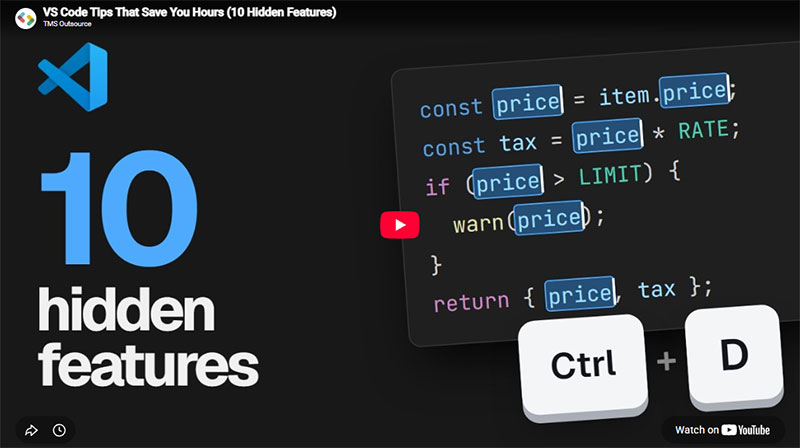
Ctrl+D selects the next occurrence of whatever you have highlighted. Keep pressing it to select more matches, then edit them all at once. This alone replaced find-and-replace for me in about 80% of cases.
Ctrl+Shift+L selects all occurrences at once. Faster than Ctrl+D when you know you want all of them.
Your mileage may vary on the specifics, but the pattern is this: learn five shortcuts this week, five more next week, and within a month you’ll barely touch the mouse. That’s when VSCode starts to feel fast.
FAQ on What Is VSCode
Is VSCode the same as Visual Studio?
No. Visual Studio is a full IDE with built-in compilers and debuggers aimed at enterprise .NET development. VSCode is a lightweight code editor. They share a name and a company, but they’re completely different products with different use cases.
Is VSCode free to use?
Yes. VSCode is completely free. The underlying source code (Code – OSS) is open-source under the MIT License. Microsoft distributes the packaged version at no cost for personal, educational, and commercial use.
What programming languages does VSCode support?
VSCode supports virtually every language. JavaScript, TypeScript, HTML, and CSS work out of the box. Python, Java, C++, Go, Rust, PHP, and dozens more are supported through extensions that use the Language Server Protocol.
Does VSCode work on Mac and Linux?
Yes. VSCode runs natively on Windows, macOS, and Linux. It’s built on the Electron framework, which enables cross-platform compatibility from a single codebase. Browser-based versions like vscode.dev also work on any device.
Is VSCode good for beginners?
Very. The interface is clean, the Command Palette makes features easy to find, and the extension marketplace covers any language a beginner might learn. Most coding bootcamps and university courses recommend it as a starting editor.
What are the best extensions for VSCode?
Prettier, ESLint, GitLens, Live Server, and the Python extension are the most commonly installed. The marketplace hosts over 60,000 extensions covering everything from themes and linters to AI coding assistants like GitHub Copilot.
Can VSCode replace a full IDE?
For most workflows, yes. With the right extensions, VSCode handles debugging, code completion, version control, and terminal access. JetBrains IDEs still offer deeper support for specific languages like Java and Kotlin, though.
How much RAM does VSCode use?
Base memory usage starts around 200-300 MB with no extensions loaded. That number climbs as you add extensions and open larger projects. Using the built-in Process Explorer helps identify extensions that consume the most resources.
Can I use VSCode for web development?
Absolutely. VSCode is one of the most popular tools for web development. Built-in Emmet abbreviations, IntelliSense for JavaScript, integrated terminal, and extensions for React, Angular, and Vue make it a strong fit.
What is the difference between VSCode and VSCodium?
VSCodium is a community build of VSCode with Microsoft’s telemetry and branding removed. It uses the same open-source Code – OSS base. Functionality is nearly identical, though some Microsoft-specific extensions aren’t available.
Conclusion
Understanding what is VSCode comes down to this: it’s a free, cross-platform code editor that scales from simple text editing to full development environment through its extension system. Microsoft built it on Electron, open-sourced the core, and let the community shape the rest.
The numbers back it up. 75.9% developer adoption in the 2025 Stack Overflow survey, over 60,000 extensions in the marketplace, and native Git integration that covers most daily source control tasks.
Whether you write Python scripts, build React components, debug Node.js servers, or edit Kubernetes config files, VSCode handles it. The build pipeline integrations, remote SSH capabilities, and workspace profiles make it practical for solo developers and large engineering teams alike.
Install it. Open a folder. Start with five extensions. That’s all it takes to see why it became the default web development IDE for most of the industry.

- How to Run a React App in VS Code Step by Step - October 23, 2026
- Transactional or marketing email: which messages your app should send itself - October 23, 2026
- How Software Teams Write SOPs for Releases and Deployments - October 22, 2026