Every megabyte your app forces users to download is a reason some of them won’t bother.
The Android App Bundle is Google’s answer to that problem. Introduced at Google I/O 2018 and mandatory on Google Play since August 2021, it replaces the universal APK publishing model with a smarter, device-specific delivery mechanism built around Dynamic Delivery.
This guide covers everything developers need to know: how the .aab file format works, how it compares to APK, what Play Feature Delivery and Play Asset Delivery actually do, and where the format falls short.
What Is an Android App Bundle?
An Android App Bundle (AAB) is a publishing format with the .aab file extension that contains all of an app’s compiled code and resources, while deferring APK generation and signing to Google Play.
It is not an installable file. Google Play receives the AAB and builds device-specific APKs from it before delivery to the end user.
Google introduced AAB at Google I/O 2018 as a replacement for the universal APK publishing model. The format became mandatory for all new app submissions on Google Play starting August 2021 (Android Developers Blog).
From June 2023, the requirement extended further. TV app updates on Google Play must now also be published as App Bundles (Google Play Console Help).
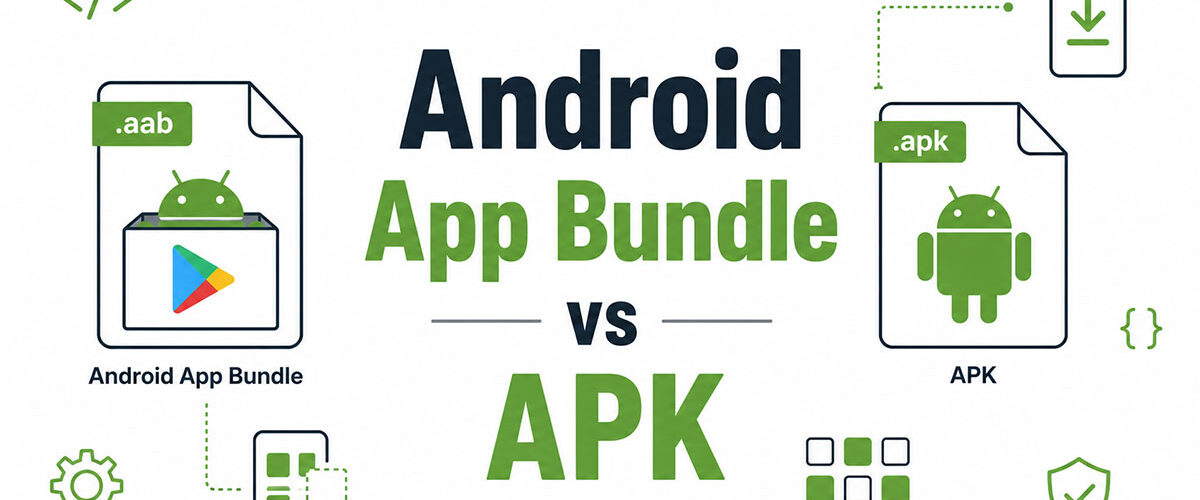
How AAB differs from APK
| Attribute | APK (.apk) | AAB (.aab) |
|---|---|---|
| Installable on device | Yes, directly | No, requires conversion |
| Who signs for distribution | Developer | Google Play (via Play App Signing) |
| Resource scope | Contains resources for all supported devices | Delivers only the resources needed for each device |
| Sideloading support | Yes | Requires conversion with Bundletool or a similar tool |
The APK packages every language string, screen-density drawable, and CPU architecture library into one file regardless of the target device.
The AAB sends all of that to Google Play, which then generates and serves the right subset of resources for each specific device configuration through Dynamic Delivery.
The publishing pipeline shift
With a traditional APK, the developer builds, signs, and manages multiple APK variants to cover different device configurations. That’s a lot of manual overhead.
AAB moves that responsibility to Google Play’s infrastructure. Developers upload one file. Google Play handles the rest.
The Google Play Store hosts over 2.65 million Android apps as of 2025 (We Are Tenet), all competing for visibility in an ecosystem where install size directly affects conversion.
Between 2023 and 2024, Google Play saw 28.3 billion new app installs, a 31% year-over-year increase (We Are Tenet). The app publishing format you choose now directly affects how many of those installs you capture.
How Does Android App Bundle Work?

Google Play processes the AAB through its Dynamic Delivery system, which splits the bundle into 3 APK types: the base APK, configuration APKs, and dynamic feature APKs.
Each user’s device receives only the APK components that match its exact specifications. A device running arm64-v8a architecture with an xxhdpi screen gets a different set than an x8664 device running hdpi.
Dynamic Delivery: How Google Play Builds Device-Specific APKs
The process runs entirely server-side on Google Play infrastructure. The developer never touches individual device configurations.
When a user taps “Install,” Google Play reads the device’s reported configuration and assembles the correct APK set from the uploaded AAB.
- Base APK: Core app code and resources every device needs
- Configuration APKs: Device-specific assets (language packs, screen density resources, ABI libraries)
- Dynamic Feature APKs: Optional modules delivered on demand or conditionally
Google’s research shows that every 6 MB reduction in download size increases install conversion by roughly 1% (Google Play Apps and Games, “Shrinking APKs, Growing Installs”).
Apps that take longer than 2 seconds to load see a 30% lower engagement rate than faster-loading apps (McKinsey, 2024). Smaller delivered APKs load faster, which links directly to retention outcomes.
Configuration Splits: Screen Density, ABI, and Language Resources
Configuration splits are the mechanism that produces the actual size savings. They strip out every resource the target device cannot use.
Screen density splits remove drawables for screen densities the device does not support. A phone with an xxhdpi display gets xxhdpi assets only, not the full set from mdpi through xxxhdpi.
ABI splits remove native library folders for architectures the device does not run. A device using arm64-v8a does not receive x8664 or armeabi-v7a libraries.
Language resource splits remove locale string files for languages not installed on the device. An English-only device skips the Arabic, German, and Japanese string tables entirely.
On average, apps published as AABs are about 15% smaller than equivalent universal APKs (Android Developers). Apps with extensive localization and multiple ABI targets can see reductions up to 50% when combined with dynamic feature modules (Sonar, 2024).
What Is the Difference Between AAB and APK?

The core difference is this: an APK is a file users install. An AAB is a file Google Play processes to generate installable files.
Both contain compiled code and resources. Only one can run on a device without additional tooling.
File format and installability
APK is self-contained. It runs directly on any Android device, gets sideloaded via adb, and works across all distribution channels including F-Droid, Amazon Appstore, and Samsung Galaxy Store.
AAB is not directly installable. To install an AAB outside of Google Play, you need bundletool to extract a device-specific APK set first, then install using adb install-multiple. That’s an extra step most end users can’t do.
This distinction matters for developers targeting multiple stores. Many maintain parallel APK and AAB build pipelines when distributing beyond Google Play.
Size at build vs size at delivery
Developers sometimes notice that the .aab file is larger than a universal APK. That’s expected and does not indicate a problem.
| Format | Upload File Size | Delivered to User | Resources Included |
|---|---|---|---|
| Universal APK | Smaller | Full size for every device | All configurations and resources |
| AAB | Larger (contains everything for all supported devices) | Typically 15–50% smaller per device | Only device-specific resources |
The AAB contains resources for every possible device so Google Play can generate optimized APKs for each one.
What the user actually downloads is much smaller, because they receive only the resources their device needs.
Signing responsibility
With APK distribution, the developer holds the app signing key and signs the APK before upload. With AAB, Play App Signing is mandatory.
The developer signs the AAB with an upload key before sending it to Google Play. Google then signs the generated APKs with the actual app signing key, which Google holds on its infrastructure.
Losing the upload key is recoverable via a key reset request in Play Console. Losing a self-managed APK signing key is not, and means losing the ability to push updates to existing users (Android Developers).
What Are the App Size Reduction Benefits of Android App Bundle?
AAB delivers an average 15% reduction in app download size compared to publishing a universal APK, according to Android Developers. Some apps see reductions up to 50% when language packs, multiple ABI targets, and feature modules are all in play.
Smaller downloads have a measurable effect on install rates. Google’s research ties every 6 MB reduction in size to approximately 1% higher install conversion (Google Play, “Shrinking APKs, Growing Installs”).
Where size savings come from
Language resources: Most apps ship 30-100 locale string files. On average, users have 1-3 device languages. Configuration splits cut all the unused locale files from the delivered APK.
Screen density drawables: A single app may include 5 density variants per image (ldpi through xxxhdpi). A device gets 1. The rest are stripped before delivery.
Native libraries: Apps supporting multiple CPU architectures package arm64-v8a, armeabi-v7a, and x86_64 libraries. Each device receives only its required ABI.
Real-world size reduction results
Halodoc, a healthcare platform, cut its Play Store install size by 40% after migrating to dynamic feature modules within an AAB setup.
That size reduction drove an 11% higher install conversion rate and a 52% reduction in uninstalls (Halodoc Engineering Blog). A 40% smaller app did not just reduce data usage. It kept users who downloaded it.
A retail app documented by Twinr (2025) achieved a 35% size reduction after adopting modular AAB delivery, resulting in 20% more installs and improved Play Store ranking.
Size limits under AAB vs APK
Google Play enforces a compressed download limit of 200 MB for the base APK generated from an AAB. Apps exceeding that threshold use Play Feature Delivery or Play Asset Delivery for additional content (Google Play Console Help).
Apps still publishing with APKs instead of AAB are subject to the legacy 100 MB limit. That’s half the ceiling, with none of the per-device optimization.
Google Play shows a non-blocking data warning to users on mobile connections when an app exceeds 200 MB. Install rates typically drop when that dialog appears, which makes size optimization an install funnel issue, not just a storage courtesy.
What Is Play Feature Delivery and How Does It Extend AAB?

Play Feature Delivery is a system that lets developers split app functionality into separate modules, each delivered to the user on its own schedule rather than at initial install.
It is exclusive to the AAB format. Standard APK publishing cannot support conditional or on-demand module delivery.
Install-Time vs On-Demand vs Conditional Delivery
| Delivery Mode | When It Downloads | Best Use Case |
|---|---|---|
| Install-time | Downloads together with the base app during installation | Features that all users need immediately at launch |
| On-demand | Downloads only when the user accesses the feature | Rarely used or advanced features |
| Conditional | Downloads during installation only if the device meets specified conditions | Hardware-specific features such as camera AI or AR capabilities |
On-demand modules are the biggest lever for initial install size reduction.
A barcode scanner, PDF viewer, or in-app camera module can sit at zero bytes in the user’s initial download, then arrive when the user actually opens that part of the app.
How to Configure a Dynamic Feature Module in Gradle
Dynamic feature modules require the Android Gradle Plugin 3.2.0 or higher. Each module gets its own build.gradle file with apply plugin: 'com.android.dynamic-feature'.
The base module declares which feature modules it depends on. Feature modules declare their delivery mode via the dist:delivery tag in the module’s AndroidManifest.xml.
On-demand modules use the Play Core Library at runtime to request and install the module when needed. The request is asynchronous, so the UI needs to handle loading states during feature download.
One practical issue worth knowing: on-demand modules add real complexity to testing. You need to test install, uninstall, and re-install flows for each module, plus failure states if the module download fails mid-session. That testing overhead is why some teams stick with install-time delivery even for features that could technically be on-demand.
What Is Play Asset Delivery and When Should It Be Used?
Play Asset Delivery replaces the old APK Expansion Files (OBB) system for delivering large assets. It supports asset packs up to 512 MB each, delivered separately from the base APK.
Google deprecated OBB files in favor of Play Asset Delivery as part of the broader AAB push. OBB files stayed outside the APK, were error-prone to manage, and offered no delivery flexibility.
Asset Pack Delivery Modes
Install-time delivery: Asset pack downloads with the app install and is available immediately on launch. Use this for assets the app needs on the first screen.
Fast-follow delivery: Asset pack downloads automatically after install completes. The user can open the app without waiting, and the assets arrive in the background. The app does not need to be open for the download to run.
On-demand delivery: Assets are fetched at runtime when the app explicitly requests them. Best for content the user may never access, like bonus levels or secondary game modes.
When Play Asset Delivery is the right tool
It is built for games. A mobile game with 3D models, texture packs, and high-quality audio files will routinely exceed the 200 MB base APK limit.
Unity and Unreal Engine both support Play Asset Delivery integration, which matters for game studios already using those engines. You do not need to build a custom delivery pipeline from scratch.
The total maximum compressed download size for apps on Google Play is 34 GB (Google Play Console Help). Asset packs are what make that ceiling reachable without forcing a 34 GB initial install on users.
For standard apps (not games), Play Asset Delivery is rarely needed. Most non-game apps stay well under 200 MB even with language packs and multiple screen densities. The real audience for Play Asset Delivery is game development teams and apps with large offline content libraries, like language learning or video editing apps that bundle media files.
How to Build an Android App Bundle in Android Studio?

Building an AAB in Android Studio takes 3 steps: generate a keystore, configure signing, and use the Generate Signed Bundle workflow.
The Gradle command is ./gradlew bundleRelease for release builds. The output file appears at app/build/outputs/bundle/release/app-release.aab.
Generate Signed Bundle workflow in Android Studio
Go to Build > Generate Signed Bundle/APK, select “Android App Bundle,” then choose your keystore and key alias.
If you do not have a keystore yet, Android Studio walks you through creating one in the same dialog. The keystore stores your upload key, not the app signing key. Google holds the app signing key once Play App Signing is configured.
- Select build variant (typically “release”)
- Choose destination folder for the .aab output
- Click “Finish” to generate the signed bundle
- Upload the .aab file to Google Play Console
The process for generating a signed APK in Android Studio follows the same dialog, but you select “APK” instead of “Android App Bundle” at the first step.
Using bundletool to Test AAB Locally
bundletool is Google’s open-source CLI tool for working with AAB files outside of Google Play. Download it from the official GitHub repository.
Two main testing workflows:
- Generate an APK set from your AAB:
bundletool build-apks --bundle=app.aab --output=app.apks - Deploy the APK set to a connected device:
bundletool install-apks --apks=app.apks
The tool estimates compressed download size before you upload to Play Console. The calculation is similar but not identical to what Play Console reports, so treat it as a close estimate rather than an exact number.
bundletool is also the correct tool for automated build pipelines that need to test AAB output as part of a CI/CD workflow. You can run bundletool commands in any environment that has Java installed.
Play App Signing: What Changes When You Upload an AAB
Play App Signing is mandatory for AAB uploads. You cannot upload an AAB to Google Play without it.
When you enroll, 2 keys are in play at all times. The upload key is yours, used to sign the AAB before it goes to Play Console. The app signing key is held by Google and used to sign the generated APKs before they reach users’ devices (Android Developers).
If your upload key is compromised or lost, you request a reset via Play Console. Google resets your upload key, and your existing users are unaffected because the app signing key remains unchanged.
This is a security upgrade over self-managed APK signing. Under the old model, losing your keystore meant losing the ability to ship updates permanently. There was no recovery path. Play App Signing eliminates that risk at the cost of handing Google custody of the distribution key.
Some developers have a real concern with that tradeoff, particularly those distributing on multiple stores or in regulated industries. For those cases, you can provide your own signing key to Play App Signing rather than letting Google generate one, and use that same key across stores. That way Google holds a copy but you retain one too.
What Are the Android App Bundle Requirements on Google Play?
Google Play made AAB the required publishing format for all new apps in August 2021. For all updates to pre-existing apps, the requirement extended to November 2021 (Wikipedia, Android App Bundle).
Since May 2023, Android TV apps must also use AAB for all new and existing app updates (Google Play Console Help).
| Requirement | Effective Date | Scope |
|---|---|---|
| New app submissions | August 2021 | All new Google Play listings |
| Existing app updates | November 2021 | Existing apps submitting new updates |
| Android TV apps | May 2023 | New and existing Android TV app updates |
| Private managed apps | Ongoing | Managed Google Play apps (with some exceptions) |
New personal developer accounts created after November 2023 must also run a closed test with a minimum of 20 testers for at least 14 continuous days before publishing to production (Foresight Mobile, 2026).
Size limits under the AAB publishing model
Base APK limit: 200 MB compressed. Apps exceeding this threshold must use Play Feature Delivery or Play Asset Delivery to handle the overflow.
The maximum cumulative compressed download size any individual device can receive is 4 GB, which includes the base APK, all feature modules, and all asset packs (Android Developers FAQ).
The total maximum compressed download size for any app published on Google Play is 34 GB. Most apps never get close to that number, but games using Play Asset Delivery for large texture and audio libraries can approach it.
What happens with existing APK-only apps
Existing apps that have not published a new update as AAB can still push APK updates in some cases. Google strongly pushes migration but has not set a hard cutoff date for all existing apps as of mid-2025.
APK-only apps are subject to the legacy 100 MB compressed download limit, half the ceiling available under AAB publishing (Google Play Console Help).
Play App Signing is mandatory when uploading an AAB. Apps still on the self-managed APK signing model cannot upload AAB files until they enroll in Play App Signing and transfer or generate a signing key through Google’s key management system (Android Developers).
What Are the Limitations of Android App Bundle?
AAB solves real problems for Google Play distribution. It creates new ones for any workflow outside of it.
Over 1 million apps and games use AAB for production releases on Google Play (Android Developers FAQ). The format is mature and well-supported inside that ecosystem. Outside it, the story changes quickly.
No direct sideloading or third-party store support
An AAB file cannot be installed directly on any Android device. No exceptions. Users sideloading apps outside Google Play need a device-specific APK set, which requires bundletool to extract from the AAB first (XDA Developers).
Stores that do not process AAB natively:
- F-Droid, which requires APK submissions exclusively
- Amazon Appstore, which has its own AAB processing but separate from Google Play’s Dynamic Delivery
- Direct enterprise APK distribution pipelines
Samsung Galaxy Store supports AAB uploads with its own processing pipeline, but behavior differs from Google Play’s implementation.
Developers targeting multiple distribution channels typically maintain parallel APK and AAB build pipelines. Gradle supports generating both from the same project simultaneously, so it is not a major overhead in the build process itself, but it does add testing surface area.
Play App Signing key control tradeoff
Play App Signing is mandatory for AAB. Google holds the app signing key. Developers retain only the upload key.
That’s a security improvement for most teams. For some it’s a hard blocker. Organizations with strict compliance requirements or security policies that prohibit third-party key custody may find the AAB model incompatible with internal practices (Jason Bayton, 2025).
The practical workaround: provide your own signing key to Play App Signing rather than letting Google generate one. You keep a copy; Google holds one too. That satisfies most multi-store signing consistency requirements.
Dynamic feature module complexity
On-demand and conditional delivery modules add real testing complexity that install-time APK delivery does not have.
Each dynamic feature module needs its own test coverage for 3 states: successful install, failed install mid-session, and re-install after uninstall. QA teams that are not prepared for this will miss issues that only surface when module downloads fail or retry (Android Developers).
Debug builds still use APK format by default. The AAB is a release-build artifact. Teams that need to test dynamic feature behavior during development use bundletool’s --local-testing flag to simulate Play Feature Delivery without actually going through Google Play.
How Does Android App Bundle Affect App Security and Signing?

Play App Signing launched in 2017 and became mandatory for all new apps using AAB format from August 2021 (Android Developers FAQ).
The shift moves signing responsibility from a local keystore file managed by the developer to Google’s secure key management infrastructure. That changes both the risk profile and the recovery options.
Two-key model: upload key vs app signing key
Upload key: Developer-held. Used to sign the AAB before uploading to Play Console. Google verifies this signature confirms the upload is from you, then strips it.
App signing key: Google-held. Used to sign the generated APKs before they reach users’ devices. This is the key the Android platform trusts for app update verification.
If your API providers (Google Maps, OAuth, Facebook Login) authenticate via key fingerprint, you must register the app signing key fingerprint with them, not the upload key fingerprint (Google Play Console Help). Getting this wrong breaks those API integrations silently in production.
Key rotation and recovery options
Upload key compromised or lost: request a reset via Play Console. Google verifies your identity and issues a new upload key. Existing users see no disruption because the app signing key is unchanged.
Android 17 introduced the v3.2 APK Signature Scheme, which combines classical signatures with ML-DSA signatures for post-quantum cryptography hybrid signing (Android Developers). For teams using Play App Signing, Google will offer an upgrade path; for self-managed keys, the apksigner tool handles the rotation.
Pre-August 2021 apps can use the “key upgrade” option in Play App Signing to migrate to a new signing key. During the transition period, each release requires both an AAB and a legacy APK signed with the old key. Over time, legacy installs migrate to the upgraded key as users move to new devices (Android Developers FAQ).
Code transparency for AAB verification
Code transparency is an optional mechanism that lets developers and users verify that the code Google delivers matches what the developer built.
At build time, the developer generates a code transparency file containing hashes of the app’s code and signs it with a private code transparency key that Google never receives. On a device, inspecting an installed APK can verify the code transparency file still matches the delivered code (Android Developers).
If there’s a mismatch, it signals that code was modified during distribution. This gives developers an audit trail even though they no longer control the final signing key. Most consumer apps skip this. Regulated industries (finance, healthcare) and security-conscious teams should consider it.
How Do Third-Party App Stores Handle Android App Bundle?
AAB is not proprietary. The format is open source, meaning any app store can support it (Android Developers FAQ). Whether they have is a different question.
Google Play is the only store that fully implements Dynamic Delivery from an uploaded AAB, generating device-specific configuration APKs server-side. Other stores vary widely in their support level.
Amazon Appstore and Samsung Galaxy Store
Amazon Appstore announced AAB support, but its processing pipeline differs from Google Play’s Dynamic Delivery. The store handles the AAB upload but does not guarantee identical size optimization behavior.
Samsung Galaxy Store accepts AAB uploads and processes them through its own pipeline. Configuration split behavior and delivery optimization are Samsung-controlled, not Google Play-controlled.
Huawei AppGallery uses its own App Pack format, separate from AAB entirely. Developers targeting Huawei devices build a distinct artifact for that store.
F-Droid and open-source distribution
F-Droid does not support AAB and requires APK submissions. Period.
The open-source repository builds apps from source and distributes APKs directly. The AAB model’s reliance on a central store to generate and sign APKs conflicts with F-Droid’s distribution philosophy, which keeps signing and distribution in the open-source community’s control.
For developers who care about F-Droid distribution, the build pipeline needs to produce both an AAB for Google Play and a standard APK for F-Droid. This is achievable with a single Gradle configuration using parallel build tasks.
The multi-store build strategy
| Store | AAB Supported | Format Needed |
|---|---|---|
| Google Play | Yes, required | AAB only for new apps |
| Samsung Galaxy Store | Yes, through its own distribution pipeline | AAB or APK |
| Amazon Appstore | Partial support | AAB or APK |
| F-Droid | No | APK required |
| Huawei AppGallery | No (uses App Pack) | Separate format required |
The Gradle Android Plugin generates AAB and APK simultaneously from the same project. Running ./gradlew bundleRelease assembleRelease in the same build produces both artifacts without rebuilding the project twice.
Teams distributing on multiple stores typically automate this in their build pipeline so each release produces both formats in a single CI run. Manually maintaining separate workflows for each store format is how release management debt accumulates.
What Tools Support Android App Bundle Development and Testing?
5 tools form the core AAB development and testing workflow. Each has a specific role; none are fully interchangeable.
Understanding which tool does what prevents the common mistake of using bundletool where Android Studio’s Gradle plugin is simpler, or skipping bundletool when local dynamic delivery testing is actually needed.
Android Studio and the Gradle Android Plugin
Android Studio is the primary IDE for building and signing AAB files. The Generate Signed Bundle workflow and the bundleRelease Gradle task both live here.
Minimum Gradle plugin version required: 3.2.0 for AAB build support. Dynamic feature modules need 3.3.0 or higher.
The Android Studio IDE also provides the App Bundle Explorer, which lets developers inspect the split APK structure of a generated AAB before uploading, including estimated size per device configuration.
bundletool
bundletool is the underlying CLI tool that Android Studio, the Android Gradle plugin, and Google Play all use to build and process AAB files (Android Developers).
What makes it irreplaceable for testing: it is the only tool that accurately simulates how Google Play generates device-specific APKs locally, without requiring an upload to Play Console.
Key bundletool commands developers use regularly:
build-apks: generates an APK set archive (.apks) from an AABinstall-apks: deploys the right split APKs to a connected deviceget-size total: estimates download size for a given device configurationget-device-spec: extracts a connected device’s configuration as a JSON file
The --local-testing flag enables local simulation of Play Feature Delivery and Play Asset Delivery without going through Google Play. This is how developers test on-demand module downloads during development (Android Developers).
Google Play Console and Firebase App Distribution
Google Play Console is where AAB files are uploaded for production and test track distribution. It provides the App Size page under Android vitals, showing download size on a reference device and size range across all device configurations.
Firebase App Distribution supports AAB for internal testing distribution, which lets teams share pre-release builds with testers before Play Console upload. This fits into a continuous deployment workflow where builds get distributed automatically after a successful CI run.
The Play Console pre-launch report also runs automatically after AAB upload, testing the app on real devices in Google’s test lab and flagging crashes, accessibility issues, and performance regressions before the release goes live. That report has caught shipping-blocking bugs more than once in my experience with production release pipelines.
FAQ on Android App Bundle
What is an Android App Bundle?
An Android App Bundle (.aab) is a publishing format that contains all compiled code and resources. Google Play processes it to generate device-specific APKs through Dynamic Delivery. Users download only what their device needs. It is not directly installable.
Is AAB mandatory for Google Play?
Yes. Google Play requires AAB for all new apps since August 2021 and for all existing app updates since November 2021. Android TV app updates must also use AAB since May 2023. APK submissions are no longer accepted for new listings.
What is the difference between AAB and APK?
An APK is a self-contained installable file delivered as-is to every device. An AAB is a publishing format processed server-side by Google Play. The AAB produces smaller, optimized APKs per device. APK contains resources for all configurations; AAB does not.
How much does AAB reduce app size?
On average, apps published as AAB are about 15% smaller than universal APKs, according to Android Developers. Apps with extensive localization and multiple ABI targets can see reductions up to 50% when combined with dynamic feature modules.
Can I sideload an AAB file?
No. AAB files cannot be installed directly on Android devices. To sideload, use bundletool to extract a device-specific APK set from the AAB, then install using adb install-multiple. It adds steps that most end users cannot perform.
What is Play App Signing and is it required?
Play App Signing is Google’s key management service. It is mandatory for all AAB uploads. Google holds the app signing key and signs the generated APKs. Developers retain only the upload key, which can be reset if lost or compromised.
What is Play Feature Delivery?
Play Feature Delivery lets developers split app features into separate modules with 3 delivery modes: install-time, on-demand, and conditional. On-demand modules reduce the initial install size significantly. Users download a feature only when they actually access it inside the app.
What is Play Asset Delivery?
Play Asset Delivery replaces the legacy OBB expansion file system. It delivers large asset packs, up to 512 MB each, separately from the base APK. It supports install-time, fast-follow, and on-demand delivery modes. Primarily used by games and large offline content apps.
Does AAB work on third-party app stores?
Partially. Samsung Galaxy Store and Amazon Appstore accept AAB uploads but process them through their own pipelines. F-Droid requires APK only. Huawei AppGallery uses its own App Pack format. Developers targeting multiple stores maintain parallel APK and AAB build pipelines.
What is bundletool and when should I use it?
bundletool is the open-source CLI tool underlying Android Studio, the Gradle plugin, and Google Play itself. Use it to test AAB locally, extract APK sets, estimate download size, and simulate Play Feature Delivery without uploading to the Play Console.
Conclusion
This conclusion is for an article presenting the Android App Bundle as the publishing format that replaced monolithic APK distribution on Google Play.
The shift from universal APK to AAB is not optional for new apps. It affects everything from configuration splits and install size to Play App Signing, key management, and how dynamic feature modules reach users.
The 15% average size reduction is real. So are the tradeoffs around sideloading, F-Droid compatibility, and ceding signing key custody to Google’s infrastructure.
Teams that understand the full app publishing pipeline, including bundletool, Play Asset Delivery, and the two-key signing model, ship with fewer surprises and better install conversion outcomes.

- MongoDB Cheat Sheet - October 20, 2026
- Adding AI Video Generation to a Software Product: Architecture, Cost Guardrails and QA - October 20, 2026
- Show Hidden Characters, Spaces, and Line Endings in Notepad++ - October 19, 2026