

Every cloud instance you’ve ever launched, every test environment you’ve spun up and thrown away, runs on the same core technology. So what is a virtual machine, and why does it still matter when containers get all the attention?
A virtual machine is a software-based computer that runs its own operating system and applications on shared physical hardware. It’s the foundation of server consolidation, cloud computing, and most modern IT infrastructure.
This guide covers how VMs work, the differences between Type 1 and Type 2 hypervisors, how they compare to containers, and when a VM is (or isn’t) the right tool. You’ll also find real stats on the current market and a practical walkthrough of setting one up.
What Is a Virtual Machine

A virtual machine is a software-based emulation of a physical computer. It runs its own operating system and applications inside an isolated environment, all while sharing the hardware resources of a single host machine.
Think of it this way. One physical server sits in a rack. But instead of running just one OS, that server runs five, ten, maybe twenty separate virtual instances. Each one behaves like a standalone computer with its own CPU allocation, memory, storage, and network adapter.
The guest operating system inside a VM has no idea it’s not running on real hardware. It boots up, loads drivers, runs programs. Everything looks normal from its perspective.
Precedence Research valued the global virtual machine market at $11.11 billion in 2024, projecting it to reach $43.81 billion by 2034 at a 14.71% CAGR. That kind of growth tells you this technology isn’t going anywhere.
The core idea is straightforward. A hardware abstraction layer sits between the physical hardware and the virtual instances. That layer, called a hypervisor or virtual machine monitor, divides up compute resources and hands them out to each VM. The VMs stay completely isolated from each other, so if one crashes, the rest keep running.
System virtual machines (the kind most people mean when they say “VM”) accounted for 64% of the market share in 2024, according to Precedence Research. These are full-system emulations. The other category, process virtual machines, runs a single application in a platform-independent way (the Java Virtual Machine is probably the most well-known example).
VMs are foundational to cloud computing, software development, testing, disaster recovery, and server consolidation. Almost every cloud instance you spin up on AWS, Azure, or Google Cloud is a virtual machine running on shared physical infrastructure.
How Virtual Machines Work

A virtual machine works by inserting a software layer between the physical hardware and the guest operating system. That layer is the hypervisor, and it handles everything: allocating CPU cycles, partitioning memory, managing disk I/O, and routing network traffic.
When you boot a VM, the hypervisor carves out a defined set of resources from the host machine. Say you assign 4 CPU cores, 8 GB of RAM, and a 100 GB virtual disk. The guest OS sees exactly that. It doesn’t know (or care) that there are fifteen other VMs sharing the same physical box.
The hypervisor uses binary translation or hardware-assisted virtualization (Intel VT-x, AMD-V) to intercept and translate privileged instructions from the guest OS. Modern CPUs have built-in support for this, which is why VM performance has gotten surprisingly close to bare-metal over the past decade.
Snapshots are one of the more practical features. You can freeze the entire state of a VM at any point, save it, and roll back later if something breaks. This makes VMs excellent for testing risky changes or experimenting with new configurations. Took me a while to realize how much time this saves compared to rebuilding from scratch.
VM migration (sometimes called live migration) lets you move a running virtual machine from one physical host to another without shutting it down. VMware’s vMotion popularized this, and it’s now standard across most enterprise hypervisors.
Type 1 vs. Type 2 Hypervisors
Not all hypervisors work the same way. The distinction between Type 1 and Type 2 matters more than most people think, especially when performance is on the line.
| Feature | Type 1 (Bare-Metal) | Type 2 (Hosted) |
|---|---|---|
| Runs on | Directly on hardware | On top of a host OS |
| Performance | Near-native speed | Some overhead from host OS |
| Use case | Data centers, production servers | Development, personal use |
| Examples | VMware ESXi, Microsoft Hyper-V, KVM, Xen | VirtualBox, VMware Workstation, Parallels |
Type 1 hypervisors run directly on the server hardware. No host OS underneath. VMware ESXi, Microsoft Hyper-V, and KVM (Kernel-based Virtual Machine) are the big names here. These are what data centers and cloud providers use.
sense data from 2024 shows VMware products holding roughly 42% of the virtualization platform market, with Hyper-V at around 5.3% and open-source options like KVM gaining ground fast, especially after Broadcom’s acquisition of VMware shifted pricing models.
Type 2 hypervisors sit on top of an existing operating system. Oracle VirtualBox and VMware Workstation are common choices. They’re easier to set up but carry more overhead since the host OS is still running underneath. Most developers use these for local testing or running a different OS on their laptop.
If you’re doing anything related to production environments, Type 1 is the standard. Type 2 is fine for development and prototyping.
Common Uses for Virtual Machines

VMs show up in more places than most people realize. The obvious use case is server consolidation in data centers. But that’s just the start.
Server Consolidation
This is where it all began. Traditional data centers used to follow the “one workload, one box” approach. The result? Average server utilization sat between 12% and 18%, according to an NRDC study. That’s a lot of wasted compute.
Virtualization fixed that by stacking multiple VMs onto a single physical host. The Energy Star program notes that organizations commonly consolidate the workloads of six or more physical servers onto one host machine. Citigroup reportedly improved utilization to around 50% through virtualization and consolidation.
Software Development and Testing
Developers spin up VMs constantly. Need to test an app on Windows Server 2022, Ubuntu 24.04, and Red Hat Enterprise Linux? Three VMs, one workstation.
The software testing lifecycle benefits directly from this. You can create a clean VM, run your tests, then destroy it and start fresh. No leftover config files, no dependency conflicts.
Teams following DevOps practices use VMs alongside containerization in their build pipelines to create repeatable, isolated environments for every stage of deployment.
Legacy Application Support
Some business-critical software only runs on Windows XP. Or Windows Server 2008. Or some specific Linux kernel version from 2015.
VMs keep these applications alive without requiring you to maintain ancient physical hardware. The guest OS runs whatever it needs to, regardless of what the host is running. That’s a big deal for industries like healthcare and finance where software compliance requirements sometimes lock organizations into older platforms.
Security Research and Sandboxing
Security analysts use VMs as sandboxed environments to detonate and study malware. If the malware wrecks the guest OS, you just revert to a clean snapshot. The host machine stays untouched.
IntelMarketResearch data notes that over 30% of organizations report security incidents related to inadequate virtual machine isolation. So while sandboxing is powerful, it requires proper configuration and hardened hypervisor builds.
Virtual Machines vs. Containers
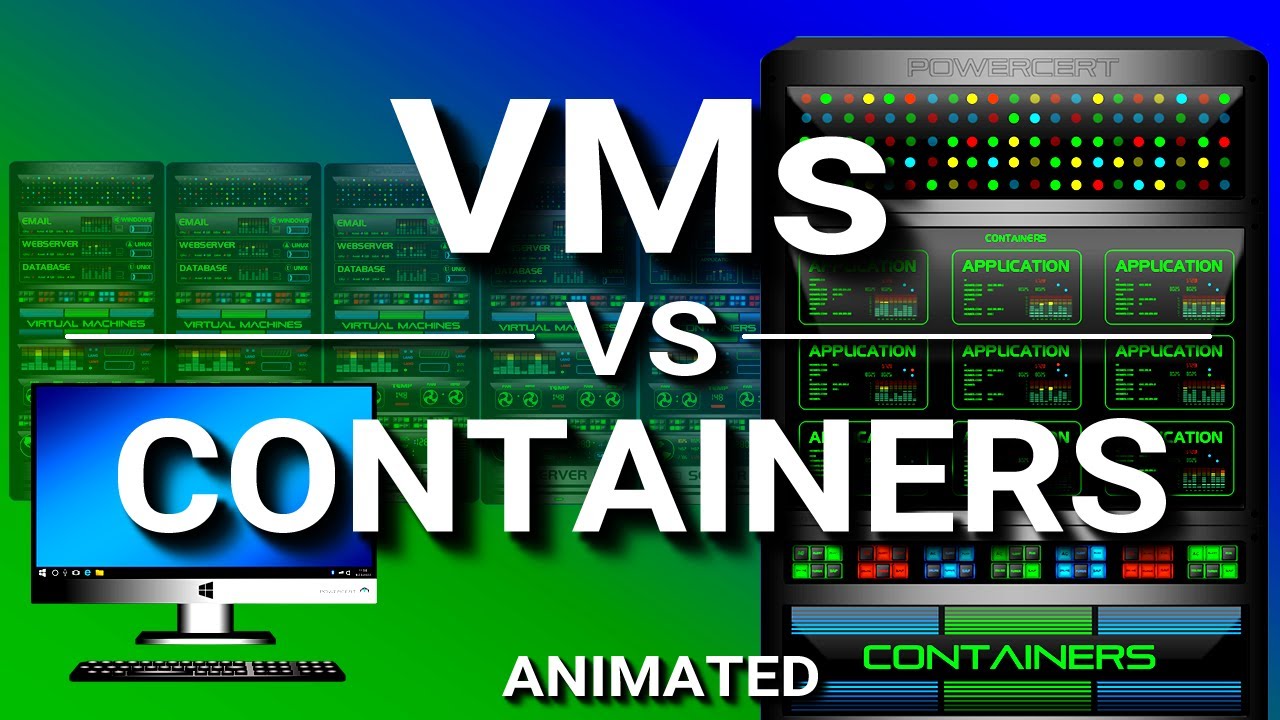
This is the comparison everyone wants to make. And the honest answer in 2025 is: you probably need both.
A VM virtualizes the hardware. It runs a full guest operating system, complete with its own kernel, drivers, and system libraries. A container virtualizes the OS layer. It shares the host kernel and only packages the application plus its dependencies.
| Characteristic | Virtual Machine | Container |
|---|---|---|
| Isolation level | Full OS isolation | Process-level isolation |
| Startup time | Minutes | Seconds (avg 1.3s) |
| Size | Gigabytes | Megabytes |
| OS flexibility | Any OS on any host | Shares host OS kernel |
| Resource overhead | Higher (full OS per instance) | Lower (shared kernel) |
| Best for | Legacy apps, compliance, multi-OS | Microservices, CI/CD, scaling |
The numbers tell the story of where the market is heading. The CNCF’s 2024 survey found that 80% of organizations now deploy Kubernetes in production, up from 66% in 2023. Nutanix’s 2025 Enterprise Cloud Index reports 90% of organizations have at least some containerized applications.
But VMs aren’t going away. Research from Zheng et al. (2024) found that containerized microservice architectures achieved a 42.7% reduction in infrastructure costs compared to VM-based deployments. Yet organizations in regulated industries like healthcare, finance, and government still depend on VM-level isolation for compliance (HIPAA, PCI-DSS, FedRAMP).
The practical reality: most production environments run containers inside VMs. The VM provides a hard security boundary. The containers inside it handle the application layer. Technologies like AWS Firecracker and Kata Containers blur this line even further, combining VM-level isolation with container-like startup speed.
If you’re building new cloud-native apps, containers with Kubernetes are the default. If you’re running legacy workloads, need full OS control, or operate under strict regulatory requirements, VMs are still the right tool. The difference between application software and system software matters here, since VMs give you control at the system level that containers simply don’t.
Benefits of Using Virtual Machines

VMs have survived every “containers will replace everything” prediction for a reason. The benefits are concrete and measurable.
Hardware Cost Reduction
A U.S. EPA report found that server virtualization can lead to energy savings of up to 80% by consolidating multiple virtual machines onto a single physical server. Fewer servers means lower hardware purchases, lower electricity bills, and less cooling infrastructure.
A Cisco study found that deploying a virtualized server costs about $2,000 compared to $7,000 for a standard physical server with 2 CPUs. The math gets compelling fast when you multiply that across hundreds of machines.
Isolation and Stability
Each VM operates as a completely separate entity. A crash, misconfiguration, or security breach in one VM does not affect others running on the same host.
This isolation is the reason why multi-tenant cloud platforms work. AWS, Azure, and Google Cloud run thousands of customer VMs on shared physical infrastructure. The hypervisor enforces strict boundaries between them.
Portability and Disaster Recovery
VM images are portable. You can export a VM from one host, copy it to another, and boot it up. The entire machine state (OS, apps, configuration, data) travels as a single file.
This makes disaster recovery significantly faster. Instead of rebuilding a server from scratch, you restore from a snapshot. Automated failover systems can spin up VM replicas in seconds. Teams that manage configuration management properly can even automate the entire recovery process.
Faster Provisioning
Ordering, shipping, racking, and configuring a physical server can take weeks. Spinning up a new VM takes minutes.
Cloud providers have made this even faster. You pick a machine type, select a region, and click deploy. The VM is ready before you finish your coffee. This speed directly supports app scaling strategies where organizations need to add compute capacity on demand.
Limitations and Drawbacks

VMs aren’t perfect. Ignoring the downsides leads to bloated infrastructure, wasted budget, and frustrated ops teams.
Performance Overhead
Every VM runs a full operating system. That means each instance consumes CPU cycles, RAM, and disk space just to keep the guest OS alive, before your application even starts.
For I/O-intensive workloads (databases, high-frequency trading, real-time analytics), this overhead matters. A containerized application running the same workload shows 28% higher throughput and 37% lower latency on average, according to 2024 benchmarking data published in the World Journal of Advanced Engineering Technology and Sciences.
Resource Consumption
Each VM is heavy. A minimal Linux VM might use 512 MB of RAM and several GB of disk. A Windows Server VM? Easily 2-4 GB of RAM and 30+ GB of disk space just for the OS.
Multiply that by fifty VMs on a single host, and you’re burning a huge chunk of resources on operating system overhead rather than actual application work. Containers avoid this because they share the host kernel.
Licensing Complexity
Running ten VMs with Windows Server means ten OS licenses (or licensing the host, depending on your edition). After Broadcom’s 2023 acquisition of VMware, the shift to subscription-only licensing and mandatory three-year commitments hit many organizations hard.
Broadcom eliminated VMware’s perpetual license option in early 2024. Many enterprises started exploring alternatives like Proxmox VE and Nutanix AHV specifically because of these cost changes.
VM Sprawl
It’s easy to create VMs. Too easy. Without proper governance, organizations end up with hundreds of forgotten instances running in the background, consuming resources and generating costs.
Good software configuration management practices and regular audits help, but VM sprawl remains one of the most common operational problems in virtualized environments. It’s the kind of thing nobody notices until the monthly cloud bill arrives and someone asks why it doubled.
Not Ideal for Lightweight Workloads
Spinning up a full VM to run a small microservice or a scheduled script is overkill. Container startup times average 1.3 seconds. A VM boot takes minutes.
For short-lived, stateless, or highly scalable workloads, containers with Kubernetes are a better fit. Gartner estimates that over 95% of new digital workloads will be deployed on cloud-native platforms by 2025, up from 30% in 2021. That’s not because VMs are bad. It’s because the use case shifted.
Popular Virtual Machine Software
The virtualization software market was valued at $12.5 billion in 2024, according to Verified Market Reports. That’s a lot of money chasing a lot of different products, and the landscape has shifted dramatically since Broadcom’s acquisition of VMware in late 2023.
Picking the right hypervisor or VM tool depends on what you’re trying to do. Running a home lab? Different answer than managing 500 production servers.
VMware ESXi and vSphere
VMware products still hold roughly 42% of the virtualization platform market, according to 6sense data from 2024. That’s a commanding lead, but it’s slipping.
Broadcom eliminated perpetual licenses in early 2024 and moved everything to subscription-only bundles. Some customers reported price increases between 150% and 1,000%. The result? A wave of enterprise migrations to alternatives.
VMware ESXi remains a Type 1 bare-metal hypervisor with mature features: vMotion for live migration, DRS for automatic resource balancing, and deep integration with vCenter for centralized management. It’s still the standard in large enterprise data centers, especially where teams have years of VMware-specific tooling and training.
Microsoft Hyper-V

Built into Windows Server and Windows 10/11 Pro. That’s Hyper-V’s biggest advantage. If you’re already running a Microsoft stack, there’s no separate purchase.
Windows Server 2025 brought significant Hyper-V upgrades: support for up to 2,048 virtual CPUs and 240 TB of RAM per generation 2 VM. Those numbers put it in direct competition with ESXi for resource-heavy workloads, including AI and big data processing.
sense data shows Hyper-V at about 5.3% of the virtualization market. It integrates tightly with Azure for high availability and hybrid cloud setups.
Oracle VirtualBox
Free, open-source, and cross-platform. VirtualBox runs on Windows, macOS, Linux, and Solaris as a Type 2 hosted hypervisor.
It’s the go-to for developers who need a quick Linux VM on their laptop, or for students learning about operating systems. Not built for production workloads, but great for testing and prototyping.
As of January 2026, VirtualBox is on version 7.2.6 with full ARM virtualization support added in August 2025. The base package is free under GPLv2. The extension pack (USB 3.0, RDP, disk encryption) requires a commercial license for business use.
KVM and Proxmox VE
KVM (Kernel-based Virtual Machine) is built directly into the Linux kernel. It turns Linux itself into a Type 1 hypervisor. No separate software install needed.
Proxmox VE wraps KVM with a web-based management interface, LXC container support, and built-in ZFS storage. It’s become the most talked-about VMware alternative since the Broadcom acquisition.
Saturn ME reports Proxmox has grown roughly 650% over seven years, with over 1.5 million installed hosts across 140+ countries. Gartner data shows Proxmox VE evaluations increased 340% year-over-year. PeerSpot’s 2025 survey places it at 16.1% mindshare in the server virtualization segment, up from about 10% in 2023.
Parallels Desktop
The standard choice for running Windows on a Mac. Parallels supports both Intel and Apple Silicon Macs, with features like Coherence mode that lets Windows apps appear alongside macOS apps.
Primarily targets individual users and small teams rather than data center deployments. If you need Windows for one or two specific apps on your Mac, this is the tool.
Cloud-Based VMs
| Provider | VM Product | IaaS Market Share (2024) |
|---|---|---|
| AWS | EC2 | ~37.7% |
| Microsoft | Azure Virtual Machines | ~23.9% |
| Compute Engine | ~9% | |
| Alibaba | ECS | ~4% |
Gartner reported the worldwide IaaS market grew 22.5% in 2024, reaching $171.8 billion. The top five providers account for 82.1% of that market. These cloud VMs are the same underlying technology as on-premise hypervisors, just someone else manages the hardware.
The infrastructure as code movement has made cloud VMs even more accessible. Teams define their virtual machines in Terraform or CloudFormation templates, version-control the configs, and spin up identical environments across regions in minutes.
How to Create a Virtual Machine

Creating a VM is surprisingly straightforward. The process is similar whether you’re using VirtualBox on your laptop or provisioning an instance on AWS. The steps change slightly depending on the tool, but the core flow stays the same.
Choose Your Hypervisor
Match the tool to your situation:
- Local development or learning? VirtualBox or VMware Workstation
- Windows environment with existing Microsoft licensing? Hyper-V
- Linux server in production? KVM or Proxmox VE
- Cloud deployment? AWS EC2, Azure VMs, or Google Compute Engine
Most hypervisors offer free tiers or open-source options. You don’t need to spend anything to get started.
Allocate Resources
Every VM needs three things from the host machine: CPU cores, RAM, and disk space. This is where resource allocation decisions matter.
General guidance: assign what the guest OS needs and nothing more. A lightweight Ubuntu Server VM runs fine with 1-2 CPU cores, 2 GB RAM, and 20 GB disk. Windows Server needs at least 2 cores, 4 GB RAM, and 32 GB disk to avoid crawling.
Leave headroom on the host. Running ten VMs that each want 4 GB on a host with 32 GB of RAM will cause memory contention and degrade performance for everything. Plan your horizontal vs vertical scaling strategy before committing resources.
Install the Operating System
You’ll need an ISO file. That’s a disk image of the operating system you want to install inside the VM. Download it from the official source (Microsoft, Ubuntu, Red Hat, etc.) and attach it to the VM’s virtual optical drive.
Boot the VM. It reads the ISO just like a physical computer would read a DVD. Walk through the OS installer, configure your settings, and you’re running.
After installation, install the guest additions or VM tools package (VMware Tools, Hyper-V Integration Services, VirtualBox Guest Additions). These drivers improve display performance, enable shared folders, and allow clipboard sharing between host and guest.
Configure Networking
VMs offer multiple networking modes. The right choice depends on whether the VM needs internet access, host-only communication, or visibility on your local network.
| Mode | VM Access | Host Access | Network Visibility |
|---|---|---|---|
| NAT | Internet via host | No direct access to VM | Hidden from LAN |
| Bridged | Full network access | Direct access | Appears as separate device |
| Host-Only | No internet | Host-VM communication | Isolated |
| Internal | No internet | No host access | VM-to-VM only |
NAT is the default in most hypervisors and works for basic setups. Bridged mode is what you want if the VM needs to act like a real machine on your network, which is common for server testing. Teams handling integration testing across services often use bridged or internal networks to simulate realistic conditions.
Virtual Machines in Cloud Computing

Cloud computing runs on virtual machines. That’s not an oversimplification. Every EC2 instance on AWS, every Azure VM, every Google Compute Engine instance is a virtual machine running on shared physical hardware in a data center somewhere.
Gartner forecasts worldwide public cloud spending to hit $723.4 billion in 2025, up 21.5% from $595.7 billion in 2024. VMs are the compute layer underneath most of that spending.
Cloud VMs as the Foundation of IaaS
When a company “moves to the cloud,” they’re usually provisioning virtual machines through a provider’s self-service portal or API. The provider owns the physical servers, manages the hypervisors, handles networking and storage, and sells slices of compute as on-demand instances.
The worldwide IaaS market grew 22.5% in 2024 to $171.8 billion, according to Gartner. AWS led with 37.7% market share, followed by Microsoft Azure at 23.9% and Google Cloud at roughly 9%.
That concentration matters. Three companies control nearly 71% of all cloud infrastructure spending.
Multi-Tenancy and Isolation
Your cloud VM runs on a physical server alongside VMs from other customers. That’s multi-tenant architecture. The hypervisor enforces boundaries so one customer’s workload can’t access another’s memory, CPU, or storage.
For organizations handling sensitive data, most providers offer dedicated hosts or bare-metal instances that give you an entire physical server without sharing. AWS Dedicated Hosts, Azure Dedicated Host, and Google Cloud Sole-Tenant Nodes all serve this purpose. Industries bound by strict software reliability and compliance requirements (healthcare, finance, government) often require this level of isolation.
Auto-Scaling and Load Balancing
Cloud VMs can scale automatically based on demand. Set a CPU threshold, and the cloud provider spins up additional instances when traffic spikes. When demand drops, instances terminate to save cost.
AWS Auto Scaling Groups, Azure Virtual Machine Scale Sets, and Google Managed Instance Groups all handle this. Pair them with a load balancer and incoming traffic distributes across all active instances. Netflix runs thousands of EC2 instances that scale up and down continuously based on viewer demand.
The Shift Toward Managed Services
A growing number of teams are moving beyond managing their own VMs to using managed services. Instead of running a database on an EC2 instance and handling updates, backups, and scaling yourself, you use Amazon RDS or Azure SQL Database.
Gartner predicts 90% of organizations will adopt a hybrid cloud approach through 2027. That means mixing self-managed VMs (on-premise or cloud) with fully managed platform services. The VM isn’t going away. It’s just moving further down the stack where you don’t always see it.
Teams building modern applications often follow a continuous deployment workflow where cloud VMs serve as the underlying compute, but containers and orchestration tools handle the application layer. The VM becomes invisible infrastructure.
When to Use a Virtual Machine
VMs are not always the right answer. But when they are, nothing else does the job quite as well.
You Need Full OS-Level Isolation
Containers share a kernel. VMs don’t. If your workload requires a complete security boundary between environments (or between tenants in a shared system), a VM gives you that.
This is why regulated industries lean heavily on VMs. HIPAA, PCI-DSS, FedRAMP, and SOC 2 compliance frameworks often require or strongly prefer full OS isolation for sensitive workloads. Containers can meet some of these requirements with extra tooling, but VMs provide it out of the box.
You Need to Run a Different Operating System
Running Windows on a Linux host. Running Linux on a Windows laptop. Testing against macOS while developing on Ubuntu. VMs handle cross-OS scenarios cleanly because each instance boots its own kernel.
The entire cross-platform app development workflow depends on this. Build on one OS, test on three others. VMs (and tools like Parallels, VirtualBox, or cloud instances) make this possible without maintaining separate physical machines.
You’re Running Legacy Applications
Some software refuses to run on modern operating systems. Old ERP systems, custom tools built for Windows Server 2008, line-of-business apps that need a specific .NET Framework version. VMs preserve the entire runtime environment, OS and all.
Financial institutions, government agencies, and manufacturing companies frequently run mission-critical legacy applications inside VMs because rewriting them isn’t practical or cost-effective. A well-documented post-deployment maintenance plan keeps these environments stable.
You’re Consolidating Underused Servers
If your data center has physical servers running at 10-15% utilization (and plenty do), virtualization is the most direct way to cut waste. Move those workloads onto fewer hosts, reclaim rack space, lower your power bill.
The Uptime Institute notes that decommissioning a single standard rack server saves about $500 annually in energy, $500 in OS licenses, and $1,500 in hardware maintenance. Multiply that across dozens of servers and the math makes the decision easy.
You Want Reproducible Environments for Your Team
VM images can be shared across a team. Everyone runs the same OS, same configs, same dependencies. No “works on my machine” problems.
This approach fits well with the broader software development process where consistency across development, staging, and production matters. Export a VM template, distribute it, and every team member starts from an identical baseline. Tools like Vagrant automate this entire workflow with a single config file.
Every cloud instance you’ve ever launched, every test environment you’ve spun up and thrown away, runs on the same core technology. So what is a virtual machine, and why does it still matter when containers get all the attention?
A virtual machine is a software-based computer that runs its own operating system and applications on shared physical hardware. It’s the foundation of server consolidation, cloud computing, and most modern IT infrastructure.
This guide covers how VMs work, the differences between Type 1 and Type 2 hypervisors, how they compare to containers, and when a VM is (or isn’t) the right tool. You’ll also find real stats on the current market and a practical walkthrough of setting one up.
FAQ on What Is A Virtual Machine
What exactly is a virtual machine?
A virtual machine is a software-based computer that runs inside a physical host machine. It has its own virtual CPU, RAM, and storage. The host’s resources are shared through a hypervisor, which keeps each VM fully isolated from the others.
How does a virtual machine actually work?
A hypervisor sits between the hardware and the guest OS, abstracting physical resources into virtual ones. Type 1 hypervisors like VMware ESXi run directly on bare metal. Type 2 hypervisors like VirtualBox run on top of an existing operating system.
What’s the difference between a Type 1 and Type 2 hypervisor?
Type 1 hypervisors (bare-metal) run directly on hardware, making them faster and more efficient. VMware ESXi and Microsoft Hyper-V are examples. Type 2 hypervisors run on a host OS, so they’re easier to set up but carry more overhead. VirtualBox and Parallels Desktop fall here.
What are virtual machines used for?
Developers use them for software testing, running multiple operating systems, and building sandbox environments. IT teams rely on them for server consolidation and virtual machine deployment. Cloud providers like Amazon EC2 and Google Compute Engine use them to deliver scalable infrastructure.
How is a virtual machine different from a container?
A VM runs a full guest operating system with its own kernel. Docker containers share the host OS kernel, making them lighter and faster to spin up. VMs offer stronger OS isolation; containers prioritize speed and density.
Does running a VM slow down your computer?
Yes, there’s overhead. Virtual machine performance depends on how much CPU and RAM you allocate. Running a VM on a machine with 8GB RAM and a dual-core processor will feel sluggish. Intel VT-x and AMD-V help by enabling hardware-assisted virtualization, reducing that gap.
What software do you need to run a virtual machine?
You need a hypervisor. Free options include Oracle VM VirtualBox and KVM on Linux. Paid options like VMware Workstation or Parallels Desktop offer more features. For enterprise environments, VMware vSphere and Proxmox VE are common choices.
Can virtual machines get viruses?
Yes. A VM is not magically immune to malware. That said, its isolated environment does contain threats – an infected VM generally can’t spread to the host directly. Snapshots help here; you can roll back a virtual machine image to a clean state quickly.
What is a virtual machine snapshot?
A snapshot captures the exact state of a VM at a specific moment, including memory, disk, and settings. It’s useful for testing risky changes. Tools like VMware Workstation and VirtualBox both support snapshot functionality. Not a replacement for proper backups, though.
Are virtual machines used in cloud computing?
Absolutely. Cloud platforms are built on VM infrastructure. Amazon EC2, Google Compute Engine, and Microsoft Azure Virtual Machines all let you provision virtual machines on demand. You’re essentially renting access to a guest OS running on their physical servers.
Conclusion
Understanding what is a virtual machine comes down to one thing: it’s a software layer that turns one physical server into many isolated environments. That concept powers everything from hardware virtualization in enterprise data centers to cloud-based instances on AWS EC2 and Google Compute Engine.
The technology keeps evolving. Hypervisors like VMware ESXi, KVM, and Microsoft Hyper-V compete alongside open-source alternatives like Proxmox VE. Containers handle lightweight workloads. But VMs remain the default for full OS isolation, legacy application support, and workload consolidation.
Whether you’re provisioning your first VM in VirtualBox or managing hundreds of instances across a hybrid cloud, the fundamentals stay the same. Allocate resources carefully. Pick the right hypervisor for your use case. And keep your guest operating system patched.
VMs aren’t flashy anymore. They just work. And that’s exactly why they’re still here.

- Google Play Billing Library: Integration Guide - August 22, 2026
- How to Use Claude Code in VS Code - August 20, 2026
- From Offshore Development Team to U.S. Office: What Tech Companies Need to Plan Before Expanding Stateside - August 20, 2026


