The default PyCharm setup is good. A well-chosen plugin stack makes it genuinely great.
Python now tops GitHub as the most-used language (Octoverse 2024), and the JetBrains Marketplace has grown to match that demand, with thousands of extensions covering everything from AI code completion to Git workflow enhancements.
But more plugins rarely means better. The wrong ones slow down indexing, duplicate built-in features, or quietly break after a version update.
This guide covers the best PyCharm plugins across every category that matters for Python development: code quality, version control, testing, productivity, AI assistance, and database work. Each pick is here for a reason, and a few popular ones get called out for the problems they cause.
What Are PyCharm Plugins
PyCharm plugins are installable extensions that add features, tools, and integrations beyond what ships with the IDE by default. They live in the JetBrains Marketplace and can be installed directly from inside PyCharm without leaving the editor.
Think of the base IDE as a solid foundation. Plugins are what let you shape it around the way you actually work, whether that’s adding a minimap, wiring up a static analyzer, or pulling in an AI assistant.
What plugins can and can’t do
What they add:
- Code quality and linting tools that run alongside PyCharm’s built-in inspections
- Version control enhancements on top of the native Git support
- Language support for files PyCharm doesn’t handle by default (YAML, CSV, Makefile, etc.)
- UI tweaks like colored brackets, code minimaps, and icon packs
- AI-powered code completion and chat features
What they won’t fix: a slow machine, a bad project structure, or a bloated codebase. Some people stack 20+ plugins and then wonder why PyCharm crawls. The tools are only as useful as the setup around them.
Bundled vs. third-party plugins
Bundled plugins ship with PyCharm and are maintained by JetBrains. Things like the Markdown renderer, Docker support, and the built-in terminal fall here. You can disable them if you don’t need them, which can actually speed things up.
Third-party plugins come from the JetBrains Marketplace and are maintained by their respective developers or community contributors. Quality varies. Some are polished and actively maintained; others haven’t had a commit in two years.
Always check the last updated date and the compatibility badge before installing anything from third parties. A plugin that breaks your IDE on every PyCharm update is more annoying than helpful.
Community and edition differences
PyCharm 2025.1 merged the Community and Professional editions into a single unified product. Most plugins now work across both, though a handful of advanced integrations still require a Pro subscription. JetBrains AI Assistant, for example, is locked to paid licenses.
Python used by more than half of developers worldwide (JetBrains State of Developer Ecosystem 2024, 23,262 respondents). That kind of adoption has pushed the plugin ecosystem to grow fast, with thousands of options now on the Marketplace covering everything from data science tooling to front-end helpers.
How to Install and Manage Plugins in PyCharm

The path is straightforward: Settings (or Preferences on macOS) > Plugins > Marketplace tab. Search, click Install, restart. Done.
Alternatively, if you’ve downloaded a plugin ZIP from the Marketplace website, go to the gear icon on the Plugins screen and choose Install Plugin from Disk.
Enabling, disabling, and removing
Go to the Installed tab under Settings > Plugins. Unchecking a plugin disables it without removing it. If you want it fully gone, click the plugin name and hit Uninstall.
Disabling is underrated. Took me a while to realize that half my IDE slowdown was from plugins I installed once for a specific project and then forgot about. Now I audit the list every few months.
Checking plugin compatibility
| Situation | What to check |
|---|---|
| After a PyCharm update | Marketplace badge for “Compatible with 2025.x” |
| Slow IDE startup | Help > Diagnostic Tools > Activity Monitor |
| Plugin not working | Invalidate caches: File > Invalidate Caches > Restart |
| Missing feature after install | Confirm restart was done and plugin is enabled |
PyCharm’s Activity Monitor (under Help > Diagnostic Tools) shows CPU consumption per plugin in real time. If something is chewing resources when you’re just editing a file, that’s the tool to open first.
Community vs. Professional considerations
Since the 2025.1 unification, most plugins install without restrictions. The distinction now is mainly around which features within a plugin require a Pro license, rather than the plugin installation itself being blocked.
For developers comparing editors, the PyCharm plugin ecosystem is one of its clearest advantages over alternatives. There’s a full comparison of VS Code vs PyCharm worth reading if you’re still deciding between the two, but from a pure plugin management standpoint, PyCharm’s in-IDE Marketplace experience is noticeably smoother.
Best Plugins for Code Quality and Linting
Python linting inside PyCharm has gotten better natively, but the built-in inspections don’t cover everything. These plugins fill the gaps and, in some cases, go significantly further.
SonarQube for IDE (formerly SonarLint)
Real-time static analysis as you type. SonarQube for IDE flags bugs, vulnerabilities, and code quality issues across 20+ languages, including Python, with explanations and quick-fix suggestions inline.
It connects to SonarQube or SonarCloud in “Connected Mode” if your team already uses those platforms, which means your local rules stay in sync with the team’s shared standards. Sonar supports the full JetBrains family including PyCharm, WebStorm, and IntelliJ, and it also works in Cursor and Windsurf if you switch between editors.
- Works on Python, JavaScript, TypeScript, Java, C#, Go, and more
- Provides rule explanations and non-compliant vs. compliant code samples
- Free for standalone use; Connected Mode requires a SonarQube instance
This is one of those plugins that catches things PyCharm’s own inspections miss. Security vulnerabilities especially. Worth installing even if you never use Connected Mode.
Pylint integration

Pylint is one of the most thorough Python linters available. It checks for errors, enforces a coding standard, and looks for code smells that static type checking alone won’t surface.
PyCharm doesn’t ship with Pylint support built in. The Pylint plugin from the Marketplace adds a dedicated tool window and lets you run Pylint on individual files or the whole project from within the IDE.
Fair warning: Pylint is verbose by default. Teams usually configure a .pylintrc to suppress rules that don’t match their conventions, otherwise the output becomes noise.
Python code quality at scale
For teams working on larger projects, these tools pair well together:
| Plugin / Tool | Best for | Works alongside |
|---|---|---|
| SonarQube for IDE | Real-time security and quality analysis | SonarQube, SonarCloud |
| Pylint plugin | Deep Python code inspection | pylintrc config files |
| CheckStyle-IDEA | Style rule enforcement for teams | Shared checkstyle.xml |
| BlackConnect | Black formatter via blackd daemon | Save Actions plugin |
The code review process gets meaningfully faster when these tools catch issues before a PR is even opened. That’s the actual value here, not just cleaner code in isolation.
Best Plugins for Git and Version Control
PyCharm’s built-in Git support is genuinely good. But there are gaps, and a couple of plugins address them in ways that become hard to live without.
GitToolBox
This is the most popular Git plugin for JetBrains IDEs. It adds inline blame annotations, branch status in the status bar, push notifications, and fetch-on-idle behavior so your local branches don’t fall behind.
Most useful features day-to-day:
- Inline Git blame shown per line in the editor gutter
- Status bar showing how far behind or ahead your branch is
- Auto-fetch to keep refs updated without manual pulls
- Branch name visible at all times without opening the Git tool window
The inline blame alone is worth the install. Seeing who changed a line and when without leaving the file saves a lot of context-switching.
.ignore plugin
Handles .gitignore, .dockerignore, .npmignore, and several other ignore file formats with full syntax highlighting and completion.
It adds templates for common project types, so you can generate a sensible Python .gitignore in seconds. Small thing, but useful when starting new projects.
Git workflow and source control overview
Good source control management is less about the tool and more about the habits around it. GitToolBox makes PyCharm’s native Git integration closer to complete, but it doesn’t replace a clear branching strategy or disciplined commit messages.
Teams running continuous integration will notice that keeping local branches fresher (via GitToolBox’s auto-fetch) reduces the “works on my machine” syndrome when builds fail on CI but not locally. Not a silver bullet, but it helps.
Best Plugins for Database and API Work
A lot of Python development touches a database or an external API. These plugins let you handle both without leaving PyCharm.
Database Navigator

The free alternative to PyCharm’s built-in Database tool (which requires a Pro subscription). Database Navigator connects to MySQL, PostgreSQL, SQLite, Oracle, and several others directly from the IDE.
What it covers:
- Connection management and query execution
- Table browsing and data export
- SQL editing with basic completion
It’s not as polished as the Pro database tool, but it’s more than enough for checking query results and browsing schema without spinning up a separate client. Useful for Community edition users especially.
HTTP Client (built-in, worth knowing)
This one ships with PyCharm but gets overlooked constantly. The HTTP Client lets you write and run API requests from .http files directly in the editor, with support for variables, environments, and response assertions.
I’ve seen developers run Postman alongside PyCharm for years without realizing this existed. It handles most RESTful API testing scenarios without leaving the IDE.
When to skip the plugins
If your team already runs a dedicated database tool like DBeaver or DataGrip, Database Navigator is redundant. And if your API testing needs are complex (contract testing, mock servers, team-shared collections), a dedicated tool makes more sense than the HTTP Client plugin.
The point isn’t to replace every external tool with a plugin. It’s to reduce unnecessary context switches for tasks that are quick and routine.
Best Plugins for Frontend and Web Development
Python developers working with Django, Flask, FastAPI, or building full-stack apps often end up editing HTML, CSS, and JavaScript alongside their Python code. These plugins make that less painful.
JetBrains 2024 State of Developer Ecosystem data from 23,262 developers shows 58% run code on browser platforms, which means frontend work is a real part of many Python developers’ day-to-day, not just a side concern.
Rainbow Brackets
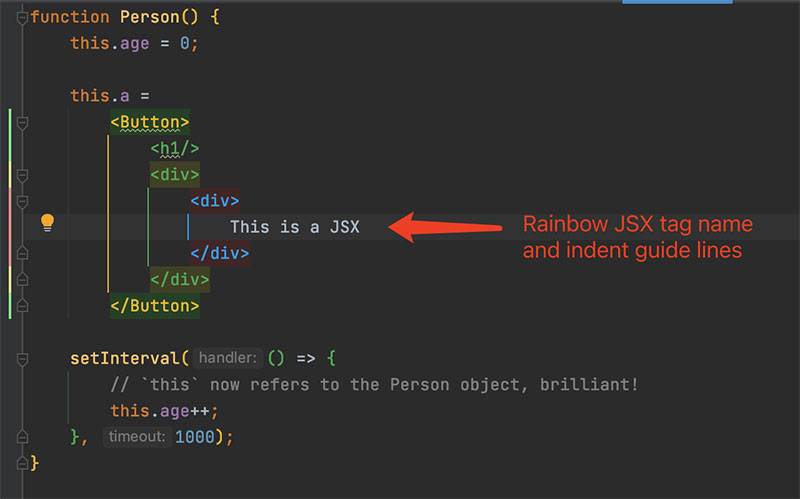
Colors matching pairs of brackets, parentheses, and braces in different colors. Sounds minor. After a week with it, going back feels genuinely uncomfortable.
Especially useful in Jinja2 templates or heavily nested JavaScript callbacks where bracket matching gets visually confusing fast.
Prettier and Tailwind CSS IntelliSense
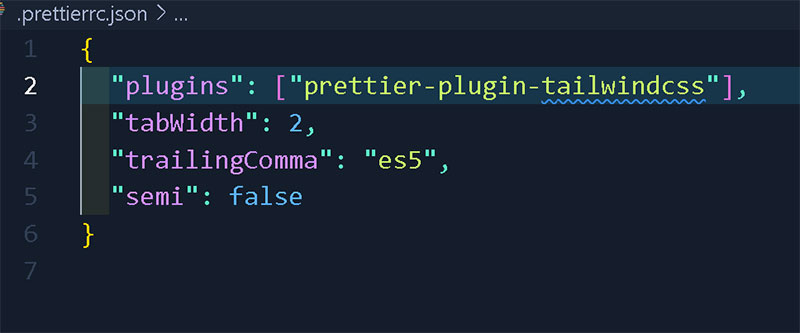
Prettier plugin: Connects PyCharm to a local Prettier install for JS, CSS, and HTML formatting. Works well in projects where the team already uses Prettier to enforce consistent style on the frontend side.
Tailwind CSS IntelliSense: Adds class name completion and hover previews for Tailwind utility classes. If you’re doing front-end development with Tailwind in Django or FastAPI templates, this saves a lot of guessing on class names.
Emmet and web workflow
Emmet support is built into PyCharm for HTML and CSS, but the Emmet plugin extends abbreviation expansion into more contexts, which is helpful in templating languages.
For teams building web-heavy Python apps, pairing these with a clear understanding of wireframing and UI/UX design principles tends to produce better results than just stacking more plugins. The tooling should support a process, not substitute for one.
What to avoid here
A common mistake is installing full language support plugins for frameworks you only touch occasionally. If you edit a Vue file once a month, you probably don’t need the Vue plugin running all the time. Bundled support handles basic editing fine; only install the dedicated plugin if you’re doing real, regular work in that language or framework.
Best Plugins for Productivity and Workflow
The JetBrains State of Developer Ecosystem 2024 report (23,262 respondents) shows four out of five companies have adopted third-party AI tools in development workflows. That shift has also raised the bar for everything else in the IDE setup, including the non-AI productivity layer.
These are the plugins that quietly save hours each week, not through AI, but through better feedback loops and less friction.
Key Promoter X

Every time you click a menu item or toolbar button that has a keyboard shortcut, Key Promoter X shows a small notification telling you what that shortcut is.
Sounds annoying. It is, briefly. After two weeks you stop seeing the popups because you’ve internalized the shortcuts. The plugin essentially trains you to use PyCharm the way it was designed to be used.
Best for: developers switching from another IDE, or anyone who’s been using PyCharm for years but still reaches for the mouse more than they should. (I was the second type.)
String Manipulation
Underrated. String Manipulation handles text transformations that come up constantly but are tedious to do manually.
- Convert between camelCase, snake_case, kebab-case, PascalCase
- Reverse, sort, and deduplicate selected lines
- Encode/decode URLs, Base64, and HTML entities
- Trim whitespace and align assignments
It’s one of those plugins where you install it once and then wonder how you worked without it.
CodeGlance Pro and Wrap to Column
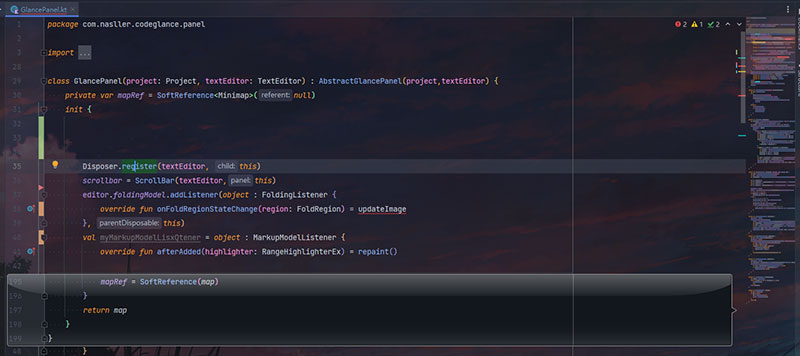
CodeGlance Pro adds a minimap sidebar showing a zoomed-out view of your file. Useful for navigating long files without scrolling endlessly. Works well alongside PyCharm’s built-in Structure panel for a full spatial view of a file.
Wrap to Column hard-wraps selected text to a specified column width. Mostly used for docstrings, comments, and markdown inside the IDE. Niche, but when you need it, nothing else does it cleanly.
Plugins that help with focus
PyCharm has a built-in Presentation Mode and Distraction-Free Mode under View > Appearance. Most “focus” plugins are redundant with these. Avoid installing anything in this category unless you have a specific use case the built-in modes don’t cover.
EnvFile
Loads environment variables from .env files directly into PyCharm’s run configurations. Without it, you’re either exporting variables manually in the terminal or hardcoding values you shouldn’t hardcode.
The workflow is straightforward: create a .env file, point your run config at it via the EnvFile tab, done. Works with any run configuration type including pytest, Django manage.py, and custom scripts.
This pairs well with a clear approach to app deployment and environment separation between dev, staging, and production. Managing environment parity from the IDE level means fewer surprises further down the pipeline.
Best Plugins for AI-Assisted Coding
By 2024, around 44% of professional developers were using AI coding tools daily, according to the Python Software Foundation survey analysis. That number has only gone up since.
PyCharm has a growing set of options here, and they’re not all equivalent.
| Plugin | Model source | Free tier | Best for |
|---|---|---|---|
| JetBrains AI Assistant | GPT-4.1, Claude 3.7, Gemini 2.5 | Yes (3 credits/month) | Deep IDE integration |
| GitHub Copilot | OpenAI Codex / GPT-4o | Yes (limited) | Code completion at scale |
| Tabnine | Proprietary + optional local | Yes | Privacy-sensitive teams |
JetBrains AI Assistant

The native option. It uses IDE code intelligence rather than just context window tricks, which means suggestions are more aware of your actual project structure than most alternatives.
What it handles in PyCharm specifically:
- Context-aware chat with references to open files and symbols
- Commit message generation and VCS conflict resolution
- Unit test generation and documentation for selected declarations
- Terminal command suggestions and text-to-SQL generation
A survey of 640 developers by AI Productivity found 77% reported increased productivity with JetBrains AI Assistant after sustained use. The free tier (3 cloud credits per month) covers light usage, with unlimited local model access via Ollama or LM Studio for teams with strict data policies.
GitHub Copilot in PyCharm

GitHub Copilot reached 20 million cumulative users by July 2025, with 90% of Fortune 100 companies deployed on it (GitHub/Microsoft data). The PyCharm plugin brings the same inline completion experience from VS Code into the JetBrains environment.
The integration works well for completions. The chat experience is somewhat thinner inside PyCharm than in VS Code, where Copilot is more native. Worth testing against JetBrains AI Assistant before committing to one.
For context on Copilot’s capabilities outside PyCharm, there’s a detailed breakdown of GitHub Copilot worth reading, particularly around the difference between the Pro and Enterprise tiers.
Tabnine

Around 5% of developers use Tabnine regularly (JetBrains 2024 survey), which is a smaller share than Copilot but represents a specific, deliberate audience. Tabnine’s main appeal is privacy: it offers a local model option that processes code entirely on-device with no data leaving the machine.
Teams at regulated companies, particularly in finance or healthcare, often end up here. The code completion quality has improved significantly with the newer model versions, and the team-specific learning feature, which adapts to your codebase patterns over time, is genuinely useful for larger projects.
The broader comparison of Tabnine vs Copilot covers the privacy, accuracy, and pricing tradeoffs in detail if you’re deciding between the two.
Best Plugins for Testing and Debugging
Testing is where PyCharm’s built-in support is actually quite strong. But a few plugins extend it in directions that matter.
pytest support and coverage configuration
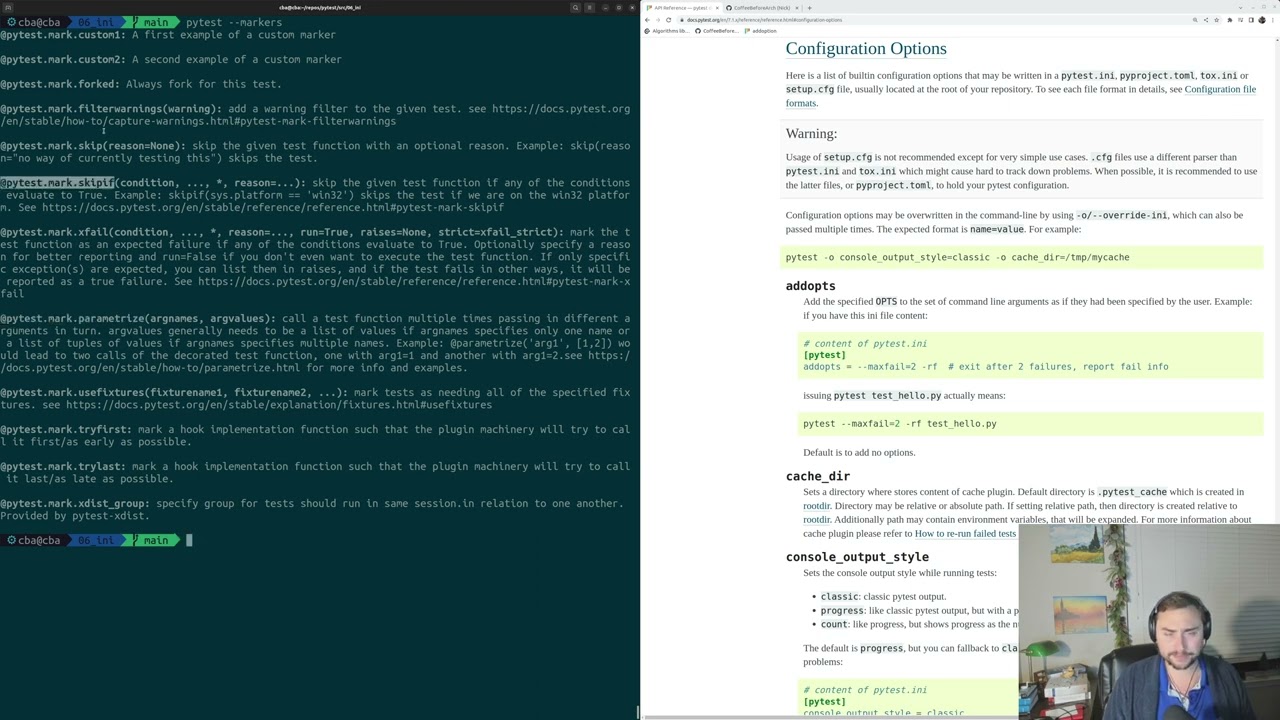
pytest support ships with PyCharm, but it needs proper configuration to work well. The key settings are in Run > Edit Configurations: set the test runner to pytest, configure the working directory correctly, and point it to your pytest.ini or pyproject.toml.
Once configured, you get:
- Green/red gutter icons next to each test function
- One-click run for individual tests without running the full suite
- Integrated debugger with breakpoints inside test files
The coverage runner (Run with Coverage option) generates a line-by-line coverage report directly in the editor, with a color overlay showing covered vs. uncovered lines. No additional plugin required for basic code coverage visualization.
Randomness plugin
Generates realistic test data without leaving the IDE. Names, email addresses, UUIDs, integers, IP addresses, dates, and more, inserted directly at the cursor position.
Useful specifically when writing unit tests or populating database fixtures. Saves a lot of the copy-pasting from random data generator sites that breaks your flow.
Testing, debugging, and the broader workflow
A good testing setup in PyCharm typically combines three things: properly configured pytest, a coverage runner, and a clear software test plan for what should be tested at what level.
The plugins help. But the actual improvement in test coverage comes from discipline and structure, not tooling. Teams that adopt test-driven development see better results from these tools because the workflow is already oriented around tests as a first-class concern.
Gartner forecasts that 90% of enterprise software engineers will use AI coding assistants by 2028. The implication for testing specifically is that AI-generated code needs rigorous review, since 29.1% of Copilot-generated Python code contains potential security weaknesses (GitHub research, 2024). Having a solid test layer becomes more important, not less, as AI-assisted coding grows.
Plugins That Are Overrated or Cause Performance Issues
Not every popular plugin is worth running. Some slow down indexing, duplicate built-in features, or simply haven’t kept pace with PyCharm’s own improvements.
Plugins that duplicate built-in features
PyCharm has absorbed a lot of functionality that used to require plugins. Installing the plugin version of something PyCharm already does natively adds overhead without benefit.
Common redundancies in 2025:
- Markdown renderers: PyCharm has a solid Markdown plugin bundled and enabled by default
- Docker plugins: bundled Docker support handles most use cases in Professional/Unified editions
- CSV editors: the built-in CSV/TSV viewer handles tabular data fine for most workflows
- Spell checkers: PyCharm’s built-in proofreading covers identifiers and string literals already
Before installing any plugin, check if PyCharm already handles it. Settings > Editor is a good place to start.
Plugins with known performance impact
The JetBrains support forums consistently identify a few categories of plugin behavior that cause IDE slowdowns.
Watch out for:
- Plugins that add inspections running on every keystroke without configuration options to limit scope
- Language support plugins for frameworks you only edit occasionally (Vue, Angular, PHP support when you’re 95% Python)
- Older plugins last updated for PyCharm 2022.x or earlier, which may interact badly with newer versions
JetBrains’ own guidance when troubleshooting slowdowns is to disable all non-bundled plugins first (Settings > Plugins > gear icon > Disable all downloaded plugins) and re-enable them one by one. The Activity Monitor under Help > Diagnostic Tools shows per-plugin CPU usage in real time.
How to audit your plugin list
A practical audit takes about ten minutes. Go through each installed plugin and ask: did I use this in the last two weeks? If no, disable it. You can always re-enable later.
The goal isn’t minimalism for its own sake. It’s that every active plugin adds to startup time, indexing load, and background processing. A lean setup with eight well-chosen plugins will outperform a bloated setup with thirty, most of which overlap or sit idle.
This connects to broader software development best practices around keeping your toolchain intentional. The same reasoning that applies to dependencies in your project applies to plugins in your IDE: add deliberately, remove aggressively, and audit regularly.
If you’re comparing PyCharm’s overall plugin ecosystem against other editors, the comparison between PyCharm Community and Professional is worth reading alongside this, since some plugins only make sense in the context of one edition over the other.
FAQ on The Best PyCharm Plugins
What are the best PyCharm plugins for Python developers?
The most consistently useful picks are SonarQube for IDE, GitToolBox, Key Promoter X, Rainbow Brackets, and JetBrains AI Assistant. For AI-assisted coding, GitHub Copilot and Tabnine are strong alternatives depending on your privacy requirements and budget.
Are PyCharm plugins free?
Most plugins on the JetBrains Marketplace are free. Some, like JetBrains AI Assistant beyond the free tier, require a paid subscription. GitHub Copilot also has a cost after the free plan limits. Always check the pricing tab on each plugin’s Marketplace page before installing.
Do PyCharm plugins slow down the IDE?
Yes, they can. Plugins that run inspections on every keystroke or add background indexing tasks are the usual culprits. Use Help > Diagnostic Tools > Activity Monitor to identify which plugins consume the most CPU and disable anything you don’t actively use.
What is the best AI plugin for PyCharm?
JetBrains AI Assistant offers the deepest IDE integration, with project-aware chat, test generation, and commit message suggestions. GitHub Copilot is a strong alternative for teams already using it elsewhere. Tabnine suits teams with strict data privacy requirements, as it supports fully local models.
How do I install plugins in PyCharm?
Go to Settings > Plugins > Marketplace tab, search by name, click Install, then restart PyCharm. You can also download a plugin ZIP from the JetBrains Marketplace website and install it via the Install Plugin from Disk option under the gear icon.
What is the difference between PyCharm Community and Professional plugins?
Since the 2025.1 unification, most plugins work across both editions. The main restriction is within certain plugins, not installation itself. JetBrains AI Assistant beyond the free tier and some database tools still require a Pro subscription to unlock advanced features.
Is SonarLint still available for PyCharm?
SonarLint was rebranded to SonarQube for IDE in 2024. It’s still available on the JetBrains Marketplace and works the same way, offering real-time static analysis across Python and 20+ other languages. The rename reflects Sonar’s broader product consolidation but the core functionality is unchanged.
What PyCharm plugins are best for Git workflow?
GitToolBox is the top pick, adding inline blame, branch status in the status bar, and auto-fetch. The .ignore plugin handles gitignore file management with syntax support and templates. Together they cover most of what PyCharm’s native Git integration leaves out.
Can I use VS Code extensions in PyCharm?
No. VS Code extensions and PyCharm plugins use entirely different APIs and are not cross-compatible. PyCharm uses the IntelliJ Platform plugin system exclusively. If you’re evaluating both editors, check the full VS Code vs PyCharm comparison for a side-by-side breakdown of their ecosystems.
How many plugins should I have installed in PyCharm?
There’s no fixed number, but quality beats quantity every time. Most developers do well with 8 to 12 active plugins covering their core needs. Audit your list regularly: if you haven’t used a plugin in two weeks, disable it. Fewer active plugins means faster startup and indexing.
Conclusion
This conclusion is for an article presenting the best PyCharm plugins across code quality, Git workflow, AI assistance, testing, and productivity.
The right plugin stack is specific to how you work. A data scientist’s setup looks nothing like a Django developer’s, and that’s fine.
Start with a few high-impact tools: SonarQube for IDE for static analysis, GitToolBox for version control visibility, and Key Promoter X if you’re still reaching for the mouse too often.
Add an AI coding assistant once you know which workflows actually need it. Then stop.
Audit your installed plugins every few months. PyCharm’s Activity Monitor makes it easy to spot what’s slowing down indexing or burning CPU in the background.
A lean, intentional setup beats a bloated one every time.

- MongoDB Cheat Sheet - October 20, 2026
- Adding AI Video Generation to a Software Product: Architecture, Cost Guardrails and QA - October 20, 2026
- Show Hidden Characters, Spaces, and Line Endings in Notepad++ - October 19, 2026