Most developers waste the first hour of their day on boilerplate. GitHub Copilot fixes that.
This guide on how to use Copilot in VS Code covers everything a beginner needs: setup, inline code suggestions, Copilot Chat, agent mode, test generation, terminal integration, and customization.
By the end, you will know how to turn GitHub Copilot into a real part of your daily coding workflow, not just a novelty that sits unused in your editor.
What Is GitHub Copilot in VS Code?
GitHub Copilot is an AI code completion and chat tool built on OpenAI’s models, integrated directly into VS Code as a native feature.
Microsoft owns GitHub Copilot and has made VS Code the primary supported editor with the deepest feature integration out of all supported IDEs.
Copilot reached over 20 million users by July 2025, a 400% year-over-year increase, and is now used by 90% of Fortune 100 companies (Second Talent, 2025).
This is not just a plugin you install and forget. It has become the most widely adopted AI pair programming tool in the world, and VS Code is where most of that usage happens.
What Is the Difference Between GitHub Copilot and Copilot Chat in VS Code?
Two distinct systems. Same product.
GitHub Copilot (inline suggestions): Shows real-time ghost text as you type. No prompt needed. Just start coding and completions appear at your cursor.
Copilot Chat: A conversational interface in the VS Code sidebar. You type a natural language question or request, and Copilot responds with explanations, code, or edits.
| Feature | Inline Suggestions | Copilot Chat |
|---|---|---|
| How you trigger it | Automatically as you type | Manually through the chat panel |
| Output location | Gray ghost text at the cursor | Response in the chat panel |
| Best for | Line-by-line code completion | Explanations, multi-file edits, and refactoring |
| Context scope | Current file and open tabs | Entire workspace using @workspace |
Copilot works well across Python, JavaScript, TypeScript, Ruby, Go, C#, and C++, though quality varies by language based on training data volume (GitHub Docs, 2025).
What Are the Requirements to Use Copilot in VS Code?

The barrier to entry is low. You need a GitHub account and a reasonably current version of VS Code. That’s genuinely it for most developers.
Copilot became a native part of VS Code in version 1.99 (released March 2025). If you’re on 1.99 or later, there is no separate extension to install.
The Copilot Free plan includes 2,000 code completions per month and an allowance of GitHub AI Credits. No credit card required (GitHub Docs, 2025). For most people starting out, that’s enough to get a solid feel for the tool.
Copilot requires an active internet connection. It does not run locally. Code snippets are sent to GitHub’s servers for processing, which matters if you’re working with proprietary code.
GitHub Copilot Plans at a Glance
| Plan | Price | Completions | Best For |
|---|---|---|---|
| Free | $0/month | 2,000 completions/month | Beginners and side projects |
| Pro | $10/month | Unlimited | Daily professional use |
| Business | $19/user/month | Unlimited | Teams and centralized management |
| Enterprise | $39/user/month | Unlimited with priority access | Large organizations with compliance requirements |
Verified students get unlimited completions at no cost through the Copilot Student plan (GitHub Docs, 2025).
For teams on Copilot Business or Enterprise, admins control which files or paths are excluded from being sent to the model. Worth setting up before giving the whole team access.
How to Install and Activate GitHub Copilot in VS Code?

On VS Code 1.99 or later, Copilot is already there. You do not install anything. You just sign in.
Open VS Code, click the Accounts icon in the Activity Bar (bottom left), and select “Sign in to use GitHub Copilot.” This opens a browser window prompting you to authorize VS Code with your GitHub account via OAuth.
Once signed in, the Copilot icon appears in the VS Code Status Bar at the bottom. That’s how you know it’s active.
For VS Code versions older than 1.99: search “GitHub Copilot Chat” in the VS Code Marketplace, install the extension, then sign in with your GitHub account. The older separate “GitHub Copilot” extension (for ghost text only) is being deprecated in favor of the unified Copilot Chat extension (VS Code Blog, 2025).
When given access, 81.4% of developers install the VS Code extension the same day, and 96% start accepting suggestions immediately (Second Talent, 2025). The onboarding is that frictionless.
How to Enable or Disable Copilot for Specific Languages in VS Code
Open VS Code Settings (Ctrl+, on Windows/Linux or Cmd+, on Mac). Search for github.copilot.enable.
This setting is a JSON object. Set a language to false to turn off inline suggestions for it:
{ "github.copilot.enable": { "": true, "plaintext": false, "markdown": false } }
The asterisk applies to all languages. Override specific ones below it. This is useful if you find Copilot’s suggestions distracting in files where you mostly write prose rather than code.
How Does GitHub Copilot Generate Inline Code Suggestions?

Start typing in any supported file and Copilot shows dimmed ghost text at your cursor position. Press Tab to accept. Press Escape to dismiss.
Copilot now contributes an average of 46% of all code written by active users. Java developers see the highest rates at 61% (GitHub/Accenture research, 2025).
Copilot builds context from 3 sources: your current file, other open editor tabs, and any code comments you’ve written. It does not pull from the internet or your Git history in real time.
How to Trigger Copilot Suggestions Manually in VS Code
Copilot triggers automatically as you type, but you can also nudge it manually.
- Press Alt+ (Windows/Linux) or Option+ (Mac) to request a suggestion explicitly
- Write a comment describing what you want, then press Enter and wait a moment
- Start typing a function signature. Copilot fills in the body.
Writing a detailed comment above a function is one of the most reliable ways to get higher-quality suggestions. Vague code, vague output. Specific comments, specific completions.
How to Accept Partial Suggestions Word by Word
You do not have to accept an entire suggestion at once.
Accept next word only: Ctrl+Right (Windows/Linux) or Cmd+Right (Mac).
This is useful when Copilot suggests the right idea but gets a detail wrong halfway through. Accept what’s correct, retype the rest.
To cycle through alternative suggestions for the same prompt, hover over the ghost text and use the arrow controls that appear, or press Alt+] (next) and Alt+</strong> (previous).
Developers retain <strong>88% of accepted Copilot code</strong> in final submissions, which tells you the suggestions are production-ready most of the time, not just starting points (Second Talent, 2025).
How to Use Copilot Chat in VS Code?
Copilot Chat is the conversational side of Copilot. It sits in the VS Code sidebar and accepts natural language questions about your code, your project, or programming concepts in general.
Open it with <strong>Ctrl+Alt+I</strong> (Windows/Linux) or <strong>Cmd+Alt+I</strong> (Mac), or click the chat bubble icon in the Activity Bar.
As of VS Code 1.99, Copilot Chat runs in 3 modes accessible from a dropdown at the bottom of the chat panel: Ask, Edit, and Agent. Each mode behaves very differently.
How to Use Copilot Edit Mode for Multi-File Changes
Edit mode makes direct code changes across multiple files in your workspace.
You specify which files to include, describe the change in plain language, and Copilot applies the edits as a diff for you to review. Nothing gets saved until you accept. You can reject individual changes file by file.
- Good for: renaming a component across your codebase, updating an interface and all its implementations, reformatting consistent patterns
- Not good for: open-ended tasks where you’re unsure which files need touching
Copilot Edits reached general availability in February 2025 alongside agent mode (GitHub, 2025). It’s now one of the most commonly used features for [code refactoring tasks that span more than a single file.
How to Use Copilot Agent Mode in VS Code
Agent mode is the most autonomous option. You give Copilot a high-level goal and it figures out the steps.
Agent mode reads relevant files across your workspace, writes code, runs terminal commands, checks for errors, and iterates until the task is done or it needs your input. You stay in control. Every terminal command requires your approval before it runs (VS Code Blog, 2025).
Practical uses for beginners:
- Build a feature from scratch with a single prompt
- Migrate code from one library version to another
- Generate and run tests for a function without switching tools
- Fix a bug across multiple interconnected files
Agent mode launched to all VS Code users in April 2025. GitHub Copilot launched agent mode in February 2025, shifting the tool from passive suggestions to autonomous task execution (Markaicode, 2026).
What Are Copilot Chat Participants and Slash Commands?
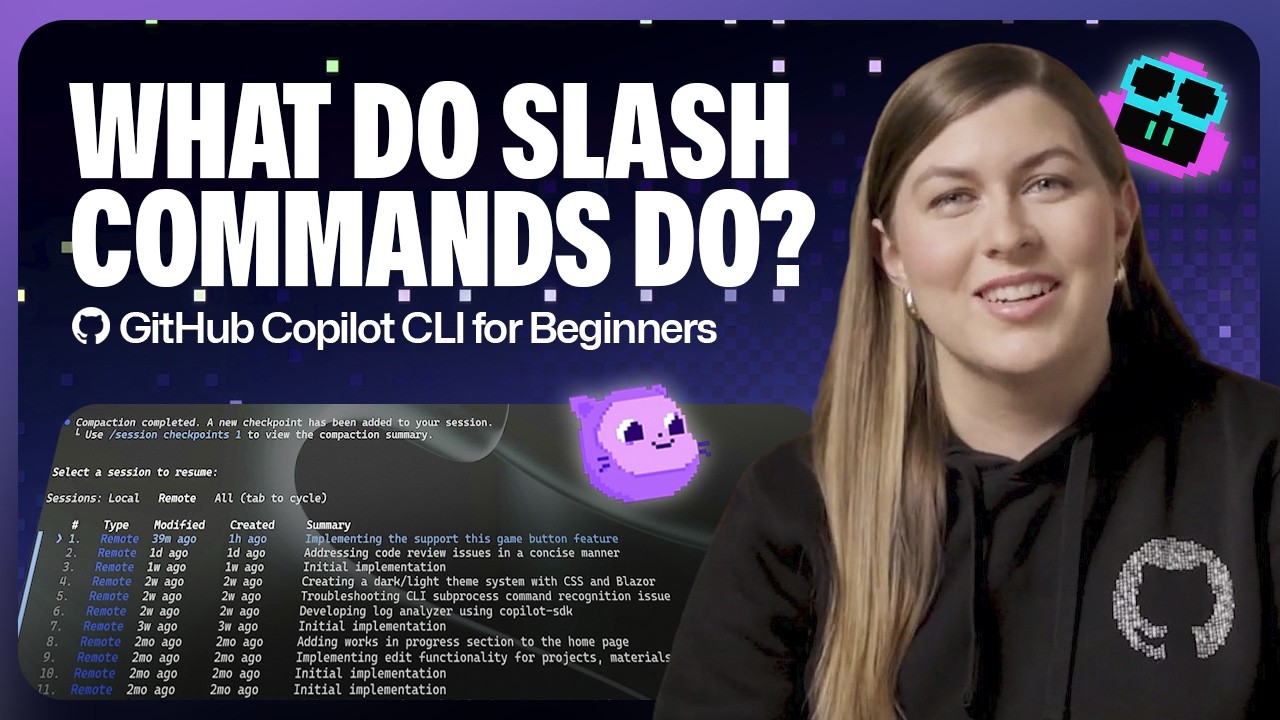
Copilot Chat participants and slash commands are the fastest way to scope and direct what Copilot does inside the chat panel.
Participants are prefixed with @. Slash commands start with /. You can combine them in a single prompt.
| Participant / Command | What It Does |
|---|---|
@workspace | Searches and reasons across your entire project codebase |
@vscode | Answers questions about VS Code settings, extensions, and features |
@terminal | Reads recent terminal output to explain errors or suggest fixes |
/explain | Explains the selected code in plain language |
/fix | Suggests a fix for a bug or error |
/tests | Generates unit tests for the selected function or file |
/doc | Generates JSDoc, docstrings, or XML documentation comments for the selected code |
Combine them for precision. “@workspace /fix this authentication error” tells Copilot to look across the entire project to find and fix the source of the problem, not just the line you’re looking at.
How Context Variables Work in Copilot Chat
Beyond participants, you can pin specific context with #variables inside any chat prompt.
- #file — attach a specific file to the prompt
- #selection — sends only the currently selected code
- #editor — sends the full content of the active editor tab
If Copilot is giving you generic answers, it usually means the context is too broad. Pinning a specific file or selection narrows the scope and makes the response more precise.
Chat history is not persistent across sessions by default. When you close VS Code and reopen it, Copilot Chat starts fresh.
How to Use Copilot for Code Explanation and Documentation?

This is the feature I point junior developers to first. Not the autocomplete. The explanation side.
Select any block of code, right-click, and choose “Copilot: Explain This.” A plain-language breakdown appears in the Chat panel. No setup needed beyond having Copilot active.
Between 60% and 75% of Copilot users say the tool helps them feel more satisfied with their work and less frustrated during coding (Second Talent, 2025). A lot of that satisfaction comes from not having to context-switch to a browser to understand unfamiliar code.
How to Generate Documentation with the /doc Command
Select a function or class, open Copilot Chat, and type /doc.
Copilot detects the language and generates the appropriate format automatically.
- JavaScript and TypeScript — JSDoc with @param and @returns tags
- Python — docstrings in Google, NumPy, or reStructuredText style
- C# — XML documentation comments
- Go — standard Go doc comments
The generated docs reflect what the code actually does, not what you intended it to do. If there’s a mismatch, that’s usually a sign the code itself has a clarity problem worth fixing.
Copilot also explains error messages directly. Paste a stack trace into the Chat panel and ask what went wrong. Works well on third-party library errors where the message itself is cryptic.
What to Watch Out For with AI-Generated Explanations
Copilot’s knowledge has a training cutoff. It may explain deprecated APIs as if they’re current.
Always verify explanations for security-critical or infrastructure code against the official docs. Copilot is accurate most of the time for common patterns, but it can confidently explain broken logic without flagging it as wrong.
For new developers learning a codebase, Copilot resulted in a 25% speed increase in navigating unfamiliar files (Second Talent, 2025). That’s real time saved, especially when you’re dropped into someone else’s project.
How to Generate and Run Tests with Copilot in VS Code?

Copilot handles the part of testing that most developers avoid: writing the boilerplate. Select a function, type /tests in Chat, and get a working test suite in seconds.
Copilot detects your existing test framework automatically from your project config files. package.json for Jest or Mocha, requirements.txt or pyproject.toml for pytest, .csproj for xUnit.
GitHub Copilot’s test generation accelerates writing tests for basic functions, but complex scenarios require more detailed prompts (GitHub Docs, 2025).
How to Use the /tests Command in Copilot Chat
Open the function or file you want to test. Select the code, then either right-click and choose “Generate Code > Generate Tests” or open Chat and type /tests.
Copilot places generated tests in an existing test file if one is found, or creates a new one. You review the diff before anything is written to disk.
For best results, be specific in the prompt. “Write unit tests for the validateEmail function including empty string and invalid format cases" beats just /tests with no context.
How Agent Mode Handles Test Execution
The gap between generating and running tests matters.
In Ask and Edit mode, Copilot writes tests but does not run them. You handle that in the VS Code Test Explorer or terminal.
In Agent mode, Copilot can run the test suite via terminal commands, read the output, identify failures, rewrite the failing tests or the underlying code, and re-run until everything passes (VS Code Docs, 2025).
| Mode | Generates Tests | Runs Tests | Auto-Fixes Failures |
|---|---|---|---|
| Ask | Yes | No | No |
| Edit | Yes | No | No |
| Agent | Yes | Yes | Yes |
Copilot’s test generation covers typical scenarios and edge cases well. Integration tests, business logic edge cases, and tests involving real external systems still need manual input.
Duolingo’s engineering team adopted GitHub Copilot and saw their median code review turnaround time drop by 67% alongside a 70% increase in pull request volume (Second Talent, 2025). A chunk of that gain came from faster test writing cycles.
How to Use Copilot with the Terminal in VS Code?

Copilot’s terminal integration is one of the most overlooked features. Most beginners use it for code, but it’s just as useful for shell commands and debugging terminal errors.
Press Ctrl+I inside the VS Code integrated terminal to open an inline chat prompt. Type what you want in plain language, and Copilot suggests the shell command. You can run it directly from the chat without copy-pasting.
What the @terminal Participant Does in Copilot Chat
The @terminal participant in Copilot Chat reads your recent terminal output and uses it as context.
Practical uses:
- Paste a stack trace and ask what went wrong
- Ask why a Docker container failed to start after seeing the error output
- Get an explanation of a cryptic npm or pip install error
Copilot scopes suggestions to your detected shell. It gives you Bash commands on Linux/Mac and PowerShell commands on Windows without you needing to specify (Microsoft Blog, 2024).
Running Terminal Commands Through Agent Mode
Agent mode closes the loop on terminal workflows.
In Agent mode, Copilot can generate a shell command, ask you to approve it, run it in the VS Code terminal, read the output, and adjust its next step based on what happened. Every command shows in the chat before it executes. Nothing runs silently.
Common terminal tasks Copilot handles well:
- Git operations: branch creation, merges, rebasing with the right flags
- Docker commands: building images, stopping containers, inspecting logs
- Package management: npm, pip, cargo, go get with correct syntax
Copilot CLI, the standalone terminal version of Copilot, also works inside the VS Code integrated terminal and supports the same source control management workflows (GitHub CLI Docs, 2025).
How to Customize GitHub Copilot Behavior in VS Code?

Out of the box, Copilot is generic. It does not know your team’s preferred framework, naming conventions, or which libraries you avoid. The customization layer is where it gets actually useful at scale.
VS Code detects a .github/copilot-instructions.md file at the root of your workspace and automatically applies those instructions to every Chat request in that project (VS Code Docs, 2025).
How to Write a Copilot Instructions File for Your Project
Create .github/copilot-instructions.md in the root of your repository. Write instructions in plain Markdown. Copilot picks it up without any settings toggle.
What to include:
- Preferred frameworks and versions (“Use React 18 with TypeScript, not plain JavaScript”)
- Naming conventions (“Use camelCase for functions, PascalCase for components”)
- Libraries to use or avoid (“Use date-fns instead of moment.js, which is deprecated”)
- Testing standards (“All new functions need Jest unit tests with at least 3 test cases”)
Include the reasoning behind rules, not just the rules. Copilot makes better decisions in edge cases when it understands why a convention exists (VS Code Blog, 2025).
Other Copilot Settings Worth Knowing in VS Code
Custom instructions only affect Chat. They do not change inline suggestions.
Inline suggestion settings to know:
- github.copilot.enable — toggle suggestions per language
- chat.agent.enabled — enable or disable Agent mode
- github.copilot.chat.agent.runTasks — allow Copilot to run VS Code tasks
Model selection is available inside Copilot Chat via a dropdown at the bottom of the panel. As of 2025, you can switch between GPT-4o, Claude Sonnet, and Gemini 2.0 Flash per request, depending on your plan (GitHub Blog, 2025).
Copilot Business and Enterprise admins can set content exclusions from the GitHub organization settings. This blocks specific files, folders, or entire repositories from being sent to the model. Useful for credentials files, internal config, or compliance-sensitive paths.
What Are the Limitations of GitHub Copilot in VS Code?

Copilot is not a replacement for understanding your own code. It is a fast-moving assistant that gets things wrong in specific, predictable ways.
Repositories using Copilot leak 40% more secrets than typical public repositories, according to GitGuardian research (2025). That gap comes from developers pasting sensitive context into prompts without thinking about what gets sent to the model.
What Copilot Cannot Access or Understand
Copilot has no internet access during a session. Its knowledge has a training cutoff. It will not know about a library released last month or a framework change from last quarter.
Things outside Copilot’s reach:
- Your business requirements or product specs (unless pasted into Chat)
- Real-time documentation or API changes after its training cutoff
- Your Git history, past pull requests, or team decisions
- External services, live databases, or running processes (outside Agent mode)
Context window limits mean very large files produce lower-quality suggestions. If a file is thousands of lines long, Copilot sees only a portion of it.
Code Quality and Security Risks to Know
A study found that 35.8% of Copilot-generated code snippets exhibited security weaknesses, regardless of programming language (GitGuardian, 2025).
Copilot can write code that looks correct and runs, but contains subtle flaws. Weak input validation, improper authentication patterns, and insecure deserialization are the most common issues.
Code review is not optional. Treat every Copilot suggestion like a contribution from a competent junior developer: review it before merging. The code review process remains your last line of defense.
Privacy Considerations for Proprietary Code
Code snippets you type and prompts you send in Chat are transmitted to GitHub’s servers for processing.
GitHub’s stated data policy by plan:
- Copilot Free and Pro: data may be used to improve models unless you opt out in GitHub account settings
- Copilot Business and Enterprise: code is not used to train models (GitHub Trust Center, 2025)
The practical rule: do not paste API keys, credentials, internal system architecture details, or customer data into Copilot Chat prompts on any plan. Use environment variables and secret managers instead. This is the same principle that applies to any external service, and Copilot is no different.
Gartner has flagged vulnerable output and sensitive data leakage as the two most notable risks of AI coding assistants at enterprise scale (Gartner, 2024). Neither risk makes the tool unusable. Both risks make code review non-negotiable.
FAQ on How To Use Copilot In VS Code
Is GitHub Copilot free to use in VS Code?
Yes. The Copilot Free plan includes 2,000 code completions and a monthly AI credits allowance at no cost. You only need a GitHub account. No credit card required. Paid plans start at $10/month and remove usage limits.
Does Copilot work with all programming languages in VS Code?
Copilot supports dozens of languages. It works especially well with Python, JavaScript, TypeScript, Go, Ruby, C#, and C++. Suggestion quality depends on how much code in that language exists in Copilot’s training data.
How do I open Copilot Chat in VS Code?
Press Ctrl+Alt+I on Windows/Linux or Cmd+Alt+I on Mac. You can also click the chat icon in the VS Code Activity Bar. Opening Copilot Chat in VS Code takes one click once you’re signed in.
What is the difference between Copilot and Copilot Chat?
Copilot provides real-time ghost text suggestions as you type. Copilot Chat is a conversational interface for questions, explanations, multi-file edits, and agent mode tasks. Both are part of the same subscription.
Can Copilot edit multiple files at once?
Yes, through Edit mode and Agent mode in Copilot Chat. Edit mode applies changes across files you specify. Agent mode goes further, finding relevant files automatically, making edits, and running terminal commands to complete a task end to end.
Does GitHub Copilot send my code to external servers?
Yes. Code snippets and chat prompts are sent to GitHub’s servers for processing. Copilot Business and Enterprise plans do not use your code for model training. Free and Pro plan users can opt out in GitHub account settings.
How do I generate unit tests with Copilot in VS Code?
Select the function you want to test, open Copilot Chat, and type /tests. Copilot detects your testing framework from project config files and generates a test file automatically. Review the diff before accepting any changes.
What is the copilot-instructions.md file?
A Markdown file placed at .github/copilot-instructions.md in your repository root. It gives Copilot persistent context about your project: preferred frameworks, naming conventions, libraries to use or avoid. Applied automatically to every Chat request in that workspace.
What is Copilot Agent mode in VS Code?
Agent mode lets Copilot work autonomously. Give it a high-level goal, and it reads your codebase, writes code across files, runs terminal commands, checks for errors, and iterates until the task is done. Every terminal command requires your approval before running.
How do I disable Copilot for a specific language in VS Code?
Open VS Code Settings and search for github.copilot.enable. Set the target language to false in the JSON object. Disabling GitHub Copilot in VS Code for specific file types takes under a minute to configure.
Conclusion
This conclusion is for an article presenting how to use Copilot in VS Code, from first-time setup through inline code suggestions, Copilot Chat, and agent mode.
The tool covers a lot of ground. Inline completions handle the repetitive parts. The /tests command cuts test-writing time. The instructions file shapes how Copilot behaves across your whole project.
None of it replaces code review. AI-generated suggestions still need a human check, especially for security-critical logic.
Start with the Free plan, get comfortable with ghost text and slash commands, then work your way into Edit mode and agent mode as your confidence grows.

- MongoDB Cheat Sheet - October 20, 2026
- Adding AI Video Generation to a Software Product: Architecture, Cost Guardrails and QA - October 20, 2026
- Show Hidden Characters, Spaces, and Line Endings in Notepad++ - October 19, 2026