Most developers know GitHub Copilot exists. Far fewer know there are actually six different ways to open Copilot Chat in VS Code, and that picking the wrong one for the task slows you down.
The chat panel, inline chat, terminal chat, Command Palette, Activity Bar icon, and right-click context menu all trigger the Copilot Chat interface differently. Each opens in a different location with different scope and behavior.
This guide covers every method to access the VS Code chat window, including what to do when the chat panel is missing, how to move it, and how it works on vscode.dev and GitHub Codespaces.
What Is Copilot Chat in VS Code?
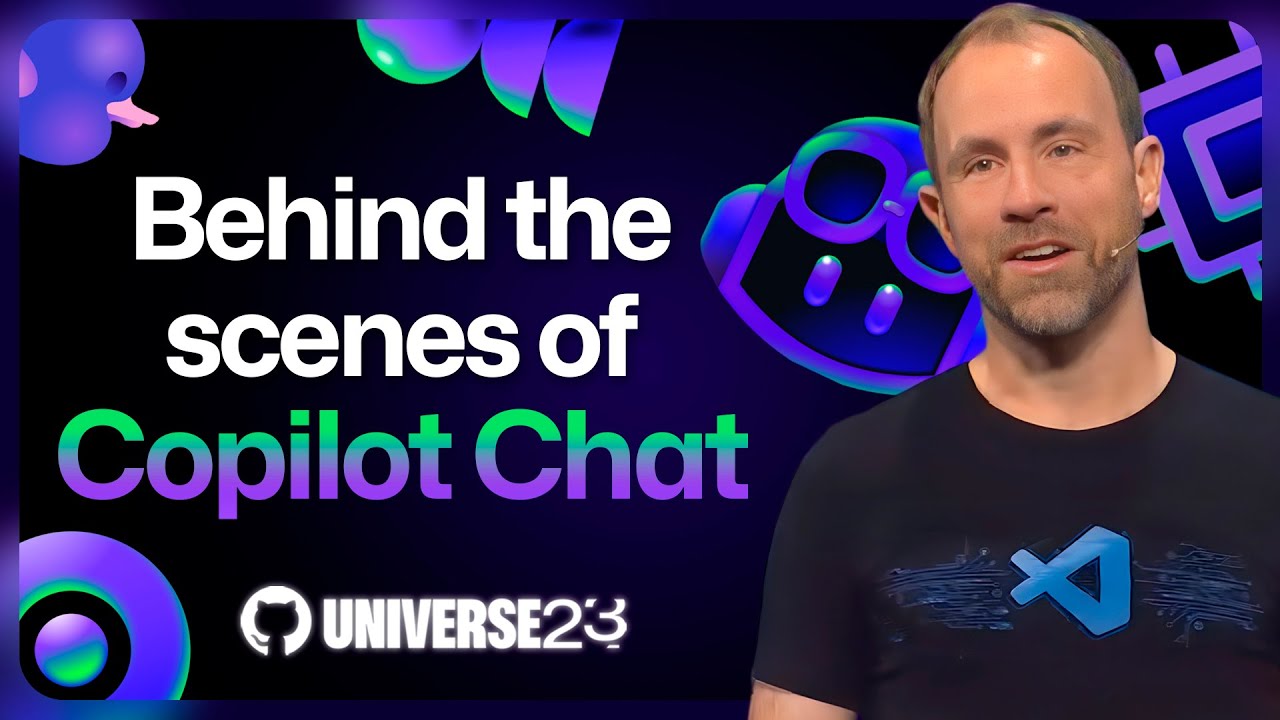
Copilot Chat is an AI-powered conversational interface built directly into VS Code. It is separate from inline code completions and lives in its own panel, distinct from ghost text suggestions that appear as you type.
The chat interface runs in 3 distinct locations: the Primary Sidebar, as an editor tab, or anchored inline to your cursor position inside a code file. Which location it opens in depends entirely on how you trigger it.
GitHub Copilot Chat reached 20 million total users by July 2025, a 400% year-over-year increase, with 90% of Fortune 100 companies deploying it across their development workflows (Quantumrun, 2025).
It is not a standalone product. Copilot Chat is a feature of the GitHub Copilot extension ecosystem, and it requires an active GitHub account and a Copilot plan to function. The free tier gives you 50 chat requests per month (VS Code blog, 2024).
The chat panel keeps full context of your conversation across a session. You can ask follow-up questions, reference earlier answers, and switch between code files without losing the thread.
Copilot Chat vs. Inline Suggestions
Inline suggestions appear automatically as ghost text while you type, with no input required from you. Copilot Chat requires you to actively open a panel and write a prompt.
They serve different purposes:
- Inline suggestions handle autocomplete, line completions, and short function generation
- Copilot Chat handles explanations, refactoring, test generation, and multi-turn conversations
- Inline chat (Ctrl+I) sits between both: prompt-driven but anchored inside the file
Developers using Copilot complete tasks 55% faster on average, with Duolingo reporting a 67% drop in median code review turnaround after full adoption (GitHub/Accenture, 2024).
Where Copilot Chat Appears in VS Code
| Location | How It Opens | Best For |
|---|---|---|
| Primary Sidebar | Activity Bar icon or Ctrl + Alt + I | Ongoing multi-turn conversations |
| Inline (in editor) | Ctrl + I on a line or code selection | Targeted edits and quick refactoring |
| Editor tab | Drag the chat panel into the editor area | Wide-screen setups and side-by-side work |
| Secondary Sidebar | Move the Activity Bar icon to the right sidebar | Keeping chat visible while maximizing editor space |
What Are the Requirements to Use Copilot Chat in VS Code?
3 requirements must be met before any opening method will work: a GitHub account, a Copilot plan, and the GitHub Copilot extension installed in VS Code.
The GitHub Copilot Free plan, launched in late 2024, removed the subscription barrier for most developers. All you need is a GitHub account to start. No credit card. No trial period (VS Code blog, 2024).
GitHub Copilot Plans That Include Chat
Free plan: 50 chat requests per month, access to GPT-4o and Claude 3.5 Sonnet via auto model selection.
Pro plan: Unlimited completions, broader model access, monthly AI credit allowance. $10/month for individuals.
Business plan: Org-wide management, policy controls, centralized licensing. $19/user/month.
Enterprise plan: Everything in Business plus private repository context, audit logs, and priority support. $39/user/month.
Copilot Chat in IDEs is confirmed available in VS Code, Visual Studio, JetBrains, Eclipse, and Xcode (GitHub Docs, 2025). The free tier is VS Code’s entry point for most individual developers starting out.
Extension and Version Requirements
The GitHub Copilot extension now bundles both inline suggestions and chat in a single package. Installing one gets you both.
Copilot Chat releases in lockstep with VS Code. Every new chat version is only compatible with the latest VS Code release. If your editor is more than one version behind, chat features may not load or may run on outdated models (GitHub, 2025).
Keep both VS Code and the extension updated. That is the single most effective way to avoid version-related chat failures. Check via Help > Check for Updates in VS Code.
How to Open Copilot Chat from the Activity Bar
The Activity Bar icon is the default, most visible entry point. After extension installation, a Copilot icon appears in the left vertical strip of VS Code. One click opens the chat panel in the Primary Sidebar.
When Copilot access was granted to a team, 81.4% of developers installed the VS Code extension the same day, and 96% started using suggestions immediately (GitHub, 2025). The Activity Bar path is why: it is obvious and requires zero keyboard knowledge.
Finding and Using the Activity Bar Icon
Icon location: Left vertical strip alongside Explorer, Search, Source Control, and Extensions icons.
What clicking it does: Opens the Chat view in the Primary Sidebar, with your most recent session visible by default.
If the icon is missing: Either the extension is not installed, or the Activity Bar is hidden. Fix via View > Appearance > Activity Bar to toggle it back on.
You can drag the Copilot icon to a different position within the Activity Bar. This does not affect functionality. If you move it to the bottom strip of icons (the Settings/Account area), you can still click it to open chat.
Moving Chat to the Secondary Sidebar
Drag the Copilot icon from the left Activity Bar to the right side of VS Code. This pins the chat panel to the Secondary Sidebar, keeping it visible without pushing your file explorer out of view.
Microsoft’s own VS Code team uses this layout in most of their demo setups. Code on the left, chat on the right. It works particularly well on wider monitors or ultrawide setups where sidebar space is not a constraint.
How to Open Copilot Chat with a Keyboard Shortcut
The keyboard shortcut is the fastest method for developers who avoid the mouse. Ctrl+Alt+I on Windows/Linux and Cmd+Option+I on macOS opens the Chat panel in the sidebar directly (VS Code Cheat Sheet, 2025).
A second shortcut worth knowing: Ctrl+Shift+Alt+L (Windows/Linux) or Shift+Option+Cmd+L (macOS) opens Quick Chat, a lightweight floating input that lets you ask a question without leaving your current task.
Default Copilot Chat Shortcuts
| Action | Windows / Linux | macOS |
|---|---|---|
| Open Chat view | Ctrl + Alt + I | Cmd + Option + I |
| Inline chat in the editor | Ctrl + I | Cmd + I |
| Quick Chat | Ctrl + Shift + Alt + L | Shift + Option + Cmd + L |
| New chat session | Ctrl + N (in the Chat view) | Cmd + N (in the Chat view) |
How to Customize Copilot Chat Shortcuts
All Copilot commands can be remapped. Go to File > Preferences > Keyboard Shortcuts (or Code > Preferences on macOS) and search for “GitHub Copilot Chat: Focus on Chat View”.
Shortcut conflicts with other extensions are the most common reason a binding stops working. The Keyboard Shortcuts editor flags conflicts with a warning icon. If your shortcut does nothing when pressed, check for a conflict there first.
Took me a while to realize that Ctrl+I behaves differently depending on which panel has focus. In the editor, it opens inline chat. In the Chat view itself, it triggers voice input. Worth knowing before you spend 10 minutes wondering why the behavior keeps changing.
How to Open Copilot Chat from the Command Palette

The Command Palette is the backup method that works even when the Activity Bar is hidden or the icon has been repositioned. Open it with Ctrl+Shift+P (Windows/Linux) or Cmd+Shift+P (macOS), then type “Copilot” to filter available commands.
This is also the most reliable method on machines where keyboard shortcuts have been remapped by IT policies or conflicting extensions.
Copilot Chat Commands in the Command Palette
3 commands are directly relevant to opening the chat interface:
- GitHub Copilot: Open Chat – opens the sidebar chat panel
- GitHub Copilot Chat: Focus on Chat View – moves focus to an already-open panel without clearing context
- GitHub Copilot Chat: New Chat Session – opens chat and starts a blank conversation, clearing the current session
The distinction between “Focus on Chat View” and “New Chat Session” matters more than most people think. If you are mid-conversation and accidentally trigger a new session, you lose the context window for that thread.
When to Use the Command Palette Over Shortcuts
There are two reliable situations where the Command Palette beats keyboard shortcuts.
First: when you are new to the tool and cannot remember which shortcut does what. The Command Palette shows every available Copilot command with its current binding listed next to it. It is a built-in reference sheet.
Second: on shared or managed machines where IT has locked down key bindings. The Command Palette bypasses that entirely since it uses VS Code’s internal command routing, not OS-level key intercepts.
How to Open Inline Chat Directly in the Editor

Inline chat is a different opening mode. It does not open a sidebar panel. Instead, pressing Ctrl+I (Windows/Linux) or Cmd+I (macOS) anchors a prompt input field directly inside your code file, at your cursor position.
By April 2025, Copilot Chat had auto-reviewed over 8 million pull requests in enterprise deployments (GitHub, 2025). A lot of that review workflow runs through inline chat, where developers highlight a block and ask for a fix or explanation without switching context.
Inline Chat vs. Sidebar Chat: Which Opens Where
Sidebar chat opens a persistent panel. It holds conversation history, supports multi-turn dialogue, and works across your entire workspace.
Inline chat is scoped to the selection or cursor line. It shows proposed changes as a diff preview directly in the file. You accept or discard the change without leaving the editor.
Inline chat is better for: quick refactors, adding comments, generating a test for one function, explaining a specific block. Sidebar chat is better for: architecture questions, multi-file discussions, anything requiring conversation history.
How to Accept, Discard, or Modify Inline Chat Output
After Copilot generates a response in inline chat, 3 options appear as action buttons above the diff:
- Accept – applies the suggested changes to the file permanently
- Discard – rejects all changes and closes the inline prompt
- Regenerate – sends the same prompt again for a new suggestion
You can also edit the diff manually before accepting. Click inside the proposed change and modify it. Copilot’s output is a starting point, not a final answer. Most experienced teams treat it that way.
How to Open Copilot Chat from a Right-Click Context Menu

Right-clicking anywhere in the VS Code editor brings up a context menu with a “Copilot” submenu. This is the most mouse-friendly path and requires no memorized shortcuts or extension knowledge beyond having Copilot installed.
The context menu option is especially useful when onboarding junior developers or developers coming from other web development IDEs who are used to right-click workflows rather than keyboard-first navigation.
Copilot Options in the Right-Click Menu
The Copilot submenu contains 4 primary actions, each of which opens a different mode of the chat interface with a pre-filled prompt:
- Start Inline Chat – opens inline chat anchored to the cursor or selection (same as Ctrl+I)
- Explain This – opens sidebar chat with an auto-generated explanation request for the selected code
- Fix This – triggers inline chat pre-loaded with a fix request for the highlighted block
- Generate Tests – opens chat with a test generation prompt already written for the selected function
The context menu is also available in the integrated terminal panel. Right-clicking in the terminal surfaces Copilot terminal-specific options like “Explain Terminal Output” and “Fix Command.” Those are separate from the editor menu and scoped entirely to shell commands.
What to Do If the Copilot Submenu Is Missing
A missing Copilot submenu in the right-click menu means one of 2 things.
Either the GitHub Copilot extension is not active. Open the Extensions panel, find GitHub Copilot Chat, and check its status. If it shows as disabled, right-click it and select Enable.
Or you are working inside a file type that Copilot has been configured to ignore. Check File > Preferences > Settings and search “github.copilot.enable” to see which languages are active. Toggling a language on will restore the context menu options for files of that type.
If you are building or working on custom app development projects with unusual file types, this is worth double-checking early.
How to Open Copilot Chat in the Terminal
The VS Code integrated terminal has its own Copilot Chat entry point. It is separate from the editor-based methods and scoped entirely to shell commands, not code files.
Press Ctrl+I while the terminal panel has focus, or look for the sparkle icon that appears next to the terminal prompt after an error. Clicking the sparkle icon triggers Copilot to explain, fix, or auto-correct the failed shell command (VS Code blog, 2024).
What Terminal Chat Can and Cannot Do
What it handles well:
- Generating shell commands from plain-language descriptions
- Explaining terminal error output
- Suggesting fixes for failed commands
What it does not do:
- Reference your code files (no workspace context)
- Open the sidebar chat panel
- Persist conversation history across terminal sessions
Gartner forecasts that 90% of enterprise software engineers will use AI coding assistants by 2028, up from less than 14% in early 2024. Terminal chat is part of why that trajectory makes sense: it removes the friction of context-switching between the editor and a browser to look up command syntax.
How Terminal Chat Differs from Editor Chat
| Feature | Terminal Chat | Editor/Sidebar Chat |
|---|---|---|
| Trigger | Ctrl+I with terminal focused | Ctrl+Alt+I or Activity Bar |
| Scope | Shell commands only | Full workspace context |
| Output format | Runnable shell command | Code, explanation, or diff |
| History | No persistent history | Full session history |
How to Open a New Chat Session vs. Continuing an Existing One
Starting a new chat session and resuming an existing one are 2 different actions in VS Code, and confusing them costs you context. When VS Code restarts, it shows a list of previous sessions so you can pick up where you left off (VS Code GitHub issue tracker, 2026).
Copilot Chat uses your full conversation history as context for each follow-up prompt. As the context window fills, VS Code automatically compacts the conversation by summarizing earlier messages in the background so you can keep chatting without losing the thread (VS Code docs, 2025).
When to Start a New Session
New sessions are right for 3 situations:
- Switching to a completely different task or codebase
- When previous context is actively misleading Copilot’s responses
- After hitting the AI credits limit and restarting fresh
To start a new session: press Ctrl+N inside the Chat view, or run “GitHub Copilot Chat: New Chat Session” from the Command Palette. The previous session stays active in the background and you can return to it at any time via the sessions list (VS Code docs, 2025).
How to Resume a Previous Chat Session
Click the sessions list icon (clock/history icon) at the top of the Chat panel. It shows all active and recent sessions with their status and file changes.
You can also fork a session. Type /fork in the chat input to create a copy of the current session with the full conversation history intact. Useful when you want to explore an alternative approach without losing the original thread (VS Code docs, 2025).
One thing that catches people off guard: sessions are stored locally and do not sync across machines. If you switch from your work laptop to a home machine, that context is gone.
How to Open Copilot Chat When It Is Not Showing or Not Working

Most Copilot Chat failures in VS Code fall into 3 buckets: authentication issues, version mismatches, and extension conflicts. The fix for each is different, so identifying which bucket you are in first saves a lot of time (GitHub Docs, 2025).
Autocomplete suggestions still working but chat broken? That is a chat-specific issue, not a broader Copilot problem. The 2 features use different components and different auth flows (TechSifted, 2026).
How to Verify the Extension Is Active
Step 1: Open the Extensions panel (Ctrl+Shift+X). Search “GitHub Copilot Chat” and confirm the extension shows as enabled, not disabled or not installed.
Step 2: Check for a version mismatch. Copilot Chat only works with the latest VS Code release. Run Help > Check for Updates and update both VS Code and the extension.
Step 3: Look for extension conflicts. Other AI coding tools (Tabnine, Codeium, Cursor) can conflict with Copilot Chat’s webview. Temporarily disabling them confirms if a conflict is the cause (TechSifted, 2026).
How to Re-authenticate Your GitHub Account in VS Code
Authentication token expiry is the single most common cause of Copilot Chat stopping mid-session without warning.
Run the Command Palette (Ctrl+Shift+P), type “GitHub: Sign Out”, run it. Then run “GitHub: Sign In” and complete the browser authorization flow. This refreshes the token without requiring a full extension reinstall (GitHub Docs, 2025).
If sign-out and sign-in does not fix it, and you are on a corporate machine, the issue is likely a firewall or proxy blocking requests to api.githubcopilot.com. That is the endpoint Copilot Chat routes through as of February 2024. IT will need to allowlist it (GitHub community, 2024).
How to Move or Reposition the Copilot Chat Panel
Copilot Chat defaults to the Secondary Sidebar (right side) in recent VS Code versions, after a layout change introduced in the October 2024 extension update (v0.22). Before that, it lived in the Primary Sidebar on the left. Both positions work. It comes down to your screen size and workflow.
For teams doing front-end development work with file explorers and component trees open simultaneously, moving chat to the right keeps the left sidebar free for navigation.
How to Move Chat Between Sidebars
Primary Sidebar (left): Right-click the Copilot icon in the Activity Bar and select “Move to Primary Side Bar.”
Secondary Sidebar (right): Drag the Copilot icon from the left Activity Bar across to the right side of VS Code. It docks there automatically.
Editor tab: Use the “…” menu at the top right of the Chat panel and select “Open Chat in Editor.” The chat becomes a full tab alongside your code files.
Floating window: Select “Open Chat in New Window” from the same “…” menu. This is the best option for dual-monitor setups where you want chat on a second screen (GitHub community, 2024).
Panel Width and Reset Behavior
Drag the sidebar edge to resize the chat panel width. There is no minimum enforced width, but panels narrower than roughly 280px make the chat input unusable in practice.
Panel position and width do not reset when the extension updates. They are stored in VS Code’s UI state, not the extension config. You only lose your layout if you reset VS Code settings or create a fresh profile.
How to Open Copilot Chat on VS Code for the Web
VS Code runs in the browser at vscode.dev and github.dev. Both support Copilot Chat with the same sidebar and keyboard shortcut methods as the desktop application. The main differences are scope and authentication.
GitHub Codespaces provides the most complete Copilot Chat experience in the browser. In April 2025, GitHub introduced agent mode directly from GitHub issues in Codespaces: one click opens a Codespace with VS Code’s Copilot agent mode active, using the issue body as context (GitHub Changelog, 2025).
Opening Copilot Chat on vscode.dev and github.dev
Authentication uses your browser GitHub session, not a desktop login flow. If you are already signed into GitHub in the browser, Copilot Chat activates without any additional sign-in step.
The Activity Bar, Command Palette, keyboard shortcut (Ctrl+Alt+I), and right-click context menu all work identically to the desktop app. Opening the chat panel in the browser follows the exact same steps.
3 limitations apply compared to the desktop version:
- No terminal chat (the integrated terminal is limited in the web version)
- Workspace context is scoped to the open repository only, not your local file system
- Some agent mode features require Codespaces rather than vscode.dev
GitHub Codespaces vs. vscode.dev for Copilot Chat
Codespaces runs a full Linux dev container in the cloud. It supports terminal chat, agent mode, and the complete Copilot Chat feature set including API integration via MCP servers.
vscode.dev is a lighter, read-focused browser editor. Chat works, but agent mode is more restricted and terminal-based features are unavailable.
If you need full Copilot Chat parity with the desktop app in a browser environment, Codespaces is the right choice. For quick edits and questions on a repository without a local clone, vscode.dev is faster to open and sufficient for most chat tasks.
Teams doing back-end development that involves running servers, build commands, or terminal-heavy workflows will find Codespaces significantly more capable than vscode.dev for day-to-day Copilot Chat use.
FAQ on Opening Copilot Chat In VS Code
Does VS Code have a default keyboard shortcut to open Copilot Chat?
Yes. Press Ctrl+Alt+I on Windows/Linux or Cmd+Option+I on macOS to open the Chat panel in the sidebar. This is the fastest keyboard-driven method and works even when the Activity Bar icon has been repositioned or hidden.
Why is the Copilot Chat icon missing from my Activity Bar?
Either the GitHub Copilot Chat extension is not installed, or the Activity Bar itself is hidden. Go to View > Appearance > Activity Bar to toggle it on. If it is visible but the icon is absent, check that the extension is enabled in the Extensions panel.
What is the difference between inline chat and the sidebar chat panel?
Inline chat opens inside the code file at your cursor using Ctrl+I. The sidebar chat panel holds full conversation history and supports multi-turn sessions. Inline chat is scoped to your selection. The sidebar works across your entire workspace.
Can I open Copilot Chat without a paid GitHub subscription?
Yes. GitHub’s Copilot Free plan, launched in late 2024, gives you 50 chat requests per month with no credit card required. All you need is a GitHub account. The free tier supports both GPT-4o and Claude 3.5 Sonnet models.
How do I open Copilot Chat from the Command Palette?
Press Ctrl+Shift+P (or Cmd+Shift+P on macOS) and type “Copilot.” Three relevant commands appear: Open Chat, Focus on Chat View, and New Chat Session. Use “Focus on Chat View” to resume an existing session without clearing your current context.
How do I open Copilot Chat in the VS Code terminal?
Click inside the integrated terminal to give it focus, then press Ctrl+I. A chat input appears scoped to shell commands only. You can also click the sparkle icon that appears next to the terminal prompt after a failed command.
Can I move the Copilot Chat panel to the right side of VS Code?
Yes. Drag the Copilot icon in the Activity Bar to the right side of VS Code to dock chat in the Secondary Sidebar. Alternatively, use the “…” menu in the Chat panel header and select “Open Chat in Editor” for a full-tab view.
Does Copilot Chat work on vscode.dev and github.dev?
Yes. Both browser-based editors support the Copilot Chat sidebar and keyboard shortcuts. Authentication uses your existing GitHub browser session. Terminal chat is unavailable in the web version. GitHub Codespaces provides the most complete chat feature set in a browser environment.
How do I start a new Copilot Chat session without losing the old one?
Press Ctrl+N inside the Chat view or run “New Chat Session” from the Command Palette. The previous session stays active in the background. Access it anytime via the sessions list icon at the top of the Chat panel.
What should I do if Copilot Chat stops working in VS Code?
Start with a sign-out and sign-in: open the Command Palette, run “GitHub: Sign Out,” then “GitHub: Sign In.” Also check that both VS Code and the Copilot Chat extension are on their latest versions, since the two must stay in sync.
Conclusion
This conclusion is for an article presenting how to open Copilot Chat in VS Code across every available access method, from the Activity Bar icon and keyboard shortcuts to inline chat, the Command Palette, terminal chat, and the right-click context menu.
Each trigger opens the chat interface in a different location with different scope. Knowing which to use for a given task is what separates a slow workflow from a fast one.
Check your GitHub Copilot subscription status, keep the extension updated, and keep VS Code on its latest release. Those three habits prevent most chat session failures before they start.
The chat panel, new session management, and Codespaces support make Copilot Chat one of the more capable AI tools for developers working inside VS Code today.

- MongoDB Cheat Sheet - October 20, 2026
- Adding AI Video Generation to a Software Product: Architecture, Cost Guardrails and QA - October 20, 2026
- Show Hidden Characters, Spaces, and Line Endings in Notepad++ - October 19, 2026