VS Code doesn’t run JavaScript on its own. That surprises a lot of people.
Learning how to run JavaScript in VS Code means understanding that the editor delegates execution to Node.js or a browser runtime. Once that clicks, everything else makes sense.
This guide covers every practical method, from running a file with a single terminal command to using the built-in debugger with breakpoints and a full launch.json configuration.
By the end, you’ll know how to:
- Execute a JS file using the integrated terminal
- Use Code Runner and Quokka.js for faster feedback
- Run client-side JavaScript through a browser from VS Code
- Handle TypeScript and ES module files without errors
What Running JavaScript in VS Code Actually Means

Visual Studio Code is a code editor, not a runtime environment. It has no built-in engine to execute JavaScript on its own.
JavaScript needs a runtime to execute. In most cases, that means Node.js for server-side scripts or a browser for client-side code. VS Code simply acts as the interface where you write and manage files.
This distinction matters before picking any execution method. Skipping it is why most beginners end up confused when their file doesn’t “run” after hitting save.
VS Code’s role in JavaScript execution:
- Displays your code and flags syntax errors via the integrated editor
- Provides the VS Code terminal to send commands to the underlying OS
- Talks to Node.js or the browser through extensions or launch configurations
- Shows output from those external runtimes back inside the editor
According to the Stack Overflow 2024 Developer Survey, JavaScript has been the most used programming language for 12 consecutive years, with 62.3% of developers working with it actively. A lot of those developers run their scripts directly inside VS Code.
Node.js is, in practice, how most of that JS execution happens. Stack Overflow data from 2024 shows Node.js is still the most used web technology among all surveyed developers. Understanding that VS Code delegates execution to Node.js (or the browser) is the mental model that makes every method in this guide make sense.
| Execution Type | Where JS Runs | Best For |
|---|---|---|
| Node.js via terminal | Local machine runtime | Scripts, automation, back-end logic |
| Browser via Live Server | Chrome, Firefox, etc. | DOM manipulation, front-end code |
| Inline via Quokka.js | Node.js under the hood | Quick testing, learning, prototyping |
Prerequisites Before Running Any JavaScript
Nothing works until two things are in place: Node.js installed on your system, and VS Code updated to a recent version.
Node.js is the JavaScript runtime that actually executes your files. Without it, commands like node filename.js in the terminal simply won’t work. Download it from nodejs.org and install the LTS version.
Verify Node.js is installed correctly by opening any terminal and running:
node -v npm -v </code
Both commands should return version numbers. If you see “command not found,” Node.js either didn’t install properly or isn’t on your system’s PATH. On Windows, this is a common first-time issue worth checking immediately.
Key setup items before writing any code:
- Install Node.js LTS from nodejs.org (as of 2024, Node.js powers over 6.3 million websites globally, per industry data)
- Confirm VS Code is at version 1.80 or later to get stable terminal and debugger behavior
- Create a dedicated project folder so relative paths in your scripts don’t cause “module not found” errors
- Save your file with a .js extension before trying to run it
One thing that trips people up: running a file from the wrong directory. VS Code’s integrated terminal opens in the workspace root by default, but if your file is in a subfolder, you need to cd into it first.
The difference between a saved and an unsaved file also matters. VS Code will execute whatever is on disk, not what’s currently in your editor buffer. Always save (Ctrl+S or Cmd+S) before running.
PATH Configuration on Windows
Windows-specific issue: Node.js sometimes installs correctly but doesn’t register on the system PATH, which means your terminal won’t recognize the node command.
Fix this by searching “Environment Variables” in Windows settings, finding the Path variable under System variables, and confirming the Node.js install directory appears there. A machine restart usually resolves it if the path is already present.
Running JavaScript with the Integrated Terminal

This is the most direct method. No extensions needed. Just Node.js and the terminal that’s already built into VS Code.
Open the terminal with Ctrl+ (Windows/Linux) or Cmd+ (macOS). Navigate to your file’s location and run:
node filename.js
Output appears immediately in the terminal panel. Errors show up with line numbers and stack traces, which makes debugging JavaScript issues much faster than relying on browser consoles.
VS Code recorded 75.9% usage among developers in 2025 (Stack Overflow Developer Survey), and the integrated terminal is one of the core reasons it’s become the default choice for JavaScript work. Most developers I’ve talked to barely use an external terminal anymore.
| Action | Windows / Linux | macOS |
|---|---|---|
| Open terminal | Ctrl + | Cmd + |
| Run JS file | node filename.js | node filename.js |
| Clear output | cls | clear |
| Stop execution | Ctrl + C | Ctrl + C |
Using Nodemon for Auto-Restart
Manually re-running node filename.js after every change gets tedious fast. Nodemon solves this by watching your files and restarting automatically on save.
Install it globally with:
npm install -g nodemon </code
Then run your file with nodemon filename.js instead. Any time you save, Nodemon restarts the script. This is the workflow most Node.js developers use during active development.
Using the Code Runner Extension
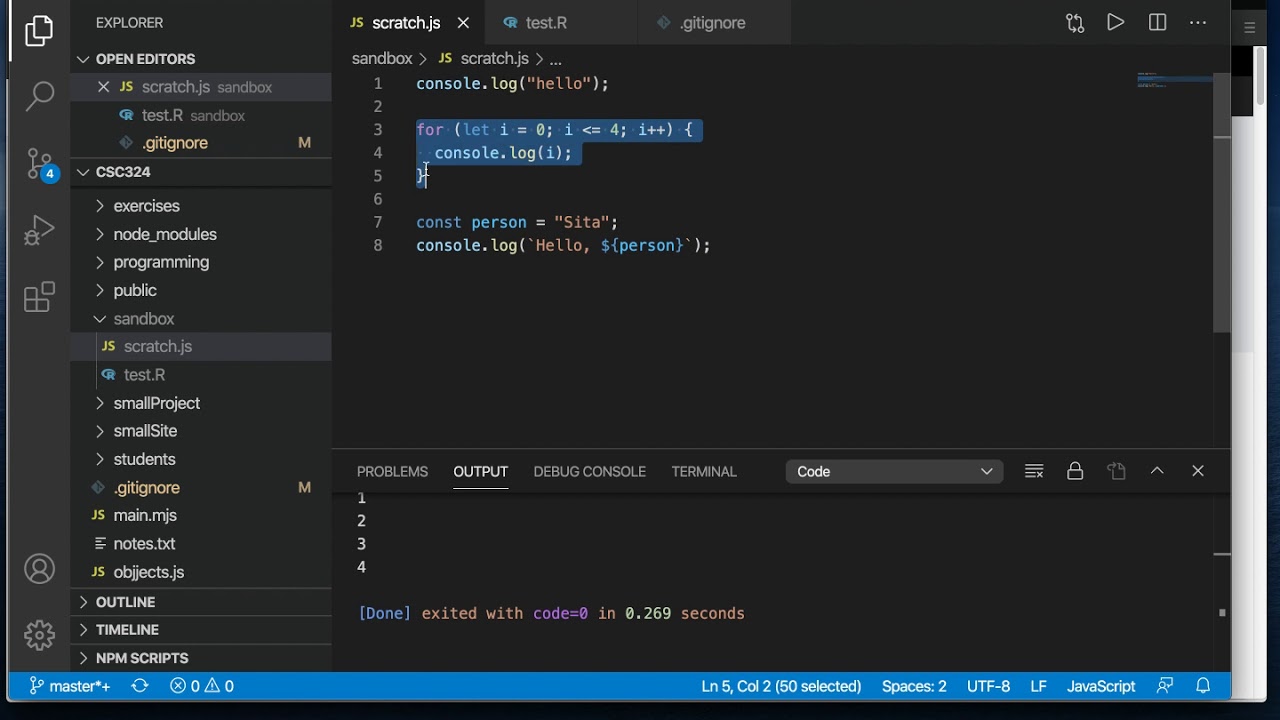
Code Runner lets you execute a JS file with a single keyboard shortcut, no terminal navigation required. It’s one of the best VS Code extensions for quick script execution and has tens of millions of installs on the marketplace.
Install it: Open the Extensions view (Ctrl+Shift+X), search “Code Runner,” and install the extension by Jun Han.
Once installed, run any open JS file with Ctrl+Alt+N. Output appears in the Output panel at the bottom, not the terminal. That’s a key difference worth knowing.
Code Runner strengths and limits at a glance:
- Works immediately – no configuration needed for basic JS files
- Output panel – results go to a read-only Output panel, not an interactive terminal
- No stdin support by default – if your script uses readline or expects user input, Code Runner will hang
- Configurable executor – you can set a custom Node.js path in settings if your system uses a non-standard install location
To fix the stdin issue, open VS Code settings and enable “Code-runner: Run In Terminal”. This redirects execution to the actual integrated terminal instead of the Output panel, giving your script access to interactive input.
For straightforward scripts, Code Runner is genuinely faster than switching to the terminal. For anything complex involving user input or environment variables, stick with the terminal directly.
Running JavaScript with a Launch Configuration (Debugger)
The VS Code debugger is the right tool when you need to step through code, inspect variables, or understand why something is breaking. Not just for “running” a file, but for actually seeing what’s happening inside it.
This method uses a launch.json file stored in a .vscode/ folder at the root of your project. VS Code can generate this file automatically.
Create a launch configuration:
- Open the Run and Debug panel (Ctrl+Shift+D
)
- Click “create a launch.json file”
- Select “Node.js” as the environment
A basic launch.json for running a JS file looks like this:
{ "version": "0.2.0", "configurations": [ { "type": "node", "request": "launch", "name": "Run JS File", "program": "${workspaceFolder}/index.js" } ] }
Press F5 to start a debug session. The script runs and stops at any breakpoints you’ve set. Output appears in the Debug Console panel.
Setting Breakpoints and Inspecting Variables
Click in the gutter (the space to the left of line numbers) to add a red dot breakpoint. When execution hits that line, VS Code pauses.
What you can inspect during a paused session:
- Variables panel – shows all local and global variables and their current values
- Watch panel – lets you track specific expressions as the code runs
- Call stack – shows the exact sequence of function calls that led to the current line
Step controls appear at the top: Step Over (F10), Step Into (F11), and Continue (F5). Step Into follows a function call inside; Step Over executes it and moves to the next line.
For any project that’s part of a real software development workflow, the debugger is worth setting up properly from the start. It saves far more time than it costs to configure.
Running JavaScript in the Browser from VS Code
Not all JavaScript runs in Node.js. If your code manipulates the DOM, accesses window, or relies on browser APIs, it needs to execute inside an actual browser.
This is where VS Code and Node.js execution reach their limit. document.getElementById will throw a ReferenceError in Node.js because there’s no DOM there. Browser execution is a separate context entirely.
The standard approach: use the Live Server extension to spin up a local development server and open your HTML file (which references your JS script) in a browser.
Setup steps:
- Install “Live Server” by Ritwick Dey from the VS Code Marketplace
- Open your HTML file and click “Go Live” in the status bar
- Your browser opens the file and auto-refreshes on every save
JavaScript output from browser execution won’t appear in VS Code. You’ll need to open browser DevTools (F12) and check the Console tab there. This is a common point of confusion for developers moving from Node.js to browser-based JS work.
Live Server is especially useful in front-end development workflows where you’re iterating quickly on UI behavior. The auto-reload alone saves a lot of manual browser refreshing during active development.
React’s frontend ecosystem, for context, represents 40.58% of developer usage according to Stack Overflow 2024 data. Most of that code runs in the browser, not Node.js, making this method relevant for a large portion of JavaScript work.
Running JavaScript Directly with Quokka.js

Quokka.js turns VS Code into a live JavaScript playground. Values appear inline next to your code as you type, with no need to switch windows, run a terminal command, or leave your file.
It runs on Node.js under the hood, so browser-specific APIs like document or window won’t work unless you configure jsdom separately. For most prototyping and algorithm work, that’s never an issue.
Install and start in three steps:
- Search “Quokka.js” in the Extensions panel and install it (publisher: WallabyJs)
- Open the Command Palette (Ctrl+Shift+P) and run Quokka: New JavaScript File
- Start typing. Output appears immediately to the right of each line.
The free Community edition handles everyday use. Pro adds value explorer, live code coverage indicators, and the ability to run Quokka on existing project files without modifying them.
Quokka is also compatible with Cursor IDE and Windsurf via the Open VSX Marketplace, which makes it useful across AI-powered editor setups, not just standard VS Code.
When Quokka Makes Sense vs. When It Doesn’t
Good fit:
- Testing a pure function before wiring it into a larger project
- Learning JavaScript behavior in real time (great for beginners)
- Checking algorithm outputs without setting up a test file
Not the right tool when:
- Your script needs user input via readline or process.stdin
- You need to interact with the DOM or browser APIs
- You’re debugging a multi-file application (use the launch debugger instead)
Took me longer than I’d like to admit to stop reaching for the terminal for every tiny function test. Quokka handles those in seconds.
Running TypeScript or ESM Files as JavaScript
Standard node filename.js breaks in two common scenarios: TypeScript files (.ts) and JavaScript files using ES module syntax (import/export instead of require).
TypeScript adoption has grown from 12% in 2017 to 35% in 2024, per JetBrains’ State of Developer Ecosystem report. The 2025 State of JavaScript survey found that 40% of developers now write exclusively in TypeScript. Running these files in VS Code requires a different setup than plain JS.
| Scenario | Problem | Fix |
|---|---|---|
| TypeScript file (.ts) | Node.js can’t parse TypeScript syntax | Use ts-node |
| ES modules (import/export) | Node treats file as CommonJS | Add "type": "module" to package.json |
| Auto-restart needed | Manual re-runs slow development | Use nodemon with ts-node |
Running TypeScript Files with ts-node
Install ts-node globally:
npm install -g ts-node typescript
Then run a TypeScript file directly:
ts-node filename.ts
No compile step, no output folder. It transpiles and executes in one go. If your project already has a tsconfig.json, ts-node picks it up automatically.
For projects using ES modules inside TypeScript, add “module”: “commonjs” to your tsconfig to avoid module resolution conflicts. This trips up a lot of people the first time they set it up.
Handling ES Module Syntax in Plain JavaScript
Node.js supports ES modules, but you have to tell it explicitly. By default, it assumes CommonJS (require-style) syntax.
Two ways to enable ES module support:
- Add “type”: “module” to your package.json (applies to all files in the project)
- Rename individual files to .mjs extension (applies per file)
Once enabled, run your file with node filename.js as usual. No flags needed in recent Node.js versions (18+).
The –experimental-vm-modules flag is only relevant if you’re running Jest with ES modules, which is a separate setup. Don’t add it to regular script execution.
Common Errors When Running JavaScript in VS Code

Most errors come down to three things: Node.js not being found, the wrong working directory, or output going somewhere unexpected. None of them require reinstalling anything.
VS Code’s integrated terminal inherits your system’s environment variables at launch time. If you installed Node.js after opening VS Code, close and reopen it. The terminal won’t pick up the updated PATH otherwise.
“node is not recognized” Error
This is a PATH problem, not an installation problem. Node.js is installed, but your terminal can’t find it.
Fix on Windows:
- Search “Environment Variables” in the Start menu
- Open System Variables, find Path, and confirm C://Program Files/nodejs is listed
- If it’s missing, add it manually, then restart VS Code
Fix on macOS/Linux: Run which node in your system terminal. If it returns a path but VS Code’s terminal still fails, your shell config file (.zshrc, .bashrc) isn’t loading correctly inside VS Code.
Using nvm (Node Version Manager) adds another layer. VS Code may not source nvm’s shell initialization automatically. Adding the nvm init lines to your shell config file usually resolves it.
“Cannot Find Module” Error
Node.js resolves imports relative to the file being executed, not relative to your project root.
Running node scripts/app.js from the project root while app.js uses require(‘./utils’) works fine because Node resolves from the file’s location. But if you cd into the wrong folder first, relative paths break.
Quick check: run pwd (macOS/Linux) or cd (Windows) in the terminal to confirm where you are before executing a file.
Output Not Showing in Code Runner
Code Runner sends output to the Output panel by default, which is read-only and doesn’t support process.stdin. Scripts that rely on user input will hang silently.
Enable “Run in Terminal” mode in VS Code settings:
"code-runner.runInTerminal": true
This routes all execution through the integrated terminal instead. Interactive scripts work, output is scrollable, and you can use Ctrl+C to stop them.
Any serious software development process involves debugging and reading runtime errors clearly. Getting your output setup right from the start saves a lot of wasted time tracking down errors that were there all along, just hidden in the wrong panel.
If you’re working on back-end development with Node.js, these errors will appear eventually. The fixes are quick once you know where to look. The harder part is knowing which error belongs to which cause, and the table below maps the most common ones.
| Error | Root Cause | Fix |
|---|---|---|
| node: command not found | Node.js not added to PATH | Update PATH and restart VS Code |
| Cannot find module | Wrong working directory | cd to the correct folder first |
| Script hangs, no output | Code Runner using Output panel (no stdin) | Enable runInTerminal in settings |
| Permission denied | Missing execute permission (macOS/Linux) | Run chmod +x filename.js |
FAQ on How To Run JavaScript in VSCode
Does VS Code run JavaScript natively?
No. VS Code is a code editor, not a JavaScript runtime. It needs Node.js installed on your system to execute JS files. Without it, no method – terminal, extension, or debugger – will work.
What is the simplest way to run a JavaScript file in VS Code?
Open the integrated terminal with Ctrl+ , navigate to your file’s folder, and run node filename.js. Output appears immediately. No extensions required.
Do I need the Code Runner extension to run JavaScript?
No. The Code Runner extension adds convenience but isn’t required. The integrated terminal with Node.js installed handles script execution directly, with no extra setup.
Why is “node” not recognized in the VS Code terminal?
Node.js isn’t on your system’s PATH. Reopen VS Code after installing Node.js. On Windows, check Environment Variables and confirm the Node.js install directory is listed under the Path variable.
How do I run JavaScript in the browser from VS Code?
Install the Live Server extension, open your HTML file that links your JS script, and click “Go Live.” Output shows in the browser’s DevTools console, not in VS Code.
Can I run TypeScript files the same way as JavaScript in VS Code?
Not directly. Node.js can’t parse TypeScript syntax. Install ts-node globally with npm install -g ts-node typescript, then run your file with ts-node filename.ts instead.
What is Quokka.js and when should I use it?
Quokka.js is a VS Code extension that evaluates JavaScript inline as you type. Use it for quick function tests and algorithm checks. It runs on Node.js, so browser APIs like document won’t work.
How do I use the VS Code debugger to run JavaScript?
Create a launch.json file in your .vscode/ folder, set the environment to Node.js, and press F5. The debugger runs your script and pauses at any breakpoints you’ve set.
Why does my script hang when using Code Runner?
Code Runner uses a read-only Output panel by default, which blocks stdin. Enable “code-runner.runInTerminal”: true in VS Code settings to route execution through the interactive integrated terminal instead.
How do I run a JavaScript file using ES module syntax in VS Code?
Add “type”: “module” to your package.json. Node.js 18+ supports ES modules natively after that. Then run your file with node filename.js as usual. No extra flags needed.
Conclusion
This conclusion is for an article presenting every practical method to execute a JavaScript file in VS Code, from a basic node command in the terminal to full debug sessions with launch.json.
The right method depends on what you’re building. Quick script? Use the terminal. Iterating fast on logic? Quokka.js gives instant inline output. Front-end code? Live Server handles it.
TypeScript and ES module files need one extra step, but nothing complicated once you know the pattern.
The VS Code debugger is worth setting up properly for any serious project. Breakpoints and variable inspection save far more time than console.log ever will.
Pick the method that fits your workflow and move on.

- Notepad++ Android Options: Apps That Come Close - October 21, 2026
- Data Management Services: A Practical Guide for Growing Companies - October 21, 2026
- MongoDB Cheat Sheet - October 20, 2026