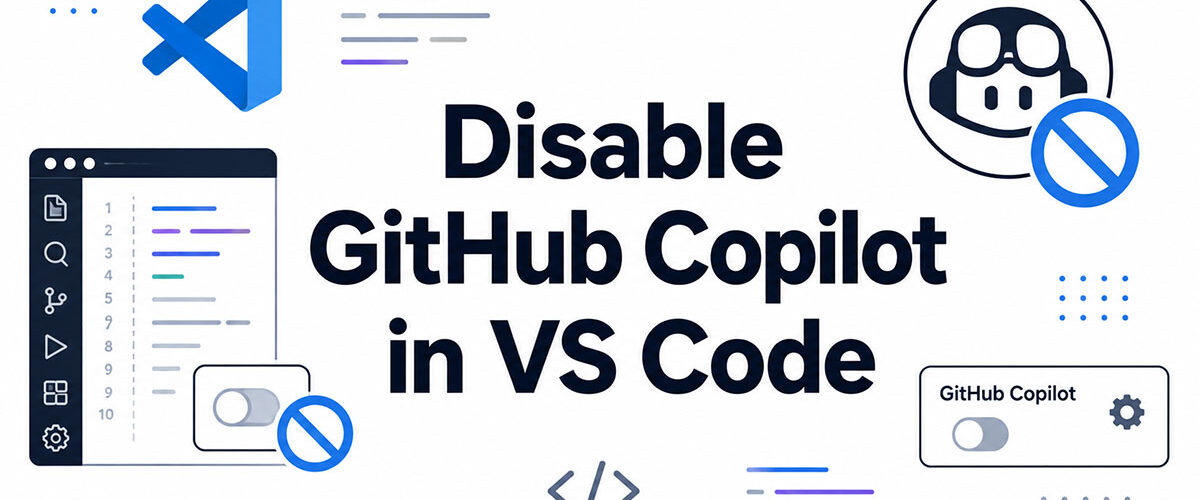
GitHub Copilot writes nearly half your code automatically. Sometimes, that is exactly the problem.
Knowing how to disable GitHub Copilot in VS Code is not about rejecting AI. It is about controlling when it runs, and for which files, languages, or projects.
Whether you want to turn off inline suggestions temporarily, silence Copilot for a specific workspace, or uninstall both the GitHub.copilot and GitHub.copilot-chat extensions completely, the method matters.
This guide covers every disable option available inside Visual Studio Code, from the status bar toggle to organization-level admin controls.
What Does “Disable” Mean for GitHub Copilot in VS Code?

“Disable” is not one action. It is 3 distinct states, and picking the wrong one wastes time.
GitHub Copilot reached 20 million users by July 2025, which means millions of developers have run into this exact confusion at some point (Second Talent, 2025). Most search for how to turn it off and end up applying a global setting when they only needed a workspace toggle.
| Disable State | What It Affects | Best For |
|---|---|---|
| Global off | All files and all projects | Taking a break from AI suggestions entirely |
| Workspace off | One project folder only | Private or sensitive repositories |
| Per-language off | Specific file types only | Markdown, plain text, or configuration files |
There is also a difference between pausing Copilot, disabling the extension, and signing out of your GitHub account. Each produces a different result and is reversed differently.
Pausing stops inline suggestions temporarily but keeps the extension active. Disabling the extension removes it from your editor session. Signing out disconnects your GitHub account so Copilot cannot authenticate at all.
A fourth option: disabling Copilot Chat separately. GitHub.copilot and GitHub.copilot-chat are 2 different extensions with 2 independent enable/disable controls. Turning off one does not turn off the other.
How to Disable GitHub Copilot Globally in VS Code?
Global disable turns off all Copilot inline suggestions across every file and every project in VS Code. Two methods work here, and the status bar icon is the faster of the two.
According to Stack Overflow’s 2024 Developer Survey, 62% of developers actively use AI tools in their workflow. That also means a large share need reliable ways to turn them off depending on context.
Disable via the Status Bar Icon
Fastest method, no settings file needed.
- Look for the Copilot icon in the bottom-right corner of VS Code (it looks like the GitHub Copilot logo)
- Click it to open the Copilot menu
- Select “Disable Completions” then choose “Globally”
- The icon changes appearance to indicate Copilot is off
This writes "github.copilot.enable": { "*": false } to your user settings.json automatically. You do not need to edit any file manually.
Disable via the Command Palette
Open the Command Palette with Ctrl+Shift+P (Windows/Linux) or Cmd+Shift+P (Mac).
Type “Copilot” and look for the option to disable or toggle completions. This method is useful when the status bar is hidden or you prefer keyboard-only navigation inside your VS Code setup.
Both methods update the same underlying setting. The end state is identical: "*": false in your user-level github.copilot.enable object, which applies across all languages and all workspaces.
How to Disable GitHub Copilot for a Specific Language?
Per-language disabling is the most surgical option. Copilot stays active for most of your work but goes silent in specific file types where ghost text suggestions feel more disruptive than helpful.
Markdown and plain text are the most common culprits. Developers writing documentation or technical documentation inside VS Code often find Copilot’s autocomplete more distracting than useful in those contexts.
Edit settings.json Directly
Open the Command Palette and run Preferences: Open User Settings (JSON).
Add or update the github.copilot.enable block with the languages you want off:
{
  "github.copilot.enable": {
    "*": true,
    "markdown": false,
    "plaintext": false,
    "yaml": false
  }
}
Key behavior: the "*": true line keeps Copilot active for all other languages not listed. You only need to specify the ones you want turned off. Remove a language from the list to re-enable it.
To get to settings.json without the Command Palette: File > Preferences > Settings, then click the icon in the top-right corner to open settings.json in VS Code. The icon looks like a document with a small arrow.
How to Disable GitHub Copilot for a Specific Workspace?
Workspace-level disable keeps Copilot off in one project folder while it stays active in everything else you open. This is the right choice for private repos, client work, or any codebase where you do not want AI suggestions active.
Notably, this setting can be committed to version control. Teams working on sensitive projects often commit .vscode/settings.json to enforce consistent behavior across all developers in that repo (DEV Community, 2026).
Using Workspace settings.json
Workspace settings live inside the project, not your VS Code profile.
- Create a
.vscodefolder in your project root if one does not already exist - Inside it, create or open
settings.json - Add:
"github.copilot.enable": { "*": false } - Save the file. Copilot disables immediately for that folder.
VS Code workspace settings override user settings when the two conflict. So even if your global user config has Copilot enabled, the workspace file wins while you have that folder open.
Workspace vs. User Settings Scope
User settings apply everywhere across your whole VS Code installation.
Workspace settings apply only when that specific folder is the active project in VS Code. The moment you switch to a different project folder, the workspace disable no longer applies, and Copilot returns to whatever your user-level setting says.
You can also run “Disable Completions > In this Workspace” from the status bar icon menu to let VS Code write the workspace setting automatically instead of editing the file by hand.
How to Disable GitHub Copilot Inline Suggestions Only?
Inline suggestions are the ghost text that appears as you type. Disabling them is different from disabling Copilot entirely. The rest of Copilot (chat, code explanations, the sidebar) stays active.
DORA 2024 research found that for every 25-percentage-point increase in AI adoption, delivery stability dropped 7.2%. Some teams respond by keeping Copilot Chat for on-demand queries while turning off the constant inline suggestions that interrupt focus (DORA, 2024).
Turn Off Inline Ghost Text via Settings
Add this to your settings.json:
{
  "github.copilot.editor.enableAutoCompletions": false
}
This stops the ghost text from appearing as you type but leaves Copilot Chat and other features fully functional. It is the cleanest way to reduce interruptions without losing access to on-demand AI assistance.
Use a Keyboard Shortcut to Toggle
Alt+ (Windows/Linux) or Option+ (Mac) toggles inline suggestions on and off without touching any settings file.
This is the fastest in-session toggle. Useful during code review sessions or presentations when you want to work without ghost text appearing. The shortcut is bindable inside keybindings.json if you prefer a different key combination.
Note that editor.inlineSuggest.enabled is a VS Code-level setting that affects all inline suggestion providers, not just Copilot. If you use other inline completion tools alongside Copilot, setting github.copilot.editor.enableAutoCompletions to false is the more targeted approach.
How to Disable GitHub Copilot Chat in VS Code?
Copilot Chat is a completely separate extension from the main Copilot autocomplete. Its extension ID is GitHub.copilot-chat. Disabling Copilot completions has zero effect on Copilot Chat.
84% of surveyed corporate users say they would not go back to working without Copilot, yet plenty of teams disable Chat specifically while keeping completions on, or vice versa. The 2 extensions are genuinely independent (Quantumrun, 2025).
Disable Copilot Chat via the Extensions Panel
Open Extensions with Ctrl+Shift+X (or Cmd+Shift+X on Mac).
Search for “GitHub Copilot Chat.” Click the gear icon next to the extension and select “Disable.” You will be asked whether to disable it globally or just for the current workspace. Choose based on your need.
After disabling, the Chat panel disappears from the VS Code sidebar. The main Copilot autocomplete keeps working as before.
Check Both Extensions Separately
Here is what to confirm in your Extensions panel after disabling:
| Extension | ID | Controls |
|---|---|---|
| GitHub Copilot | GitHub.copilot | Inline suggestions and tab completions |
| GitHub Copilot Chat | GitHub.copilot-chat | Chat panel, code explanations, and sidebar features |
Both must be individually confirmed as disabled if you want all Copilot functionality off. Check the extension status icon in the panel. A disabled extension shows a small “disabled” badge next to its name.
How to Disable GitHub Copilot by Signing Out?
Signing out disconnects your GitHub account from VS Code. Copilot loses its authentication and stops working, even though the extension stays installed. This is reversible with a single sign-in and leaves no permanent changes to your VS Code settings.
This approach works well on shared or temporary machines where you want to be sure Copilot cannot run without explicitly logging back in. It is also the right move if your GitHub Copilot subscription is linked to an account you want to disconnect from a specific device.
Steps to Sign Out
Access the Accounts menu in the VS Code Activity Bar (the person icon at the bottom-left).
- Click the Accounts icon
- Find your GitHub account in the list
- Select “Sign out” next to that account
- Copilot immediately stops producing suggestions
The Copilot extension stays installed and shows up in your Extensions panel. It just cannot authenticate without the account connection. If you sign back in later through the same Accounts menu, Copilot resumes without any reinstallation or configuration changes needed.
When Signing Out Makes More Sense Than Disabling
Shared machine: signing out prevents the next user from accidentally running Copilot under your subscription.
Account switch: if you use Copilot with a personal GitHub account but need to work in a professional context with a different account, signing out and back in with the correct account is cleaner than managing settings files.
According to GitHub’s official VS Code setup documentation, signing out through the Accounts menu is the recommended method for removing Copilot access without uninstalling the extension (GitHub Docs, 2025). This keeps your extension preferences intact for when you return.
How to Completely Uninstall GitHub Copilot from VS Code?

Uninstalling removes both Copilot extensions from VS Code entirely. No settings toggle, no sign-out. The extensions are gone until you reinstall them from the Extensions Marketplace.
According to GitHub community discussions, a common mistake is uninstalling only GitHub.copilot and leaving GitHub.copilot-chat behind. Both must be removed separately for a clean uninstall (GitHub Community, 2025).
Uninstall via the Extensions Panel
Open Extensions with Ctrl+Shift+X (or Cmd+Shift+X on Mac).
- Search for “GitHub Copilot” in the search bar
- Click the gear icon next to
GitHub.copilotand select “Uninstall” - Search for “GitHub Copilot Chat” and repeat the same steps for
GitHub.copilot-chat - Restart VS Code to complete the removal
After restarting, check Extensions again. Both extensions should be absent from your installed list. If either still appears, reload the VS Code window with Ctrl+Shift+P and run “Developer: Reload Window.”
What Stays After Uninstall
Persists after uninstall: your GitHub account connection inside VS Code, any Copilot-related entries in settings.json, and your GitHub Copilot subscription status on github.com.
Removed after uninstall: all inline suggestion functionality, the Copilot Chat sidebar, and the Copilot status bar icon.
Those leftover settings.json entries are harmless but can be cleaned up manually. Open user settings JSON and delete any keys starting with github.copilot. The GitHub Copilot account authorization at github.com/settings/applications is separate and can be revoked there if you want to remove all OAuth access.
Reinstalling Later
Reinstalling takes about 30 seconds. Search “GitHub Copilot” in the Extensions Marketplace, install both GitHub.copilot and GitHub.copilot-chat, and sign in with your GitHub account.
No configuration is lost. Your previous settings.json entries, if not deleted, pick right back up. If you use GitHub Copilot regularly and just need a temporary pause, disabling via the status bar is faster than a full uninstall/reinstall cycle.
How to Disable GitHub Copilot Suggestions While Keeping It Installed?
Keeping Copilot installed but silenced is the practical middle ground. The extension stays ready. Suggestions do not appear unless you ask for them.
VS Code’s official inline suggestions documentation confirms a built-in Snooze feature: selecting the Snooze button from the Copilot status bar menu pauses all inline suggestions in 5-minute increments without touching any settings file (VS Code Docs, 2025).
The Status Bar Toggle for Temporary Pauses
Click the Copilot icon in the VS Code status bar and select Snooze to pause suggestions temporarily.
Each click adds 5 minutes. Cancel early by clicking “Cancel Snooze” from the same menu. This works during code reviews, pair sessions, or any stretch where you want to code without ghost text appearing.
The VS Code Command Palette also exposes “Snooze Inline Suggestions” and “Cancel Snooze Inline Suggestions” as commands if you prefer keyboard navigation.
Bind a Custom Keyboard Shortcut to Toggle Completions
Target setting: github.copilot.editor.enableAutoCompletions
In VS Code’s Keyboard Shortcuts editor (Ctrl+K, Ctrl+S), search for github.copilot.completitions.toggle and assign your preferred key binding. This was confirmed working in 2025 by community users after older toggle methods stopped working in newer extension versions (GitHub Community Discussions, 2025).
A more controlled method: the Settings Cycler VS Code extension lets you bind a single key to flip github.copilot.inlineSuggest.enable between true and false without any confirmation popups. Developer Rachel Smith documented this approach, noting the default github.copilot.toggleCopilot command forces a dialog click before taking effect (DEV Community, 2022).
Disable Auto-Completions via settings.json
| Setting | Effect | Scope |
|---|---|---|
github.copilot.editor.enableAutoCompletions: false | Stops Copilot ghost text while you type | User or workspace |
editor.inlineSuggest.enabled: false | Disables inline suggestions from all providers, not just Copilot | User or workspace |
github.copilot.enable: { "*": false } | Disables Copilot completions globally for all languages | User or workspace |
The first setting is the most targeted. It stops Copilot auto-completions while leaving other VS Code inline tools active. Use it when you need Copilot on standby but not interrupting every keystroke.
Why Does GitHub Copilot Keep Turning Back On After Disabling?
Copilot re-enabling itself is a real bug, not user error. It has been reported repeatedly across GitHub community forums and the vscode-copilot-release repository.
A confirmed case: after setting github.copilot.editor.enableAutoCompletions to false in user settings, the Copilot extension reset the value back to true on every VS Code restart. GitHub confirmed the bug was fixed in extension version 1.197.0 (GitHub Community Discussions, 2024).
The Settings Scope Conflict
Most common cause: the disable was applied at workspace scope, but user-level settings have Copilot enabled.
When you switch to a different project folder, VS Code loads user settings again and workspace settings no longer apply. Copilot appears to “come back” but it never actually turned off at the user level.
Fix: open Command Palette, run “Preferences: Open User Settings (JSON)”, and confirm github.copilot.enable is set to {"*": false} at the user level, not just in a workspace file.
Extension Update Resetting Settings
VS Code extension updates occasionally reset extension-level settings, particularly when a new version introduces new setting keys or deprecates old ones.
The Copilot extension has been updated frequently, with new versions shipped regularly through the Extensions Marketplace. After a major update, check that your disable settings are still intact in settings.json. The status bar icon is the fastest visual check: if it shows Copilot as active after you thought it was off, the extension update likely reset things.
Prevention: use github.copilot.enable: {"*": false} in user-level settings.json rather than relying only on the status bar toggle, since the JSON entry persists through extension updates more reliably than UI-only toggles.
The Two-Extension Problem
Disabling GitHub.copilot while leaving GitHub.copilot-chat active can make Copilot appear still running.
Copilot Chat can surface suggestions in certain contexts even when the main Copilot extension is disabled. If Copilot feels “on” after you disabled it, check whether Copilot Chat is still active in your Extensions panel. Both must be confirmed as disabled for a complete stop.
How to Disable GitHub Copilot for All Users on a Shared or Enterprise Machine?
Individual VS Code settings only affect the logged-in user. Org-wide or machine-wide Copilot disable requires either GitHub organization admin controls or VS Code machine-level policy configuration.
GitHub’s November 2025 policy update changed the default: when an enterprise policy is set to “Unconfigured,” organization-level Copilot policies now default to Disabled instead of allowing organizations to self-enable (GitHub Changelog, 2025). This tightened the policy inheritance chain significantly for compliance-focused teams.
Disable at the GitHub Organization Level
Requires: GitHub Copilot Business or Copilot Enterprise plan and organization owner access.
- Go to your GitHub organization settings
- Navigate to “Copilot” under Code, planning, and automation
- Click “Policies” and set the relevant features to Disabled
- For enterprise-wide control: go to enterprise Billing and Licensing, find the Copilot section, and set organization access to disabled
When organization access is removed, Copilot licenses granted through that organization are revoked at the end of the billing period (GitHub Docs, 2025). Individual developers see Copilot grayed out in VS Code even with the extension installed.
VS Code Machine-Level Settings
VS Code supports 3 settings scopes: user, workspace, and machine. Machine-level settings apply to all users on the same device and cannot be overridden by user settings.
Set Copilot disable in machine settings by editing the machine-scoped settings.json file. Location varies by OS:
- Windows:
%APPDATA%\Code\Machine\settings.json - macOS:
$HOME/Library/Application Support/Code/Machine/settings.json - Linux:
$HOME/.config/Code/Machine/settings.json
Add "github.copilot.enable": {"*": false} to that file. Every user who opens VS Code on that machine inherits this setting regardless of their own user-level config.
Enterprise Policy Enforcement via VS Code Admin Settings
Larger organizations managing VS Code centrally can use the chat.disableAIFeatures setting pushed through group policy or device management tools like Microsoft Intune.
Setting chat.disableAIFeatures to true at machine scope disables and hides all AI features in VS Code, including Copilot Chat and inline suggestions, even if extensions are installed (VS Code Docs, 2025). This is the most thorough machine-level disable available without uninstalling extensions.
For DevOps and IT teams managing developer environments at scale, committing a standardized .vscode/settings.json to shared repositories also works as a lightweight team-level control, as confirmed in DEV Community’s guide on managing VS Code settings across teams (DEV Community, 2026). It does not prevent individual developers from overriding at user level, but it sets a clear default for the project.
| Method | Scope | Can Developers Override? |
|---|---|---|
| GitHub organization admin disable | All organization members | No |
| VS Code machine settings | All users on one device | No |
chat.disableAIFeatures via policy | Entire device | No |
Workspace settings.json committed to the repository | One project | Yes, at the user level |
FAQ on How To Disable Github Copilot In Vs Code
Does disabling GitHub Copilot affect my subscription or billing?
No. Disabling the extension or toggling off suggestions in VS Code has zero effect on your GitHub account or active Copilot subscription.
Billing is managed entirely at github.com/settings/copilot, not inside the editor.
What is the fastest way to turn off Copilot suggestions in VS Code?
Click the Copilot icon in the VS Code status bar and select “Disable Completions.”
This takes one click and applies immediately. No settings file editing required.
Can I disable Copilot for one project but keep it on for others?
Yes. Add "github.copilot.enable": {"*": false} to the .vscode/settings.json file inside that specific project folder.
Workspace settings override user settings, so Copilot stays active in every other project you open.
How do I disable GitHub Copilot for Markdown files only?
Open your user settings.json and add "github.copilot.enable": {"markdown": false}.
Copilot keeps running in all other file types and languages not listed in that block.
Is GitHub Copilot Chat disabled when I disable GitHub Copilot?
No. They are 2 separate extensions: GitHub.copilot and GitHub.copilot-chat.
Disabling one has no effect on the other. Both must be disabled individually through the Extensions panel.
Why does Copilot keep turning back on after I disable it?
Most likely a settings scope conflict. If the disable was applied at workspace level, switching projects reloads your user settings where Copilot may still be enabled.
Set "github.copilot.enable": {"*": false} in user-level settings.json to make the change stick globally.
How do I completely uninstall GitHub Copilot from VS Code?
Open the Extensions panel, search “GitHub Copilot,” click the gear icon, and select “Uninstall.”
Repeat the same steps for GitHub Copilot Chat. Restart VS Code after both extensions are removed.
Can a company admin disable Copilot for all developers in VS Code?
Yes. GitHub organization owners can revoke Copilot access under organization settings, which removes the license from all members.
IT teams can also push chat.disableAIFeatures: true via machine-level VS Code settings or group policy tools like Microsoft Intune.
How do I pause Copilot suggestions temporarily without changing any settings?
Click the Copilot status bar icon and select Snooze. Each click adds 5 minutes of pause.
The Command Palette also exposes “Snooze Inline Suggestions” if you prefer a keyboard-driven approach.
Does uninstalling GitHub Copilot delete my settings or GitHub account data?
No. Uninstalling the VS Code extension leaves your GitHub account connection and any Copilot entries in settings.json untouched.
To fully revoke editor access, go to github.com/settings/applications and remove the Copilot OAuth authorization manually.
Conclusion
This article on how to disable GitHub Copilot in VS Code covered every method available, from a single status bar click to workspace-scoped settings.json entries and org-level admin controls.
The right approach depends on what you actually need. A temporary pause is not the same as a per-language toggle, and neither replaces a full extension uninstall.
One thing worth remembering: GitHub.copilot and GitHub.copilot-chat are independent extensions. Disabling one leaves the other running.
Whether you manage a solo setup or control Copilot Business across an entire organization, the controls are there. You just need to apply them at the right scope.

- MongoDB Cheat Sheet - October 20, 2026
- Adding AI Video Generation to a Software Product: Architecture, Cost Guardrails and QA - October 20, 2026
- Show Hidden Characters, Spaces, and Line Endings in Notepad++ - October 19, 2026