Most AI coding tools make you faster at typing. Claude Code makes you faster at shipping.
Knowing how to use Claude Code in VS Code turns Anthropic’s agentic coding tool into a full development partner inside your editor. It reads your codebase, proposes inline diffs, runs terminal commands, and handles multi-file refactoring tasks without you leaving the IDE.
This guide covers everything from installation and authentication to CLAUDE.md configuration, git integration, context window management, and how Claude Code compares to GitHub Copilot for daily development work.
What Is Claude Code in VS Code?

Claude Code in VS Code is Anthropic’s agentic AI coding tool delivered as a native VS Code extension, running directly inside your editor as a graphical panel rather than a separate chat window or terminal session.
It is not a chat plugin. It reads, edits, and navigates your entire codebase, runs terminal commands through VS Code’s integrated terminal, and proposes changes as inline diffs you review before accepting.
The extension bundles its own copy of the Claude Code CLI. When you type into the panel, you’re talking to the same agentic engine you’d launch with claude in a terminal, just with a VS Code-native diff viewer, session history tabs, and file context pulled directly from your cursor position.
This is the recommended setup for VS Code users, per Anthropic’s own IDE integrations documentation.
How Claude Code Differs from Claude.ai and the Standalone CLI
Three surfaces, one engine. Each interface accesses the same Claude models but serves a different workflow.
| Surface | Where It Lives | Best For |
|---|---|---|
| Claude.ai | Web browser or mobile app | General questions, writing, and research |
| Claude Code CLI | Terminal (any operating system shell) | Script automation, CI/CD pipelines, and power users |
| Claude Code VS Code extension | VS Code sidebar | Daily coding, multi-file edits, and reviewing code changes within the IDE |
The VS Code extension also runs a local MCP (Model Context Protocol) server that exposes VS Code diagnostics directly to the model. Claude sees your red squiggles without you copying anything.
What Makes It Agentic
Autocomplete tools wait for you to type. Claude Code plans and executes.
Give it a high-level goal (“add input validation to the user registration form”) and it reads the relevant files, identifies what needs changing across multiple modules, proposes a diff, and waits for your approval before writing anything to disk.
As of early 2026, developers using Claude Code spend an average of 20 hours per week with the tool, according to Anthropic CEO Dario Amodei at the Code with Claude conference (May 2026). That is not casual usage. It reflects how deeply it fits into daily software development workflows.
What Are the System Requirements for Claude Code in VS Code?
Claude Code in VS Code has 3 hard requirements: a supported OS, Node.js 18 or higher (for npm installs), and a paid Anthropic account. Missing any one of them blocks setup entirely.
Operating System Support
macOS and Linux work natively. Windows requires WSL2 with a Linux distribution (Ubuntu 22.04 is common). Native Windows installs can run but introduce path separator issues and shell compatibility problems with some terminal commands.
Stack Overflow’s 2025 Developer Survey puts Windows at 47.6% of professional developer environments, ahead of macOS (31.8%) and Linux (27.7%). Worth keeping in mind given Windows users face the most setup friction.
Node.js and VS Code Version Requirements
Node.js 18 or higher is required when installing via npm. Run node --version before anything else. The most common setup failure on Linux is the VS Code extension failing to locate Node even when it is installed, because VS Code doesn’t always inherit the shell’s PATH environment.
The fix: launch VS Code from your terminal with code . so it inherits environment variables from your shell session.
VS Code 1.98.0 or newer is required for the full extension experience, including the Spark icon in the editor toolbar. The Spark icon only appears when a file is open in the editor.
Account and Subscription Requirements
No free tier exists for Claude Code. You need one of the following:
- Claude Pro ($17-20/month)
- Claude Max ($100 or $200/month)
- Claude Team or Enterprise plan
- Anthropic Console account with API billing configured
No API key is required if you sign in with a Claude subscription. API key access is available for those who prefer direct billing or need headless setups.
How to Install Claude Code in VS Code
Installation takes under 5 minutes if prerequisites are in place. The VS Code Marketplace is the fastest path. The CLI install is required only if you want to run claude directly in the integrated terminal alongside the extension panel.
Installing the Claude Code Extension from the VS Code Marketplace
Open VS Code and press Cmd+Shift+X (Mac) or Ctrl+Shift+X (Windows/Linux) to open the Extensions view.
Search “Claude Code” and install the one published by Anthropic. Check the publisher field. There are unofficial forks in the marketplace. The official listing had 13.9 million installs and a 4.0-star rating as of late April 2026 (Visual Studio Marketplace, 2026), the largest footprint in the AI coding extension category.
The extension also installs in Cursor, Windsurf, and other VS Code forks. Search “Claude Code” in those editors’ extension views or install from the Open VSX registry if the Marketplace isn’t available in your editor.
If the panel doesn’t appear after installation, restart VS Code or run “Developer: Reload Window” from the Command Palette (Cmd+Shift+P).
Authenticating Claude Code After Installation
The first time you open the Claude Code panel, a sign-in screen appears. Click “Sign in” and complete browser-based OAuth authorization against your Claude account.
If you’d rather use an API key, set ANTHROPICAPIKEY as an environment variable in your shell and launch VS Code from the terminal with code . so the variable is inherited. Starting VS Code from a desktop launcher bypasses shell environment variables, which is why a lot of “why is it asking me to log in” issues appear on Reddit.
After successful sign-in, a “Learn Claude Code” onboarding checklist appears in the panel. Work through it or dismiss it with the X. To reopen it later, uncheck “Hide Onboarding” under Extensions > Claude Code in VS Code settings.
Installing the Claude Code CLI for Terminal Access
The extension bundles its own CLI copy for the chat panel. If you also want to run claude directly from VS Code’s integrated terminal, install the standalone CLI separately.
Native installer (recommended, no Node.js required):
macOS/Linux
curl -fsSL https://claude.ai/install.sh | bashnpm install (for pinning specific versions or Node-based workflows):
npm install -g @anthropic-ai/claude-codeDo not use sudo with npm. If you get permission errors, the correct fix is switching to nvm rather than running npm as root. The native installer is the primary method Anthropic tests and supports, and it auto-updates in the background.
How Does Claude Code Integrate with the VS Code Interface?
The Claude Code panel lives in VS Code’s secondary sidebar by default, accessible from the Activity Bar or the Spark icon (orange asterisk) in the editor toolbar. The Spark icon only appears when a file is open.
The Chat Panel and Workspace Awareness
Claude Code reads your open workspace folder automatically. No manual context loading required. It understands your file tree, the files you have open, and what code is selected in the editor when you send a prompt.
This context awareness is what separates it from copying code into a browser chat window. Highlight a buggy function, type “fix this,” and the model already has the file path, surrounding code, and your VS Code diagnostics as context.
The panel runs a local MCP server (bound to 127.0.0.1 on a random high port with a fresh auth token per activation). Two tools become available through this server: one for reading diagnostics, one for opening files. The diagnostics tool is particularly useful. Claude reads TypeScript or ESLint errors the same way you do, without you describing them.
Inline Diffs and the Review Workflow
When Claude proposes a code change, it shows the change as an inline diff directly in the editor, the same format as a Git client. You see exactly what gets added or removed, can make your own edits on top of the suggestion, and accept it with a single click.
This diff review step is what keeps agentic editing from being reckless. You approve before anything writes to disk.
One current limitation (as of April 2026): you cannot approve individual hunks within a file. Partial acceptance requires accepting all changes and manually reverting what you don’t want. That feature has been requested but isn’t implemented yet.
Session History, Tabs, and Conversation Rewind
Session history appears at the top of the panel, browsable by Today, Yesterday, and Last 7 days, or searchable by keyword. Each session gets an auto-generated title. Rename or delete on hover.
Hover any message in the panel to access the rewind button, which offers 3 options:
- Fork conversation from this point (keep the code as-is)
- Rewind code to this point (keep the conversation)
- Do both simultaneously
For exploratory sessions where you’re three turns into a bad direction, this is the feature that prevents starting over entirely. The CLI has a version of this with double-ESC, but the visual rewind in the extension is cleaner to use during active development.
You can also open multiple Claude Code conversations in separate tabs, useful for working across different branches or isolated tasks in parallel.
How to Give Claude Code Tasks Inside VS Code
Task quality in Claude Code depends almost entirely on how well you scope the prompt. Vague tasks produce vague results. The model is capable of planning multi-step changes, but it needs a clear starting point.
Referencing Files and Code in Your Prompts
Use @-mentions to pull specific files into the prompt context. Type @ followed by a filename, and VS Code’s file picker opens. You can also reference specific line ranges by selecting code in the editor before typing your prompt. That selection gets sent automatically.
Practical examples of well-formed task prompts:
- “@src/auth/login.ts – the validateToken function throws on expired tokens instead of returning false. Fix it and update the tests in @src/auth/login.test.ts”
- “Rename the UserProfile component to AccountProfile across the entire project”
- “Write integration tests for the /api/orders endpoint covering the 200, 400, and 401 cases”
The more specific the file reference and the expected outcome, the less back-and-forth you need. I’ve seen developers lose 20 minutes to a prompt like “make this better” when “remove the nested ternary on line 43 and replace it with an if-else block” would have resolved it in one turn.
Scoping Single-File vs. Multi-File Tasks
Single-file tasks (fixing a bug, adding a function, writing a docstring) are straightforward. Send the prompt, review the diff, accept.
Multi-file tasks require more precision. State the scope explicitly before asking Claude to act. “Rename this function everywhere it appears” gives Claude permission to search the whole project. Without that framing, it may only update the file you have open.
For complex multi-file changes, ask Claude to describe its plan before executing. Type “Describe what you’ll change and why before making any edits.” This one step prevents a lot of unwanted surprises, especially on larger codebases. 84% of developers report using AI tools in their software development process (Stack Overflow 2025), but the ones who get the most out of agentic tools are the ones who review plans before execution.
Also relevant for multi-file code refactoring: keep tasks scoped to one goal per session. Asking Claude to rename a function AND update the test suite AND fix a separate bug in the same prompt produces lower-quality output than three separate focused sessions.
What Can Claude Code Actually Do Inside VS Code?
Claude Code is not a smarter autocomplete. It’s a coding agent that plans and executes tasks across your project. The distinction matters when deciding what to assign to it.
File Editing and Multi-File Refactoring
File editing is the core capability. Claude reads files, proposes changes as inline diffs, and writes to disk only after you approve. This covers everything from single-line bug fixes to renaming a component across 40 files.
Multi-file refactoring is where Claude Code pulls ahead of tools like GitHub Copilot. Copilot handles inline autocomplete; Claude Code handles coordinated changes across the entire project. Faros AI measured enterprise teams using Claude Code achieving a 4:1 ROI with a cost per incremental pull request of $37.50 versus $150 in developer time saved (Faros AI, 2026).
Claude Code is git-aware by default. It reads git status, knows which files are staged or modified, and understands recent commit history without being told.
Running Terminal Commands and Build Scripts
Claude Code runs commands through VS Code’s integrated terminal: installing dependencies, running build scripts, executing linters, starting dev servers. It prompts for confirmation before running any shell command unless you’ve pre-approved specific commands in your project settings.
Pre-approving safe commands in your .claude/settings.json is worth doing upfront:
{ "permissions": { "allow": ["Read", "Edit", "Bash(git status)", "Bash(npm test)"] } }
Without this, Claude prompts on every shell command, which disrupts flow. Spending 10 minutes defining allowed commands per project pays back in the first session.
Writing and Running Tests
Ask Claude to write tests for a module, run them, and fix failures, all in one session. This is one of the most time-efficient use cases. Developers save 30-60% of time on coding, testing, and documentation tasks when using AI tools, according to GitHub research.
The VS Code extension reads your diagnostics panel directly through the IDE MCP server, so Claude already knows about test failures without you pasting error logs into the prompt. Use @terminal:name to pull terminal output into the prompt context for additional debug information.
For projects using test-driven development, the workflow fits well: describe the behavior you want, ask Claude to write the tests first, then ask it to write the implementation that passes them.
How Does the Review and Approval Workflow Work in VS Code?
Every file change Claude proposes goes through a diff review before anything is written to disk. This is not optional. It’s how the tool is designed, and it’s what makes agentic editing usable in production code.
Reviewing Proposed File Changes
Changes appear as inline diffs in the editor, identical to what you’d see in a Git diff viewer. Lines being removed show in red, lines being added show in green. You can edit the proposed change directly in the diff view before accepting.
Anthropic’s own teams now produce 70-90% of their code using Claude Code (Anthropic internal data, 2026), and this diff review step is central to how that works at scale. No one approves blindly. The diff is the checkpoint.
One thing worth knowing: you cannot approve partial hunks within a file yet (as of April 2026). Accept all or revert manually. For large diffs, it’s better to ask Claude for smaller, incremental changes so each diff is easy to reason about.
Controlling Terminal Command Permissions
Terminal command approval works separately from file edit approval. By default, Claude prompts before every shell command. Three permission modes are available:
| Mode | Behavior | Best For |
|---|---|---|
| Manual (default) | Prompts before every command | New projects and unfamiliar codebases |
| Allow list | Automatically approves specific commands and prompts for all others | Active day-to-day development |
| Auto-approve | Runs all commands without prompting | Trusted workflows and isolated environments |
The –allowedTools flag in the CLI and the permissions.allow array in .claude/settings.json both control this. The VS Code extension uses the same settings files as the CLI, so changes apply to both surfaces.
Keep VS Code’s source control panel open during any multi-step agentic session. It shows every file Claude has touched and gives you a clear audit trail before you commit anything.
How to Use Claude Code with Git Inside VS Code?
Claude Code is git-aware by default. It reads your repository’s current branch, staged files, modified files, and recent commit history without being asked.
This git context is what makes autonomous source control management inside VS Code actually useful. Claude doesn’t just generate code changes. It understands where those changes fit in version control history.
Commit Messages, Branches, and Pull Requests
Asking Claude to write commit messages is one of the fastest wins in the workflow. Stage your files, ask “write a commit message for these changes,” and Claude reads the diff and produces a descriptive message in the format your project uses (conventional commits, semantic versioning, whatever CLAUDE.md specifies).
Other git tasks Claude handles directly in VS Code:
- Creating branches with descriptive names based on the task
- Staging specific files before committing
- Writing pull request descriptions with context from the full diff
- Explaining recent commit history for onboarding or debugging
Claude prompts for confirmation before running any git command that modifies history. Commits, pushes, and branch deletions all require your approval. Read-only operations like git status and git log run automatically.
Reviewing the Git State Before Acting
A reliable habit: keep VS Code’s Source Control panel open during any Claude Code session.
Every file Claude edits appears there in real time. You see the full diff for the entire session before deciding what to commit. This matters especially for multi-file tasks where Claude touches files you didn’t expect.
If Claude Code can’t read git information in your project, 2 things cause this most often: workspace trust isn’t enabled for the folder (fix via Ctrl+Shift+P, then “Manage Workspace Trust”), or the .claudeignore file is accidentally excluding the .git/ directory.
How to Configure Claude Code Behavior in VS Code?
Claude Code reads project configuration from a CLAUDE.md file in your project root, loaded automatically at the start of every session. This is the primary tool for giving Claude persistent, project-specific context it can’t infer from code alone.
Setting Up a CLAUDE.md File for Your Project
Run /init in the Claude Code prompt box to generate a starter CLAUDE.md. Claude analyzes your project’s directory structure, detects build systems, test frameworks, and code conventions, then produces a working file you refine from there.
What belongs in CLAUDE.md:
- Build, test, lint, and deploy commands (exact invocations, not assumptions)
- Tech stack details Claude can’t reliably guess (framework version, ORM, database)
- The 3-5 directories that matter and what each does
- Anti-patterns your team has learned to avoid
- Frozen directories or generated files Claude should never modify
Keep it under 200 lines. Frontier models reliably follow roughly 150-200 instructions, and Claude Code’s own system prompt already uses about 50 of those (HumanLayer, 2025). A bloated CLAUDE.md causes rules to get lost.
Restricting Tools and Commands Per Workspace
Per-project permissions live in .claude/settings.json at the project root. This file is shared across your team when committed to git.
For personal overrides that shouldn’t be shared, use CLAUDE.local.md in the project root (gitignored by convention). This file lets individual team members add their own preferences without affecting everyone else’s sessions.
CLAUDE.md also supports a hierarchical structure:
- ~/.claude/CLAUDE.md
for global rules across all projects
- ./CLAUDE.md
for project root rules (commit to git)
- ./src/CLAUDE.md
for directory-specific rules (lazy-loaded)
Subdirectory CLAUDE.md files load only when Claude reads a file in that directory. Style rules for React components belong in frontend/CLAUDE.md, not the root. Database migration rules belong in backend/.
How Does Claude Code Handle Large Codebases in VS Code?
A typical active Claude Code session in VS Code, with several file reads, tool calls, and back-and-forth conversation, consumes between 20,000 and 100,000 tokens per hour (MindStudio, 2026).
A two-hour session on a large codebase can realistically consume 100,000 to 300,000 tokens. Context management is not optional for serious work.
How Claude Code Navigates Large Projects
Claude Code does not load your entire codebase into context upfront. It uses file search and grep-style operations to locate relevant files, then reads only what it needs.
This targeted approach keeps the context window lean. Still, file reads add up. Reading 4 large files, running a build, and processing the output can consume over 50,000 tokens before a single question is asked (Claude Code AI, 2026). Scope your requests to the specific files relevant to the current task.
Practical habits for large codebases:
- Use @-mentions to specify exactly which files to read, not “read the auth module”
- Delegate research to subagents so file reads stay out of your main context
- Ask Claude to summarize findings rather than quoting entire files
Using /compact and /clear to Manage Context
Claude Code auto-compacts at around 92% context capacity, summarizing older conversation history to free space. Don’t wait for this to trigger. Proactive compaction at natural task breakpoints produces better summaries.
/compact replaces conversation history with a structured summary. Run it with a focus instruction for better results: /compact focus on the auth bug fix.
/clear wipes the entire conversation. Zero context. Use it when switching to a completely unrelated task where old context would only cause confusion.
On Anthropic’s 8-needle MRCR v2 benchmark at 1M tokens, Claude Opus 4.6 retrieves at 76% accuracy while Sonnet 4.5 manages only 18.5% (Anthropic, 2026). A larger context window is not automatically a more reliable one. For everyday work, a well-managed 200K context outperforms a neglected 1M.
What Are the Most Effective Ways to Use Claude Code in VS Code?

The developers getting the most out of Claude Code share a common pattern: they treat it as an agent that executes plans, not a tool that answers questions.
Starting Sessions with Scoped, Single-Goal Tasks
One goal per session. Asking Claude to rename a function AND refactor a module AND fix a separate bug in one prompt produces lower-quality output than three focused sessions. The model’s attention is finite.
The Automation Atlas engineering team reported cutting context-switching time by 30-40% by switching from terminal-only usage to the VS Code extension, primarily because diffs review inline with the existing editor tab rather than requiring a separate window.
Before starting any session:
- Define one concrete goal
- Identify the 2-4 files most relevant to that goal
- Check CLAUDE.md is current for the project
Feeding Claude Error Messages and Test Output
Paste the full error message or stack trace into your prompt. Don’t describe the error. The actual text contains information Claude needs: file paths, line numbers, specific exception types.
The VS Code extension makes this easier through the IDE MCP server. Claude already reads your Problems panel. Use @terminal:name to pull terminal output directly into context without copying anything.
For debugging workflows that benefit from AI debugging tools beyond what Claude Code offers natively, the community MCP server claude-debugs-for-you on GitHub bridges Claude Code to the VS Code debugger, though it requires its own setup.
Using Plan Mode Before Complex Refactors
Ask Claude to describe its plan before executing on any task touching more than 3 files. Type “Describe what you’ll change and why before making any edits.” This consistently prevents the most common failure mode: Claude touching files or patterns you didn’t expect.
Anthropic’s own teams use this review step across the 70-90% of their code now produced with Claude Code (Anthropic internal data, 2026). The diff review is not bureaucratic overhead. It’s what makes autonomous editing trustworthy at scale.
The best AI pair programming tools share this characteristic: they surface their reasoning before acting, not after.
What Are the Known Limitations of Claude Code in VS Code?
Claude Code is capable. It’s also genuinely limited in specific ways that matter for real projects.
Context Window and Session Length Limits
Context rot is real. A METR randomized controlled trial from early 2025 found that experienced developers were 19% slower with AI tools despite feeling 20% faster. Part of that gap comes from degraded output in long, unmanaged sessions.
When Claude starts hedging, repeating earlier suggestions, or hallucinating function signatures you discussed an hour ago, the context window is the cause, not the model.
Signs the session needs compaction:
- Claude contradicts advice it gave earlier in the session
- Responses reference wrong file names or function signatures
- Instructions from CLAUDE.md stop being followed consistently
What Claude Code Cannot Do
No keystroke-level autocomplete. Claude Code is task-oriented. You describe what you want, it plans and executes. Developers who want line-by-line suggestions as they type still need a separate tool.
No access to live runtime state. Claude Code cannot inspect active memory, attach to a running process, or observe live application behavior. It works through files and the terminal only.
No partial hunk approval (as of April 2026). You accept all of a diff or revert manually. For large proposed changes, ask for smaller incremental edits so each diff is manageable.
API Cost Variability
Developers using Claude Code through API billing (rather than a flat subscription) face unpredictable costs at high usage volumes. A single two-hour session on a large codebase can consume significant tokens quickly.
Only about 29% of developers trust AI tool output enough to skip review (Stack Overflow 2025). Every review cycle adds turns to the session. Every turn adds tokens. Budget accordingly if you’re on API billing rather than a flat Max plan.
How Does Claude Code in VS Code Compare to GitHub Copilot?
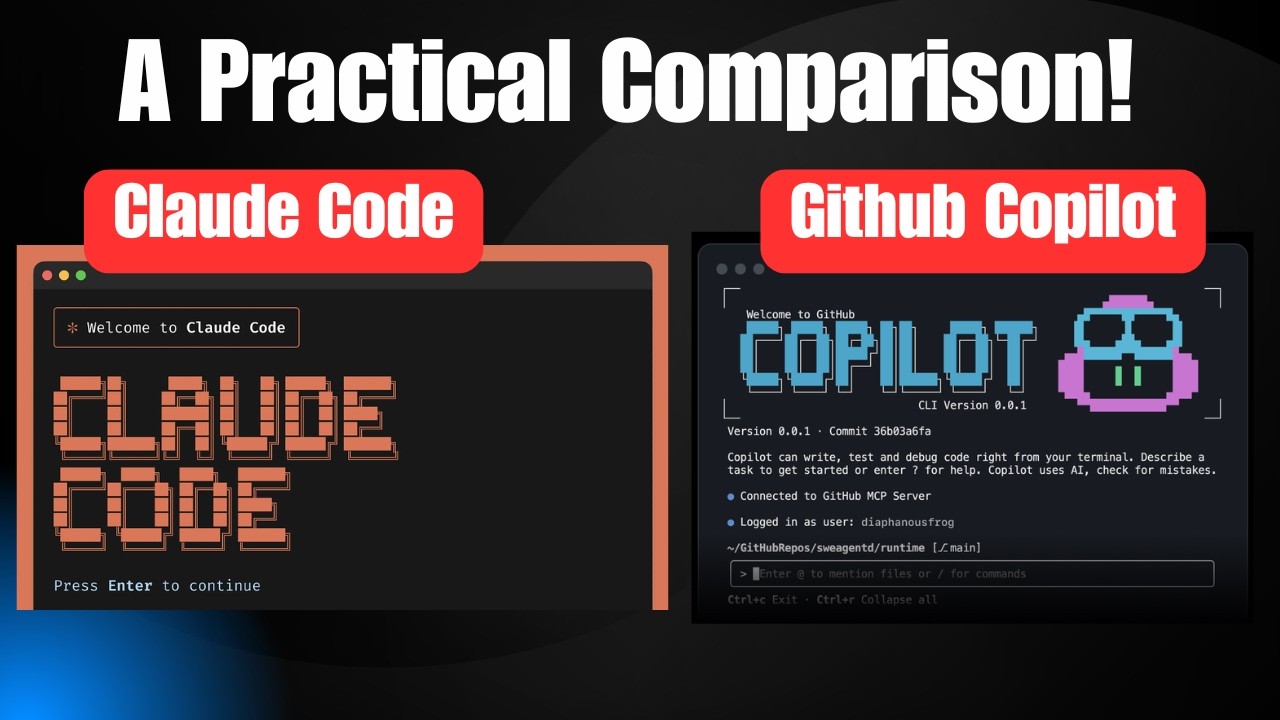
Claude Code and GitHub Copilot are not the same type of product. Choosing between them based on feature lists misses the point. They operate at different layers of the development workflow.
| Dimension | Claude Code | GitHub Copilot |
|---|---|---|
| Primary interaction model | Task-based agent that plans and executes | Inline code completion with chat assistance |
| Context window | Up to 1 million tokens | Approximately 32K–128K tokens (model-dependent) |
| SWE-bench Verified score | 80.8–87.6% (Opus 4.6–4.7) | No published unified score |
| Best for | Multi-file refactoring and large codebase tasks | Routine code completion, boilerplate generation, and development speed |
Where Copilot Wins
Copilot’s suggestion delivery averages 320 milliseconds versus Claude Code’s 1.8 seconds for first response (SitePoint, 2026). For developers who want continuous inline suggestions as they type, Copilot is faster and requires less configuration.
Copilot also integrates natively with GitHub’s pull request workflow, commit message generation on the GitHub.com surface, and Code Scanning Autofix. If your team lives in GitHub, these are real workflow advantages that Claude Code doesn’t replicate natively.
IDE breadth is another Copilot advantage. It supports VS Code, JetBrains, Neovim, Xcode, Eclipse, Visual Studio, Zed, and Raycast. Claude Code’s VS Code extension and JetBrains plugin (still in Beta as of April 2026) cover fewer environments.
Where Claude Code Wins
For complex tasks requiring understanding of the full codebase, the gap is meaningful. Among developers surveyed who used both tools, 61% rated Claude Code as more accurate for complex debugging and refactoring, while 73% rated Copilot as faster for routine completion (Stack Overflow 2025 / tech-insider.org, 2026).
Claude Code’s agentic architecture handles open-ended refactoring, architecture decisions, and tasks requiring iterative reasoning across many files with fewer errors and less human intervention than Copilot’s agent mode. Copilot’s agent mode handles well-scoped tasks; Claude Code handles open-ended ones.
Both tools run simultaneously inside VS Code without conflict. Copilot provides ghost-text suggestions in the editor. Claude Code lives in the sidebar panel and terminal. As of early 2026, Claude Code is also available as a third-party agent within Copilot Pro+ and Enterprise plans, meaning teams can delegate to Claude Code directly from within a Copilot workflow. Most high-output teams use both.
The GitHub Copilot vs Claude Code decision isn’t really about picking one. It’s about knowing which task belongs to which tool.
FAQ on Using Claude Code In VS Code
Is Claude Code free to use in VS Code?
No. Claude Code requires a paid Anthropic account. Options include Claude Pro ($17-20/month), Claude Max ($100-200/month), or API billing. There is no free tier. The VS Code extension itself is free to install from the Marketplace.
Do I need to install Node.js to use the Claude Code extension?
Only if you install via npm. The native installer requires no Node.js dependency. If you use npm, Node.js 18 or higher is required. Run node –version to check before starting setup.
Can Claude Code edit multiple files at once in VS Code?
Yes. Multi-file refactoring is one of Claude Code’s core strengths as an agentic coding tool. It reads your full project, proposes changes as inline diffs across files, and waits for your approval before writing anything to disk.
What is CLAUDE.md and do I need it?
CLAUDE.md is a plain markdown file placed in your project root. Claude reads it at the start of every session. It stores build commands, coding conventions, and architecture notes. Without it, Claude starts each session without project context.
How does Claude Code differ from GitHub Copilot in VS Code?
Copilot provides inline autocomplete as you type. Claude Code is a task-based agent that plans and executes multi-step changes. They run simultaneously without conflict. Most developers use Copilot for routine completion and Claude Code for larger refactoring tasks.
What happens when Claude Code runs out of context during a session?
Auto-compaction triggers at roughly 92% context capacity, summarizing conversation history to free space. Run /compact manually at task breakpoints for better summaries. Use /clear when switching to a completely unrelated task.
Can Claude Code run terminal commands inside VS Code?
Yes. It runs commands through the VS Code integrated terminal, including build scripts, test runners, git operations, and dependency installs. By default it prompts for confirmation before each command unless you pre-approve specific commands in .claude/settings.json.
Does Claude Code work on Windows?
Yes, but Windows requires WSL2 with a Linux distribution for the best experience. Native Windows installs work but introduce shell compatibility issues. Anthropic recommends macOS or Linux as primary environments for full feature support.
How do I reference specific files in my Claude Code prompts?
Use @-mentions in the prompt box to pull specific files into context. Selecting code in the editor before typing a prompt automatically sends that selection. You can also reference specific line ranges from your current selection.
Can I use Claude Code and GitHub Copilot at the same time in VS Code?
Yes. Both extensions run simultaneously without conflict. Copilot handles ghost-text inline suggestions in the editor. Claude Code lives in the sidebar panel and terminal. As of early 2026, Claude Code also works as a third-party agent within Copilot Pro+ and Enterprise plans.
Conclusion
This article on how to use Claude Code in VS Code covers everything from the VS Code extension setup and Node.js requirements to CLAUDE.md configuration, context window management, and git workflow integration.
The core shift Claude Code demands is treating it as an autonomous agent, not a smarter autocomplete. Scope your tasks, review every diff, and keep your project configuration file lean and current.
Used well, it handles multi-file refactoring, continuous integration tasks, and AI code generation that would take hours manually.
Start with a single scoped task. Build the habit from there. Agentic coding rewards developers who guide it deliberately.

- MongoDB Cheat Sheet - October 20, 2026
- Adding AI Video Generation to a Software Product: Architecture, Cost Guardrails and QA - October 20, 2026
- Show Hidden Characters, Spaces, and Line Endings in Notepad++ - October 19, 2026