Cloning a GitHub repository comes down to git clone and the HTTPS or SSH URL from the repository’s Code button. Git makes a new folder, pulls the project into it, and sets up a remote called origin that points back to GitHub.
People clone to run a project locally or to send a fix to an open-source one. Private repositories need a personal access token or an SSH key on top of that.
A clone isn’t a snapshot. It brings down every version of every file and folder the repository holds at that moment (GitHub Docs, 2026). That’s why a clone can push and pull changes and a ZIP download can’t.
How to clone a GitHub repository with git clone

Run git clone with the URL from the Code button and Git creates a new folder holding the whole project and its history. The syntax is git clone [options] <repository URL> [directory], and only the URL is required.
- Open the repository’s main page on GitHub and click Code above the file list.
- Copy the URL from the HTTPS, SSH or GitHub CLI tab.
- Open a terminal and move to the folder where the project should live.
- Type
git clone, paste the URL, and press Enter. - Move into the new folder with
cdand rungit statusto confirm the working tree is clean.
git clone https://github.com/OWNER/REPO.gitOn Windows you can run all of this in Git Bash, the shell that ships with Git for Windows.
Git names the new folder after the repository and drops the .git suffix. Pass a second argument if you want a different name, for example git clone URL my-folder.
Cloning into an existing directory only works when that directory is empty, according to the git-clone manual (last revised in Git 2.54.0, April 2026).
Public repositories clone over HTTPS with no sign-in, and there’s no need to fork them first. A GitHub account only matters for private repositories and for pushing changes.
Check that Git is installed
Run git --version. A version number means you’re ready. If you see “command not found” or “not recognized”, Git isn’t on the machine yet.
- On Windows, use the installer from git-scm.com, which is Git for Windows with Git Bash included.
- On macOS,
brew install gitthrough Homebrew does it. - Debian and Ubuntu users can run
sudo apt install git.
If none of those fit your setup, this walkthrough on installing Git on each operating system covers the rest.
What you get on your machine after the clone
You end up with an ordinary folder of project files and a hidden .git directory that holds the full history. The remote called origin is already set to point back at GitHub.
Git downloads the data for every branch, then creates remote-tracking branches for each one (visible with git branch --remotes). It checks out a single local branch, forked from the branch the remote has active, which is normally the default branch (git-clone manual).
Commits and refs live in the .git directory, and so does the configuration. Delete it and the folder turns into a plain copy of files with no history and no way to sync.
Git also records the source URL under remote.origin.url, which is why git fetch and git pull work with no arguments afterward. Run git remote -v to see it, and read up on the remote named origin if the name is new to you.
Some things stay behind on GitHub. Issues, pull requests and Actions settings live there and not in the Git data, so a clone never contains them. Large files tracked by Git LFS arrive as small pointer files unless Git LFS is installed.
An empty repository is the odd case. GitHub Docs describe it as a repository with no files, usually created without a README, and the clone succeeds but there is nothing to check out until the first commit.
HTTPS or SSH: which clone URL should you use?
HTTPS suits occasional clones, public projects and restricted networks. If you push every day and you’re tired of typing credentials, SSH is the better fit.
| Method | Clone URL or command | Authentication | Best for |
|---|---|---|---|
| HTTPS | https://github.com/OWNER/REPO.git | Personal access token or credential helper | One-off clones, firewalls |
| SSH | git@github.com:OWNER/REPO.git | SSH key pair | Daily push and pull |
| GitHub CLI | gh repo clone OWNER/REPO | Browser or token login through gh auth login | People already using gh |
GitHub’s own Set up Git guide marks HTTPS as the recommended route (GitHub Docs, 2026). That makes sense for a first clone, since nothing has to be generated or uploaded.
HTTPS URLs are available on every repository regardless of visibility, and they keep working behind a firewall or proxy.
SSH needs a key pair on each computer you use. If port 22 is blocked, GitHub supports SSH over the HTTPS port (443) as a workaround.

Neither choice is permanent. The URL belongs to a remote repository entry, and git remote set-url origin NEW_URL switches an existing clone from one protocol to the other.
How to authenticate when cloning a private repository
Over HTTPS, a personal access token takes the place of your password. Over SSH, a key pair does the job instead. Typing your account password at the prompt fails, because password-based authentication for Git has been removed.
HTTPS with a personal access token
GitHub recommends fine-grained tokens over classic ones whenever possible (GitHub Docs, 2026).
A fine-grained token can be limited to specific repositories, and read-only Contents permission is enough to clone. A classic token with the repo scope reaches every repository your account can access.
- Open Settings, then Developer settings, then Fine-grained tokens, and generate a new token.
- Set an expiration and pick the repositories it may read.
- Run
git cloneand paste the token when Git asks for a password.
Git still asks for a username, but it doesn’t use it to authenticate you. Leave it empty and you get an invalid credentials error.
Here is a walkthrough on generating the token if you want screenshots.
GitHub removes tokens that go unused for a year, and an account can hold 50 fine-grained tokens. Organizations that enforce SAML single sign-on require you to authorize a classic token before it works there.
GitHub also suggests Git Credential Manager or GitHub CLI instead of creating a token by hand. Both store the login so Git stops asking.
SSH with a key pair
Generate the key on the machine that will do the cloning.
ssh-keygen -t ed25519 -C "your_email@example.com"Press Enter to accept the default location and set a passphrase when asked. Then start ssh-agent and load the key with eval "$(ssh-agent -s)" followed by ssh-add ~/.ssh/id_ed25519.
Next comes adding the public key to your GitHub account. Only the .pub file goes up, never the private key.
Check the connection with ssh -T git@github.com, then clone using the git@github.com:OWNER/REPO.git URL.
- On macOS, add
AddKeysToAgent yesandUseKeychain yesto ~/.ssh/config, and drop the UseKeychain line if the key has no passphrase. - On Windows, start the ssh-agent service from an elevated PowerShell window, then run
ssh-addin a normal one. - Older systems without Ed25519 support can use
ssh-keygen -t rsa -b 4096instead.
GitHub dropped DSA keys on March 15, 2022, so an old ssh-dss key cannot be added to an account anymore.
On Windows, Git for Windows can use its bundled ssh.exe and miss the Windows agent, which brings back passphrase prompts. GitHub’s documented fix is pointing core.sshCommand at the system OpenSSH binary.
Git clone options for branches, history and submodules
Most clones need no flags at all. When you do want one, the table below covers what each flag changes, from branch choice and history depth to submodules and repository type.
| Flag | What it changes | Use it when | Trade-off |
|---|---|---|---|
| –branch NAME –single-branch | Checks out NAME and fetches only that history | You need one release or feature branch | Later fetches update that branch only |
| –depth 1 | Cuts history to the latest commit | Throwaway builds | git log and merge-base become unreliable |
| –filter=blob:none | Postpones file contents of old commits | Large repositories with long history | Checkout and blame download data on demand |
| –recurse-submodules | Initializes and clones every submodule | The repository lists submodules | More data, and ignored with bare, mirror or no-checkout |
| –bare or –mirror | Drops the working tree; mirror copies all refs | Backups and moving a repository | Not usable for everyday editing |
The –branch flag also accepts a tag, which detaches HEAD at that commit. And –depth implies –single-branch unless you pass –no-single-branch (git-clone manual).
Shallow, blobless or treeless: which history trade-off fits
The shallow option (--depth=1) gives the smallest download, and the price is history that stops at the tip commit.
Blobless clones (--filter=blob:none) keep every commit and tree but hold off on file contents until a checkout asks for them.
Treeless (--filter=tree:0) is commits only. It really only makes sense for a one-off CI build that discards the repository afterward.
GitHub engineer Derrick Stolee calls blobless the most widely used partial clone option, and advises developers to avoid shallow and treeless clones for daily work (GitHub Blog, December 2020).
The shallow problem shows up on fetch. The server has to compute what is new relative to the shallow boundary, and a topic branch started below that boundary can pull down nearly a full history.
Servers can also refuse a filter, in which case Git prints a warning (“filtering not recognized by server, ignoring”) and falls back to a full clone. Treeless clones with submodules are worse, since each fetch triggers a tree request per new commit unless you run git config fetch.recurseSubmodules false.
For a normal-sized repository, clone fully. Blobless is the sensible step down when old large files are the problem. To restore history after a shallow clone, run git fetch --unshallow.
When bare and mirror clones make sense
Neither one is for editing code.
A bare repository has no working tree. The remote’s branch heads are copied straight to local branch heads, with no remote-tracking branches and no fetch refspec. Git still records the source URL under remote.origin.url.
A mirror clone implies bare and goes further. It maps all refs, including notes and remote-tracking branches, and sets a refspec so git remote update overwrites them.
Other ways to clone: GitHub CLI, GitHub Desktop, VS Code and more
Every tool here runs the same Git operation underneath, so you end up with the same local repository. Pick whichever matches where you already work.
- The GitHub CLI uses
gh repo clone OWNER/REPO, or you can pass a full URL. - GitHub Desktop has Open with GitHub Desktop in the Code menu, or File, then Clone Repository.
- VS Code offers the Git: Clone command in the Command Palette.
- In IntelliJ IDEA, go to Git, then Clone, and choose GitHub in the dialog.
- GitHub Codespaces skips the local copy entirely.
Leave out OWNER in the CLI command and it defaults to your own username (GitHub Docs, 2026). Login runs through gh auth login, so there’s no token to paste.
If the tool isn’t on your machine yet, this guide covers installing GitHub CLI.
People who avoid the terminal usually land on GitHub Desktop. Clone a repository you cannot write to, try to push, and it offers to create a fork for you.
VS Code needs Git installed on the machine, and it works on the same repository as the command line. Switch between the two freely, with nothing to import (VS Code documentation, updated September 2026).
IntelliJ IDEA 2026.2 lets you log in through the browser or with a token, pick a repository from your account, and set the Directory field. The dialog includes a shallow clone checkbox, and Git, then Unshallow Repository, restores the history later (JetBrains documentation).
Codespaces swaps the local clone for a repository on a remote virtual machine. That works for throwaway tasks, or when your laptop is short on disk space.
Clone, fork, download ZIP or pull: which one do you need?
Clone when you want a working copy with history. Fork when you can’t push to the original. Download ZIP for a one-time snapshot, and pull to update a copy you already have.
- A clone gives you the full local copy, history and origin remote included. It suits read-only use and any repository you have push access to.
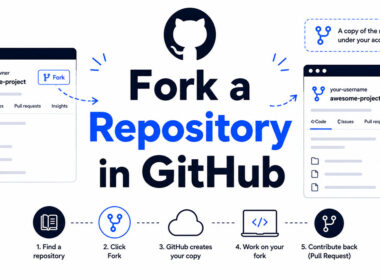
- Forking copies the repository to your own GitHub account, and you need one to propose changes to a project you can’t push to.
- Download ZIP gets you a snapshot of a branch, tag or commit. No history, no remote.
- Pull only updates a clone you already have. It never creates anything new.
The usual contributor path is fork first, then clone your fork. A fork in GitHub is a separate repository, so the original has to be added as a second remote with git remote add upstream URL.
Forking has a limit. You cannot fork a private repository into an organization on GitHub Free (GitHub Docs, 2026).
ZIP archives are generated by git archive and hold no history. An archive of a branch or tag can change over time because those refs move, while an archive of a commit ID always has the same contents.
Because a ZIP has no remote, you cannot sync it later. Anyone who ends up needing updates has to clone anyway.
Running git pull does a fetch and then a merge, so it only makes sense inside an existing clone.
If you’re unsure, clone first. The same working copy can be pointed at a fork later with git remote set-url.
Why does git clone fail, and how do you fix it?
Most failures trace back to credentials, a missing SSH key, a mistyped or inaccessible URL, a non-empty target folder, or a default branch that was deleted.
| Error message | Cause | Fix |
|---|---|---|
| fatal: Authentication failed (or HTTP 401 or 403) | Password used instead of a token, expired token, stale cached credential, or SAML SSO not authorized | Create a new token, update the cached credential, authorize the token for the organization |
| Permission denied (publickey) | Key not loaded in ssh-agent, or its public half is not on your account | Run ssh-add, test with ssh -T git@github.com, add the public key to GitHub |
| Repository not found | Typo in the URL, or a private repository you cannot access | Copy the URL from the Code button, confirm owner, collaborator or team access |
| destination path already exists and is not an empty directory | The target folder holds files | Choose another folder name or empty the directory |
| warning: remote HEAD refers to nonexistent ref, unable to checkout | The default branch was deleted on GitHub | A repository admin sets a new default branch |
GitHub’s troubleshooting guide says 401 and 403 errors over HTTPS usually point to an old Git version or missing access. It names version 1.7.10 as a comfortable stable baseline, so any current install clears that bar.
When a clone fails, work through it in this order.
- Compare the URL with the one on the repository page, character by character.
- Confirm your account can actually see the repository.
- Check cached credentials, since out-of-date ones make authentication fail without any prompt.
- For SSH, run
ssh -T git@github.comand read the reply.
The deleted default branch case still leaves the files cloned, just not checked out. After an admin fixes the default, list branches with git branch -a and switch branches in Git to the one you want.
FAQ About Cloning a GitHub Repository
Do I need a GitHub account to clone a public repository?
No. Public repositories clone over HTTPS with no login, and you only need an account to push changes or to clone private repositories.
Can I clone a repository without installing Git?
Not with git clone, since that’s a Git command. GitHub Desktop clones without the command line, and Download ZIP needs no Git at all, though the archive has no history and no remote.
How do I clone into the current folder instead of a new one?
Add a dot as the directory argument, like this: git clone URL .
The folder has to be empty, because Git refuses to clone into a non-empty directory.
How do I switch branches after cloning?
Run git checkout BRANCH or git switch BRANCH. List what’s available with git branch --remotes.
A clone made with –single-branch only knows the one branch, so fetch the others first.
How do I clone only one subfolder of a repository?
Git can’t clone a single folder directly. Use git clone --filter=blob:none --sparse URL, then run git sparse-checkout set path/to/folder to limit the working tree to that path.
How do I delete a cloned repository from my computer?
Delete the folder. That removes only the local copy, and the repository on GitHub stays untouched.
Any commits you never pushed are lost with it, so push or back them up first.
How much disk space does a clone use?
There’s no fixed size. A full clone holds the working files plus every version of every file in the .git directory, so long-lived repositories can be much larger than their checkout.
Check the real figure with du -sh, and use a blobless or shallow clone to shrink it.
What to Do First Inside a Fresh Clone
Right after cloning, confirm the remote by running git remote -v and git status. Then branch off the default branch before your first edit. If you cloned a fork, add the upstream remote as well, and skip that step otherwise.
The order follows cost. A wrong URL or protocol is the cheapest mistake to catch, and the first command exposes it before any work exists to lose.
Branching comes second because commits on the default branch make it diverge from origin, and every later pull then has to merge. Anyone unsure how can create a new branch in Git with a single command.
The upstream remote comes last because it matters only at sync time. The trade-off of branching first is one extra command per project, in exchange for a default branch that always matches origin.

- Show Hidden Characters, Spaces, and Line Endings in Notepad++ - October 19, 2026
- Military and Defense UI/UX Design Services Firms to Know in 2026 - October 19, 2026
- How to Manage Your Google Play Subscriptions - October 17, 2026