Pushing to GitHub comes down to two commands. git remote add origin saves the repository URL, and git push -u origin main uploads your commits.
Run them in the project folder once the local repository has at least one commit. The commands are identical in Git Bash on Windows and in macOS Terminal, and Linux shells are no different.
After that first upload, a bare git push is enough. According to the git-push manual (Git 2.56.0), Git pushes to the remote that the branch’s upstream points to, or to origin when no upstream is set. A branch without an upstream can still fail to push, depending on the push.default setting, which is why the first push uses -u.
Authentication is where older tutorials fall apart. GitHub rejects account passwords for Git operations over HTTPS, so a personal access token or an SSH key is required, and a credential helper can do the sign-in for you.
What to Have Ready Before You Push
The push itself is just git push origin main. What it needs is a local repository with a commit in it and an empty repository on GitHub to receive that commit.
- Git, installed. Run
git --versionin a terminal (Git Bash on Windows) to check. - Your author name and email, set once with
git config --global user.nameanduser.email, so commits carry them. - At least one local commit, made after
git init,git add .andgit commit. - A new, empty repository in your GitHub account.
If the version check fails, installing Git comes first. Restart the terminal afterwards so the new path loads.
Create the GitHub repository with no README. Skip the license and .gitignore options as well. GitHub Docs gives this advice to avoid errors, and the reason is simple. A remote that starts with a README holds a commit your local history lacks, so the first push gets rejected.
Sort out secrets before the first commit. A .gitignore file excludes credentials, and also build output and dependency folders. GitHub’s import guide warns against pushing passwords or API keys at all.
A secret that reaches history stays there even after you delete the file in a later commit.
How to Push a Local Project to GitHub Step by Step

Add the GitHub URL as a remote named origin, then run git push -u origin main from the project folder. Both commands come from GitHub’s own import guide (checked October 2026).
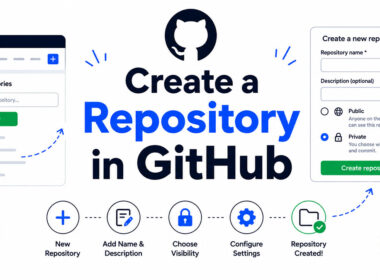
- Create an empty repository on GitHub, with no README, license or .gitignore.
- Copy the remote URL from the Quick Setup page.
- Open a terminal in the project folder (Git Bash on Windows).
- Run
git remote add origin REMOTE-URL, replacing REMOTE-URL with the copied address. - Run
git remote -vto confirm the URL is stored correctly. - Run
git push -u origin main.
Open the repository page afterwards. The files and your commit message appear there when the push succeeds.
Git stores each remote URL under a name, and the origin remote is the usual default. The name is only a convention, so a second remote such as a backup can take any label you like.
GitHub Docs says you can push to an HTTPS address like https://github.com/user/repo.git or an SSH one like git@github.com:user/repo.git, and nothing else.
If your default branch has a different name, use it in place of main. Since Git 2.28.0, git init -b main sets the name at creation.
What the -u Flag Does
Run the first push with -u and your local branch gets linked to origin/main. After that, a plain git push knows where to go. Git calls that link upstream tracking, and it is stored per branch.
Pushing a New Branch
Create the branch and switch to it with git switch -c feature-login.
Then push it with git push -u origin feature-login, which sets tracking at the same time.
The branch shows up on GitHub after that push, and a pull request can be opened from it.
Which Authentication Method Should You Use?
On a personal machine, GitHub CLI or Git Credential Manager is the easy route. Scripts get a fine-grained personal access token, and an SSH key makes sense if you push constantly from one computer. A plain account password works with none of them.
Tutorials that still tell you to type a password are stale. Password authentication for Git operations on GitHub.com ended on August 13, 2021, according to the GitHub Blog.

| Method | Setup | Best fit | Breaks when |
|---|---|---|---|
| Personal access token | Generate in Developer settings | HTTPS remotes, scripts | Token expires or lacks permission |
| SSH key | ssh-keygen, upload public key | Frequent pushes from one machine | Key missing from account, port 22 blocked |
| GitHub CLI | Install, run gh auth login | Anyone already using gh | Tool not installed or not logged in |
| Git Credential Manager | Install, sign in once | Machines that should remember the login | Old cached credentials override the new ones |
Personal access token over HTTPS
A fine-grained token is limited to the repositories you choose, and pushes need its Contents permission set to read and write. GitHub recommends it over the classic type whenever possible, and honestly I’d skip classic tokens unless something forces your hand.
The classic token’s repo scope does cover command line pushes. The catch is that this token reaches every repository your account can access.
Git asks for a username and a password. Paste the token into the password prompt (the username is required but does not authenticate you).
Creating the token takes a few clicks in Developer settings, as covered in this guide to generating a GitHub token.
As of October 2026, GitHub Docs says tokens left unused for a year are removed automatically, so set an expiration you will remember.
Tokens do have limits. Fine-grained ones cannot write to public repositories you neither own nor belong to. Classic ones need separate authorization for organizations that use SAML single sign-on. And since tokens work only on HTTPS remotes, a token is useless against an SSH one.
SSH key
SSH swaps the token for a key pair. The private half stays on your computer, and you upload only the public half, as explained in this guide to adding an SSH key to GitHub.
Test the setup with ssh -T git@github.com. A greeting that contains your username confirms the key works.
There is no token expiry to track, and the remote stays in the git@github.com:user/repo.git form. I prefer SSH on a machine I use every day, mostly because nothing ever expires on me.
The downsides are smaller but real. Some networks block port 22, and GitHub documents SSH over the HTTPS port as the workaround. A key also does nothing on an HTTPS remote, so the remote URL has to match the method.
GitHub CLI and Git Credential Manager
GitHub Docs points to both as safer alternatives whenever you would otherwise create a token. Neither makes you copy a secret by hand.
- With GitHub CLI, run
gh auth loginonce. - Git Credential Manager prompts for sign-in on the first HTTPS push and remembers it after that.
A stale cached password blocks pushes after you switch to a token. On macOS, GitHub Docs says to replace the old entry in the Keychain.
For a personal laptop, go with GitHub CLI or Git Credential Manager, or SSH if it is the one machine you push from all day. A script or server gets a fine-grained token limited to one repository (GitHub recommends a GitHub App for long-lived integrations).
Pushing From VS Code, GitHub Desktop and GitHub CLI
VS Code and GitHub Desktop publish a local project and handle later pushes without typing git push. GitHub CLI creates the repository and runs the first push in one step. Each tool signs you in to GitHub itself.
VS Code
Run Publish to GitHub from the Command Palette, sign in, then enter a repository name and choose its visibility. The VS Code documentation (updated September 2026) places this at the end of its source control quickstart.
Later commits stay local until pushed. Open More Actions (…) in the Source Control view and select Push, or use Sync Changes, which pulls remote changes first and then pushes.
Sign-in trouble inside the editor is covered in this walkthrough on connecting VS Code to GitHub.
After a failed push, the same documentation advises against repeated syncs or force pushes and points to its troubleshooting page.
GitHub Desktop
Sign in first, under Settings on Mac or Options on Windows, in the Accounts pane. Then add the project through File, then Add Local Repository…, and push commits from the app once the repository is linked to GitHub.
The GitHub Blog lists GitHub Desktop as unaffected by the 2021 password removal. Step-by-step help for the app sits in this guide to using GitHub Desktop.
GitHub CLI
One command can create the repository and push in the same step.
gh repo create my-project --private --source=. --remote=origin --push
According to the GitHub CLI manual, --source points to the local folder and --remote names the new remote. The --push flag is what uploads your existing commits. The repository name defaults to the folder name when you leave it out.
The command only creates new repositories, so an existing one needs git remote add instead. Later pushes go back to git push.
How to Fix the Most Common git push Errors
Most failed pushes end in one of the messages below, and each one points to a specific fix.
| Error message | Cause | Fix |
|---|---|---|
| non-fast-forward updates were rejected | Remote branch holds commits you lack | Pull, then push again |
| Permission denied (publickey) | GitHub accepted no SSH key | Check the agent and the account key, then retest |
| Authentication failed | Wrong or expired token, or a blank username | Create a new token, enter a username too |
| remote origin already exists | A remote named origin is already set | Run git remote set-url origin NEW-URL |
| GH006: Protected branch update failed | Branch rule requires a pull request | Push a new branch, open a pull request |
Rejected Updates and Non-Fast-Forward Errors
The full output ends with failed to push some refs and a hint that non-fast-forward updates were rejected. Someone pushed to the same branch first, and sending your commits now would erase theirs.
Git accepts a push only when the remote tip is an ancestor of the commit you send, according to the git-push manual.
The usual fix is git pull origin main, which fetches and merges in one step. The guide on what git pull does covers the details. If you want a linear history, git pull --rebase replays your commits on top of the remote ones instead.
What you should not reach for is --force. It discards the other person’s work, which the force push section below explains.
Authentication and Permission Errors
Git requires a username even though the token does the authenticating. Leaving it blank produces an invalid-credentials error, per GitHub Docs.
On the SSH side, the debug line Agent admitted failure to sign using the key marks an uncommon problem on Linux. GitHub documents a separate troubleshooting page for it.
Remote Origin Already Exists
git remote set-url origin NEW-URL
The command swaps the URL under the existing name, so the remote does not need deleting first.
When the Pull Stops on a Merge Conflict
Git marks the conflicting files and pauses the merge until you finish it. The push only goes through after that.
A walkthrough of resolving merge conflicts in Git shows what the markers look like.
- Open each conflicted file and keep the lines you want.
- Run
git addon every resolved file. - Run
git commit, thengit push.
When a Force Push Is Safe and When It Is Not
A force push is safe on a branch only you use, typically after a rebase or an amend, and –force-with-lease is the version to type. On a shared branch such as main it erases other people’s commits.
Rewriting commits with a Git rebase is the usual reason a branch you already pushed now refuses a normal push.
What –force Overwrites
The flag switches off the fast-forward check and the other push-rule checks, according to the git-push manual for Git 2.56.0. The remote branch ends up pointing at your commit, and anything only the old tip held is lost.
It also applies to every ref in the push. With push.default set to matching, or several destinations configured, it can overwrite branches you never meant to touch.
To force one branch only, put a plus sign before the refspec, as in git push origin +feature-login.
How –force-with-lease Differs
git push --force-with-lease origin feature-login
This version refuses to overwrite when the remote branch moved since your last fetch. The explicit form --force-with-lease=feature-login:SHA pins the exact commit you expect.
The catch is background fetching. A git fetch from an editor or a cron job refreshes the remote-tracking branch and defeats the protection. The manual also marks every form without an explicit expected value as experimental.
Adding --force-if-includes closes the background-fetch gap, because Git then checks that the remote tip is already integrated locally.
Protected Branches Block Both
By default, every branch protection rule on GitHub disables force pushes and deletion on the matching branches, according to GitHub Docs. A rule setting can allow force pushes for everyone with write access, or only for named people and teams. Admins bypass the restrictions unless the rule is set to apply to them too.
A direct push to a branch that requires pull requests ends in GH006: Protected branch update failed.
The Git manual adds the other half. Forcing cannot make a remote accept a push it is configured to deny. A client-side flag never beats a server-side rule, so the fix is a pull request, not a stronger flag.
What Happens When a File or Repository Is Too Large
The 100 MiB per-file block and the 2 GiB per-push cap are the two hard stops for regular Git pushes. The remaining values are either warnings and recommendations or plan limits for Git LFS.
As of October 2026, GitHub Docs lists these values:
- Git warns at 50 MiB, and the push still succeeds.
- GitHub blocks files at 100 MiB.
- 1 GB is the ideal repository size, and 5 GB is the strongly recommended ceiling.
- A single push cannot exceed 2 GiB.
- On GitHub Free and Pro, Git LFS allows 2 GB per file.
Files Over 100 MiB
Git LFS is the best-known fix, though it is not always the right one. It keeps a pointer file in the repository and stores the real file elsewhere. Define the tracking rules in .gitattributes before adding any large file.
Releases are another option. GitHub does not limit the total size of release binaries or the bandwidth used to deliver them. Each single file must still fit the Git LFS maximum for your plan.
Some files do not belong in a repository at all. Large SQL files go on a file sharing service, and dependencies belong with a package manager such as npm or Maven (Bundler fills that role too).
Git LFS does not work with GitHub Pages sites or template repositories.
Removing a Large File From History
If the file is still unpushed and sits in the last commit, run git rm --cached GIANT_FILE, then git commit --amend -CHEAD. Amending is the step that drops the file from the unpushed history.
If it is already in an earlier commit, GitHub recommends git filter-repo. An interactive rebase works only when the commits sit on one branch and no merge has happened since.
Both procedures remove the file permanently from the local repository and from GitHub.com, so keep a backup copy outside the repository first.
Pushes Over 2 GiB
A push over the cap fails with fatal: the remote end hung up unexpectedly or remote: fatal: pack exceeds maximum allowed size. First uploads of very large repositories are the usual trigger, along with imports and history rewrites, per GitHub Docs.
- List every 1000th commit:
git log --oneline --reverse refs/heads/BRANCH | awk 'NR % 1000 == 0' - Push each one in turn:
git push REMOTE +SHA:refs/heads/BRANCH - If the pack error appears, shrink the step size and repeat.
- On a first-time upload, finish with
git push REMOTE --mirror.
A single commit larger than 2 GiB cannot be split this way. GitHub Docs says to split it with an interactive rebase or restart the history from scratch.
Pushing to GitHub FAQ
What does pushing to GitHub actually do?
Your commits get uploaded from the local repository to the remote one on GitHub. Git sends only the data the remote does not already have, then moves the remote branch to your latest commit.
How is git push different from git commit and git pull?
git commit never leaves your machine. It records a snapshot in your local history and that is all. git push sends those commits to GitHub, while git pull works in the other direction, downloading remote commits and merging them into your branch.
How do I push tags to GitHub?
Run git push origin --tags to upload every tag, or git push origin v1.0 for a single one. The --follow-tags option pushes only annotated tags that point at commits you are already sending.
Can I push all branches at once?
Yes. git push origin --all uploads every local branch in one command.
Add -u if you also want upstream tracking set on each branch.
How do I rename master to main before pushing?
Run git branch -m master main inside the repository, then push with git push -u origin main.
On a new project, git init -b main skips the rename entirely.
How do I delete a remote branch?
Run git push origin --delete BRANCH. The older form git push origin :BRANCH does the same, because an empty source ref deletes the destination.
Your local copy of the branch stays until you remove it separately.
Can I push the same project to a second remote as a backup?
Yes. Add the second URL with git remote add backup URL, then run git push backup main.
A remote group defined in remotes.all-remotes lets one git push all-remotes command update every member in turn.
Building a Push Routine for a Team Repository
Direct pushes to main suit solo projects only. On a team repository, everyone works in the same loop.
- Pull the current main.
- Push your branch with
-u. - Open a pull request for review.
Branching first keeps main free of unreviewed commits, and pulling first starts that branch from current work. After the branch push, opening a pull request on GitHub starts the review.
The cost is one extra review step per change, in exchange for a main branch that rejects force pushes by default once a protection rule exists.
As of October 2026, GitHub Docs says the fine-grained token gaps are being closed, so token advice for public repositories you do not belong to is the first guidance likely to change.

- How to Run a React App in VS Code Step by Step - October 23, 2026
- Transactional or marketing email: which messages your app should send itself - October 23, 2026
- How Software Teams Write SOPs for Releases and Deployments - October 22, 2026