Most developers know Git. Not all of them enjoy using it from a terminal.
GitHub Desktop is a free, open-source GUI client that turns Git’s command-line operations into a visual interface, letting you manage repositories, commit changes, and handle branches without writing a single command.
With over 180 million developers on GitHub as of 2025, having the right local tool for your source control management workflow matters more than ever.
This guide covers what GitHub Desktop actually does, how it differs from Git and GitHub.com, who it works best for, its real limitations, and how it compares to tools like GitKraken and Sourcetree.
What is GitHub Desktop?
GitHub Desktop is a free, open-source GUI client for Git and GitHub. It replaces terminal-based Git commands with a visual interface, letting developers clone repositories, commit changes, manage branches, and sync remote repositories without writing a single command.
GitHub, now a Microsoft subsidiary since its $7.5 billion acquisition in 2018, builds and maintains GitHub Desktop. The app is available on macOS and Windows, written in TypeScript using React, and published under the MIT license.
As of early 2025, GitHub serves over 180 million developers worldwide (GitHub Octoverse 2025). GitHub Desktop is one of the primary tools connecting those developers to their local repositories.
| Property | Details |
|---|---|
| Developer | GitHub (a subsidiary of Microsoft) |
| License | MIT License (open source) |
| Tech stack | TypeScript, React, Electron |
| Supported platforms | macOS 11+ and Windows 10 64-bit |
| Linux support | No official Linux release; community-maintained fork available from Shiftkey Software |
What Does GitHub Desktop Do?

GitHub Desktop wraps Git’s core operations into a visual interface. Every button click translates to a Git command running in the background, so the underlying source control behavior is identical whether you use the app or a terminal.
93.87% of developers globally use Git as their primary version control system as of 2025 (Command Linux / Stack Overflow Developer Survey data). GitHub Desktop gives that majority a visual way to work with the system they are already using.
Core repository operations
Cloning, committing, and syncing are the three most common daily actions in GitHub Desktop.
- Clone any GitHub.com repository directly to a local machine in 2 clicks
- Stage specific files or individual lines before committing
- Write commit messages with a subject and optional description field
- Push commits to the remote repository or pull incoming changes
- Fetch updates from the remote without applying them immediately
The line-by-line staging view is one feature developers specifically call out. Committing exact lines from a larger change set is considerably less tricky visually than using the git add -p patch command in a terminal (Hacker News thread referenced in DevClass, 2023).
How GitHub Desktop handles commits
Commit workflow in 3 steps: stage changes in the left panel, write the commit message in the bottom-left field, click “Commit to [branch].”
The diff viewer shows added lines in green and removed lines in red. You can check or uncheck individual files and even specific line ranges within a file, which is useful when a single file contains unrelated edits that belong in separate commits.
Commit history is accessible through the History tab. Each entry shows the full diff, the commit hash, the author, and the timestamp. The commit hash is clickable and opens the corresponding commit view on GitHub.com.
How GitHub Desktop manages branches
Branch switching happens from the “Current Branch” dropdown in the top toolbar. No need to run git checkout or git switch.
- Create a new branch from any existing branch or commit
- Switch branches with unsaved changes (GitHub Desktop prompts to stash or bring changes along)
- Merge a branch into the current branch through the Branch menu
- Delete local and remote branches after merging
The app does not support interactive rebase through the UI. That operation still requires the Git rebase command in a terminal.
How is GitHub Desktop Different from Git?

Git is a version control system. GitHub Desktop is a visual interface that sits on top of Git. The two are not interchangeable. GitHub Desktop requires Git to function and bundles Git with its installer so users do not need a separate setup step.
Every action you take in GitHub Desktop maps directly to one or more Git commands. Clicking “Fetch origin” runs git fetch. Understanding what git fetch does and what git pull does makes it easier to predict the app’s behavior.
What GitHub Desktop exposes vs. what it hides
| Git Operation | Available in GitHub Desktop | Notes |
|---|---|---|
| Commit, push, pull, fetch | Yes | Full UI support |
| Branch create / switch / merge | Yes | Full UI support |
| Stash | Yes | Basic stash and pop support only |
| Interactive rebase | No | Requires Git CLI |
| Cherry-pick | No | Requires Git CLI |
| Git hooks | Partial | Hooks execute normally but cannot be configured through the app |
Developers who know their Git commands can switch freely between the terminal and GitHub Desktop on the same repository. The app reads the same .git folder the CLI writes to, so there is no conflict between the two.
The command line still wins for advanced workflows
GitHub Desktop is designed explicitly to reduce “the intimidation of working with Git on the command line,” according to the GitHub Desktop team’s own stated purpose (DevClass, 2023).

That framing tells you something about the target user. For scripting, CI pipelines, continuous integration, and Git hooks, the terminal is still the right tool. GitHub Desktop adds value for visual diff review, branch navigation, and onboarding newer contributors.
How is GitHub Desktop Different from GitHub.com?
GitHub.com is a cloud-based hosting platform for Git repositories. GitHub Desktop is a local application installed on your machine. The two work together but serve completely different functions.
GitHub Enterprise is adopted by 92% of Fortune 100 companies (CoinLaw, 2025). Most of those developers use GitHub Desktop or another client to interact with their local repositories before pushing changes to the GitHub.com or GitHub Enterprise platform.
What lives where
GitHub.com handles: repository hosting, access permissions, pull request discussions, GitHub Actions workflows, Issues, Projects, and the web-based code editor.
GitHub Desktop handles: local commits, branch creation, file diffs, push/pull sync, and merge conflict resolution. Code editing still happens in your preferred editor outside the app. GitHub Desktop opens an external editor (VS Code, Atom, or any configured editor) through the Repository menu.
GitHub Desktop needs an internet connection only for push, pull, fetch, and authentication operations. All local commit history, branch switching, and diff viewing work offline.
What GitHub Desktop cannot access from GitHub.com
- GitHub Actions workflow logs and triggers
- Issues and project boards
- Repository settings, webhooks, and access management
- GitHub Codespaces (browser and VS Code only)
Pull requests are partially supported. GitHub Desktop can create a pull request by opening the GitHub.com page directly in a browser. It also shows open pull requests on the current branch through the Branch menu in version 3.2 and later.
Who Uses GitHub Desktop?
GitHub Desktop fits 4 specific user profiles better than the command line does. It does not replace the CLI for power users, but it removes friction for the rest.
The Stack Overflow Developer Survey 2025 collected over 49,000 responses from 177 countries. Among professional developers, 66% were between 25 and 44 years old, a group that spans both Git-native developers and those who adopted Git after years on other tools. GitHub Desktop serves the latter group well.
Developers new to Git
Git has a steep learning curve. Commands like git reset, git rebase, and understanding a detached HEAD state confuse beginners consistently. GitHub Desktop hides that complexity behind a predictable visual interface.
This is the user group GitHub Desktop was explicitly built for. The app’s onboarding experience assumes no prior Git knowledge and presents repository concepts (branches, commits, diffs) visually before a user writes a single command.
Non-engineering contributors
Common non-engineer use cases:
- Designers committing asset files to a shared repository
- Technical writers managing documentation in a Git-based repo
- Product managers reviewing file diffs without reading terminal output
These users interact with a codebase but do not write code. The visual diff and commit workflow in GitHub Desktop maps directly to how they already think about file changes.
Educators and students
GitHub Education ranked India as second for total users in 2024 (GitHub Statistics, electroiq.com), which points to a large student population using GitHub-native tools. GitHub Desktop is a common starting point in university courses teaching version control concepts because the visual branch diagram and commit history make abstract Git concepts concrete.
Teams with mixed technical backgrounds
In cross-functional teams where some members are comfortable with terminals and others are not, GitHub Desktop gives everyone a consistent way to commit and sync. The Git workflow stays the same regardless of which interface individual contributors use.
What Are the System Requirements for GitHub Desktop?
GitHub Desktop has straightforward minimum requirements. The installer handles Git setup automatically, so no pre-installed Git is needed.
macOS: version 11 (Big Sur) or later. Windows: Windows 10, 64-bit only. The installer bundles Git, so no separate Git installation is required.
Hardware and account requirements
- Minimum 4 GB RAM recommended for stable performance
- An active GitHub.com or GitHub Enterprise account for authentication
- Internet connection required for push, pull, fetch, and first-time sign-in
- An external code editor for file editing (GitHub Desktop opens one via the Repository menu)
Linux is not officially supported. The community-maintained Shiftkey fork covers Linux users, but it is a separate project and not a GitHub-official release.
No Linux build from GitHub
This is a real limitation for teams working across all 3 major operating systems. The Stack Overflow Developer Survey 2024 found 27.7% of developers use Ubuntu for personal and professional work, with another 17.1% running WSL on Windows. Those developers who work natively on Linux cannot use the official GitHub Desktop build.
For Linux-based software development teams, the practical alternatives are the Shiftkey fork, GitKraken, or VS Code’s built-in Git integration.
How Do You Install GitHub Desktop?

Installation takes under 5 minutes on both platforms. The process is the same for personal GitHub accounts and GitHub Enterprise accounts.
Download and install
Step 1: Go to desktop.github.com and download the installer for your platform.
macOS: Open the downloaded .zip file, drag GitHub Desktop to the Applications folder, and launch it. Windows: Run the GitHubDesktopSetup.exe file. The installer runs silently and opens the app when complete.
First-launch configuration
On first launch, GitHub Desktop prompts for 3 things:
- Sign in to your GitHub.com account (or GitHub Enterprise server)
- Confirm your Git identity (name and email used in commit metadata)
- Choose an external editor and shell
After setup, the app shows 3 options: clone an existing repository, create a new local repository, or add an existing local repository already on your machine. Most new users start with cloning. Understanding what git clone does under the hood helps set expectations about what the app pulls down during that step.
Opening in an external editor
GitHub Desktop does not edit code. It opens your configured editor (VS Code by default if installed) from the Repository menu or the keyboard shortcut. From there, file editing, running, and debugging happen entirely inside the editor or terminal.
Developers who prefer VS Code can also manage Git directly through VS Code’s built-in source control panel. The two tools overlap here, and which one you use comes down to workflow preference.
What Workflows Does GitHub Desktop Support?
GitHub Desktop fits cleanly into 3 common development workflows: feature branch development, pull request reviews, and conflict resolution. It does not replace a terminal for advanced workflows, but it covers the day-to-day operations most developers actually run.
Developers merged 518.7 million pull requests on GitHub in 2025, a 29% year-over-year increase (GitHub Octoverse 2025). Managing that volume of branch activity visually is exactly where GitHub Desktop adds practical value.
How pull requests work in GitHub Desktop
Creating a pull request from GitHub Desktop takes 2 steps: commit your changes on a feature branch, then click “Create Pull Request” in the Branch menu. The app opens GitHub.com in a browser with the base branch and compare branch pre-filled.
GitHub Desktop also surfaces open pull requests through the Branch menu. From version 3.2 onward, the app shows a PR preview panel for the current branch, so you can see review status and comments without leaving the desktop client (DevClass, 2023).
What you can do in the app:
- Create a PR directly from the current branch
- View open PRs linked to the current branch
- Check out someone else’s PR branch locally for testing
What still requires GitHub.com: commenting, requesting reviewers, approving, and merging. Understanding how to approve a pull request still happens entirely in the browser.
How GitHub Desktop handles merge conflicts
When a merge produces conflicts, GitHub Desktop flags each affected file with a warning icon in the Changes panel.
For text-based conflicts: the app prompts you to open the file in your configured external editor, where standard Git conflict markers (<<<<<<<, =======, >>>>>>>) identify the competing changes. After editing, you return to GitHub Desktop and mark the file as resolved.
GitHub added one-click conflict resolution buttons to the web interface in October 2025 (GitHub Changelog), bringing Accept Current, Accept Incoming, and Accept Both directly into the browser editor. GitHub Desktop itself still relies on an external editor for the actual conflict editing step.
Stashing and the feature branch workflow
Stashing is available in GitHub Desktop for 1 specific scenario: switching branches with uncommitted changes. The app prompts to stash changes, switch branches, then pop the stash back when you return.
This covers the core git flow use case: working on feature-a, needing to jump to feature-b for a quick fix, then returning to feature-a cleanly. Understanding what git stash does under the hood helps if the pop creates unexpected conflicts.
What Are the Limitations of GitHub Desktop?
GitHub Desktop trades feature depth for simplicity. That is not a flaw in the design. It is the design. But it does mean the app hits real walls for certain workflows.
Over 70% of developers use a Git GUI client to manage their repositories (Geeky Gadgets, 2024). Not all of those developers need the same depth of features. Where GitHub Desktop falls short matters depending on what kind of work you do.
Missing Git operations
4 Git operations are absent from the GitHub Desktop UI entirely:
- Interactive rebase: squashing, reordering, or editing commits requires the terminal or a more advanced client
- Cherry-pick: no UI for applying individual commits from one branch to another
- Git bisect: automated bug-finding through commit history has no GUI wrapper
- Advanced stash management: only basic stash and pop; named stashes and stash lists require the CLI
Understanding commands like git bisect, git squash, and git revert becomes necessary once a project grows beyond basic commit-and-push work.
No Linux support from GitHub
The official GitHub Desktop build covers macOS and Windows only. The community-maintained Shiftkey fork exists for Linux but is not a GitHub product, meaning no official bug fixes, security patches, or feature alignment from the GitHub team.
Stack Overflow Developer Survey 2024 found 27.7% of developers use Ubuntu for both personal and professional work. That is a large group with no official option.
No built-in code editor or terminal
GitHub Desktop opens an external editor. It does not have one built in. This adds a context-switching step: spot a problem in the diff, open VS Code, fix it, return to GitHub Desktop to commit.
GitKraken includes a built-in terminal and code editor. For developers who want a single-window experience, that is a real difference worth knowing. GitHub Desktop’s approach is intentional (keep the tool focused), but it means at least 2 apps stay open during a typical coding session.
How Does GitHub Desktop Compare to Other Git GUI Clients?
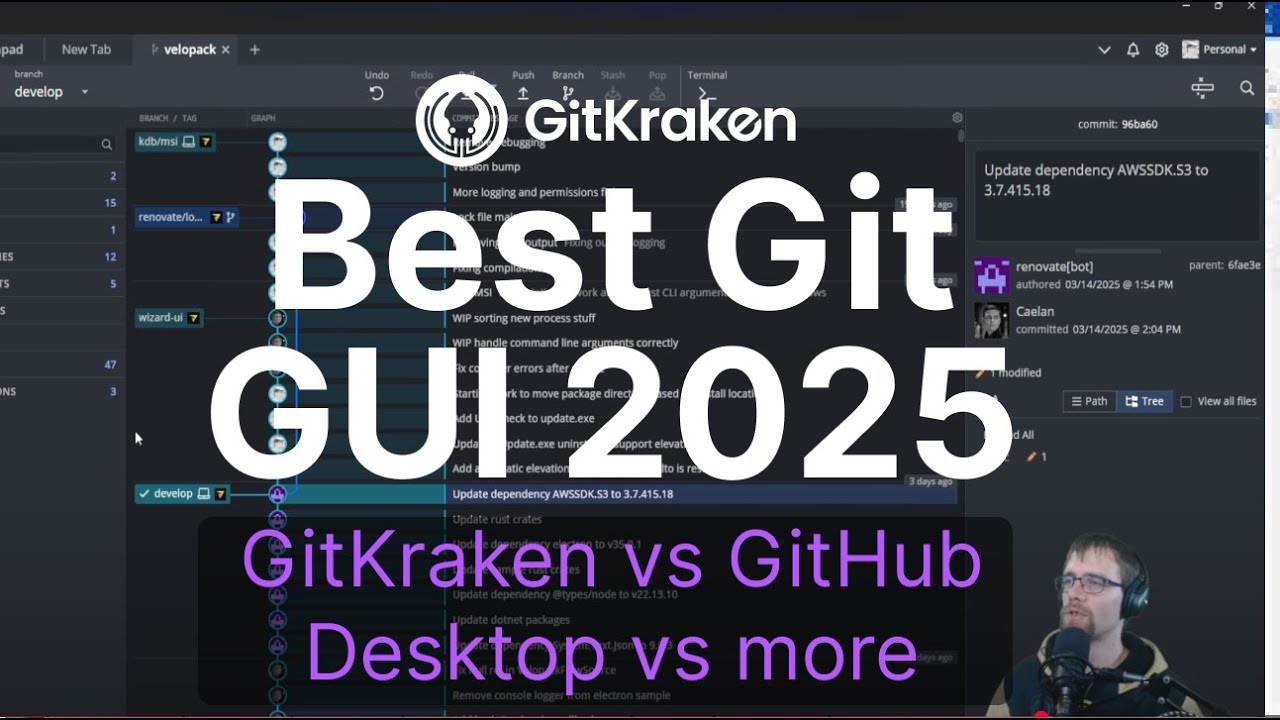
GitHub Desktop is the simplest and most GitHub-native option in the Git GUI market. But simplicity has a cost. Other clients offer features GitHub Desktop does not, and some cost money where GitHub Desktop is free.
The right tool depends on 3 factors: the Git operations you need daily, which hosting platform you use, and whether your team mixes operating systems.
| Client | Price | Linux Support | Interactive Rebase | Best For |
|---|---|---|---|---|
| GitHub Desktop | Free (MIT) | Community fork only | No | GitHub users and beginners |
| GitKraken | Free for public repos / paid plans from $4.95+ per month | Yes (official) | Yes | Cross-platform development teams |
| Sourcetree | Free | No | Yes | Atlassian and Bitbucket users |
| Tower | $69/year | No | Yes | macOS and Windows power users |
GitHub Desktop vs GitKraken
GitKraken runs on Windows, macOS, and Linux with an identical interface across all 3. GitHub Desktop does not run on Linux officially.
GitKraken advantages over GitHub Desktop:
- Interactive rebase built into the UI
- Built-in merge conflict editor with side-by-side view
- Built-in terminal and code editor
- Cross-platform including Linux
- Integrations with GitLab, Bitbucket, and Jira
GitKraken’s free tier covers public repositories only. Private repo access requires a paid plan starting at $4.95 per user per month (GitKraken pricing, 2024). GitHub Desktop has no paid tier at all.
GitHub Desktop vs Sourcetree
Sourcetree is free, developed by Atlassian, and available on Windows and macOS. It supports interactive rebase, Gitflow, and Mercurial repositories alongside Git.
Both tools are free. Sourcetree connects naturally to Bitbucket (Atlassian’s hosting platform). GitHub Desktop connects naturally to GitHub.com. For teams already using Jira and Bitbucket, Sourcetree fits the existing stack better. For teams using GitHub, GitHub Desktop wins on native integration.
Known Sourcetree limitation: some users report slow performance on large repositories and occasional failure to pick up command-line changes immediately (Bytestack, 2024).
GitHub Desktop vs VS Code built-in Git
VS Code has built-in source control through its Git panel. It covers commits, diffs, branch switching, and push/pull without leaving the editor. Many developers use this instead of a separate GUI client entirely.
Connecting VS Code to GitHub takes a few minutes and gives access to the same core operations GitHub Desktop provides, plus the full editor in the same window. The VS Code Git panel lacks the visual commit graph and PR preview that GitHub Desktop shows, but for developers already living in VS Code, it removes one app from the workflow.
Is GitHub Desktop Free?

GitHub Desktop is completely free. No paid tier. No premium features locked behind a subscription. The app itself costs nothing regardless of how many repositories you manage or how many commits you make.
The source code is published under the MIT license on GitHub, meaning anyone can read it, fork it, modify it, and redistribute it. The Shiftkey community fork for Linux exists because of this open licensing.
Where costs can still appear
GitHub Desktop is free. The GitHub.com account it connects to may not be, depending on what you need.
GitHub Free: unlimited public and private repositories, 500 MB package storage, 2,000 GitHub Actions minutes per month.
GitHub Team: $4 per user per month. Adds required reviewers, protected branches, and 3,000 Actions minutes.
GitHub Enterprise: $21 per user per month. Adds SAML SSO, audit logs, and self-hosted runner management. Adopted by 92% of Fortune 100 companies (CoinLaw, 2025).
GitHub Desktop works with all 3 account tiers and with GitHub Enterprise Server. The app itself never charges anything extra. If you are using it with a GitHub Free account on public repositories, the total cost is zero.
GitHub Desktop vs paid Git clients
The cost comparison matters when evaluating alternatives. Tower charges $69 per year per user. GitKraken’s Pro plan is $4.95 per user per month. GitHub Desktop is free in all scenarios, making it the default choice for individual developers and small teams watching costs.
The tradeoff is feature depth. Paid clients like Tower include interactive rebase, deeper conflict resolution tools, and native performance on macOS. For teams that need those features daily, the cost is usually worth it. For teams that do not, GitHub Desktop covers the gap without any budget conversation.
FAQ on What Is GitHub Desktop
What is GitHub Desktop used for?
GitHub Desktop is used to manage Git repositories visually. It lets you clone repos, commit changes, create branches, push and pull code, and resolve merge conflicts without using the command line.
Is GitHub Desktop the same as Git?
No. Git and GitHub are different tools. Git is the underlying version control system. GitHub Desktop is a GUI that runs Git commands in the background when you click buttons in the interface.
Is GitHub Desktop free?
Yes. GitHub Desktop is completely free with no paid tiers. It is published under the MIT license and open source. Costs only apply to your GitHub.com account plan, not the desktop app itself.
Does GitHub Desktop work without internet?
Mostly yes. Local operations like committing, branch switching, and viewing git diff all work offline. Internet is only needed for push, pull, fetch, and authentication with GitHub.com.
Does GitHub Desktop support Linux?
Not officially. GitHub only releases builds for macOS and Windows. A community-maintained fork called Shiftkey exists for Linux users, but it is not an official GitHub product and receives no direct support from the GitHub team.
What is the difference between GitHub Desktop and GitHub.com?
GitHub.com is a cloud-based platform for hosting repositories. GitHub Desktop is a local application installed on your machine. The two sync through push and pull operations but serve completely separate functions.
Can GitHub Desktop replace the command line?
For everyday tasks, yes. For advanced operations like interactive rebase, cherry-pick, or git bisect, no. Those still require a terminal. GitHub Desktop covers the majority of daily Git workflows but not all of them.
Who should use GitHub Desktop?
Developers new to Git, non-engineers contributing to repositories, educators teaching version control, and teams with mixed technical backgrounds. It removes command-line friction without changing the underlying Git workflow for the rest of the team.
How does GitHub Desktop handle merge conflicts?
GitHub Desktop flags conflicted files in the Changes panel. It then prompts you to open each file in an external editor, where standard Git conflict markers identify competing changes. After editing, you mark the file as resolved and complete the merge.
How is GitHub Desktop different from GitKraken?
GitKraken supports Linux, includes a built-in terminal, and offers interactive rebase through its UI. GitHub Desktop is simpler, fully free, and tightly integrated with GitHub.com. GitKraken’s Git workflow features run deeper but require a paid plan for private repositories.
Conclusion
This conclusion is for an article presenting GitHub Desktop as a practical entry point into Git-based version control for developers who prefer working visually over typing commands.
It covers the full picture: what the app does, where it fits into a software development process, and where it falls short compared to tools like GitKraken and Sourcetree.
For teams managing a shared codebase with mixed skill levels, GitHub Desktop lowers the barrier to consistent commit history and branch management without forcing everyone onto the command line.
It is not the most powerful Git GUI client available. But for GitHub-native workflows, it remains the simplest and most cost-effective starting point.

- Notepad++ Android Options: Apps That Come Close - October 21, 2026
- Data Management Services: A Practical Guide for Growing Companies - October 21, 2026
- MongoDB Cheat Sheet - October 20, 2026