

A bad commit that’s already on the shared branch is the usual reason anyone reaches for git revert. It records a new commit that applies the inverse of the earlier one and leaves the original sitting in the history. Nothing gets rewritten, so commits that teammates have already pulled stay valid. git reset would force a rewrite in that spot.
Merges need extra care, though. Reverting a merge commit declares its changes unwanted, so a later merge of the same branch brings back only the tree changes introduced by commits that were not already ancestors of the reverted merge (git-scm.com manual, Git 2.54.0).
What Is git revert?

No existing commit is rewritten or deleted. What you get is one new commit that undoes the chosen commit’s changes, while the old commit stays in the log.
In version control terms, that makes it a forward-moving undo. The April 2026 manual describes it as recording new commits that reverse the effect of earlier ones, most often a single faulty commit. A commit at any depth in the history is fair game.
It won’t restore the project to an earlier snapshot, and it doesn’t remove later commits or move the branch pointer backward.
Going back to an earlier state is the job of git reset, which only works backward from the current commit. Revert targets one commit at an arbitrary point instead (Atlassian Git tutorial).
How Does git revert Work?

Git computes the inverse of the target commit’s patch, applies it, and records the result on top of the current branch. The branch pointer moves forward by one commit, never backward.
The inverse changes land in the working tree and the staging area first, then get committed. The target commit itself is never touched, so it stays reachable, and every commit after it stays exactly as it was.
The default message body starts with a line saying “This reverts” followed by the full object name of the reverted commit. The --reference option swaps that for the shorter pretty=reference format, and the revert.reference config variable turns it on by default (git-scm.com manual).
The manual also sets a precondition. The working tree must be clean, with no modifications from the HEAD commit, so commit the pending work or stash your changes first.
Since no existing commit changes, every teammate’s clone still shares the same history. The revert reaches them as an ordinary commit on the next pull.
How to Use git revert on a Commit or a Range
Run git revert followed by a commit reference, as in git revert <commit>. Git refuses to run without one (Atlassian Git tutorial).
The manual’s full synopsis is git revert [--[no-]edit] [-n] [-m <parent-number>] [-s] [-S[<keyid>]] <commit>.... A second form takes one of --continue, --skip, --abort or --quit.
Every revert starts with a commit hash or another reference that points at the faulty commit. Finding it is a job for git log, and the one-line view is usually enough.
- List recent commits with
git log --onelineand copy the hash of the faulty one. - Run
git revert <hash>. - Edit or accept the message in the editor that opens.
- Check the result with
git show HEAD. - Push the new commit with a normal
git push.
Reverting the last commit
HEAD points at the latest commit on the checked-out branch, so git revert HEAD undoes it.
The manual’s other single-commit example is git revert HEAD~3. It reverses the fourth last commit and records a new commit with the reverted changes. The commits after it stay as they are, which is exactly why reverting something older can collide with newer work.
Reverting a range of commits

To include the oldest commit in the range, use the inclusive form git revert oldest^..newest. The manual’s own example is git revert -n master~5..master~2, which covers the fifth last through the third last commit and commits nothing.
By default you get one new commit per reverted commit, each with a message stating which commit was reverted.
The two-dot range excludes its older endpoint. That’s why the manual’s example starts at master~5 but the first commit it reverts is master~4, the fifth last.
Some tutorials describe git revert as a single-commit command. The manual syntax takes one or more commits, so lists and ranges both work.

Which git revert Options Change Its Behavior?

The table below covers the flags you’ll actually touch day to day.
| Option | Effect | Typical use |
|---|---|---|
-e / --edit, --no-edit | Opens or skips the message editor. Edit is the default from a terminal. | Add --no-edit in scripts |
-n / --no-commit | Applies the inverse to the working tree and index, no commit | Several reverts, one commit |
-m <parent-number> | Names the mainline parent, counting from 1 | Reverting a merge commit |
-s, -S[<keyid>] | Adds a Signed-off-by trailer, or GPG-signs the commit | Projects that require either |
--reference | Uses the pretty=reference format in the message body | Shorter revert messages |
--continue, --skip, --abort, --quit | Control a sequence in progress, stored in .git/sequencer | After a conflict |
Learn the no-commit flag first. Run it for each commit, then commit once, and the history gets a single revert instead of a pile of them.
In this mode the index does not have to match HEAD, and the revert runs against the starting state of the index (git-scm.com manual).
The manual lists a few more flags. --strategy picks the merge strategy and -X passes strategy-specific options to it. --cleanup sets how the message is cleaned up, and --rerere-autoupdate lets Git stage the result of a recorded conflict resolution it reused. Most reverts never touch any of them.
How to Revert a Merge Commit
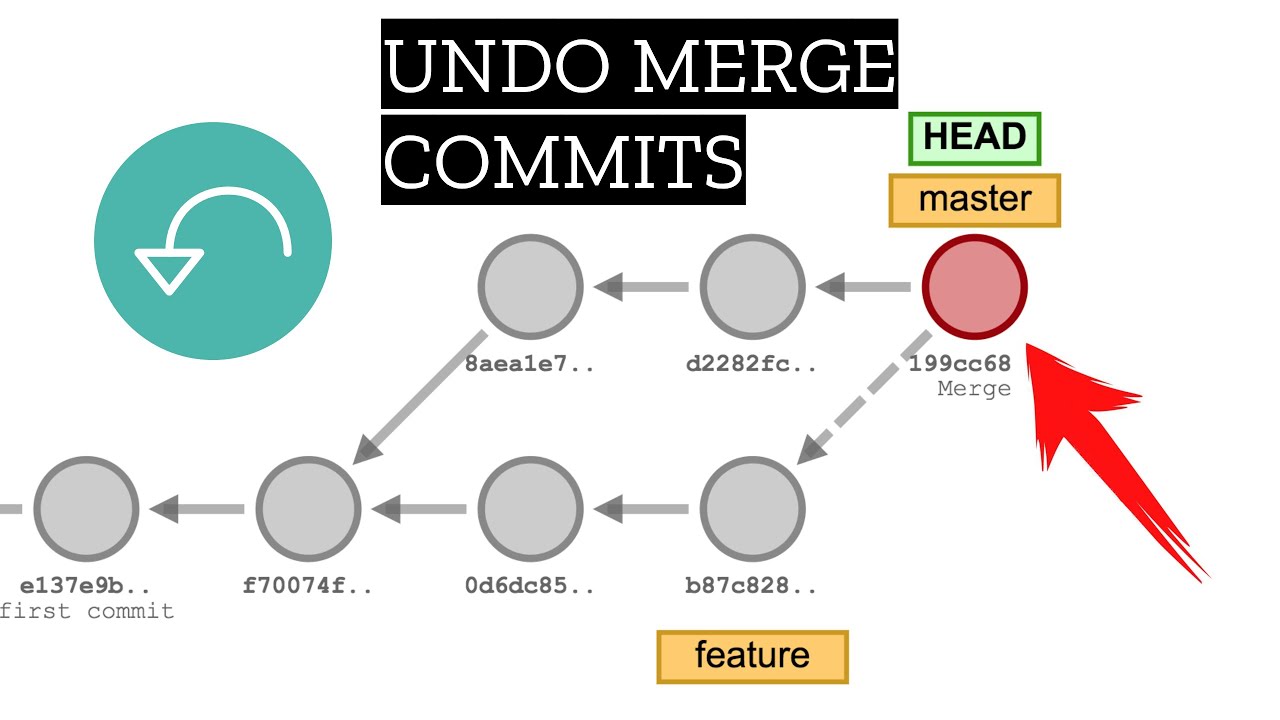
Pass the mainline parent number with -m, as in git revert -m 1 <merge-commit-hash>. Git can’t pick the mainline side of a merge on its own, so without the flag the revert does not run.
When the merge was made with the main branch checked out, parent 1 is that branch. The Git how-to on faulty merges uses exactly this form.
With -m 1, the revert reverses the changes the merge brought in from the side branch. -m 2 reverses the change relative to the second parent, which rarely matches what anyone intended.
The catch is that the revert undoes the data changes but leaves the merge itself in the history.
Later merges treat the original merge as the last shared state, so merging the same branch again brings in only the tree changes from commits that were not already ancestors of it (git-scm.com manual).
That how-to comes from a December 2008 mailing-list thread in which Linus Torvalds and Junio Hamano answered a user’s question. Its example: after a merge of side-branch commits A and B was reverted, merging the branch again with later fixes C and D (the branch tip is D) carried none of the changes from A or B.
The way out is reverting the revert, covered in the section on undoing a revert near the end of this article.
What Happens When git revert Hits a Conflict?
Git pauses the revert, marks the conflicting files, and waits for you. Conflicts show up when later commits changed the same lines the revert has to undo.
Resolving it works like resolving a merge conflict: edit, stage, continue.
- Run
git statusto list the conflicted files. - Edit each file, remove the conflict markers, and keep the content you want.
- Stage the resolved files with
git add. - Run
git revert --continue.
The continue step picks the sequence up where it stopped, using the state Git saved when the conflict hit.
You don’t have to finish a paused revert, though.
--abortcancels the operation and returns to the state before the sequence started--skipdrops the current commit and carries on with the rest of the sequence--quitforgets the operation in progress and clears the sequencer state, leaving everything else as it is
In a range, --abort goes back to before the whole sequence, so revert commits created earlier in that range go too (git-scm.com manual).
Conflicts are the usual price of reverting an old commit under newer work. The newer the target, the fewer later commits can touch its lines.
git revert vs git reset, git restore and git checkout: Which One to Use?

Revert is for commits other people may have pulled. Reset is fine for local commits nobody else has seen, and restore handles individual files. DataCamp’s tutorial draws the same line between reset and revert.
| Command | What it changes | Pushed commits | Scope |
|---|---|---|---|
| git revert | Adds a new commit | Safe to use | Whole commits |
| git reset | Moves the branch tip, rewrites history | Needs a force push to publish | Branch tip, index, working tree |
| git restore | Files only, branch not updated | Not touched | Single files or paths |
| git checkout | Moves HEAD or restores files | Not touched | Branch or files |
The git(1) manual sums up the first three the same way. Revert records a new commit that reverses other commits, restore recovers files without updating the branch, and reset moves the branch tip, which changes the history.
Using reset on pushed commits is the costly mistake. Resetting a branch rewrites it, so publishing the result takes a force push, and teammates’ clones end up diverging from the new history.
If you do reset by mistake, git reflog is the safety net. It lists where HEAD and branch tips used to point.
The revert manual adds a warning about the other two commands. Both git reset --hard and git restore --source discard uncommitted changes in the working directory, so check git status first.
Switching or restoring with git checkout moves HEAD without removing a single commit. Atlassian groups it with reset as a pointer-moving command, not a history-preserving undo.
My rule of thumb is simple. Once a commit leaves your machine, revert it.
When git revert Does Not Fit, and How to Undo a Revert
Revert is the wrong tool when you need to erase data from history, when you’re cleaning up commits nobody has pulled, or when you’re undoing a merge that will come back unchanged. Each of those needs a different tool or a different follow-up.
On the plus side, there’s no force push, the message can record why the change was undone, and every step stays visible in the log.
The downsides are real, though.
- History gains one commit per revert
- Reverted merges resist being merged again
- The original data stays reachable in older commits
- Older targets collide with newer work, which means more conflict handling than you’d like
Where git revert falls short
Every limit traces back to one fact. A revert changes the files on the current branch, not the repository’s past.
A committed password or key remains in the original commit, so rotate the credential instead of trusting the revert. The revert also applies only to the checked-out branch, so other branches that received the commit keep it until it’s reverted there too. And a revert of a merge lands as a single commit holding every change in reverse.
The Git how-to advises against reverting a merge when the cause can be traced. Running git bisect on the merged branch and reverting the one faulty commit keeps the history readable, which a revert of the whole merge does not.
Repeated reverts have a cosmetic cost too. The April 2026 manual notes that reverting reverts stacks subject lines like Reapply “Reapply …” and asks for shorter, unique rewording.
How to undo a revert
Undoing a revert is another revert, aimed at the revert commit.
For an ordinary commit, git revert <revert-commit-hash> restores the original changes as a new commit.
A reverted merge is trickier, and what you do depends on what happened to the side branch.
- If it was fixed with extra commits on top, revert the revert, then merge the branch again
- If it was rebuilt from scratch, skip the revert of the revert and merge the rebuilt branch as it is, because the old merge and its revert sit behind the merge base
- If it must keep its branching-off point, recreate every commit with
git rebase --no-ff <branching-off-point>
The how-to warns against the blind version. Reverting the revert on a rebuilt branch re-introduces the old changes next to the new ones, and the overlap produces a lot of conflicts.
The --no-ff option of git rebase creates all-new commits even when only one of them is edited. The branch then merges without reverting the earlier revert first (revert-a-faulty-merge how-to, addendum).
Common Questions About git revert
Can git revert undo uncommitted changes?
Not really. git revert works on commits, so uncommitted edits need another tool.
The manual points to git reset --hard for discarding all of them and git restore for specific files. Both discard uncommitted changes in the working directory.
How do I revert a pushed commit?
Run git revert on the commit, then push the result like any other commit. No force push is needed because the branch history only grows.
Teammates receive the revert on their next pull.
Can git revert target a single file?
It can’t. It reverses whole commits. To bring one file back to its state in another commit, run git restore –source with the commit and the path, then commit the result (git-scm.com manual).
Is git revert the same as git cherry-pick?
Opposite directions, really. git cherry-pick applies the changes of existing commits, while git revert applies their inverse.
Both use the same sequencer, so --continue works after a conflict in either.
How do I change the message of a revert commit?
From a terminal, Git opens the editor by default, so type the reason there. For a commit that exists but is not pushed yet, git commit –amend rewrites the message.
The manual strongly recommends stating why the original commit was reverted.
How do I revert a merged pull request on GitHub?
Open the merged pull request and click Revert near the bottom. GitHub creates a new pull request that reverses the original merge commit, and you need write permissions in the repository (GitHub Docs).
If the revert conflicts, or the pull request was not merged on GitHub, revert the individual commits from the command line.
Bringing a Corrected Change Back After a git revert
After a git revert, the corrected change returns as a fresh commit written against the updated branch. It is not an edit to the revert.
The order matters because each step checks the one before it.
- Confirm the fault is gone with the failing test
- Branch from the updated mainline
- Commit the fix and cite the revert hash in the message
Running regression testing first confirms the revert removed the fault before new code can blur the result.
The cost is a noisier log. The original, the revert and the fix all sit there for one change, and teams accept that to keep shared history intact.
This advice holds as of October 2026, with the git revert manual unchanged from Git 2.54.0 through 2.56.0 (git-scm.com). A change to how revert treats merge parents would alter it.

- How to Run a React App in VS Code Step by Step - October 23, 2026
- Transactional or marketing email: which messages your app should send itself - October 23, 2026
- How Software Teams Write SOPs for Releases and Deployments - October 22, 2026


