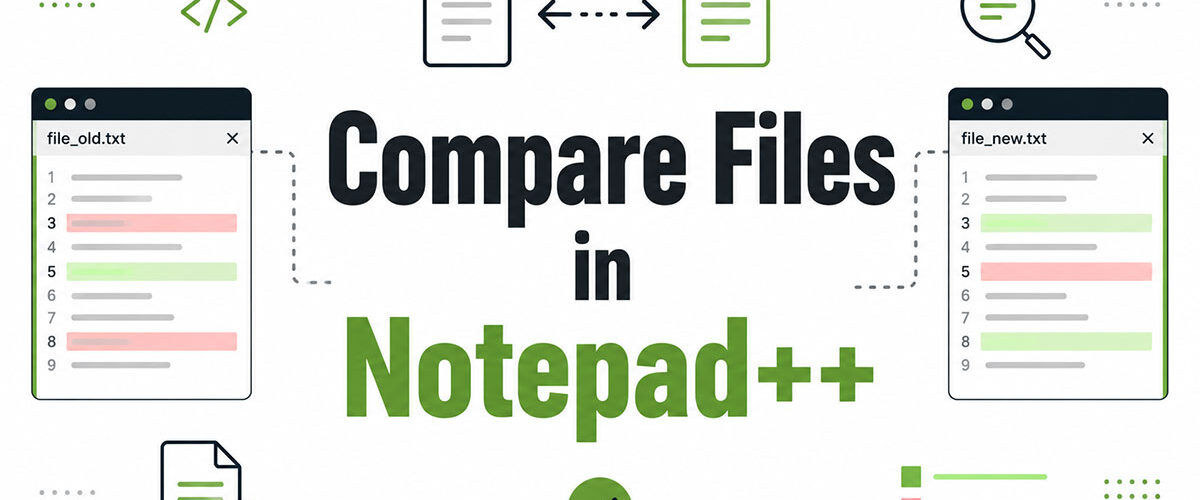
Two config files look nearly identical, but one just broke production and you can’t spot why.
Knowing how to compare files in Notepad++ turns that guessing game into a two-minute check.
Notepad++ has no diff feature built in. The free Compare plugin, and its fork ComparePlus, fill that gap for developers, sysadmins, and writers who keep the editor open all day.
By the end of this guide, you’ll know how to:
- Install the plugin and compare two open files
- Read the color-coded diff results
- Fix false differences from whitespace, line endings, or encoding
- Choose between Notepad++ Compare, WinMerge, and Beyond Compare for bigger jobs
No guesswork. Just a working diff view in a few clicks.
How to Install the Compare Plugin in Notepad++

Plugin Admin handles installation for almost everyone.
Manual GitHub installs are the fallback for when Plugin Admin can’t reach its server.
Notepad++ has shipped Plugin Admin since version 7.6.3, and its plugin library now lists more than 140 add-ons to search through.
| Method | Steps | Best For |
|---|---|---|
| Plugin Admin | Search, check box, click Install | Most users |
| Manual GitHub install | Download release, copy files to Plugins folder | Locked-down networks, corporate firewalls |
The general process works the same for any add-on. How to Install Plugins in Notepad++ walks through it in more depth if Compare happens to be your first one.
Installing via Plugin Admin
Plugins > Plugin Admin is the fastest route for a standard install.
- Open the Available tab and search compare or comparePlus
- Check the box next to ComparePlus (skip the older Compare entry unless you have a specific reason not to)
- Click Install, then click Yes when Notepad++ asks to restart
ComparePlus needs Notepad++ 8.4.2 or newer to even appear in that list.
Installing Manually From GitHub
- Download the release zip matching your architecture (x86, x64, or ARM64) from the pnedev/comparePlus repository on GitHub
- Extract it and copy the ComparePlus folder along with ComparePlus.dll into your Notepad++ Plugins directory, then restart
This is the same fix people reach for when a corporate firewall blocks Plugin Admin’s connection to GitHub entirely.
Version mismatches cause silent installation failures, not obvious error messages. Grab the release built for your exact Notepad++ version, not just whatever’s newest.
How to Compare Two Open Files in Notepad++

Open both files as tabs, then run the compare from the Plugins menu or trigger it with a keyboard shortcut.
Either method produces the same synced split view.
Comparing Through the Plugins Menu
- Click the tab for the first file, then go to Plugins > Compare > Set as First to Compare
- Click the tab for the second file
- Go to Plugins > Compare > Compare
Notepad++ opens a synchronized split view right away. Scroll one pane and the other follows automatically.
Comparing With the Alt+D Shortcut
Alt+D compares the two most recently active tabs without touching a menu at all.
- Works when exactly two relevant tabs are open or focused in sequence
- Produces the same output as the menu method, just with fewer clicks
Sysadmins bouncing between two versions of a config file tend to lean on this one out of habit. It’s one keystroke instead of four.
How to Read the Compare Results
Color tells you what kind of change you’re looking at.
Position tells you where.
| Color | Meaning |
|---|---|
| Yellow | Line changed |
| Green | Line added |
| Red | Line removed |
| Blue | Block moved (ComparePlus only) |
Word-level highlighting sits inside changed lines, pinpointing the exact characters that differ instead of flagging the whole row as one big change.
The margin bar on the right edge shows diff density across the whole file, so you can tell at a glance whether changes cluster in one function or spread out everywhere.
ComparePlus color settings are configurable under Plugins > ComparePlus > Options, if the defaults don’t suit your eyes.
How to Navigate Between Differences
Alt+Down Arrow jumps to the next difference. Alt+Up Arrow jumps to the previous one.
- Toolbar icons duplicate both shortcuts for anyone who prefers clicking over keystrokes
- First Diff and Last Diff buttons jump straight to either end of the file
- Both panes scroll together automatically, so alignment between the two files never breaks
These sit alongside dozens of other shortcuts worth memorizing. The Notepad++ Cheat Sheet keeps the full list in one place.
On a file with forty or fifty flagged differences, keyboard navigation alone saves more time than scrolling ever will.
How to Compare a File to the Clipboard or Its Last Saved Version
Not every comparison needs two open files.
ComparePlus can diff the active file against whatever’s sitting on your clipboard, or against the version currently saved on disk.
| Mode | Compares Against | Typical Use |
|---|---|---|
| Compare to Clipboard | Copied text | Code pasted from Slack, email, a browser |
| Compare to Last Save | Version on disk | Reviewing unsaved edits before committing |
Compare to Clipboard
Copy any block of text, then run Plugins > Compare > Compare to Clipboard against the active file.
- Checks a pasted snippet against what’s already in the file
- Opens in the same split-view format as a standard two-file compare
- No second file or tab required
Common scenario: someone pastes a config value from a chat thread, and you need to confirm it actually matches what’s deployed.
Compare to Last Save
Compare to Last Save diffs your current unsaved edits against the version sitting on disk.
It catches accidental changes before you commit or overwrite something you didn’t mean to touch.
- Trigger through Plugins > Compare > Compare to Last Save
- No clipboard or second tab needed, just the file’s saved state on disk
This is the fastest sanity check before closing a file you’ve been editing for a while.
How to Ignore Whitespace, Case, and Blank Lines When Comparing
Compare Options filters out noise that isn’t a real difference.
Formatting habits, not actual content, cause most false positives in a diff.
Ignore Whitespace: treats space and tab differences as identical, useful when two developers format the same code differently.
Ignore Case: makes uppercase and lowercase equivalent across the whole comparison.
Ignore Blank Lines: skips empty rows entirely so they stop registering as additions or deletions.
Detect Move: flags a relocated block as moved instead of marking it as one deletion plus one addition.
Plugins > Compare > Options (or ComparePlus > Options) opens all four settings in one panel.
None of this touches the files themselves. It only changes what the diff engine reports.
If you’d rather fix the formatting for good instead of just ignoring it during a compare, how to remove spaces in Notepad++ and how to remove empty lines in Notepad++ cover the permanent fix.
How to Fix False Differences Caused by Line Endings and Encoding
Line endings and encoding create more false diffs than real content changes.
Two files can be functionally identical and still show every single line flagged as different.
| Cause | Symptom | Fix |
|---|---|---|
| CRLF vs LF | Every line marked as changed | Edit > EOL Conversion, match both files |
| UTF-8 vs UTF-8 BOM vs ANSI | Diff noise across the whole file | Encoding menu, convert both to match |
Edit > EOL Conversion and the Encoding menu handle both fixes without leaving Notepad++.
Windows defaults to CRLF (carriage return plus line feed). Unix and Linux tools write LF only.
Mix the two, and Compare reads every row as changed even when the visible text matches exactly.
ComparePlus flags an encoding mismatch automatically in current builds, saving a trip through the Encoding menu just to confirm what’s wrong.
Fix line endings before encoding. Converting encoding on a file with mixed EOL characters occasionally adds noise instead of removing it.
Can Notepad++ Compare Two Folders at Once
No.
Neither the original Compare plugin nor ComparePlus compares folders, only individual files.
Every comparison in Notepad++ works on two files, or a file against the clipboard or its last save, never on a directory tree.
- Open matching files from each folder one pair at a time and run Compare normally
- No official Notepad++ plugin currently adds recursive, whole-folder comparison
- Scripting through NppExec can open file pairs faster, but it doesn’t add a folder-diff view on top
Folder-level comparison needs a different tool built for that job, which is exactly the gap WinMerge and Beyond Compare fill.
How to Fix Common Compare Plugin Errors
Most Compare plugin errors trace back to five recurring causes, and all five have known fixes.
| Error | Likely Cause | Fix |
|---|---|---|
| Compare menu missing | Plugin not activated after install | Restart Notepad++, check Plugin Admin’s Installed tab |
| “Files are identical” on files that clearly differ | Wrong file set as First, or trailing invisible characters | Re-run Set as First to Compare, check for hidden whitespace |
| Install fails inside Plugin Admin | Firewall or proxy blocking the GitHub connection | Use the manual DLL install instead |
| Freeze or crash on large files | File size past the plugin’s comfortable range | Split the file, or switch to a folder-diff tool |
Bug reports on the plugin’s GitHub and SourceForge trackers show slowdowns starting around 8,000 lines per file, with crashes reported above 15,000 to 17,000 lines in older builds.
Version mismatches cause more crashes than any single bug in the tracker. Running ComparePlus 1.2.0 on Notepad++ 8.4.2, for instance, breaks silently, since 1.2.0 needs 8.4.7 or newer.
Updating Notepad++ and ComparePlus together, instead of one at a time, resolves most of this category on its own.
How Notepad++ Compare Differs From WinMerge and Beyond Compare
Notepad++ Compare handles quick two-file diffs inside an editor most people already have open.
WinMerge and Beyond Compare exist specifically for folder-level and enterprise-scale comparison work.
| Tool | Cost | Folder Compare | Best For |
|---|---|---|---|
| Notepad++ Compare / ComparePlus | Free | No | Quick two-file text diffs |
| WinMerge | Free, open source | Yes | Folder sync, three-way merge |
| Beyond Compare | $35 Standard, $70 Pro | Yes | Cross-platform work, binary files, version control integration |
Notepad++ Compare: built into an editor most developers already have open, free, no folder support, no merge controls.
WinMerge: free and open source, over 8,000 stars on GitHub, actively developed since 2000, adds three-way merge and archive comparison through 7-Zip.
Beyond Compare: paid software from Scooter Software, runs on Windows, macOS, and Linux, adds registry comparison and cloud storage sync on top of standard file and folder diffing.
Pick Notepad++ Compare for a fast, free check inside a file you’re already editing. Reach for WinMerge or Beyond Compare the moment folders, merges, or binary files enter the picture.
FAQ on How To Compare Files In Notepad++
Does Notepad++ have a built-in file comparison tool?
No. Notepad++ does not include a native diff tool. File comparison requires the Compare plugin (or its successor, ComparePlus), installed separately via Plugins Admin or manually from GitHub.
How do I install the Compare plugin in Notepad++?
Go to Plugins > Plugins Admin, search for “Compare,” check the box, and click Install. Notepad++ restarts automatically. For manual install, copy ComparePlugin.dll and its subfolder into the Notepad++ Plugins directory.
What is the keyboard shortcut to compare two files in Notepad++?
In Compare plugin v2.0.0, the default shortcut is Ctrl+Alt+C. Older versions used Alt+D. Both shortcuts are reassignable through Settings > Shortcut Mapper inside Notepad++.
What do the colors mean in the Notepad++ diff view?
Green marks added lines, red marks removed lines, yellow marks changed lines, and gray or blue marks moved blocks. The color-coded diff output applies to both the line background and the navigation bar markers.
Can Notepad++ compare more than two files at once?
No. The Compare plugin compares exactly 2 open tabs per session. For folder-level or multi-file comparison, use a dedicated diff tool like WinMerge or Beyond Compare instead.
How do I compare a file to its last saved version in Notepad++?
Go to Plugins > Compare > Compare to Last Save. The plugin diffs the current in-memory version against the last saved state on disk. The file must have been saved at least once for this to work.
Can I compare a file against its Git version in Notepad++?
Yes. Use Plugins > Compare > Compare to SVN/Git Base. The file must be inside a valid Git repository with at least one commit. The plugin reads the working tree using the bundled libgit2.dll library.
Why is the Compare plugin not showing up after installation?
The most common cause is an architecture mismatch. A 64-bit Notepad++ requires the 64-bit plugin build. Also confirm the ComparePlugin folder name exactly matches the .dll filename, then restart Notepad++.
Does the Compare plugin work on binary files?
No. The plugin only produces useful output for text-based files like source code, config files, CSV, XML, and JSON. Binary file comparison requires a dedicated tool like Beyond Compare Pro.
What is the difference between the Compare plugin and ComparePlus?
ComparePlus is the advanced successor to the original Compare plugin, both maintained by Pavel Nedev on GitHub. ComparePlus adds character-level diff highlighting, clipboard comparison, and ARM64 support. It requires Notepad++ 8.4.2 or later.
Conclusion
Notepad++ Compare, or really ComparePlus since that’s the fork worth installing, handles the daily stuff. Two config files. A snippet pasted from Slack. Checking unsaved edits before you commit something you shouldn’t. That covers most of what a developer or sysadmin runs into on a normal afternoon.
Where it falls short: folders. Binary files. Anything needing a three-way merge. Not a knock on the plugin, it just wasn’t built for that scope. WinMerge picks up the free option for folder syncing. Beyond Compare handles the paid, cross-platform side if you’re bouncing between Windows, macOS, and Linux in the same week.
Line endings and encoding cause more of these headaches than anything else. Fix those two first, before touching any whitespace setting, and a good chunk of your “false” differences disappear on their own.
Install ComparePlus once. Learn Alt+D (or Ctrl+Alt+C on newer builds) and Alt+Down Arrow, and that’s the plugin’s daily workflow covered. Everything else in this guide is just there for the day something breaks and you need the fix fast.

- Notepad++ Android Options: Apps That Come Close - October 21, 2026
- Data Management Services: A Practical Guide for Growing Companies - October 21, 2026
- MongoDB Cheat Sheet - October 20, 2026