
A typo in a branch name, a scope change midway through a sprint, a team-wide naming convention update – there are plenty of reasons to rename a branch in GitHub, and getting it wrong breaks more than you’d expect.
Renaming a branch is not just a local Git operation. It touches your remote branch, upstream tracking references, open pull requests, CI/CD pipelines, and branch protection rules.
This guide covers the complete rename workflow: local and remote, via the command line and the GitHub UI, for feature branches, default branches, and forked repositories.
What Does Renaming a Branch in GitHub Actually Do?

A branch rename in Git updates the ref pointer, not the commit history. Your commits, your history, your diffs – none of that changes. Only the name of the pointer changes.
But that one change has a chain of consequences that most developers don’t fully think through before running the command.
GitHub hosts over 420 million repositories as of 2024 (GitHub About page), and branch management is one of the most common day-to-day operations across all of them. Getting a rename wrong in a shared repo causes real disruption.
Here’s what actually happens under the hood when you rename a branch:
- The old branch name becomes a dead reference on the remote until explicitly deleted
- Local clones from other contributors lose their upstream tracking connection
- Open pull requests tied to the old branch name break (or close, depending on the rename method)
- CI/CD pipelines referencing the old branch name by string stop triggering
- Raw file URLs pointing to the old branch name are not redirected by GitHub
Git does not auto-redirect from the old name to the new name at the protocol level. GitHub adds redirects for web URLs when you rename via the UI, but git pull and git fetch with the old name will still fail without manual updates.
What is a Git Branch Pointer?
A Git branch is a lightweight pointer to a specific commit. It’s literally just a file in .git/refs/heads/ containing a commit hash.
When you rename a branch, Git moves that file. The commit it points to does not change. This is why branch renames are safe from a history perspective.
The problem is not the local rename. The problem is that any external system with the old name hardcoded – CI runners, deployment configs, pull request targets – now has a broken reference.
Local vs. Remote Branch Name – Key Difference
Local branch: exists only on your machine. Rename it with one command and you’re done.
Remote branch: exists on GitHub’s servers. Git has no direct “rename remote branch” command. You push a new branch with the new name, then delete the old one.
This two-step remote process is where most rename mistakes happen. Teams push the new name and forget to delete the old one, leaving both alive on the remote simultaneously.
How Do You Rename a Local Branch in Git?
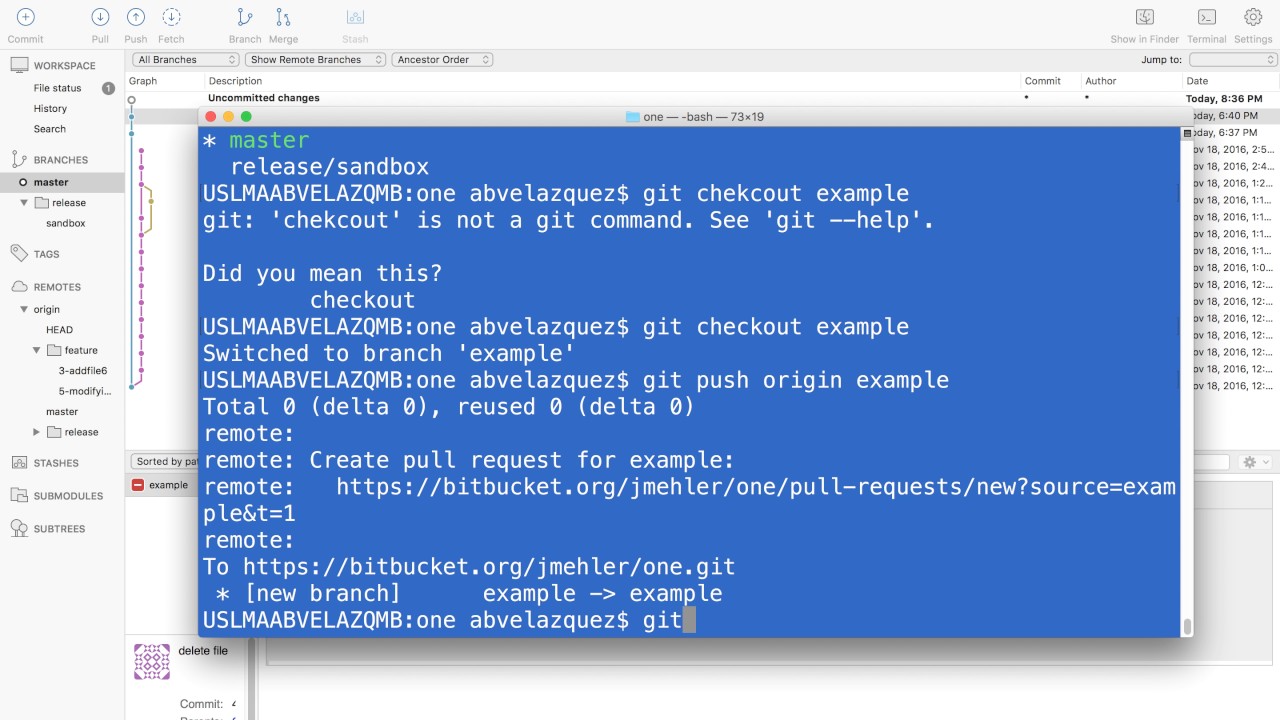
Renaming a local branch takes one command: git branch -m <old-name> <new-name>. The -m flag stands for “move” in Git’s internal terminology (Git official docs).
This has no effect on the remote repository until you explicitly push.
| Scenario | Command | Notes |
|---|---|---|
| You’re currently on the branch you want to rename | git branch -m new-name | Renames the current branch (HEAD must be on it) |
| You’re renaming a different local branch | git branch -m old-name new-name | Works without switching branches |
| Target branch name already exists | git branch -M old-name new-name | Forces rename and overwrites existing branch name (use carefully) |
Renaming the Currently Checked-Out Branch
Switch to the branch first, then run the short form:
git checkout feature/old-auth
git branch -m feature/new-oauth2
Verify the rename worked with git branch. The new name should appear with the asterisk (*) next to it, showing it’s the active branch.
No push required yet. At this point, only your local repo knows about the new name.
Renaming a Branch You Are Not On
Stay on your current branch (usually main) and pass both names:

git branch -m bugfix/tyop bugfix/typoThis is the cleaner approach when working with multiple feature branches, since you don’t need to check out a branch just to rename it.
Confirm the full branch list with git branch -a. The -a flag shows both local and remote-tracking branches, so you can see whether the remote still has the old name.
How Do You Push a Renamed Branch to GitHub?
After renaming locally, the remote origin still only knows the old branch name. You need 2 commands to fully update it: push the new name, then delete the old one.
Skipping the delete step leaves both branch names alive on the remote. That confuses collaborators and pollutes the branch list.
Step 1 – Push the New Branch Name
Run this to push your renamed branch and set it as the new upstream tracking target:
git push origin -u feature/new-oauth2The -u flag (short for --set-upstream) links your local branch to the new remote branch in one step. Without it, you’d need a separate command to fix the upstream tracking.
At this point, both the old branch (feature/old-auth) and the new branch (feature/new-oauth2) exist on the remote simultaneously.
Step 2 – Delete the Old Remote Branch
Remove the stale old-name branch from origin:
git push origin --delete feature/old-authVerify in GitHub under your repository’s Branches page that only the new name appears. If the old branch is still listed there, the delete didn’t go through.
According to Git official documentation, GitHub does not perform any redirects when users run git pull for the previous branch name. The old remote branch must be deleted manually – there’s no grace period or auto-expiry.
How Do You Reset the Upstream Tracking After a Rename?
Upstream tracking tells your local branch which remote branch to sync with during git pull and git push. After a rename, this tracking reference points to a branch that no longer exists.
Running git status after a rename often shows: “Your branch is based on ‘origin/old-name’, but the upstream is gone.” That’s the broken tracking reference.
Fixing the Upstream with –set-upstream-to
Run this to repoint your local branch at the new remote:
git branch --set-upstream-to=origin/new-name new-nameOr use the shorthand -u flag with a push (if you haven’t already):
git push -u origin new-nameWithout this fix: git pull and git push will fail or prompt for a remote target every time. The branch works fine locally, but syncing with the remote becomes manual each time.
Confirming the Tracking Is Correct
Check the current upstream setting:
git branch -vvThis lists all local branches with their upstream tracking targets. You should see [origin/new-name] next to your branch, not the old name. If you see the old name or nothing at all, the tracking still needs fixing.
The upstream reference in Git is stored in .git/config under the branch’s configuration block. You can also edit it there directly in a pinch, though the command-line approach is cleaner.
How Do You Rename a Branch Directly in the GitHub UI?
GitHub’s web interface handles the rename plus several automatic cleanup steps that the command line doesn’t do for you. It’s the safer option for shared branches with open pull requests.
GitHub now hosts over 180 million developers (GitHub About page, 2026), and the web UI rename feature was introduced specifically to reduce the disruption caused by command-line-only renames on collaborative repos.
The Rename Steps in the UI
Navigate to your repository, then:
- Click the branch dropdown (shows current branch name)
- Click View all branches
- Find the branch, click the pencil icon to the right
- Type the new name and click Rename branch
GitHub shows a warning before confirming if the branch has active branch protection rules referencing the old name. Read it. Those rules won’t auto-migrate.
What GitHub Automatically Handles (vs. What It Doesn’t)
| Item | Auto-Updated by GitHub? | Notes |
|---|---|---|
| Open pull requests targeting old branch | Yes | PRs are automatically retargeted to the renamed branch |
| Web URLs containing old branch name | Yes (redirect) | GitHub UI URLs usually redirect, but bookmarks may still show old name |
Raw file URLs (raw.githubusercontent.com) | No | These do not reliably redirect and can break |
| Branch protection rules by name | No | Must be manually updated to match new branch name |
| GitHub Actions workflows referencing old branch | No | Any hardcoded branch names in YAML must be updated manually |
| Local clone upstream tracking for collaborators | No | Each developer must run git branch -u origin/new-name or re-checkout |
GitHub sends a notification to repository collaborators when a branch is renamed via the UI. The notification includes the exact commands they need to run to update their local clones.
How Do You Rename the Default Branch in GitHub?

Renaming the default branch (main or master) is a bigger operation than renaming a feature branch. The default branch is the one GitHub uses as the base for pull requests, the landing page of the repo, and often CI/CD deployments.
GitHub changed its own default branch name from master to main in October 2020 (GitHub Changelog), and has been gradually updating its own repositories since. Many teams followed, triggering a wave of default branch renames that exposed just how many external systems have the old name hardcoded.
How to Rename the Default Branch in GitHub Settings
Go to your repository, then:
- Click Settings
- Under “Default branch,” click the rename icon next to the current default
- Type the new name and confirm
GitHub automatically retargets open pull requests to the new default branch name. Draft releases are also updated. But several things require manual fixes after this.
Updating Branch Protection Rules After Default Branch Rename
Branch protection rules in GitHub are tied to exact branch names. Renaming the default branch does not migrate existing rules to the new name.
After the rename, go to Settings > Branches and check your protection rules. Any rule referencing the old name is now effectively inactive. Create new rules for the renamed branch, then delete the old ones.
This is the most common thing teams miss. The branch rename succeeds, CI runs fine for a few days, then someone merges a PR that bypasses a protection rule that was silently deactivated by the rename.
What You Must Update Manually
GitHub Actions: Any workflow with on: push: branches: [old-name] stops triggering. Edit each workflow file.
CI/CD tools: CircleCI, Jenkins, and Travis CI all require branch name updates in their config files if they reference the default branch by name.
GitHub Pages: If GitHub Pages deploys from the default branch, the site becomes unpublished after the rename. Pushing a new commit to the renamed branch republishes it (GitHub Docs).
Local clones: All contributors need to run git remote set-head origin -a to sync their local HEAD reference with the new default.
How Do Other Contributors Update Their Local Clones After a Branch Rename?
Every developer with a local clone of the repo needs to manually update their tracking references after a remote branch rename. This doesn’t happen automatically, even if GitHub sends a notification.
The notification GitHub displays on the repository homepage includes the exact commands. Still, it’s worth communicating the rename through Slack, a PR comment, or your team’s standard channel so no one gets surprised by broken pushes.
The Commands Each Contributor Needs to Run
Run these in order:
git fetch --prune
git branch -m old-name new-name
git branch --set-upstream-to=origin/new-name new-name
git fetch --prune removes stale remote-tracking references – including the now-deleted old branch name – from the local repo.
git branch -m renames the contributor’s local copy of the branch.
git branch --set-upstream-to repoints the local branch at the new remote name.
What Happens If They Don’t Update
Without running these commands, git push and git pull on the old branch name will fail with a “does not match any” error or prompt for a manual remote target.
The contributor’s local branch still works for local commits. But any attempt to sync with the remote breaks until tracking is fixed. I’ve seen developers spend 20 minutes debugging this before realizing it was just a stale upstream reference from a branch someone else renamed.
For the full list of Git commands relevant to branch management and remote operations, the Git cheat sheet covers the key flags and syntax in one place. And if you need context on what git fetch does under the hood, understanding the difference between fetch and pull makes the prune step much clearer.
What Breaks When You Rename a Branch in GitHub?
A branch rename touches more than just the branch itself. Any external system, config file, or tool that references the old name by string is now broken. No auto-fix, no warning. Just silent failure until someone notices.
GitHub Actions workflows do not follow renames, according to GitHub Docs. If a repository publishes an action and someone uses it with @{old-branch-name}, that reference breaks immediately after the rename.
GitHub Actions and CI/CD Pipelines
The specific line that breaks:
on:
  push:
    branches: [old-branch-name]
Any workflow using the old branch name in its on: trigger stops firing after the rename. The workflow file still exists, the YAML is still valid – it just never matches any branch anymore.
GitHub’s Actions Marketplace lists over 22,000 actions as of early 2026 (GitHub Blog), many of which are triggered by branch-specific rules. Teams running complex pipelines with CircleCI, Jenkins, or Travis CI face the same problem: every config that names the branch by string needs a manual update.
Branch Protection Rules
Branch protection rules in GitHub are name-matched. Rename the branch and the rule becomes inactive – silently.
Rules that break on rename:
- Required status checks before merging
- Required pull request reviews
- Restrictions on who can push directly
- Signed commits requirements
A team at a fintech company discovered this the hard way after renaming their release branch: 3 direct pushes got through to production in the first week because the “restrict pushes” rule was silently deactivated by the rename. Not a GitHub bug – expected behavior, just poorly documented.
Deployment Environments and GitHub Pages
Deployment environments: GitHub deployment environments tied to the old branch name deactivate after the rename. Any environment with a branch filter (e.g., “only deploy from staging“) needs its branch filter updated manually in Settings > Environments.
GitHub Pages: The site becomes unpublished immediately after the default branch rename. Pushing any commit to the renamed branch republishes it (GitHub Docs), but there’s a downtime window between the rename and that first push.
URL and API Behavior
| Reference Type | After Rename | Notes |
|---|---|---|
| GitHub web URLs (branch view, file view) | Redirected automatically | UI URLs usually 301 redirect to the new branch name |
Raw file URLs (raw.githubusercontent.com) | Not redirected | Returns 404 if the branch no longer exists |
| GitHub API requests with old branch name | Not redirected | Returns 404; GitHub does not auto-map renamed branches in API calls |
git pull origin old-name | Fails | Git does not support branch-name redirects at protocol level |
Raw file URLs are a common integration point for README badges, external scripts pulling config files, and CDN-style asset references. All of these need manual updates after any branch rename.
How Do You Rename a Branch in GitHub Using the GitHub CLI?
The GitHub CLI (gh) does not have a dedicated gh branch rename command as of 2025 (GitHub CLI official docs). Branch renaming via gh requires combining standard Git commands with the gh api endpoint or using gh repo operations for the default branch.
The CLI handles over 25 commands and 200+ subcommands (Adam Johnson, GitHub DX, 2025), but branch renaming specifically falls through the gap between Git-level operations and GitHub API operations.
Using Git Commands with the GitHub CLI Installed
The practical approach is running Git commands in a terminal where gh is authenticated:
# Rename locally
git branch -m old-name new-name

# Push new branch and set upstream
git push origin -u new-name

# Delete old remote branch
git push origin --delete old-name
Where gh actually helps: verifying pull request retargeting after the rename.
gh pr list --state openThis confirms that open PRs now target the new branch name instead of the old one. Faster than checking the GitHub web UI manually, especially for repos with many open PRs.
Using the GitHub API to Rename the Default Branch
For the default branch specifically, gh api can trigger the rename via the REST API:
gh api --method POST /repos/{owner}/{repo}/branches/{old-branch}/rename -f new_name="new-branch"This approach triggers GitHub’s automatic handling: open PR retargeting, web URL redirects, and collaborator notifications – the same behavior as the UI rename. It’s the right call for scripted renames across multiple repositories or in automated migration workflows.
If you’re working with the GitHub CLI regularly, the guide on how to use the GitHub CLI covers authentication setup, common gh commands, and API usage patterns that go well beyond branch operations. And for getting the CLI installed in the first place, the GitHub CLI installation guide covers macOS, Windows, and Linux setup.
CLI vs. Web UI for Branch Renaming
| Method | Auto-retargets PRs? | Best For |
|---|---|---|
| Web UI rename | Yes | Single branch renames in collaborative repos |
git branch -m + push new branch + delete old branch | No | Local workflows, feature branches, manual control |
GitHub REST API branch rename (PATCH /repos/{owner}/{repo}/branches/{branch} where supported via repo settings flow) | Yes (same backend behavior as UI) | Automation/scripts, organization-wide workflows |
How Do You Rename a Branch in GitHub for a Forked Repository?

Renaming a branch in a fork follows the same local Git process as any other branch rename. The key difference is where that branch lives in relation to the upstream repository and any open pull requests pointing from the fork to the original.
When you rename a branch in your fork, only your fork is affected. The upstream repository has no idea the rename happened.
The Rename Process in a Fork
Rename the branch locally and push to your fork (not to upstream):
git branch -m old-feature new-feature
git push origin -u new-feature
git push origin --delete old-feature
Origin here points to your fork, not the upstream repo. The origin remote in Git always refers to the repository you cloned from – in a fork workflow, that’s your copy, not the source.
Verify the remote setup with git remote -v before running the rename to confirm which remote is your fork and which is upstream.
What Happens to Open Pull Requests from the Fork
Any open PR you submitted from the old branch name to the upstream repository gets closed automatically when you delete that branch from your fork.
GitHub closes the PR because the head branch (your fork’s old branch name) no longer exists. The PR is not retargeted – it is closed. Permanently.
The correct sequence if you have an open PR and need to rename the branch:
- Close the old PR manually first, with a comment explaining the rename
- Rename the branch locally and push the new name to your fork
- Open a new PR from the new branch name to the upstream base branch
- Reference the old PR number in the new PR description
Keeping a Fork in Sync After a Rename
If the upstream repository renamed its default branch (for example, from master to main), your fork’s upstream tracking reference is now stale.
Update your fork’s local tracking to match:
git remote set-head origin -a
git fetch upstream
git branch --set-upstream-to=upstream/main main
Without this update, git pull upstream targets the old branch name and either fails or creates a confusing diverged history. This is a very common issue on repos that switched from master to main – contributors with long-standing forks often don’t realize their upstream reference is stale until a merge goes wrong.
For broader context on working with forks in GitHub, the guide on what a fork is in GitHub covers the relationship between origin, upstream, and how branch tracking works across fork boundaries. And if you need to understand how merging branches in GitHub works after a rename, the merge process itself is unchanged – only the branch name used in the PR matters.
FAQ on How To Rename A Branch In GitHub
Does renaming a branch in GitHub delete commit history?
No. A branch rename only updates the ref pointer. Your full commit history, diffs, and tags remain completely unchanged. The branch name is just a label on top of the existing commit chain.
What is the command to rename a local branch in Git?
Run git branch -m old-name new-name from any branch. If you are already on the branch you want to rename, git branch -m new-name is enough. The -m flag stands for “move.”
Do I need to delete the old remote branch after renaming?
Yes. Pushing the new branch name to origin does not remove the old one. Run git push origin --delete old-name separately. Both names will otherwise coexist on the remote repository indefinitely.
Will open pull requests break when I rename a branch?
It depends on the method. Renaming via the GitHub UI automatically retargets open pull requests to the new branch name. Renaming via the command line does not – open PRs targeting the old name will break.
How do I fix upstream tracking after renaming a branch?
Run git branch --set-upstream-to=origin/new-name new-name. Alternatively, use git push -u origin new-name to push and set tracking in one step. Without this fix, git pull and git push will fail.
Can I rename the default branch in GitHub?
Yes. Go to Settings > Branches, click the rename icon next to the default branch, and type the new name. GitHub retargets open pull requests automatically but does not migrate branch protection rules.
Does GitHub redirect URLs after a branch rename?
Web URLs are redirected automatically. Raw file URLs at raw.githubusercontent.com are not. GitHub Actions workflows referencing the old branch name in triggers also stop firing and must be updated manually.
What do collaborators need to do after a branch rename?
Each contributor must run git fetch --prune, rename their local copy with git branch -m, then reset upstream tracking with git branch --set-upstream-to. GitHub shows these steps on the repository homepage after a rename.
How do I rename a branch in a forked repository?
Follow the same local rename and push process. Renaming a branch in a fork only affects your copy. Any open pull request from the old branch name to the upstream repository will be closed and must be reopened.
Does the GitHub CLI have a dedicated branch rename command?
No dedicated gh branch rename command exists as of 2025. Use standard git branch -m commands in your terminal. For the default branch, the gh api rename endpoint triggers the same automatic handling as the GitHub UI.
Conclusion
This conclusion is for an article presenting the full scope of what a branch rename actually involves in GitHub – from the git branch -m command to resetting upstream tracking, updating protection rules, and handling forks.
The local rename is the easy part. What trips teams up is everything downstream: stale remote branch references, broken CI/CD triggers, and collaborators whose local clones still point to the old name.
Use the GitHub UI when open pull requests are involved. Use the command line for feature branches with no active PRs. Use gh api when scripting renames across multiple repositories.
Get the sequence right and a branch rename takes under two minutes. Skip a step and you’re debugging pipeline failures for the rest of the day.

- Show Hidden Characters, Spaces, and Line Endings in Notepad++ - October 19, 2026
- Military and Defense UI/UX Design Services Firms to Know in 2026 - October 19, 2026
- How to Manage Your Google Play Subscriptions - October 17, 2026


