

Your Android app is ready to ship. But which format do you upload?
APK vs AAB isn’t just a file extension debate. It affects download sizes, update efficiency, and where your app can actually be distributed.
Google Play mandates AAB for new apps, yet APK remains necessary for alternative stores and enterprise deployment. The choice impacts your entire distribution strategy.
This guide breaks down the technical differences, use cases, and real-world implications of each format. You’ll understand when to use APK, when AAB makes sense, and why many developers maintain both formats simultaneously.
APK vs AAB
| Aspect | APK (Android Package) | AAB (Android App Bundle) |
|---|---|---|
| File Format Type | Complete installation package containing all resources and code for every device configuration in a single file. | Publishing format that allows Google Play to generate optimized APKs for each device configuration dynamically. |
| Distribution Method | Direct installation on devices through sideloading, third-party stores, or Google Play Store (legacy method). | Exclusively used for Google Play Store uploads. Google Play generates device-specific APKs from the bundle. |
| File Size Efficiency | Larger downloads because users receive all resources (multiple screen densities, CPU architectures, languages) regardless of device needs. | Smaller downloads (typically 15% reduction) as users only receive code and resources matched to their specific device configuration. |
| Google Play Requirement | No longer accepted for new apps on Google Play since August 2021. Existing apps can still receive updates in APK format. | Mandatory format for all new apps published on Google Play Store since August 2021 (apps published before can continue using APK). |
Understanding Android App Distribution Formats
What APK Files Are

APK (Android Package Kit) files are the original way Android apps get onto your phone. They’ve been around since Android launched back in 2008.
Think of an APK as a complete package. Everything your app needs lives inside one file.
The structure includes compiled code, resources, assets, and the Android Manifest. When you download an APK, you’re getting the whole app in one shot.
File sizes vary wildly depending on what’s inside. A simple calculator might be 5MB while a game with high-res graphics could hit 2GB.
APKs work like executable files on Windows. Double-click (or tap) and the installation begins.
What AAB Files Are
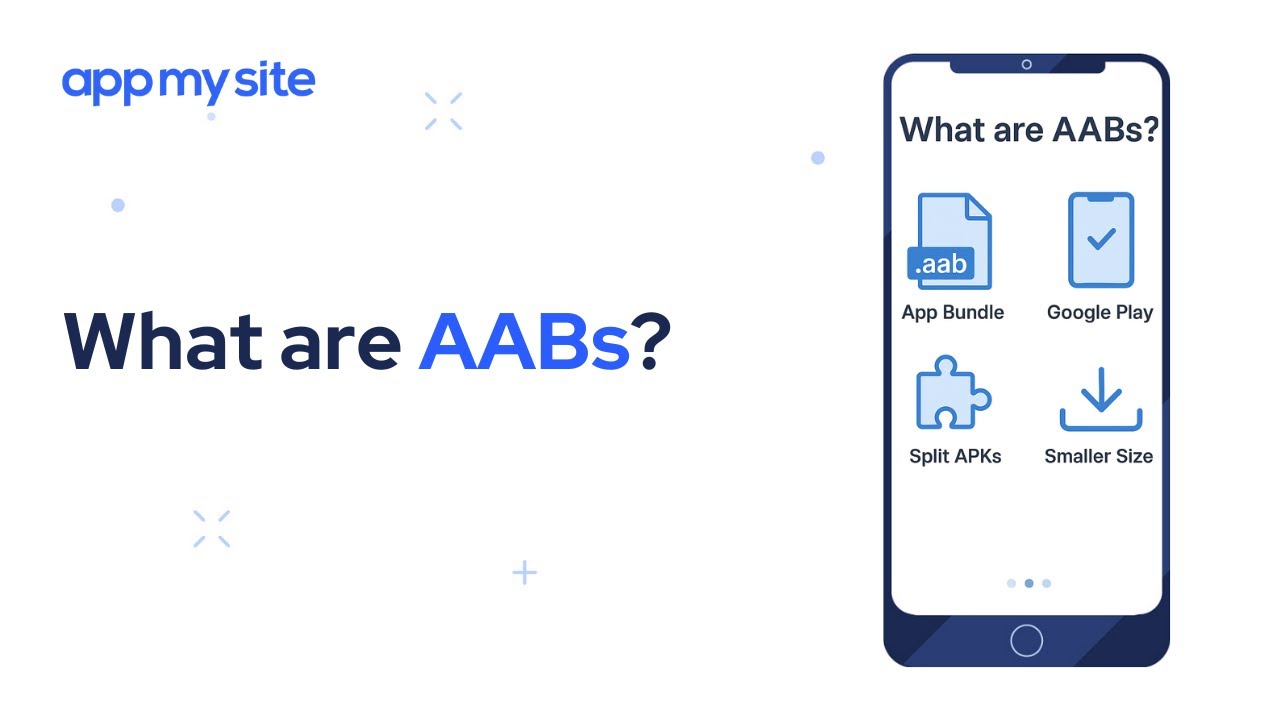
Google introduced the Android App Bundle format in 2018. The timing wasn’t random-apps were getting massive and users were running out of storage.
AAB files don’t install directly on devices. They’re actually meant for Google Play Console uploads only.
Here’s where it gets interesting: Google Play takes your AAB and generates multiple APKs from it. Each user gets a customized version based on their specific device.
The file extension is .aab instead of .apk. You can’t just send someone an AAB file and expect it to work.
Why Two Formats Exist
Android grew up. What worked in 2008 doesn’t cut it anymore.
Apps started supporting dozens of screen sizes, multiple languages, and various processor architectures. Shipping everything to everyone made zero sense.
Google needed a smarter distribution method. But they couldn’t just kill APKs overnight (developers outside the Play Store still needed them).
The Android development community had mixed reactions initially. Change always brings resistance, especially when it involves app deployment workflows.
Legacy apps built years ago still use APK. New projects published to Google Play must use AAB as of August 2021.
Technical Differences Between APK and AAB

File Structure and Composition
APK internal architecture is straightforward. Open one up and you’ll find classes.dex (compiled code), res/ folder (resources), lib/ folder (native libraries), and assets/ folder.
Everything gets compressed into a single archive using ZIP compression. The signature files sit in META-INF/.
AAB files organize things differently. They separate code and resources into base modules and feature modules.
Google Play uses this modular structure to its advantage. It can pick and choose what each user actually needs.
An APK for a phone with a 1080p screen includes assets for every screen density anyway. Wasteful, but that’s how it worked.
Installation Process
Installing an APK is direct. Your device unpacks the file, verifies the signature, and copies everything to the appropriate directories.
This happens whether you download from Google Play, third-party app stores, or sideload from a website. The process stays consistent.
AAB files never touch user devices in their original form. Google Play’s servers do the heavy lifting.
When someone hits “Install,” Google Play analyzes their device configuration. It generates what’s called a split APK optimized for that exact device.
The user downloads only what they need. No extra language packs. No graphics for screen densities they don’t have. No code for CPU architectures their phone doesn’t use.
File Size Comparison
This part confuses people constantly. An AAB file is typically larger than a single APK of the same app.
Wait, what? Didn’t we just say AAB saves space?
The AAB contains everything for all device types. Think of it as a master file that lives on Google’s servers.
The APKs generated from that AAB are what matter. Each one is significantly smaller than a universal APK.
Real example: a game might have a 150MB universal APK. The AAB uploaded to Google Play could be 180MB. But users only download 85MB because they’re not getting unused assets.
Google Play Requirements and Distribution
Current Google Play Mandates
Google made AAB mandatory for new apps in August 2021. Existing apps got a grace period but eventually had to comply.
The deadline wasn’t arbitrary. Google wanted to standardize app delivery and reduce download sizes across the board.
Some apps still qualify for APK uploads. Games using APK expansion files got an exception initially. Console apps and Wear OS apps had different timelines.
Apps published before August 2021 can continue updating with APK if they choose. But they’re missing out on the benefits of dynamic delivery.
Uploading to Google Play Console
The APK upload process (for grandfathered apps) remains simple. Build your APK, sign it, upload through the console.
You manage version codes manually. Each release needs a higher version number than the last.
AAB uploads look similar on the surface. Build, sign, upload. The difference happens behind the scenes.
Google Play App Signing becomes mandatory with AAB. You give Google your app signing key, and they handle the rest.
This freaks out developers who’ve been managing their own keys for years. The control shift feels uncomfortable at first.
Version management actually gets easier. Google Play handles generating multiple APKs with appropriate version codes.
Non-Google Play Distribution
Here’s where APK still rules completely. Want to distribute outside Google Play? You need an APK.
Amazon Appstore doesn’t accept AAB. Samsung Galaxy Store doesn’t either. APKMirror and similar sites can’t work with AAB files.
Enterprise apps that never touch public stores need APK. Internal company apps distributed through mobile application development teams stay with APK.
Sideloading requires APK format. You can’t take an AAB file and install it manually on your phone (without jumping through hoops).
Regional markets without Google Play access rely entirely on APK distribution. Some countries have local app stores that only understand the traditional format.
The technical reality is simple: AAB only works with Google Play’s infrastructure. Everything else needs the old format.
App Bundle Benefits and Dynamic Delivery
Split APKs Explained
Google Play doesn’t just send you one file anymore. It generates multiple smaller APKs from your AAB.
Each split targets a specific device configuration. One for your screen density. One for your CPU architecture. One for your language.
These splits install together but remain separate technically. Your phone treats them as a single app.
Device-specific configurations determine which splits you get. A phone with an ARM64 processor won’t receive x86 libraries.
Language splits mean you only download strings for languages you actually use. Switch your phone to Spanish later? Google Play can download that language pack on demand.
Screen density splits prevent you from downloading xxxhdpi assets when your phone only needs hdpi. That alone can save 40-50% of graphics resources.
Dynamic Feature Modules
This feature changes how apps can work fundamentally. Not every user needs every feature immediately.
On-demand delivery lets apps download features only when users actually need them. A photo editing app might ship without advanced filters initially.
When you tap “Pro Filters” for the first time, the app requests that module from Google Play. It downloads in the background.
Conditional delivery goes further. An app can deliver certain features only to devices meeting specific requirements (like AR features only for AR-capable phones).
Install-time modules versus on-demand modules give developers flexibility. Core features install with the base app. Optional ones wait until needed.
Asset Delivery
Large assets like game levels or HD textures don’t need to live in the initial download.
Fast-follow delivery sends assets right after the base app installs. Users don’t wait, but the initial download stays small.
On-demand asset packs download when needed. A game with 20 levels might ship with just the first 5. Additional levels download as you progress.
Texture compression formats vary by device GPU. Some phones use ETC2, others use ASTC. AAB lets you include multiple formats and serve the right one to each device.
How it reduces initial download size adds up fast. A game supporting 5 texture formats and 4 languages with 3 screen densities would have 60 combinations. AAB means users get exactly 1.
Developer Experience and Workflow
Building and Signing APKs
Gradle handles APK builds in Android Studio. The configuration lives in your build.gradle files where you define version codes, minimum SDK, and compilation targets.
Building a release APK takes a few commands. ./gradlew assembleRelease spits out your production-ready file.
The signing process requires a keystore file. You generate it once and guard it like your life depends on it (because your app’s reputation does).
Lose that keystore and you can’t update your app. Ever. You’d have to publish under a new package name and abandon your existing users.
Testing locally is straightforward. Build, install via ADB or Android Studio, and run on your device or emulator.
Debug builds use a debug keystore that’s automatically generated. Release builds demand your production key.
Building and Signing AABs
Gradle configuration for AAB looks nearly identical. Change assembleRelease to bundleRelease and you’re most of the way there.
The catch? Google Play App Signing stops being optional.
You upload an AAB signed with your upload key. Google re-signs it with the app signing key they manage.
This two-key system confuses people initially. Your upload key proves you’re you when uploading. Their app signing key goes on the actual APKs users download.
Benefits include Google handling key security and enabling features like split APKs. Downside is you’re trusting Google with your signing key.
Some developers hate giving up that control. Others appreciate not having to worry about key management nightmares.
Testing Considerations
Testing APKs works the same way it always has. Build, install on a physical device, test every feature.
Emulators run APKs without issues. Your development workflow stays familiar.
AAB testing gets trickier because you can’t just install an AAB on your phone. The file format doesn’t work that way.
Bundletool solves this problem. It’s a command-line tool that generates APKs from your AAB locally.
You can create a universal APK that includes everything (defeating the purpose but useful for testing). Or generate device-specific APK sets.
Internal testing tracks on Google Play offer another approach. Upload your AAB to a closed track and install from there.
Each method has trade-offs. Bundletool adds steps but gives you control. Play Store testing mirrors production but requires uploads for every test build.
Security and Update Mechanisms
App Signing Control
APK signing puts you in complete control. You generate the key, you store it, you use it for every release.
That control comes with responsibility. Lose the key or have it stolen and you’ve got serious problems.
Google Play App Signing for AAB shifts the burden. Google manages the app signing key in their secure infrastructure.
You keep your upload key, which is less critical. If it gets compromised, Google can issue you a new one without affecting your app.
Key management responsibilities change dramatically. Instead of protecting one absolutely critical key, you protect a less critical upload key.
Update Delivery
APK updates send the entire new version to users. A 50MB app with a one-line code change still ships 50MB.
Delta updates helped somewhat but never reached their full potential with APKs. The format wasn’t designed for it.
AAB updates optimize downloads automatically. Google Play compares what users have versus what the new version contains.
Users only download changed code and resources. That one-line fix might result in a 2MB update instead of 50MB.
Bandwidth savings add up across millions of users. App developers save on CDN costs. Users save on data plans.
Security Implications
Verification processes differ between formats. APKs verify against the signature in META-INF when installing.
Your device checks that the signature matches the public key from the certificate. If it matches, installation proceeds.
AAB security relies on Google’s infrastructure. They verify your upload, generate split APKs, and sign them with the managed key.
Sideloading APKs introduces risk because you’re bypassing the Play Store’s security checks. Users need to enable “Install from unknown sources.”
That setting exists for legitimate reasons (testing, enterprise apps) but opens doors to malicious apps.
Google Play Protect scans apps regardless of source but works best with Play Store apps. AAB apps get continuous scanning because Google controls the signing keys.
Use Cases and When to Choose Each Format
When APK Makes Sense
Distribution outside Google Play requires APK. There’s no way around it.
Enterprise apps for internal company use typically never touch public stores. Building APKs and distributing through mobile device management systems works fine.
Regional markets without Play Store access need APK distribution. Countries where Google services aren’t available rely on alternative app stores.
All these alternative stores (Amazon Appstore, Samsung Galaxy Store, Huawei AppGallery) expect APK format. They don’t have infrastructure to handle AAB processing.
Testing apps locally before Play Store upload is easier with APK. Generate one file, install it on test devices, done.
When AAB is Required or Better
Google Play publishing after August 2021 mandates AAB for new apps. You don’t have a choice there.
Apps targeting multiple device types benefit enormously. Supporting phones, tablets, foldables, and Chrome OS devices means massive APKs otherwise.
Large apps with optional features should use AAB. A video editing app doesn’t need to ship with all effects and filters pre-installed.
Games especially benefit from dynamic delivery. Ship with tutorial and first few levels. Download additional content as players progress.
The savings compound. Fewer support requests about storage space. Lower bandwidth costs. Happier users who don’t wait 20 minutes for installation.
Supporting Both Formats
Maintaining dual build pipelines happens more than you’d think. One command generates AAB for Play Store, another generates APK for alternative distribution.
Version parity requires attention. Your APK and AAB need to stay in sync feature-wise.
Testing across both distribution methods doubles your QA workload. That AAB change needs verification through Google Play’s processing.
Automation helps significantly. CI/CD pipelines can build both formats from the same codebase on every commit.
The overhead is real but manageable if you plan for it. Many Android development teams handle both formats without major issues.
Converting Between Formats
APK to AAB Conversion
Migration from APK to AAB isn’t just changing the build command. The process involves restructuring how you think about your app.
Refactoring considerations include splitting features into modules. That monolithic APK structure doesn’t translate directly.
Code that assumed everything lived in one package needs updates. Dynamic feature modules load differently than static resources.
Common migration issues involve resource references breaking. Something that worked fine in APK might fail when split across modules.
Gradle dependencies sometimes behave differently between formats. Libraries that bundle resources can cause conflicts in AAB builds.
AAB to APK Extraction
Bundletool generates APKs from your AAB when needed. The command is straightforward but generates multiple files.
Universal APK creation bundles everything into one installable file. Useful for testing but defeats the size benefits.
Run bundletool build-apks and specify your AAB file. It outputs an .apks file which is actually a ZIP containing split APKs.
Limitations of extracted APKs include losing dynamic delivery benefits. You’re back to shipping everything upfront.
The universal APK will be larger than any individual user’s download from Play Store. That’s the whole point of AAB, after all.
Maintaining Legacy APK Support
Some developers keep APK builds indefinitely. Alternative app stores and enterprise clients create ongoing demand.
Automation strategies matter here. Manual builds for two formats invite human error and version drift.
Set up your build scripts to generate both from a single source. Tag releases in version control that trigger both APK and AAB builds.
Long-term maintenance costs rise with dual support. Testing doubles. Bug fixes need verification in both formats.
Eventually you might drop APK support if your user base primarily comes from Google Play. But that decision requires careful analysis of your distribution channels.
Performance and User Experience Impact
Download Speed and Data Usage
Split APKs reduce downloads by eliminating unnecessary resources. Users only get what their device needs.
A universal APK for a multilingual app includes all language files. That’s 20+ languages most users never see.
Bandwidth savings for users are substantial. A 100MB universal APK might become a 45MB device-specific download through AAB.
Multiply that across millions of installs and the numbers get wild. Users save gigabytes collectively. Google saves petabytes in bandwidth costs.
Initial install versus feature additions changes the math further. Base app downloads quickly. Optional features arrive when requested.
Games benefit most from this approach. Core gameplay downloads first. Additional levels, characters, or modes come later as needed.
App Launch and Runtime Performance
Performance differences between APK and AAB don’t exist at runtime. Once installed, the code runs identically.
Both formats compile to the same DEX bytecode. The Android runtime doesn’t care which format delivered the code.
Memory footprint considerations depend on what you install, not how it arrived. A bloated APK with unused resources wastes RAM. An optimized AAB install that excluded those resources saves memory.
Storage space on device follows the same logic. AAB installations typically consume less space because you’re not storing unused assets.
Update Experience
User-facing update sizes with APK send entire new versions. Change one file? Download the whole 80MB anyway.
Delta updates existed for APK but never worked consistently across all scenarios. Implementation varied by Android version and device manufacturer.
User-facing update sizes with AAB automatically optimize. Google Play compares installed files against new versions.
Only changed components download. That 80MB app might update with just 3MB of actual changes.
Background update behavior improves user experience significantly. Smaller updates complete faster, often before users notice.
Users on limited data plans appreciate this intensely. Auto-updates don’t blow through their monthly allowance anymore.
Common Misconceptions
AAB Quality Myths
“AAB apps run slower”
This myth persists despite zero technical basis. The final installed code is identical regardless of delivery format.
Split APKs from AAB contain the same compiled bytecode as universal APKs. Performance benchmarks show no differences.
People confuse download optimization with runtime performance. Smaller downloads don’t mean compromised code.
“You lose control over your app”
Control concerns stem from Google managing signing keys. That feels uncomfortable if you’ve handled keys yourself for years.
But you maintain control over your codebase, features, and updates. Google just handles distribution mechanics.
The upload key remains yours. You decide when to release updates and what they contain.
“AAB only benefits Google”
Google benefits from reduced bandwidth costs, sure. But users benefit more from smaller downloads.
Developers benefit from simplified multi-device support. One upload handles phones, tablets, and Chrome OS.
The feature delivery options enable new app architectures. That benefits everyone except maybe cellular carriers losing data overage fees.
APK Limitations Misunderstood
“APKs are obsolete”
APKs remain alive and necessary. Google Play requires AAB, but the broader Android ecosystem needs APK.
Alternative app stores don’t have infrastructure to process AAB files. Enterprise distribution relies on APK.
Calling APK obsolete ignores millions of apps distributed outside Google Play. The format serves different purposes now.
“You can’t use APKs anymore”
You absolutely can still use APKs. Building them, signing them, and distributing them works exactly as before.
Google Play restrictions don’t affect APK viability elsewhere. Sideloading still works. Third-party stores still accept them.
The restriction is specific to new Google Play submissions. Even then, existing apps can continue using APK for updates.
“APKs are less secure”
Security depends on implementation, not format. A well-signed APK from a trusted source is perfectly secure.
AAB benefits from Google’s infrastructure and continuous scanning. But that’s about distribution channel, not inherent format security.
Sideloaded APKs carry risk because you’re bypassing store verification. That applies to any file you install from random sources.
Distribution Confusion
Where Each Format Actually Works
Google Play exclusively processes AAB for new apps (since August 2021). Existing apps can still update via APK but miss AAB benefits.
Every other Android app store requires APK. Amazon, Samsung, Huawei, and countless regional stores don’t understand AAB.
Direct distribution to users needs APK. Email an app to someone? APK. Host it on your website? APK.
Sideloading Realities
Sideloading means installing apps outside official stores. It requires APK format because there’s no processing infrastructure.
You can’t sideload an AAB file directly. Technically you can use bundletool to extract APKs first, but that’s not really sideloading the AAB.
The process requires enabling “Install from unknown sources” in Android settings. Security warnings appear because you’re bypassing normal checks.
Regional Availability Facts
Some countries lack Google Play access entirely. China being the most obvious example with hundreds of millions of Android users.
These markets rely on local app stores (Tencent App Store, Baidu App Store, etc.). All require APK format.
Developers targeting global markets need APK builds for these regions. AAB-only strategy locks you out of significant user bases.
Conclusion
APK and AAB serve different needs in modern Android distribution. Neither format is universally better because they solve different problems.
APK remains necessary for non-Google Play distribution. Alternative stores, enterprise apps, and regional markets depend on it.
AAB optimizes Google Play distribution through device-specific builds and dynamic delivery. Download sizes shrink dramatically for end users.
The technical differences matter less than understanding which format fits your distribution strategy. Publishing only on Google Play? AAB makes sense and is required anyway.
Need broader reach across multiple stores and regions? Maintaining APK builds alongside AAB becomes necessary.
Most developers end up supporting both formats. Modern build tools make this manageable through automation and CI/CD pipelines.
The format war ended before it began. Both have roles. Both will stick around. Choose based on where your users are, not which format seems newer or better.
FAQ on APK vs AAB
What’s the main difference between APK and AAB?
APK is a complete installation package that installs directly on devices. AAB is a publishing format for Google Play that generates device-specific split APKs. APK contains everything for all devices, while AAB lets Google Play optimize downloads by sending only relevant code and resources to each user’s specific device configuration.
Can I install an AAB file directly on my phone?
No. AAB files only work with Google Play Console infrastructure. You need bundletool to extract APKs from an AAB for local testing. Direct installation requires APK format. This limitation exists because AAB is designed for server-side processing, not end-user devices.
Does Google Play still accept APK uploads?
Apps published before August 2021 can continue updating with APK. New apps must use AAB format. Google made this mandatory to reduce download sizes and enable dynamic delivery. Alternative app stores outside Google Play still require APK exclusively for all submissions.
Are AAB apps smaller than APK apps?
The AAB file uploaded to Google Play is typically larger than a universal APK. But users download significantly smaller files because they only receive device-specific split APKs. Average savings range from 40-60% compared to downloading a universal APK with resources for all device types.
Can I distribute AAB outside Google Play?
No. Amazon Appstore, Samsung Galaxy Store, and other platforms don’t support AAB processing. Enterprise deployment and sideloading require APK format. AAB only functions within Google’s infrastructure. This makes APK necessary for broader Android distribution beyond the Play Store ecosystem.
Does AAB affect app performance?
Zero performance difference exists between APK and AAB apps once installed. The Android runtime executes identical bytecode regardless of delivery format. AAB optimizes download size and storage, not execution speed. Performance benchmarks show no measurable differences in launch time, memory usage, or processing speed.
How do I test an AAB before uploading to Google Play?
Use bundletool to generate APKs locally from your AAB file. Install these on test devices or emulators. Internal testing tracks on Google Play offer another option. Both methods let you verify functionality before public release. The testing process just requires an extra step compared to APK.
Do I need to maintain both APK and AAB builds?
Depends on your distribution channels. Google Play requires AAB. Alternative stores need APK. Many developers maintain both using CI/CD pipelines for automation. If you only publish on Google Play, AAB alone suffices. Multi-platform distribution demands supporting both formats simultaneously.
What happens to my existing APK app if I switch to AAB?
Users experience seamless updates. Google Play handles the transition automatically when you upload an AAB update. Existing installations continue working normally. Future updates download as optimized split APKs instead of universal APKs. Users just notice smaller update sizes without any action required on their part.
Can I convert an AAB back to APK?
Yes, using bundletool to extract APKs from your AAB. You can generate a universal APK containing all resources or device-specific APK sets. The universal APK will be larger than individual user downloads but works for testing and alternative distribution. This conversion is one-way during the generation process.
Conclusion
Understanding APK vs AAB matters more than ever for Android distribution strategy. The format you choose determines where your app can reach users and how efficiently it delivers.
Google Play mandates AAB for new submissions, offering reduced download sizes through split APKs and dynamic delivery. Users benefit from device-specific builds that exclude unnecessary resources.
But APK remains necessary beyond Google’s ecosystem. Alternative app stores, enterprise deployment, and regional markets without Play Store access require the traditional format.
Most successful mobile app development teams support both formats. Build automation through continuous integration makes maintaining dual pipelines manageable without doubling your workload.
The choice isn’t really binary. Your distribution channels dictate format requirements. Plan your app deployment strategy around where your users actually download apps, not which format seems newer or better.

- MongoDB Cheat Sheet - October 20, 2026
- Adding AI Video Generation to a Software Product: Architecture, Cost Guardrails and QA - October 20, 2026
- Show Hidden Characters, Spaces, and Line Endings in Notepad++ - October 19, 2026


