
Your Android app won’t download, the Play Store keeps crashing, or the screen just spins. Sound familiar?
Google Play Store not working is one of the most reported Android issues across 3.9 billion devices worldwide, and it almost never means the app store itself is down.
Most Play Store failures come from corrupted cache data, Google account sync errors, Google Play Services conflicts, or network-side blocks. Each has a specific fix.
This guide covers every major failure state, from Play Store connection errors and download pending loops to authentication failures and device-specific OEM issues, so you can stop guessing and fix it fast.
What Does “Google Play Store Not Working” Mean?

“Google Play Store not working” covers 4 distinct failure states: the app won’t open, downloads stall, app updates fail, and authentication errors block access.
Each failure state has a different root cause and a different fix. Treating all of them as the same problem wastes time and sometimes makes things worse.
Android runs on 3.9 billion devices worldwide as of 2025, with a 72% global market share (DemandSage). That’s a huge surface area for failure, and most of it happens client-side, not on Google’s servers.
| Failure State | What It Looks Like | Root Cause |
|---|---|---|
| App won’t open | Black screen or crash on launch | Corrupted cache or app data |
| Downloads stall | “Pending” status with no download progress | Download Manager conflict or issue |
| Update errors | Error codes such as 910, 963, or 194 | Storage problems or SD card conflicts |
| Authentication failure | Repeated “Sign in required” messages | Account sync issues or expired authentication tokens |
Identifying the failure type before applying any fix is the actual first step. Google Play error codes like Error 194, Error 491, and Error DF-DFERH-01 each point to a specific problem. They’re not interchangeable.
The Play Store also distinguishes between Play Store app failures and Google Play Services failures. These are 2 separate components, and clearing only one when both are broken leaves the problem half-fixed.
The 4 Root Categories Behind Most Failures
Corrupted local data: cache files go stale and Play Store makes decisions based on bad information.
Account sync failure: the Google account token expires or breaks, blocking purchases and downloads.
Network or DNS conflict: VPNs, enterprise firewalls, or DNS misconfig block Google’s servers.
Play Services mismatch: Google Play Services is outdated, disabled, or corrupted, and the Play Store cannot authenticate requests without it.
How Do You Check If Google Play Is Down?
Check the server before touching your device. StatusGator has tracked more than 72 Google Play outages since February 2024, though most last only minutes and affect billing or subscriptions rather than core downloads.
If Google Play’s infrastructure is down, every user on every device sees the same errors simultaneously. That’s how you tell a true outage from a device-specific issue.
Where to Check Play Store Server Status
Google’s official dashboard at status.play.google.com shows real-time status for Play Billing, Play Developer Subscriptions, and the In-App Purchases API separately.
Downdetector and StatusGator aggregate user reports faster than the official page acknowledges issues. If both show spikes, the problem is server-side.
IsDown, which monitors Google Play’s official status page, has tracked 0 confirmed full outages since March 2023, meaning genuine Play Store blackouts are rare. When errors appear without a server-side cause, the issue is almost always on the device or account level.
Outage vs. Device Issue: How to Tell the Difference
A real outage produces identical errors across multiple accounts and multiple devices at the same time. A device issue only affects 1 account on 1 device.
Quick test: log into Google Play Store on a second device or browser. If it works there, your problem is local.
Specific error codes also confirm client-side origin. Error 910, Error 963, and Error 491 are device-generated codes. They do not appear during true server outages, which produce generic connection refused or timeout messages instead.
What Are the Most Common Google Play Store Error Codes?

Google Play Store error codes map directly to 1 root cause each. There are 7 codes that account for the overwhelming majority of user-reported Play Store failures.
Treating all of them with the same fix (clearing cache) works about half the time. The other half requires a code-specific solution.
Error Codes Tied to Cache and Data Corruption
These 3 errors share a common fix, but the order matters:
- Error 194: corrupted Play Store data. Fix: Settings > Apps > Google Play Store > Storage > Clear Cache, then Clear Data.
- Error 492: common on older Android versions. Fix: clear both Play Store cache and Google Play Services cache separately.
- Error DF-DFERH-01: Play Store framework mismatch after a bad update. Fix: Settings > Apps > Google Play Store > Three-dot menu > Uninstall Updates.
Cloudorian’s Android troubleshooting research confirms that error codes 492, 495, 505, 506, and 194 almost always trace back to cached or stored data issues inside the Play Store, not to network problems.
Error Codes Tied to Account Authentication
Account errors are a different category entirely. Cache clearing does not fix them.
| Error Code | Cause | Fix |
|---|---|---|
| Error 491 | Google account synchronization failure | Remove and re-add the Google account |
| Error RH-01 | Device registration token is corrupted or invalid | Remove the account, restart the device, then re-add the account |
| Error 481 | Severe account corruption | Remove the affected account and create or use a different account |
| Error 403 | Conflict between multiple Google accounts | Sign in using the account that originally made the purchase |
Error Codes Tied to Storage Configuration
Error 963 is the main storage-related code. It appears when the app install location conflicts with SD card settings or when internal storage falls below the required threshold.
The fix: move the install location back to internal storage via Settings > Apps > Preferences > Default install location, and free at least 500MB of internal storage before retrying.
Error 910 and Error 911 are different. They come from Download Manager conflicts, not storage capacity. The fix is clearing Download Manager data: Settings > Apps > Download Manager > Storage > Clear Data.
How Does Clearing Cache and Data Fix Google Play Store?
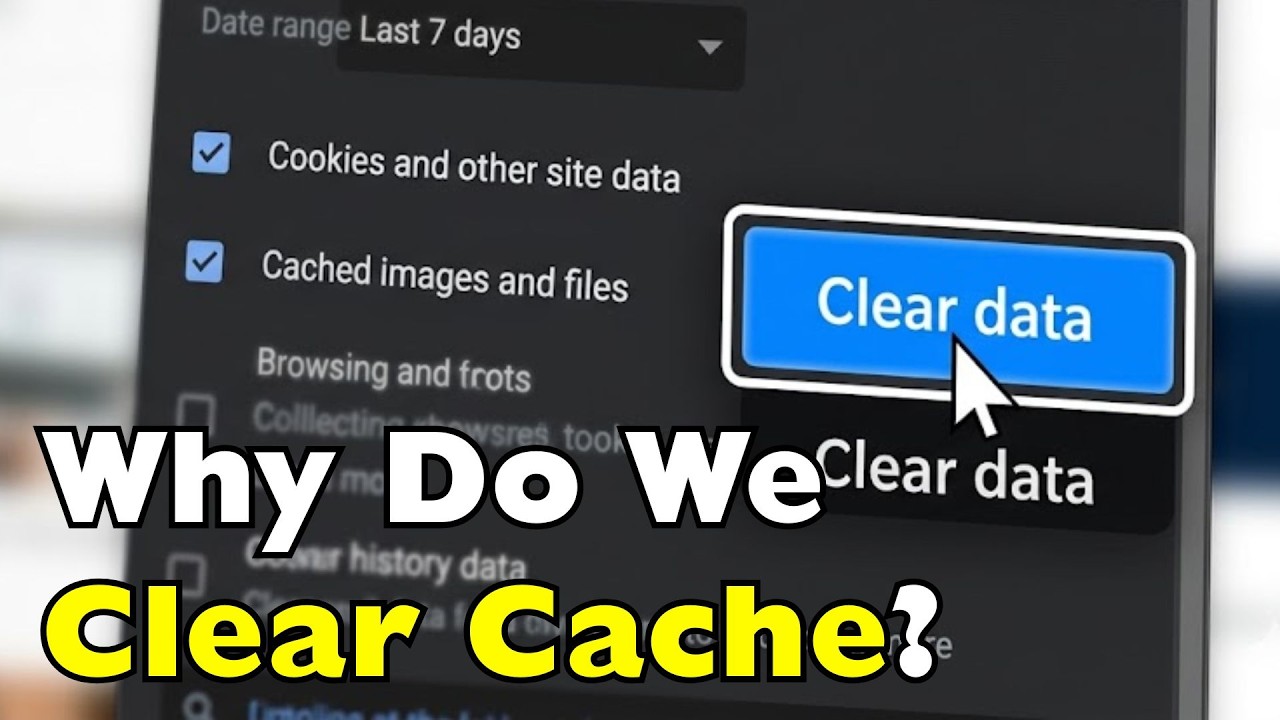
The Play Store builds a local cache of temporary files, including metadata, thumbnails, and UI assets, to make browsing and updates feel faster. Over time, those files go stale or get corrupted.
When that happens, the Play Store starts making decisions based on bad data. That is when download queues freeze, pages refuse to refresh, and updates stall mid-progress.
According to Google’s official support documentation, clearing cache from Google Play Store is the most common solution to issues when downloading apps. It is the recommended first step before any other troubleshooting.
Cache vs. Data: What Each Actually Clears
Clear Cache: removes temporary session files only. Account data, preferences, and installed apps are untouched. This is always the right first step.
Clear Data: resets the Play Store to factory state. Stored credentials, parental controls, and password protection are removed. You will need to re-agree to Terms of Service on next launch.
Start with cache. If the problem persists, escalate to data. Skipping straight to Clear Data when Cache alone would have worked creates unnecessary friction.
The Correct Step-by-Step Process
Settings > Apps > See All Apps > Google Play Store > Storage & Cache > Clear Cache. Close Settings, relaunch Play Store, test the failing download or update.
If that does not work: return to the same screen, tap Clear Storage (or Clear Data), reopen Play Store, and test again.
Google Play Services cache is a separate step that most guides skip. Settings > Apps > Google Play Services > Storage & Cache > Clear Cache. Play Services handles authentication behind the scenes. A corrupted Play Services cache produces the exact same symptoms as a corrupted Play Store cache, but clearing only one leaves the problem half-solved.
Google’s own support page notes: it’s not recommended to clear Google Play Services data unless all other options have been tried, since it can delete passwords, transit cards, and payment cards saved to Google Pay.
Why Does the Google Account Cause Play Store Failures?
The Play Store ties every download, purchase, and update to a registered Google account on the device. When that account’s authentication token expires or breaks, Play Store blocks all actions.
This is the failure that clearing cache does not fix. The token lives in the account layer, not the app data layer.
Based on research from Corbado’s 2026 Passkey Benchmark, Android authentication failure causes break down as: 44% user cancellations, 32% credential-not-found, and 17% connection issues. The credential-not-found cases almost always require removing and re-adding the account.
How to Remove and Re-Add a Google Account

Step 1: Settings > Accounts > Google > select the account > Remove Account.
Step 2: restart the device. This clears the old device registration token completely.
Step 3: Settings > Accounts > Add Account > Google > sign in. The Play Store re-registers the device under a fresh token.
If a password was recently changed, update it on the device before re-adding. Outdated credentials block the re-registration and the authentication error comes back immediately.
Multiple Google Accounts on One Device
Multiple accounts create a specific conflict in Google Play: if a paid app was purchased under Account A and Account B is currently active, Play Store cannot verify the license and blocks the download with Error 403.
The fix is signing in with the original purchase account, not the currently active one. Uninstall the app first if it’s already installed, then reinstall under the correct account. Clearing Play Store search history under Settings > Play Store > General > Clear Local Search History can also resolve this conflict.
How Do Date and Time Settings Break Google Play Store?
This one catches people off guard. An incorrect system clock breaks Google Play Store authentication completely, with no error code that points to the time as the cause.
The connection failure message looks like a network problem. But the real issue is SSL certificate validation.
Why System Time Affects SSL and Play Store Access
Play Store uses HTTPS connections protected by SSL certificates. SSL certificates carry valid-from and valid-until timestamps. When a device’s clock is wrong by even a few minutes, the device calculates that the certificate is either not yet valid or already expired.
The connection fails. Google Play Store cannot reach its authentication servers. The error looks exactly like a network or account issue.
Fix: Settings > General Management > Date and Time > enable Automatic Date and Time. This syncs the device clock to network time and restores SSL validation immediately.
When Manual Time Settings Cause Persistent Failures
Manual date overrides are a common cause of recurring Play Store failures. Some users set manual time for games (to unlock content tied to real-world dates) or for DRM bypass attempts.
Others have manual time set from a timezone error during initial device setup and never corrected it.
Either way: if automatic time is disabled and the Play Store keeps failing after cache clears and account resets, check the date and time settings before anything else. It takes 10 seconds and rules out a cause that looks nothing like what it actually is.
What Network Conditions Stop Google Play Store from Working?
Network-side Play Store failures fall into 3 categories: VPN interference, DNS misconfiguration, and firewall port blocking. Each produces a connection error, but each requires a different fix.
Google Play requires open access to specific Google domains and ports 80 and 443. Any network that restricts either blocks Play Store entirely.
VPN Interference with Play Store
VPNs reroute traffic through servers that may be geo-blocked by Google’s regional access controls. A VPN server in one country sometimes cannot reach Google Play’s download infrastructure in another.
The diagnostic is simple. Disable the VPN, then test. If Play Store works, the VPN is the problem. Switch to a different VPN server or disable it for Play Store activity.
VPN-related Play Store failures are also common with private DNS configurations. Settings that point DNS to a filtering service (like NextDNS or Pi-hole) can block Google’s authentication endpoints even without a VPN active.
Corporate and School Wi-Fi Blocking
Enterprise and educational networks commonly block Google Play domains through firewall rules. These networks restrict outbound traffic to approved domains only.
There’s no fix from the user side on a restricted network. Switching to mobile data bypasses the firewall entirely and confirms whether the network is the cause.
DNS Configuration Fixes
When DNS misconfiguration is the problem, the device cannot resolve Google’s download server addresses even though the network itself is working fine.
Fix: Settings > Wi-Fi > tap the connected network > Modify Network > Advanced Options > IP Settings: Static > set DNS 1 to 8.8.8.8 and DNS 2 to 8.8.4.4 (Google’s public DNS servers).
This bypasses the router’s default DNS and connects Play Store directly to Google’s own resolution infrastructure. Works specifically for DNS-blocking issues, not for firewall port blocking or VPN regional restrictions.
How Do You Fix Google Play Store When It Won’t Update or Install Apps?

Stalled downloads and failed installations are a different failure state from a Play Store crash. The app opens. The download just never completes.
4 things cause this: insufficient storage, background data restrictions, a corrupted download queue, or a Google Play Services version mismatch.
Google Play Store user spending reached $55.5 billion in 2024, up from $50.5 billion in 2023 (Sensor Tower). With that much transaction volume, a stalled download is more than inconvenient. It blocks access to apps people have already paid for.
How to Check Storage and Free Space for Play Store Downloads
Minimum threshold: Android requires at least 500MB free internal storage to initiate and complete app installs.
The tricky part is that Play Store sometimes shows an insufficient storage error even when the device appears to have space available. This happens when the storage that exists is fragmented between internal and SD card, and Play Store cannot use the SD card allocation for the install.
Fix: Settings > Apps > Manage Apps and Devices > tap the storage status to identify oversized apps. Remove apps above 1.5GB that are used infrequently, then retry the stalled install on internal storage only.
How to Reset the Download Queue in Android
The Download Manager app maintains the download queue for Play Store. A corrupted queue freezes pending downloads silently, with no error code.
Fix: Settings > Apps > See All Apps > Download Manager > Storage > Clear Data.
This resets the queue entirely. Pending downloads that were stuck will restart from the beginning once Play Store relaunches.
Background data restriction is the other common cause. If “Restrict Background Data” is enabled for Play Store, downloads stop the moment the app leaves the foreground. Fix: Settings > Apps > Google Play Store > Mobile Data > disable “Restrict Background Data.”
What Role Does Google Play Services Play in Store Failures?

Google Play Services is not the Play Store. It’s the background process that handles authentication, push notifications, and API access for every app on the device, including the Play Store itself.
Google Play Protect, which runs inside Play Services, scanned more than 200 billion apps daily in 2024 and identified 13 million new malicious apps from outside Google Play (Google Security Blog, 2025). When Play Services itself fails, all of that protection stops working too.
| Component | What It Does | When It Fails |
|---|---|---|
| Google Play Store | Handles app browsing, downloads, and purchases | The Play Store app crashes or fails to open |
| Google Play Services | Provides authentication, APIs, and Play Protect scanning | Silent download failures, authentication loops, or apps not functioning correctly |
| Google Services Framework | Manages device registration and system communication with Google services | Account synchronization failures and errors such as RH-01 |
How to Fix Google Play Services Without a Factory Reset
Settings > Apps > Google Play Services > Storage & Cache > Clear Cache. This is safe. It does not delete account credentials or Google Pay data.
If Play Services is disabled, re-enable it: Settings > Apps > See All Apps > Google Play Services > Enable.
Do not clear Play Services data unless every other fix has failed. Google’s own documentation warns this removes passwords, transit cards, and virtual payment cards saved to Google Pay, and forces re-authentication on all signed-in devices.
Checking the Google Play Services Version
Settings > Apps > Google Play Services > App Info shows the installed version number.
Play Services updates automatically, but the update can fail on low storage or when background data is restricted. If the version is several months behind current, manually update: open Play Store, search “Google Play Services,” and tap Update if available.
Play Services cannot be uninstalled on most Android devices. It’s a protected system component. The deepest reset available without a factory reset is clearing its cache, not its data.
How Do You Fix Google Play Store on a Specific Android Device?
OEM customizations create Play Store failure modes that standard Android fixes do not address. Samsung, Xiaomi, and Huawei each add layers on top of Android that directly interfere with how Play Store runs in the background.
Android holds 72% of the global smartphone market, with Samsung accounting for 31.5% of Android device sales (DemandSage, 2025). That’s a large share of users hitting OEM-specific bugs that generic troubleshooting guides miss entirely.
Samsung One UI Play Store Fixes
Samsung’s One UI “Adaptive Battery” aggressively kills background processes. It force-stops Play Store mid-download if the app hasn’t been used in the foreground recently.
Fix: Settings > Battery and Device Care > Battery > Background Usage Limits > add Google Play Store and Google Play Services to “Never Sleeping Apps.”
In July 2024, Samsung officially committed to dropping non-standard background process restrictions, promising a unified policy with Google on One UI 6.0+ devices (dontkillmyapp.com). On older One UI versions, the manual fix above remains the only solution.
Xiaomi MIUI Play Store Fixes
Traditionally, Xiaomi’s MIUI belongs in the most aggressive group for non-standard background process limitations, with no APIs or documentation for its extensions (dontkillmyapp.com).
Play Store background sync fails on MIUI because the Autostart permission is disabled by default for non-system apps.
Fix: Settings > Apps > Google Play Store > App Permissions > Background Autostart > Enable. Also set Battery Saver to “No Restrictions” for both Play Store and Play Services.
Huawei and Google Services Restrictions
Huawei devices launched after May 2019 do not include Google Play Services. This is not a bug. It is the result of the US trade ban that took effect on May 15, 2019, after which Google was legally barred from providing Google apps and services for new Huawei products (Android Authority).
Google Play Store cannot be installed on these devices through any official channel. Sideloaded Google apps will not function reliably because Google does not allow its services to run on uncertified devices.
Huawei’s alternative is the AppGallery, its own app distribution platform. For Huawei P40, Mate 30, Mate 40, and later series, AppGallery is the only supported method for app downloads.
When Should You Uninstall Google Play Store Updates?
Rolling back the Play Store is the right fix for one specific problem: when the Play Store worked correctly before an update and stopped working immediately after.
This targets update-introduced bugs, not underlying corruption or account issues. Used in the wrong situation, it changes nothing.
What Rolling Back Actually Does
It removes the updated version and restores the factory-installed version that shipped with the device.
Play Store will attempt to re-update automatically. To test whether the update caused the error, temporarily disable auto-updates in Developer Options after rolling back.
Rollback does not delete installed apps, account data, or purchase history. It only affects the Play Store app itself.
Step-by-Step Rollback Process
Settings > Apps > Google Play Store > tap the three-dot menu in the top right > Uninstall Updates > confirm.
The Play Store reverts to its original version. Relaunch it to test whether the problem is resolved.
This fix specifically resolves Error DF-DFERH-01 and persistent “Google Play Store has stopped” crashes that appear immediately after a Play Store update. It also fixes search functionality breaking after specific update versions.
When Rollback Does Not Help
Cache corruption, account token failures, network blocks, and Google Play Services issues all predate and survive a Play Store update rollback.
If the same problem appeared before the last update, or on a freshly updated device where no previous version was ever working, rolling back solves nothing. Go back to cache and account fixes instead.
What Is the Last Resort Fix for Google Play Store Not Working?
Factory reset is the fix that works when nothing else does. It wipes all device data and restores Android to its original state, including a completely fresh Play Store installation.
It should be the last step, not the first. The fixes in this article resolve the majority of Play Store failures without touching personal data.
Before resetting, back up using 3 separate methods: app data via Google One, contacts via Google Contacts, and photos via Google’s family of storage services. The reset will delete everything not backed up to a cloud service.
What Factory Reset Fixes and What It Doesn’t
| Problem Type | Factory Reset Fixes It? | Alternative |
|---|---|---|
| Software-layer corruption | Yes | No device-level alternative |
| Corrupted Google Play Services | Yes | Clear the Google Play Services cache and data first |
| Account-level error | No | Remove and re-add the Google account |
| Huawei Google ban | No | Use AppGallery or a different device with Google support |
| Network or firewall block | No | Switch to mobile data or change network/DNS settings |
The Reset Process and What to Expect After
Settings > General Management > Reset > Factory Data Reset > confirm with device PIN.
The device reboots into setup mode. Connecting to Wi-Fi and signing into the Google account during setup restores backed-up app data and reinstalls previously downloaded apps automatically.
If Play Store fails immediately after a clean factory reset, the problem is not device-level. It is account-level or network-level. Test with mobile data and a secondary Google account before assuming the hardware is faulty.
When to Seek Further Help
A Play Store failure that survives a factory reset on a clean device, with a working network and a fresh Google account, points to a Google account ban, a device certification issue, or a regional access restriction.
Google’s Play Protect certification can be checked directly: open Google Play Store > Menu > Settings > look for “Play Protect certification.” An uncertified device cannot use Google services regardless of resets or troubleshooting steps applied.
For app bundle and distribution issues affecting developers rather than end users, Google Play Console’s status dashboard and developer support are the appropriate next step after exhausting device-level troubleshooting.
FAQ on Google Play Store Not Working
Why is Google Play Store not working on my Android?
Most Play Store failures trace back to 4 causes: corrupted cache data, a broken Google account sync, an outdated Google Play Services version, or a network block. Clear the Play Store cache first, then work through account and network fixes if the problem persists.
How do I fix Google Play Store when it keeps crashing?
Go to Settings > Apps > Google Play Store > Storage > Clear Cache. If the Play Store crash continues, clear data as well. Also clear the Google Play Services cache separately. Most crash loops resolve after both are cleared and the device is restarted.
Why is my Play Store download stuck on pending?
A pending download loop usually means the Download Manager app has a corrupted queue. Go to Settings > Apps > Download Manager > Storage > Clear Data. Also check that background data is not restricted for Google Play Store in mobile data settings.
What does Google Play Store authentication failed mean?
Authentication failed means the Play Store cannot verify your Google account. The token connecting your account to the device has expired or broken. Remove your Google account from Settings > Accounts, restart the device, and re-add the account to generate a fresh token.
How do I clear Google Play Store cache?
Settings > Apps > See All Apps > Google Play Store > Storage & Cache > Clear Cache. Do the same for Google Play Services in a separate step. Clearing only one and not the other leaves the problem half-fixed in most cases.
Can a VPN cause Google Play Store connection errors?
Yes. VPNs reroute traffic through servers that may be blocked by Google’s regional access controls. Disable the VPN, then test Play Store on mobile data. If it works, the VPN server or its DNS settings are blocking Google’s authentication and download endpoints.
Why won’t Google Play Store update apps on my Samsung phone?
Samsung’s One UI Adaptive Battery kills Play Store background processes, stopping downloads mid-queue. Go to Settings > Battery and Device Care > Battery > Background Usage Limits and add Google Play Store and Google Play Services to the Never Sleeping Apps list.
Does Google Play Store work on Huawei phones?
Not on Huawei devices launched after May 2019. The US trade ban blocked Google from certifying new Huawei models, so Google Play Services and the Play Store cannot be officially installed. Huawei’s AppGallery is the supported alternative on affected devices.
How do I fix Google Play Store error code 963?
Error 963 is a storage configuration conflict. Move the app install location back to internal storage via Settings > Apps > Preferences > Default Install Location. Also free at least 500MB of internal storage before retrying the download. Error 963 does not respond to cache clearing alone.
When should I factory reset to fix Google Play Store?
Factory reset is the last resort, not the first step. Try clearing cache and data, removing and re-adding your Google account, and fixing network settings first. Back up all data to Google One and Google Photos before resetting, as the process wipes the device completely.
Conclusion
This conclusion is for an article presenting the most common causes and fixes for Google Play Store not working on Android devices.
Most Play Store download errors, installation failures, and authentication issues have a direct solution once you identify the right failure type.
Start with cache and data clearing, move to account fixes, then check network settings and Google Play Services before considering anything more drastic.
OEM-specific issues on Samsung One UI, Xiaomi MIUI, and Huawei devices require separate steps that standard Android troubleshooting misses entirely.
Factory reset remains the last option, not the default one. The fixes covered here resolve the overwhelming majority of Play Store server errors, app update failures, and connection errors without wiping a single file.

- C cheat sheet - November 3, 2026
- Best Practices for Designing Intuitive Navigation in Web Applications - November 3, 2026
- 9 Companies Leading AI Agent Skill Registry Technology - November 2, 2026


