

Your phone dies by lunch. Apps freeze mid-scroll. Something’s eating your battery.
Background apps run silently, draining resources without you noticing. Knowing how to check apps running in background Android helps you identify which processes consume RAM and battery behind the scenes.
This guide walks through four methods using built-in Android tools. You’ll learn to access Developer Options, view Running Services, analyze battery statistics, and monitor individual app behavior.
No technical expertise required. Just your Android device and five minutes.
How to Check Apps Running in Background Android

Checking apps running in background Android reveals active processes consuming RAM and battery through Developer Options and system monitoring tools.
Users need this when diagnosing battery drain, managing device performance, or identifying resource-heavy applications.
This guide covers 4 primary methods requiring 5-10 minutes and Android 6.0 or later.
Prerequisites
Android device running Android 6.0 (Marshmallow) or later with access to Settings menu.
No root access required.
Time estimate: 5-10 minutes. Basic understanding of Android navigation helps but isn’t required.
Step 1: How Do You Enable Developer Options on Android?
Developer Options unlocks advanced system monitoring tools including Running Services. Access Settings > About Phone > Software Information, then tap Build Number seven consecutive times.
Android displays “You are now a developer” confirmation message.
Action
Settings > About Phone (or About Device): Locate phone information screen.
Software Information > Build Number: Tap exactly 7 times rapidly.
Enter device PIN/password: Authenticate access when prompted.
Result: “Developer mode has been enabled” notification appears at bottom of screen.
Purpose
Developer Options provides access to Running Services, the primary tool for viewing background processes and RAM consumption per application.
This setting remains enabled permanently unless you perform a factory reset.
Step 2: Where Do You Find Running Services in Developer Options?
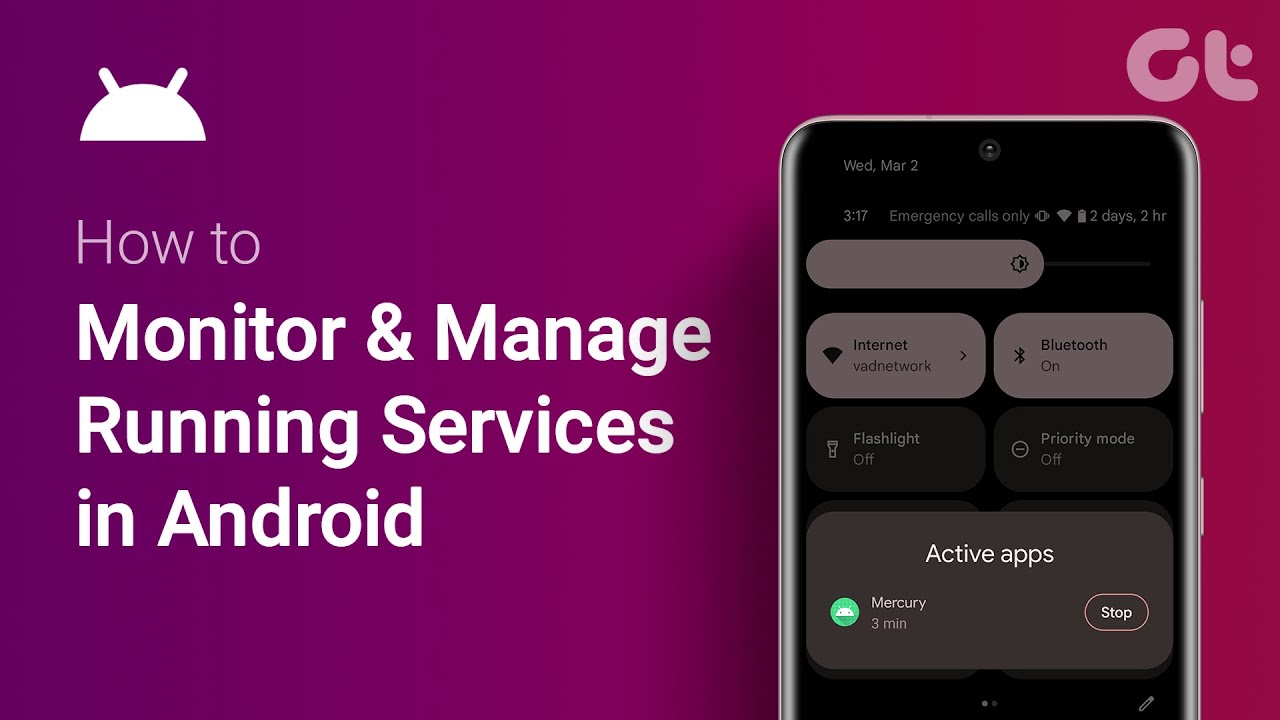
Running Services displays all active applications and system processes with real-time RAM usage statistics. Navigate Settings > System > Developer Options, scroll to Apps section, select Running Services to view complete list sorted by memory consumption.
Action
Settings > System: Open system configuration menu.
Developer Options: Select from system menu (appears after completing Step 1).
Apps section > Running Services: Tap to open process monitor.
Result: Screen displays all active processes with RAM usage measured in MB, sorted from highest to lowest consumption.
Purpose
Running Services provides granular visibility into background processes, showing exact memory allocation and allowing identification of resource-intensive applications.
Google Play Services, system UI, and Android OS typically appear at the top of this list.
Step 3: How Do You Check Background Apps Through Battery Usage Statistics?
Battery usage statistics identify background applications consuming power over past 24 hours. Access Settings > Battery > Battery Usage, review application list showing percentage consumption, tap individual apps to view background activity duration and restrict background usage.
Action
Settings > Battery: Open battery management menu.
Battery Usage (or three-dot menu > Battery Usage): View consumption data for all apps.
Sort by: Select “Show full device usage” for complete list including system processes.
Result: Applications listed with percentage of battery consumed since last full charge, showing both foreground and background usage separately.
Purpose
Battery statistics reveal which applications run most frequently in background, enabling targeted management of power-draining processes.
Apps consuming over 5% battery in background warrant investigation for battery optimization settings.
Step 4: What Background Activity Details Does App Info Display?

App Info shows individual application background behavior including data usage, battery consumption, and running time. Navigate Settings > Apps > See All Apps, select specific application, review Mobile Data Usage and Battery sections for background activity patterns.
Action
Settings > Apps (or Apps & Notifications): Access application manager.
See All Apps > [Select App]: Choose application to inspect from alphabetical list.
Mobile Data Usage > Background Data: View background network activity measured in MB or GB.
Battery > Background Usage: Check background battery consumption details with time spent active in background.
Purpose
App Info provides application-specific background metrics, allowing assessment of individual app behavior and configuration of background restrictions.
Toggle “Background data” off to prevent apps from using mobile data when not actively open.
Step 5: How Do You Use Task Manager to Monitor Running Apps?
The Recent Apps screen (Task Manager) displays currently open applications and allows quick closure. Press the square or three-line navigation button, swipe through open apps, swipe up on individual apps to close them or tap “Clear All” to close everything except system processes.
Action
Press Recent Apps button: Square icon or three horizontal lines depending on Android version.
View open apps: Scroll through cards showing all currently running applications.
Swipe up on app card: Close individual application and remove from background.
Result: App closes immediately and stops consuming RAM until reopened, though some apps may restart background services automatically.
Purpose
Recent Apps screen provides quick access to close multiple applications simultaneously without navigating through Settings menus.
This method works for user-installed apps but doesn’t affect system processes or background services that restart automatically.
How to Check Apps Running in Background Android
Checking apps running in background Android reveals active processes consuming RAM and battery through Developer Options and system monitoring tools.
Users need this when diagnosing battery drain, managing device performance, or identifying resource-heavy applications.
This guide covers 4 primary methods requiring 5-10 minutes and Android 6.0 or later.
Prerequisites
Android device running Android 6.0 (Marshmallow) or later with access to Settings menu.
No root access required.
Time estimate: 5-10 minutes. Basic understanding of Android navigation helps but isn’t required.
Step 1: How Do You Enable Developer Options on Android?
Developer Options unlocks advanced system monitoring tools including Running Services. Access Settings > About Phone > Software Information, then tap Build Number seven consecutive times.
Android displays “You are now a developer” confirmation message.
Action
Settings > About Phone (or About Device): Locate phone information screen.
Software Information > Build Number: Tap exactly 7 times rapidly.
Enter device PIN/password: Authenticate access when prompted.
Result: “Developer mode has been enabled” notification appears at bottom of screen.
Purpose
Developer Options provides access to Running Services, the primary tool for viewing background processes and RAM consumption per application.
This setting remains enabled permanently unless you perform a factory reset.
Step 2: Where Do You Find Running Services in Developer Options?
Running Services displays all active applications and system processes with real-time RAM usage statistics. Navigate Settings > System > Developer Options, scroll to Apps section, select Running Services to view complete list sorted by memory consumption.
Action
Settings > System: Open system configuration menu.
Developer Options: Select from system menu (appears after completing Step 1).
Apps section > Running Services: Tap to open process monitor.
Result: Screen displays all active processes with RAM usage measured in MB, sorted from highest to lowest consumption.
Purpose
Running Services provides granular visibility into background processes, showing exact memory allocation and allowing identification of resource-intensive applications.
Google Play Services, system UI, and Android OS typically appear at the top of this list.
Step 3: How Do You Check Background Apps Through Battery Usage Statistics?
Battery usage statistics identify background applications consuming power over past 24 hours. Access Settings > Battery > Battery Usage, review application list showing percentage consumption, tap individual apps to view background activity duration and restrict background usage.
Action
Settings > Battery: Open battery management menu.
Battery Usage (or three-dot menu > Battery Usage): View consumption data for all apps.
Sort by: Select “Show full device usage” for complete list including system processes.
Result: Applications listed with percentage of battery consumed since last full charge, showing both foreground and background usage separately.
Purpose
Battery statistics reveal which applications run most frequently in background, enabling targeted management of power-draining processes.
Apps consuming over 5% battery in background warrant investigation for battery optimization settings.
Step 4: What Background Activity Details Does App Info Display?
App Info shows individual application background behavior including data usage, battery consumption, and running time. Navigate Settings > Apps > See All Apps, select specific application, review Mobile Data Usage and Battery sections for background activity patterns.
Action
Settings > Apps (or Apps & Notifications): Access application manager.
See All Apps > [Select App]: Choose application to inspect from alphabetical list.
Mobile Data Usage > Background Data: View background network activity measured in MB or GB.
Battery > Background Usage: Check background battery consumption details with time spent active in background.
Purpose
App Info provides application-specific background metrics, allowing assessment of individual app behavior and configuration of background restrictions.
Toggle “Background data” off to prevent apps from using mobile data when not actively open.
Step 5: How Do You Use Task Manager to Monitor Running Apps?
The Recent Apps screen (Task Manager) displays currently open applications and allows quick closure. Press the square or three-line navigation button, swipe through open apps, swipe up on individual apps to close them or tap “Clear All” to close everything except system processes.
Action
Press Recent Apps button: Square icon or three horizontal lines depending on Android version.
View open apps: Scroll through cards showing all currently running applications.
Swipe up on app card: Close individual application and remove from background.
Result: App closes immediately and stops consuming RAM until reopened, though some apps may restart background services automatically.
Purpose
Recent Apps screen provides quick access to close multiple applications simultaneously without navigating through Settings menus.
This method works for user-installed apps but doesn’t affect system processes or background services that restart automatically.
Verification
Confirm background monitoring works correctly by testing RAM usage changes and battery data collection.
Open Running Services and note total RAM usage value displayed at bottom of screen.
Launch resource-intensive application (game, streaming service, navigation app), wait 30 seconds, return to Running Services.
Verify RAM usage increased and new process appears in list with MB allocation shown.
Check Battery Usage after 1 hour of device use to confirm data collection displays app-by-app breakdown.
Troubleshooting
Issue: Developer Options not appearing after tapping Build Number
Navigate Settings > About Phone > Software Information (not About Phone directly).
Samsung devices require Settings > About Phone > Software Information > Build Number. Some manufacturers disable Developer Options; check device-specific forums or manufacturer documentation.
Issue: Running Services shows “No running services” despite apps being open
Device manufacturer may restrict Running Services access on custom Android skins.
Alternative: Settings > Apps > See All Apps, manually check each app’s background status in App Info. Third-party task managers like SystemPanel provide similar functionality.
Issue: Battery Usage displays “Screen” as highest consumer
Screen power consumption is normal for active device use.
Tap three-dot menu > Show Full Device Usage to reveal system and application breakdown beyond screen usage. Focus on apps with high background battery percentage.
Issue: Cannot stop background process from Running Services
System processes cannot be stopped through Running Services interface.
Only user-installed applications display Stop button. Navigate Settings > Apps > [App Name] > Force Stop for manual termination of specific apps.
Alternative Method: Using Third-Party Task Managers
Primary Method (This guide):
- Time: 5-10 minutes initial setup
- Complexity: Beginner-friendly
- Best for: Stock Android monitoring without additional software
Third-Party Apps (Alternative):
- Time: 2-3 minutes after app installation
- Complexity: Requires app permissions
- Best for: Automated monitoring with historical data tracking
Choose Primary Method when using stock Android tools without installing additional applications.
Choose Third-Party Apps when requiring automated background process management and detailed analytics beyond native Android capabilities.
Popular options include Greenify (hibernates apps automatically), SystemPanel (detailed CPU and memory graphs), and CCleaner (combines cleanup with monitoring).
Related Processes
Understanding the app lifecycle helps explain why certain applications restart background services after closure.
Force stopping apps affects how Android development teams design persistent services for notifications and sync.
Next Steps:
- How to Restrict Background Data Usage on Android
- How to Optimize Android Battery Performance
- How to Enable Battery Saver Mode on Android
Related Topics:
- Understanding Android RAM Management
- How to Disable Background App Refresh Android
- How to close apps on Android
Key Technical Terms
Running Services: System tool displaying active processes and RAM allocation in real-time.
Background Process: Application executing tasks without active user interface, consuming system resources.
RAM (Random Access Memory): Temporary storage used by active applications and processes, cleared when apps close.
Force Stop: Manual termination of application and all associated background processes through Settings menu.
Developer Options: Hidden Android menu containing advanced diagnostic and development tools for system monitoring.
Battery Usage Statistics: Historical data tracking power consumption by application and system component over 24-hour periods.
Cached Processes: Apps stored in memory for faster reopening but not actively running, viewable in Running Services via three-dot menu.
Foreground Service: Background task with persistent notification that prevents Android from terminating the process.
FAQ on How To Check Apps Running In Background Android
How do I see what apps are running in the background on Android?
Navigate Settings > System > Developer Options > Running Services to view all active background processes with RAM consumption data.
Alternatively, check Settings > Battery > Battery Usage to see apps consuming power in the background over the past 24 hours.
How do I stop apps from running in the background on Android?
Open Settings > Apps > See All Apps, select the app, tap Force Stop to terminate immediately.
For permanent restrictions, disable Background Data under Mobile Data Usage or enable Battery Optimization to limit background activity automatically.
Do background apps drain battery on Android?
Yes. Background apps consume battery through network activity, location services, and sync operations.
Apps like social media, email, and navigation services drain the most power. Check Battery Usage statistics to identify specific culprits consuming over 5% battery in background mode.
What is Developer Options and how do I enable it?
Developer Options is a hidden Android menu containing advanced diagnostic tools including Running Services and background process limits.
Enable by navigating Settings > About Phone > Software Information, then tap Build Number seven consecutive times until “Developer mode enabled” appears.
Can I see which apps use the most RAM on Android?
Yes. Access Running Services in Developer Options to view real-time RAM allocation per application.
Apps are sorted by memory consumption from highest to lowest. System processes, Google Play Services, and active apps typically consume the most RAM.
How do I force stop an app on Android?
Navigate Settings > Apps > See All Apps, select the application, tap Force Stop button.
This terminates the app and all associated background processes immediately. The app won’t restart until you manually open it again or a system event triggers it.
What’s the difference between cached processes and running services?
Running Services are actively executing tasks and consuming CPU and RAM continuously.
Cached processes are stored in memory for faster reopening but not actively running. Access cached processes in Running Services by tapping the three-dot menu.
Will closing background apps improve Android performance?
Sometimes. Closing resource-intensive apps frees RAM for active applications, improving responsiveness on devices with limited memory.
However, Android memory management automatically handles background processes. Constantly closing apps may increase battery drain as they restart and reload data repeatedly.
How often should I check background apps on Android?
Check weekly or when experiencing battery drain, overheating, or performance issues.
Regular monitoring through Battery Usage and Running Services helps identify newly installed apps with excessive background activity before they significantly impact device performance.
Do I need third-party apps to monitor background processes?
No. Android’s built-in Developer Options, Battery Usage, and App Info provide comprehensive background monitoring capabilities.
Third-party task managers like Greenify or SystemPanel offer automation and historical analytics but aren’t required for basic monitoring and management.
Conclusion
Knowing how to check apps running in background Android gives you control over system resources and device performance. Developer Options reveals RAM consumption through Running Services while Battery Usage identifies power-draining applications.
Regular monitoring prevents battery drain and performance issues. Weekly checks keep your device running smoothly.
Use built-in Android tools first. Settings > Apps provides detailed app activity data without installing third-party task managers.
Force Stop terminates problematic apps immediately. Background data restrictions prevent unwanted network activity when apps aren’t actively open.
These methods work across Android versions from Marshmallow onward. Your phone’s performance depends on managing cached processes and background execution limits effectively.
Start with Running Services today. Identify resource hogs and reclaim your device’s speed.

- Build or Buy an AI Chatbot for E-commerce: The Costs Nobody Budgets For - October 24, 2026
- How to Run a React App in VS Code Step by Step - October 23, 2026
- Transactional or marketing email: which messages your app should send itself - October 23, 2026


