

Your Android phone buzzes constantly. Notifications, keyboard typing, even touching the screen triggers haptic feedback that drains battery and disrupts concentration.
Learning how to disable vibration on Android stops this sensory overload. Whether you need silence during meetings, want to extend battery life, or simply prefer a quieter device, Android offers granular vibration controls most users never discover.
This guide walks through seven specific steps to turn off vibration for calls, notifications, keyboard haptics, and system interactions. You’ll gain complete control over touch feedback settings across all Android versions and manufacturers.
How to Disable Vibration on Android
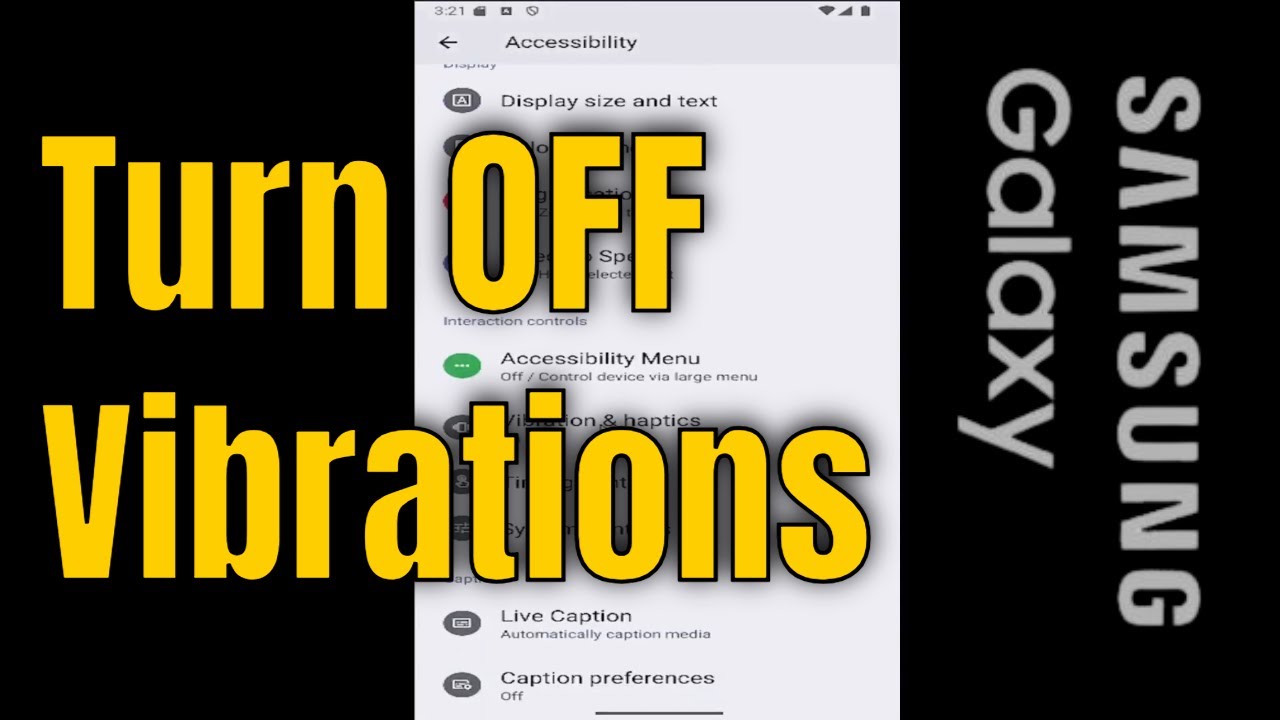
Disabling vibration on Android removes haptic feedback from notifications, calls, keyboard typing, and system interactions. Users need this when reducing battery drain, eliminating distractions during meetings, or managing sensory sensitivities.
This guide covers 7 steps requiring 5 minutes and Android 10 or later.
Prerequisites
- Android 10, 11, 12, 13, or 14
- Access to device Settings app
- 5 minutes
- Basic familiarity with system settings navigation
Step 1: How Do You Access Android Vibration Settings?

Navigate to Settings > Sound and vibration (or Sound & notification on older Android versions) to access vibration controls. The menu displays toggle switches for system vibration, ringtone settings, and notification vibration with intensity sliders ranging from 0-5.
Action:
- Open Settings app from app drawer or notification shade
- Scroll to “Sound and vibration” (Samsung One UI) or “Sound” (Stock Android)
- Vibration settings appear below volume controls
Purpose: This menu centralizes all haptic feedback controls for system-wide management.
Device Manufacturer Variations
Samsung devices (One UI 5.0+): Settings > Sounds and vibration > Vibration intensity.
Google Pixel (Stock Android): Settings > Sound & vibration > Vibration & haptics.
OnePlus/OPPO (OxygenOS/ColorOS): Settings > Sound & vibration > Haptics & tones.
Step 2: How Do You Disable System-Wide Vibration?

Toggle off “Vibrate on ring” and “Vibrate on silent” to stop phone vibration for all incoming communications. System vibration toggle (labeled “System vibration” or “Touch feedback”) removes haptic response from navigation buttons, UI interactions, and typing.
Action:
- In Sound and vibration menu, locate “Vibrate on ring” toggle
- Tap toggle to Off position (gray state)
- Disable “Vibrate on silent” below it
- Scroll to “Touch feedback” or “System vibration” section
- Toggle off to disable keyboard haptics and touch vibration
Purpose: Eliminates all device vibration except alarm and timer (controlled separately).
What This Controls
- Keyboard haptic feedback during typing
- Navigation button vibration (back, home, recent apps)
- Screen touch response
- System sounds vibration accompaniment
Step 3: How Do You Turn Off Call Vibration?
Open Phone app > three-dot menu (⋮) > Settings > Call vibration to disable incoming and outgoing call haptics. Toggle “Vibrate when answered” to Off prevents vibration motor activation when call connects.
Action:
- Launch Phone app (dialer icon)
- Tap three-dot menu (⋮) in top-right corner
- Select Settings > Call settings
- Locate “Vibrate when ringing” toggle, set to Off
- Disable “Vibrate when answered” if available
Purpose: Stops phone vibration for all call-related events while preserving notification vibration.
Call Vibration Types
Incoming calls: Controlled via “Vibrate when ringing” in Phone app settings or Sound & vibration > Ringtone settings.
Outgoing calls: Some Android manufacturers include “Vibrate on connect” toggle in Phone app > Settings > Call feedback.
Call waiting: Managed separately under Phone app > Settings > Supplementary services > Call waiting vibration (carrier-dependent).
Step 4: How Do You Disable Notification Vibration?
Navigate Settings > Apps > Notifications to control vibration per-app or disable globally via Settings > Sound and vibration > Notification vibration toggle. App-specific controls allow selective vibration for messaging apps while disabling social media haptics.
Action:
- Settings > Notifications > App notifications (or Notification management)
- Select specific app (WhatsApp, Gmail, Messages)
- Tap notification category (General, Messages, Alerts)
- Toggle off “Vibrate” or set Vibration pattern to “None”
- Repeat for additional apps
Purpose: Granular notification vibration management without affecting call or alarm vibration.
Global Notification Vibration
Settings > Sound and vibration > Vibrate for notifications (toggle off) disables all app notification haptics simultaneously. Priority notifications may override this setting depending on Android version.
Per-App Notification Controls
Messaging apps (WhatsApp, Telegram, Messages): Long-press app icon > App info > Notifications > toggle vibration per conversation type.
Email clients (Gmail, Outlook): App settings > Notifications > uncheck “Vibrate” for inbox categories (Primary, Social, Promotions).
Social media (Facebook, Instagram, Twitter): In-app notification settings typically override system vibration controls.
Step 5: How Do You Remove Vibration from Alarm and Timer?
Open Clock app > Alarm tab > tap existing alarm > Vibrate toggle to Off removes haptic feedback when alarm sounds. Timer vibration controlled separately under Clock app > Timer > three-dot menu > Settings > Vibrate when finished.
Action:
- Launch Clock app (pre-installed system app)
- Select Alarm tab at bottom
- Tap alarm to edit (any existing alarm)
- Scroll to “Vibrate” toggle, set to Off (gray)
- Save changes, repeat for all alarms
Purpose: Alarm relies solely on ringtone without vibration motor activation.
Timer-Specific Settings
Clock app > Timer > three-dot menu (⋮) > Settings > uncheck “Vibrate when timer ends” to disable timer haptics. Some Android versions lack separate timer vibration controls.
Step 6: How Do You Disable Keyboard Haptic Feedback?
Keyboard app settings (Gboard, Samsung Keyboard, SwiftKey) contain haptic feedback toggles independent of system vibration settings. Gboard: Settings > Preferences > Haptic feedback on keypress (toggle off) eliminates typing vibration.
Action:
- Open any text field to display keyboard
- Tap gear icon (⚙) on keyboard toolbar
- Select Preferences or Settings
- Locate “Haptic feedback” or “Vibration on keypress”
- Toggle to Off or set intensity slider to 0
Purpose: Removes tactile response during typing without affecting notification or call vibration.
Keyboard-Specific Instructions
Gboard (Google Keyboard): Keyboard settings > Preferences > Haptic feedback on keypress (Off) or Vibration strength (0ms).
Samsung Keyboard (One UI): Keyboard settings > Swipe, touch, and feedback > Vibration (Off) or Vibration intensity (None).
SwiftKey: Keyboard settings > Typing > Vibrate on keypress (toggle off) or Keypress vibration duration (0ms).
Third-Party Keyboard Apps
Install alternative keyboards (Fleksy, Chrooma, AnySoftKeyboard) from Google Play Store with built-in haptic controls. Each keyboard manages vibration independently through in-app settings.
Step 7: How Do You Turn Off Touch Vibration and Haptic Feedback?
Settings > Sound and vibration > System feedback (or Advanced) > Touch vibration toggle disables haptic response for navigation buttons, gestures, and UI element interactions. Screen touch response stops immediately after toggle deactivation.
Action:
- Settings > Sound and vibration > Advanced settings
- Locate “Touch vibration” or “Touch feedback”
- Toggle to Off (gray state)
- Alternatively: Settings > Accessibility > Vibration & haptic strength > set all sliders to Off
Purpose: Eliminates all UI interaction haptics including navigation gestures and button presses.
Covered Interaction Types
- Navigation buttons: Back, Home, Recent apps (three-button or gesture navigation)
- App icon taps and long-presses on home screen
- Quick Settings tile interactions
- Notification shade expansion vibration
- Volume rocker button press feedback
Manufacturer-Specific Instructions
Samsung Devices (One UI 5.0 – 6.0)
Settings > Sounds and vibration > Vibration intensity displays separate sliders for Incoming calls, Notifications, Touch interactions (0-5 scale). Set all sliders to 0 or toggle “Vibration intensity” master switch to Off.
Samsung “Vibration pattern” customization: Settings > Sounds and vibration > Ringtone > Vibration pattern > Silent.
Google Pixel Devices (Stock Android 13-14)
Settings > Sound & vibration > Vibration & haptics shows Ring vibration, Notification vibration, Touch feedback toggles with intensity controls. Accessibility > Vibration & haptic strength provides granular 0-100% sliders for each category.
OnePlus/OPPO (OxygenOS 13/ColorOS 13)
Settings > Sound & vibration > Haptics & tones > System haptics (toggle off). OnePlus devices: Settings > Sound & vibration > More settings > Vibrate on touch (disable).
Xiaomi (MIUI 14)
Settings > Sound & vibration > Haptic feedback > toggle off all categories. MIUI separates controls: Additional settings > Accessibility > Physical > Vibration (disable system-wide).
Verification
How to Confirm Vibration is Disabled
Test incoming calls: Call your device from another phone, verify no vibration motor activation during ring.
Check notifications: Send test message via SMS or messaging app, confirm silent notification delivery.
Keyboard test: Open any text field, type several characters, ensure no haptic feedback during keypress.
Touch feedback: Tap navigation buttons, open apps, interact with UI elements – no vibration should occur.
Expected Behavior After Disabling
- Phone remains silent during incoming calls (if vibrate on ring disabled)
- Notifications appear without haptic alerts
- Typing produces no tactile response
- Navigation gestures feel smooth without vibration interruption
- Alarms sound without vibration motor engagement
Visual Indicators
Status bar displays bell icon (🔔) instead of vibration icon when phone set to ring mode. Do Not Disturb shows crossed bell, completely suppressing vibration.
Troubleshooting
Issue: Vibration Still Active After Disabling
Solution: Restart device to clear system cache: hold Power button > Restart. Check Settings > Accessibility > Vibration & haptic strength, ensure all sliders at 0%.
Third-party apps may bypass system settings – review individual app notification permissions.
Issue: Setting Not Available on Device
Solution: Manufacturer customization removes certain toggles. Use Do Not Disturb (Settings > Notifications > Do Not Disturb > turn on) as alternative vibration blocker.
Some budget Android devices lack granular vibration controls – only system-wide on/off available.
Issue: Third-Party App Vibrations Persist
Solution: Settings > Apps > select app > Notifications > disable “Allow notifications” entirely, or modify per-category vibration. Gaming apps often have in-game haptic toggles (Settings > Sound/Controls).
Issue: Vibration Reactivates After Restart
Solution: Settings profile or device management app (Samsung Secure Folder, Work Profile) may restore vibration. Check Settings > Accounts > Work profile settings for separate vibration controls.
Factory reset protection or MDM (Mobile Device Management) can override user vibration preferences.
Alternative Methods
Method A: Using Do Not Disturb Mode
Settings > Notifications > Do Not Disturb > enable immediately or schedule. DND suppresses all vibration, notifications, and calls except starred contacts or repeated callers.
Time to complete: 30 seconds
Complexity: Basic
Best for: Temporary vibration disable during meetings, sleep, or focus sessions.
Method B: Using Sound Profiles
Press Volume down > tap bell icon to cycle: Ring > Vibrate > Silent. Silent mode disables all vibration and sound; Vibrate mode enables vibration without ringtone.
Time to complete: 5 seconds
Complexity: Basic
Best for: Quick vibration toggling without entering Settings app.
Method Comparison
Permanent vibration disable (Steps 1-7): Complete control, selective category management, persists after restart. Requires 5 minutes initial setup.
Do Not Disturb: Blocks all interruptions including vibration, easily scheduled, disables calls/notifications together. No per-category control.
Sound profiles: Instant access via volume rocker, cycles through modes quickly. Less precise than Settings-based configuration.
When to Use Each Method
Use permanent disable when eliminating vibration across all scenarios (battery conservation, accessibility needs, personal preference).
Use DND for scheduled quiet periods (nighttime, work hours, recurring calendar events).
Use sound profiles for situational adjustments (entering theater, silencing device temporarily).
Related Processes
After disabling vibration, users often need to adjust vibration for specific apps while keeping system vibration off.
Battery optimization benefits from reduced haptic feedback – monitor power consumption changes after vibration disable.
Notification management extends beyond vibration control to sound customization, LED indicators, and lock screen display.
Accessibility settings offer alternative feedback methods (visual flash, notification LED, on-screen alerts) replacing vibration.
FAQ on How to Disable Vibration on Android
Does Disabling Vibration Save Battery on Android?
Yes. The vibration motor consumes 3-5% battery daily depending on notification frequency and haptic feedback intensity.
Disabling touch vibration, keyboard haptics, and notification vibration extends battery life by reducing unnecessary motor activation. Heavy notification users see the most significant power savings.
Can I Disable Vibration for Specific Apps Only?
Yes. Navigate Settings > Apps > Notifications, select the target app, then toggle off vibration for specific notification categories.
Per-app notification vibration controls work independently of system-wide settings. Messaging apps and email clients offer granular notification management within their own settings menus.
How Do I Turn Off Keyboard Vibration on Android?
Open keyboard settings by tapping the gear icon (⚙) on your keyboard toolbar. Select Preferences or Settings, locate “Haptic feedback on keypress,” and toggle to Off.
Gboard, Samsung Keyboard, and SwiftKey manage keyboard haptics independently of system vibration settings.
Will Disabling Vibration Affect My Alarms?
Alarm vibration operates independently. Disabling system vibration or notification vibration doesn’t affect alarms unless you specifically toggle off vibration within Clock app alarm settings.
Each alarm contains its own vibrate toggle that must be disabled separately for silent alarm operation.
Why Does My Phone Still Vibrate After Disabling It?
Third-party apps bypass system settings with custom haptic controls. Check individual app notification permissions under Settings > Apps > select app > Notifications.
Gaming apps and messaging platforms often include separate in-app haptic feedback toggles. Restart your device to clear cached vibration settings.
How Do I Disable Vibration on Samsung Devices?
Samsung One UI: Settings > Sounds and vibration > Vibration intensity. Set all sliders (Incoming calls, Notifications, Touch interactions) to 0 or toggle the master “Vibration intensity” switch to Off.
Samsung provides more granular vibration controls than stock Android through dedicated intensity sliders.
Can I Disable Vibration Without Turning Off Sound?
Yes. Sound and vibration operate as separate systems in Android OS. Settings > Sound and vibration lets you disable “Vibrate on ring” while maintaining ringtone volume.
Silent mode differs from vibration settings. Pressing volume down cycles through Ring, Vibrate, and Silent modes independently.
How Do I Stop My Phone from Vibrating When Typing?
Disable keyboard haptic feedback in your keyboard app settings. For Gboard: open any text field, tap gear icon > Preferences > toggle off “Haptic feedback on keypress.”
System touch vibration settings don’t affect keyboard haptics. Each keyboard app (SwiftKey, Samsung Keyboard) manages typing vibration separately.
Does Do Not Disturb Disable Vibration?
Yes. Do Not Disturb suppresses all vibration, notifications, and calls except starred contacts or repeated callers.
DND provides temporary vibration blocking without permanently changing Settings. Schedule DND for automatic activation during sleep hours or meetings through Settings > Notifications > Do Not Disturb.
How Do I Turn Off Haptic Feedback on Android?
Settings > Sound and vibration > Touch vibration (toggle off) disables haptic response for navigation buttons, gestures, and UI interactions.
Alternatively, Settings > Accessibility > Vibration & haptic strength lets you set all haptic feedback categories to 0% for complete tactile response elimination across Android 12 and newer versions.
Conclusion
Mastering how to disable vibration on Android gives you complete control over your device’s tactile response. From call vibration and alarm settings to keyboard haptics and notification management, Android offers flexible vibration controls across all manufacturers.
Samsung One UI, Stock Android, and OxygenOS each provide distinct paths to the same result. Silent mode and Do Not Disturb offer quick alternatives when permanent changes aren’t needed.
The vibration motor consumes battery with every notification and touch interaction. Disabling unnecessary haptic feedback extends device runtime while reducing sensory distractions.
Start with system settings for global changes, then fine-tune per-app notification vibration based on your priorities. Your Android phone adapts to how you actually use it.

- Build or Buy an AI Chatbot for E-commerce: The Costs Nobody Budgets For - October 24, 2026
- How to Run a React App in VS Code Step by Step - October 23, 2026
- Transactional or marketing email: which messages your app should send itself - October 23, 2026


