

Every app on your phone is asking for something. The question is whether you actually know what you’re handing over.
Android app permissions control what data and device features each app can reach – from your precise GPS location to your microphone, contacts, and call history.
Most users tap “Allow” without a second thought. That habit has real consequences, especially as mobile security threats grow more sophisticated each year.
This guide covers how the permission system works, what each major permission actually accesses, how Android’s privacy controls have changed across versions, and what risks come with apps that ask for more than they need.
What Are Android App Permissions

Android app permissions are access requests that apps make to protected system resources or user data. Without a granted permission, an app simply cannot reach that resource – the system blocks it at the OS level.
Every permission an app might need is declared upfront inside the AndroidManifest.xml file, which is bundled with the app before installation. Think of it as the app telling Android: “here’s everything I might need access to.”
The system then decides when and how to ask the user – or whether to grant the permission silently without asking at all. That decision depends on the type of permission involved.
Android holds a 72.2% global market share among mobile operating systems (MDPI, 2025 analysis), with the Google Play Store offering around 2.4 million apps to a user base of 3.6 billion device owners. That scale makes getting the permission model right a serious matter – not a minor implementation detail in mobile application development.
Why Permissions Exist
Android operates on the principle of least privilege: apps should only access what they actually need to function. The permission system is the mechanism that enforces this.
- Apps run in isolated sandboxes by default
- Access to contacts, location, camera, microphone, and storage requires explicit permission
- The OS separates app data so one app can’t read another’s files without permission
Without this model, any installed app could silently read your messages, record audio, or track your location – no prompt, no warning.
Where Permissions Are Declared
The manifest file is the source of truth. Every permission must be declared there before the app can request it at runtime. Declaring a permission in the manifest doesn’t mean it’s automatically granted – it just signals intent.
For apps involved in Android development, the manifest sits at the root of every project. Getting those permission declarations right from the start avoids both over-requesting (which erodes user trust) and under-requesting (which causes runtime crashes).
How Android Classifies Permissions
Not all permissions carry the same weight. Android splits them into categories based on how sensitive the data or action is, and the category determines how the system handles the grant process.
| Permission Type | How It’s Granted | Example |
|---|---|---|
| Normal | Automatically at install | SET_WALLPAPER, INTERNET |
| Dangerous | User must approve at runtime | ACCESS_FINE_LOCATION, READ_CONTACTS |
| Signature | Granted only if same signing cert | System-level app operations |
| Special App Access | User must navigate to Settings manually | MANAGE_OVERLAY_PERMISSION, WRITE_SETTINGS |
Normal Permissions
Low risk, auto-granted. Normal permissions cover things like setting the wallpaper, checking network connectivity, or accessing Bluetooth state. The system grants these automatically when the app installs – no dialog, no user input needed.
The assumption is that these permissions can’t meaningfully harm the user. That assumption holds most of the time, though network-related normal permissions have been exploited in toll fraud malware (more on that later).
Dangerous Permissions
There are 41 dangerous permissions on Android, covering actions that can substantially affect the system or expose sensitive user data (Cybernews research). These require explicit user approval – a runtime dialog that the user must consciously respond to.
Dangerous permissions are grouped. Camera, Microphone, Location, Contacts, Storage, Phone, SMS, Calendar, and Body Sensors each form a group. Granting one permission in a group historically could auto-grant others in the same group, though this behavior was tightened in Android 12.
A Cybernews analysis of popular apps found shopping apps request an average of 13.4 dangerous permissions, with some requesting 16-17 – raising genuine questions about what a basic shopping app actually needs.
Signature and Special Permissions
Signature permissions: granted only to apps signed with the same developer certificate as the app that defined the permission. Mainly used for inter-app communication within the same developer ecosystem.
Special App Access: These sit outside the normal/dangerous framework entirely. Permissions like MANAGEOVERLAYPERMISSION (draw over other apps) or BINDACCESSIBILITYSERVICE require the user to go into Settings manually and toggle them on. They’re the most powerful permissions on the platform.
Runtime Permissions and When They Were Introduced

Before Android 6.0, permissions worked on an all-or-nothing basis. You installed an app, you saw a list of everything it wanted, and you either accepted it all or didn’t install.
There was no way to selectively deny a permission. No way to revoke anything post-install. Most users scrolled past the list without reading it.
The Android 6.0 Shift
Android 6.0 Marshmallow (API level 23), released in 2015, changed the model fundamentally. From that point, dangerous permissions moved to runtime – apps had to ask for them at the moment they were actually needed, not at install.
What changed for users:
- Permission dialogs appear in context, when an action requires them
- Users can grant or deny each dangerous permission individually
- Previously installed apps running on API level 22 or lower were unaffected until updated
What changed for developers: Apps targeting API 23+ had to be built to handle denial gracefully. An app that crashed when a permission was denied failed the review process. This is still true – and it’s one of the more tricky parts of mobile app best practices that newer developers get wrong.
Permanent Denial
If a user taps “Deny” for the same permission more than once, Android treats that as “don’t ask again.” The system stops showing the dialog. The app loses the ability to request that permission through normal means.
According to Android developer documentation, this permanent denial state means apps must direct users to Settings manually if they later want to re-enable the permission. Most apps handle this poorly – they either crash silently or show a confusing error.
What Each Major Permission Actually Accesses
Permission names sound technical and vague. Most users grant them without knowing what they’re actually handing over. Here’s what the key dangerous permissions actually do.
| Permission | What It Exposes | Common Abuse Vector |
|---|---|---|
| ACCESS_FINE_LOCATION | GPS coordinates, precise position | Persistent location tracking |
| READ_CONTACTS | Full contact list: names, numbers, emails | Data harvesting, spam targeting |
| RECORD_AUDIO | Microphone – not just calls | Background recording |
| READ_CALL_LOG | Full history of incoming/outgoing calls | Behavior profiling |
| CAMERA | Still images, video capture | Silent capture in background |
| SEND_SMS | Send text messages on behalf of user | Toll fraud, premium SMS abuse |
Location: Fine vs. Coarse

ACCESSFINELOCATION uses GPS. It can place you within a few meters. ACCESSCOARSELOCATION uses cell tower and Wi-Fi signals – accurate to roughly a city block.
Apps that need your general region (weather, local news) have no legitimate reason to request fine location. When they do anyway, that’s over-permission. A Cybernews analysis of top apps confirmed fine location was one of the most consistently requested permissions, even in apps where GPS precision added nothing meaningful to core functionality.
Storage Access: The Old and New Model
READEXTERNALSTORAGE and WRITEEXTERNALSTORAGE used to grant access to everything in shared storage – every photo, document, and download on your device.
Android 10 introduced scoped storage, restricting apps to their own directories by default. Android 13 replaced the broad storage permissions with three granular ones: READMEDIAIMAGES, READMEDIAVIDEO, and READMEDIAAUDIO. Now an audio app can access music files without seeing your photos at all.
Android 14 went further – adding a “selected photos” option so users can grant access to specific images without opening their full gallery to an app.
RECORDAUDIO: Broader Than It Sounds
Most users associate microphone access with calling or voice recording apps. But RECORDAUDIO is not scoped to calls. Any app with this permission can activate the microphone at any point – during another call, in the background, or while the screen is off.
Android 12 added a microphone indicator (the green dot in the status bar) that shows when an app actively uses the mic. Before that change, background audio recording was invisible to the user.
How Android Has Changed Permission Controls Over Time
The permission model has evolved with almost every major Android release. Understanding the current state means knowing what changed and when.
Android 10 and 11: Background Location and One-Time Permissions
Android 10 separated background location from foreground location. Before this, granting location access meant an app could track you while running in the background indefinitely.
After Android 10, apps had to specifically request ACCESSBACKGROUNDLOCATION as a separate permission – and Google Play required a justified reason for it. Background location access became a flagged permission requiring policy review for new app submissions.
Android 11 added one-time permissions. For camera, microphone, and location, users gained a third option beyond “allow” and “deny”: grant access only for the current session. The moment the app goes to the background, the permission is revoked automatically.
Android 12: Privacy Indicators and Approximate Location
Two changes stood out in Android 12. First, the camera and microphone indicators – the green dot that appears in the status bar whenever an app actively uses either sensor. Before this, there was no real-time signal to tell you an app was listening or recording.
Second, approximate location. Users gained the ability to share only a rough location (ACCESSCOARSELOCATION precision) even when an app requested ACCESSFINELOCATION. The app asks for GPS; the user can choose to give only neighborhood-level data instead.
Android 13 and 14: Granular Media and Selected Photos
Android 13 replaced READEXTERNALSTORAGE with three separate permissions: READMEDIAIMAGES, READMEDIAVIDEO, and READMEDIAAUDIO. Each covers a distinct media type – requesting one doesn’t grant access to the others.
Android 14 introduced Selected Photos Access. Rather than granting an app access to all images and videos, users can tap “Select photos and videos” to share only a specific subset. The app sees what the user picks, nothing more.
This mirrors what app permissions on iPhone have offered with the photo library for several iOS versions – Google catching up to user expectations already set elsewhere.
Permission Risks and Documented Abuse Patterns
Permissions create functionality. They also create attack surface. Most permission-related harm comes not from zero-day exploits but from apps that misuse access users voluntarily granted.
Kaspersky blocked 33.8 million attacks on mobile devices in 2023 – a 50% increase from the prior year – with a large portion involving permission abuse by malware and riskware (Kaspersky, 2024). In 2024, that number grew to 33.3 million attacks just from banking Trojans alone rising from 420,000 to 1,242,000 incidents year-over-year.
Over-Permission: Asking for More Than Needed
Nearly one-third of sampled apps in a Global Privacy Enforcement Network study sought permissions that researchers considered irrelevant to the app’s core function. Only 15% of examined apps were considered sufficiently transparent about data collection.
Shopping apps are a consistent offender. A Cybernews analysis found some major shopping apps requesting 16-17 dangerous permissions – including audio recording, calendar access, and phone state – for apps whose core job is letting you buy things online.
Over-permission is not always malicious. Sometimes it’s just lazy development. The app framework team requested a permission during prototyping and nobody removed it before shipping. But the risk to the user is the same either way.
Permission Creep Through Updates
An app installs cleanly with minimal permissions. Trust is established. A few updates later, new permissions appear in the changelog – if there’s a changelog at all.
Before Android 6.0, users were never prompted when permissions changed after an update. The all-or-nothing install model meant new permissions were silently added. Even with the runtime model, many users don’t notice when an updated app requests a permission it didn’t previously need.
Research analyzing permission usage from 2019-2023 (MDPI, 2025) found that benign apps generally maintained or increased their use of sensitive permissions over time – particularly location-related permissions, which peaked across the dataset in 2022.
The Accessibility Permission Problem
BINDACCESSIBILITYSERVICE is not listed as a “dangerous” permission in the traditional sense. It lives in the Special App Access category and requires the user to manually enable it in Settings. That extra friction is intentional – because this permission is extraordinarily powerful.
An accessibility service can observe everything displayed on screen, intercept and simulate user taps, and interact with any app on the device. Legitimate uses include screen readers and motor-assist tools. The abuse cases are severe.
Banking Trojans routinely exploit accessibility services to overlay fake login screens on top of real banking apps, intercept one-time passcodes, and silently approve fraudulent transactions. The Banbra malware family, active through 2023, and Gigabud, which spread across Southeast Asia and Latin America from 2022 onward, both relied on accessibility service abuse as their primary mechanism (Kaspersky Securelist).
Google Play now requires apps declaring BINDACCESSIBILITYSERVICE to submit a Permission Declaration Form justifying the use. Apps that don’t qualify – meaning they’re not genuine accessibility tools – face rejection. But this only covers the Play Store. Sideloaded apps face no such review, which is a separate problem entirely.
SMS Permission Abuse and Toll Fraud
SENDSMS and RECEIVESMS have been weaponized for toll fraud – a category of malware that silently subscribes victims to premium-rate services by sending SMS messages in the background.
The attack chain is specific: the malware uses CHANGENETWORKSTATE to switch off Wi-Fi and force cellular data, then uses WAP billing flows to subscribe the user, then uses notification listener access to suppress the confirmation message. All without a visible prompt to the user.
Microsoft Security research documented this pattern in detail, noting that toll fraud malware uses dynamic code loading and delayed activation to evade sandbox analysis. Google Play policy now requires a Permission Declaration Form for any app requesting SMS permissions – one of a handful of restricted permissions with mandatory policy review.
How to Audit and Manage App Permissions on Android
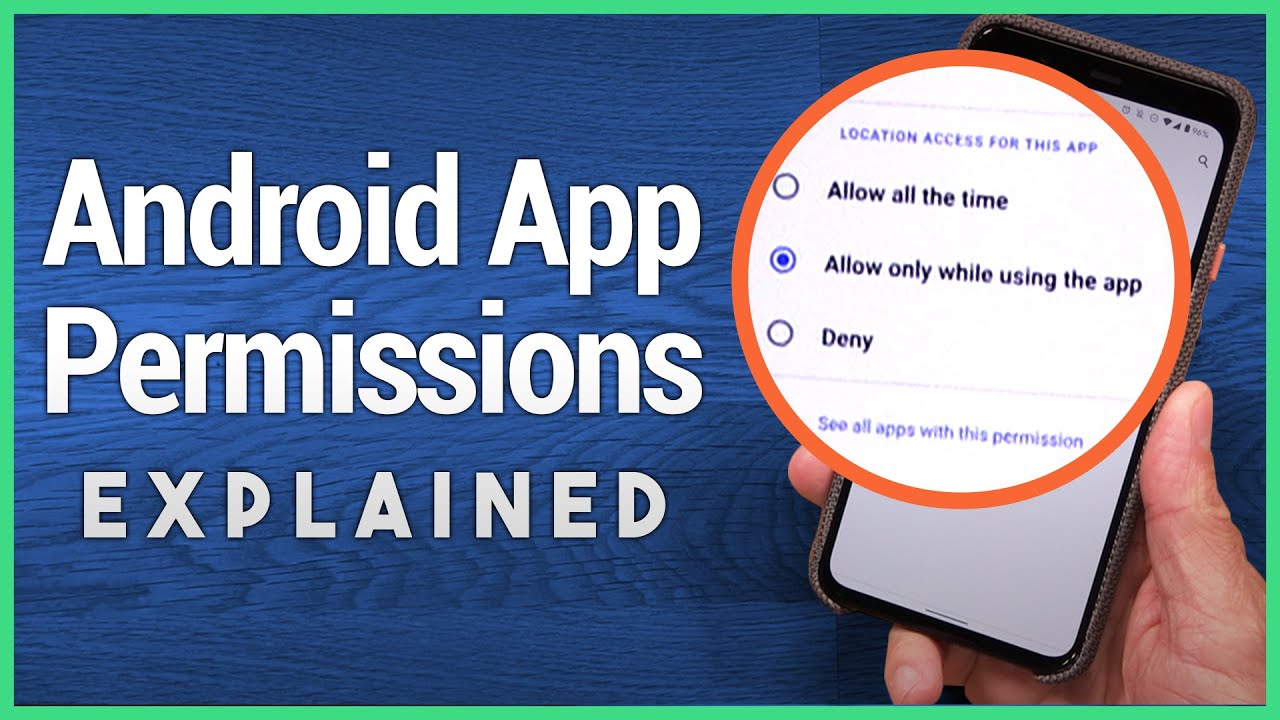
Most users grant permissions once and never revisit them. That’s a problem – apps accumulate access over time, and the permissions you granted an app two years ago may have nothing to do with how you use it today.
Android gives you solid tools to fix this. The question is whether you’ll actually use them.
Permission Manager: View by Permission Type
Path: Settings → Privacy → Permission Manager
This view organizes permissions by category rather than by app. Tap “Location” and you’ll see every app that has location access, along with the scope (all the time, while using, or denied).
This is the fastest way to audit a specific permission across all your apps at once. Reviewing per-app settings in the app list is slow and easy to miss.
Per-App Permission View
Settings → Apps → [App Name] → Permissions shows every permission that specific app holds, along with its current status.
Revocation is immediate. Toggle off a permission and the app loses that access the moment you confirm. You don’t need to uninstall anything.
Useful when an app requests a permission that seems unrelated to what you use it for. Deny it and see if the app breaks – if it doesn’t, the permission wasn’t necessary.
Auto-Reset for Unused Apps
Android 11 introduced automatic permission reset for apps that haven’t been used in a few months. The system revokes dangerous runtime permissions on its own, without requiring user action.
Google expanded this to devices running Android 6.0 and higher via a Google Play Services update in December 2021 – meaning the feature covers billions of devices, not just newer ones (Android Developers Blog).
Key detail: Only runtime permissions are reset. Normal permissions and signature permissions are not affected.
The Privacy Dashboard
Introduced in Android 12, the Privacy Dashboard gives a 24-hour timeline of which apps accessed your camera, microphone, and location, and when.
- Find it under Settings → Privacy → Privacy Dashboard
- Shows access events as a visual timeline
- Tap any entry to go directly to that app’s permission settings
This is the most useful diagnostic tool for catching unexpected access. If a weather app pinged your location at 3am, the dashboard will show it.
ADB for Power Users
The Android Debug Bridge lets you view and revoke permissions from a desktop terminal without touching the phone’s settings UI.
Useful commands:
adb shell dumpsys package [packagename]– lists all declared and granted permissionsadb shell pm revoke [package] [permission]– revokes a specific permissionadb shell dumpsys package | grep -A5 "accessibility"– lists all enabled accessibility services
Not practical for average users, but the third command specifically is worth knowing. It’s one of the cleaner ways to check for hidden accessibility service abuse from potential malware without installing a third-party tool.
For a broader look at the developer-side tools available in the Android ecosystem, the developer options on Android cover a range of diagnostics beyond just permissions.
What Google Play Requires from Developers Around Permissions
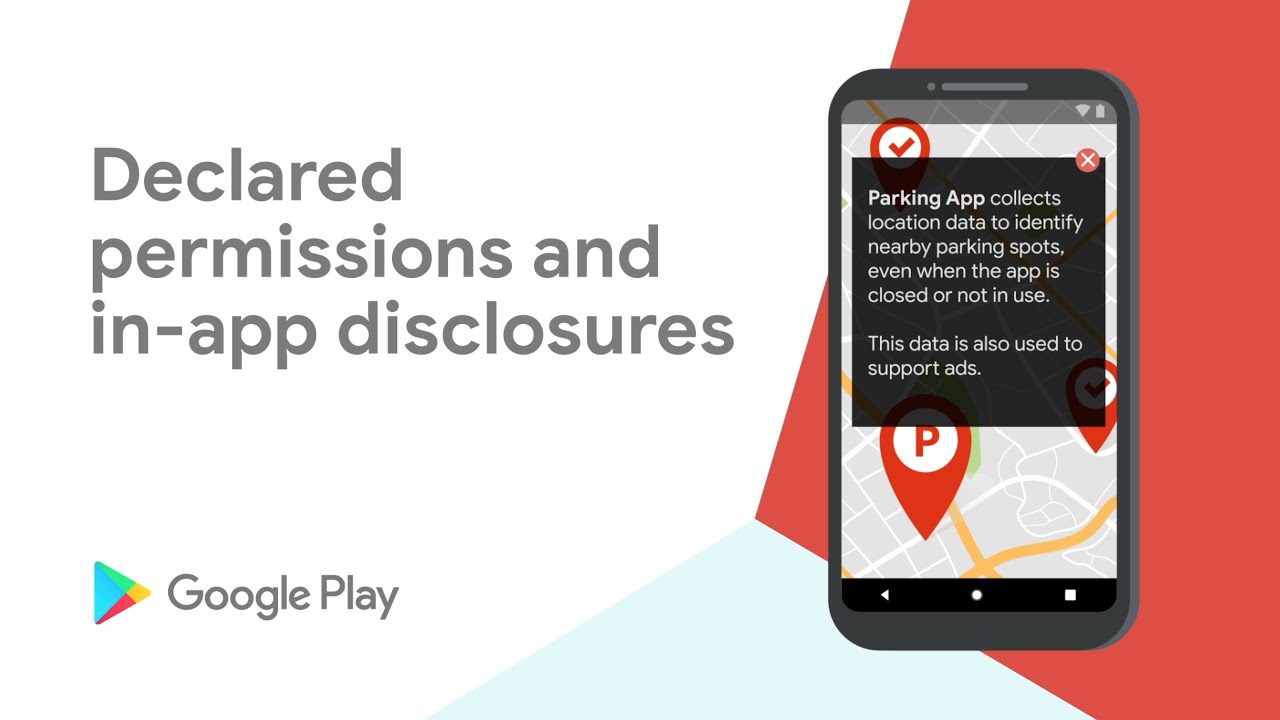
The permission experience users see is shaped as much by Google’s developer policies as by Android itself. Google Play enforces rules on what permissions apps can request, how they must request them, and what justification is required.
Enforcement has gotten significantly stricter since 2023 – and it affects what ends up in the Play Store.
The Core Rule: Permissions Must Be Proportional
Apps may only request permissions that are necessary for their core functionality. “Necessary” is defined narrowly. An app that incidentally uses photos once during onboarding does not qualify for persistent broad photo access.
Google’s policy update in October 2023 introduced the Photo and Video Permissions policy specifically because too many apps were holding READMEDIAIMAGES and READMEDIAVIDEO without genuine need.
From January 2025 onward, apps carrying these permissions must either submit a declaration form proving core use or remove the permissions entirely (Google Play Developer Policy Center). Apps with one-time or infrequent media needs must use the system photo picker instead.
Restricted Permissions Requiring Policy Review
A handful of permissions are so sensitive that requesting them triggers an additional review by Google Play’s team. These can’t be used freely – they require a Permission Declaration Form explaining the justified use case.
| Permission | Why It’s Restricted | Who Gets an Exception |
|---|---|---|
| SMS / CALL LOG | Privacy risk, fraud potential | Default SMS/phone apps, banking apps |
| BIND_ACCESSIBILITY_SERVICE | Deep system control, spyware risk | Genuine accessibility tools only |
| ACCESS_BACKGROUND_LOCATION | Persistent tracking without consent | Navigation, delivery, safety apps |
| READ/WRITE_EXTERNAL_STORAGE | Broad file system access | File managers, backup apps |
Data Safety Section and Prominent Disclosure
Since December 2022, Google Play requires every app to complete a Data Safety form disclosing what data it collects, why, and whether it’s shared with third parties. This information appears publicly on the app’s Play Store listing.
The disclosure requirement doesn’t just apply to the app itself. Developers are responsible for the SDKs bundled inside their app – if a third-party SDK collects data or uses permissions, the developer must account for that in the declaration (Google Play Developer Policy Center).
This is something that trips up a lot of teams in software development – especially when using ad SDKs or analytics libraries that quietly declare their own permissions in their own manifest files, which then get merged into the app’s manifest at build time.
API Level Targeting Requirements
Starting August 31, 2024, new app submissions to Google Play must target Android 14 (API level 34). Existing apps must target at least Android 13 to remain available to new users on newer devices (Google Play Policy Center).
This matters for permissions directly. Apps targeting older API levels don’t receive the newer permission restrictions. A malicious or poorly maintained app targeting API 22 could theoretically still operate under the pre-Marshmallow all-or-nothing permission model on compatible devices.
Keeping apps updated to current API targets isn’t just a feature consideration – it’s part of the mobile app security best practices that keep users protected by the latest permission controls.
Permissions in Third-Party App Stores and Sideloaded APKs

Everything discussed so far about Google Play policy, permission review, and developer accountability applies only to apps distributed through Google Play.
Sideloaded apps and apps from third-party stores operate entirely outside that framework.
What Sideloading Actually Bypasses
Installing an APK outside Google Play requires granting the INSTALLUNKNOWNAPPS permission to whatever app handles the install (typically a browser or file manager). That single step removes every protective layer Google Play provides:
- No automated permission review
- No policy compliance check
- No Data Safety form requirement
- No Play Protect pre-install scan
The app can declare any permission it wants in its manifest – including BINDACCESSIBILITYSERVICE, RECEIVESMS, or PROCESSOUTGOINGCALLS – and nothing will flag it during installation.
The Numbers on Sideloading Risk
Users who sideload apps are 80% more likely to have malware running on their devices compared to users who don’t (Zimperium). In 38.5% of detected malware cases, the source traces directly back to a sideloaded application.
A separate analysis of modded app markets found that 6.82% of apps from modded markets were classified as malicious, compared to 1.70% of Google Play apps in the same dataset (arXiv, 2024). For code-modified apps specifically, the malicious rate jumped to 8.59%.
Sideloaded apps have a 200% higher chance of containing malware than Play Store apps, according to Certo research. That’s not a marginal difference.
Third-Party Stores: A Spectrum of Risk
Not all third-party stores carry equal risk. The Amazon Appstore runs its own vetting process with policies broadly similar to Google Play’s. F-Droid focuses on open-source apps and reviews code. APKPure and similar sites host Play Store mirrors but apply no meaningful permission review.
Key difference from the Play Store: None of these stores require a Permission Declaration Form for restricted permissions. An app on APKPure claiming to need accessibility services for “battery optimization” faces zero policy challenge.
The difference between APK and AAB formats is also relevant here – AAB (Android App Bundle) is the current standard for Play Store distribution and is not compatible with direct sideloading, meaning sideloaded apps almost always come as APKs, which is the older and less restricted format.
How to Reduce Risk When Sideloading
Some legitimate reasons to sideload exist – developer testing, apps not available in your region, open-source tools from trusted repositories. The risk is real but manageable with deliberate habits.
- Source check: Only install APKs from the developer’s own site or a trusted open-source repository like F-Droid
- Permission audit pre-install: Use a tool like APK Analyzer or jadx to inspect the manifest before installing
- Revoke INSTALLUNKNOWNAPPS after installation is complete – there’s no reason to leave it on
- Run Play Protect manually after sideloading: Settings → Security → Google Play Protect → Scan
For any kind of structured mobile app security checklist approach, auditing sideloaded apps and third-party store sources should be a first-pass item – not an afterthought.
It’s also worth comparing how Android handles these risks versus iOS. The Android vs iPhone security model differs significantly here: iOS has historically prevented sideloading entirely, though EU regulations changed that starting in 2024 for European users.
FAQ on Android App Permissions
What are Android app permissions?
Android app permissions are access requests apps make to protected system resources or user data. Each permission is declared in the app’s AndroidManifest.xml before installation. The system then decides whether to grant it automatically or prompt the user for approval.
What is the difference between normal and dangerous permissions?
Normal permissions are granted automatically at install – low risk, no user prompt needed. Dangerous permissions require explicit user approval at runtime because they expose sensitive data like location, contacts, microphone, or camera access.
How do I check which permissions an app has on Android?
Go to Settings → Apps → select the app → Permissions. For a broader view, use Settings → Privacy → Permission Manager to see every app holding a specific permission type, like location or microphone.
Can I revoke app permissions without uninstalling the app?
Yes. Open Settings → Apps → select the app → Permissions, then toggle off any permission. The change takes effect immediately. The app loses that access without requiring a reinstall or any other action.
What happens if I deny a permission on Android?
The app loses access to that resource. If you deny the same permission twice, Android treats it as a permanent “don’t ask again.” The app can no longer show the system dialog and must direct you to Settings manually to re-enable it.
What are one-time permissions on Android?
Introduced in Android 11, one-time permissions grant temporary access to camera, microphone, or location for a single session. Once the app moves to the background, the permission is automatically revoked and must be re-granted next time.
Do unused apps lose their permissions automatically?
Yes. Android 11 introduced auto-reset for unused apps. If an app targeting Android 11 or higher isn’t used for a few months, the system automatically revokes its dangerous runtime permissions. This feature was extended to Android 6.0+ devices in December 2021.
Are sideloaded apps more dangerous in terms of permissions?
Significantly. Sideloaded APKs bypass Google Play’s permission policy review entirely. They can declare any permission – including restricted ones like BINDACCESSIBILITYSERVICE – with no declaration form or policy check. Zimperium data shows sideloading users face 80% higher malware risk.
What is the most dangerous Android permission?
BINDACCESSIBILITYSERVICE is widely considered the most dangerous. It grants deep system control – reading screen content, simulating taps, interacting with any app. Legitimate screen readers use it, but banking Trojans abuse it to overlay fake login screens and intercept authentication codes.
How do Android app permissions differ from iPhone app permissions?
Both platforms use runtime permission models, but they differ in scope and controls. Android offers more granular management via Permission Manager and auto-reset features. For a direct comparison, see how app permissions on iPhone handle location, microphone, and photo access differently.
Conclusion
This conclusion is for an article presenting how android app permissions work, how they’ve evolved, and why they matter for your privacy and security.
The runtime permission model, granular media access, one-time grants, and auto-reset features give users real control – but only if they use them.
Regularly audit your Permission Manager. Revoke access that doesn’t match what an app actually does. Be skeptical of apps requesting READCALLLOG, SENDSMS, or BINDACCESSIBILITYSERVICE without a clear reason.
Sideloaded APKs and third-party stores operate outside Google Play’s policy framework entirely. That’s a risk worth taking seriously.
Permission management isn’t a one-time task. Check in quarterly, especially after app updates.

- Notepad++ Android Options: Apps That Come Close - October 21, 2026
- Data Management Services: A Practical Guide for Growing Companies - October 21, 2026
- MongoDB Cheat Sheet - October 20, 2026


