

Most iPhone users tap “Allow” without reading the prompt. That one habit gives apps access to your location, microphone, contacts, and photos, often without a second thought.
Understanding app permissions on iPhone is one of the most practical things you can do for your privacy. iOS gives you precise control over what each app can access, but only if you know where to look.
This guide covers everything: how the permission system works, where to manage it, and which permissions carry the most risk if left unchecked.
By the end, you’ll know exactly what your apps have access to and how to change it.
What Are App Permissions on iPhone

App permissions on iPhone are system-level controls that grant or deny an app’s access to hardware features and personal data stored on your device. When an app wants to use your camera, location, or contacts, iOS stops it and asks you first. You either allow it or you don’t.
That’s the basic idea. But the actual permission architecture underneath it is more structured than most users realize.
Apple built a framework called TCC (Transparency, Consent, and Control) that manages every sensitive access request on both iOS and macOS. It operates as a daemon running in the background, maintaining a database of decisions you’ve made for each app. No app can bypass it through normal code execution.
As of September 2024, roughly 50% of free iOS apps report collecting private data from users, compared to only 13.5% of paid apps, according to 42matters data published by Statista. The gap makes sense: free apps rely more heavily on data for revenue.
How iOS Handles Permissions Differently Than Android
iOS requires explicit per-permission prompts at the moment a feature is first used, not during installation. Android historically bundled permission requests at install time, which led to users clicking “accept all” without thinking.
Apple’s model forces a real decision at a real moment.
| Feature | iOS | Android |
|---|---|---|
| Permission timing | At first use of a feature | At install or first use (varies by version) |
| Granularity | Per-permission, per-app | Per-permission, per-app |
| Photo access | Selected photos or full library | Full library (most versions) |
| Tracking opt-in | Required via ATT framework | No equivalent system-level requirement |
If you’re also managing an Android device, the permission logic shares similarities, but iOS applies stricter defaults across the board.
The Three Permission States iOS Uses
Allow Once: Permission is granted for a single session. The next time the app needs access, it prompts again. Works well for camera use in one-off situations.
Allow While Using App: Access is limited to when the app is actively in the foreground. Background use is blocked unless the user explicitly grants it later.
Never / Don’t Allow: Access is denied completely. The app either degrades gracefully or loses the feature entirely.
Some permissions add a fourth state. Location, for instance, includes Always, which lets an app access your position even when you’re using something else entirely.
When Permissions Are Requested
iOS doesn’t prompt for permissions at app launch unless the app specifically needs something to function from the start. A navigation app asking for location immediately makes sense. A recipe app doing the same thing on first open is a red flag.
Privacy Nutrition Labels on the App Store now influence 94% of user download decisions, according to 2025 data. That’s a meaningful shift. Before, most people had no idea what an app collected until it was already installed.
Where to Find and Manage App Permissions on iPhone
There are two ways to reach permission settings on an iPhone. Both work, and which one you use depends on what you’re trying to do.
The first path is Settings > Privacy & Security. This groups permissions by type. Tap “Location Services” and you see every app with location access. Tap “Camera” and you see every app that’s asked for camera access. Good for auditing one permission type across all apps at once.
The second path is Settings > [App Name]. This shows everything that specific app holds. Useful when you want to review or revoke multiple permissions for one app without jumping between menus.
How to Change App Permissions
Revoking a permission takes about three taps.
- Go to Settings > Privacy & Security
- Select the permission type (Camera, Microphone, Contacts, etc.)
- Find the app and change the toggle or access level
Alternatively: Settings > scroll to the app > tap it > adjust permissions directly from the app’s settings page.
What happens after you revoke access depends on the app. Most handle it gracefully and just disable the feature that needed the permission. Some crash or display an error. Well-built apps detect the change and prompt you to re-enable it in Settings if the feature is needed.
I’ve seen a few apps where revoking camera access mid-session caused a force close. That’s a sign of poor error handling in the app, not an iOS problem. Worth knowing before you start toggling things during an active recording.
Reading What an App Currently Has Access To
Most users grant permissions once and forget about them. Months later, an app you barely use still has microphone access.
The App Privacy Report (Settings > Privacy & Security > App Privacy Report) was introduced in iOS 15.2 and shows a rolling 7-day history of what each app accessed. Location, camera, microphone, contacts, photos – all logged with timestamps. It also shows which external domains each app contacted, which is where things get interesting.
The report is opt-in and stored entirely on your device. Apple doesn’t collect it. You can also check on how to see the App Privacy Report on your iPhone for a full walkthrough of what each section means.
Location Permissions
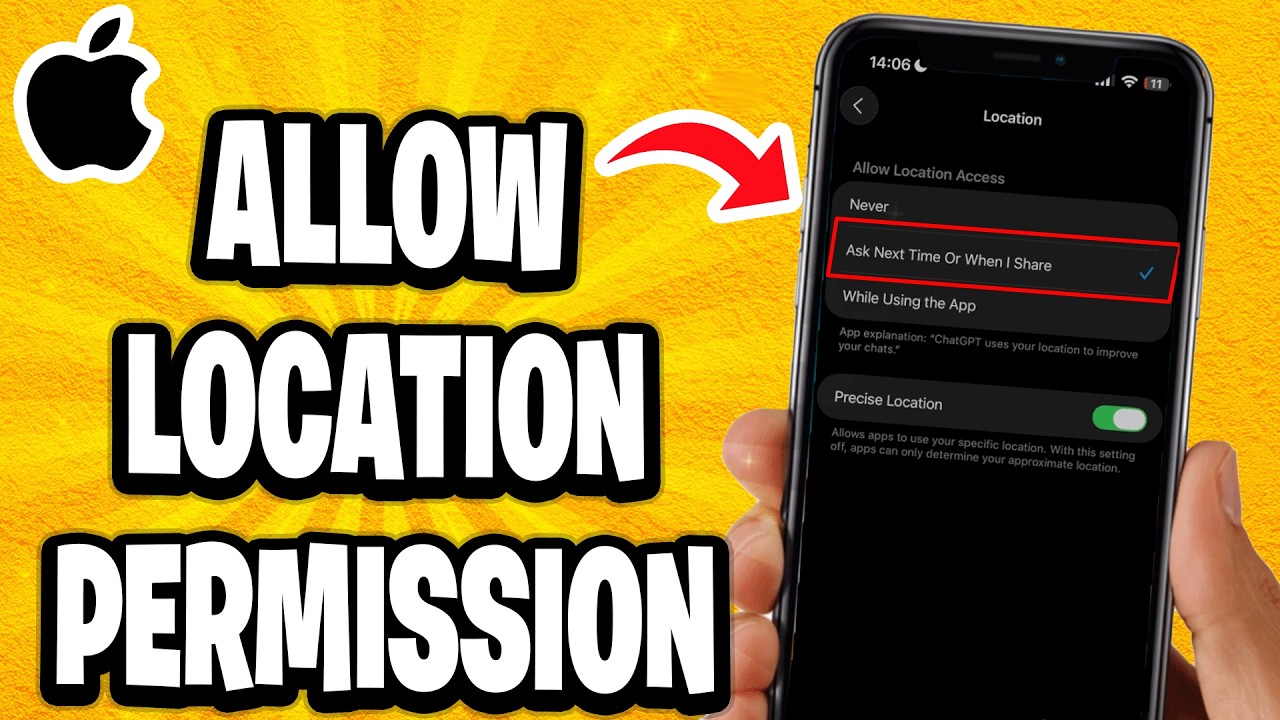
Location is the most layered permission on iOS. It’s not just on or off. Apple built a four-state system, and since iOS 14, added a separate toggle for precision.
More than 94% of users deny unnecessary background location access, according to Statista research. That number tells you how sensitive people have become to this particular data point.
The Four Location Access States
Never: App gets no location data. Ever.
Ask Next Time or When I Share: iOS holds the decision until the user acts again. Shows the full option set – Always, While Using, or Don’t Allow – at the next relevant moment.
While Using App: Location data flows only when the app is actively on screen. The moment you switch to another app, access pauses.
Always: The app can access location in the background, even when you’re using something else. iOS will periodically remind you this is happening and show a map of where the app accessed your location.
Precise vs. Approximate Location
Added in iOS 14, this toggle sits inside each app’s location settings. Precise Location on gives exact GPS coordinates. Precise Location off returns only a general area – roughly city-level accuracy.
Most apps don’t need precise location. A weather app works fine with approximate. A food delivery app tracking your driver’s arrival time needs precise. A social app with a “nearby friends” feature? That one’s worth thinking about before enabling precise.
| App Category | Recommended State | Precise Location |
|---|---|---|
| Navigation / Maps | While Using or Always | On |
| Weather | While Using | Off |
| Delivery tracking | While Using | On |
| Social / dating | While Using | Off |
| Fitness / running | Always | On |
Battery and Privacy Implications of Always Access
Granting “Always” location permission increases background activity. The app can wake up from a suspended state to log your position. That has a real battery cost, especially with multiple apps holding Always access simultaneously.
The practical advice: treat “Always” as an exception, not a default. Navigation apps and fitness trackers earn it. Most others don’t.
Apple’s iOS periodically surfaces a reminder showing where an app used your location in the background. If that map looks wrong, go revoke the permission.
Camera and Microphone Permissions

These two permissions carry the highest privacy sensitivity on any iPhone. An app with camera or microphone access has a direct line to what you do and say in real life.
Apple added hardware-level indicators in iOS 14 to make misuse visible.
The Orange and Green Dot Indicators
The dots appear in the top-right corner of your screen, near the signal bars.
- Orange dot: Microphone is actively in use
- Green dot: Camera is active (or camera and microphone together)
These are hardware-level signals, not software flags. An app cannot suppress them through code. If you see an orange dot when no obvious app should be recording, open Control Center – it shows which app triggered the indicator most recently.
Apple added a camera recording awareness indicator in iOS 17 that extends this further, alerting users when an app captures the screen alongside camera input.
When Apps Request Both Camera and Microphone
Video calling apps like FaceTime, Zoom, and Teams need both simultaneously – that makes sense. Voice memo apps need only the microphone. A barcode scanner app needs only the camera.
An app requesting both when it has no obvious video feature is worth examining. Check the App Privacy Report to see how often each was accessed and whether the frequency matches your actual usage.
Apps with ATT opt-in rates below 30% lose an average of 58% of advertising revenue (AppsFlyer, 2025). That’s why some apps push for more permissions than they need – data gaps from tracking restrictions push them toward other data sources, including sensor access.
Revoking Camera or Microphone Access
Settings > Privacy & Security > Camera (or Microphone) > toggle off the app.
The app loses access immediately. No restart required. Most apps handle this by disabling the relevant feature. Some will prompt you to re-enable it. A few handle it poorly and crash – again, that’s an app-side coding issue, not an iOS bug.
I prefer checking these two permissions quarterly. It’s one of those things that creeps up on you – apps accumulate permissions over time, especially ones you installed years ago and barely use now.
Contacts, Calendar, and Reminders Permissions
These three permissions sit in a different category than camera or location. They don’t feel as alarming in the moment, but the data involved is arguably more personal. Your contacts list contains other people’s information too, not just yours.
Around 27 out of 50 popular apps analyzed by Cybernews requested access to accounts and contacts data – permissions that can expose sensitive contact information well beyond what the app’s stated purpose requires.
Contacts Access: Full vs. Limited

iOS 18 introduced a significant change: Limited Contacts access. Instead of choosing between full access and nothing, users can now share only specific contacts with an app. The app sees what you hand it, nothing else.
This matters more than it sounds. A messaging app that wants to show you which friends are already using the service doesn’t need your entire address book. It needs a subset. Now you can give it exactly that.
Social apps, dating apps, and productivity tools are the most aggressive requesters of full contacts access. The reason is usually “find your friends” – a feature that benefits the app’s growth more than it benefits you.
Calendar and Reminders: Read vs. Write
iOS splits calendar access into read (the app can see your events) and write (the app can add or modify events). Most users don’t notice this distinction in the permission prompt, but it matters.
- A read-only integration pulls your schedule into a third-party productivity app
- Write access lets an app add events without your direct input each time
- Full access combines both
Check which level an app holds. Settings > [App Name] > Calendars shows the current state. An app that only needs to display calendar data doesn’t need write access. If it has it, that’s worth changing.
Photos and Media Permissions
Photo permissions went through more changes in recent iOS versions than almost any other permission type. Apple progressively tightened what apps can request, moving from all-or-nothing toward a system where users control exactly what gets shared.
As of September 2024, roughly 50% of free iOS apps declared they collect data from users (42matters / Statista) – and photo library access is one of the most common vectors for that collection.
The Three Access Levels
No Access: The app cannot see or use any photos.
Selected Photos: You hand-pick which images the app can see. It gets nothing else. The app cannot browse your full library or discover what you chose not to share.
Full Library: The app can access every photo and video on the device. This is what most apps ask for and what most users grant without thinking.
Selected Photos access was introduced in iOS 14 and significantly improved in iOS 16. In iOS 17, Apple added automatic re-prompting – apps that have full library access will periodically remind you that they do and ask if you want to limit it.
What Apps Can Do With Full Library Access
Full access means the app can read metadata (location data embedded in photos, timestamps, device info), scan for specific image types, and in some cases, sync your library to external servers. That’s a lot of exposure for a permission many people grant in two seconds.
The Add Photos Only option (available for some apps) lets an app save new photos to your library without being able to read what’s already there. Useful for camera apps that save shots without needing to browse your existing content.
Practically speaking: most apps that ask for full library access don’t need it. A profile photo upload needs one image, not your entire library. Tap “Selected Photos,” pick the one you want, done. You can always go back and expand access later if the app genuinely needs it.
How to Review and Change Photo Access
Settings > Privacy & Security > Photos shows every app with access and at what level.
Alternatively, check this in the App Privacy Report – if an app is touching your photo library far more often than you’d expect based on how you use it, that’s a sign something’s off. You can also find detailed steps on how to give apps access to photos on iPhone, including how to manage the selected-only option for specific apps.
Tracking and App Tracking Transparency (ATT)

App Tracking Transparency is the most structurally significant privacy change Apple has made to iOS in the past decade. It didn’t just add a prompt. It fundamentally changed the economics of mobile advertising.
Since its launch with iOS 14.5 in April 2021, global ATT opt-in rates have climbed steadily. AppsFlyer data from Q1 2024 shows 50% of users globally now opt in to tracking, up 10% from ATT’s initial rollout.
What ATT Actually Does
What it controls: ATT governs whether an app can link your device data with data from other companies’ apps, websites, or offline properties for advertising purposes. It also covers sharing data with data brokers.
What it doesn’t control: First-party analytics within a single app. An app can still track your behavior inside itself without asking for ATT permission.
The key identifier involved is the IDFA (Identifier for Advertisers). Before iOS 14.5, apps accessed it by default. Now they have to ask. Research published via the FTC shows ATT reduced the share of trackable Apple traffic in the U.S. by 55 percentage points, dropping from 73% to 18% for ad impressions.
How the ATT Prompt Works
Industry-wide ATT opt-in averages around 35% for users shown the prompt (Adjust, Q2 2025), but this varies significantly by app category.
| App Category | Typical Opt-In Rate |
|---|---|
| Sports gaming | ~50% |
| Hyper casual gaming | ~43% |
| Top-performing apps (all categories) | 50–70% |
| Industry average (all apps) | 25–35% |
Apps that show a custom pre-permission explanation before triggering Apple’s system prompt can increase opt-in rates by 20–40 percentage points, according to attribution platform data.
The Limits of ATT: What Apple Can’t Enforce
ATT stops IDFA access. It doesn’t stop server-side tracking, probabilistic fingerprinting attempts, or data that users voluntarily submit (like email addresses used for cross-platform matching).
Apple explicitly prohibits device fingerprinting in its developer guidelines. In iOS 17, Safari began stripping tracking parameters from URLs in Messages and Mail. iOS updates continue tightening what’s technically possible for apps to infer without consent.
To review which apps you’ve allowed or denied tracking, go to Settings > Privacy & Security > Tracking. Each app’s decision is listed there and can be changed at any time. Facebook’s response to ATT illustrates the scale of the impact: Meta reported billions in lost revenue attributed directly to the ATT framework’s enforcement.
Notifications Permissions

Notifications are the permission that affects daily iPhone experience the most visibly. Every alert, badge, and sound from a third-party app requires explicit permission. That single prompt you see at first launch is your only one chance before the system locks the decision.
iOS push notification opt-in rates sit between 40–58% across iOS devices, according to MoEngage and Airship data from 2023–2024. Lower than Android, but the consent is more deliberate.
How iOS Handles the Permission Request
Apple shows the notification permission prompt exactly once. If the user taps “Don’t Allow,” the app cannot ask again. The only path back is for the user to go into Settings manually and enable it themselves.
That’s why timing matters so much. Apps that request notification permission immediately at first launch see significantly lower acceptance rates than those that wait for a moment of demonstrated value.
Provisional notifications (introduced in iOS 12) offer a workaround: apps can deliver quiet notifications to the Notification Center without a prompt, appearing only if the user scrolls down. iOS then asks the user to keep or disable them after they’ve seen one. It’s a low-friction path that can warm users up before a formal request.
Focus Modes and Their Interaction With Permissions
Focus Modes don’t change whether an app has notification permission. They filter which allowed notifications actually break through at a given time.
- Personal Focus: silence everything except contacts you select
- Work Focus: allow specific apps and contacts during work hours
- Sleep Focus: suppress nearly all alerts
- Custom Focus: build any combination
An app with full notification permission can still be silenced by a Focus Mode. These are complementary controls, not the same thing. Managing both keeps your notification environment actually useful rather than just technically permitted.
Notification Settings Worth Checking
Settings > Notifications > [App Name] shows the full breakdown for each app: alerts, sounds, badges, lock screen visibility, and banner style. Most users set these once and never revisit them.
The Scheduled Summary feature (iOS 15+) bundles low-priority notifications into a digest delivered at a set time. Useful for news apps and social platforms that send frequent but non-urgent alerts. It doesn’t revoke their permission; it just holds delivery until you’re ready to see it.
You can also check on Screen Time on iPhone for per-app notification counts over time, which helps identify which apps are generating the most interruptions each day.
Background App Refresh and Its Relation to Permissions

Background App Refresh is not a privacy permission. It doesn’t control what data an app can access. It controls whether an app can use its already-granted permissions while you’re doing something else.
The distinction matters. Most users conflate the two.
What Background App Refresh Actually Does
When Background App Refresh is on for an app, iOS can wake that app from a suspended state to fetch new content. News apps pull fresh headlines. Email clients check for messages. Social apps pre-load your feed so it’s ready when you open it.
Independent battery telemetry from iFixit’s 2023 iOS Efficiency Lab found Background App Refresh contributes to 11–19% of total idle battery drain on iPhones from XR through 13. Disabling it on an iPhone 11 adds roughly 17% more standby time.
Disabling BAR doesn’t block push notifications. Those are handled by Apple’s Push Notification service (APNs) separately. Messages, calls, and most app alerts still arrive normally.
How It Connects to Location “Always” Access
Key dependency: If you grant an app “Always” location access but turn off Background App Refresh for that app, the app’s ability to use background location is affected.
Navigation apps and fitness trackers need both enabled to function correctly in the background. For most other apps, disabling Background App Refresh while leaving location set to “While Using” is the safer default.
Check Settings > General > Background App Refresh for the full list. The global toggle disables it for everything. Per-app control lets you leave it on for apps that genuinely need it, like a battery-draining app you want to monitor, while killing it for social apps and news clients.
Per-App vs. Global Toggle
Most users don’t need Background App Refresh enabled broadly.
- Leave on: navigation, fitness tracking, cloud sync tools
- Turn off: social media, shopping, news, games
Independent tests from 2024 and early 2025 show battery life improves by 10–25% on heavy-refresh days after disabling Background App Refresh for non-essential apps, according to multiple device analysis sources.
App Permission Requests iOS Will Never Allow

iOS does not give apps access to everything. Some data simply doesn’t exist as a permission type on iPhone, regardless of what you agree to.
This is worth knowing. A lot of concern about phone privacy assumes apps can access things they genuinely can’t. Understanding the hard limits helps separate real risks from hypothetical ones.
What iOS Permanently Blocks
All third-party apps on iPhone run inside a sandboxed environment. Apple describes this in its security documentation: each app has a unique home directory assigned at install, and no app can access data stored by another app except through system-provided interfaces (Apple Security, 2024).
In practice, this means:
- No app can read your SMS or iMessage history (no permission for this exists)
- No app can access call logs from the Phone app
- No app can see another app’s data or files directly
- No app can read your keychain passwords without being granted access by the OS
During 2024, 34 CVEs were disclosed that could theoretically be used to escape the iOS sandbox, according to Zimperium security research. Apple patches these aggressively. For the overwhelming majority of users on updated iOS versions, sandbox restrictions hold.
NFC Limitations Compared to Android
NFC access on iPhone is more restricted than on Android. Third-party apps can use NFC for reading tags, contactless payments via Apple Pay APIs, and some peer-to-peer scenarios introduced in later iOS versions.
What they can’t do: act as an open NFC reader the way many Android apps can. The Core NFC framework Apple provides is intentionally limited in scope.
If you’re evaluating whether to build for iOS vs. Android specifically for NFC-heavy features, this is worth factoring in. For more on how these two platforms differ at the architecture level, the comparison between Android and iPhone at a system level covers the major divergences in how permissions, hardware access, and app sandboxing are handled.
What App Store Review Enforces on Permissions
Apps are required to declare every data type they collect through Apple’s Privacy Nutrition Labels before they go live on the App Store. Apple rejected 12% of App Store submissions in Q1 2025 for Privacy Manifest violations, according to Secure Privacy research.
Declared permissions must match actual app behavior. If an app claims to collect no location data but its code requests location access, the review process flags it. Apple also performs ongoing audits of live apps.
An app cannot collect data beyond what it declares in its Privacy Nutrition Label without risking removal. That label, visible on every App Store product page, is the clearest signal of what an app intends to access before you install it.
FAQ on App Permissions iPhone
How do I check what permissions an app has on my iPhone?
Go to Settings, then tap the app name directly. You’ll see every permission it holds. Alternatively, go to Settings > Privacy & Security and browse by permission type to see all apps with that specific access.
How do I turn off location access for a specific app?
Go to Settings > Privacy & Security > Location Services. Find the app and tap it. Choose Never or While Using App to restrict background location access without breaking the app entirely.
Can apps access my microphone without me knowing?
Not on a patched iPhone. iOS shows an orange dot in the status bar whenever any app uses the microphone. Control Center also shows which app triggered it most recently.
What does “Allow Once” mean for iPhone app permissions?
The app gets access for that single session only. When you close it, the permission resets. Next time the app needs access, it prompts again. Good for one-off camera or location use.
How do I stop apps from tracking me on iPhone?
Go to Settings > Privacy & Security > Tracking. Toggle off any app listed there. You can also disable Allow Apps to Request to Track entirely, preventing apps from showing the ATT prompt at all.
What is the App Privacy Report on iPhone?
It’s a 7-day log showing how often each app accessed your location, camera, microphone, contacts, and photos. Find it under Settings > Privacy & Security > App Privacy Report. Enable it once and check it regularly.
Why does an app need access to my contacts?
Usually to find friends already using the same service. Since iOS 18, you can share only selected contacts instead of your full address book. Use that option whenever an app requests contacts access.
Does turning off Background App Refresh affect notifications?
No. Push notifications run through Apple’s servers independently. Disabling Background App Refresh stops apps from silently fetching content while idle, but messages, alerts, and calls still arrive normally.
What’s the difference between precise and approximate location on iPhone?
Precise location shares your exact GPS coordinates. Approximate location returns only a general area, roughly city-level. Find the toggle inside each app’s location settings under Privacy & Security > Location Services.
Can iPhone apps access my SMS messages or call logs?
No. iOS does not expose SMS history or Phone app call logs to third-party apps at all. No permission exists for this. The app sandbox blocks all cross-app data access at the system level.
Conclusion
This conclusion is for an article presenting how iOS permission controls work and why they matter for everyday data protection on iPhone.
The TCC framework, location services, camera indicators, and the App Privacy Report all exist for one reason: to put you in control of what your apps can actually do.
Most people never revisit permissions after granting them. That’s where the real exposure happens.
A quick audit through Settings > Privacy & Security takes five minutes. Revoking unnecessary access to contacts, photos, and background location costs nothing and removes real risk.
App Tracking Transparency changed the economics of mobile advertising. Using it properly is one of the simplest privacy decisions you can make on any iOS device.
Check your permissions. Adjust them. Then check again in a few months.

- Build or Buy an AI Chatbot for E-commerce: The Costs Nobody Budgets For - October 24, 2026
- How to Run a React App in VS Code Step by Step - October 23, 2026
- Transactional or marketing email: which messages your app should send itself - October 23, 2026


