

Your iPhone is one of the most distracting devices you own. And it’s sitting in your pocket right now.
Learning how to use Focus Mode to limit apps on iPhone gives you actual control over what your phone shows you and when. It’s not just silencing notifications. It’s reshaping what your Home Screen looks like the moment you need to concentrate.
This guide covers everything: setting up a Focus Mode from scratch, linking it to specific Home Screen pages, filtering app notifications, automating activation, and combining it with Screen Time for harder app restrictions.
By the end, you’ll have a working system, not just a setting you turned on once and forgot about.
What Is Focus Mode on iPhone
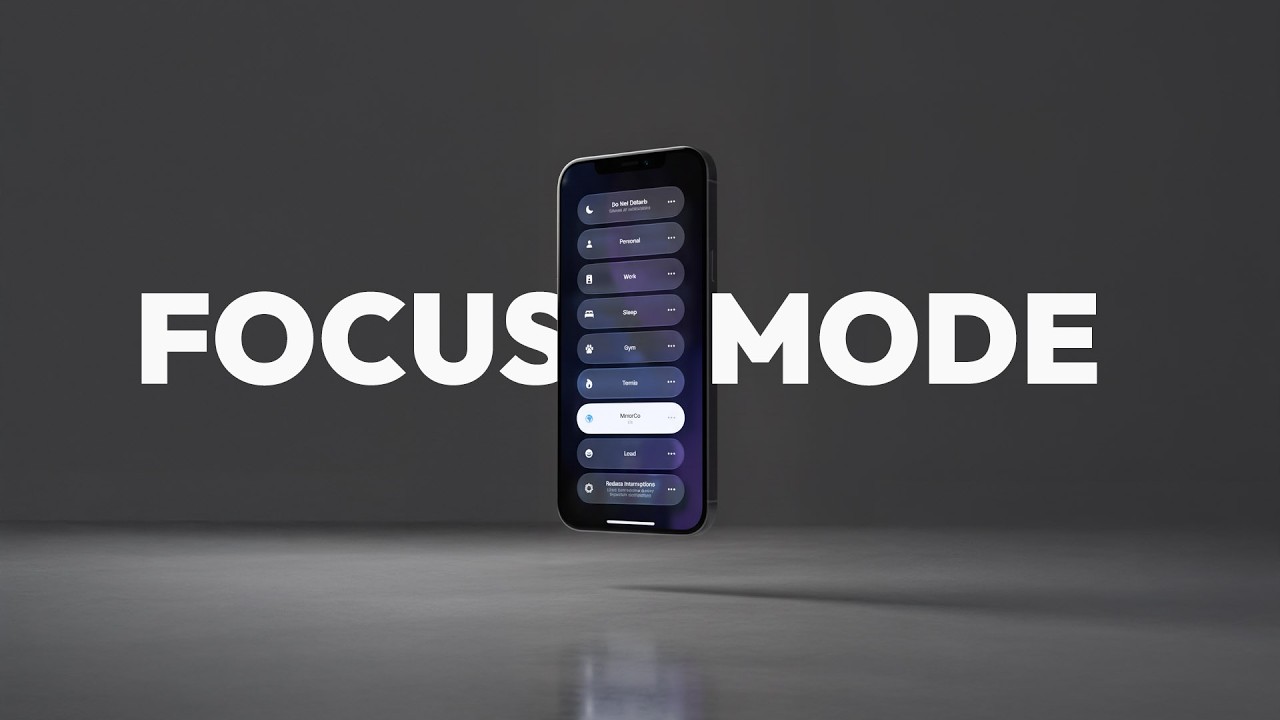
Focus Mode is a system-level feature Apple introduced with iOS 15 that lets you filter notifications and control which apps appear on your Home Screen based on what you’re doing. It replaced the older Do Not Disturb setting with something much more flexible.
90% of iPhone users are on iOS 15 or later, according to Apple’s 2024 data, meaning almost everyone reading this already has access to it.
The core idea is context. Instead of one blanket silence-everything switch, you build separate profiles for different parts of your day.
How Focus Mode Differs from Do Not Disturb
Do Not Disturb blocks everything. Focus Mode is selective.
- Do Not Disturb: one setting, silences all notifications at once
- Focus Mode: per-profile rules for which apps and contacts can reach you
- Focus Mode: ties into Home Screen customization, so irrelevant apps disappear visually
- Focus Mode: syncs across iPhone, iPad, and Mac via iCloud
Think of Do Not Disturb as an on/off switch. Focus Mode is a set of dials. Both silence your phone, but only Focus Mode also changes what’s visible on your screen.
Built-In Focus Presets Available on iPhone
Apple ships several preset Focus profiles out of the box. You don’t have to build from scratch unless you want to.
| Preset | Default Trigger | Primary Use Case |
|---|---|---|
| Work | Schedule (time-based) | Office hours, deep work sessions |
| Personal | Manual or location | Downtime, family hours |
| Sleep | Health app sleep schedule | Nighttime wind-down |
| Driving | Auto-detected motion or CarPlay | Behind the wheel |
| Fitness | Manual or workout app launch | Gym, runs, training sessions |
Gaming, Mindfulness, and Reading are also included. iOS 18, released in 2024, added smarter automation and an Apple Intelligence-powered “Reduce Interruptions” mode for newer iPhone models.
How Focus Mode Controls App Access
Here’s where most people get confused. Focus Mode does not hard-block apps. It hides them.
The distinction matters. An app hidden by Focus Mode is still accessible through the App Library. It just won’t appear on your Home Screen, making it much less likely you’ll tap into it out of habit.
The App Hiding Mechanism Explained
When a Focus is active, only the Home Screen pages you’ve linked to that Focus stay visible. Every other page gets hidden.
Apps sitting on hidden pages won’t ping you with notifications either, unless you’ve specifically allowed them. The result: your Home Screen shows only what’s relevant to the task at hand.
Key distinction to understand:
- Focus hides apps from the Home Screen (visual suppression)
- Focus silences app notifications (alert suppression)
- Apps remain accessible via App Library swipe (no hard block)
- Screen Time handles actual hard blocks with time limits and passcodes
Research from Florida State University found that just receiving a notification, even without responding, causes enough distraction to impair focus on a given task. Hiding apps removes that visual trigger entirely.
Notifications vs. App Visibility: Two Separate Controls
Focus gives you two distinct levers, and they work independently.
Notification filtering: You decide which apps can still send alerts, badges, and sounds while Focus is on. Everything else gets silenced.
Home Screen filtering: You decide which pages (and therefore which apps) are visible on your screen. Apps on hidden pages go quiet visually.
You can silence notifications from an app while still keeping it visible on your Home Screen. Or hide it entirely. Your call.
75% of Americans cite digital notifications as a reason for inability to focus at work, according to TeamStage research. Having two separate controls means you can address both the badge anxiety and the visual distraction at once.
How to Set Up a Focus Mode on iPhone
Go to Settings > Focus. That’s the only place where full Focus configuration lives. The Control Center shortcut activates Focus, but doesn’t give you setup options.
Using an Existing Focus Preset
Tap any preset (Work, Personal, Sleep, etc.) and you’re immediately inside its settings screen.
From there:
- Tap People to allow calls or messages from specific contacts
- Tap Apps to whitelist specific apps for notifications
- Tap Options to control lock screen appearance and notification badge visibility
- Tap Add Schedule to set time, location, or app-based triggers
Apple Support confirms setup typically takes 10–15 minutes for a fully configured Focus with automation rules in place.
Creating a Custom Focus from Scratch
Tap the + icon in the top-right corner of the Focus screen.
You’ll be prompted to pick a category (like Fitness or Gaming) or go fully custom. Custom Focus lets you name it, pick a color, and assign an emoji or icon. After that, the configuration steps are identical to the presets: people, apps, Home Screen pages, and schedule.
A good real-world example: creating a “Study” Focus that allows only the Notes app and a timer app while silencing everything from social media. Students and remote workers do this regularly to carve out blocks of uninterrupted time.
How to Limit Which Apps Appear During a Focus
This is the part that actually changes what you see on your screen, and it requires a bit of prep work before you configure the Focus settings.
Step One: Build a Dedicated Home Screen Page First
Press and hold any blank area on your Home Screen until icons start jiggling. Scroll all the way to the right past your last page. Tap + to add a new blank page.
Add only the apps relevant to your Focus context. Work Focus page might have Calendar, Mail, Slack, and Notes. Nothing else. No social apps, no games, no shortcuts to things you don’t need during work hours.
Tap Done when finished. This page now exists and can be linked to a Focus.
Step Two: Link the Page to Your Focus
Go to Settings > Focus > [Your Focus] > Customize Screens. Tap the Home Screen option, then toggle on Custom Pages.
You’ll see thumbnails of all your existing Home Screen pages. Tap only the ones you want visible during this Focus. Everything else gets hidden automatically when the Focus is active.
| Action | Where to Do It | Result |
|---|---|---|
| Build a minimal page | Home Screen (jiggle mode) | Creates a page with only focus-relevant apps |
| Link page to Focus | Settings > Focus > Customize Screens | That page shows; all others hide |
| Access hidden apps | Swipe left to App Library | Still accessible, just not front-and-center |
Hidden apps don’t disappear from your phone. They move to the App Library. The friction of having to swipe and search is usually enough to break the habit-tap reflex.
How to Allow or Silence App Notifications During Focus

Hiding apps from your Home Screen handles the visual side. But apps can still notify you even when hidden. The notification settings inside Focus handle that separately.
Setting Up Your Allowed Apps List
Inside any Focus, tap Apps. You’ll see two sections: Allow Notifications From and Silence Notifications From.
Add only the apps that genuinely need your attention during this Focus context. For a Work Focus, that might be Slack, your calendar, and your task manager. Instagram, YouTube, and news apps go nowhere near that list.
Apps not on the allowed list won’t send sounds, banners, or badges while Focus is active.
Time-Sensitive Notifications and How They Work
App developers can flag certain alerts as Time-Sensitive. These break through Focus silencing by default because Apple considers them urgent enough to warrant interruption.
Examples of Time-Sensitive alerts:
- Package delivery notifications
- Medication reminders from health apps
- Flight check-in alerts
You can turn off Time-Sensitive bypass per app. Go to Settings > Focus > [Your Focus] > Apps, then adjust Time Sensitive settings for individual apps. This gives you full control over what can genuinely interrupt a session.
Research from UC Irvine found employees spend an average of 47 seconds or less on a task before self-interrupting. Limiting which apps can notify you during a Focus session directly addresses that pattern by reducing incoming trigger points.
How to Automate Focus Mode Activation
Manually turning Focus on every morning gets old fast. Automation is where it becomes a background system that just works.
Built-In Automation Triggers
Inside any Focus, tap Add Schedule. You get three trigger options:
Time-based: Focus turns on at a set time and turns off at another. Best for consistent daily routines like work hours or sleep schedules.
Location-based: Focus activates when you arrive at a specific location and turns off when you leave. A Work Focus that activates when you reach your office, for example.
App-based: Focus turns on the moment you open a specific app. Open your reading app and Personal Focus kicks in automatically. Close it and Focus turns off.
Smart Activation
Smart Activation is a toggle inside each Focus’s settings. When turned on, your iPhone learns your patterns over time and activates the Focus automatically based on time, location, and typical behavior, without you building explicit rules.
It’s imprecise at first. Give it a couple of weeks of consistent use and it gets noticeably better at knowing when to kick in.
Advanced Automation with the Shortcuts App
The iOS Shortcuts app unlocks more complex triggers that the built-in Focus settings don’t cover.
- Activate a Focus when your phone connects to a specific Wi-Fi network
- Chain multiple actions together when Focus turns on (e.g., lower brightness + enable Focus + open a specific app)
- Set Focus to activate when battery drops below a certain percentage
Most people won’t need this level of configuration. But if you’re building a tight productivity system around your phone, Shortcuts gives you the depth to do it properly.
How to Use Screen Time Alongside Focus to Hard-Block Apps
Focus Mode hides apps. Screen Time actually blocks them.
That’s the line most people miss. A determined user (or a curious kid) can still reach a hidden app through the App Library. Screen Time closes that door with a hard daily time cap and a passcode.
You can also combine this with tools that help lock distracting apps to maintain better focus and reduce unnecessary screen time.
App Limits vs. Focus App Hiding
| Feature | Focus Mode | Screen Time App Limits |
|---|---|---|
| Mechanism | Hides from Home Screen | Locks after daily time cap |
| App Library access | Still accessible | Blocked until limit resets |
| Passcode protection | No | Yes (Screen Time passcode) |
| Schedule control | Per Focus activation | Daily, always-on limit |
Focus mode features saw a 24% increase in daily activation compared to the prior year, according to Boomerang Parental Control’s 2026 research, showing more users are layering these tools together.
How to Set App Limits in Screen Time
Go to Settings > Screen Time > App Limits > Add Limit.
You can limit by individual app or by category (Social, Entertainment, Games). Set a daily time cap. When the limit hits, the app icon grays out and shows a small hourglass. To open it anyway, the user needs to enter the Screen Time passcode or request more time.
Pocket-lint’s testing confirms App Limits apply all the time, unlike Focus Mode. You can’t schedule them to only apply during work hours without using the Downtime feature as well.
Downtime: The Third Layer
Downtime schedules a recurring window where only approved apps work at all. Think of it as a nightly curfew for your phone.
- Set it under Settings > Screen Time > Downtime
- Choose specific days or every day
- Only apps in your Always Allowed list stay accessible
- Phone calls still come through by default
Pairing Work Focus (hides social apps during the day) with Screen Time App Limits (caps them at 30 minutes total) creates what LifeAt describes as a double-layer: Focus blocks the notifications, App Limits stop the “just one quick check” spiral.
Setting a Screen Time Passcode to Lock Focus Settings
Without a passcode, Screen Time limits are easy to dismiss with a tap. A four-digit Screen Time passcode makes that impossible without knowing the code.
Go to Settings > Screen Time > Lock Screen Time Settings. Enter a passcode, then confirm it. Keep this passcode separate from your iPhone unlock code. Apple Support confirms you can set up passcode recovery via your Apple Account if you forget it.
This matters most for parental control setups, but it’s also useful for self-control. Took me a while to realize this, but setting a passcode you don’t memorize (write it somewhere offline) is genuinely one of the more effective ways to make your own limits stick.
How to Share or Lock a Focus Mode
Focus configurations sync automatically across all your Apple devices when you’re signed into the same Apple ID. Turn on Work Focus on your iPhone and your iPad goes quiet at the same time.
Syncing Focus Across iPhone, iPad, and Mac
Share Across Devices is a toggle inside each Focus’s settings.
When it’s on, any Focus you activate on one device activates on all iCloud-connected devices instantly. This is useful for avoiding the situation where your iPhone is in Work Focus but your Mac is still pinging you with every notification.
iPhone Life confirms the sync requires Two-Factor Authentication to be enabled on your Apple Account. If 2FA is off, the toggle may appear but sync won’t work reliably.
Per-device overrides are available: turn off Share Across Devices for a specific Focus if you only want it to apply to your phone and not your Mac. Each device can then run independent Focus configurations.
Sharing a Focus Configuration with Others (iOS 16+)
Since iOS 16, you can share a Focus setup as a link. Useful for handing the same Work Focus configuration to a partner or family member without walking them through setup.
To share: Go to Settings > Focus > [Your Focus], tap the share icon in the top right corner, then send via Messages or AirDrop. The recipient opens the link and imports your Focus settings directly. They still have full control to modify it after importing.
Preventing Focus from Being Disabled Easily
Focus Mode has no native lock. Anyone can open Control Center and turn it off in two taps.
The workaround is indirect. Restrict access to the Settings app through Screen Time, or use a Screen Time passcode to prevent changes to Focus configurations. Neither option is airtight, but combined they add enough friction to matter in parental control scenarios.
For kids, the better approach is configuring Focus on the child’s device directly and pairing it with iPhone parental controls through Family Sharing. That way, Screen Time restrictions are managed from a parent’s device and can’t be easily reversed from the child’s end.
Common Focus Mode Problems and How to Fix Them
Most Focus issues fall into a small handful of categories. Here’s what’s actually causing them and how to fix each one.
Notifications Still Coming Through When Focus Is On
Three things cause this. Check them in this order.
Allowed apps list: Open Settings > Focus > [Your Focus] > Apps. Remove anything you didn’t intentionally add. Apps in this list ignore silencing.
Time-Sensitive notifications: Go to Settings > Focus > [Your Focus] > Apps and toggle off Time Sensitive. This stops apps from pushing through alerts Apple considers urgent, even when they’re not in your allowed list.
Allow Repeated Calls: If calls break through, go to People inside your Focus settings and turn off Allow Repeated Calls. Without this, a second call from any number within three minutes bypasses Focus completely.
Apps Not Hiding During Focus
The most common cause: the wrong Home Screen page is linked to the Focus, or no page is linked at all.
Go to Settings > Focus > [Your Focus] > Customize Screens > Home Screen. Check that Custom Pages is toggled on and that only the correct pages are selected with a blue checkmark. If all pages are checked, nothing gets hidden. That’s working as intended, just not configured correctly.
Also worth knowing: blocking apps through Focus only affects the Home Screen. The App Library always shows every app regardless of which Focus is active. That’s expected behavior.
Focus Turning Off Unexpectedly or Not Activating
Smart Activation can be the culprit. If it’s on, your iPhone decides when to turn Focus off based on behavior patterns, which doesn’t always match what you intended.
- Turn off Smart Activation inside the Focus settings if you want full manual control
- Check for conflicting schedules across multiple Focus modes overlapping at the same time
- After an iOS update, re-check your Focus schedules as update bugs sometimes reset automation settings
A force restart (hold Volume Down and Side button until the Apple logo appears) fixes most temporary glitches where Focus stops responding to schedule triggers entirely, according to iGeeksBlog’s troubleshooting guide.
Focus Not Syncing Across Devices
Two things to check:
First, confirm every device is signed into the same Apple ID. Second, go to Settings > Focus on each device and verify that Share Across Devices is toggled on for the relevant Focus profile.
If sync still fails after that, toggling Share Across Devices off and back on usually re-establishes the connection. AirDroid’s troubleshooting data confirms this resets the sync state without deleting any Focus settings.
Users managing screen time on their iPhone alongside Focus configurations should also verify that Screen Time settings aren’t interfering with notification delivery, as the two systems sometimes conflict when both are restricting the same apps simultaneously.
FAQ on How To Use Focus Mode To Limit Apps On iPhone
Does Focus Mode actually block apps on iPhone?
Not completely. Focus Mode hides apps from your Home Screen but doesn’t block them entirely. They’re still reachable through the App Library. For hard blocks with daily time caps, you need Screen Time App Limits alongside Focus.
Which iOS version do I need to use Focus Mode?
You need iOS 15 or later. Apple introduced Focus Mode as part of the iOS 15 update in 2021. Most iPhones from the iPhone 6s onward support it. Go to Settings > General > Software Update to check your current version.
Can I set Focus Mode to turn on automatically?
Yes. Inside any Focus profile, tap Add Schedule to trigger it by time, location, or app launch. Smart Activation also learns your patterns and activates Focus automatically. Both options work without any manual switching.
Will Focus Mode silence all notifications?
It silences most, but not all. Apps with Time-Sensitive notifications can still break through. Repeated calls from the same number within three minutes also bypass Focus. You can disable both behaviors individually inside your Focus settings.
How do I hide specific apps during Focus Mode?
Create a dedicated Home Screen page with only the apps you need, then link it to your Focus under Settings > Focus > Customize Screens. When that Focus activates, all other pages hide automatically. Apps stay in the App Library.
Does Focus Mode sync across my iPhone, iPad, and Mac?
Yes, when Share Across Devices is enabled inside each Focus profile. All devices must use the same Apple ID. Activating a Focus on one device applies it everywhere simultaneously. You can disable sync per Focus if you want device-specific settings.
Can I use Focus Mode for parental controls?
Partially. Focus Mode hides apps but has no native lock. Pair it with iPhone parental controls through Family Sharing and a Screen Time passcode to prevent kids from disabling it or accessing hidden apps through the App Library.
What is the difference between Focus Mode and Do Not Disturb?
Do Not Disturb silences everything with one switch. Focus Mode is more precise: you choose which apps and contacts can reach you, customize your Home Screen, and build separate profiles for work, sleep, or personal time. Much more control.
How do I stop Focus Mode from turning off by itself?
Turn off Smart Activation inside the Focus settings. That feature lets iOS decide when to deactivate Focus based on your behavior, which often conflicts with your intent. Also check for overlapping schedules across multiple Focus profiles causing conflicts.
Can I use Focus Mode and Screen Time together?
Yes, and it’s worth doing. Focus Mode handles notification filtering and Home Screen visibility. Screen Time adds daily app time caps and Downtime scheduling. Used together, they cover both the visual distraction side and the hard usage-limit side.
Conclusion
This conclusion is for an article presenting how to use Focus Mode to limit apps on iPhone, and the core takeaway is simple: you already have everything you need built into iOS.
Between custom Home Screen pages, per-app notification filtering, schedule automation, and Screen Time App Limits, there’s no reason to reach for a third-party app blocker.
Start with one Focus profile. Link it to a minimal Home Screen. Add a schedule. That’s enough to see a real difference in how often you pick up your phone out of habit.
Layer in Downtime and a Screen Time passcode when you’re ready for stricter app restrictions.
The tools are there. The setup takes under 15 minutes. What you do with the reclaimed attention is up to you.

- MongoDB Cheat Sheet - October 20, 2026
- Adding AI Video Generation to a Software Product: Architecture, Cost Guardrails and QA - October 20, 2026
- Show Hidden Characters, Spaces, and Line Endings in Notepad++ - October 19, 2026


