

Kids in the U.S. aged 8–18 spend an average of 7.5 hours a day on screens. That number alone is why iPhone parental controls have become one of the most searched topics among parents today.
Apple’s built-in tools, especially Screen Time and Family Sharing, give parents real control over app usage, web content, communication limits, and device access. But the setup is tricky, the gaps are real, and motivated kids find workarounds fast.
This guide covers everything: how to set up controls from scratch, what Content & Privacy Restrictions actually do, how remote management works through Family Sharing, which third-party apps fill the gaps Screen Time can’t, and the most common mistakes that make parental controls fail before they start.
What Are iPhone Parental Controls

iPhone parental controls are a set of built-in iOS tools that let parents manage how, when, and what their child can do on a device. No third-party software needed.
The core system is called Screen Time, introduced with iOS 12 in 2018. It sits inside the Settings app and covers everything from app limits to web content filtering to communication restrictions.
Apple’s Screen Time feature is used by over 50 million families worldwide as of 2024, according to Canopy research. That number reflects how central these tools have become for digital parenting on iPhone.
Controls work at two levels:
- Device-side: Settings applied directly on the child’s iPhone, enforced locally
- iCloud-based: Remote management through Family Sharing, controlled from the parent’s own device
Family Sharing is the account-level framework that connects everything. Without it, you can still apply controls on the child’s device directly, but you lose the ability to manage or monitor remotely.
One thing parents often miss: Screen Time and Content & Privacy Restrictions are two separate layers. Screen Time handles time-based limits. Content & Privacy Restrictions handle what the device can access at all. Both need to be set up for full coverage.
How Family Sharing Works with Parental Controls

Family Sharing is the account structure that makes remote parental control possible on iPhone. Before any Screen Time setting can be managed from a parent’s device, Family Sharing has to be active and the child’s Apple ID needs to be inside the group.
A 2023 Pew Research Center study found that 66% of U.S. parents with children under 18 use parental controls on their child’s devices. Getting the account structure right is what separates parents who actually control the device from those who think they do.
Setting Up the Family Group
The organizer role matters. One Apple ID becomes the Family Sharing organizer. That person has full authority to manage Screen Time for all child accounts in the group.
To create the group: go to Settings, tap your name, then tap Family Sharing. From there you can add existing Apple IDs or create a new child account.
Key requirements for remote parental control to actually work:
- All devices must run the same or compatible iOS version
- iCloud must be signed in on both devices
- The child’s Apple ID must be listed under your Family Sharing group
- Screen Time must be enabled on the child’s device
Child Apple ID Creation
Under-13 accounts require a parent to create them. Apple’s parental consent flow applies here. You enter the child’s date of birth, agree to the privacy disclosure, and authenticate with your own Apple ID credentials.
The child’s birthdate is not just a formality. Apple uses it to set age-appropriate default restrictions automatically. A 7-year-old gets tighter defaults than a 15-year-old.
Children aged 13 to 17 can create their own Apple IDs, but a parent can still add them to a Family Sharing group and manage their Screen Time from there. The controls are the same either way.
Screen Time Settings Parents Actually Use
Screen Time has a lot of options. In practice, most parents rely on the same core set of features. Here’s what actually gets used.
Children aged 8–18 in the U.S. spend an average of 7.5 hours per day on screens for entertainment alone, according to CDC data. Parents who actively track and limit usage see real results. Boomerang’s 2026 data shows users who consistently enforce limits achieve a 23% reduction in usage within 30 days.
App Limits
App Limits let you set a daily cap on how long a child can use a specific app or app category.
You can restrict by category (Social Networking, Games, Entertainment) or pick individual apps. When the limit is reached, the app icon goes gray and the child sees a “Time Limit” screen.
The catch: there’s an “Ask for More Time” button and an “Ignore Limit for Today” option. Without a Screen Time passcode, kids can tap through both.
| Limit Type | What It Controls | Best For |
|---|---|---|
| Category limit | All apps in a group (e.g., Games) | Broad restrictions across similar apps |
| App-specific limit | One named app (e.g., YouTube) | Targeting a single high-use app |
| Always Allowed | Apps exempt from all limits | Phone, Maps, educational apps |
Downtime
Downtime blocks the device during scheduled hours. Only Always Allowed apps and phone calls remain accessible.
Most parents use this for bedtime and school hours. A typical setup runs Downtime from 9pm to 7am on school nights, then adjusts on weekends.
Important: Communication Limits still apply during Downtime. So even if a child can reach their phone, they can only contact approved people.
The downtime schedule applies device-wide. There’s no way to allow some apps during Downtime without moving them to Always Allowed first.
Communication Limits
Communication Limits control who a child can call, text, and FaceTime during allowed hours and during Downtime separately.
Options are:
- Everyone – no restriction
- Contacts Only – only people saved in the child’s contacts
- Specific Contacts – a manually approved list
The limitation worth knowing: this only applies to native iPhone calling, iMessage, and FaceTime. In-app messaging inside Snapchat, Discord, or Instagram is completely outside the scope of Communication Limits.
Content and Privacy Restrictions

Content & Privacy Restrictions is the second layer inside Screen Time. While App Limits deal with time, this section deals with what the device can access, download, or show.
To reach it: Settings > Screen Time > Content & Privacy Restrictions. Toggle it on. From here, the controls span apps, media ratings, web content, and privacy settings.
Web Content Filtering Options
Safari’s filtering runs at three levels:
- Unrestricted Access – no filtering
- Limit Adult Websites – blocks known adult sites, lets you add manual exceptions in both directions
- Allowed Websites Only – a full whitelist, blocks everything not explicitly approved
Most parents land on “Limit Adult Websites” and then add specific blocked sites manually. It’s not perfect. A determined kid with a VPN app can work around it. That’s a separate problem covered later in this article.
One thing that doesn’t get enough attention: Siri web search results can surface adult content even with filtering on. There’s a separate toggle inside Communication Limits to restrict Siri’s ability to pull web results and explicit language.
App Store and Purchase Restrictions
Content ratings inside the App Store can be capped by age. Set it to 9+ and your child can’t download anything rated 12+ or 17+, no matter what.
Ask to Buy works alongside this. With Ask to Buy active, any download request from the child sends a notification to the parent’s device. The parent approves or declines before anything installs.
| Setting | Effect | When to Use |
|---|---|---|
| Installing Apps: Don’t Allow | Disables the App Store entirely | Young children, new device setups |
| In-App Purchases: Don’t Allow | Blocks spending inside apps | Any child with games installed |
| Ask to Buy | Requires parent approval per download | Older kids with some independence |
| Age rating cap | Hides apps above the set rating | Alongside App Store access |
How to Set Up Parental Controls on a Child’s iPhone
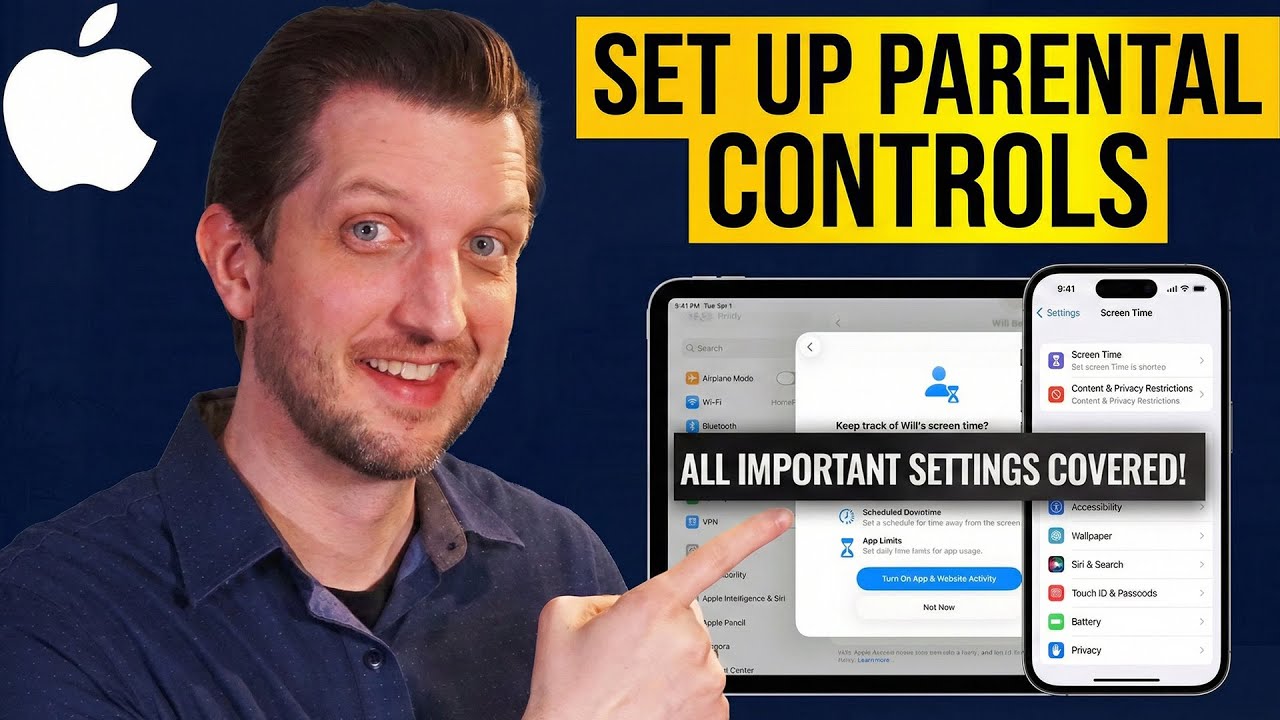
There are two paths: set up directly on the child’s device, or set up remotely via Family Sharing. If the child is already in your Family Sharing group, remote setup is the cleaner option.
The Lurie Children’s 2025 survey found that 81% of children under 13 now have their own device. Most parents setting up these controls are doing it on a device the child will have in their hands constantly. Getting the setup right the first time matters.
Direct Setup on the Child’s Device
Step-by-step:
- Open Settings on the child’s iPhone
- Tap Screen Time > Turn On Screen Time > Continue
- Select “This is My Child’s iPhone”
- Work through the Downtime, App Limits, and Content & Privacy prompts
- Set a Screen Time passcode the child does not know
That last step is the one parents skip most often. Without a Screen Time passcode, the child can go into Settings and turn everything off.
Make sure the passcode is different from the device unlock passcode. They’re separate. One locks the screen, the other locks Screen Time settings.
Linking to Family Sharing for Remote Access
Once Screen Time is active on the child’s device, confirm the child’s Apple ID is inside your Family Sharing group. After that, go to Settings on your own iPhone, tap Screen Time, and you’ll see the child’s name listed under Family.
Tap their name and you can adjust every Screen Time setting remotely. No need to touch their phone again unless you’re troubleshooting something physical.
What changes immediately after setup: App Limits, Downtime, and content filters kick in right away. Communication Limits also apply from the moment they’re saved.
What doesn’t change automatically: The device unlock passcode stays whatever it was. Screen Time won’t prevent a factory reset if the child knows how to trigger one. That’s a gap worth knowing about before it becomes a problem.
Managing Parental Controls Remotely from a Parent’s iPhone
Remote management is where Family Sharing earns its value. Once everything is connected through iCloud, a parent can see usage data, adjust limits, and respond to requests without touching the child’s device.
Access the child’s Screen Time data from your own iPhone: Settings > Screen Time > tap the child’s name under Family.
Reading Activity Reports
The activity dashboard shows a lot. Most parents focus on three things:
- App usage breakdown – time spent per app, sorted by category
- Pickups – how many times the device was picked up and which app they went to first
- Notifications – which apps send the most, which might explain why the phone gets picked up constantly
Reports are available daily and weekly. The weekly report is useful for spotting patterns over time. A sudden spike in a specific app category on weekday mornings usually means school time is being used differently than expected.
Approving Screen Time Extension Requests
When a child hits an App Limit, they can send a “More Time” request to the parent’s device. The parent gets a notification and can approve or decline directly from their iPhone.
This is one of the more practical features for families that want flexibility without removing limits entirely.
You can approve extra time in 15-minute increments, for the rest of the day, or indefinitely. Choosing “indefinitely” removes the limit for that app until you manually reset it, which most parents don’t intend.
Remote Limitations Worth Knowing
Some things can’t be managed remotely, no matter what:
- The device unlock passcode (has to be changed physically on the device)
- Factory reset prevention (Screen Time doesn’t block this by default)
- VPN app control (unless you’ve restricted VPN profiles under Content & Privacy)
Bark’s research highlights that Screen Time shows how long a child used YouTube, but not what they watched. Visibility into time is solid. Visibility into content is limited. That’s the honest tradeoff with Apple’s native tools.
Screen Time Passcode vs. Device Passcode
Two passcodes. Two completely separate functions. Parents mix these up constantly, and the confusion is what gives kids a way in.
The device passcode locks the iPhone screen. The Screen Time passcode locks the Screen Time settings. One doesn’t protect the other. If you only set a device passcode and skip the Screen Time passcode, your child can open Settings and disable every limit you’ve configured.
Why the Screen Time Passcode Matters

Without a Screen Time passcode, there are no enforced limits. Period.
The Screen Time passcode gates:
- All changes to App Limits and Downtime
- Content & Privacy Restrictions toggles
- Communication Limits adjustments
- The ability to turn Screen Time off entirely
Set it under Settings > Screen Time > Use Screen Time Passcode. Use a 4-digit code your child doesn’t know and that’s different from your device passcode. If you want a deeper guide to all the ways Screen Time works on iPhone, that covers the full feature breakdown.
Forgotten Screen Time Passcode Recovery
Apple ID recovery is the official path if you forget it: Settings > Screen Time > Forgot Passcode, then authenticate with your Apple ID.
Here’s the problem: this same recovery path is how children bypass controls. If a child knows your Apple ID password, they can reset the Screen Time passcode themselves and wipe all restrictions. Boomerang’s research confirms Apple ID account recovery is one of the most frequently documented workarounds kids use.
The fix: make sure your Apple ID password is one your child has never seen and isn’t guessable.
Guided Access as a Session-Level Lock
Guided Access is a separate feature, separate from Screen Time entirely. It locks the device into a single app for a session. The child can’t leave that app without the Guided Access passcode.
Good for: handing a young child a specific app (a learning game, a video call) without them being able to wander into anything else. Not a replacement for Screen Time. A dedicated guide on how to use Guided Access on iPhone walks through the setup in detail.
Enable it under Settings > Accessibility > Guided Access. Triple-click the side button to activate it for the current app.
Third-Party Parental Control Apps for iPhone

Apple’s Screen Time covers the basics. For a lot of families, especially with younger kids, that’s enough. But there are real gaps, and third-party apps exist specifically to fill them.
Cyberbullying now affects 51% of middle and high school students in the U.S., according to Pew Research Center 2024 data. Screen Time doesn’t detect any of it. It can cap time on an app, but it can’t scan what’s actually being said.
What Third-Party Apps Can Do That Screen Time Can’t
The capability gap is real. Here’s where native controls stop and third-party tools pick up:
- Content scanning: Bark monitors 30+ platforms using AI to flag concerning messages, images, and language
- Social media visibility: Screen Time shows time-on-app; Qustodio shows activity logs and web history
- Alert-based monitoring: Bark sends alerts only when something risky is detected, rather than exposing all activity
- Cross-platform enforcement: Circle controls at the router level, applying limits across every device on the home network
After 250+ hours of testing, SafeWise selected Bark as the best overall parental control app. Qustodio ranked as the closest alternative, especially for younger children who need stricter boundaries and detailed usage reports.
What Third-Party Apps Can and Can’t Do on iOS
iOS sandboxing limits how deeply any third-party app can reach into the system. This is a real constraint that affects every app on this list.
| App | Approach | iOS Limitation | Best For |
|---|---|---|---|
| Bark | AI alert-based monitoring | iMessage access requires iCloud setup; alerts can delay | Teens on social media |
| Qustodio | Dashboard control and filtering | Can’t capture iMessages; installs VPN profile | Younger kids needing firm limits |
| Circle | Router-level enforcement | Bypassed when child uses mobile data off home Wi-Fi | Home network management |
| Norton Family | Web filtering + time limits | Limited social media monitoring on iOS | Basic web safety, multiple devices |
Both Bark and Qustodio face a core iOS reality: Android vs. iPhone comparisons consistently show that Android allows third-party apps deeper system access. Monitoring is simply more complete on Android. On iOS, both apps work around Apple’s restrictions through VPN profiles or iCloud backup analysis, each with its own tradeoffs.
Android’s equivalent native tool is Digital Wellbeing, which handles screen time, app timers, and Focus Mode natively, though it also lacks content-level monitoring.
Location Tracking and Check-In Features
Location tools inside the Apple ecosystem cover two different needs: knowing where your child is right now, and getting notified when they arrive or leave somewhere.
In 2022, over 460,000 children were reported missing in the U.S., according to FBI data cited by Mobicip. Location visibility on a child’s device is not a minor concern for most parents.
Find My App
Real-time location sharing through Find My requires Family Sharing to be active and location sharing enabled on the child’s device.
To see your child’s location: open the Find My app, tap People, tap the child’s name. Their location updates continuously as long as their device is on, connected, and location services are running.
The honest limitations:
- No location history. Find My shows current position only.
- A child can disable Location Services, and you won’t be immediately notified.
- Low battery or no signal breaks tracking entirely.
Find My also supports geofence-style notifications. You can get alerted when your child arrives at or leaves a specific location, which covers the most common parental use case (school, home, practice).
Check In Feature (iOS 17+)
Check In is different from Find My in one important way: it’s automatic and destination-based, not continuous tracking.
How it works: your child sets a Check In for a destination inside the Messages app. When they arrive, a notification goes to the parent automatically. If they don’t arrive in the expected time, the parent gets an alert and the child’s last known location, battery level, and network status are shared.
The child initiates Check In from their side. It’s a more collaborative feature than passive tracking, which matters for older kids who push back on surveillance. What the child sees: they can view exactly what information will be shared before they start a Check In.
Common Parental Control Mistakes on iPhone
Most parental control failures aren’t about the wrong settings. They’re about gaps that parents didn’t know existed when they first set things up.
Cyberbullying lifetime prevalence rose from 18.8% in 2007 to 54.6% by 2023, according to Pacer data. The digital environment children operate in has changed faster than most parental control setups have kept up with.
The Setup Gaps That Break Everything
Skipping the Screen Time passcode is the single most common mistake. Without it, a child can go to Settings and disable all limits within seconds. If you want to know how to properly restrict apps on iPhone, the passcode is the first step before anything else.
Not blocking app installation independently. App Limits cap usage time but don’t block reinstalls. A child who hits their YouTube limit can delete and reinstall the app, which resets the usage clock to zero. Block this under Content & Privacy Restrictions > iTunes & App Store Purchases > Installing Apps: Don’t Allow. Separately blocking apps on iPhone requires this step to actually hold.
Leaving “Block at End of Limit” off. By default, when an App Limit is reached, kids see a screen with an “Ignore Limit for Today” option. Turning on Block at End of Limit removes that option entirely. Enable it per app under App Limits > tap each limit > toggle Block at End of Limit on.
The Account and Connectivity Mistakes
Family Sharing disconnects happen. Apple acknowledged a bug affecting parent-child account syncing that persisted for roughly 18 months through 2024, causing Screen Time settings to stop applying remotely. If remote controls seem to stop working, check that Family Sharing is still active and both devices are on compatible iOS versions.
Ignoring VPN apps is a gap parents discover late. A VPN app installed on the child’s device can route traffic outside Apple’s web content filter, making “Limit Adult Websites” completely ineffective. The fix: under Content & Privacy Restrictions > VPN > Don’t Allow. This prevents VPN profiles from being added to the device.
| Mistake | Result | Fix |
|---|---|---|
| No Screen Time passcode | Child disables all controls | Set a passcode child doesn’t know |
| App installs not blocked | Delete/reinstall resets limits | Block installing apps in Content Restrictions |
| VPN apps allowed | Web filtering bypassed entirely | Block VPN in Content Restrictions |
| iCloud/Family Sharing not linked | Remote management stops working | Verify Family Sharing is active |
Parents who want to understand how to remove time limits on iPhone often do so to troubleshoot or temporarily lift limits. Worth knowing: if you find yourself doing this repeatedly at a child’s request, the limits probably need to be renegotiated with the child rather than quietly removed, since consistent enforcement is what actually changes usage patterns. If controls have been removed entirely and you need to start fresh, the process for turning off restrictions on iPhone covers how to reset and reconfigure from the beginning.
The bigger picture: Screen Time reports show what’s happening on the device, but not what a child is actually experiencing online. Checking Screen Time on iPhone weekly gives parents usage data, but that data won’t flag a child being harassed in a group chat or stumbling onto harmful content through a school-provided browser. Native controls handle device management. They don’t replace conversation.
FAQ on iPhone Parental Controls
What are iPhone parental controls?
iPhone parental controls are built-in iOS tools that let parents manage app usage, web content, screen time, and communication on a child’s device.
Screen Time is the core system. It sits inside Settings and requires no third-party software to get started.
How do I set up parental controls on my child’s iPhone?
Go to Settings > Screen Time > Turn On Screen Time > This is My Child’s iPhone.
Set a Screen Time passcode your child doesn’t know. Then connect the device to your Family Sharing group for remote management.
Can I control my child’s iPhone from my own phone?
Yes, through Family Sharing. Once your child’s Apple ID is in your family group, go to Settings > Screen Time and tap their name.
You can adjust limits, approve app requests, and view usage reports without touching their device.
What is the difference between Screen Time and Content & Privacy Restrictions?
Screen Time manages time-based limits like App Limits and Downtime. Content & Privacy Restrictions controls what the device can access, download, or display.
Both need to be active for complete coverage.
Can my child bypass iPhone parental controls?
Yes, and it happens often. Common workarounds include deleting and reinstalling apps, changing the time zone to bypass Downtime, and using the Contacts app to open iMessage during restricted hours.
A strong Screen Time passcode and blocking app installation close most gaps.
How do I block specific apps on my child’s iPhone?
Use App Limits to set a daily time cap, or go to Content & Privacy Restrictions > Allowed Apps to hide specific built-in apps entirely.
To block App Store downloads, set Installing Apps to Don’t Allow under iTunes & App Store Purchases.
Does Screen Time work without Family Sharing?
Yes, but only for direct on-device setup. Without Family Sharing, you can’t manage or monitor the child’s device remotely.
Family Sharing also unlocks Ask to Buy, which requires your approval before any app download goes through.
What parental control apps work best on iPhone?
Bark uses AI to monitor 30+ platforms and alert parents to risks. Qustodio offers detailed activity logs and stricter controls, better suited to younger children.
Both face iOS sandboxing limits. Android allows deeper third-party access than iPhone does.
Can I track my child’s location through iPhone parental controls?
Yes. The Find My app shows real-time location when location sharing is enabled through Family Sharing. iOS 17 added Check In, which sends automatic arrival alerts through the Messages app.
How do I reset a forgotten Screen Time passcode?
Go to Settings > Screen Time > Forgot Passcode and authenticate with your Apple ID.
Keep your Apple ID password private. Children who know it can use this same recovery path to remove all restrictions themselves.
Conclusion
This conclusion is for an article presenting the full scope of iPhone parental controls, from initial setup through remote management, content filtering, location tracking, and the real limits of what Apple’s native tools can enforce.
Screen Time gives parents a solid foundation. App Limits, Downtime, Communication Limits, and Content & Privacy Restrictions cover most of what families with younger children actually need.
For older kids, the gaps matter. In-app messaging, VPN workarounds, and iOS sandboxing restrictions mean native controls alone often fall short.
That’s where Bark, Qustodio, and router-level tools like Circle add real value. No single layer is enough.
Set up Family Sharing, lock the Screen Time passcode, and check usage reports weekly. The tools work best when they’re used consistently, not just configured once and forgotten.

- MongoDB Cheat Sheet - October 20, 2026
- Adding AI Video Generation to a Software Product: Architecture, Cost Guardrails and QA - October 20, 2026
- Show Hidden Characters, Spaces, and Line Endings in Notepad++ - October 19, 2026


