

Americans now spend over 5 hours a day on their phones. Most have no idea where that time actually goes.
Android’s built-in screen time controls give you a full picture of your daily app usage, unlock count, and notification load, without downloading anything extra.
This guide walks through how to use Digital Wellbeing on Android, covering everything from reading the usage dashboard to setting app timers, scheduling Focus Mode, and setting up Bedtime Mode for better sleep.
Whether you’re trying to cut back on social media or set up parental controls through Google Family Link, it’s all inside one menu.
What Is Digital Wellbeing on Android

Digital Wellbeing is a built-in Android tool that tracks app usage, screen time, notification counts, and unlock frequency, then puts all of it in one place.
It’s not a third-party app. It runs at the OS level, which means the data is more accurate than anything you’d get from an app overlay.
Americans spend an average of 5 hours and 16 minutes per day on their phones, a 14% increase compared to 2024 (Harmony Healthcare IT, 2025). Digital Wellbeing exists because that number keeps going up.
| Component | What It Does |
|---|---|
| Dashboard | Shows daily/weekly app usage, notifications, unlocks |
| App Timers | Sets a daily usage cap per app |
| Focus Mode | Pauses selected apps on demand or on a schedule |
| Bedtime Mode | Activates grayscale + Do Not Disturb at night |
| Parental Controls | Links to Google Family Link for child device management |
Google introduced Digital Wellbeing with Android 9 (Pie) on Pixel devices, then rolled it out more broadly.
As of September 2019, Google required all phones launching with or upgrading to Android 9 or Android 10 to include Digital Wellbeing-like capabilities. So if you’re running a relatively modern Android device, it’s already there.
Samsung ships it as Digital Wellbeing and Parental Controls inside One UI. OnePlus includes it under OxygenOS with the same core features but a slightly different path. The underlying data and controls are the same across most manufacturers.
How to Find and Open Digital Wellbeing Settings

The fastest path on stock Android: Settings > Digital Wellbeing & Parental Controls.
That’s it. No need to download anything from Google Play.
| Device / OS | Settings Path |
|---|---|
| Stock Android (Pixel) | Settings > Digital Wellbeing & Parental Controls |
| Samsung One UI | Settings > Digital Wellbeing and Parental Controls |
| OnePlus / OxygenOS | Settings > Digital Wellbeing & Parental Controls |
| Other Android OEMs | Settings > search “Digital Wellbeing” |
If you can’t find it at all, go to Settings and use the search bar. Type “wellbeing” and it should surface immediately.
What to do if Digital Wellbeing is missing entirely:
Some stripped Android builds, particularly budget devices from lesser-known OEMs, remove it. In that case, search Google Play for “Digital Wellbeing” and install it directly. Alternatively, ActionDash is a solid third-party option with similar dashboard and app-timer functionality.
The first time you open Digital Wellbeing, it asks you to set up your profile. Tap “Show your data” under Your Digital Wellbeing tools to get started.
How to Read the Digital Wellbeing Dashboard
The dashboard opens to a circular chart showing how you’ve split your screen time today across apps.
Tap the chart to break it down further. Three views available:
- Screen time – which apps were on screen and for how long
- Notifications received – total count and breakdown by app
- Times opened – how often you unlocked the device and opened specific apps
Toggle the red dropdown from “Today” to “Last 7 days” to see weekly patterns instead of just today.
One thing people miss: the unlock count is often the most telling number. 53% of Americans want to cut down on phone usage (Harmony Healthcare IT), but most don’t realize how compulsive their unlock habit actually is until they see it tracked.
Key things to look for in the dashboard:
- Which 2-3 apps consume the most time (usually social or video)
- Which apps send the most notifications (often not the same as highest screen time)
- Peak usage hours (the dashboard shows hourly breakdowns)
The data resets at midnight every day based on the device’s local timezone. There’s no way to export historical data or sync it across devices; it’s stored locally.
Chrome browser time shows as a single block by default. To see per-site breakdowns, tap Chrome in the dashboard, then tap “Show sites.” This surfaces which websites you visit and how long you spend on each.
How to Set App Timers

App timers put a daily cap on how long you can use any specific app.
Steps to set a timer:
- Open Settings > Digital Wellbeing & Parental Controls
- Tap the dashboard chart
- Find the app you want to limit
- Tap the hourglass icon (or tap the app name, then “Set timer”)
- Choose hours and minutes
When you hit the limit, the app icon grays out and opens a “time’s up” screen if you try to open it.
Overriding a timer without deleting it:
Go back to the app in the dashboard and tap the hourglass icon. You’ll get the option to dismiss the timer for the rest of the day. The timer resets automatically at midnight, so tomorrow it’s back on.
All timers reset at midnight. Not at a custom time. Not when you sleep. Midnight.
Where timers actually help:
- Social media apps (Instagram, TikTok, YouTube)
- Mobile games
- Short-video platforms
Timers don’t block the app from receiving notifications while the timer is active. Focus Mode does that. These two features are complementary, not the same thing.
You can also set website timers inside Chrome. Same process: tap Chrome in the dashboard, find the site, tap “Set site timer.”
How to Use Focus Mode
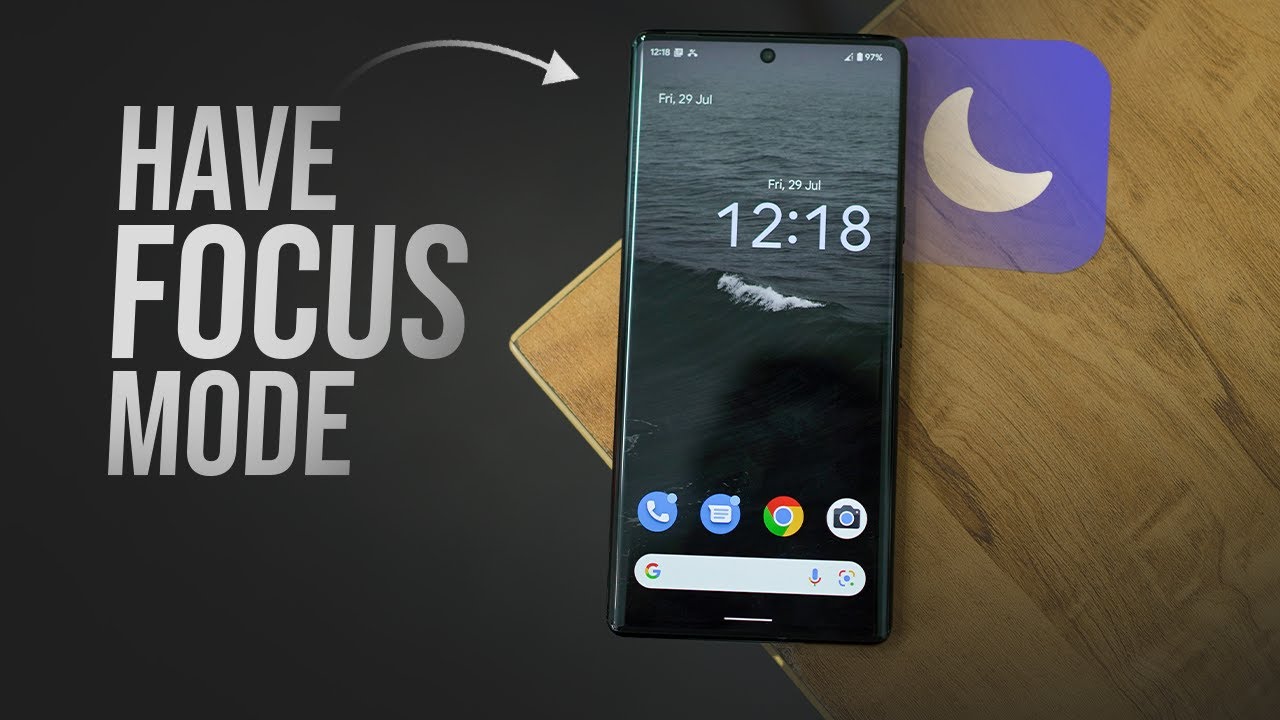
Focus Mode pauses specific apps. Not just notifications. The apps themselves become inaccessible.
Setting it up:
- Open Settings > Digital Wellbeing & Parental Controls
- Tap Focus Mode
- Select which apps to pause (you pick them)
- Tap “Turn on now” to activate immediately
Scheduling Focus Mode:
Tap “Set a schedule” and assign it to specific days and time blocks. Useful for recurring focus periods like work hours or study sessions.
If Focus Mode is already active and you need a short break, tap “Take a break.” You choose the break duration (5, 10, or 15 minutes). After the break, Focus Mode resumes automatically.
Focus Mode vs. Do Not Disturb
These two get confused constantly. They do different things.
| Feature | What It Controls |
|---|---|
| Focus Mode | Pauses selected apps entirely (no opening, no notifications from them) |
| Do Not Disturb | Silences sound and visual interruptions from all or selected apps |
Focus Mode is the right choice when you need to stop yourself from opening certain apps.
Do Not Disturb is better when you don’t mind having apps available but don’t want to be interrupted by alerts.
Both can run simultaneously. That’s actually a useful combination for deep work or sleep.
How to Set Up Bedtime Mode

Bedtime Mode activates a grayscale display and silences notifications automatically at your chosen time.
Two ways to trigger it:
- Schedule-based – set a start and end time, repeat on chosen days
- Charge-based – activates when you plug in the phone between two specific times
The grayscale screen is the core behavior change here. A gray screen makes apps less appealing. That’s intentional. Color is a major part of what makes social feeds and games pull you back in.
Inside Bedtime Mode, you configure:
- Do Not Disturb settings (which calls and alerts still come through)
- Whether to turn off Bedtime Mode at your next alarm automatically
- The schedule or charge window
To allow urgent calls during DND, go to the DND settings inside Bedtime Mode. You can whitelist contacts marked as “starred” or allow repeat callers through.
76% of Gen Z say they spend too much time on their phones (DemandSage, 2024). Bedtime Mode exists partly as a nudge for that exact habit. Whether the grayscale screen actually works varies person to person, but the option is there.
One thing to know: Bedtime Mode doesn’t block apps. If you dismiss the grayscale screen or override the schedule, you’re back to full color immediately. For harder limits at night, combine Bedtime Mode with Focus Mode timers set to expire at midnight.
How to Manage Notifications with Digital Wellbeing
The average office worker is interrupted roughly every 11 minutes and needs about 25 minutes to fully regain focus afterward (HRD Connect, 2024).
Notification overload is a real productivity problem. Digital Wellbeing surfaces exactly which apps are responsible.
To see your notification breakdown:
- Open Settings > Digital Wellbeing & Parental Controls
- Tap the dashboard chart
- Select “Notifications received”
The list ranks apps by how many notifications they sent. Most people are surprised. The worst offenders are usually messaging apps, email, and news apps. Not social media.
From the same list, tap any app and toggle notifications off directly. No need to hunt through Settings > Apps > [App Name] > Notifications.
A 2023 Journal of Occupational Health study found that batching notifications to three times a day improved end-of-day productivity with a moderate effect size.
What Digital Wellbeing shows vs. what it doesn’t:
- Shows: notification count per app, daily and weekly totals
- Doesn’t show: notification content, read/unread status, response times
For deeper notification analytics, ActionDash is a solid third-party alternative with per-app breakdowns and historical trends.
How to Use Parental Controls Inside Digital Wellbeing

Two out of three U.S. parents now limit their kids’ screen time in some way, up significantly from 50% in 2020 (CivicScience, 2025).
Digital Wellbeing’s Parental Controls section is the entry point. But it’s not a standalone tool. It connects to Google Family Link.
| What Family Link Controls | What It Doesn’t Control |
|---|---|
| App approvals on Google Play | App content within approved apps |
| Daily screen time limits | Screen time on non-Google apps by default |
| Website filtering via Chrome | Browsers other than Chrome |
| Device location tracking | Location if device is offline |
Setup path:
- Open Settings > Digital Wellbeing & Parental Controls
- Tap “Set up parental controls”
- Follow the Family Link setup flow (requires a Google Account)
- On the child’s device, sign in with their supervised Google Account
Family Link launched publicly in 2017 and was built natively into Android 10 at Google I/O 2019. It’s available in 38 countries.
Supervising an existing account vs. a new one:
If your child already has a Google Account they created themselves, adding supervision works differently than setting up a new supervised account from scratch. The latter gives you more control from day one.
54% of parents say they’ve felt their child is addicted to screens (Lurie Children’s, 2025). Family Link is one practical response to that, though it works best when paired with conversation rather than used as a silent constraint.
How to Reduce Interruptions Using Heads Up and Walking Detection

Over 40% of pedestrians use their phones while walking, according to ScienceDirect research across multiple countries.
Heads Up is a Digital Wellbeing feature that detects when you’re walking and using your phone at the same time, then displays a reminder to look up.
How to enable it:
- Open Settings > Digital Wellbeing & Parental Controls
- Scroll to find “Heads Up”
- Tap it and follow the setup prompt
The setup screen asks for physical activity access. Location is optional. Once active, Heads Up shows on-screen prompts like “Watch your step” or “Look ahead” when motion is detected.
Device availability:
Heads Up launched on Pixel devices first and rolled out to select Android OEMs. It’s not universally available. If it doesn’t appear in your Digital Wellbeing menu, your device or Android version may not support it.
Google does note in the setup screen that Heads Up doesn’t replace actually paying attention. It’s a nudge, not a safeguard.
7,522 pedestrian traffic-related deaths were recorded in the U.S. in 2022, with distracted walking a contributing factor in a portion of those (National Safety Council).
Driving Detection is a related but separate feature that activates Do Not Disturb automatically when Android detects you’re in a moving vehicle. Find it under Settings > Digital Wellbeing & Parental Controls > Driving Detection. It’s distinct from Android Auto.
Digital Wellbeing Data Limitations to Know
Not everything you’d want to track shows up in Digital Wellbeing. Worth knowing before you rely on it heavily.
What the dashboard misses:
- Phone call duration (not tracked at all)
- System-level activity like Settings or Google Play browsing (shown generically)
- Cross-device data (no sync to other Android phones or tablets)
- Per-site Chrome data unless you manually enable it
Storage and sync:
All usage data stays local on the device. It doesn’t back up to your Google Account. If you factory reset or switch phones, that history is gone.
Browser tracking gap:
Chrome usage appears as a single block by default. Tap Chrome in the dashboard and enable “Show sites” to break it down by URL. Even then, time-on-site is logged per domain, not per page.
| Limitation | Workaround |
|---|---|
| No cross-device sync | Use separate tracking per device |
| Chrome tracked as one block | Enable “Show sites” in dashboard |
| No call-time tracking | Use phone’s built-in call log |
| No historical export | Screenshot weekly report manually |
One study involving students found that 63% do not use Digital Wellbeing applications, even among those aware of excessive smartphone use (Android Authority). The data is there. The harder part is acting on it.
For users who need more detailed phone usage analytics, ActionDash and Screen Time Parental Control both offer historical tracking, cross-session comparisons, and more granular breakdowns than the built-in dashboard provides.
FAQ on Digital Wellbeing on Android
What is Digital Wellbeing on Android?
Digital Wellbeing is a built-in Android feature introduced in Android 9 Pie. It tracks your daily screen time, app usage, notification count, and phone unlocks. All of this lives inside your device settings, no third-party app required.
How do I find Digital Wellbeing on my Android phone?
Go to Settings and scroll until you see “Digital Wellbeing & parental controls.” Tap it, then hit “Show your data.” The exact label can vary slightly depending on your Android skin, but it follows the same path on most devices.
Does Digital Wellbeing drain my battery?
Minimal impact. It runs as a system-level process, meaning it’s already integrated into how Android handles background activity. Most users report no noticeable battery difference with it enabled versus disabled.
Can I set app timers for specific apps?
Yes. From the dashboard, tap any app and select “Set timer.” You choose the daily limit in minutes or hours. Once you hit it, the app icon grays out and pauses until midnight. The limit can be bypassed with one tap.
What is Focus Mode and how is it different from app timers?
Focus Mode blocks selected apps entirely while active. App timers count cumulative daily use and enforce a limit. Focus Mode is for blocking distractions in the moment. Timers are for capping total daily usage. They serve different purposes and work well together.
What does Bedtime Mode do on Android?
Bedtime Mode activates Do Not Disturb and switches your display to grayscale on a set schedule. The grayscale element is the key part. A 2024 University of Amsterdam study found it reduced daily phone use by around 20 minutes.
How do parental controls work with Digital Wellbeing?
Google Family Link connects to Digital Wellbeing on a child’s device. Parents can set daily screen time limits, approve app downloads, apply content filters, and lock the device remotely. It works most reliably on Android vs iPhone comparisons favor Pixel devices for Family Link consistency.
Does Digital Wellbeing track website usage?
Only if you allow it. You can grant Chrome permission to report site-level data inside the dashboard. Without that, it only tracks the browser app as a whole, not individual websites you visit.
Can my child bypass Digital Wellbeing limits?
Yes, fairly easily. App timers show a bypass option with one tap. That’s by design. Google built this as a nudge, not a hard block. For stricter enforcement, preventing children from bypassing controls on Android requires combining Family Link with additional device restrictions.
Is Digital Wellbeing available on all Android phones?
Most Android devices running Android 9 and above include it. Samsung, OnePlus, and Xiaomi all have their own version of the interface. Features are mostly consistent, though some manufacturer skins hide or rename certain options compared to the standard Google Pixel implementation.
Conclusion
This conclusion is for an article presenting digital wellbeing on Android as more than a settings menu. It’s a practical system for managing phone habits, reducing notification overload, and building real boundaries around device usage.
The tools are there. App timers, grayscale mode, scheduled Focus Mode, Family Link for child device management. None of them work without some commitment from the person using them.
If the built-in dashboard feels limited, third-party options like ActionDash or StayFree fill the gaps. Especially around usage history and cross-device tracking.
Start small. Set one app timer for your most-used app this week. That single step tends to make everything else easier to follow through on.

- How to Share GitHub Repository Access With Collaborators - October 25, 2026
- Streamlining Client Projects: Modern Cloud ERP Solutions - October 25, 2026
- Build or Buy an AI Chatbot for E-commerce: The Costs Nobody Budgets For - October 24, 2026


