

Someone handed you their phone to check one thing, but now they’re scrolling through your messages.
Learning how to lock apps on Android prevents this exact scenario. Your device might be unlocked, but that doesn’t mean everything on it should be accessible.
Banking apps, private photos, and personal messages need an extra security layer beyond your screen lock.
This guide shows you five precise steps to protect individual apps using built-in Android features. You’ll configure PIN protection, fingerprint authentication, or pattern locks for specific applications.
The process takes under 10 minutes and works on Samsung, Xiaomi, OnePlus, and most Android devices.
How to Lock Apps on Android
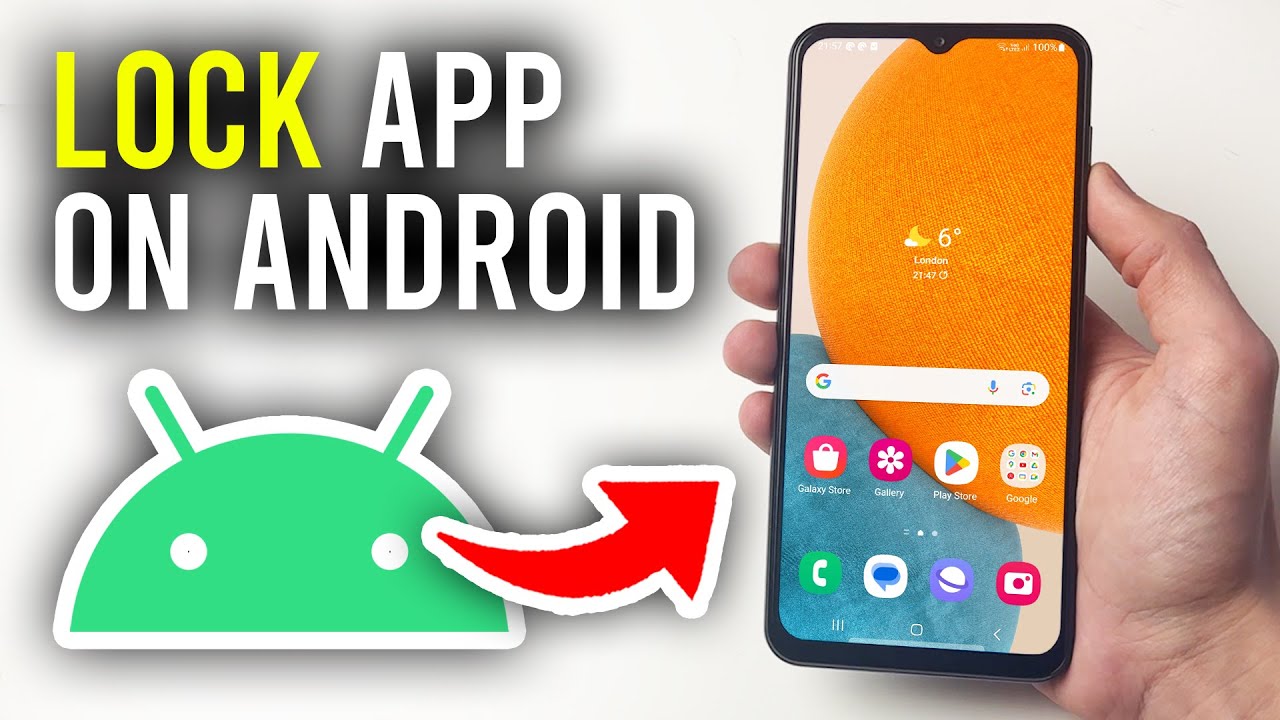
Locking apps on Android restricts access to specific applications using authentication methods like PIN, pattern, fingerprint, or face unlock.
Users need this when protecting banking apps, preventing unauthorized access to messages, or keeping children away from inappropriate content. This guide covers 5 core steps requiring 5-10 minutes and Android 7.0 or later.
App lock prevents others from opening your social media, photos, or financial apps even when your device is unlocked.
Prerequisites
Before setting up app lock, confirm you have these items ready.
- Android device running version 7.0 (Nougat) or newer
- Active Google account signed in to your device
- Manufacturer account (Samsung account, Mi account, OnePlus account) depending on brand
- 5-10 minutes for initial setup
- Admin access to device Settings
Different manufacturers implement app security features differently. Samsung uses Knox-powered Secure Folder, Xiaomi has dedicated App Lock, Google Pixel relies on Screen Pinning.
Check your Android version: Settings > About phone > Android version.
Step 1: How Do You Access Security Settings on Your Android Device?

Navigate to Settings, locate the security menu, view available privacy options.
Action
Unlock your device and tap the Settings app (gear icon).
Scroll down to find one of these menu names depending on your Android version:
- Android 13-15: Security & Privacy
- Android 10-12: Biometrics and Security
- Android 7-9: Lock screen and security
Tap the security menu name. You’ll see options for screen lock, biometrics, app permissions, and device admin apps.
The security screen displays all available privacy protection features your device supports.
Purpose
Security settings house all authentication and access control features. Every app lock method starts here.
Step 2: Where Do You Find the App Lock Feature for Your Device?

Manufacturer-specific app lock lives in different Settings locations. Search by brand to locate your version.
Samsung Galaxy Devices
Path: Settings > Biometrics and Security > Secure Folder.
Samsung doesn’t offer traditional app lock. Instead, Secure Folder creates an encrypted container powered by Knox security.
You’ll move apps into this folder rather than locking them in place. Requires Samsung account login.
Xiaomi and Redmi Phones
Path: Settings > Apps > App lock.
Xiaomi’s MIUI includes native App Lock. Tap “Turn on” and you’ll authenticate with your Mi account.
The App lock screen shows all installed apps with toggle switches.
OnePlus Devices
Path: Settings > Security & Fingerprint > App Locker.
OxygenOS provides App Locker as a built-in feature. No separate account needed beyond your device unlock method.
Find the app list with switches beside each application name.
Google Pixel Phones
Path: Settings > Security & Privacy > App Pinning.
Pixel devices lack dedicated app lock. Screen Pinning temporarily restricts the device to one app.
Android 15 introduces Private Space as an alternative. Settings > Security & Privacy > Private Space.
Huawei Devices
Path: Settings > Security > App Lock.
EMUI includes App Lock in the security menu. First-time setup prompts for PIN, pattern, or biometric configuration.
Realme and Oppo Phones
Path: Settings > Privacy > App Lock.
ColorOS and Realme UI place App Lock under Privacy instead of Security. Same functionality, different location.
Purpose
Manufacturers customize Android’s core framework with proprietary security tools. Finding the right menu prevents wasted time searching.
Step 3: How Do You Set Up Your Lock Method?
Choose authentication type, create credentials, confirm settings.
Action
Select your preferred lock type from the available options:
- PIN: 4-6 digit numeric code
- Pattern: Connect 4-9 dots in specific sequence
- Password: Alphanumeric combination (6+ characters recommended)
- Fingerprint: Biometric scan (if hardware supports)
- Face unlock: Facial recognition (available on select models)
Enter your chosen credential twice. The system requires confirmation to prevent typos.
Samsung and Xiaomi users must verify their manufacturer account. Enter account password when prompted.
Result: “Lock method set” confirmation appears. The system now recognizes your authentication.
Purpose
Lock method authenticates access attempts. Without this step, app selection doesn’t function.
Security Recommendations
Use 6-digit PIN over 4-digit for banking and payment apps.
Pattern locks require minimum 6 connection points. Avoid simple shapes like L or Z.
Fingerprint offers fastest unlock speed (0.3 seconds average). Face unlock works in 0.5-1 second but fails in low light.
Never use birthdays, “1234”, or repeated digits. Password managers can’t help with app locks since they lock the password manager app itself.
Step 4: Which Apps Should You Select to Lock?
View complete app list, enable protection for sensitive applications, confirm selection.
Action
The app selection screen displays every installed application alphabetically.
Toggle the switch next to each app you want to protect. Switch position indicates status:
- Right/Blue: App locked
- Left/Gray: App unlocked
Priority apps to lock first:
- Banking: Chase, Bank of America, PayPal, Venmo, Cash App
- Messages: SMS, WhatsApp, Telegram, Signal
- Photos: Google Photos, Gallery, Amazon Photos
- Email: Gmail, Outlook, Yahoo Mail
- Social media: Instagram, Facebook, Twitter, TikTok
- Payment: Google Pay, Samsung Pay, cryptocurrency wallets
Use the search box at the top to quickly locate specific apps rather than scrolling.
Result: Selected apps show a lock icon badge on their main entry.
Purpose
Selection determines which apps require authentication. Unselected apps remain accessible without credentials.
Strategic Selection Tips
Lock fewer apps initially (5-7 critical ones). You can always add more later.
Don’t lock Settings app. You’ll need Settings access to modify or disable app lock if you forget credentials.
Avoid locking alarm or phone apps. Emergency access matters more than privacy in crisis situations.
Consider hiding apps entirely for maximum privacy instead of just locking them.
Step 5: How Do You Activate Protection for Selected Apps?
Save configuration, verify lock status, test authentication.
Action
Tap the confirmation button. Button name varies by manufacturer:
- Samsung Secure Folder: Tap three-dot menu (⋮) > “Lock and Exit”
- Xiaomi App Lock: Tap “Done” at bottom of screen
- OnePlus App Locker: System auto-saves when you toggle apps
- Realme/Oppo: Tap “Apply” in top-right corner
Press home button to return to main screen.
Open a locked app by tapping its icon. The authentication screen appears immediately before the app launches.
Enter your PIN, draw your pattern, or scan your fingerprint. Correct credential grants access and opens the app.
Result: Apps require authentication on every launch. Lock persists even after device reboot.
Purpose
Activation enforces the lock configuration. Settings exist but don’t protect anything until you apply them.
Verification Steps
Lock your device completely (press power button).
Unlock to home screen using your normal device unlock method.
Tap a locked app icon. If setup succeeded, the app lock screen appears requesting your credential.
Enter wrong PIN or pattern deliberately. Access should be denied with “Incorrect” message.
Enter correct credential. App should open normally within 1-2 seconds.
Understanding mobile security fundamentals helps you configure protection levels appropriately for different app types.
FAQ on How To Lock Apps On Android
Can I lock apps on Android without third-party apps?
Yes. Samsung offers Secure Folder, Xiaomi includes App Lock in MIUI, OnePlus provides App Locker in settings.
Google Pixel uses Screen Pinning for temporary locks. Most manufacturers build native app lock features into their Android versions, eliminating the need for external app lockers.
Does app lock work after restarting my phone?
App lock persists through device restarts. Once configured, protected apps require authentication every time you open them, regardless of reboots.
Biometric authentication settings remain active. Only uninstalling the app lock feature or resetting your device removes protection completely.
What happens if I forget my app lock password?
Samsung Secure Folder users can reset through findmymobile.samsung.com using their Samsung account credentials.
Xiaomi requires Mi account recovery. Third-party app lockers must be uninstalled, which removes all locks but doesn’t recover the forgotten PIN or pattern.
Can someone bypass app lock on Android?
Factory reset bypasses all locks but erases device data. Safe mode doesn’t disable built-in app locks from Samsung or Xiaomi.
Third-party app lockers can be disabled in safe mode. Knox-powered protection resists most bypass attempts without Samsung account access.
Does locking apps drain battery on Android?
Built-in app lock features consume minimal battery, typically under 1% daily. Third-party app lockers running constant background monitoring can drain 3-5% depending on features enabled.
Disable unnecessary permissions like location tracking or camera access to reduce battery consumption in external app lock applications.
Can I use different passwords for different apps?
Most built-in app lock features use one authentication method for all protected apps. Some third-party solutions like AppLock allow setting unique PINs per application.
Realme and Huawei let you choose pattern or fingerprint unlock preferences individually, but the actual credential remains the same across apps.
Will app lock protect my data if my phone is stolen?
App lock prevents casual snooping but doesn’t encrypt app data. Thieves with technical skills can access data through recovery mode or computer connections.
Combine app lock with device encryption and remote wipe capabilities. Banking apps and payment apps often include their own built-in security layers.
Can I lock system apps like Settings on Android?
Avoid locking Settings because you need it to modify or disable app lock configurations. Most manufacturers prevent locking critical system apps like Phone or Emergency.
Samsung Secure Folder doesn’t support system apps. Some third-party lockers allow it but create accessibility problems during troubleshooting.
Does app lock encrypt the data inside locked apps?
App lock controls access, not encryption. Your messages, photos, and documents remain unencrypted on device storage.
Samsung Secure Folder does encrypt its contents using Knox security. Standard app lock on Xiaomi, OnePlus, or Realme provides authentication barriers without encryption protection.
How do I remove app lock from specific apps?
Navigate to your app lock settings menu. Find the locked apps list and toggle off the switch next to apps you want to unlock.
Samsung users must remove apps from Secure Folder. Google Pixel requires unpinning the screen. Changes apply immediately without requiring device restart or confirmation steps.
Conclusion
Knowing how to lock apps on Android transforms your device from a single security layer into a multi-tiered privacy system.
Whether you use Samsung’s Knox-powered Secure Folder, Xiaomi’s native App Lock, or OnePlus App Locker, the principle stays identical. Protect what matters most.
Screen Pinning works for quick temporary locks. Third-party app lockers add features like intruder photos and fake error screens.
Built-in options beat downloading extra apps. They integrate with your device’s biometric security and consume less battery.
Start with your most sensitive apps-messages, photos, payment apps. Add more protection as needed.
Digital wellbeing isn’t just about screen time. It’s about controlling unauthorized access to your personal data, one app at a time.

- Build or Buy an AI Chatbot for E-commerce: The Costs Nobody Budgets For - October 24, 2026
- How to Run a React App in VS Code Step by Step - October 23, 2026
- Transactional or marketing email: which messages your app should send itself - October 23, 2026


