

Most iPhone users check their phone 58 times a day without realizing it.
Screen Time on iPhone is Apple’s built-in tool that shows you exactly where those hours go, and gives you real controls to change the pattern.
Introduced with iOS 12, it tracks app usage, pickups, and notifications. It also lets you set daily app limits, schedule Downtime, and manage a child’s device remotely through Family Sharing.
This guide covers everything: what Screen Time actually measures, how each feature works, and how to set it up in under five minutes.
What Is Screen Time on iPhone
Screen Time is a built-in iOS feature that tracks how much time you spend on your iPhone, which apps you open, how often you pick up your device, and how many notifications you receive.
It lives inside Settings > Screen Time and requires no download, no subscription, and no third-party app.
Apple introduced Screen Time with iOS 12 in 2018. Since then, it has grown into a full digital wellness dashboard with usage reports, scheduling tools, and a layer of parental controls that parents can manage remotely through Family Sharing.
Two core use cases:
- Personal tracking – see your own daily and weekly usage patterns, app habits, and pickup frequency
- Family management – set limits, block content, and monitor a child’s device from your own iPhone
Over 50 million families worldwide used Apple’s Screen Time feature as of 2024 (TechRT).
It works across iPhone, iPad, and iPod touch. If you’re signed into the same Apple ID on multiple devices, Screen Time can sync data across all of them via iCloud.
What Screen Time Tracks
Screen Time collects four main types of data from your iPhone automatically, without any setup required.
| Data Type | What It Shows |
|---|---|
| App & Website Activity | Time spent per app, per category, per day |
| Pickups | How often you lift your phone and which app you open first |
| Notifications | How many alerts each app sends you |
| Screen Distance | Whether you’re holding the device too close to your face |
App usage is broken down by category (Social, Entertainment, Productivity, Creativity, and others). You can view totals for the current day or look back at the full previous week.
Pickups are often the most eye-opening part of the report. The average person checks their phone 58 times per day, with around 30 of those happening during work hours (BankMyCell).
Notifications show which apps are interrupting you most. A lot of people find this section more useful than the usage data, because it’s easier to act on.
Screen Time data updates throughout the day in real time. The weekly summary arrives every Sunday via a notification and compares your current week against the previous one.
Screen Time Reports and the Weekly Summary
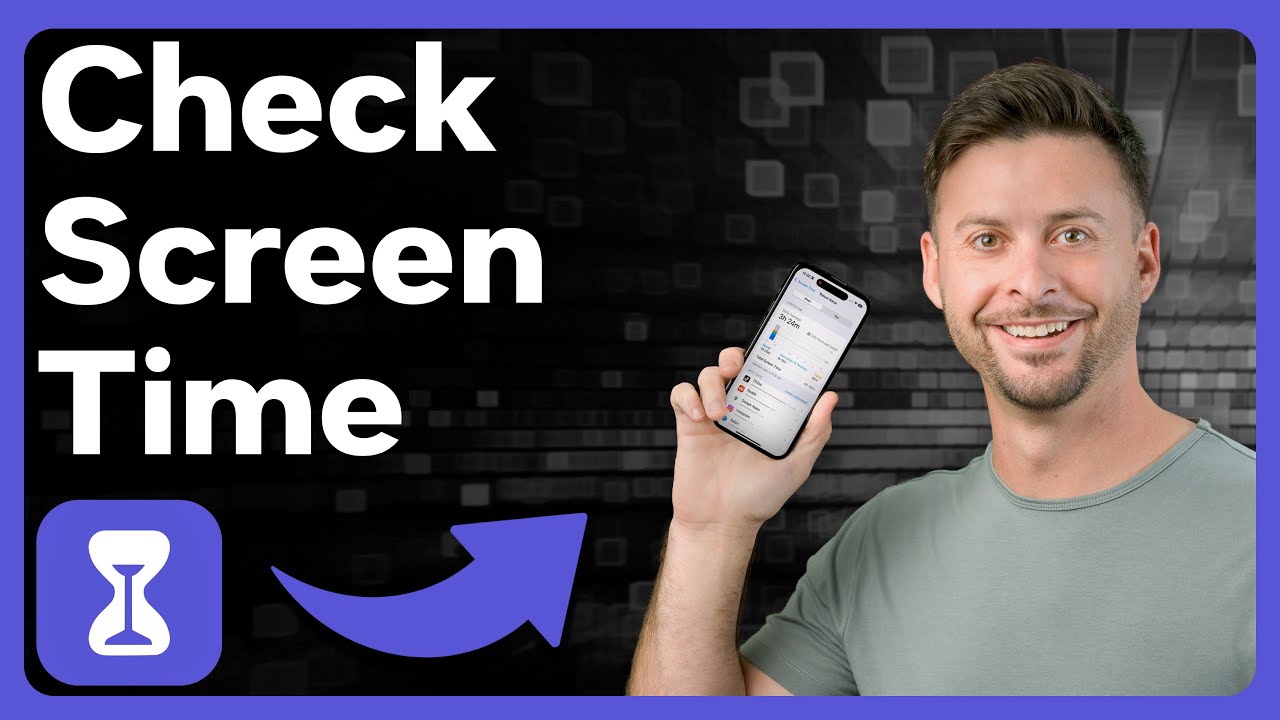
Screen Time’s Activity Report is where most of the useful data lives. Access it any time from Settings > Screen Time.
The report breaks usage down into three views:
- Day view – hourly breakdown of app usage for the current or selected day
- Week view – total usage across the past 7 days with a daily average
- App breakdown – most used apps ranked by total time, with category filters
The weekly summary notification shows up every Sunday. It displays your daily average screen time for the week, your most used app category, and whether your usage went up or down compared to the week before.
Opal’s 2023 Screen Time Report (based on 290,000 users) found iPhone users with larger devices spend noticeably more daily screen time. Max and Plus model users averaged 5h 38m per day, while standard models averaged 4h 47m.
Apple also includes a Screen Distance feature in newer iOS versions. It uses the TrueDepth camera to detect if you’re holding the iPhone too close to your face and sends a prompt to move it further away. Useful if you have kids who tend to watch videos inches from their nose.
The reports don’t reset manually. Usage data rolls on a weekly cycle, and you can tap back through past days to review historical data as long as it’s within the recent window.
App Limits and How They Work
App Limits let you set a daily time cap on specific apps or entire app categories. When you hit the limit, the app icon turns grey and shows a small hourglass icon.
Setting up a limit takes three steps:
- Go to Settings > Screen Time > App Limits
- Tap “Add Limit” and choose a category or individual app
- Set the daily time allowance (hours and minutes)
Limits reset at midnight every day, regardless of when you set them or when you hit the cap.
When an app reaches its limit, iOS shows a one-minute warning before locking it. After that, you’ll see a lock screen with two options: “Ignore Limit for Today” or “One More Minute.”
Here’s the catch: if you set the limit for yourself (not a child’s device), you can bypass it with a single tap. No passcode required. For it to actually enforce the limit, you need a Screen Time passcode, and that passcode needs to be something you won’t just type in automatically.
Common Sense Media research found teens aged 13-18 average 8 hours and 39 minutes of daily screen time. App Limits exist precisely because most people can’t moderate this kind of usage without a hard stop.
You can set limits per category (like “all Social apps”) or drill down to a single app. Both work in parallel, so an app can hit either limit first.
Communication Limits
Communication Limits control who someone can call, text, or FaceTime during normal usage hours and during Downtime. This is a separate setting from App Limits.
It’s mainly built for managing children’s devices, though it works on adult accounts too.
Two separate controls inside Communication Limits:
- During Screen Time – who the user can contact while the device is in regular use
- During Downtime – a usually stricter list for when Downtime is active
You can allow communication with everyone, contacts only, or a specific approved list. The approved list is the most restrictive option and works well for younger kids.
Important limitation: Communication Limits apply to Apple’s native apps (Phone, Messages, FaceTime). They do not filter messaging inside third-party apps like WhatsApp, Snapchat, or Instagram DMs.
A 2021 National PTA survey found that 78% of parents worry about their children encountering inappropriate content or contacts online (Canopy, citing National PTA). Communication Limits address the native side of this, but they’re not a complete solution on their own.
For parents managing a child’s device remotely through Family Sharing, Communication Limits can be pushed and adjusted from the parent’s own iPhone without touching the child’s device.
Downtime

Downtime is a scheduled block of time when the iPhone is mostly locked down. Only apps you’ve specifically allowed (and phone calls) remain accessible during Downtime.
Think of it as a curfew for the device.
Downtime setup:
- Schedule – set specific start and end times
- Customize per day – different Downtime windows for weekdays vs. weekends
- Always Allowed apps – Phone, Messages, FaceTime, and Maps are allowed by default; you can add others
During Downtime, all other apps go grey. Attempting to open one shows the same lock screen as a hit App Limit.
If you’re setting this up for a child’s device, you’ll want to turn on the Screen Time passcode first. Without it, Downtime can be disabled from the device’s own settings in about five seconds.
Downtime vs. App Limits:
| Feature | App Limits | Downtime |
|---|---|---|
| Scope | Specific apps or categories | Entire device |
| Trigger | Daily time cap | Scheduled time window |
| Reset | Midnight daily | Based on schedule |
| Override | Tap to ignore (without passcode) | Requires passcode to disable |
Focus mode features on iPhone saw a 24% increase in daily activation compared to 2024 (Boomerang, citing app data), which shows more users actively scheduling restricted usage periods. Downtime is the Screen Time equivalent of that kind of intentional block.
Apple now allows per-day Downtime customization, which is useful for families who want stricter limits on school nights but more flexibility on weekends.
Always Allowed Apps

Always Allowed is a short list of apps that stay accessible no matter what. Downtime active? These apps still open. App Limit hit? Same deal.
Default always-allowed apps on every iPhone:
- Phone
- Messages
- FaceTime
- Maps
You can add or remove anything from this list (except emergency calling, which can never be blocked).
Where to find it: Settings > Screen Time > Always Allowed. Tap the green “+” next to any app to add it.
One thing that catches people off guard: the Always Allowed list is not passcode-protected by default. A heads-up from an Apple Community thread noted that kids can add apps to this list themselves to bypass time limits, which is a genuine loophole if you haven’t locked things down with a Screen Time passcode first.
Practical examples of what parents usually add here: a homework app, a reading app, or a specific educational platform they want accessible during Downtime hours.
Key rule: Always Allowed overrides both Downtime and App Limits at the same time. If an app is on this list, no time restriction touches it.
Content and Privacy Restrictions
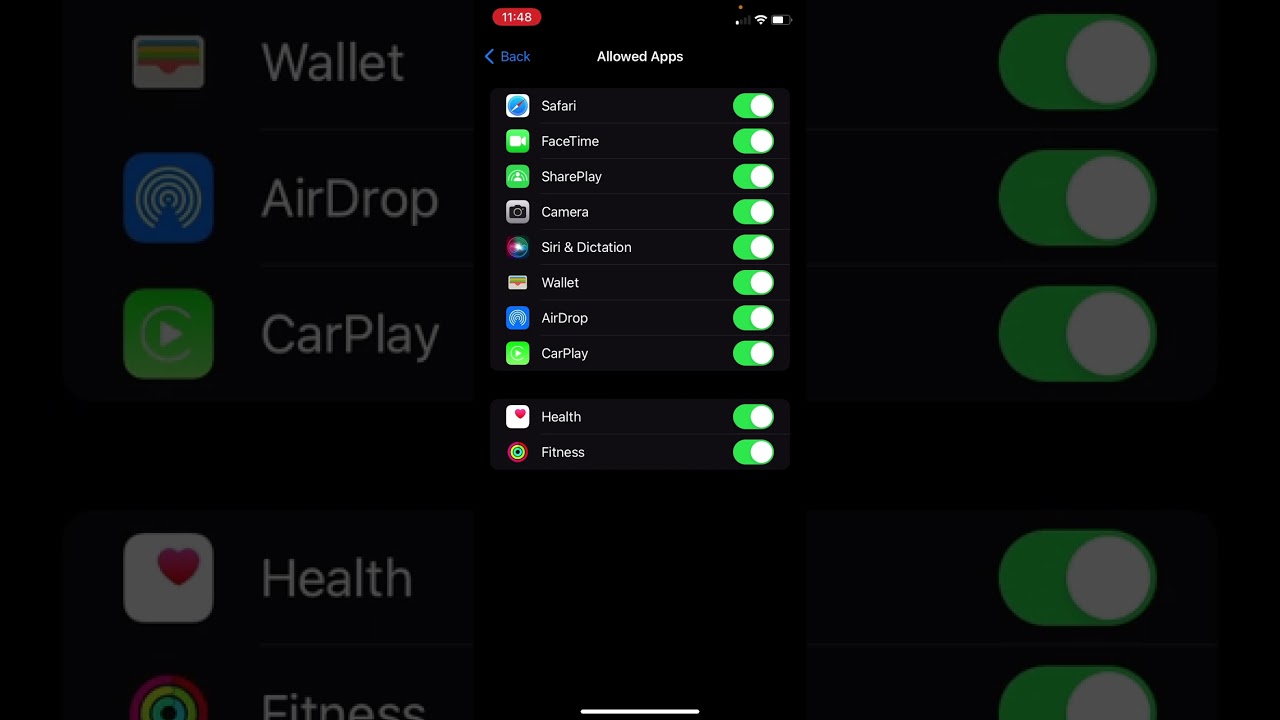
Content and Privacy Restrictions is the deepest layer of Screen Time. It’s less about time and more about what can be accessed, purchased, or changed on the device.
| Restriction Area | What It Controls |
|---|---|
| App Store Purchases | Install, delete, in-app purchases |
| Allowed Apps & Features | Camera, Siri, AirDrop, Safari, FaceTime |
| Web Content | Unrestricted, limit adult sites, approved only |
| App Ratings | 4+, 9+, 13+, 16+, 18+ age thresholds |
| Privacy Settings | Location, contacts, photos, microphone access |
Web Content filtering works only in Safari and supported apps. Third-party browsers installed separately are not automatically filtered. This is one of the most common gaps parents run into.
A 2023 Pew Research Center study found 66% of U.S. parents with children under 18 use parental controls on their child’s devices (Canopy, citing Pew Research).
Apple’s iOS 26 expanded App Store age ratings to include more granular tiers (4+, 9+, 13+, 16+, 18+), making content filtering more precise than the older, broader rating system.
Turning off Content and Privacy Restrictions doesn’t delete any settings. It just pauses them until you turn it back on.
Screen Time Across Family Sharing

Family Sharing is what turns Screen Time from a personal tool into a remote parental control system.
66% of U.S. parents with children under 18 use device-level parental controls (Pew Research Center, 2023), and Family Sharing is Apple’s built-in way to manage that across up to six family members.
Once Family Sharing is active and a child account is linked, a parent can:
- View the child’s app usage report from their own iPhone
- Push App Limits, Downtime, and Content Restrictions remotely
- Adjust Communication Limits without touching the child’s device
- Approve or deny requests for extra screen time
Child account vs. teen account:
- Under 13 – Child Account, strict defaults enabled automatically
- Ages 13-17 – Apple now applies web content filters and Communication Safety by default (Apple Newsroom, 2025), even on standard accounts
Family Sharing links up to six family members under one Apple ID organizer (Apple Support). The organizer can be a parent or guardian, and only that role can manage Screen Time settings remotely.
One practical limitation: Screen Time via Family Sharing applies only to Apple devices. Android phones or any non-Apple device a child uses won’t show up in the same dashboard. Families with mixed devices often need a third-party tool to cover the full picture.
How to Enable and Set Up Screen Time
Setup takes under five minutes. The path is the same whether you’re setting it up for yourself or a child’s device.
For your own iPhone:
- Go to Settings > Screen Time
- Tap “Turn On Screen Time”
- Select “This is My iPhone”
- Optionally add a Screen Time passcode
For a child’s device via Family Sharing:
- Set up Family Sharing first (Settings > [Your Name] > Family Sharing)
- Create or link your child’s Apple Account
- Go to Settings > Screen Time > [child’s name]
- Follow the guided setup for Downtime, App Limits, and Content Restrictions
- Set a Screen Time passcode to lock the settings
The iCloud sync option appears during setup as “Share Across Devices.” Turning this on applies the same Screen Time settings and passcode to every device signed into the same Apple ID, including iPad and Mac.
If you skip setting a recovery Apple ID during passcode setup and later disable “Share Across Devices,” resetting a forgotten Screen Time passcode requires erasing the device entirely (Apple Support). Worth noting before you skip that step.
Passcode tip: Use a four-digit code you won’t type automatically. A lot of people set their Screen Time passcode as the same PIN they use everywhere else, then bypass it without thinking.
Screen Time has no additional cost. It’s built into every iPhone running iOS 12 or later and receives updates with each major iOS release.
FAQ on What Is Screen Time On Iphone
Does Screen Time drain battery?
Screen Time runs as a background system process, so its battery impact is minimal. It doesn’t actively record video or audio. Most users see no measurable difference in battery life with Screen Time enabled.
Can my child turn off Screen Time?
Not if you’ve set a Screen Time passcode. Without one, any user can disable it from Settings. Always set a passcode when managing a child’s device, and keep it separate from the device unlock PIN.
Does Screen Time track websites?
Yes. It logs websites visited in Safari and supported browsers, including time spent per site. The data shows up under App & Website Activity in the Screen Time report, broken down by day.
Can Screen Time see deleted apps?
No. Once an app is deleted, its usage data no longer appears in the activity report. Screen Time only tracks apps currently installed on the device at the time of the reporting period.
Is Screen Time accurate?
Generally yes, but small discrepancies happen. Background app refresh and certain system processes can add time that doesn’t match actual active use. The data is reliable enough for identifying patterns and setting daily app limits.
Does Screen Time work on iPad too?
Yes. Screen Time works on iPhone, iPad, and iPod touch running iOS 12 or later. If you enable “Share Across Devices” via iCloud, the same settings and passcode sync across all devices on the same Apple ID.
What happens when Screen Time resets?
App Limits reset at midnight every day. The weekly usage summary resets each Sunday. Historical data stays viewable for recent days, but Screen Time doesn’t archive long-term usage history beyond the current weekly cycle.
Can Screen Time block specific websites?
Yes. Under Content and Privacy Restrictions, go to Web Content and select “Limit Adult Websites” or “Allowed Websites Only.” You can manually add specific URLs to a never-allow list for more precise blocking.
Does Screen Time apply to all apps?
It applies to App Store apps and most built-in Apple apps. System-level processes aren’t counted. Some third-party apps with background activity may log minor usage even when you’re not actively using them.
Can I use Screen Time without Family Sharing?
Yes. Screen Time works as a standalone personal tool with no Family Sharing required. Family Sharing is only needed if you want to remotely manage and monitor another person’s device, like a child’s iPhone.
Conclusion
This conclusion is for an article presenting screen time on iPhone as a practical system, not just a passive tracker.
App Limits, Downtime, Content and Privacy Restrictions, and Family Sharing each solve a different problem. Used together, they give you real control over device usage, whether that’s for yourself or a child.
The weekly activity report is only useful if you act on it. Set realistic daily limits, block the high-distraction hours, and check pickup patterns to spot where phone dependency actually lives.
For families, the Screen Time passcode paired with remote Family Sharing management is what separates functional parental controls from ones kids dismiss in seconds.
Start with the data. Adjust from there. That’s the whole process.

- MongoDB Cheat Sheet - October 20, 2026
- Adding AI Video Generation to a Software Product: Architecture, Cost Guardrails and QA - October 20, 2026
- Show Hidden Characters, Spaces, and Line Endings in Notepad++ - October 19, 2026


