Most iPhone users have no idea half their apps even exist.
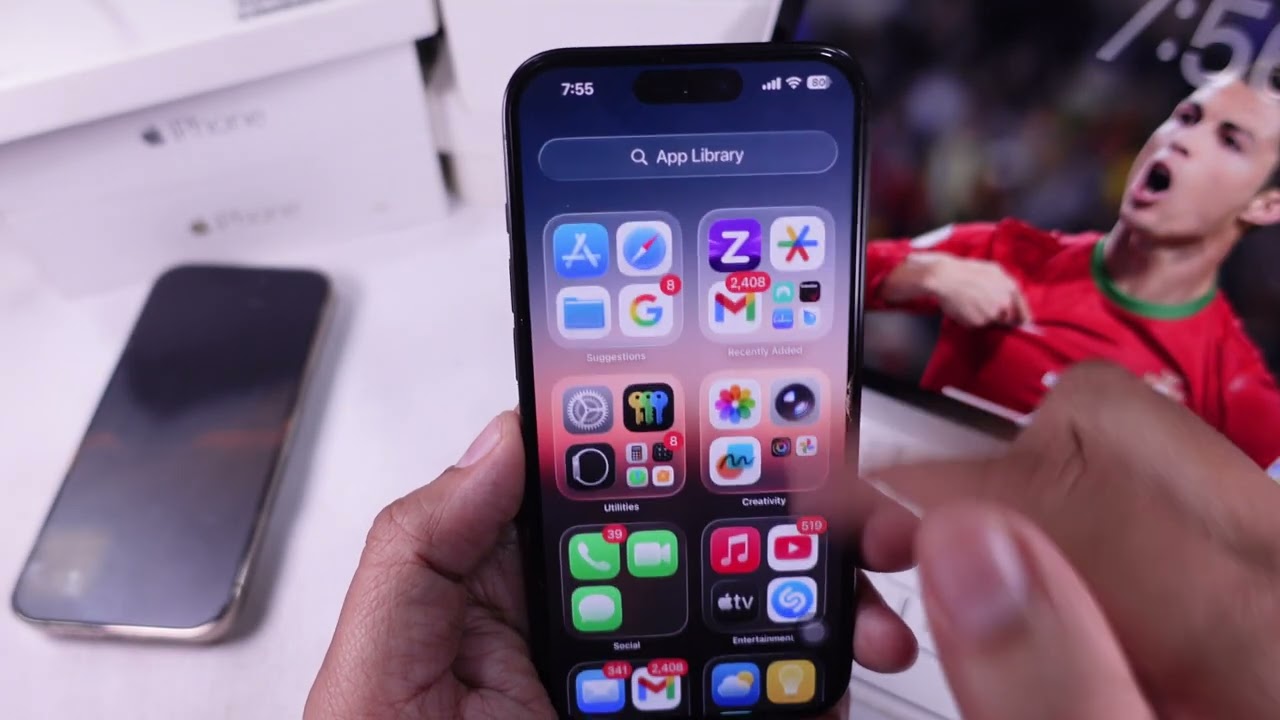
The App Library on iPhone is a built-in iOS feature that automatically organizes every installed app into category folders, sitting one swipe past your last Home Screen page.
Apple introduced it in iOS 14, and it quietly changed how iPhone app management works. No manual sorting. No folders to maintain. Just a clean, searchable system that handles the organization for you.
This guide covers everything: how to access it, how the automatic categorization works, how to move apps in and out, and how to fix it when something goes wrong.
What Is the iPhone App Library
The iPhone App Library is an automatically organized space that sits at the end of your Home Screen pages, holding every app installed on your device – whether or not it appears on any Home Screen page.
Apple introduced it with iOS 14 in September 2020, making it one of the most significant changes to the iPhone’s home screen in the product’s history.
Every installed app lives here. You don’t have to do anything to put apps in the App Library – they show up automatically the moment you install them.
Key distinction: The App Library and the Home Screen are two separate layers. An app can exist only in the App Library (hidden from all Home Screen pages) and still be fully functional and accessible.
iOS 14 reached 90% adoption among iPhone users within just seven months of release, according to Mixpanel data – faster than any previous iOS version. The App Library was one of the headline features driving that rapid uptake.
The Apple App Store now has over 1.96 million apps available for download (Buildfire, 2025), which gives you a sense of why automatic app organization became a necessary feature.
App Library vs. Home Screen
These two areas work together but serve different purposes.
| Feature | App Library | Home Screen |
|---|---|---|
| App placement | Automatic, by Apple | Manual, by user |
| Visibility | Always present | Requires adding app icon |
| Organization | Category-based folders | User-defined folders |
| Searchable | Yes, alphabetically | Limited to Spotlight |
| Deletable | Yes (uninstalls app) | Yes (removes icon only) |
The Home Screen is what you curate. The App Library is what iOS manages for you.
Removing an app from your Home Screen does not uninstall it. It just clears the icon from view – the app stays in the App Library, ready to use.
How the App Library Organizes Apps
Apple’s App Library does not let you choose which folder an app goes into. The sorting happens automatically, based on the app’s category as defined in the App Store.
Top-level layout:
- Suggestions – Four apps Apple predicts you’ll want next, based on usage patterns and time of day
- Recently Added – Apps installed in the last few days
- Category folders – Everything else, grouped by type (Social, Entertainment, Utilities, Productivity & Finance, and more)
Each category folder shows up to four apps in a large grid view, with a small cluster of additional apps in the lower-right corner. Tap that cluster to expand the full folder.
According to Buildfire data, the average smartphone owner actively uses 11 apps per day and around 30 per month. That leaves a large chunk of installed apps sitting idle – exactly the kind of clutter the App Library is built to manage.
The Suggestions section is smarter than it looks. It factors in time of day, location, and frequency of use. Open a news app every morning? It’ll show up in Suggestions around 7 AM. Tap a navigation app every time you leave home? Same idea.
App Categories in the Library
Apple uses its App Store taxonomy to assign apps to folders. These categories map directly to how apps are classified when developers submit them.
Common categories you’ll see:
- Social (Facebook, Instagram, Snapchat)
- Entertainment (Netflix, Spotify, YouTube)
- Utilities (Calculator, Clock, Compass)
- Productivity & Finance (banking apps, spreadsheets, calendar tools)
- Health & Fitness
- Games (separated from general apps)
- Education
One thing that catches people off guard: you cannot rename these folders, move apps between them, or change how Apple assigns categories. The organization is entirely Apple’s call.
How to Access the App Library on iPhone

Getting to the App Library takes one gesture. Swipe left past all your Home Screen pages and you’ll land on it.
There’s no setting to enable. It’s there by default on any iPhone running iOS 14 or later, and it cannot be disabled or hidden.
Two ways to find apps once you’re in the App Library:
- Browse by category – Tap a folder to expand it and see all apps in that group
- Search – Tap the search bar at the top; this shows an alphabetical list of every installed app
The search bar is actually the fastest route. Type the first letter or two of an app name and it surfaces immediately.
Reviews.org data from 2025 found that the average person checks their phone 205 times a day. With that kind of frequency, fast app access matters. The App Library search bar is one of the more underused shortcuts on iOS.
App Library on Different iPhone Models
The App Library works the same across all iPhone models running iOS 14 and above – iPhone 6s through the latest iPhone 16 lineup.
Compatibility: Any iPhone capable of running iOS 14 supports the App Library. That includes iPhones going back to iPhone 6s (2015), though those older devices cap out at iOS 15.
The layout adapts to screen size. Larger iPhones (Pro Max models) show more of the folder grid at once, but the structure and navigation remain identical.
How to Move Apps to the App Library and Hide Home Screen Pages
Two separate actions often get confused here: moving an individual app to the App Library, and hiding an entire Home Screen page.
Moving a single app:
- Long-press the app icon on the Home Screen
- Tap “Remove App” from the menu that appears
- Select “Move to App Library” (not “Delete App”)
The app disappears from the Home Screen but stays fully installed. It lands in its App Library category automatically.
Hiding an entire Home Screen page:
- Long-press an empty area of the Home Screen to enter jiggle mode
- Tap the row of dots at the bottom of the screen
- Uncheck any page you want to hide
Hidden pages don’t get deleted. The apps on them still appear in the App Library. You can re-enable any hidden page at any time using the same process.
Key difference: Moving an app to the App Library removes one icon. Hiding a page clears an entire screen of icons at once. For people doing a full home screen cleanup, hiding pages is dramatically faster.
A 2024 Reviews.org survey found that over 43% of Americans admit feeling addicted to their phones. The App Library and Home Screen page-hiding tools are part of how Apple addresses that – giving users a way to reduce visual noise without deleting apps entirely.
What Happens to Widgets When You Hide a Page
Widgets placed on a hidden Home Screen page also disappear from view – but they don’t get deleted.
Re-enabling the page brings everything back exactly as it was. No re-setup required.
This is useful for seasonal apps or widgets. You can hide a page full of travel or holiday apps for months, then bring it back when you need it.
How to Add Apps Back to the Home Screen from the App Library
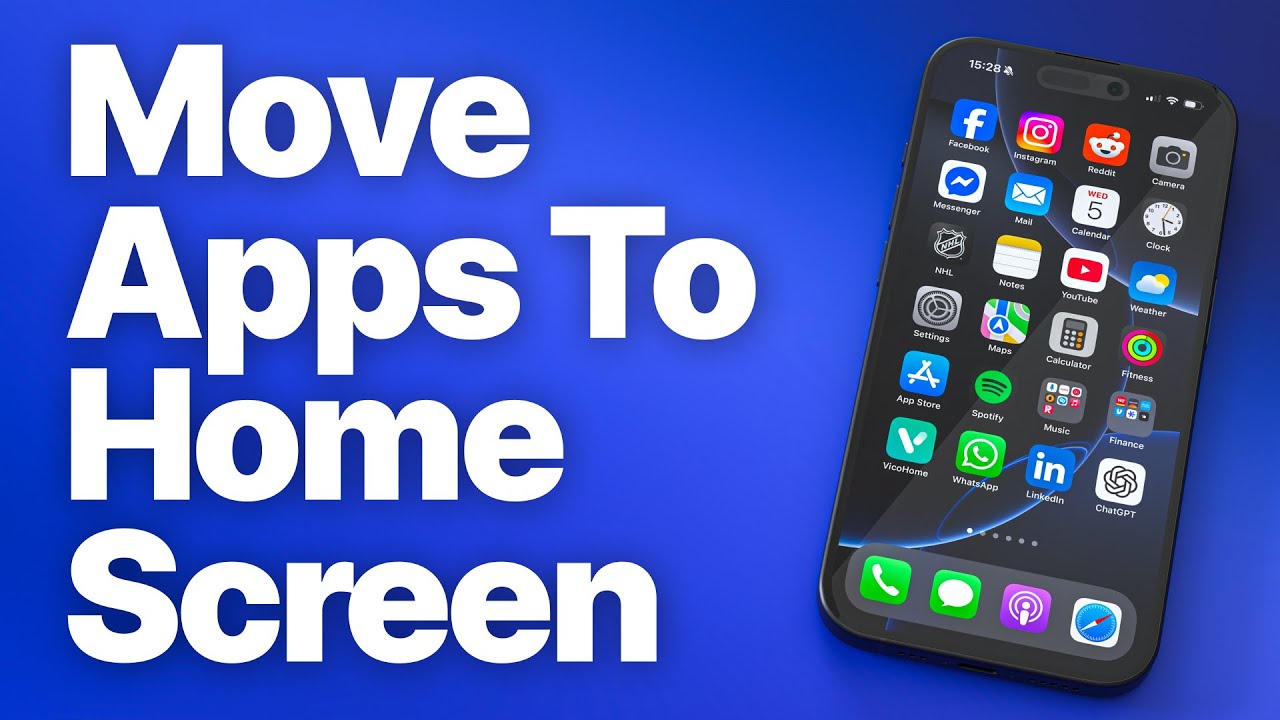
Getting an app back onto your Home Screen from the App Library is straightforward. Long-press the app’s icon in the App Library – either in its category folder or in the search results – and you’ll see the option “Add to Home Screen.”
Tap that, and the app icon appears on your first available Home Screen page.
Alternatively: Long-press and drag the app from the App Library directly to any Home Screen page. You can drop it wherever you want, including into an existing folder.
This second method gives you more control over placement. The first method just drops the icon onto whatever Home Screen page has open space.
One thing to know: Adding an app to the Home Screen from the App Library doesn’t create a duplicate. The same app appears in both places – it’s one install, two access points.
The Apple App Store sees around 1,327 new apps released every day on average (iOS Statistics, 2024). Given that churn, having a frictionless way to pull an app from storage back to your main screen matters more than it used to.
Re-Adding Multiple Apps at Once
There’s no batch operation for this. You have to add apps back to the Home Screen one at a time.
The workaround most people use: enable a previously hidden Home Screen page rather than adding apps back individually. If you grouped related apps on a page before hiding it, re-enabling that page restores the whole group instantly.
How to Delete Apps Directly from the App Library
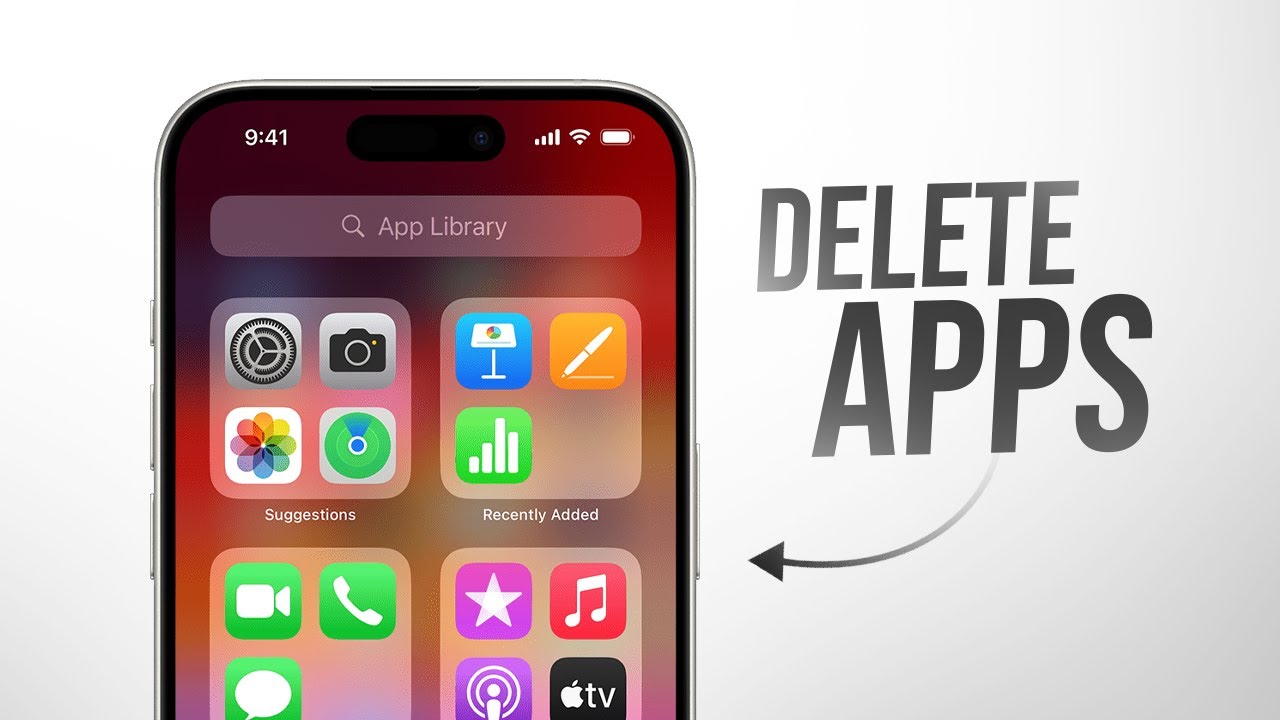
Deleting an app from the App Library is a permanent uninstall – not just a visual removal.
Steps:
- Find the app in the App Library (via search or category folder)
- Long-press the app icon
- Select “Delete App”
- Confirm in the prompt that appears
The app is gone from both the App Library and the device. Any associated data stored locally gets removed too (though iCloud data may persist depending on the app).
Deleting vs. removing – the practical difference:
| Action | Where | Result |
|---|---|---|
| Remove from Home Screen | Home Screen | Icon gone, app stays |
| Move to App Library | Home Screen | Icon gone, app stays |
| Delete App | App Library or Home Screen | App fully uninstalled |
This distinction trips people up constantly. I’ve seen users convinced they deleted an app when they actually just hid it – then confused why their storage didn’t change.
Storage consideration: Deleting apps via the App Library works exactly like deleting them from the Home Screen. There’s no functional difference between the two entry points for a full uninstall.
Apple shipped 232.1 million iPhones worldwide in 2024 (Canalys), which means the App Library and its management tools are in the hands of an enormous user base – most of whom never go beyond the basic swipe-left discovery.
Offloading vs. Deleting
iOS offers a third option beyond keeping and deleting: offloading.
Offload App removes the app binary from storage but keeps the app icon on your Home Screen (or in the App Library) with a small cloud icon. Re-tapping the icon reinstalls the app and restores all your data.
Offloading is useful for apps you use rarely but don’t want to lose data for. Deleting is better when you’re done with an app entirely.
To offload, go to Settings > General > iPhone Storage, find the app, and tap “Offload App.” You can also set iOS to automatically offload unused apps from that same menu.
App Library Settings and Customization Options

Two settings control how the App Library behaves. Both live in Settings > Home Screen & App Library.
| Setting | Options | Default |
|---|---|---|
| New app downloads | Add to Home Screen, App Library Only, or both | Add to Home Screen |
| Notification badges | Show in App Library on/off | Off |
That’s it. Apple keeps this intentionally minimal.
New app download location is the one most people want to change. Setting it to “App Library Only” keeps every new install off your Home Screen automatically, so you never have to manually move apps again.
Notification badges are off by default in the App Library. Turn them on if you keep apps exclusively in the library and still need to see unread counts.
The Apple App Store sees around 33,000 new app releases per month (42matters, 2024). For anyone who installs apps regularly, setting downloads to “App Library Only” is the single most useful customization available.
What You Cannot Customize
No folder renaming. No manual category assignment. No way to pin an app to the top of the App Library.
Apple’s Suggestions section updates automatically based on usage. There’s no way to manually add or remove an app from it.
This frustrates some users, but it’s by design. The App Library works best as a passive system running in the background, not a folder structure you maintain yourself.
Resetting the Home Screen Layout
Settings > General > Transfer or Reset iPhone > Reset > Reset Home Screen Layout puts every app icon back to Apple’s default arrangement.
This doesn’t affect the App Library. All apps remain installed and accessible there.
Worth knowing if you want a clean slate without losing anything.
App Library on iPad
Apple arrived late with this one. The App Library came to iPhone with iOS 14 in September 2020, but iPad users had to wait a full year for iPadOS 15 in September 2021 to get it.
The core feature is identical. Apps are automatically sorted into the same categories, the search bar works the same way, and long-pressing to delete or add to the Home Screen all works as expected.
The main difference is access.
| Platform | How to Access App Library |
|---|---|
| iPhone | Swipe left past all Home Screen pages |
| iPad | Tap the App Library icon in the Dock (far right), or swipe left past Home Screen pages |
On iPad, the App Library icon sits permanently in the Dock by default. You can remove it via Settings > Home Screen & Dock > Show App Library in Dock, but the swipe-left method still works regardless.
Why the iPad Version Came Later
iPadOS 14 skipped the App Library entirely, which Apple acknowledged as a deliberate decision. The iPad’s larger screen and more complex multitasking model made the Home Screen redesign a bigger project than it was on iPhone.
Apple also added a global keyboard shortcut on iPad that doesn’t exist on iPhone: you can trigger the App Library with a key combination at any time, from any app, without returning to the Home Screen first. Useful for external keyboard users.
iPadOS adoption note: As of early 2025, iPadOS 18 runs on 53% of all iPads (Apple via PhoneArena), compared to higher iPhone adoption rates. This reflects a well-documented pattern: iPad users update their software less frequently than iPhone users, partly because iPads charge less consistently overnight.
iPad-Specific Behavior
The category structure and automatic sorting logic are the same as iPhone. No behavioral differences in how apps are grouped.
One thing that works differently on larger iPad Pro models: the App Library grid shows more app icons per folder at a glance because of screen real estate, but the tap interactions are identical.
Common App Library Issues and Fixes

Most App Library problems fall into a small set of categories. None require a full device reset to solve.
App missing from App Library:
The most common cause is accidental deletion. If an app isn’t in the App Library, it’s not installed. Check the App Store purchase history and reinstall.
A less obvious cause: Screen Time restrictions. If Content & Privacy Restrictions are enabled, certain apps may not appear in the App Library even if installed. Check Settings > Screen Time > Content & Privacy Restrictions.
App Library Not Showing
The App Library is only available on iOS 14 and later. If you’re running iOS 13 or below, it doesn’t exist. Go to Settings > General > Software Update to check your iOS version.
If you’re on a supported version and still can’t find it, keep swiping left. Some users with many Home Screen pages assume they’ve reached the end when they haven’t.
The App Library always sits at the very end, past every Home Screen page. There’s no setting to remove it from an iPhone.
Apps Appearing in Wrong Category
This is expected behavior, not a bug.
Apple assigns categories based on how developers classify their apps in the App Store. A productivity app that also has social features might land under “Social” instead of “Productivity & Finance.” You can’t change it.
The only resolution: if you’re a developer, recategorize the app in App Store Connect.
Home Screen Layout Reset After iOS Update
Occasionally an iOS update or a device restore will reset the Home Screen layout, causing apps to scatter.
The App Library is unaffected – all apps are still there. But manually recreating Home Screen folder structures takes time. The practical fix: use the App Library as your primary navigation rather than relying heavily on a customized Home Screen layout. It’s more resilient because Apple manages it.
A 2024 survey from Reviews.org found that 78.2% of Americans feel uneasy when they leave their phone behind. An organized App Library reduces some of that anxiety by ensuring apps are always findable, even after a layout reset.
FAQ on iPhone App Library
What is the App Library on iPhone?
The App Library is a screen that automatically organizes every installed app into category folders. It sits at the end of your Home Screen pages. Introduced in iOS 14, it gives every app a permanent home without cluttering your main screens.
How do I access the App Library?
Swipe left past all your Home Screen pages. The App Library appears as the final screen. You cannot hide it or remove it. It is always there, one swipe away from your last Home Screen page.
Can I delete apps directly from the App Library?
Yes. Long-press any app icon, then tap Delete App from the menu. This removes the app and all its data permanently from your iPhone. There is no trash folder. Deletion is immediate and cannot be undone.
What is the difference between removing an app from the Home Screen and deleting it?
Remove from Home Screen hides the icon but keeps the app installed in App Library. Delete App removes everything. If you are unsure, always choose Remove from Home Screen first to avoid losing app data.
Why is my App Library missing?
App Library requires iOS 14 or later. If your iPhone runs an older iOS version, the feature simply does not exist. Update via Settings, then General, then Software Update. After updating, swipe left past your last Home Screen page to find it.
Can I reorganize the App Library categories?
No. iOS assigns apps to categories automatically based on App Store metadata. You cannot rename folders, move apps between categories, or change the layout. The only manual control you have is over which apps appear on your Home Screen.
How do I add an app from App Library back to my Home Screen?
Long-press the app icon in App Library, then tap Add to Home Screen. Alternatively, drag the icon directly from App Library onto any Home Screen page. The app lands on the first available grid slot.
Does App Library work on iPad?
Yes, but iPadOS 15 was required to get it. iPad’s App Library sits at the bottom of the screen, not at the end of Home Screen pages like on iPhone. Core functionality is the same across both devices.
How do I search for an app in the App Library?
Tap the search bar at the top of App Library. This opens a full alphabetical list of every installed app. Start typing to filter results, or scroll through the list. Tap any app to open it directly from App Library.
How do I stop new apps from appearing on my Home Screen?
Go to Settings, then Home Screen. Under Newly Downloaded Apps, select App Library Only. New installs will go straight to App Library without adding an icon to your Home Screen. You can reverse this setting at any time.
Conclusion
This conclusion is for an article presenting the App Library iPhone feature as a practical tool for iOS home screen management, not just a hidden screen most users swipe past by accident.
The automatic app categorization handles organization without any manual input. The alphabetical list view makes finding any app faster than scrolling through multiple Home Screen pages.
Use the App Library Only download setting to keep new installs out of your Home Screen entirely. Hide apps you rarely open instead of deleting them. Keep your main screens intentional.
Once you understand how the Suggestions folder, Recently Added section, and search bar work together, navigating your iPhone gets noticeably cleaner. It is a simple system. Use it.

- Application Performance Monitoring Beyond the Code: Why Infrastructure Matters - October 26, 2026
- How to Share GitHub Repository Access With Collaborators - October 25, 2026
- Streamlining Client Projects: Modern Cloud ERP Solutions - October 25, 2026