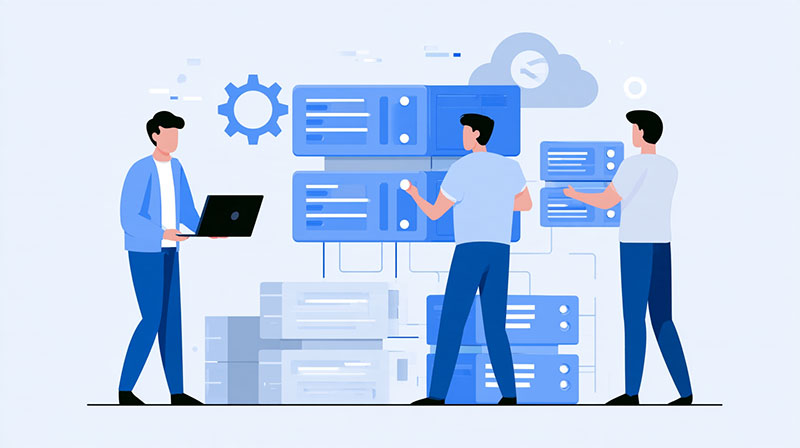
Custom software and a server control panel make a good pair. The panel takes care of messy, everyday server tasks, while the custom software sticks to the business logic, the part that actually sets your product apart. Most teams only figure this out after they’ve already spent time building their own system, then stumble into a pile of server chores: managing sites, wrangling databases, renewing SSL certificates, and handling backups. A lightweight control panel strips away that friction, leaving developers free to spend their energy where it counts.
Here’s how it usually goes. Developers dive in, build the app, set up the database, and only later face the basic reality of production. Suddenly, someone’s stuck installing PHP or Node, spinning up new databases, connecting domains, renewing certificates. This is the kind of work that’s boring and eats up time when you’re doing it by hand. A good panel smooths out these bumps. With it in place, developers can push out updates, check logs, restart services, and manage the stack without bouncing between terminals for every tiny tweak.
Where Each Tool Fits
Where each tool shines is pretty clear. The server panel takes charge of infrastructure: creating accounts, managing files, handling database connections, and dealing with SSL certificates. The custom software delivers what the end user actually cares about, whether that’s handling orders, running reports, or working with outside APIs. When both stick to what they do best, you avoid the headaches that come from overlapping responsibility. Update the app? No need to mess with server configs. Tweak the server? You’re not risking an accidental break in your app.
This split also comes in handy when you’ve got more than one person on the project. The developer can push a new release while someone else adds a domain or restores a backup using the panel. They don’t need to know each other’s turf. That means fewer delays, fewer accidents, and clear ownership.
Daily Tasks That Become Easier
After you’ve set things up, a lot of daily work just gets easier. Deploying a new version comes down to uploading files or pulling from your repo, then restarting the app. Panels usually have a file manager and one-click restarts, so you’re done in minutes. Database changes? Same story. You write your migration script, then use the panel to run it or spin up a new database for testing.
Backups get simpler, too. Most panels handle scheduled backups for both files and databases. Let the custom app focus on the unique data it manages, and let the panel take care of the rest. If anything goes wrong, restoring from a backup is much less painful with a panel and no more rebuilding from scratch.
Here’s a snapshot of what gets easier:
- Adding or pointing new domains
- Installing or switching PHP and Node versions
- Managing databases and user accounts
- Automatic SSL certificate renewal
- Checking error logs—no SSH required
All these jobs used to demand terminal skills and a stack of notes. With a decent panel, pretty much anyone on the team can handle them, no drama.
Keeping the Stack Light
There’s something to be said for keeping things light, too. Heavy panels hog memory, leaving your app with less room to breathe. If you’re running multiple sites on a modest VPS, you’ll notice. Pick a panel with a small footprint and the server will stretch further before needing an upgrade. Don’t let the app balloon with unnecessary features, either disable what you don’t need so the two avoid fighting for server resources.
Updates play by the same rules. The panel can get its security patches separate from your app’s feature releases. Since neither one depends on the other, you’re less likely to run into a situation where a panel update forces an app change or vice versa. That independence means fewer interruptions and updates that fit actual user needs.
When the Combination Starts to Strain
Trouble crops up when tools overstep. Some teams write scripts that manage databases or tweak web server configs on their own, outside the panel. These hacks work until the panel updates and suddenly, file structures change and your scripts fail. Let the panel handle these routines, use its API when you need automation, and you’ll save yourself plenty of headaches.
Flip to the other side: some panels can install all sorts of third-party apps with just a click. It’s tempting to load up, but each one brings extra updates and potential security holes. Most projects run smoother when the panel handles only essential hosting, while your software delivers the unique business features.
Practical Setup Steps
If you’re piecing it all together, start simple. Install the panel on a fresh server and confirm the basics work. Spin up a test site, hook up a database, generate a certificate. Once it’s running, deploy the custom app right into the directory the panel sets up. Point the domain, set the right runtime, and check the app starts. After that, the two tools barely need to interact or maybe the occasional restart or a log check.
Make a note of where they intersect. Jot down which directory holds the app files, which database the software uses, and how certificate renewals work. Just a single page of notes is usually enough for the next person who joins in. With that, anyone can step in and things keep ticking, even if the original developer moves on.
When each tool sticks to its job, you spend more time building something users love and less time slogging through maintenance. A lightweight setup, with clear boundaries, clears away a lot of the tiny annoyances that slow teams down. Once you’ve drawn the lines, the whole stack just feels easier to manage.

- How Custom Software and Server Control Panel Tools Work Together - November 22, 2026
- Notepad++ Online: Can You Use It in a Browser? - November 21, 2026
- 5 Best customer loyalty software for consumer brands in 2027 - November 21, 2026