Buying the same app twice because your partner uses a different account is exactly the kind of problem Google Play Family Library was built to fix.
Launched in 2016, the feature lets up to 6 family members share eligible purchased apps, games, movies, e-books, and TV shows through a single linked family group, with no extra cost.
Most Android users have no idea it exists. Those who do often run into questions about eligible content, child account setup, and the payment rules that catch people off guard.
This guide covers everything: how the shared library works, what content qualifies, how Google Family Link connects to it, and how it compares to Apple Family Sharing.
What Is Google Play Family Library?

Google Play Family Library is a Google Play feature that lets up to 6 family members share eligible purchased apps, games, movies, TV shows, e-books, and audiobooks through a linked Google account group.
It launched on July 2, 2016. Sharing is managed through a family group, not through direct account transfers or login swaps.
One person acts as the family manager and controls the group, approves purchases, and sets the family payment method. Everyone else joins as a member.
Content access is simultaneous across all members. There is no checkout system, no queue, and no device limit per person for accessing shared content.
Google Play connects over 2.5 billion users across 190+ markets (Google, Q2 2024). Family Library sits inside that ecosystem as the primary tool for shared digital purchase access on Android.
Shared purchases are accessible on Android phones, tablets, Chromebooks, and Android TV. Each family member uses their own Google account and installs content independently on their own device.
Family Library is separate from Google Play Pass. One covers purchased content. The other is a subscription-based catalog. Both operate inside the same family group but follow different rules.
What Content Is Eligible for Google Play Family Library?
Not everything you buy on Google Play can be shared. Eligibility depends on the content type and, for apps and games, on whether the developer has opted in to family sharing.
Paid apps and games purchased after July 2, 2016 are eligible by default, provided the developer has not excluded the app from sharing. Apps bought before that date may still qualify if the developer made past purchases available.
| Content Type | Shareable | Key Condition |
|---|---|---|
| Paid apps and games | Yes (if eligible) | Developer opt-in required |
| Movies and TV shows | Yes (with conditions) | Must use family payment method |
| E-books and audiobooks | Yes (if publisher allows) | Publisher opt-in required |
| In-app purchases | No | Always excluded |
| Subscriptions | No | Always excluded |
| Free apps | No | Only paid content qualifies |
Apps and Games Sharing Eligibility
Developer opt-in controls whether a paid app can be shared. If a developer has not enabled family sharing, the app will not show an “Eligible for Family Library” label on its Play Store listing, even if you paid for it.
To check: open the app page, tap “About this game/app,” scroll to “More info,” and look for the eligibility label.
In-app purchases are never shared. If your child installs a game you shared and it has unlockable content, those unlocks do not carry over.
Movies, TV Shows, and Books Eligibility
Movies and TV shows added after joining a family group must be purchased with the family payment method to be shareable. Purchases made with a personal card may not qualify.
Rentals are excluded entirely. YouTube movie purchases cannot be added. Bundles share as a full bundle, not as individual titles.
For books, the publisher decides. Public domain books, samples, rented books, and personally uploaded documents cannot be shared.
What Is Always Excluded
These content types are never eligible, regardless of any settings:
- In-app purchases of any kind
- Subscription services (Google One, YouTube Premium, app-specific subscriptions)
- Free apps and free games
- Google Play music purchases
- Movie and TV rentals
- YouTube-purchased content
- Newsstand purchases
How Does Google Play Family Group Work?

The family group is the account structure that makes sharing possible. Without one, Family Library cannot be activated.
| Rule | Detail |
|---|---|
| Maximum members | 6 total (including family manager) |
| Family manager age | 18 or older (varies by country) |
| Member age (adults) | 13 or older (or country equivalent) |
| Country requirement | All members must share the same country |
| Group limit per person | 1 group at a time |
| Switch frequency | Once every 12 months |
Each member keeps their own Google account. Children under 13 (age varies by country) need a supervised Google account created by the family manager through Google Family Link.
Work and school Google accounts cannot join or create a family group. This is a hard restriction from Google, not a workaround.
The 12-month lock is worth knowing before you join. If you leave a group or delete one, you cannot create or join a new group for a full year. Google enforces this strictly.
How to Set Up Google Play Family Library?
Setup takes a few minutes but requires completing steps in a specific order. The family group must exist before Family Library can be activated.
Creating the Family Group

Go to families.google.com or open the Google Play app, tap your profile icon, go to Settings, then Family, and tap “Sign Up for Family Library.”
If no family group exists yet, the system walks you through creating one. You become the family manager automatically.
Work or school Google accounts are blocked from this step.
Inviting Family Members
From the family management page, the family manager sends email invitations to each person. Invited members accept via the link in their email.
Members already in another family group cannot accept until they leave their current one. And they need to wait out any remaining time from the 12-month lock before switching.
Note: There is a weekly limit on how many invitations the family manager can send. Google does not publish the exact number, but multiple failed sends in a day can trigger a temporary block.
Setting the Family Payment Method
Only a credit or debit card qualifies as the family payment method. Google Play gift cards are not accepted as the family payment method, though members can use gift cards for individual purchases.
Once set, the family manager’s card is charged for any purchase a family member makes using that payment method. The family manager receives an email receipt for each transaction.
Purchase approval settings let the family manager require sign-off before charges go through. This applies per member and can be set to cover all purchases, only in-app purchases, or nothing at all.
How Do Children Access Google Play Family Library?
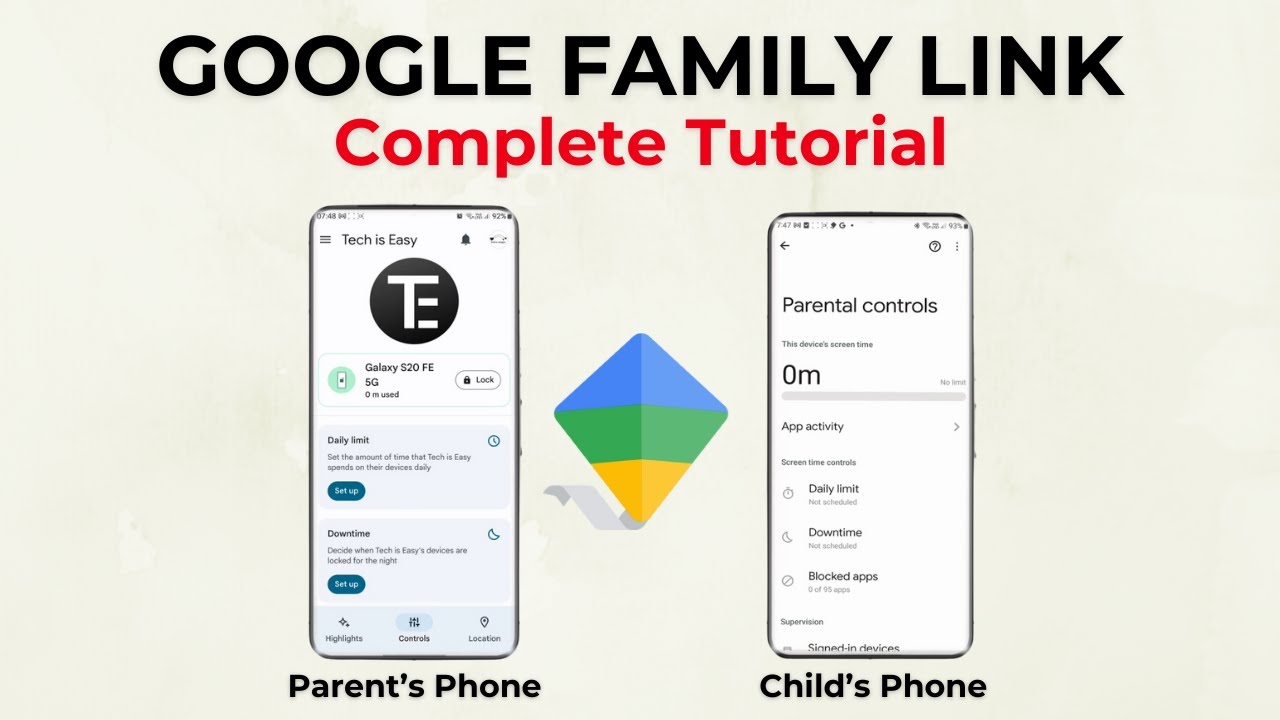
Child access runs through Google Family Link, not through standard Family Library settings. The two systems overlap but are not the same thing.
Children under 13 (or the applicable age in their country) use supervised Google accounts. The family manager creates these accounts through Family Link. Standard Google account creation is blocked for this age group.
The parental control market reached $2.82 billion USD in 2024 (Boomerang Parental Control, 2024), reflecting just how central tools like Family Link have become for Android households.
How Purchase Approval Works for Children
Every app download or purchase from a child’s supervised account triggers a real-time approval request sent to the parent’s Google Family Link app.
The parent approves or rejects directly from their device. The child sees a “waiting for approval” screen until a decision is made.
This applies to both free and paid apps if the family manager has set the child’s purchase approval to cover all downloads.
Content Filters for Child Accounts
Content rating filters are applied automatically based on the child’s age set inside Family Link.
- Children cannot change their own content rating filters
- Parents adjust filters per child from within the Family Link app
- Age-restricted content is blocked at the store level, not just hidden
- Filter changes take effect immediately across all the child’s devices
According to Aura’s 2024 State of the Youth Report (conducted with Gallup), only 46% of parents feel highly confident about what apps their children are using. Family Link’s approval system directly addresses that gap by moving control to the parent’s device in real time.
What Are the Purchase and Payment Rules in Family Library?

The family payment method sits at the center of how shared purchases work. Getting this wrong is the most common source of confusion.
Who Pays for What
The family manager’s card is charged for any purchase a member makes using the family payment method. Members can also use their own cards for purchases they do not want shared.
If a member uses the family payment method to buy something, it goes into the shared library. If they use a personal card, it goes into their personal library only.
Movies and TV shows are the exception. After joining a family group, those content types must be bought with the family payment method to qualify for sharing, regardless of which card the buyer prefers.
Refunds and Shared Content
Refunding a shared purchase removes that content from all members’ libraries immediately.
If the person who originally purchased and shared an app or game leaves the family group, all other members lose access to that content at the same time.
Google’s standard refund window for apps is 2 hours from purchase (self-service) or up to a few days via support request. Refunds on content already shared to the family still pull access from all members.
Purchase Approval Settings
The family manager can set purchase approval requirements per member. 3 settings are available:
- All purchases: every buy requires approval, including free app downloads
- Only paid purchases: free content downloads without approval, paid content requires it
- No approval required: members spend freely using the family payment method
Approval requests appear on the family manager’s device in real time. Google’s Q2 2024 update noted that family members can now approve children’s purchases from any OS, not just Android.
How Does Family Library Work Across Devices?
Shared content is not tied to a single device. Each member accesses the family library from their own hardware using their own Google account.
Over 95% of Google Play revenue comes from free-to-install apps monetized through in-app purchases and subscriptions (SQMagazine, 2024). That context matters here: most of what people use on Android is free. Family Library only covers the paid slice, which is roughly 3% of all apps on the store (Tekrevol, 2026).
Compatible Devices
Family Library content works across:
- Android phones and tablets
- Chromebooks running Android apps
- Android TV devices
- Web browser at play.google.com for Google Play Books and Movies
There is no per-device limit for accessing shared content. One purchased app can be installed on every family member’s phone simultaneously.
How Shared Apps Install
Apps do not share a single install across devices. Each member installs the app independently on their own hardware. The install is separate; only the purchase is shared.
This means each member has their own save data, settings, and app permissions. Nothing syncs between family members’ installs unless the app itself supports cross-account cloud saves.
Google Play Books and Movies on Web
Books and movies shared via Family Library are accessible at play.google.com through any browser. Members do not need an Android device to read a shared e-book or watch a shared movie.
This is particularly useful for Chromebook users and for members who primarily use a laptop rather than a phone.
How to Share or Stop Sharing a Purchase with Family Library?

Sharing is not automatic for every content type. Apps and games purchased after July 2, 2016 are eligible by default, but you still control what actually gets added to the shared library.
To share a purchase: open Google Play, find the item in your library, and tap the Family Library toggle on the content’s detail page.
Movies and TV shows work differently. After joining a family group, those must be bought with the family payment method to be added automatically. Purchases made with a personal card before joining may need to be added manually.
How to Add Content to Family Library
When you first set up Family Library, Google offers 2 options:
- Add all eligible purchases now: everything that qualifies gets shared immediately
- Add manually: you pick items one by one from your order history or library
Manual adding requires going to the item’s Play Store page and toggling the Family Library switch. There is no batch add option after initial setup (except for bundles, which are all-or-nothing).
How to Remove Content from Sharing
Removing an item from Family Library does not delete it from your personal account. You still own it. Other family members simply lose access.
Go to the item’s Play Store detail page and turn off the Family Library toggle. The change takes effect immediately.
If you remove content and want to add it back later, you have to re-toggle it manually. There is no undo or restore function.
What Happens When a Member Leaves
When any member leaves the family group, all content they had shared disappears from the library for every other member, immediately.
This catches people off guard. If a sibling bought and shared 10 games, then left the group, all 10 are gone from your library the same day. The only fix is to purchase those titles on your own account.
In-app purchases made inside a shared game are tied to the individual account, not the shared purchase. According to Google’s support documentation, if you later buy the same game yourself, those in-app purchases are restored to your account.
What Are the Limitations and Known Restrictions of Google Play Family Library?

Family Library has real constraints that affect a lot of households. Most of them are hard limits with no workarounds.
| Limitation | What It Means in Practice |
|---|---|
| Same country required | All 6 members must share one Google Play country |
| 12-month group lock | Leaving or switching groups locks you out for a full year |
| No subscription sharing | Individual app subscriptions never share, even with the family payment method |
| Developer opt-out | Some paid apps cannot be shared if the developer restricted it |
| No music sharing | Google Play music purchases are excluded entirely |
The Country Restriction Problem
Every family member must have the same Google Play country set on their account. This is not about physical location; it is the country tied to each Google account’s Play Store settings.
Families with members who moved abroad, use foreign cards, or set up their account in a different country run into this constantly. A VPN does not fix it. Google checks the account-level country setting, not your IP address.
Changing your Google Play country is allowed only once every 12 months (Google support documentation). So if someone switches their country and then wants to rejoin the family group, they may need to wait up to a year before the country settings align again.
The 12-Month Lock Explained
You can only be part of 1 family group at a time. Leave or switch, and Google locks you out of creating or joining any new group for 12 months.
This bites hardest in 2 real situations:
- Divorce or separation, where accounts need to split into 2 groups
- Adult children moving out and wanting their own family group with a partner
The lock applies whether you leave voluntarily or get removed by the family manager. There is no appeal or exception process.
Subscriptions and In-App Purchases Are Never Shared
No subscription bought on Google Play shares through Family Library. YouTube Premium, Spotify, Netflix app subscriptions, and any in-app purchase are always personal.
This is a common source of confusion. Paying for a subscription with the family payment method does not make it a family subscription. The card may be shared, but the access is not.
Google Play Pass is the one exception: its access does share across the family group, but that is a separate subscription product, not part of the Family Library content-sharing system.
How Does Google Play Family Library Compare to Apple Family Sharing?
Both systems let up to 6 people share purchased digital content. The structure looks similar on paper. The real differences show up in what is actually shareable and how subscriptions work.
| Feature | Google Play Family Library | Apple Family Sharing |
|---|---|---|
| Max members | 6 (including manager) | 6 (including organizer) |
| App purchase sharing | Yes, if developer opts in | Yes, if developer opts in |
| Subscription sharing | No (Play Pass excepted) | Yes (Apple Music, Arcade, TV+) |
| Child parental controls | Google Family Link (separate app) | Built into iOS Screen Time |
| Cross-platform access | Android, Chromebook, web | iOS, macOS, Apple TV only |
Where Apple Family Sharing Goes Further
Apple Family Sharing bundles subscription sharing directly into the platform. One Apple Music Family Plan, one Apple Arcade subscription, one Apple TV+ plan covers all 6 members automatically.
Apple Arcade is priced at $6.99 per month or $49.99 per year (Apple, 2024) and covers up to 6 family members with access to 200+ games. Google Play Pass covers the same family group size at $4.99 per month or $29.99 per year for 1,000+ apps and games (Wikipedia, 2024).
Apple also integrates parental controls through Screen Time directly within iOS settings. No separate app download required. Google’s equivalent, Google Family Link, requires installing an additional app on the parent’s device.
Where Google Play Holds Its Own
Google Play movies and books are accessible across Android, Chromebook, and web browsers. Apple’s shared App Store purchases only work on Apple devices.
According to Screenwiseapp research (2025), Google Family Link offers more granular per-app time limits than Apple Screen Time, particularly for households where children use Chromebooks for school.
Mixed-platform households (Android phones, Chromebooks, Windows laptops) get more consistent cross-device access through Google’s ecosystem than through Apple’s, which stays locked to Apple hardware.
The Honest Bottom Line
Apple wins on subscription bundling. If you are already paying for Apple Music, Apple TV+, and Apple Arcade separately, Family Sharing consolidates those under one family cost.
Google wins on Android-first households, Chromebook integration, and per-device parental controls. The Google Play parental controls documentation covers the full range of content rating filters and purchase approval settings in detail.
Neither system is objectively better. The right one depends entirely on which platform your family actually uses.
What Is Google Play Pass and How Does It Fit with Family Library?

Google Play Pass and Google Play Family Library are separate features that operate inside the same family group. Mixing them up is one of the most common mistakes new users make.
Play Pass launched in the United States in September 2019 and expanded to 100 countries by October 2023 (Wikipedia). Its catalog grew from around 350 titles at launch to over 1,000 apps and games by 2024 (Grokipedia).
What Google Play Pass Actually Is
Play Pass is a subscription service, not a purchase-sharing system. You pay $4.99 per month or $29.99 per year in the US, and that gives your entire family group access to 1,000+ curated apps and games with no ads and no in-app purchases required.
All included content is access-based. If the subscription lapses, every family member loses access to every Play Pass title immediately. Nothing is “owned.”
Participating titles experience more than doubled earnings on average compared to standard monetization models, according to Grokipedia’s analysis of the service. That economic incentive is why quality titles continue to opt in.
How Play Pass and Family Library Work Together
These 2 systems sit side by side inside the family group. They do not overlap.
- Play Pass content: subscription-based, shared automatically with all family members, disappears if subscription ends
- Family Library content: purchase-based, shared per-item by the buyer, stays accessible as long as the buyer stays in the group
A game can exist in both systems simultaneously. If a title appears in Play Pass and you also bought it separately, family members access it through Play Pass while the subscription is active. If Play Pass lapses, they can still access it through the shared purchased copy in Family Library (assuming it is eligible and you have shared it).
Play Pass vs Apple Arcade for Families
Apple Arcade costs $6.99 per month or $49.99 per year and includes 200+ games, all exclusive to Apple devices (Apple, 2024).
Google Play Pass costs $4.99 per month or $29.99 per year for 1,000+ titles spanning both apps and games, not just games. Play Pass includes productivity tools, utilities, and educational apps that Apple Arcade does not cover at all.
The global subscription-based gaming market is projected to reach USD 12.94 billion by 2025 (Grokipedia, 2025). Both Play Pass and Apple Arcade operate inside that growth trend, though from different positions: Play Pass competes on catalog breadth and price, while Apple Arcade competes on exclusive titles and device-ecosystem integration.
For Android-only families, Play Pass is the clear choice. For Apple-only households, Arcade is the obvious fit. Mixed households tend to end up paying for both, which adds up fast.
FAQ on Google Play Family Library
Can I share free apps with my family through Google Play Family Library?
No. Only paid content is eligible for sharing. Free apps, free games, and free book samples cannot be added to the shared library regardless of your family group settings or payment method.
How many people can be in a Google Play family group?
Up to 6 people total, including the family manager. That leaves 5 spots for additional members. Everyone must have their own Google account and must be registered in the same country.
Can family members use shared apps at the same time?
Yes. Shared apps and games install independently on each member’s device. There is no checkout system or queue. Multiple people can use the same shared purchase simultaneously without any restrictions.
What happens to shared content if someone leaves the family group?
All content that person shared is removed from the family library immediately. Other members lose access the same day. The only fix is to purchase those titles individually on your own account.
Are in-app purchases shared through Family Library?
No. In-app purchases are always tied to the individual account that bought them. They are never shared, even if the base app itself is eligible and visible to all family members.
Can I share Google Play Pass with my family?
Yes. One Google Play Pass subscription covers all members of the subscriber’s family group automatically. It costs $4.99 per month or $29.99 per year and gives access to 1,000+ apps and games.
Does Google Play Family Library work across different devices?
Yes. Shared content is accessible on Android phones, tablets, Chromebooks, and Android TV. Google Play Books and Movies can also be accessed via a web browser at play.google.com on any device.
How do I know if a paid app is eligible for family sharing?
Open the app’s Google Play Store page, tap “About this app,” and scroll to “More info.” If it says “Eligible for Family Library,” it can be shared. If there is no label, the developer has not enabled it.
Can I switch to a different family group if I change my mind?
Not quickly. Google enforces a 12-month lock once you leave or switch family groups. You cannot create or join a new group until a full year has passed. There are no exceptions to this rule.
Do subscriptions like YouTube Premium share through Family Library?
No. Individual subscriptions purchased on Google Play are never shared through Family Library. To share subscription access, you need a dedicated family plan for that specific service, purchased separately.
Conclusion
This conclusion is for an article presenting Google Play Family Library as one of the more practical, underused features in the Android ecosystem.
Set it up once, and shared digital purchases become available across every member’s device instantly, with no extra fees.
The rules matter though. The 12-month group lock, country restrictions, and developer opt-in requirements catch people off guard more than anything else.
Kids’ accounts need Google Family Link. Subscriptions never share through the library. And refunding a shared purchase pulls access for everyone.
Know those limits going in, and the feature works exactly as advertised. A single paid app, game, movie, or e-book reaches every member of your family group without anyone paying twice.

- Notepad++ Vulnerability History and How to Stay Safe - October 27, 2026
- What Code-Level Optimisations Technical SEO Specialists Perform - October 27, 2026
- How to Add an AI Support Agent to a SaaS Product: Data, Integration and Guardrails - October 27, 2026