

Button color in Android Studio gets changed through XML attributes, through Kotlin or Java code, or through a Jetpack Compose modifier, and that covers pretty much every case you’ll run into. What’s actually changing is the fill, tint, or state color of a Button, MaterialButton, or Compose Button, not the app’s whole theme.
Whichever surface gets picked, it eventually runs through the Material Components library bundled with the Android SDK. Worth flagging up front: at Google I/O 2026, Google confirmed it’s all in on Compose now, and the Views-based Material Components library (the one MaterialButton comes from) went into maintenance mode. No further feature releases planned for it.
What Is Button Color Customization in Android Studio?
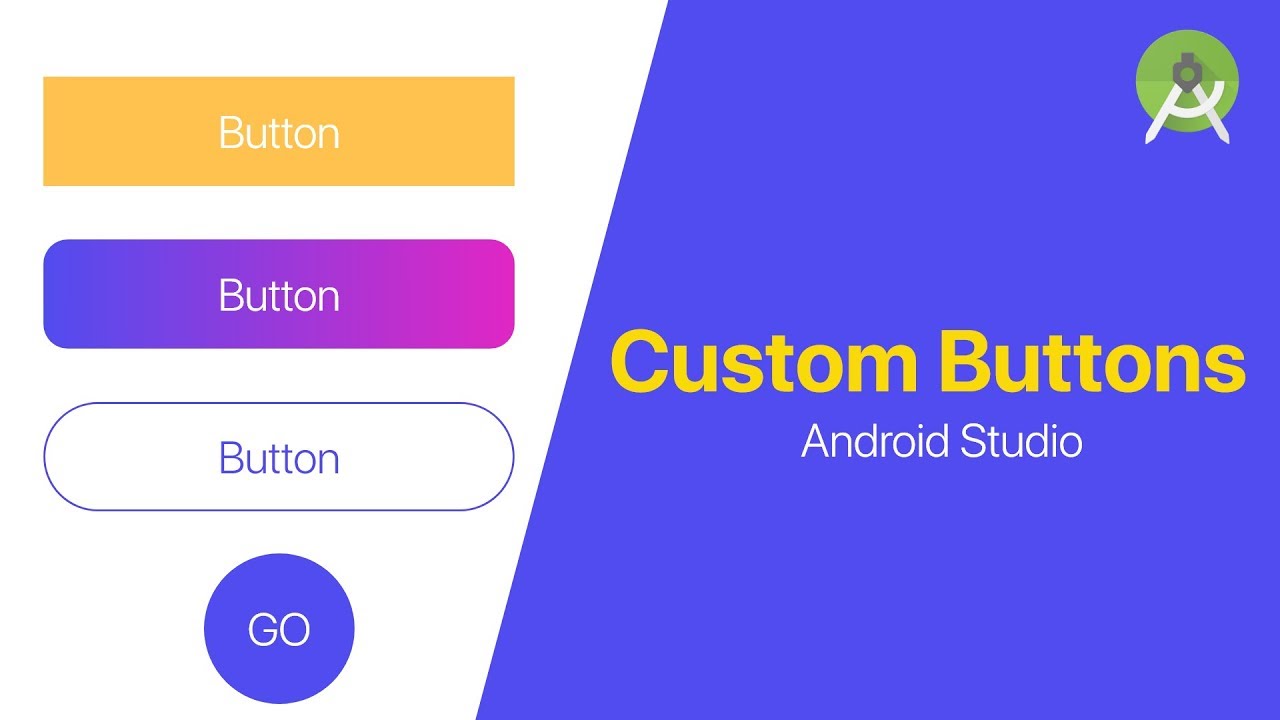
Confusing this with a full theme swap is the most common mix-up beginners make. Recoloring one button touches a single widget, a Button, MaterialButton, AppCompatButton, or a Compose Button composable. It doesn’t touch icons anywhere else in the app, and it doesn’t rewrite the color scheme other screens pull from.
XML attributes written straight into the layout file, Kotlin or Java code run at build or runtime, and Jetpack Compose modifiers attached to a composable all land on the same visual result, just through different routes inside Android Studio. Which one gets used usually depends on scope, whether it’s one button that needs a new color or every default-styled button across the app.
Background vs BackgroundTint: How Button Color Attributes Work
android:background and android:backgroundTint get confused constantly, and it’s easy to see why. Both touch a button’s color. They don’t do the same thing underneath.
Set android:background and the entire drawable behind the button gets swapped out, shape, corners, ripple, all of it. The narrower option is backgroundTint (app:backgroundTint on Material buttons), which recolors what’s already there and leaves the shape alone.
MaterialButton pulls its default tint from colorPrimary, not a hardcoded value. That’s a Material Design principles convention, not an accident. Hex codes and colors.xml references, part of the project’s codebase, both work as values for either attribute.
So the real question when picking between them isn’t which one is correct. It’s whether the shape needs to change too, or just the fill.
Requirements for Changing Button Color in Android Studio
Almost nothing extra is needed beyond a working Android Studio install, but a handful of version numbers decide whether the change actually shows up.
Android Studio Quail 4 (2026.1.4) is the current stable release, paired with Android Gradle Plugin 9.4.0 (Android Developers, official release notes). Material Components for Android 1.13.0 requires minSdkVersion 21 or higher for both Material and AndroidX (material-components-android, GitHub release notes), and that same 1.13.0 release bumped the androidx.appcompat dependency up to version 1.7.0 (material-components-android, GitHub release notes).
None of that sounds urgent until it breaks something. An outdated Gradle setup can quietly block the newer tint attributes from resolving at all, with nothing in the error output pointing at the actual cause.
Beyond the version numbers, the project itself needs a Material Components dependency in build.gradle (this is what makes MaterialButton tinting work), an AndroidX migration already done (AppCompatButton tint support depends on it), a minSdkVersion that actually matches whichever library version is in use, and direct access to colors.xml and styles.xml.
The same Android SDK tools that ship with every Studio update handle compiling all of this into the final APK. And if the Attributes panel on screen looks nothing like what’s described further down, updating Android Studio is usually the fix, not a bug in the project.
Which Method Should You Use to Change Button Color?
Over 60% of professional Android developers already write Kotlin as their primary language (Android Developers, developer.android.com), which nudges plenty of teams toward the code-based route before they’ve even looked at the alternatives.
That said, the right method depends more on the widget and the moment in the project than on language preference alone.
| Method | Best For | Tools Required | Limitation |
|---|---|---|---|
| XML attributes | Static design, one-time color | Layout file only | Rebuild needed for every change |
| Theme Editor | Visual, no-code editing | Android Studio UI | Weaker for state-based colors |
| Kotlin or Java | Runtime, conditional color | Code editor | More boilerplate per button |
| Jetpack Compose | New, declarative screens | Compose dependency | Requires a Compose-based UI |
Widget choice narrows things further. MaterialButton pulls its color from the Material theme automatically. AppCompatButton, on older minSdk targets, needs an explicit tint set by hand.
The Kotlin or Java question only really matters here when the color has to change based on app state. If it’s fixed at design time, language choice is irrelevant.
Most projects, in practice, end up using two or three rows from that table side by side rather than picking just one.
How to Change Button Color Using XML Attributes
XML is still the fastest way to lock in a button color that won’t move while the app runs.
- Open colors.xml under res/values and add a new color entry with a name and a hex value.
- Select the button in the layout file, then add app:backgroundTint (or android:backgroundTint) pointing to that color reference.
- Use android:background instead if the shape or ripple needs to change too, not just the fill.
- Save the file and check the Layout Editor preview before running the app.
In code, a typical entry looks like app:backgroundTint=”@color/brand\_orange”.
Colors set up this way stay consistent across the UI/UX design, since every screen pulls from the same colors.xml file rather than scattered hex values dropped wherever. Hardcoded hex still works technically. It just makes the palette harder to track down and change later, and that catches up with people eventually.
How to Change Button Color With the Layout Editor and Theme Editor
Android Studio also offers a visual path to the same result. No XML typing required, if that’s preferred.
Changing Color From the Attributes Panel
No code involved here.
- Select the button inside the Layout Editor canvas.
- Open the Attributes panel on the right side.
- Find backgroundTint and pick a color from the swatch picker.
The preview updates instantly, which makes this the quickest way to test a handful of shades before committing to one.
Changing Color From the Theme Editor
The Theme Editor operates one level up from the Attributes panel. Instead of touching a single button, it edits colorPrimary for the entire app in one move, and every default-styled screen picks up the change at once.
Reach for it when a full brand refresh is the actual goal, not just one button that needs fixing.
For a broader walkthrough of the IDE’s panels beyond color, using Android Studio as a whole deserves its own look.
How to Change Button Color Programmatically in Kotlin
Runtime color changes mean reaching for ColorStateList instead of a static XML value. Kotlin being Google’s preferred language for Android development is exactly why most new projects default to this path.
- Get a reference to the button, through findViewById or View Binding, whichever the project already uses.
- Read the target color with ContextCompat.getColor(context, R.color.brand\_orange).
- Wrap it in ColorStateList.valueOf() and pass it to setBackgroundTintList().
- Trigger the change inside an event (an onClick listener, most commonly) when the color needs to react to user input.
Minimal version: button.backgroundTintList = ColorStateList.valueOf(ContextCompat.getColor(this, R.color.brand\_orange)).
Kotlin is statically typed and built for the JVM, so ContextCompat and ColorStateList resolve with full type safety at compile time rather than failing at runtime. Java gets to the same place through the same setBackgroundTintList() call. There’s just more boilerplate wrapped around building the ColorStateList.
How to Change Button Color in Jetpack Compose
Compose skips XML attributes entirely and passes a colors parameter straight into the Button composable.
- Call Button and pass a colors argument using ButtonDefaults.buttonColors().
- Set containerColor to the fill color, contentColor to the text or icon color.
- Reference MaterialTheme.colorScheme.primary instead of a hardcoded value, if the color should track the app theme.
- Swap Button for OutlinedButton or TextButton when a filled background isn’t wanted at all.
Minimal call: Button(onClick = { }, colors = ButtonDefaults.buttonColors(containerColor = Color(0xFFFF6D00))).
One thing worth knowing: Compose Material components enforce a minimum 48dp touch target automatically, according to Android Developers’ accessibility documentation. Recoloring a button won’t shrink it below that size, even by accident.
OutlinedButton and TextButton pull from that same ButtonDefaults object, just with different defaults for container and border color baked in. All of these composables live inside the broader set of mobile app development tools Google ships through Jetpack, separate from the older View-based Button class covered earlier.
How to Set Button Color for Pressed, Disabled, and Focused States
A single flat color rarely covers everything a button goes through on screen. Pressed, disabled, focused, each one arguably deserves its own treatment, and that means a ColorStateList rather than one hex value, whether it’s written as XML or built in code.
| State | XML Attribute | Typical Use |
|---|---|---|
| Pressed | android:state\_pressed | Instant visual feedback on tap |
| Disabled | android:state\_enabled=”false” | Signals an inactive action |
| Focused | android:state\_focused | Keyboard or D-pad navigation |
The XML version lives in a separate file under res/color and gets referenced from backgroundTint instead of a flat color. Doing it in code follows the same logic, just built out of ColorStateList and an array of int[] state specs mapped to colors.
Contrast rules don’t disappear just because a button has multiple states. Material Design 3 sets a minimum 3:1 contrast ratio between a button’s container color and its background, according to Material Design’s own accessibility documentation. Disabled states are explicitly exempt from that rule, which is exactly why a grayed-out disabled button gets away with sitting closer to the background than an active one would.
Catching a state that renders the wrong color is genuinely easier through basic unit testing than by clicking through every screen manually, hoping to notice.
Single Button Override vs App-Wide Theme Color
Fix one button, or fix the theme. That’s basically the whole decision, dressed up in different terms depending on the project.
A local backgroundTint on a single Button or MaterialButton tag is fast, low-risk, and easy to walk back if the color turns out wrong. Nothing else on screen changes.
Editing the theme is a bigger move. One value change ripples across every screen still using the default style, which sounds efficient until dark mode enters the picture. Theme colors usually need a separate value in values-night, an extra check most people forget the first time around, and once other screens start depending on the new shade, undoing it gets messier than reverting a single tag ever was.
A one-off promotional button rarely justifies touching the theme. A full brand refresh, on the other hand, almost never gets done one button at a time, it’s just too slow that way. Work like that sits squarely inside custom app development, where consistency across every screen matters more than how any single element looks on its own.
Control versus consistency, really. A theme change buys consistency automatically. A local override trades that away for precision on the one element that actually matters right now.
Why Button Color Isn’t Changing (Common Causes and Fixes)
Most failed color changes come down to a small handful of repeat offenders.
Order matters more than people expect. Put android:background below backgroundTint in the same tag, and the last attribute processed wins, silently canceling the tint with nothing in the UI to flag it. MaterialButton’s own source code actually logs a runtime warning about this: a custom background overrides the button’s handling of elevation, shape, color, and interaction states (material-components-android, MaterialButton.java).
Sometimes it’s not the tag at all. A Widget.MaterialComponents.Button style applied through the app theme can set its own backgroundTint, and depending on inflation order, that can outrank whatever value gets set directly on the button. And if the Material Components library isn’t in build.gradle to begin with, MaterialButton quietly falls back to plain Button behavior. app:backgroundTint just stops resolving, no error thrown anywhere.
State list precedence trips people up too. A selector with a catch-all default state listed first matches before the specific pressed or disabled state ever gets checked, so reordering the list, specific states first, default last, usually clears it up.
Cached builds are the most annoying version of this problem. A Layout Editor preview can keep showing the old color after a resource change until the project actually rebuilds, and that looks exactly like a code bug even though it isn’t one.
Android Studio’s inspector catches some of these attribute conflicts before the app even runs, one of the quieter benefits of linting in programming generally.
FAQ on How To Change Button Color In Android Studio
Is changing button color the same as changing the button’s style or theme?
No, and mixing these up causes a lot of confusion. A style bundles several attributes at once, shape, elevation, text appearance, all defined together in styles.xml. A theme edit changes colorPrimary in themes.xml and hits every default button in the app. Recoloring one button through backgroundTint touches exactly one attribute on exactly one widget. Nothing else moves.
What role does minSdkVersion play in tint support?
It decides which tint APIs resolve on their own. Below API 21, backgroundTint leans on AppCompat’s tint-aware widget replacements rather than the platform’s native ColorStateList handling, so if minSdkVersion is set low without those AppCompat wrappers in place, tints can fail silently on older devices. No crash, no log, just the wrong color on screen.
Is switching to Jetpack Compose worth it just for button styling?
Rarely. Compose needs a Compose-based screen plus a new dependency, and both of those are bigger commitments than a single style change deserves. It pays off once a screen is already declarative. For an isolated color fix on its own, XML attributes or Kotlin code get there with a fraction of the setup.
Can you change button color without touching XML, using only code?
Yes. setBackgroundTintList() and ColorStateList work entirely in Kotlin or Java, no XML edit needed anywhere. The layout file stays untouched while the actual color logic lives in an Activity, Fragment, or ViewModel, useful once the color depends on data only available at runtime.
Does changing button color also change the ripple or text color?
No, not on its own. backgroundTint only touches the fill. app:rippleColor and android:textColor are separate attributes, each needs its own value set explicitly. MaterialButton’s default ripple comes from colorOnPrimary, so a custom fill color can end up clashing with it if the ripple doesn’t get set alongside it.
What Should You Fix First in How to Change Button Color in Android Studio?
Start with backgroundTint, ahead of Theme Editor clicks or Kotlin code. It’s the fastest way to spot an attribute conflict, since it shows up right inside the Layout Editor preview before any build step even runs.
From there, confirm the tag actually uses backgroundTint and not a conflicting background line underneath it. Move to the Theme Editor only if every default button genuinely needs the new shade, not just the one currently in view. Save Kotlin or Compose for when the color actually needs to react to something at runtime, a click, a network result, whatever state the app happens to be tracking.
That order is built for speed, not flexibility. A backgroundTint value set once in XML sits there and won’t respond to anything on its own, a click, a failed network call, a form validation error, without a follow-up code change down the line.
Packaging the finished screen for release is the natural next step from here, and building an APK in Android Studio picks up from exactly this point.

- Notepad++ Android Options: Apps That Come Close - October 21, 2026
- Data Management Services: A Practical Guide for Growing Companies - October 21, 2026
- MongoDB Cheat Sheet - October 20, 2026


