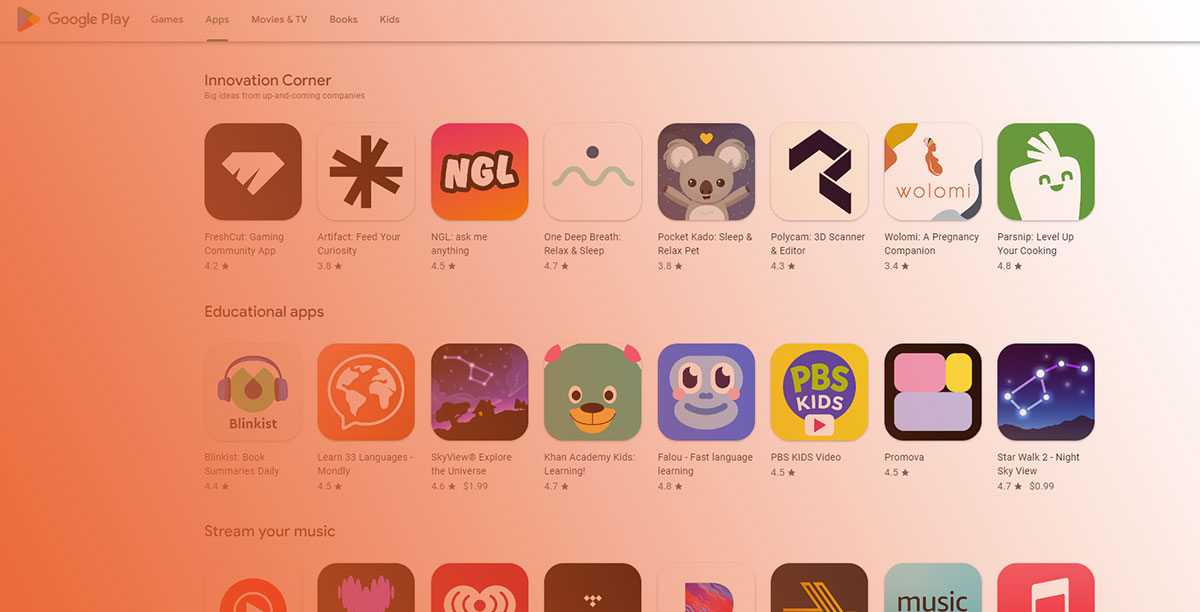
Google Play hosts over 3.6 billion Android users. Getting your app in front of them starts with one thing: a registered developer account on Play Console.
Learning how to create a Google Play Developer account is straightforward, but the process has changed a lot since 2023. Stricter identity verification, mandatory testing requirements for personal accounts, and new D-U-N-S number checks for organizations mean you can’t just pay $25 and start publishing anymore.
This guide walks through every step, from registration and account type selection to identity verification, payment setup, Google Play developer program policies, and getting your first app live on the Play Store. No fluff. Just what you actually need to know to get approved and start distributing your custom app to production.
What Is a Google Play Developer Account

A Google Play Developer account is a registered publisher profile on Google Play Console that lets you distribute Android apps and games to billions of users worldwide.
You pay a one-time $25 registration fee, and that’s it. No annual renewals. Compare that to Apple’s $99/year Developer Program, and the cost difference is pretty clear.
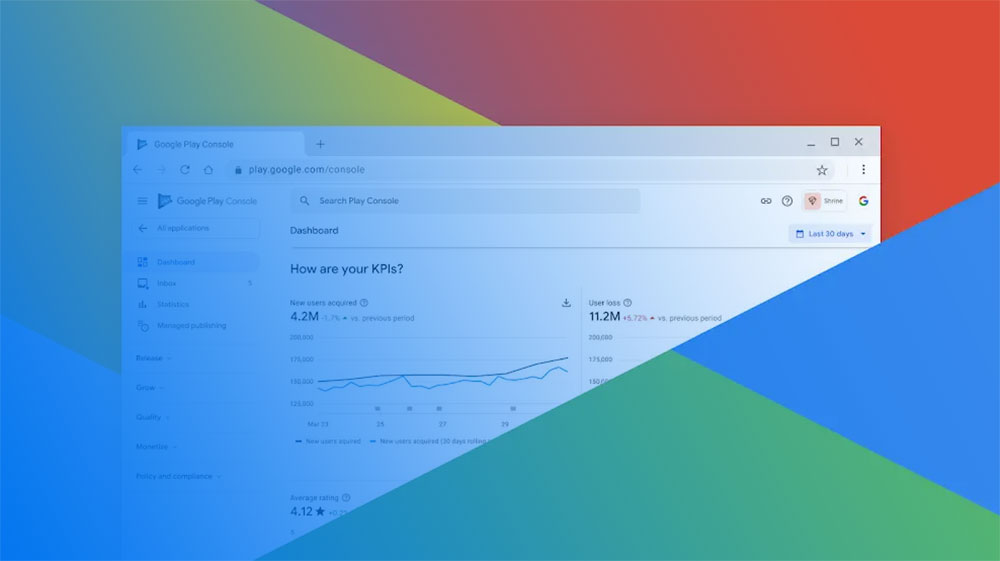
Once registered, you get access to the full Google Play Console dashboard. That includes app publishing, store listing management, release tracks, analytics, crash reports, and financial reporting.
According to Google Play Console data, 97% of developers distribute their apps and use all Play Store features at no additional charge beyond that initial fee. Only developers who sell digital goods or services pay a service fee on transactions.
But here’s where people get confused. A Google Play Developer account is not the same as your regular Gmail or Google Workspace account. Your personal Google account is the login credential. The Developer account is a separate publisher profile layered on top of it, tied to that email permanently.
As of 2025, the Google Play Store hosts over 3.6 billion Android users globally, with Android holding roughly 73.9% of the mobile operating system market share (DemandSage). If you’re building for Android development, this is the distribution platform you’ll be working with.
Around 800 to 1,200 new apps get published on Google Play every single day. The competition is real, but so is the audience reach.
Requirements Before You Register

Don’t start the registration process until you have everything ready. Missing a single item can delay your account approval by days or even weeks.
Google Account
You need a Google account (Gmail or Google Workspace) that has never been associated with a terminated developer account.
This matters more than people realize. Google tracks account history aggressively. If a previous developer account linked to your email was suspended or terminated, your new registration will likely get flagged and rejected.
Use a clean, dedicated email. Took me a while to learn that mixing personal and developer emails creates headaches down the line, especially when managing team permissions.
Payment Method
Accepted cards: Visa, Mastercard, Discover (US only), Visa Electron (outside US).
Prepaid cards are not accepted. Google processes the $25 fee through Google Pay, so your card needs to support international transactions if you’re outside the US.
One thing that trips up developers in certain regions: Google checks whether the card’s issuing country matches your account registration country and current location. A mismatch can cause payment failures.
Identity Verification Documents
Google rolled out stricter identity verification starting in 2023, and requirements have only gotten tighter since then.
You’ll need a government-issued photo ID under your legal name. The name on your ID must match the name on your payment method. According to Google’s own Help Center, submitting unsupported documents is the primary reason for developer verification failures.
For organization accounts, you’ll also need official business registration documents. More on that below.
Age Requirement
You must be at least 18 years old. No exceptions. This applies globally, regardless of your country’s legal age for contracts.
Personal Account vs. Organization Account
Google Play offers two developer account types. Picking the right one matters because you cannot switch account types after creation without contacting Google support.
| Feature | Personal Account | Organization Account |
|---|---|---|
| Setup speed | Faster, fewer documents | Slower, requires D-U-N-S number |
| Testing requirement | 12 testers for 14 days (for newer accounts) | No mandatory closed testing |
| Best for | Solo developers, hobbyists | Companies, startups, agencies |
| Verification | Government-issued ID | D-U-N-S number + business documents |
Organization accounts need a D-U-N-S number from Dun & Bradstreet. This is a unique nine-digit identifier used to verify businesses globally. Getting one is free but can take up to 30 days, so plan ahead.
Personal accounts are quicker to set up, but they come with a mandatory closed testing requirement before you can publish to production. Organization accounts bypass this, which is a big deal if you’re on a tight mobile app development timeline.
Step-by-Step Registration Process in Google Play Console

The actual signup takes about 15-20 minutes if you have everything prepared. Here’s how it works.
Go to play.google.com/console and sign in with your Google account.
You’ll immediately be asked to review and accept the Google Play Developer Distribution Agreement. Read it. Seriously. This document defines your rights and obligations as a publisher, and ignoring it can lead to policy violations that get your account blocked later.
Next, pay the $25 one-time registration fee via credit or debit card. The fee is non-refundable, even if your account gets rejected during verification.
Select your account type: Personal or Organization.
Then fill in your developer profile details. The developer name you enter here is what users see on the Google Play Store next to your apps. Choose carefully.
Filling Out Your Developer Profile
Developer name: This shows publicly. It can be your real name, company name, or brand. Changing it later requires Google approval.
Contact email: A public-facing email for user support. Use a professional one, not your personal inbox.
Phone number: Required for verification and user contact.
Physical address: Google now requires all developers to provide a physical address. This is displayed publicly on your app listings, which is a change from years past when it was optional.
Website: Optional but strongly recommended. Having a developer website builds trust with both Google and your users. If you’re working on mobile application development professionally, a web presence signals legitimacy.
Identity Verification and Account Approval

This is where most new developers hit a wall. Registration is quick, but verification can drag on.
Google introduced mandatory identity verification for all new developer accounts starting in August 2023. Since then, the process has gotten progressively stricter. By early 2024, personal account holders were also required to verify Android device access through the Play Console mobile app.
What Google Checks
Personal accounts: Government-issued photo ID, matching legal name across all documents and payment methods.
Organization accounts: Everything above, plus a D-U-N-S number, official business registration documents, and matching information across your Dun & Bradstreet profile.
The Codemagic developer blog documented that before August 2023, all you needed was a valid email and a credit card. Those days are gone. Google’s crackdown targets fraud and malware distribution, which had been a persistent problem on the platform.
Verification Timelines
Account activation typically takes 24 to 48 hours after registration. But full verification, especially for organization accounts, can stretch to several weeks.
The D-U-N-S number itself can take up to 30 days to obtain if your business doesn’t already have one. One Medium walkthrough from a developer who went through the full organization verification reported completing it in about 33 hours, but that was with all documents prepared in advance.
Common Rejection Reasons
- Mismatched names between ID, payment method, and developer profile
- Blurry or cropped identity document scans
- D-U-N-S profile information that doesn’t match what you entered in Play Console
- Using a Google account previously linked to a terminated developer account
- Submitting unsupported document types (Google specifies accepted formats by region)
According to Subsplash’s troubleshooting guide, the most frequent rejection for organization accounts happens when the organization name on uploaded documents doesn’t match the Dun & Bradstreet profile. Even a single letter difference can cause failure.
If your verification gets rejected, you can update your information and resubmit. But repeated failures with modified or fake documents can lead to permanent account removal.
Google Play Console Dashboard Overview

Once your account clears verification, you land on the Play Console dashboard. It’s where you’ll spend most of your time as a publisher.
The layout organizes everything around your apps. Main dashboard, inbox for policy notifications, release management, store presence settings, and financial reports.
Key Sections
All apps: Your app list with quick status indicators (published, draft, suspended, review pending).
Release management: Where you manage internal, closed, and open testing tracks plus production releases. Google now requires Android App Bundles (AAB format) instead of APKs for all new apps. If you’re curious about the differences, the comparison between APK or AAB formats is worth reading.
Android vitals: Crash rates, ANR (Application Not Responding) errors, and performance metrics. Apps with ratings of 4.5 stars and higher see significantly better visibility, according to Google Play Store data from Apptunix.
Store presence: Your app listing details, screenshots, descriptions, and feature graphics. Google even introduced Gemini-powered auto-translation for app strings in 2025, letting you translate directly within the Console at no cost.
Setting Up Team Permissions
If you’re not working solo, you’ll need to add team members to your Play Console account.
Google Play Console supports granular permission controls. You can assign roles like admin, release manager, or view-only access. Each team member gets invited via their Google account email.
The software development roles on your team will determine what level of access each person needs. A QA lead doesn’t need financial report access. Your marketing person doesn’t need release management permissions.
Setting Up Payment and Financial Profiles

Publishing a free app costs nothing beyond the $25 registration. But if you plan to charge for downloads, sell in-app purchases, or offer subscriptions, you need a Google Payments merchant profile linked to your developer account.
Linking a Merchant Profile
Inside Play Console, navigate to Settings > Payments profile to create or link your Google Payments merchant account.
You’ll enter your business details, bank account information for payouts, and tax identity. Google needs this to process transactions and report income to tax authorities.
Tax Information
US developers: Submit a W-9 form.
Non-US developers: Submit a W-8BEN or W-8BEN-E form, depending on whether you’re an individual or entity.
Skipping this step means Google withholds a percentage of your earnings. Developers who leave bank accounts unverified risk having their accounts and apps removed entirely.
Service Fee Structure
Google Play’s service fee is 15% on the first $1 million in annual earnings for developers who enroll in the reduced fee program. Beyond that threshold, the standard 30% rate applies.
For auto-renewing subscriptions, the fee is 15% from day one, regardless of total revenue. That’s a meaningful advantage for subscription-based apps.
| Revenue Tier | Service Fee | Notes |
|---|---|---|
| First $1M/year | 15% | Must enroll in the reduced fee program |
| Above $1M/year | 30% | Standard rate applied to remaining earnings |
| Subscriptions | 15% | Applies to auto-renewing subscriptions from day one |
According to Google’s own service fee page, 99% of developers who pay service fees qualify for the 15% rate or less through various programs.
The Google Play Store generated $49.2 billion in consumer spending in 2025, a 13% increase over the prior year (Business of Apps). If you’re exploring different app pricing models, understanding these fee tiers is critical before you set your monetization strategy.
Payout thresholds vary by country, but Google generally requires a minimum balance before issuing payments. Most developers receive payouts via direct bank transfer on a monthly cycle.
Common Mistakes That Delay or Block Account Creation
Google blocked over 1.75 million policy-violating apps and banned more than 80,000 developer accounts in 2025 alone (BleepingComputer). Most of these problems start at the account level, not the app level.
Here are the mistakes that actually cost people time and money during registration.
Using a Tainted Google Account
Google tracks account history across its entire ecosystem. If you register with an email that was previously linked to a terminated or suspended developer account, your new registration gets flagged immediately.
This applies even if you weren’t the one who got the original account banned. Shared devices, shared emails, or even shared payment methods can trigger what developers call “guilt by association.”
Fix: Use a completely clean Google account that has zero history with Play Console.
Mismatched Identity Information
According to Google’s Help Center, submitting documents that don’t match is the primary reason for verification failures.
The name on your government-issued ID must match your payment method, which must match your developer profile. For organization accounts, your business registration documents must also match your Dun & Bradstreet profile exactly.
Even small differences cause problems. “LLC” vs. “L.L.C.” or a slightly different street address spelling between your D-U-N-S profile and your Play Console entry. That’s enough for rejection.
Not Having a D-U-N-S Number Ready
This one catches almost every first-time organization account creator off guard.
Getting a D-U-N-S number from Dun & Bradstreet is free, but the process takes up to 30 days. If you start your Google Play registration before obtaining this number, you’re stuck waiting.
The Android Developers Blog specifically recommends planning ahead for this step. Your mileage may vary, but I’ve heard of teams losing entire sprint cycles because nobody thought to request the D-U-N-S number early enough in the software development process.
Ignoring Post-Registration Emails
Google sends policy acknowledgment emails after registration. Missing these can stall your account indefinitely.
Developers who leave bank accounts unverified or skip the merchant payment verification step risk having their accounts and apps removed. Check your inbox (and spam folder) regularly during the first few weeks after signup.
Google Play Developer Program Policies to Know Immediately
Google rejected 2.36 million policy-violating apps in 2024 and blocked 158,000 developer accounts (Orangesoft). Knowing the rules before you publish is not optional.
Policies get updated quarterly. The OpenForge team noted that Google identifies permissions misuse, Data Safety mismatches, and third-party SDK behavior as the recurring issues behind most enforcement actions.
Content Policies and Age Ratings
Every app on Google Play must have a content rating. No exceptions.
Ratings come from the International Age Rating Coalition (IARC). You complete a questionnaire inside Play Console about your app’s content (violence, language, gambling, etc.), and the system generates ratings for different regions automatically.
Rating authorities can override your self-assessed rating after reviewing your app. Misrepresenting content leads to app rejection or removal.
Data Safety Section
Mandatory since 2022. Every developer must disclose what data the app collects, how it’s used, and whether it’s shared with third parties.
Google now cross-references these declarations with the app’s actual permissions and SDK behaviors using machine learning. If your Data Safety form says you don’t collect location data but your app requests ACCESSFINELOCATION, expect a flag.
This matters a lot if you’re using third-party analytics or ad SDKs. Data collection by those libraries counts as your app’s data collection, even if you didn’t write the code yourself. Keeping a clean codebase means auditing every dependency.
Apps Directed at Children
If your app targets children under 13, it falls under Google’s Families Policy, plus COPPA in the US and GDPR-K in Europe.
Requirements include restricted ad targeting for users under 12, transparent disclosure of ad-serving SDKs, and new child safety standards requiring self-certification on Play Console. As of January 2026, apps must also include explicit content policies and in-app reporting mechanisms for child sexual abuse and exploitation (CSAE) concerns.
Policy Violation Enforcement
| Action | Trigger | Impact |
|---|---|---|
| Warning | Minor or first-time violation | Issue must be fixed within a specified deadline |
| App Removal | Repeated or serious violation | App is removed from the Play Store |
| Account Suspension | Multiple violations or fraudulent behavior | All apps removed; developer account is locked |
| Account Termination | Severe or repeated abuse of policies | Permanent ban; no reinstatement allowed |
A single violation on one app can affect your entire account. Google tracks developer account health across all published apps. This is a big deal for agencies managing multiple client apps under one account.
The mobile app security best practices you follow during development directly affect whether your app survives the review process.
Publishing Your First App After Account Setup

Account created. Verification done. Now what?
Getting your first app live on the Google Play Store involves a specific sequence that trips up new developers, mostly because the process has gotten stricter over the past two years.
Creating a New App Listing
In Play Console, click “Create app.” You’ll set four things right away:
- App name (max 30 characters)
- Default language
- App or game designation
- Free or paid (cannot be changed from free to paid later)
Then you accept the Developer Program Policies and US export laws declaration. After that, you land on the app’s dashboard where everything else gets configured.
Store Listing Assets
Required for every app:
App icon: 512 x 512 pixels, PNG format.
Feature graphic: 1024 x 500 pixels. This shows at the top of your store listing on certain surfaces.
Screenshots: Minimum 2, maximum 8 per device type. Google has specific Play Store screenshot size requirements depending on phone, tablet, Chromebook, and TV form factors.
Descriptions: Short description (max 80 characters) and full description (max 4,000 characters). Write these for actual users, not search algorithms.
Good UI/UX design shows in your screenshots. They’re the first thing users evaluate before downloading.
Testing Tracks Before Production
If you have a personal account created after November 13, 2023, you must complete closed testing before you can publish to production. The requirement: at least 12 testers opted in for 14 consecutive days.
Google originally required 20 testers but reduced it to 12 in December 2024 after feedback from independent developers who struggled to find participants.
Play Console offers three testing tracks:
Internal testing: Up to 100 testers, fastest setup, no Google review needed.
Closed testing: Required for production access on personal accounts. Testers join via invite link.
Open testing: Public beta, visible on Google Play. Available only after you have production access.
Organization accounts bypass the mandatory closed testing requirement entirely, which is one of the main reasons many successful startups choose that account type from the start.
App Review and Going Live
Google Play reviews average under 3 days for most standard apps in 2025 (BE-DEV). Some go through in hours. Complex apps in sensitive categories (fintech, health, gambling) can take 5 to 7 days or longer.
Google runs over 10,000 safety checks on each app before and after release. The review covers policy compliance, permissions, functionality, security, and store listing accuracy.
First-time submissions from new developer accounts tend to get extra scrutiny. Plan for a buffer of at least a week between submission and your expected launch date.
| Submission Type | Typical Review Time | Notes |
|---|---|---|
| First App (New Account) | 3–7 days | Subject to additional scrutiny for new developers |
| Standard App Update | A few hours to 2 days | Faster if no major changes or policy risks |
| Sensitive Category Apps | 5–7+ days | Likely to undergo manual review |
Any changes to your store listing after you submit can restart the review process. Saw this happen to a colleague who tweaked a screenshot description while waiting for approval. Don’t touch anything once you’ve hit submit.
App Signing with Google Play
All new apps must use Google Play App Signing. This is the default and it’s no longer optional.
Google manages your app signing key, which means they hold the production key used to sign the APK delivered to users. You keep an upload key for signing the Android App Bundle (AAB) before uploading it to Play Console.
The AAB format is now required for all new app submissions. If you’re coming from a background in software development, this is similar to how build systems separate signing responsibilities in a build pipeline.
Google Play generates optimized APKs from your AAB for each device configuration. Users download only the code and resources their specific device needs, which keeps app sizes smaller and install rates higher.
Once your app passes review, it goes live on the Google Play Store. From there, you manage updates, monitor Android vitals, respond to user reviews, and keep your store listing current through the Play Console dashboard.
The real work starts after publishing. Regular updates, performance monitoring, and staying current with how to publish an app on Google Play policy changes are what separate apps that grow from apps that get buried.
FAQ on How To Create A Google Play Developer Account
How much does a Google Play Developer account cost?
The registration fee is a one-time payment of $25. No annual renewal. Google processes this through a credit or debit card during signup. Prepaid cards are not accepted. The fee is non-refundable, even if your account verification fails.
How long does it take to get a Google Play Developer account approved?
Account activation typically takes 24 to 48 hours after registration. Full identity verification for organization accounts can stretch to several weeks, especially if you need to obtain a D-U-N-S number from Dun & Bradstreet first.
What is the difference between a personal and organization developer account?
Personal accounts are for individual developers and require closed testing with 12 testers before publishing. Organization accounts need a D-U-N-S number and business documents but skip the mandatory testing requirement entirely.
Can I change my account type after registration?
No. Google Play does not allow switching between personal and organization account types after creation. You would need to contact Google support or create a new account entirely. Choose carefully during the initial registration step.
What documents do I need to verify my developer account?
Personal accounts require a government-issued photo ID. Organization accounts also need official business registration documents and a D-U-N-S number. All names must match exactly across every document and your Play Console profile.
Do I need 12 testers to publish my app on Google Play?
Only if you have a personal account created after November 13, 2023. You must run a closed test with at least 12 opted-in testers for 14 consecutive days before applying for production access. Organization accounts are exempt.
How long does Google Play app review take?
Most standard apps get reviewed within 1 to 3 days. First-time submissions from new accounts may take up to 7 days. Apps in sensitive categories like finance or health often face longer manual reviews.
What format does Google Play require for app submissions?
Google Play requires the Android App Bundle (AAB) format for all new app submissions. The older APK format is no longer accepted for new apps. Google generates optimized APKs from your AAB for each device configuration automatically.
Can my Google Play Developer account get suspended?
Yes. Google banned over 80,000 developer accounts in 2025 for policy violations. A single violation on one app can affect your entire account. Repeated issues lead to permanent termination with no option for reinstatement.
What is the Google Play service fee on app sales?
Google charges 15% on the first $1 million in annual earnings for enrolled developers. Above that threshold, the standard 30% rate applies. Auto-renewing subscriptions stay at 15% regardless of total revenue.
Conclusion
Knowing how to create a Google Play Developer account is the first real step toward distributing your Android app to billions of users. The registration itself is quick. The verification, testing requirements, and policy compliance are where most developers lose time.
Get your identity documents in order before you start. If you’re registering as an organization, request your D-U-N-S number weeks ahead of time.
Pick the right account type from the beginning. You can’t switch later.
Understand the Google Play Console dashboard, set up your payments profile, and study the developer program policies before your first app submission. Google blocked over 1.75 million apps for policy violations in 2025.
Follow the mobile app best practices covered throughout this guide, complete your closed testing properly, and give yourself buffer time for the app review process. That’s how you go from a $25 registration fee to a live app on the Google Play Store.

- MongoDB Cheat Sheet - October 20, 2026
- Adding AI Video Generation to a Software Product: Architecture, Cost Guardrails and QA - October 20, 2026
- Show Hidden Characters, Spaces, and Line Endings in Notepad++ - October 19, 2026