Google Play charges don’t stop just because you deleted an app. If you’re trying to figure out how to cancel a subscription on Google Play, you’re probably already seeing recurring charges on your bank statement for something you stopped using weeks ago.
Uninstalling an app and canceling the subscription behind it are two completely different things. Your Google account keeps billing you until you go through the actual cancellation steps inside the Play Store settings.
This guide covers every method, whether you’re on an Android phone, a computer, or even an iPhone. You’ll also learn how to get a refund, spot subscriptions you forgot about, and fix common problems that block cancellation.
How to Cancel a Google Play Subscription on Android
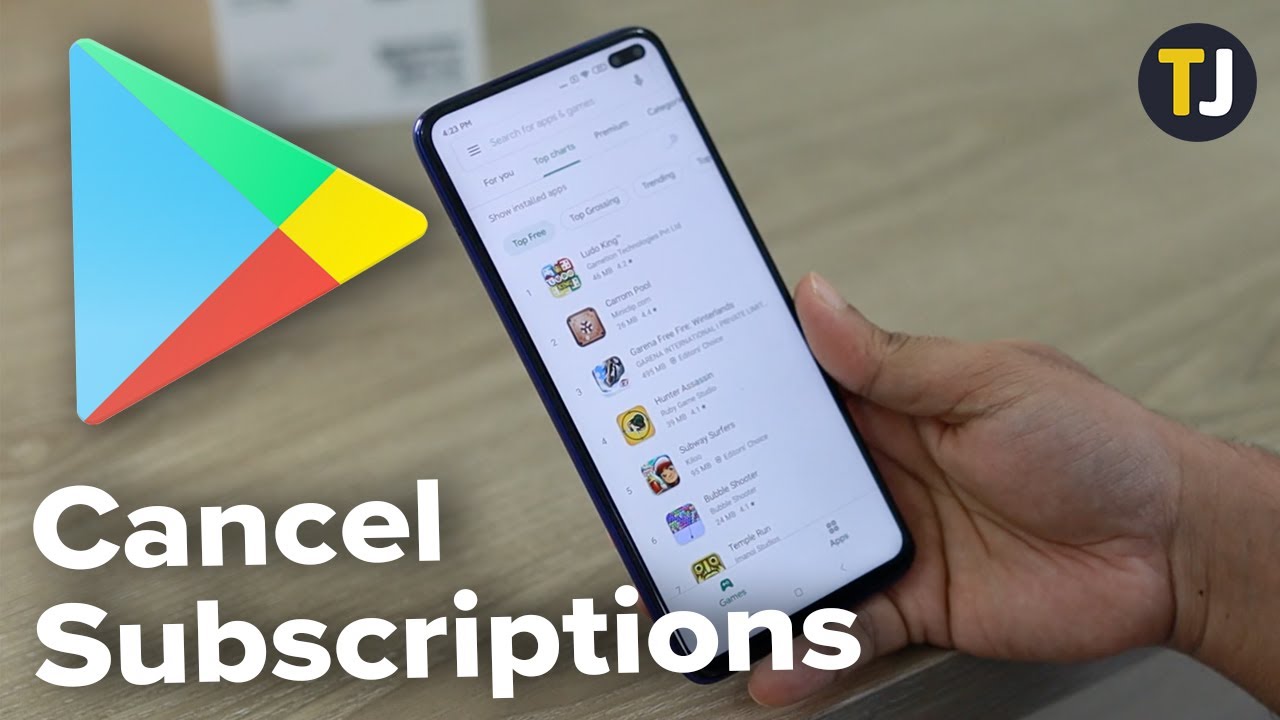
This is the most common method. About 3.9 billion people use Android devices globally, according to DemandSage, so most cancellations happen right on the phone.
Open the Google Play Store app. Tap your profile icon in the top-right corner.
Go to Payments & Subscriptions, then tap Subscriptions.
You’ll see a list of every active and expired subscription tied to your Google account. Select the one you want to cancel.
Tap Cancel subscription. Google will ask you to pick a reason from a short list. Pick one (it doesn’t affect the cancellation), then confirm.
That’s it. You should get a confirmation email from Google within a few minutes.
What if the cancel button doesn’t show up
A few things could be going on.
- The subscription is already canceled or expired (look for a red “Canceled” label)
- You’re signed into the wrong Google account on your device
- The subscription was purchased through a third-party billing provider, not Google Play directly
If you’re running multiple Google accounts on one phone, which is common on Samsung Galaxy or Google Pixel devices, make sure you’ve switched to the account that originally purchased the subscription.
Timing matters
Cancel at least 24 to 48 hours before your next renewal date. Google’s support pages mention this specifically. If you cut it too close, the payment might process before the cancellation takes effect.
RevenueCat’s 2025 research found that “not enough usage” is the top reason people cancel subscriptions across all app categories, with rates between 32% and 47%. So if you haven’t opened the app in weeks, you’re not alone.
How to Cancel a Google Play Subscription on a Computer
You don’t need an Android phone to manage your subscriptions. The web browser method works from any computer running Windows, Mac, or ChromeOS.
Go to play.google.com and sign into your Google account.
Click your profile icon, then go to Payments & subscriptions. Select Subscriptions from the menu.
Find the subscription you want to end. Click Manage, then Cancel subscription.
A pop-up will ask you to select a reason. Choose one, click Continue, and confirm.
When this method is better than using your phone
Honestly, the web version gives you a cleaner view of everything tied to your account. On a phone, scrolling through a long list of subscriptions can feel cramped.
The desktop layout also makes it easier to spot subscriptions you forgot about. Business of Apps reports the average monthly subscription price for mobile apps sits at $10.20. Those charges add up fast if you’ve signed up for three or four services and stopped using half of them.
This method is particularly useful if your Android device is broken, lost, or no longer accessible. Your subscriptions live in your Google account, not on any specific device.
To avoid this happening again, you can use a subscription tracking app like SubStop to automatically find and cancel unwanted subscriptions before they renew.
How to Cancel a Google Play Subscription on iPhone or iPad
There’s no Google Play Store app for iOS. But you can still cancel Google Play subscriptions from an iPhone or iPad using a web browser.
Open Safari or Chrome on your iPhone. Go to play.google.com.
Sign in with the Google account that holds the subscription. Navigate to Payments & subscriptions, then Subscriptions.
Select the subscription and tap Cancel subscription. Follow the prompts.
Google Play subscription versus Apple App Store subscription
This causes a lot of confusion. If you originally subscribed through the Apple App Store (using your Apple ID), canceling through Google Play won’t do anything because the subscription doesn’t exist there.
Check your email for the original subscription confirmation to figure out which platform billed you. The sender will either be Google Play or Apple.
If you switched from an Android phone to an iPhone but still have active Google Play subscriptions from your old device, those keep running. Android’s billing system doesn’t care what phone you’re currently using. It charges the payment method on your Google account regardless.
How to Cancel a Google Play Subscription When the App Is Already Deleted
Deleting an app does not cancel the subscription. Full stop.
This is probably the most common billing mistake on Google Play. You remove the app, assume everything is done, and then notice recurring charges on your bank statement weeks later.
RevenueCat’s 2025 data shows billing errors account for 28.2% of cancellations on Google Play, significantly higher than the 15.1% on Apple’s App Store. Some of those billing issues stem from users who thought they’d already canceled but hadn’t.
Finding subscriptions from deleted apps
Open the Google Play Store app (or go to play.google.com on a computer). Navigate to Payments & Subscriptions, then Subscriptions.
Every subscription tied to your Google account shows up here, whether or not the app is installed on your device. Expired and active subscriptions both appear in this list.
If you see a subscription you don’t recognize, tap it for details. Google shows the app name, billing amount, renewal date, and payment method.
Check your purchase history for surprises
While you’re in there, look at your Google Play purchase history too. You might find subscriptions from apps you signed up for months ago during a free trial that quietly converted into a paid plan.
Marketing LTB reports that 46% of users cancel within the first billing cycle via app store settings. That means more than half of subscribers stick around past the first charge, sometimes without realizing it.
If you want to understand how payment methods work in Google Play, it’s worth reviewing what cards and accounts are linked to your profile. Removing an expired credit card won’t cancel a subscription either. Google will just try the next payment method on file or put the subscription into an account hold state.
How to Pause a Google Play Subscription Instead of Canceling
Not sure you want to cancel permanently? Pausing might be the better call.
Google Play lets you freeze a subscription for a set period. Billing stops during the pause, and it picks back up automatically when the pause ends. Your data and settings within the app usually stay intact.
How pausing works
Developer-controlled feature: Not every app supports pausing. The developer has to enable it in Google Play Console.
Duration: Pause periods can last up to about three months, depending on how the developer configured it.
Annual plans excluded: You can’t pause a yearly subscription. Google restricts this because the pause duration could potentially exceed the subscription length itself.
Google’s I/O 2025 announcement revealed that showcasing subscription benefits across Play has already reduced voluntary churn by 2%. They’re clearly investing in features that keep subscribers around longer, and the pause option is part of that strategy.
Where to find the pause option
Follow the same path as cancellation: Google Play Store app, profile icon, Payments & Subscriptions, then Subscriptions.
Select the subscription. If pausing is available, you’ll see it as an option alongside the cancel button. If it’s not there, the developer hasn’t turned it on.
Marketing LTB data shows companies offering a “pause subscription” option reduce cancellations by 18%. It makes sense. Sometimes you just need a break from a fitness app or a meditation service without losing your streak data or preferences.
Developers building apps on the Android development platform can configure pause settings through the Play Console, giving users more flexibility before they reach for the cancel button.
What Does Canceling a Google Play Subscription Actually Do
Canceling a subscription on Google Play stops future charges. It does not end your access right away.
You keep using the service until the current billing period runs out. So if you paid for a monthly plan on March 1 and cancel on March 15, you still have access through March 31.
This trips people up constantly. RevenueCat’s 2025 data shows that 67.2% of Google Play cancellations are voluntary, meaning the user chose to leave. The rest come from billing errors or payment failures.
Canceling versus uninstalling
Deleting an app from your phone does nothing to stop a recurring charge. Google Play billing runs through your Google account, not the app itself.
Google’s own support pages repeat this warning in bold: uninstalling the app won’t cancel your subscription. Your payment method keeps getting charged on the renewal date until you go through the actual cancellation steps inside Google Play settings.
Think of it this way. The subscription lives in your Google account. The app is just the door you walk through to use it.
Canceling versus pausing versus getting a refund
Google Play treats these as three separate actions.
Pausing is only available if the app developer has enabled it, and it maxes out at roughly three months. Annual subscriptions can’t be paused at all.
Refunds follow a different path entirely. Google generally allows refund requests within 48 hours of purchase, but approval isn’t guaranteed. If you need your money back, you’ll need to request a refund from the Google Play Store separately from canceling.
How to Get a Refund for a Google Play Subscription
Canceling and getting a refund are two different things. Canceling stops future charges. A refund gives you money back for a charge that already went through.
Google Play’s refund window is tight. You generally have 48 hours after purchase to request a refund through the self-service tool. After that window closes, your chances drop significantly.
The 48-hour refund process
Go to play.google.com and sign into your Google account. Open your order history under Payments & Subscriptions.
Find the charge you want refunded. Click Request a refund or Report a problem.
Pick the reason that best matches your situation, fill out the short form, and submit. Google sends an email with the decision, usually within one to four business days.
Refunds go back to the original payment method. Credit and debit cards take 3 to 7 business days to process. Google Play balance refunds are instant, according to Google’s support documentation.
After the 48-hour window
Missed the deadline? Contact the app developer directly.
Every app listing on Google Play includes developer contact info under the “App support” section. Developers can process refunds based on their own policies, and some are more flexible than Google’s automated system.
A 2024 CNET study found that U.S. adults spend an average of $91 per month on subscriptions, with two-thirds reporting at least one price increase in the past year. That adds context to why refund requests are common.
When refunds are unlikely
- Long-standing subscriptions with months of active use
- Subscriptions where you’ve already consumed significant content
- Repeat refund requests on the same account (Google tracks this)
If you’re a developer curious about how Google handles billing on the backend, the subscription system runs through API integration between the Play Billing Library and the developer’s server infrastructure.
How to Check if a Google Play Subscription Was Successfully Canceled
You canceled. But did it actually go through? Here’s how to confirm.
Check the Subscriptions page
On Android: Open Google Play Store, tap your profile icon, go to Payments & Subscriptions, then Subscriptions.
On a computer: Visit play.google.com and navigate to the same section.
A successfully canceled subscription shows a “Canceled” label in red text. It also displays the date your access expires, which is the end of your current billing period.
If you still see “Active” or “Renews on [date]” next to the subscription, the cancellation didn’t work. Go through the steps again.
Check your email
Google sends a confirmation email to the Gmail address tied to your Google account after every cancellation. Search your inbox for “Google Play” or “subscription canceled.”
No email? Check your spam folder. If it’s not there either, the cancellation may not have processed.
Watch your bank statements
This is the final safety net. Even if the app shows “Canceled,” keep an eye on your credit card or bank account around the date the next charge would have been due.
Google sometimes places an authorization hold on your payment method up to 48 hours before the renewal date. A small pending charge doesn’t always mean you were billed. It might be a temporary hold that drops off.
Marketing LTB data shows the average subscription cancellation refund request rate sits at 12%. That means most people who cancel don’t bother asking for money back, but if an unexpected charge does appear after cancellation, you should absolutely dispute it.
Reasons a Google Play Subscription Might Not Cancel
Sometimes you go through all the steps and the subscription just won’t cancel. It’s frustrating. Usually, one of these issues is the cause.
Google’s support pages specifically warn: if you can’t find your subscription, it may be on a different account. This is the number one issue.
Subscriptions managed through a different Google account
Most Android devices support multiple Google accounts. You might be signed into your personal Gmail for email but subscribed to an app using your work account (or an old account you barely use).
Google’s troubleshooting guide suggests checking your other email accounts for the original subscription receipt. That receipt tells you exactly which Google account was used for the purchase.
To switch accounts in the Play Store app, tap your profile icon in the top right and select the dropdown arrow next to your name. If the subscription isn’t under any account on your phone, try signing in at play.google.com with each email address you own.
Family plan restrictions
Only the family group manager can cancel a family subscription. Individual members can leave the group, but they can’t end the plan for everyone.
If you’re on a Google Play family plan managed by someone else, you’ll need to ask that person to handle the cancellation. This applies to services like YouTube Premium Family and Google One family plans.
Marketing LTB reports that family plans increase retention by 52%. That’s great for the companies, but it also means more complicated cancellation situations when family dynamics change.
Third-party billing providers
Some apps handle their own billing outside of Google Play. If you subscribed through the app’s website or a separate payment processor like Stripe or PayPal, the subscription won’t appear in your Google Play subscriptions list at all.
Check the app’s settings or account page directly. You might also find a “Manage Subscription” link in the original signup confirmation email.
The Google Play Store fees structure means some developers prefer handling billing themselves to avoid Google’s commission, which adds another layer of confusion for users trying to cancel.
How to Manage Multiple Google Play Subscriptions at Once
The average consumer holds 5.6 active subscriptions, according to Marketing LTB. And that’s across all platforms, not just Google Play.
If you’ve been an Android user for a few years, there’s a good chance you have subscriptions you forgot about. Free trials that converted. Apps you used for one project. Services a friend recommended that you never opened again.
View everything in one place
Google Play’s Subscriptions page shows every active, paused, and expired subscription connected to your account. It’s the single best starting point for a cleanup.
Each listing shows the app name, billing amount, renewal date, and payment method. Sort through them mentally by asking one question: did I use this in the last 30 days?
If the answer is no, it’s probably worth canceling. RevenueCat’s 2025 data backs this up. “Not enough usage” tops the cancellation reasons across all app categories, affecting 32% to 47% of churned users.
Use a Subscription Tracker Before the Next Renewal
Google Play only shows subscriptions connected to that specific Google account. If you also pay through Apple, PayPal, Stripe, an app’s website, or another billing provider, some recurring charges may not appear there. Subpilot helps users track subscriptions, upcoming bills, and renewal dates in one place.
It can make it easier to spot unwanted charges, cancel services you no longer use, and lower monthly bills before the next renewal hits. This is especially useful if your subscriptions are spread across multiple platforms, devices, or old accounts.
Set reminders before renewal dates
For subscriptions you want to keep temporarily, set a calendar reminder a few days before the renewal date. This gives you time to decide whether to continue or cancel before the next charge hits.
Google places authorization holds up to 48 hours before renewal. So if your subscription renews on the 15th, set your reminder for the 12th at the latest.
Subscription fatigue is real
Marketing LTB research shows 41% of consumers report experiencing subscription fatigue. Deloitte found the average U.S. household now manages around 12 paid subscriptions.
The fix isn’t complicated. Do a quarterly review. Open your Google Play subscriptions page, scan the list, and cancel anything that’s just sitting there collecting dust on your payment method.
If you’re building apps and want to understand how subscription models work from the developer side, understanding app pricing models can help you design billing that’s fair and transparent for users, reducing the kind of confusion that leads people to this article in the first place.
FAQ on How To Cancel A Subscription On Google Play
Does uninstalling an app cancel my Google Play subscription?
No. Removing an app from your device does not stop recurring charges. Your subscription lives in your Google account settings, not the app itself. You must cancel through the Google Play Store’s Subscriptions page to stop billing.
How do I cancel a Google Play subscription on my Android phone?
Open the Google Play Store app. Tap your profile icon, then go to Payments & Subscriptions, then Subscriptions. Select the subscription and tap Cancel subscription. Confirm your choice.
Can I cancel a Google Play subscription from my computer?
Yes. Go to play.google.com and sign in. Navigate to Payments & subscriptions, then Subscriptions. Click Manage next to the subscription you want to end, then click Cancel subscription and confirm.
Can I cancel a Google Play subscription from an iPhone?
The Google Play Store app isn’t available on iOS. But you can open Safari or Chrome, go to play.google.com, sign into your Google account, and cancel from the Subscriptions page through the browser.
Will I lose access immediately after canceling?
No. After you cancel, you keep access until the end of your current billing period. If you paid for a monthly plan on March 1 and cancel on March 15, access continues through March 31.
How do I get a refund for a Google Play subscription?
You can request a refund within 48 hours of purchase through your Google Play order history. After that window, contact the app developer directly. Refunds are not guaranteed, especially for long-standing subscriptions.
Why can’t I find my subscription in Google Play?
You’re likely signed into the wrong Google account. Check which email received the original purchase confirmation. You can also switch accounts in the Play Store app by tapping your profile icon and selecting a different account.
Can I pause a subscription instead of canceling it?
Some apps support pausing through Google Play for up to three months. Open your Subscriptions page and check if a Pause option appears alongside Cancel. Not all developers enable this feature, and annual plans can’t be paused.
How do I know if my cancellation went through?
Check your Subscriptions page for a red “Canceled” label. Google also sends a confirmation email to your Gmail. If you still see “Renews on” next to the subscription, the cancellation didn’t process.
What if I’m still being charged after canceling?
First, confirm you canceled under the correct Google account. If the charge is legitimate, request a refund through Google Play support. A small pending charge near renewal dates may just be a temporary authorization hold that drops off.
Conclusion
Knowing how to cancel a subscription on Google Play takes about 30 seconds once you know where to look. The process works the same whether you’re using a Samsung Galaxy, a Google Pixel, or a desktop browser at play.google.com.
The biggest mistake people make is assuming that removing an app stops the recurring payment. It doesn’t. Always go through the Subscriptions tab in your Google account settings to confirm.
Check your active subscriptions today. Cancel what you’re not using. Set reminders before renewal dates so you stay in control of your Google Play billing.
And if something goes wrong, whether it’s a missing cancel button or a charge that shouldn’t be there, you now have the steps to fix it. Review your subscription list at least once every few months. Your bank account will thank you.

- Build or Buy an AI Chatbot for E-commerce: The Costs Nobody Budgets For - October 24, 2026
- How to Run a React App in VS Code Step by Step - October 23, 2026
- Transactional or marketing email: which messages your app should send itself - October 23, 2026