

Most untracked files in a project are junk. Build output, a scratch file called test2.txt that nobody remembers creating. git clean removes them in one command, and it only touches the working tree, so commits and branches stay put and so does the index.
Out of the box it refuses to run unless you pass -f, -n or -i. Ignored files survive unless -x or -X is added, and nested repositories survive unless -f is given twice.
Deletions are permanent, so the dry run comes first.
What Is git clean?
Run it and Git permanently deletes every file it doesn’t track. Commits, branches and the index stay as they are, since only the working tree is affected.
The Git manual describes it as a recursive sweep of everything outside version control, starting from the directory where you run it. Run it inside a subfolder and only that subtree gets cleaned.
Every file in a Git repository is either tracked or untracked. Commands like git reset --hard and git restore only touch the tracked side, and git clean covers the rest.
Compiled output and caches left after a build are the usual targets, and so are scratch files from an abandoned experiment. Generated files from another branch that Git never tracked get swept up as well.
Clearing leftover build artifacts before a fresh compile is the classic use. The manual itself names a pristine working directory for testing a clean build as one purpose.
What Does git clean Remove and What Does It Skip?

By default, git clean removes only untracked files in the current directory. Tracked files, staged files, ignored files, and untracked directories all stay.
A short git status listing shows how that plays out:
$ git status --short --ignored
M app.js
?? notes.txt
?? tmp/
!! dist/- app.js is tracked and modified, so git clean never touches it.
- notes.txt is untracked.
git clean -fremoves it. - tmp/ is an untracked directory, which only goes if -d is there.
- dist/ is ignored, so you need -x or -X to get rid of it.
Reading the git status output before cleaning gives you the exact set git clean works from. It is the cheapest preview there is.
Whether a file counts as ignored depends on the patterns in your .gitignore file. Change a pattern and the same file moves between the “skipped” and “removed” columns.
Not every tutorial agrees on this. A Medium tutorial on git clean -fd says the flags also delete ignored files, while the Git manual says ignored files survive until -x or -X is added.
Trust the manual. It is also the one source that changes with the software.
git clean Syntax and Flags

The full syntax reads git clean [-d] [-f] [-i] [-n] [-q] [-e pattern] [-x | -X] [--] [pathspec...]. With the default configuration, the command refuses to run unless -f, -n, or -i is present.
The git clean manual has not changed since Git 2.45.0 (April 2024), so the behavior below holds for current releases as of October 2026.
| Command | Removes | Use when |
|---|---|---|
| git clean -n | Nothing, preview only | Before any deletion |
| git clean -f | Untracked files in the current directory | Directories can stay |
| git clean -fd | Untracked files and directories | Standard cleanup |
| git clean -fdX | Ignored files and directories only | Rebuilding from scratch |
| git clean -fdx | Untracked and ignored files and directories | Full reset to committed state |
| git clean -i | Only what you select | Picking items by hand |
| git clean -ffd | Untracked files and directories, nested repositories included | Cloned repos left in the tree |
Two flags sit outside the table. -q (quiet) prints errors only and hides the list of removed files. -e adds an exclude pattern on top of the standard ignore rules.
How -d and a pathspec interact
Without a pathspec, -d decides whether git clean enters untracked directories. Give it a pathspec and -d stops mattering.
With no pathspec, git clean -f skips untracked directories and git clean -fd recurses into them. With one, git clean -f build/ removes every untracked file matching that path.
Naming the path beats guessing at flags.

Difference between -x and -X
-x removes untracked and ignored files together, while -X goes after ignored files only. Add -e pattern and the exclusions still apply under -x.
-X fits the rebuild-from-scratch case, since the manual says it removes only ignored files and keeps the ones you created by hand.
-fdx is a poor default. It deletes .env files, local configs, and installed dependencies such as node_modules, which is everything your ignore rules were protecting.
An exclusion keeps one file alive, as in git clean -fdx -e .env.
Nested repositories and submodules
A directory that contains its own .git subdirectory counts as a nested repository, and git clean refuses to modify it unless -f is given a second time. A repository cloned into a subfolder and never added to the parent is the usual case.
A dry run reports these as skipped:
$ git clean -nd
Would remove notes.txt
Would skip repository vendor/lib
Registered submodules are recorded in the parent repository, so they are tracked paths and never count as untracked.
Worth knowing that git clean -ffdx deletes a nested repository whole, .git folder and any unpushed commits included.
How to Run git clean Safely

Preview first, delete second. Run the command with -n, read the list, repeat it with -f, then check the result.
- Run
git clean -ndto list what would be removed. - Read the list for anything you still need, such as
.envor local notes. - Stage or move whatever should stay.
- Run
git clean -fd, the same flags with -f in place of -n. - Confirm with
git status.
Staging a file with git add turns it into a tracked file, and git clean never removes tracked files. That makes step 3 a one-command job.
Dry run with -n
$ git clean -nd
Would remove notes.txt
Would remove tmp/
Nothing is deleted, so the clean.requireForce setting does not apply to this mode. Every line starting with “Would remove” is a file or directory that -f would delete.
Interactive mode with -i
Interactive mode lists the targets, then opens a menu.
- clean deletes everything listed and quits.
- filter by pattern takes space-separated patterns such as “\.c \.h” and excludes any matches from deletion.
- select by numbers deletes only the items you pick, and ranges like “2-5 7,9” work.
- ask each confirms every item one at a time.
- quit leaves without cleaning, and help prints a short usage note.
Reach for -i when the dry-run list is long and only some entries are junk. The manual warns that “ask each” is slower than the other two selection modes.
-i also bypasses clean.requireForce, because the menu acts as its own safety check.
Why git clean says it is refusing to clean
Run plain git clean and Git stops with a fatal message. clean.requireForce defaults to true, and no -f, -n, or -i was given.
Adding any of those flags clears the message. Setting clean.requireForce to false removes the guard for good, which is a bad trade, because one extra -f is all the protection costs.
Can You Undo git clean?

No, not through Git. A file that was never staged has no object in the repository, and git clean bypasses the trash, so the deletion is final.
Recovery depends on what sits outside Git.
- Editor local history is the first place to look, since JetBrains IDEs and VS Code both keep local copies of files edited inside them.
- System backups such as Time Machine, Windows File History, or a filesystem snapshot may have the file too.
- The Git object database is a narrow exception for files that were staged at some point, since
git fsck --lost-foundwrites dangling blobs to.git/lost-founduntil garbage collection removes them.
Prevention beats recovery. Stashing untracked files with git stash -u before cleaning saves them in a stash entry, and git stash -a adds ignored files to that entry.
The Git manual describes both options as stashing the files and then cleaning them up with git clean. A stash is the same deletion with a safety copy attached.
Stash entries are not bulletproof either. A dropped or cleared entry loses the normal safety mechanisms, and the manual’s only fallback is a git fsck --unreachable search.
Treat every git clean -f as final.
git clean vs git reset, git restore, and git stash
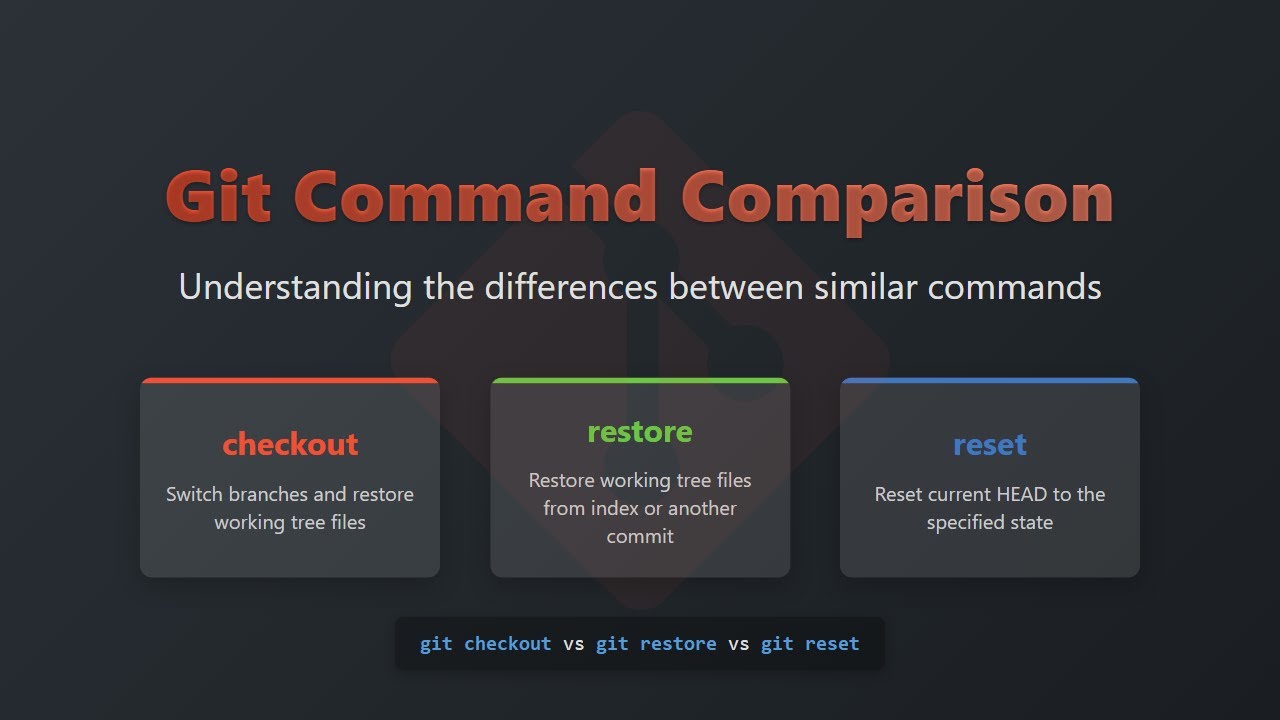
git clean deletes untracked files. git reset –hard and git restore rewrite tracked files, and git stash -u shelves both kinds so they can come back.
| Command | Acts on | Reversible | Typical use |
|---|---|---|---|
| git clean -fd | Untracked files and directories | No | Remove leftovers and build output |
| git reset –hard | Tracked files and the index | Uncommitted edits are lost | Return to the last commit |
| git restore path | Tracked paths in the working tree or index | Uncommitted edits are lost | Discard changes to chosen files |
| git stash -u | Tracked edits and untracked files | Yes, with stash pop | Park work and get a clean tree |
| git rm | Tracked files, index and working tree | Yes, file stays in history | Stop tracking a file |
To discard edits to a few tracked files, use git restore on those paths. To delete untracked leftovers only, git clean -fd does it.
Matching the last commit exactly takes git reset --hard followed by git clean -fd. And if you want a clean tree but need to keep everything, git stash -u is the one.
The git clean manual recommends the pairing in its -x entry: used with git restore or git reset, it produces a pristine working directory for testing a clean build.
git reset --hard
git clean -fd
There’s a small catch in the usual shorthand that reset ignores untracked files. The git reset manual says –hard may overwrite untracked files, which happens when the target commit contains a file at the same path.
For files with no match in the commit, reset leaves them alone, and that is the gap git clean fills.
The command set also changed over time. git restore arrived in Git 2.23 (August 2019, per the Git release notes), so older tutorials such as Atlassian’s guide describe git clean as a companion to git reset and git checkout instead.
Last, git rm works on tracked files only. Pointed at an untracked path, it errors out instead of deleting anything.
Using git clean in CI Pipelines

CI platforms run git clean for you. GitHub Actions and GitLab Runner both default to -ffdx, and Jenkins offers the same cleanup as an option.
| Platform | Setting | Cleaning behavior |
|---|---|---|
| GitHub Actions | clean input of actions/checkout | On by default, runs git clean -ffdx and git reset –hard HEAD before fetching |
| GitLab Runner | GIT\_CLEAN\_FLAGS | Defaults to -ffdx after checkout, none disables it |
| Jenkins Git plugin | Clean before checkout, Clean after checkout | Deletes untracked files and directories, ignored ones included |
The flag set has a reason. -d includes directories, -x includes ignored files, and the doubled -f reaches nested repositories, which leaves a workspace close to a fresh clone.
That matters in continuous integration, where a leftover file from the previous job can make a build pass or fail for the wrong reason.
In GitHub Actions, the cleaning happens inside the checkout step. As of October 2026, the current major version is actions/checkout v7 (v7.0.1, released July 20, 2026), and the input still defaults to true.
- uses: actions/checkout@v7
with:
clean: false
Jenkins took a longer road. The plugin once ran git clean -dxf and left nested repositories behind, which ticket JENKINS-26660 asked to fix with a second -f, and the plugin documentation now lists a nested-repository option described as git clean -xffd.
On a persistent runner there’s a cost, because -ffdx also deletes dependency folders and build caches that sit under ignored paths. The next job reinstalls them.
GitLab documents the escape hatch. Passing flags with an exclusion keeps one folder, and the value none skips the clean entirely (GitLab Docs 19.5).
variables:
GIT_CLEAN_FLAGS: -ffdx -e cache/
GitLab also frames the speed trade-off through GIT\_STRATEGY. The fetch strategy reuses the working copy and relies on git clean to undo the last job’s changes, while clone is the slowest option because it rebuilds the workspace from scratch for every job.
Cleaning matters most on self-hosted runners that keep their workspace between jobs. A fresh virtual machine per job leaves the clean step with little to remove.
git clean FAQ
Does git clean delete empty directories?
Yes, but only with -d. Without it, git clean skips untracked directories, empty ones included.
Run git clean -nd first to see which directories would go.
Is git gc the same as git clean?
No. git gc compacts and prunes objects inside the .git directory, while git clean deletes untracked files from the working tree.
One tidies repository storage. The other tidies your project folder.
Does git clean delete anything on the remote repository?
No. The command acts on the local working tree only, so the remote repository and every other clone stay as they are.
What are the long option names for git clean flags?
The manual gives –dry-run for -n and –force for -f, plus –interactive for -i, –quiet for -q, and –exclude=pattern for -e.
The flags -d, -x, and -X have no long form.
Does git clean work on Windows?
Yes. The syntax is identical in Git Bash, PowerShell, and Command Prompt once Git is installed.
Deleted files do not pass through the Recycle Bin, so the dry run matters just as much there.
Cleaning a Repository Without Losing Local Files
Local-only files such as .env survive git clean when ignore rules protect them, so the safest routine is to list every local-only file in .gitignore and run git clean -fd without -x.
A file that must stay untracked and unignored takes git clean -fd -e notes.txt instead, for that run only.
In practice that means ignore rules first, then a dry run, with -e saved for the odd exception.
The order matters because an ignore rule protects the file on every future run, while -e protects it only for the command that carries it.
The trade-off is stale build output. Ignored folders such as dist/ survive too, until a separate git clean -fdX run removes them.
This position was verified against the Git 2.56 manual in October 2026. A reference for everyday Git commands covers status, add, and stash, the habits that make each cleanup safer.

- How to Run a React App in VS Code Step by Step - October 23, 2026
- Transactional or marketing email: which messages your app should send itself - October 23, 2026
- How Software Teams Write SOPs for Releases and Deployments - October 22, 2026


