You tap “Install” on the Google Play Store, and nothing happens. The download just says pending. No progress bar, no error message. Just… stuck.
Google Play stuck on pending is one of the most common Android frustrations, affecting devices from Samsung Galaxy to Google Pixel to budget Xiaomi phones. The fix is usually simple, but the cause isn’t always obvious. It could be a clogged download queue, a Wi-Fi setting you forgot about, or corrupted cache data in Google Play Services.
This guide covers every known cause and fix, from clearing the Play Store cache to checking your download preferences and managing account sync issues. Whether you’re running Android 14 or the latest Android 16, these steps work across versions and manufacturers.
What Does “Download Pending” Mean on Google Play

The “download pending” status on Google Play means the store has accepted your request to install or update an app but hasn’t started the actual download yet. Your app sits in a queue, waiting.
This is different from “downloading” (where data is actively transferring) or “waiting for Wi-Fi” (where the store is holding off because of your network preference settings). Pending means something is blocking the process from even beginning.
With over 3.9 billion Android users worldwide in 2025 (BankMyCell), this is one of the most reported issues on community forums and support pages. The Google Play Store processes over 110 billion app downloads annually (Business of Apps), so even a small percentage of failed or stalled downloads affects millions of devices.
The pending status can show up on practically any Android phone. Samsung Galaxy, Google Pixel, OnePlus, Xiaomi. Doesn’t matter. It happens across Android versions too, from older builds running Android 11 to the latest Android 16.
Google’s own support documentation lists clearing cache as the most common fix for Play Store download issues. But the cause isn’t always the same, and the fix depends on what’s actually going wrong behind the scenes.
How the Google Play Download Manager Works
Google Play processes downloads one at a time. If three apps are updating simultaneously, the fourth app you tap “Install” on will sit in pending status until a slot opens up.
The download manager also checks several conditions before starting:
- Is the device connected to a network that matches your download preference (Wi-Fi only vs. any network)?
- Is there enough storage space to install the app?
- Is Google Play Services running and synced properly?
- Is the Play Store itself currently updating?
If any of these checks fail, the download stays pending. No error code, no explanation. Just “pending.”
Who Gets Hit the Most
Budget Android devices are disproportionately affected. Many budget phones in emerging markets ship with 64 GB of storage, and after the operating system and pre-installed apps take their share, there’s often not much room left.
Android Authority’s 2024 reader poll found that roughly 70% of users consider 128 GB insufficient for a flagship phone. On a 64 GB device? The margin for error is razor thin.
Countries like India, Indonesia, and Brazil, where Android holds over 85% market share (StatCounter), see higher rates of this issue simply because of the sheer volume of downloads happening on lower-spec hardware.
Why Google Play Gets Stuck on Pending

There’s never just one reason. The pending issue has multiple triggers, and sometimes two or three of them stack together to keep your download frozen.
Multiple Downloads Running at Once
This is the number one cause. Android Authority confirms that concurrent app updates are the most frequent trigger for the pending error.
The Play Store queues downloads. If you have auto-update enabled and several apps decide to update at the same time, any new download request goes straight to the back of the line. You might not even realize updates are running in the background.
Network Issues and Download Preferences
Your internet connection might look fine. But “connected to Wi-Fi” and “stable enough to download a 200 MB app” are two different things.
Then there’s the sneaky one: download preferences. If your Play Store is set to “Download over Wi-Fi only” and you’re on mobile data, the download just sits there. No warning, no prompt. Just pending.
Samsung’s official support page confirms that most Play Store errors stem from intermittent or slow internet connections. VPN apps can cause the same problem by spoofing your location, which confuses Google Play into thinking you’re in the wrong region.
Storage Running Low
This one catches people off guard because the Play Store doesn’t always show a clear “not enough space” message. It just says pending.
Android 14 alone requires roughly 2 GB more space than Android 12, according to PopWave’s analysis. Apps keep getting bigger too. Google’s own apps are among the worst offenders, with the Google app consuming over 1.2 GB and Play Services sitting at around 800 MB.
Google Play Store and Services Cache Corruption
Cached data builds up over time. When it gets corrupted, the Play Store can’t process new requests properly.
Google’s own troubleshooting page states that clearing cache is “the most common solution to issues when you download apps from Google Play Store.” The process resets temporary files without touching your installed apps or account data.
Account Sync Failures
Google account sync can fail silently. Your phone shows you’re logged in, everything looks normal, but behind the scenes the sync process has stalled. Downloads won’t start until the account connection is verified.
Having multiple Google accounts on one device makes this worse. The Play Store sometimes gets confused about which account is requesting the download.
How to Fix Google Play Store Pending Downloads
Start with the fastest fixes first. Most people overthink this and jump straight to clearing data or resetting their phone when a 30-second fix would have worked.
Cancel Pending Downloads and Restart
Open the Play Store. Tap your profile picture. Go to “Manage apps & devices.”
You’ll see any active or queued downloads. Cancel all of them. Every single one.
Now try downloading the app you actually want. In most cases, this alone fixes the problem because the queue was clogged with background updates you didn’t initiate.
While you’re at it, temporarily disable auto-updates. Tap your profile picture, go to Settings, then “Network preferences,” and set “Auto-update apps” to “Don’t auto-update apps.” You can turn it back on later.
Clear the Google Play Store Cache and Data
This is the fix that Google themselves recommends first. Took me a while to realize how effective it actually is.
Steps:
- Open Settings on your Android device
- Go to Apps (or “Apps & notifications” on some devices)
- Find and tap “Google Play Store”
- Tap “Storage & cache”
- Tap “Clear cache” first
If clearing cache doesn’t work, go back and tap “Clear storage” (or “Clear data”). This resets the Play Store to its default state. You’ll need to agree to the Terms of Service again and your search history will be gone, but your installed apps stay untouched.
The same process works for Google Play Services. Settings, then Apps, then Google Play Services, then Storage & cache, then Clear cache. Google’s support page warns against clearing Play Services data unless you’ve tried everything else, since it can affect saved passwords and payment cards in Google Pay.
Switch Your Internet Connection
If you’re on Wi-Fi, try mobile data. If you’re on mobile data, connect to Wi-Fi.
Sounds too simple. But Samsung’s support team confirms this resolves the issue for a significant number of users. The connection might test fine in a browser but still fail the Play Store’s internal checks.
Restarting your router takes two minutes and fixes more than you’d expect.
Check Storage and Internet Connection
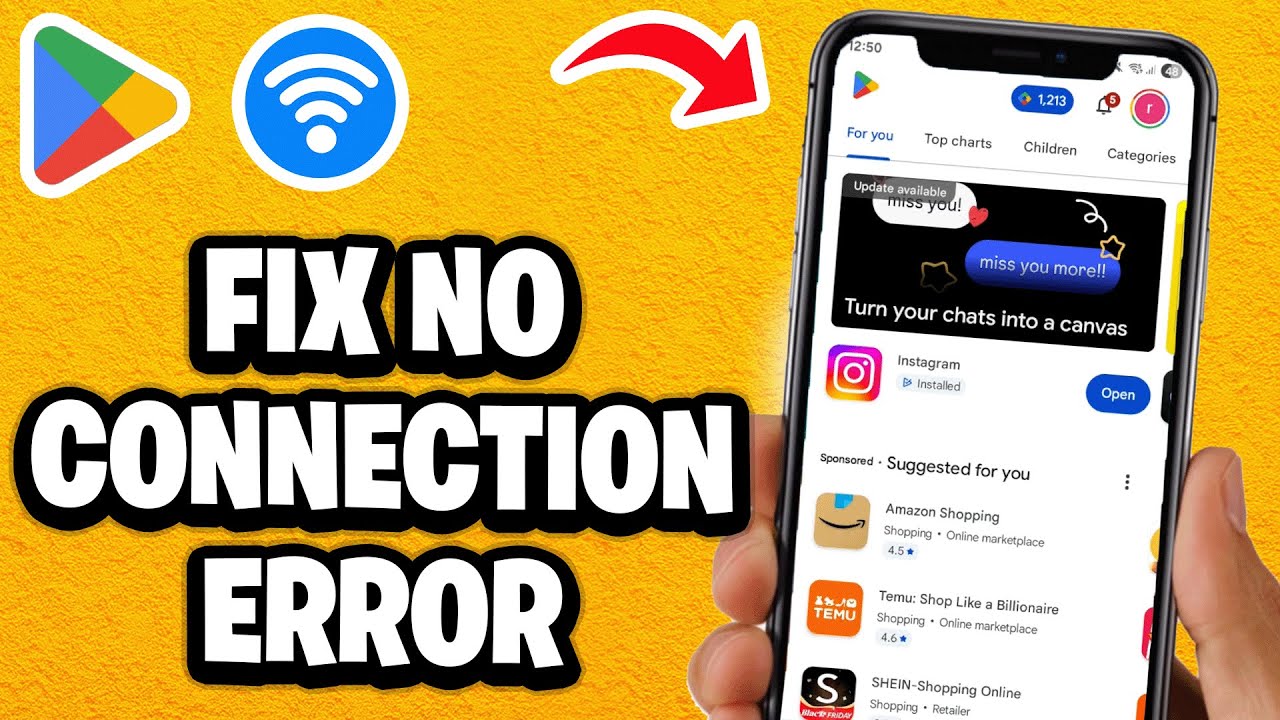
These are the two things people skip because they assume they’re fine. They usually aren’t.
How to Check Available Storage on Android
Go to Settings, then Storage. The screen shows exactly how much space you have left.
You want at least 1-2 GB of free space for the Play Store to work without issues. Some larger apps and games need significantly more during installation because Android extracts and processes files before the final install size is determined.
| Action | Space Freed (Typical) |
|---|---|
| Clear app cache (all apps) | 500 MB – 3 GB |
| Delete unused apps | 1 – 5 GB |
| Remove downloaded media files | 2 – 10 GB |
| Clear messaging app attachments | 500 MB – 2 GB |
The average smartphone now ships with 194 GB of storage in 2025 (Android Authority), but budget devices in developing markets still commonly run 64-128 GB. After the operating system, pre-installed apps, and cached data, available space can shrink fast.
Test Your Connection Properly
Loading a webpage isn’t the same as having a stable connection. The Play Store needs a sustained connection to download and verify app packages.
Try this instead: stream a YouTube video for 30 seconds. If it plays without buffering, your connection is probably fine. If it stutters, that’s your problem.
Also check whether Google Play’s servers are down. Downdetector tracks real-time outage reports for Google services. Widespread outages are uncommon but they do happen, and when they do, no amount of cache-clearing will help.
Google Play Download Preferences That Block Installs

This setting is responsible for a huge number of “stuck on pending” reports, and most people don’t even know it exists.
The “App Download Preference” Setting
Inside the Google Play Store, tap your profile picture. Go to Settings, then “Network preferences.”
You’ll see “App download preference” with three options:
- Over any network: Downloads over Wi-Fi or mobile data, no restrictions
- Over Wi-Fi only: Will not download on mobile data at all
- Ask me every time: Prompts you before each download
If this is set to “Over Wi-Fi only” and you’re using mobile data, your download will just sit at pending. No error message, no notification telling you why. Just sits there.
Switching to “Over any network” instantly unblocks downloads. Developers building apps through the Android development process know this setting well because it affects how their apps reach users during rollouts.
Auto-Update Settings and Queue Bottlenecks
Auto-update is on by default. The Play Store silently downloads and installs updates whenever conditions are met.
The problem is timing. If auto-update kicks in while you’re trying to download something new, your request gets queued behind every pending update. With the Google Play Store hosting approximately 1.58 million active apps as of September 2025 (Appinventiv), and the average user having dozens installed, there’s always something waiting to update.
You can check what’s happening: Profile picture, then “Manage apps & devices,” then the “Manage” tab. Filter by “Updates available” to see what’s in the queue.
How Google Account Sync Affects Play Store Downloads

Your Google account is the gatekeeper for everything in the Play Store. If the account isn’t syncing correctly, downloads don’t start.
What Happens When Sync Fails
Account sync can break without any visible sign. Your Gmail works, Google Maps loads, everything seems fine. But the Play Store’s internal authentication handshake with Google’s servers has stalled.
This typically happens after password changes, two-factor authentication updates, or when a device has been offline for an extended period. The Play Store checks account credentials before starting downloads, and if that check fails silently, you get the pending status.
How to Remove and Re-Add Your Google Account
Before doing this: make sure you know your Google account password. You’ll need it to sign back in.
Go to Settings, then “Accounts” (or “Passwords & accounts” on newer devices). Tap your Google account. Select “Remove account.”
Restart your phone. Then go back to Settings, Accounts, and add the Google account again.
This forces a fresh sync with Google’s servers. It often fixes download issues that nothing else resolves.
Multiple Accounts on One Device
If you have two or three Google accounts on the same phone, the Play Store can get confused about which account owns the download request.
Try switching to a different account within the Play Store (tap your profile picture, then tap the account dropdown). If the download works on the other account, the issue is account-specific.
This is more common than you’d think. Understanding how apps handle multiple accounts is part of the broader mobile application development process, and it’s a known pain point for both developers and users.
For those managing devices for a team or business, building out an organized software development plan that accounts for multi-account configurations can help prevent these kinds of distribution issues during app deployment.
Force Stop and Update Google Play Services

Google Play Services is the background layer that the Play Store depends on for almost everything. Authentication, download verification, license checks. If Play Services is broken, the store can’t function properly.
Google Play Protect, which runs through Play Services, scans over 350 billion apps daily as of 2025 (Bleeping Computer). That’s a massive amount of background processing happening on your device, and sometimes it conflicts with new download requests.
The Relationship Between Play Store and Play Services
Play Store is the app you see and interact with. Play Services is the invisible system that powers it.
Think of Play Services as the engine and the Play Store as the dashboard. You can restart the dashboard all day, but if the engine stalls, nothing moves.
Google automatically updates Play Services on devices running Android 6.0 or newer, bypassing the usual manufacturer update delays. But sometimes those updates fail silently or conflict with other system components.
How to Force Stop and Clear Play Services Cache
Go to Settings, then Apps, then find “Google Play Services.”
Tap “Force stop.” Then go to Storage & cache and tap “Clear cache.”
Google’s support page specifically warns: don’t clear Play Services data unless you’ve tried everything else. Clearing data (not just cache) can remove saved passwords, transit cards, and payment cards from Google Pay.
Uninstall Play Store Updates and Re-Update
This one sounds drastic but it’s surprisingly effective. And it won’t delete your apps.
Steps:
- Go to Settings, then Apps, then Google Play Store
- Tap the three-dot menu in the top right corner
- Select “Uninstall updates”
This reverts the Play Store to its factory version. Open the Play Store after, and it will automatically download the latest version.
Samsung Galaxy users on community forums have reported this fix working when nothing else did. The process takes about two minutes and forces a fresh handshake between the Play Store and Google’s servers.
Factory Reset and Alternative Installation Methods

If you’ve worked through every fix above and the pending issue persists, you’re in last-resort territory. Before doing anything drastic, know which options are available and what each one costs you.
When a Factory Reset Is Actually Worth It
A factory reset wipes everything. Apps, data, settings, photos that aren’t backed up. It’s the nuclear option.
Only consider it if:
- Multiple apps fail to download (not just one)
- Clearing cache, data, and re-adding your Google account all failed
- Other system issues exist alongside the pending problem (random crashes, sync errors across multiple Google services)
XDA Forum users have reported cases where even a factory reset didn’t fix the issue because it was tied to a Google account sync problem rather than a device problem. So rule out account issues first.
Sideloading APKs as a Temporary Workaround
| Method | Best For | Risk Level |
|---|---|---|
| APKMirror | Verified, curated APK downloads | Low (signature verified) |
| Google Play Web | Installing apps from browser to device | None (official method) |
| APKPure | Alternative store with wider app catalog | Moderate |
| F-Droid | Open-source apps only | Low |
APKMirror manually reviews every APK before publishing. Every file is signature-verified against known developer keys, which makes it one of the safest alternatives when the Play Store isn’t cooperating.
Google now enforces the Android App Bundle format for new apps, which means traditional single-file APKs are becoming less common. You might need the APKMirror Installer app (which has been downloaded over 7.4 million times, per AppBrain) to handle split APK bundles correctly.
But here’s the trade-off. Google blocked 2.36 million policy-violating apps from the Play Store in 2024 (Bleeping Computer), and Play Protect identified 13 million new malware apps from outside Google Play that same year. Sideloading bypasses some of those protections. Stick to trusted sources.
If you’re a developer working on apps for distribution through these channels, understanding the difference between APK and AAB formats matters for how your app reaches users.
Using the Google Play Web Interface
This is the method most people forget exists.
Go to play.google.com on any computer or browser. Sign in with the same Google account that’s on your phone. Find the app you want and click “Install.”
Google uses Firebase Cloud Messaging to push the installation request directly to your device. If your phone’s Play Store is glitching locally but your internet connection and Google account are fine, this often bypasses the issue entirely.
The web interface also lets you manage your devices, check which apps are installed where, and push installs to specific phones if you have multiple Android devices on the same account.
How to Prevent Google Play Pending Issues From Recurring
Fixing the problem once is fine. Having it come back every few weeks gets old fast.
Most recurring pending issues come down to maintenance habits. A few simple changes to how you manage your device can prevent the problem from showing up again.
Keep Play Store and Play Services Updated
Google released system services updates throughout 2024 and 2025 that specifically included “optimizations allowing faster and more reliable download and installation,” according to Google’s official release notes.
The Play Store updates itself automatically, but you can force-check: open the Play Store, tap your profile picture, go to Settings, expand “About,” and tap “Update Play Store.”
Play Services updates independently through a separate channel. Check it via Settings, then Apps, then Google Play Services, then “App details” to see if an update is available.
Maintain Enough Free Storage
Target: at least 2 GB free at all times.
Trendforce projects average smartphone storage capacity will increase by 4.8% in 2026, with 256 GB becoming the new standard as 128 GB gets phased out. But that doesn’t help you right now if your current phone is running low.
Quick wins for freeing space:
- Clear messaging app attachments (WhatsApp, Telegram)
- Delete downloaded media from streaming apps
- Use Google Photos backup, then remove local copies
Control Auto-Update Behavior
Don’t leave auto-updates running unrestricted. Set them to Wi-Fi only and schedule them during hours when you’re not actively using your phone.
With about 1,200 new apps added to Google Play daily (Appinventiv) and developers pushing updates constantly (28% of apps update weekly according to Tekrevol), your phone can end up queuing dozens of updates without you knowing.
Recommended auto-update settings:
- Set app downloads to “Over any network” to avoid silent pending states on mobile data
- Set auto-updates to “Over Wi-Fi only” to avoid burning through your data plan
This combination ensures you can always manually download what you need, while background updates wait for a stable connection. It’s a small configuration detail, but the best practices for mobile apps always include managing how your device handles updates in the background.
Periodic Cache Clearing
Set a reminder. Once a month, clear the Play Store cache. Settings, Apps, Google Play Store, Storage & cache, Clear cache.
Takes 15 seconds. Prevents the slow buildup of corrupted temporary files that cause download issues.
If you want to go further, third-party tools like 1Tap Cleaner can automate cache clearing across all apps. Just be cautious with any app requesting accessibility permissions, and make sure you’re downloading from a trusted source with good security practices.
FAQ on Google Play Stuck On Pending
Why does my Google Play Store say download pending?
The Play Store queues downloads one at a time. If other apps are updating in the background, your new download waits. A poor Wi-Fi connection, low storage, or corrupted Google Play Store cache can also cause it.
How do I fix Google Play stuck on pending?
Cancel all current downloads first. Then clear the Play Store cache through Settings, Apps, Google Play Store, Storage & cache. If that fails, clear data entirely and restart your Android device.
Why is my app not downloading from the Play Store?
Check your app download preference setting. If it’s set to “Wi-Fi only” and you’re on mobile data, the download won’t start. Switch to “Over any network” inside the Play Store settings.
Does clearing Google Play cache delete my apps?
No. Clearing cache only removes temporary files like search history and thumbnails. Your installed apps, app data, and Google account stay untouched. Clearing storage resets the Play Store to its default state but still keeps your apps.
Why does Google Play keep saying pending even on Wi-Fi?
Your Wi-Fi might be connected but unstable. Try switching to a different network or restarting your router. A stalled Google Play Services sync or a Play Store self-update running in the background can also block downloads.
Can a VPN cause the Play Store download pending issue?
Yes. VPNs change your apparent location, which can confuse Google Play about your region. Disable your VPN app, retry the download, and see if the pending status clears. This is a common fix on Android devices.
How do I clear the Google Play Services cache?
Go to Settings, then Apps, then find Google Play Services. Tap Storage & cache, then Clear cache. Avoid clearing data unless other troubleshooting steps have failed, since it can affect saved passwords and Google Pay cards.
Will uninstalling Play Store updates fix the pending problem?
Often, yes. Go to Settings, Apps, Google Play Store, tap the three-dot menu, and select “Uninstall updates.” This reverts the store to its factory version. It will auto-update itself afterward with a fresh install.
Why is only one specific app stuck on pending?
The app might be region-restricted, incompatible with your Android version, or temporarily unavailable on Google Play servers. Try installing it through the Play Store web interface at play.google.com as a workaround.
Should I factory reset my phone to fix Play Store pending?
Only as a last resort. A factory reset wipes all data. Try clearing cache, removing your Google account and re-adding it, and checking storage space first. Most pending issues resolve without resetting your device.
Conclusion
Google Play stuck on pending almost never requires a factory reset. In most cases, the fix takes under two minutes.
Start by canceling queued downloads and checking your network preferences. If that doesn’t work, clear the Play Store cache and data. Force stopping Google Play Services and re-adding your Google account handles the stubborn cases.
The pending error usually traces back to one of a few things: simultaneous background updates, a Wi-Fi only download restriction on mobile data, low device storage, or a stalled account sync.
Keep at least 2 GB of free storage on your Android phone. Clear the Play Store cache monthly. Check your auto-update and download preference settings once so they don’t silently block installs later.
With nearly 3.9 billion Android users relying on the Google Play Store for app installations, this is a problem worth knowing how to solve quickly. Now you can.

- How to Share GitHub Repository Access With Collaborators - October 25, 2026
- Streamlining Client Projects: Modern Cloud ERP Solutions - October 25, 2026
- Build or Buy an AI Chatbot for E-commerce: The Costs Nobody Budgets For - October 24, 2026