

Push notifications in React have surprisingly little to do with React. Your components never receive the message. By the time an alert lands on someone’s screen, the tab that rendered your app may not even be open anymore.
What actually does the work is a service worker your app registered at some point, the browser’s own push service, and a backend that signs and sends the payload. Firebase Cloud Messaging or OneSignal usually handles that last part, though you can run it yourself.
Worth knowing before you start: the Push API reached Baseline Widely Available status across every major browser engine in September 2025, according to MDN’s web-features tracking data. The messy cross-browser era is basically over, with one large iOS exception covered further down.
What Is a Push Notification in React.Js
Three different things get called notifications, and mixing them up causes most of the confusion around this topic.
- A toast or banner is rendered by React state. Close the tab, it’s gone.
- A push notification comes from the browser itself, so it still arrives with your app closed.
- A mobile push alert is routed by the device operating system and never touches a browser.
The first kind, alerts that only need to work while someone is actively looking at your app, gets its own treatment in guides on building a general notification system inside a React component tree.
Frameworks built for developing one app that ships to multiple platforms, React Native chief among them, skip the browser stack entirely and hand delivery to the device’s native notification channel instead.
How Push Notification Delivery Works in React

Your backend server encrypts a payload and sends it to the browser’s push service. The push service holds it, then wakes the service worker your React app registered earlier. That worker puts the alert on screen.
All of that can happen with your app closed and the browser tab long gone.
Service Worker as the Delivery Endpoint
The service worker, not your React components, is what actually catches the incoming message. When a push arrives, the push service wakes the registered worker in the background. A VAPID key pair is what tells that push service which application server is allowed to send to this particular subscription. The worker then calls showNotification to display the alert, and no function inside your React code is involved at that point.
Your components only enter the picture later, when someone clicks the notification and the app has to respond.
The web push protocol also caps how much you can send. A push service is not required to accept a message body larger than 4096 bytes, per RFC 8030 (IETF, 2016). Anything past a short title, a body, and a data reference should be sent as a lookup rather than raw content.
How Browser Notification Permission Works
Permission has exactly three states, and your code has to branch on all of them before it ever calls subscribe.
- Default, meaning the user has not been asked yet
- Granted, so push and any other Notification API calls will display
- Denied, and the browser will not show its native prompt again no matter how many times your code calls requestPermission
Reading Notification.permission before you show anything tells you where you already stand.
That third state catches people off guard. Once a user denies, there is no code path that reopens the browser’s own prompt. The only fix is the user going into browser settings and changing the site permission by hand. Permission is scoped per origin too, not per page, so a decision made on one route applies to the whole domain.
Which is why the prompt matters more than the code behind it. An analysis of Google’s Chrome UX Report, published by OneSignal, puts the average acceptance rate for a browser notification prompt at just 17 percent. Most push implementations are quietly working against that number.
Which Backend Should Send Push Notifications for a React App
Firebase Cloud Messaging, OneSignal, and Pusher Beams approach the same problem differently, but from your React app’s side the difference is small. You call one API and it reaches a stored subscription.
Connecting to any of them comes down to the same basic API integration pattern, a signed request going out and a delivery receipt coming back.
| Backend | Cost Model | Setup Effort | Best For |
|---|---|---|---|
| Firebase Cloud Messaging | Free, no usage cap | Moderate, own key management | Teams already on Firebase |
| OneSignal | Free under 10,000 subscribers per send | Low, hosted dashboard | Teams wanting segmentation without a backend |
| Pusher Beams | Free up to 1,000 subscribers, then paid tiers | Low, minimal API surface | Teams wanting a thin layer, nothing else |
Firebase Cloud Messaging
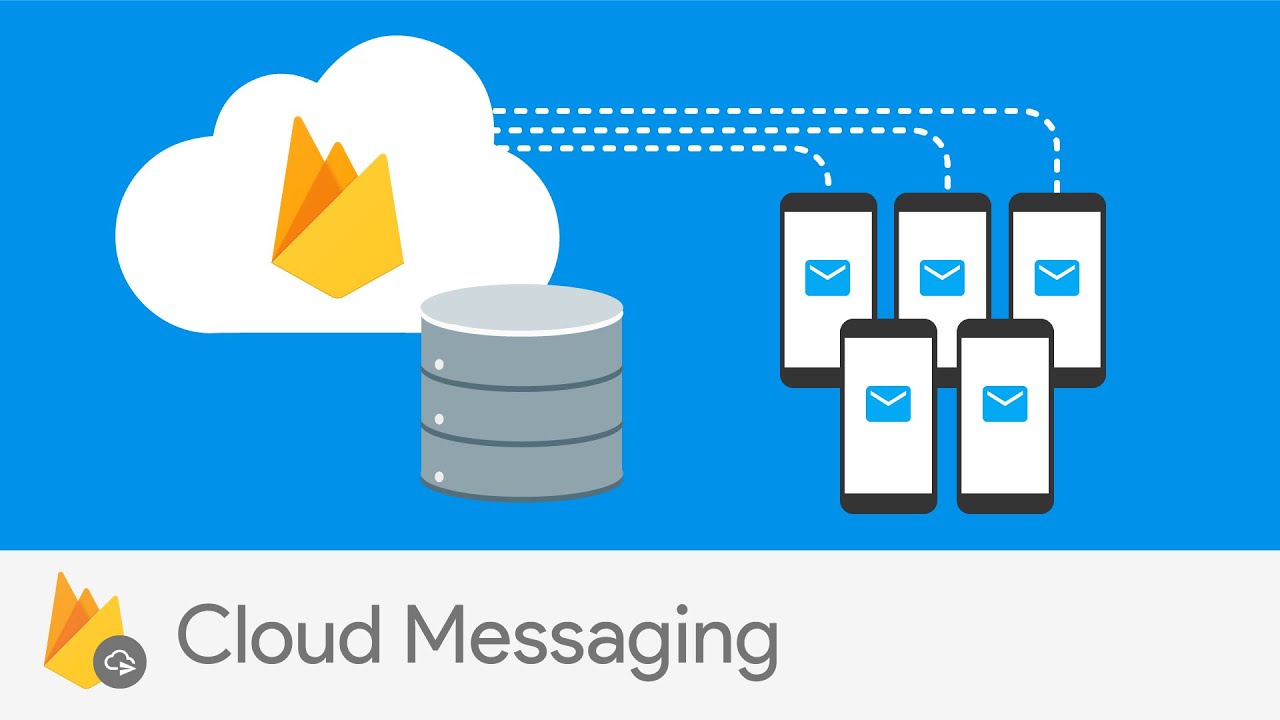
Firebase started as a backend as a service platform/), and Cloud Messaging still shows that history. It pairs directly with the Firebase JS SDK that’s already sitting in most React projects using Firebase for anything else.
The upside is tight integration with Firebase Auth and Firestore, plus web, iOS, and Android from one console. The tradeoff is that you manage your own VAPID keys and token storage, and there’s no built-in dashboard for scheduling messages.
Google’s own Firebase pricing page lists Cloud Messaging as free with no per-message charge and no usage cap, on both the Spark and Blaze plans, as of 2026.
OneSignal

OneSignal’s documentation confirms that unlimited web push subscribers can accumulate on the free plan. The same documentation caps free-plan sends at the 10,000-subscriber mark shown in the table above. That one number decides whether the free plan carries a growing site or forces an upgrade sooner than you planned for.
You get a hosted dashboard, built-in segmentation, and a first notification sent without writing any server code. What you give up is control over payload structure compared to a direct FCM or web-push integration, on top of that per-send ceiling.
Pusher Beams
Beams strips things down to authentication, publishing, and device interest management. No marketing dashboard layered on top, which I like in a small codebase where I’d rather reason about a thin API than click through someone’s UI.
Predictable behavior and a free Sandbox plan for up to 1,000 subscribers make it easy to start. There’s no free unlimited tier the way FCM has one, and you won’t find the analytics or segmentation OneSignal ships with.
Which Browsers and Platforms Support Push Notifications
Chrome, Firefox, and Edge handle push on desktop and Android with no special treatment. Safari is the one you plan around, and how much trouble it gives you depends on the device and how the site got there.
A few dates that explain the current state of things. The Push API specification reached Baseline Widely Available status in September 2025, meaning it now behaves consistently across every major browser engine (MDN web-features data, 2025). Safari added desktop support in Safari 16, released September 2022 (MDN, 2022). Safari on iOS only followed in version 16.4, released March 2023, nearly seven years after Chrome shipped support in April 2016 (MDN, 2023).
Desktop Browser Support
Desktop is the easy part of this question.
- Chrome and Chromium-based browsers, Edge included, support push without restriction
- Firefox has had the Push API since version 44
- Safari on macOS supports push since version 16, routed through Apple’s own delivery bridge rather than a generic push service
Mobile and iOS Support
Mobile is where the exceptions live, and iOS carries most of them.
On iOS, push only works once your site has been added to the home screen as an installed web app. A site opened in a regular Safari tab will never show a permission prompt, however well the code is written. That single rule has burned a lot of people who tested on Android, saw everything work, and shipped.
Then there are webviews. Apps that wrap a website inside a native container generally block the Push API outright, because the webview component most platforms use doesn’t expose it.
How to Prepare a React Project for Push Notifications

Before any push code runs, your project needs HTTPS, a web app manifest, a service worker file the browser can fetch directly, and the right npm packages.
HTTPS is not optional. Localhost is the one exception during development, since browsers treat it as a secure context without a certificate. That exception disappears the moment you move past local testing into actual deployment on a live domain, where a missing certificate silently breaks every push feature you built.
The manifest needs name, icons, and start\_url at minimum. Put the service worker in the public folder so it ships unbundled and the browser can request it at a fixed path. Install the firebase package if you’re going the FCM route, or web-push if you’re running your own server.
Create React App and Vite both scaffold the manifest for you. You’ll still be editing it by hand before push works properly.
How to Register a Service Worker for Push in React
Registration is one call. navigator.serviceWorker.register, made once the window has finished loading, pointed at the file you dropped in the public folder.
Most teams put that call inside a useEffect hook, the same pattern covered in most guides on how React hooks manage side effects, so it runs once when the root component mounts. The scope parameter controls which routes the worker can intercept and defaults to the folder the file lives in.
Registration returns a promise. Resolving it hands you a ServiceWorkerRegistration object, and that object is what you call pushManager.subscribe on later.
The worker does not go active immediately. It moves through a fixed sequence first:
- Installing: the browser downloads and parses the file
- Waiting: an older version of the worker, if one exists, finishes handling its current clients first
- Active: the worker can now receive push events and respond to fetch requests
Subscribing before the worker reaches active fails silently in some browsers. Took me an embarrassingly long time to spot that the first time, and it’s still the most common bug in a first push implementation.
How to Generate and Configure VAPID Keys
Generating a VAPID key pair is one command, web-push generate-vapid-keys, run once per project through the web-push CLI.
You get back two strings. The public key becomes the applicationServerKey argument you pass to pushManager.subscribe on the client. The private one stays on the server, where it signs the JSON Web Token attached to every outgoing push request.
Keep that private key out of your React bundle. Anything shipped to the client is visible to anyone who opens DevTools.
VAPID is defined in RFC 8292 (IETF, November 2017), authored by engineers from Mozilla and Google. The scheme works through token-based authentication: the signed JWT proves which application server owns a subscription, without creating a user session or a login of any kind.
A mismatch between the public key your React app subscribes with and the private key your server signs with won’t throw at subscribe time. It fails later, when the push service rejects the send and your server gets a 401 or 403 back instead of a delivered notification.
How to Request Permission and Subscribe a User to Push Notifications
Subscribing runs in a set order, and skipping the first step is why a demo works on one machine and breaks on another.
- Check that both Notification and the pushManager property on a service worker registration actually exist in the current browser
- Call Notification.requestPermission and wait for the result
- If the result is granted, call registration.pushManager.subscribe with the applicationServerKey from your VAPID public key
- Send the resulting subscription object to your backend for storage, keyed to the current user
Steps three and four only run if step two comes back positive.
None of this needs a class component. One async function inside a click handler covers it end to end.
Subscription Object Fields
What pushManager.subscribe resolves to is the thing you’re storing, and it isn’t a session token or a user ID.
Three fields matter, all of them fixed by the same specification. The endpoint is the unique URL your server posts to when it wants to reach this specific browser. keys.p256dh is a 65-byte uncompressed public key the server uses to encrypt the payload. keys.auth is a 16-byte secret that authenticates the message, per RFC 8291 (IETF, November 2017).
They travel together as one JSON object. Store only the endpoint and drop the keys, and the subscription becomes useless the moment you try to send anything beyond an empty push.
How to Send a Push Notification From a Backend Server
Sending is the server’s job, not the browser’s. It usually lives behind a single POST route, structured the way a RESTful API typically exposes one action per endpoint.
An Express route takes the stored subscription object and a message body, then hands both to whichever library matches your backend choice.
Using web-push
The web-push npm package wraps encryption, VAPID signing, and the HTTP request into one function call: webpush.sendNotification(subscription, payload).
It encrypts the payload with the subscription’s p256dh and auth keys, signs a VAPID JWT with your private key, and enforces the size ceiling already covered for the raw web push protocol. You don’t touch any of that yourself.
A failed send throws a WebPushError carrying the push service’s actual HTTP status code. That code is what you check to decide whether to retry or delete the subscription.
Using Firebase Admin SDK
Teams already sending through Firebase Cloud Messaging skip web-push and call admin.messaging().send() from the Firebase Admin SDK instead. The SDK takes a device token rather than a raw subscription object, since FCM manages the underlying endpoint and keys for you.
Which one you want depends on how much you care about payload shape. Direct web-push gives you full control and no dependency on a Google service staying up. The Admin SDK is one function call, and in exchange you’re tied to whatever FCM decides a token looks like this year.
How to Display and Handle Push Notifications in React
Turning a raw push event into something the user sees and can act on happens entirely inside the service worker, split across two listeners.
Handling Push Events
self.addEventListener(‘push’, event) is where the incoming data becomes a visible notification.
showNotification takes a title as its required first argument, shown as the headline. body is the message text underneath it. icon puts a small image next to the notification. badge supplies a monochrome icon for Android’s status bar and gets ignored by most desktop browsers.
Wrap the call in event.waitUntil. Skip that and you risk the browser killing the service worker before the notification finishes rendering.
Handling Notification Clicks
Clicking a notification does not open your app on its own. That behavior lives in a second listener, self.addEventListener(‘notificationclick’, event), which you write yourself.
Most implementations call event.notification.close(), then check clients.matchAll() for an already-open tab before deciding whether to focus it or open a new one.
Foreground tabs complicate this. When your React app is already open and active, some browsers route the message through the onMessage handler in your page code instead of firing a push event in the worker. A complete implementation listens in both places.
How to Test and Debug Push Notifications During Development
You don’t need a real backend for the first pass. Chrome’s DevTools can fake the entire delivery step.
Two panels do most of the work. The Application panel’s Service Workers section shows whether your worker is installing, waiting, or active, which is more useful than just knowing it registered. That same section has a Push field where you type a test message and fire a push event without touching server code.
Chrome for Developers documentation notes that the Push messaging tab under Background services records push messages for up to three days. Handy for confirming a message actually arrived before you go digging through server logs.
An active worker is not the same as a working one. Confirm the state before you assume the bug is somewhere else.
Two error codes account for most first-implementation failures. SENDER\_ID\_MISMATCH shows up in Firebase’s own error code documentation as an HTTP 403 response, meaning the sender ID your server authenticated with doesn’t match the one the registration token was issued under. QUOTA\_EXCEEDED comes back as a 429, which means you’ve hit the API rate limiting Firebase enforces on your project. Slow the send rate. Retrying immediately just burns another request.
An invalid VAPID key format behaves differently. It throws inside pushManager.subscribe on the client, before any network request reaches the push service, since the browser validates the key’s byte length locally first.
When Push Notifications Do Not Work in React
Every implementation eventually hits one of a handful of failure modes. Most of them fail silently rather than throwing anything you can read.
Unsupported Browsers and Contexts
Code that works flawlessly in Chrome can fail in ways that look like bugs but are platform limits. Here’s what you’ll actually see:
- ‘serviceWorker’ in navigator evaluates to false, so registration never even starts
- registration.pushManager is undefined in browsers and in-app contexts that expose the Service Worker API but not the Push API specifically
- On iOS Safari, unless the site is already installed to the home screen, pushManager never appears on the registration object at all
- Notification.requestPermission resolves without ever showing a visible prompt, because the browser silently auto-denies in certain embedded contexts
None of those throw a descriptive error. From the outside they all look like your code did something wrong.
A denied permission state behaves the same way. Once it happens, the right move in your React code is a fallback UI path, not a retry loop calling requestPermission and waiting on a prompt that will never appear.
HTTPS failures are the cleanest of the group, and this is where environment parity between a local dev server and a live domain actually breaks down. Calling navigator.serviceWorker.register on an insecure origin rejects the returned promise outright rather than registering and failing later.
Expired or Invalid Subscriptions
A subscription that worked yesterday can stop working today with no code change on your part. The push service decides this, not your server.
- The user cleared browser data, which deletes the local subscription and its keys
- The user revoked notification permission from browser settings directly, bypassing your app entirely
- The push service rotated the subscription’s endpoint for its own operational reasons
Any of these means your next send attempt gets an HTTP 410 Gone response instead of a delivery.
The fix lives on the server. Catch the 410, delete the stored subscription, stop sending to it. Retrying a gone endpoint wastes a request every single time.
FAQ on How To Implement Push Notification In React.Js
How does a push notification differ from a standard browser notification?

A standard browser notification displays through the Notification API alone, while the tab stays open. A push notification adds the Push API and a service worker, so the message can arrive after the tab or browser has closed.
Should you use React Native push notifications for mobile apps instead?
React Native fits when you are shipping a dedicated mobile app through app stores, not a website. It routes alerts through the device’s native push channel instead of a browser, better suited to teams already committed to cross-platform app development.
How do you reduce notification permission denial rates?
Delay the permission prompt until the user has seen real value, instead of asking on page load. A soft prompt explaining the benefit first, timed around a relevant action, raises acceptance far more than wording does.
What Should You Build First in How To Implement Push Notification In React.Js?
Order matters here, because each piece depends on the one before it. Get a secure origin and a web app manifest in place. Then get the service worker active, not merely installed. The VAPID key pair comes last.
That last step carries a hard limit worth planning around. A VAPID token’s signature expires within 24 hours by design, a ceiling set in RFC 8292 rather than by Firebase Cloud Messaging or OneSignal individually.
None of this touches what the user sees once a message arrives. That’s a separate concern, covered in guidance on showing live, updating data to users inside a React app, since a delivered push and a synced interface are not the same problem.

- Notepad++ Android Options: Apps That Come Close - October 21, 2026
- Data Management Services: A Practical Guide for Growing Companies - October 21, 2026
- MongoDB Cheat Sheet - October 20, 2026


