Open the repository’s Settings, scroll down to the Danger Zone, and click Delete this repository. GitHub shows a couple of warnings, and you finish by typing the repository name.
Organization owners and anyone with admin permission on the repository can run the deletion, through the web interface, the GitHub CLI or the REST API.
Deletion isn’t always final, though. According to GitHub Docs (2026), some deleted repositories can come back within 90 days. The exception is a repository that sat in a fork network still holding other repositories.
How to Delete a GitHub Repository
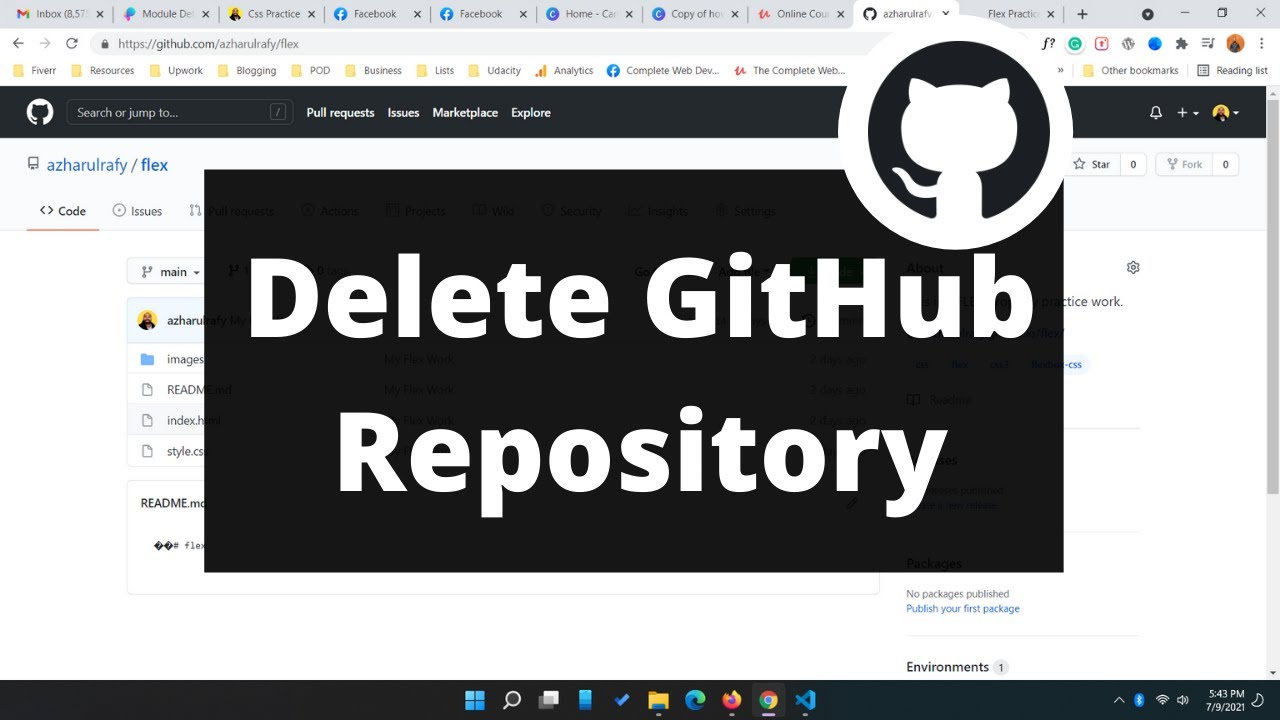
Admin permission on the repository is the entry ticket, or owner rights when an organization holds it. Here is the web interface sequence from GitHub Docs, as of October 2026.
- Go to the main page of the repository.
- Click Settings under the repository name. If the tab is hidden, open the dropdown menu and pick Settings there.
- On the General page, scroll to the Danger Zone and click Delete this repository.
- Click I want to delete this repository.
- Read the warnings, then click I have read and understand these effects.
- Type the name of the repository into the text box.
- Click Delete this repository.
Deleting removes the remote repository on GitHub only. Local clones stay on your machine as ordinary folders.
Wording differs between guides. Several walkthroughs still quote the button “I understand the consequences, delete this repository” and add a password prompt. The current docs sequence uses the two buttons above and lists no password step.
Once you confirm, the repository disappears from your account. Restoring is possible in some cases, but the conditions are narrow, so treat that last click as final.
Who Can Delete a Repository?
On a personal account that’s just the owner. Organization owners and anyone with admin permission on the repository can delete it, though an organization or enterprise policy can still block an admin.
Personal account repositories
You own the repository, so you hold admin permission by default. Nothing else gates the Delete this repository button. Forks you own work the same way.
Organization repositories
Of the five repository roles (Read, Triage, Write, Maintain, Admin), only Admin can delete or transfer a repository out of the organization, per the repository roles reference in GitHub Docs.
If the Delete button isn’t there, start with the role. Maintain is described as management without destructive actions, so it cannot delete.
Next, look at the member privilege setting, because owners can limit deletion and transfer to owners only. The path is Organization Settings, Member privileges, then “Repository deletion and transfer”, where the checkbox reads “Allow members to delete or transfer repositories for this organization”.
An enterprise policy can override both the role and that setting. And sometimes it’s simply the wrong account.
Organization owners have admin access to every repository the organization owns. Even so, the docs say an organization or enterprise policy can stop owners and admins from deleting.
What Happens to Forks and Linked Data When You Delete a Repository?
Forks of a public repository stay in place after you delete it. Delete a private one and every fork goes with it. A fork you delete never touches its upstream. Team permissions are removed in every case.
Team permissions go permanently with the deletion, and restoring the repository later does not bring them back (GitHub Docs).
Issues, pull requests, the wiki, releases, tags and projects all live inside the repository, and GitHub’s archive documentation lists each as repository content. Deleting the repository removes that container, so export anything you still need first.
Public repositories
An active public fork becomes the new upstream repository for the network, according to GitHub’s forks reference. The code survives on GitHub even though your repository is gone.
That rule also shapes restoration. A repository in a fork network that is not empty cannot be restored unless every other repository in the network is deleted or detached (GitHub Docs, restoring a deleted repository).
Put together, a public repository with live forks is the hardest deletion to undo.

Private repositories
Every private fork is deleted along with it. That empties the fork network, so the fork condition on restoration drops out. Team permissions are lost and stay lost.
Forks
Deleting a fork removes only that fork. A fork is a separate repository connected to its upstream, so the upstream stays untouched.
Commits can outlive a fork. GitHub’s forks reference says Git data in a network can remain reachable from other repositories in that network after a fork is deleted.
Deletion does not scrub leaked secrets. Rotate any exposed credential instead of relying on the delete button.
Deleting a Repository With GitHub CLI or the REST API
Run gh repo delete owner/repo --yes with the delete_repo scope, or send DELETE /repos/{owner}/{repo} with a token that has admin access. Both skip the web interface and take effect immediately.
| Method | Authentication | Confirmation | Best for |
|---|---|---|---|
| Web interface | Signed-in account with admin permission | Type the repository name | One repository, one time |
| GitHub CLI | delete\_repo scope on the gh login | Prompt, skipped by –yes | Scripted cleanup |
| REST API | Admin access, plus delete\_repo for classic tokens | None built in | Automated workflows |
GitHub CLI
Deletion through gh repo delete needs the delete_repo scope, which the manual says to authorize with gh auth refresh -s delete_repo. Without that scope the command cannot delete anything.
Install the GitHub CLI and sign in first, then run the refresh command.
Give it a named repository, as in gh repo delete owner/repo --yes, and it deletes without a prompt. Give it no argument and it targets the current repository, ignores --yes, and always asks for confirmation. The manual describes that second rule as a safety measure.
REST API
GitHub’s REST API description says the endpoint needs admin access. Classic personal access tokens and OAuth app tokens also need the delete_repo scope.
Organization policy applies here too. If an owner blocks member deletion, the call returns 403 Forbidden.
If you have no token yet, generate a GitHub token with the delete\_repo scope before the call.
curl -L -X DELETE -H "Accept: application/vnd.github+json" -H "Authorization: Bearer YOUR_TOKEN" -H "X-GitHub-Api-Version: 2026-03-10" https://api.github.com/repos/OWNER/REPOVersion 2026-03-10 is the latest REST API version in GitHub Docs as of October 2026.
For a single repository I’d stick with the web interface. The CLI suits a cleanup script, and the API makes sense inside a workflow that runs on its own. With --yes or a raw API call nothing stops a wrong target, so check the repository name twice.
What to Back Up and Check Before Deleting
Start with a mirror clone. The wiki needs its own clone, and a migration archive covers metadata beyond files and history. After that, search your other projects for references to the repository.
git clone --mirror https://github.com/OWNER/REPOSITORY.gitA mirror clone is built on git clone and copies the full revision history, according to GitHub’s backup guide. If the repository uses Git Large File Storage, run git lfs fetch --all as well.
Compress the mirror folder into a .zip or .tar.gz and store it somewhere off GitHub. Wikis are Git repositories too, so cloning one backs it up. The migration archive comes from the REST API and carries selected metadata. Marketplace backup utilities are a fourth route, pulling data from named repositories.
Neither the clone nor the archive covers everything. Migration archives leave out Git LFS objects, discussions and packages, and the guide states there is no supported way to restore one on GitHub.
Treat the archive as a record, not a restore point. The mirror clone is the copy you can push to a new remote.
Before the final click, search your other repositories, scripts and deployment configs for the repository URL. Check who still depends on it, including collaborators with open pull requests. If issue history matters, run the migration archive now.
Can You Restore a Deleted GitHub Repository?
Yes, within 90 days, for some repositories. Several guides call deletion unrecoverable, but GitHub Docs describes a self-service restore for both personal and organization repositories.
The window is 90 days after deletion. Restoring takes 5 steps for a personal repository and 6 for an organization repository, and the GitHub Support route is for paid plans only.
Anyone can restore their own deleted repositories on a personal account. Open your profile picture, then Settings, then Repositories in the sidebar, then Deleted repositories, and click Restore next to the repository. Read the warning and click I understand, restore this repository.
Organization repositories are restored by owners. Pick Organizations from your profile picture, open the organization, go to its Settings, choose Deleted repositories in the left sidebar, click Restore, and confirm.
A repository can take up to 1 hour after deletion before it shows up in the list.
A repository stuck behind the fork-network rule has one exit, and it is GitHub Support.
From day 91 onward the docs describe no restore path at all. A repository on a Free plan with a fork network that isn’t empty has no Support route either.
Archive, Transfer or Change Visibility Instead of Deleting
Archiving fits a repository you’ve stopped maintaining, and a transfer fits one that someone else should own now. Changing visibility is the answer when the code just shouldn’t be public anymore. Deleting only makes sense when the repository should not exist at all.
Archive
Archiving makes the repository read-only for everyone, and Unarchive in the Danger Zone reverses it. The path is Settings, Danger Zone, Archive this repository, then typing the name.
The archive docs recommend closing open issues and pull requests and updating the README first.
On the upside, it reverses in a few clicks, history, issues and pull requests stay readable, and visitors can still fork or star. The downsides are that no new collaborators or teams can be added while it’s archived, and legacy per-repository billing plans still pay for archived repositories.
Transfer
A transfer moves issues, pull requests, the wiki, stars, watchers and commit history to the new owner, and old links redirect, per the transfer reference.
Webhooks, secrets and deploy keys stay associated with the repository, and git clone, fetch and push follow the redirect. The catches are that a personal-account recipient has one day to accept the invitation, a private repository sent to a Free account loses protected branches and GitHub Pages, and GitHub Pages sites are not redirected.
GitHub also permanently retires the owner and repository name pair when the repository holds a Marketplace action, or had more than 100 clones or more than 100 uses of GitHub Actions in the week before the transfer.
Point existing clones at the new address using git remote commands, for example git remote set-url origin NEW_URL. Creating a new repository at the old location deletes the redirects for good.
Change visibility
Making a public repository private hides the code from new visitors. The steps for making a repository private sit in the same Danger Zone.
The repository, its history, issues and pull requests all stay. Stars and watchers are erased, which affects repository rankings. Public forks get detached and stay public in a new network, and GitHub Pages sites on Free plans are unpublished.
Existing public forks keep a full copy of the code, so a visibility change does not recall it.
Choosing between them
Archive if you’ve simply stopped maintaining it. Transfer if someone else should have it. Hiding the code from new visitors is a visibility change. Removing it entirely means delete, after a backup.
Archive beats delete for most abandoned projects because nothing is lost and it can be undone. Delete suits throwaway repositories that nobody forked.
Deleting a GitHub Repository FAQ
Can I delete a repository from the GitHub mobile app?
The documented feature list for GitHub Mobile does not include deleting repositories, so use the web interface in a browser instead.
How do I delete many repositories at once?
Run gh repo delete OWNER/REPO --yes for each repository, usually inside a shell loop over a list of names.
The GitHub CLI takes one repository per call, and --yes skips the prompt, so verify the list first.
How do I clean up the local clone and remote origin afterward?
Delete the folder, or keep it and unlink the dead remote with git remote rm origin.
The command only removes the remote reference from the local repository, according to GitHub’s Git basics guide. Nothing on GitHub changes.
How do I delete a branch or a file instead of the whole repository?
Open a closed or merged pull request and click Delete branch, which needs write access. A branch with another open pull request stays, and the steps are covered in this guide to deleting a branch in GitHub.
The same pull request offers Restore branch if you remove the wrong one. A single file is removed from its file view with a commit.
Confirming a Deleted GitHub Repository Is Gone
Two checks tell you the deletion went through. The old URL stops loading the repository, and an entry appears under Deleted repositories in Settings, which can take up to an hour.
Load the old URL first, then look for the entry under Deleted repositories, then search your other repositories and scripts for the URL. The middle check matters most, since that entry is the self-service route back. The last search finds references that worked yesterday and now point at nothing.
A restorable repository still exists in recoverable form, so nothing is fully gone until the restore window closes.
Verified against GitHub Docs on October 4, 2026. A new dialog label or restore rule would change these steps.
For a fresh start, create a new repository with a clean history.

- Notepad++ Android Options: Apps That Come Close - October 21, 2026
- Data Management Services: A Practical Guide for Growing Companies - October 21, 2026
- MongoDB Cheat Sheet - October 20, 2026