
Roughly three out of every four developers open Visual Studio Code to write code. Stack Overflow’s 2025 Developer Survey puts the exact number at 75.9%, a full 46.9 percentage points ahead of Visual Studio, the next most-used environment.
Extensions are a big part of why that gap is so wide. Install the right one and a blank editor turns into something built for whatever you’re doing that day, a Python debugger, or a linter that catches mistakes before they hit a commit. AI pair programmers have become common too, sitting quietly in the sidebar for a lot of people now.
Not every extension is worth keeping around, though. The difference between a setup that feels fast and one that drags on every keystroke usually comes down to which ones you picked in the first place.
What Is a VS Code Extension
Microsoft ships VS Code pretty bare on purpose. Open it fresh and you get a text editor, nothing more. Everything past that, debugging, language intelligence, formatting, has to be added by hand.
That’s the whole point of the Extension API built into Visual Studio Code. An extension is a small package that plugs into that API and bolts on a feature the base editor never shipped with.
By Microsoft’s own May 2025 milestone report, the Visual Studio Marketplace had crossed 100,000 extensions, spread across language support, themes, debuggers, formatters, linters, and snippet packs (Microsoft for Developers, 2025).
| Category | Extensions Listed | What It Adds |
|---|---|---|
| Language support | 36,000+ | Syntax, IntelliSense, error checks |
| Snippet collections | 19,000+ | Reusable code blocks |
| Formatters | 13,000+ | Auto-formatting on save |
| Linters | 13,000+ | Style and bug checks while typing |
| Debuggers | 9,400+ | Breakpoints, step-through execution |
Types of VS Code Extensions
Most of what people install falls into a handful of buckets.
- Language extensions add IntelliSense, syntax highlighting, and error squiggles for one specific language
- Debugger extensions connect the editor to a runtime through the Debug Adapter Protocol
- Formatter and linter extensions rewrite or flag code automatically on save
- Theme and source control extensions change how the editor looks or extend the built-in Git panel with source control management features like blame annotations and commit graphs
How Do VS Code Extensions Work

Every extension runs inside its own extension host, a separate Node.js process sitting apart from the editor’s main UI thread. That isolation is deliberate. VS Code’s own documentation calls it out directly: a crashing or slow extension shouldn’t be able to freeze the whole editor.
Extensions declare when they wake up through activation events written into package.json, then register commands, menus, and views through what VS Code calls contribution points.
Activation Events and Contribution Points
The activation event an extension picks has a direct effect on how fast VS Code starts.
onLanguagetriggers the extension only when a matching file type opensonCommandtriggers it when someone runs a specific command from the paletteonStartupFinishedloads it right after VS Code finishes booting, without blocking the boot itself- The wildcard event (
*) loads the extension immediately on every launch, which is why it’s discouraged
Contribution points are how an extension plugs into the UI. Commands, menus, keybindings, custom views, and configuration settings all register through this same system.
Language Server Protocol and Debug Adapter Protocol
Language extensions usually run a separate Language Server Protocol (LSP) process to handle IntelliSense, which keeps heavy analysis from ever blocking your typing. Pylance, Microsoft’s own Python language server, runs on exactly this in production.
Debuggers work through a different standard: the Debug Adapter Protocol (DAP), a common interface between VS Code and whatever debugger a language actually uses under the hood. It’s why setting breakpoints and stepping through Python code feels identical to doing the same thing in a completely different language, as long as both extensions are DAP-compliant.
How to Find, Install, and Manage VS Code Extensions
Extensions are what take a lean text editor and turn it into the kind of full IDE built for web development, shaped around whatever stack you actually run day to day.
The Visual Studio Marketplace is the default registry, built straight into VS Code. Forks like VSCodium and Eclipse Theia can’t legally point to Microsoft’s marketplace under its terms of use, so they lean on the Open VSX Registry instead.
Inside VS Code itself, the Extensions view (Ctrl+Shift+X on Windows and Linux, Cmd+Shift+X on Mac) handles search, install, and updates from one panel.
Installing via the Command Line
Skipping the UI entirely is possible too, and for provisioning more than one machine, it’s usually faster.
code --install-extension publisher.extension-idinstalls any extension by its Marketplace ID- Dropping that line into a setup script lets a team provision identical extensions across a dozen machines at once
- The same command works from a system terminal or after you open the integrated terminal in VS Code
Manual .vsix installs cover what the command line can’t reach: offline machines, locked-down corporate networks, or an extension pulled straight from a GitHub release page.
Enabling, Disabling, and Removing Extensions
Scope decides whether a change follows you everywhere or stays local to one project. A global disable turns an extension off across every workspace you open. Disabling it just for the current workspace is narrower, and it’s the one people reach for when, say, a Python linter has no business running inside a React repo.
Uninstalling is different from either. It removes the extension’s files completely, where a disable just leaves them sitting dormant on disk.
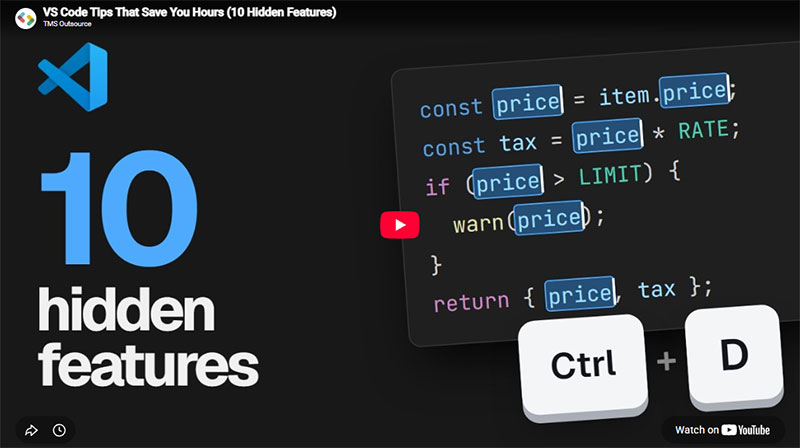
Auto-update ships on by default, and for most people that’s fine. Turning it off is worth doing on a machine running production debugging sessions though, since a surprise version bump mid-task can change behavior you weren’t expecting.
What Are the Most Popular VS Code Extensions
The same handful of extensions show up on nearly every widely recommended lineup you’ll find, grouped below by what each one actually does rather than by name recognition.
Install counts come from each extension’s own Marketplace listing and publisher page, checked mid-2026. They climb by the day, so treat these as a floor, not an exact snapshot.
| Extension | Category | Installs | Core Job |
|---|---|---|---|
| Prettier | Formatter | 60M+ | Auto-formats code on save |
| ESLint | Linter | 45M+ | Flags bugs and style issues live |
| GitLens | Source control | 40M+ | Inline Git blame and history |
| Remote – SSH | Remote dev | 30M+ | Edits files on a remote server locally |
Code Quality and Formatting Extensions
Prettier reformats JavaScript, TypeScript, CSS, HTML, Markdown, and YAML into one consistent style. Whatever formatting arguments used to happen in code review, this mostly ends them.
ESLint does a different job. It catches bugs and style violations through linting while you type, not after a build already failed, and it’s sitting at 45 million-plus installs as of 2026.
Most teams run both at once. Prettier handles formatting. ESLint checks logic and style. A small config plugin exists mainly to stop the two from arguing over the same lines of code.
Language and Framework Extensions
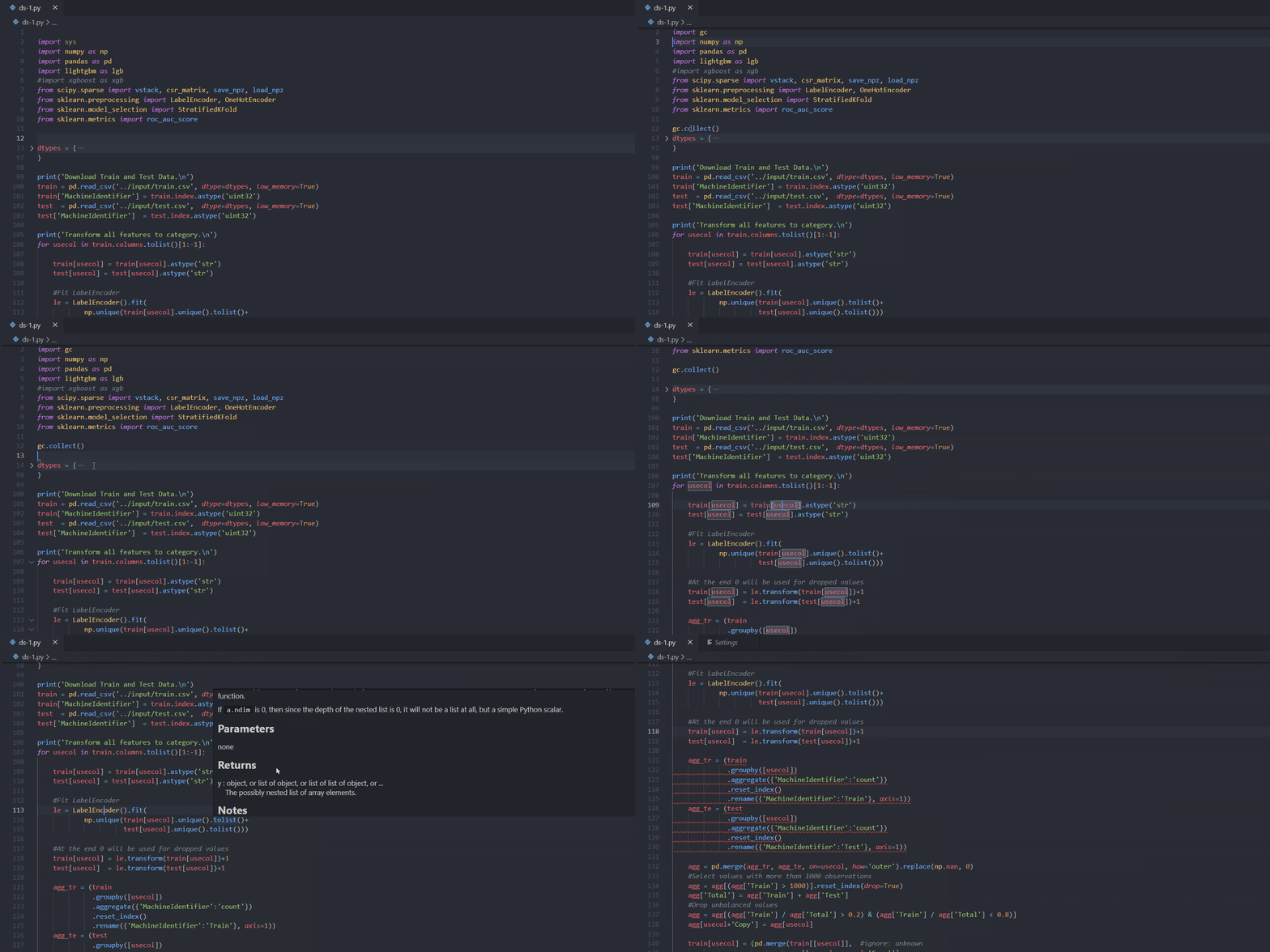
Coverage runs deep here. Microsoft’s own Python extension, paired with the Pylance language server, is still the standard install for anyone writing Python. Tailwind CSS IntelliSense autocompletes utility classes and shows you the actual CSS a class resolves to just by hovering over it.
Vue, Angular, React, Go, and Rust each have dedicated extensions too, all backed by active communities. Framework-specific extensions earn their keep once autocomplete stops being a nice-to-have and becomes the only realistic way to navigate a sprawling component tree.
Productivity and Git Extensions
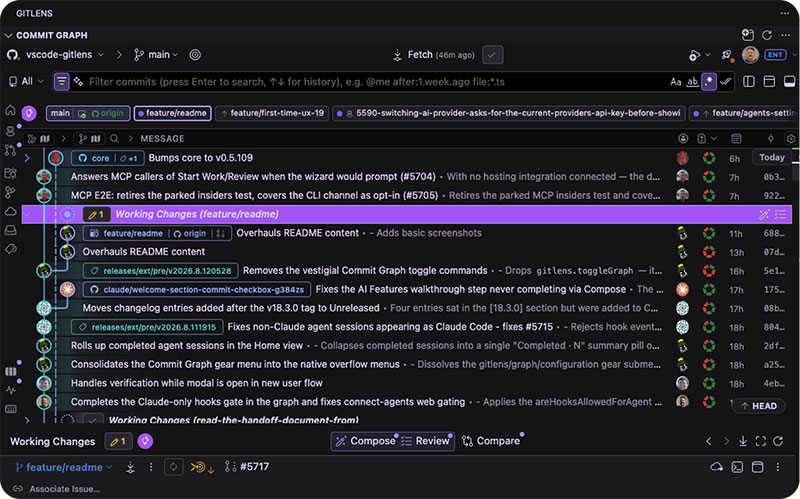
GitLens is the most installed Git extension in the Marketplace, with over 40 million installs according to its own GitKraken product page. It adds inline blame annotations, a commit graph, and file history, all without leaving the editor or opening a terminal.

Error Lens pairs well with it. Instead of hovering over a red squiggle to see what’s wrong, the error text just sits right there on the line, which cuts out a small but constant context switch most people don’t realize they’re doing dozens of times a day.
Path Intellisense rounds things out, autocompleting file paths as you type an import so a typo doesn’t sit there waiting to surface until runtime.
AI-Assisted Coding Extensions
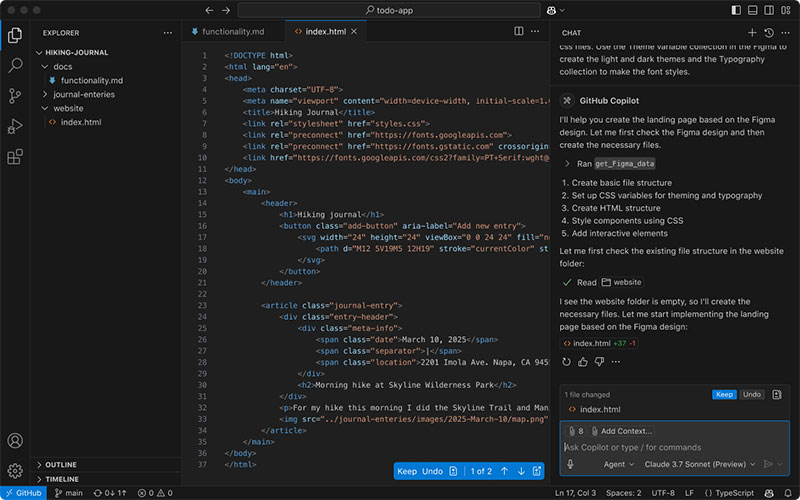
GitHub Copilot still leads this category by a wide margin, though Claude Code and Cursor have both been cutting into that lead over the past year.
- 77.7% of professional developers who use AI tools do it inside VS Code, per Stack Overflow’s 2025 Developer Survey
- 80.4% of people learning to code do the same
- Microsoft open-sourced Copilot’s inline suggestion engine in November 2025 and is folding the standalone GitHub Copilot extension into Copilot Chat, with the older extension set to be removed from the Marketplace in early 2026, per the official VS Code blog
Setting Copilot up inside VS Code takes about two minutes from the Extensions view, sign-in included. Not much of a barrier, honestly.
Are VS Code Extensions Safe to Use
Most are, yes. But a VS Code extension runs with the same file system and process access as VS Code itself, which is a very different security model from a browser extension sitting inside a sandbox.
A formatter needs that level of access to actually rewrite your files on save. A malicious extension just points the same access somewhere worse, like your SSH keys.
This isn’t hypothetical. Peer-reviewed research has put real numbers behind it.
| Incident | Year | Scale | Method |
|---|---|---|---|
| Dracula theme typosquat | 2024 | 100+ organizations hit | Copycat extension with a hidden data collection script |
| Marketplace malware sweep | 2024 | 229 million installs affected | 1,283 extensions found with known malicious code |
| Nx Console compromise | 2026 | 2.2 million+ installs | Stolen publisher token, injected payload |
| GlassWorm v2 campaign | 2026 | 320+ malicious artifacts | 73 fake extensions, worm-style spread |
Signs of a Malicious Extension
Researchers at NC State put a number on this. They analyzed 25,402 extensions containing code and confirmed 21 with working code injection exploits, reaching over 6 million installations combined (NDSS Symposium, 2024).
A separate study scanned 27,261 extensions and found 8.5% (2,325 extensions) exposed to credential leakage through commands, user input, or stored configuration data (arXiv, 2024).
Watch for a publisher account that’s only a few days older than the extension itself, or an install count that spiked overnight for no obvious reason. A description copied almost word for word from a well-known competitor is another one worth noticing.
On the flip side, a verified publisher badge counts for something. So does a linked, open source repository you can actually go read. Changelog entries that sound like a real person wrote them, specific and recent rather than vague, are probably the strongest tell that an extension is what it says it is.
Do VS Code Extensions Affect Performance
Yes, and the effect compounds. Every active extension adds a bit to boot time, memory use, and sometimes background CPU load, and none of that stays constant as the count climbs.
Most of it comes down to the activation event an extension registers. A wildcard event loads on every single startup no matter what, while something like onLanguage or onCommand only fires when it’s actually needed.
As a rule of thumb, extensions crossing 500 milliseconds of activation time are usually the first ones developers flag when reading VS Code’s own Startup Performance report.
Extension Bisect and Startup Performance Tools
A few built-in commands cover most of the performance debugging you’ll ever need to do.
- Developer: Startup Performance opens a report showing exact activation time per extension, in milliseconds, from the last cold start
- Extension Bisect, found under the Help menu, runs a binary search across installed extensions, disabling half at a time until it isolates the slow one
- Developer: Show Running Extensions displays live activation time for every extension currently active
Cold activation (an extension’s first run right after install) always runs slower than a warm restart, since the VSIX package hasn’t been cached yet.
When You Don’t Need a VS Code Extension
Not every job needs an install. VS Code ships with more built-in capability than most people realize before they go searching the Marketplace out of habit.
The Source Control panel already handles basic Git status, staging, and commits with nothing installed. If you’re just checking diffs and pushing commits, GitLens can wait.
The built-in TypeScript language service, maintained by the same team that builds the TypeScript compiler itself, powers JavaScript and TypeScript IntelliSense with zero extra installs.
Debugging JavaScript and Node.js code also works right out of the box. The built-in debugger attaches to a running process without needing a separate debugger extension at all.
Go to Definition and Peek Definition are both native too, and between them they already cover most of what a “smart navigation” extension usually promises to add.
How to Sync and Share VS Code Extension Setups

A personal setup and a team setup are really two different problems, and VS Code doesn’t try to solve them with the same system.
Settings Sync tracks you specifically, following you across whatever machine you happen to sign into. Workspace recommendations work the other way around, tied to the project itself so it makes no difference who opens it or from where.
| System | Scope | Trigger | Stored |
|---|---|---|---|
| Settings Sync | Personal, cross-device | Sign-in with Microsoft or GitHub | Cloud, tied to your account |
| Workspace recommendations | Project-wide, any user | Opening the workspace folder | .vscode/extensions.json in the repo |
Settings Sync for Personal Devices
Settings Sync has been a built-in VS Code feature since version 1.48.0 in July 2020, which quietly retired a whole category of third-party extensions people used to rely on for the same thing.
Sign in with a Microsoft or GitHub account and it turns on by itself, syncing settings.json, keybindings, snippets, tasks, UI state, and every installed extension along with whether each one is enabled or disabled.
One limit is worth flagging here. VS Code doesn’t sync extensions into or out of a remote window, so an SSH session, a dev container, and WSL each end up keeping their own separate list. Conflicts between two machines get resolved with a three-way merge rather than one device just steamrolling the other.
Workspace Recommendations for Teams
The whole mechanism runs on a single file, .vscode/extensions.json, checked straight into the repository alongside the code itself.
recommendationslists the extension IDs a project wants, in publisher.name formatunwantedRecommendationsexcludes specific extensions VS Code might otherwise suggest on its own- Opening the folder triggers a one-click “Install All” notification for anything missing
Next.js’s own repository, for instance, recommends the ESLint and Prettier extensions to anyone who clones it.
How to Create a VS Code Extension

Building one starts with scaffolding, not typing code into a blank folder and hoping for the best.
Microsoft maintains an official generator for exactly this, shipped as generator-code on npm and currently sitting at version 1.12.0.
GitLens shows where this path can actually lead. Developer Eric Amodio built it alone starting in 2016, years before GitKraken brought him on as CTO in October 2021 to run it full time.
| Step | Tool | What Happens |
|---|---|---|
| Scaffold | yo code (generator-code) | Generates the starter project and package.json |
| Test | F5 / Extension Development Host | Runs the extension live for manual testing |
| Publish | vsce | Packages and uploads to the Marketplace |
Extension Manifest and Contribution Points
Running npm install -g yo generator-code, then yo code, walks you through prompts for a name, an identifier, and a publisher. Under a minute later you’ve got a working TypeScript project.
A few fields in the generated package.json do most of the heavy lifting. main points to the compiled entry file the extension host loads first, contributes registers whatever commands, menus, and views the extension adds to the UI, and activationEvents controls exactly when all of that wakes up, the same events covered earlier under performance.
Pressing F5 launches a second window called the Extension Development Host, which runs your unpublished extension live so you can test commands before anyone else ever sees them.
Publishing with vsce
@vscode/vsce is the official CLI that packages and ships an extension to the Marketplace. Publishing needs two things, a publisher ID created on the Marketplace publisher management page, and a Personal Access Token from Azure DevOps with Marketplace (Manage) scope.
This part of the setup is changing too. Azure DevOps retires global Personal Access Tokens on December 1, 2026, and Microsoft now points people toward Entra ID authentication with workload identity federation instead, available through vsce’s --azure-credential flag (VS Code Extension API docs, 2026).
Most teams store the token as a secret in GitHub Actions or an Azure build pipeline and let a workflow run vsce publish on every tagged release.
vsce also refuses a couple of things on principle. No SVG icons in package.json, and no SVG images in the README unless they’re coming from a trusted badge provider.
FAQ on VS Code Extensions
Do VS Code extensions cost money?
Most of them, yes, they’re free. The Marketplace has no built-in purchase system of its own, so when an extension does cost money, it usually unlocks premium features through an external license key or subscription instead. GitLens works this way for its Pro tier.
Is there a limit to how many extensions I can install?
No hard cap exists, technically. Performance sets the real ceiling long before any actual limit would. Somewhere past 40 or 50 active extensions, most people start noticing slower startup and laggy typing, and at that point it’s usually worth trimming rather than adding more.
Do VS Code extensions work without an internet connection?
Once they’re installed, mostly yes. Formatters, linters, and snippet packs all run entirely offline once they’re on your machine. Anything that calls out to an external API though, GitHub Copilot’s suggestions being the obvious example, needs a live connection to work at all.
Can I use VS Code extensions in the browser at vscode.dev or in GitHub Codespaces?
Some work, plenty don’t. VS Code for the Web runs its extension host inside a browser sandbox, so only extensions built specifically as web extensions function there, mostly themes, keymaps, and snippets. Anything that needs to shell out to Node.js or a local executable, most debuggers included, just stays grayed out.
Why does VS Code ask me to reload the window after installing an extension?
Some extensions change core behavior, language support or theming being the usual culprits, in ways the running extension host genuinely can’t swap in safely on the fly. A reload just restarts that host cleanly from scratch. Extensions built around lighter activation events like onCommand tend to skip this step entirely.
Can I build a VS Code extension without knowing TypeScript?
Yes, easily. The Yeoman generator ships a plain JavaScript template right alongside the TypeScript one, and the Extension API behaves identically in either. TypeScript only adds type checking on top. It was never a requirement for package.json, contribution points, or the extension host itself.
What happens to installed extensions when VS Code itself updates to a new version?
They usually just keep working. Each extension declares a minimum supported VS Code version through its engines field, so most updates pass through without incident. On the rare occasion an update does break compatibility, it gets flagged directly in the Extensions view.
What is an extension pack, and how is it different from a single extension?
It’s a bundle, not a new kind of extension. An extension pack groups several separate extensions into one Marketplace listing, installed together with a single click through the extensionPack field in package.json. Install the pack, and everything listed inside it installs right along with it.
Can I turn off every extension at once for troubleshooting?
Yes, and it’s usually the first thing worth trying. Launching from a terminal with code --disable-extensions starts VS Code with every extension switched off in one shot, which is the fastest way to find out whether an extension actually caused a crash or just happened to be running when it did.
Do VS Code extensions run the same way on an Apple Silicon Mac as on Windows or Linux?
Mostly, yes. VS Code has shipped native Apple Silicon (ARM64) builds since version 1.54 back in 2021. A handful of extensions that bundle native binaries, certain debuggers especially, still haven’t caught up on ARM and fall back to Intel emulation through Rosetta instead.
Conclusion
Treat VS Code extensions as a rotating toolkit, not something you set once and forget about.
Start small. One formatter, the language extension for whatever you’re actually writing this week, and nothing else. GitLens or an AI assistant can wait until that core setup starts feeling thin.
Check the publisher before installing anything new, and be a little wary of extensions that haven’t shipped an update in a long while.
Extensions pile up without anyone really noticing. A reminder once a quarter to open the Extensions view and clear out anything unused goes a long way.
If VS Code ever starts feeling sluggish, run Extension Bisect instead of guessing which one is to blame. It’s faster, and it’s usually right.
For teams, skip the verbal onboarding notes entirely. Commit a workspace recommendations file to the repository on day one instead, it explains itself every time someone clones the project.

- C cheat sheet - November 3, 2026
- Best Practices for Designing Intuitive Navigation in Web Applications - November 3, 2026
- 9 Companies Leading AI Agent Skill Registry Technology - November 2, 2026


