Most developers install Visual Studio Code, open it, and start coding without touching a single setting. That works, until it doesn’t.
VSCode settings control everything from font rendering and tab size to formatter behavior, terminal shell selection, and extension configuration. Getting them right is the difference between an editor that fights you and one that runs exactly how you need it to.
This guide covers the full settings.json system: user settings, workspace configuration, language-specific overrides, terminal setup, extension conflicts, Settings Sync, and how to reset things when they break.
What Are VSCode Settings
VSCode settings is a JSON-based configuration system built into Visual Studio Code that controls every aspect of editor behavior, appearance, and extension functionality.
It’s not just a preferences panel. It’s the backbone of how the editor runs, from font rendering to linting rules to terminal shell selection.
The system operates on two scopes:
- User settings – global, apply to every project you open on your machine
- Workspace settings – stored inside .vscode/settings.json in your project folder, and they override user settings when that workspace is active
Both scopes read from a settings.json file. You can edit settings through a graphical UI or directly in JSON. The UI writes to the same file automatically.
According to the 2025 Stack Overflow Developer Survey, 75.9% of developers use VSCode as their primary editor. That’s more than double the usage of any other IDE. For most of those developers, a configured settings.json is what separates a generic install from a productive workspace.
Settings cover four main areas:
- Core editor behavior (indentation, word wrap, font, minimap)
- Extension configuration (Prettier, ESLint, GitLens, Pylance)
- Language-specific overrides using scope syntax like [python] or [javascript]
- Workspace-level rules committed to version control for team consistency
IntelliSense works inside settings.json. Start typing a key and VSCode surfaces available options with descriptions and valid values. Took me a while to realize this, but it makes editing the file significantly faster than guessing key names.
Where VSCode Stores Settings Files

The settings.json file location depends on your operating system. These are the exact paths for user-level settings:
| OS | settings.json path |
|---|---|
| Windows | %APPDATA%\Code\User\settings.json |
| macOS | ~/Library/Application Support/Code/User/settings.json |
| Linux | ~/.config/Code/User/settings.json |
Workspace settings always live inside .vscode/settings.json at the root of your project folder, regardless of OS.
User settings vs. workspace settings precedence
When both scopes define the same key, workspace settings win. Every time.
This matters practically: if your user settings set editor.tabSize to 4, but the workspace .vscode/settings.json sets it to 2, the editor uses 2 inside that project. Useful for monorepos or team projects where code style is locked.
VSCode Profiles (introduced in 2023) add a third layer. Each profile can carry its own settings.json, isolated from your main user settings. A Python data science profile and a web dev profile can coexist without interfering.
Key point: if you’re using the Settings Sync feature across multiple machines, the user settings.json gets synced. Workspace settings do not – those travel with the project repository instead.
How to Open and Edit VSCode Settings
Two paths, different use cases. The UI is good for discovering options. The JSON file is good for everything else.
Settings UI vs. direct JSON editing
Settings UI opens with Ctrl+, on Windows/Linux or Cmd+, on macOS.
It’s searchable, grouped by category, and shows which settings have been modified with a colored indicator. Fine for quick changes, bad for copying configs between machines or managing anything complex.
Direct JSON editing is what most developers end up preferring. Open it via the Command Palette (Ctrl+Shift+P or Cmd+Shift+P), then type:
- Preferences: Open User Settings (JSON) – global config file
- Preferences: Open Workspace Settings (JSON) – project-level config
- Preferences: Open Default Settings (JSON) – read-only reference of every available key
You can also set “workbench.settings.editor”: “json” to make Ctrl+, open the JSON file directly, skipping the UI entirely. That’s the right call once you know what you’re doing.
User settings vs. workspace settings
Committing .vscode/settings.json to version control is one of those things teams either do consistently or argue about forever.
The case for committing it: everyone on the team gets the same formatter, the same linting rules, the same tab size. No “works on my machine” issues from editor config drift.
The case against: some settings are personal (font size, theme, minimap preference) and don’t belong in a shared repo.
Practical fix – commit workspace settings for code quality rules (formatter, linter, language server config) and leave appearance and personal preferences in user settings only.
Essential Editor Settings Most Developers Configure

These are the settings that actually change how the editor behaves day-to-day. Not comprehensive, but the ones worth knowing first.
Formatting and indentation
Format on save is the single most impactful setting for keeping a codebase clean without thinking about it:
“editor.formatOnSave”: true, “editor.defaultFormatter”: “esbenp.prettier-vscode”
Set a default formatter once, then override per language as needed. Without defaultFormatter, VSCode prompts you every time there are multiple formatters installed. That gets old fast.
Other indentation settings worth locking in:
- “editor.tabSize”: 2 or 4 depending on team standard
- “editor.insertSpaces”: true to use spaces instead of tab characters
- “editor.detectIndentation”: false to stop VSCode from auto-detecting and overriding your setting
Auto-save and file behavior
Four files.autoSave modes exist. Most developers land on one of two:
| Mode | Behavior | Best for |
|---|---|---|
| off | Manual save only | Developers who want explicit control |
| afterDelay | Saves after a set delay (ms) | General use, pairs well with hot reload |
| onFocusChange | Saves when you switch away from the file | Web dev workflows, browser preview |
| onWindowChange | Saves when VS Code loses application focus | Alt-tab workflows |
Note: afterDelay with formatOnSave enabled can trigger formatting on every auto-save, which some linters and formatters don’t handle well. Test your setup before assuming it works.
Display and layout settings
The minimap (“editor.minimap.enabled”: false) is one of the most commonly disabled settings. It takes up horizontal space and most developers never use it.
Word wrap, on the other hand, is personal. “editor.wordWrap”: “on” makes long lines wrap visually without adding line breaks to the file. Useful for Markdown, less useful for most code.
Other quick wins:
- “editor.renderWhitespace”: “boundary” – shows whitespace characters at the edges of words
- “editor.guides.bracketPairs”: true – draws vertical lines connecting bracket pairs
- “editor.lineHeight”: 1.6 – slightly more readable than the default, at least in my setup
Language-Specific Settings in VSCode
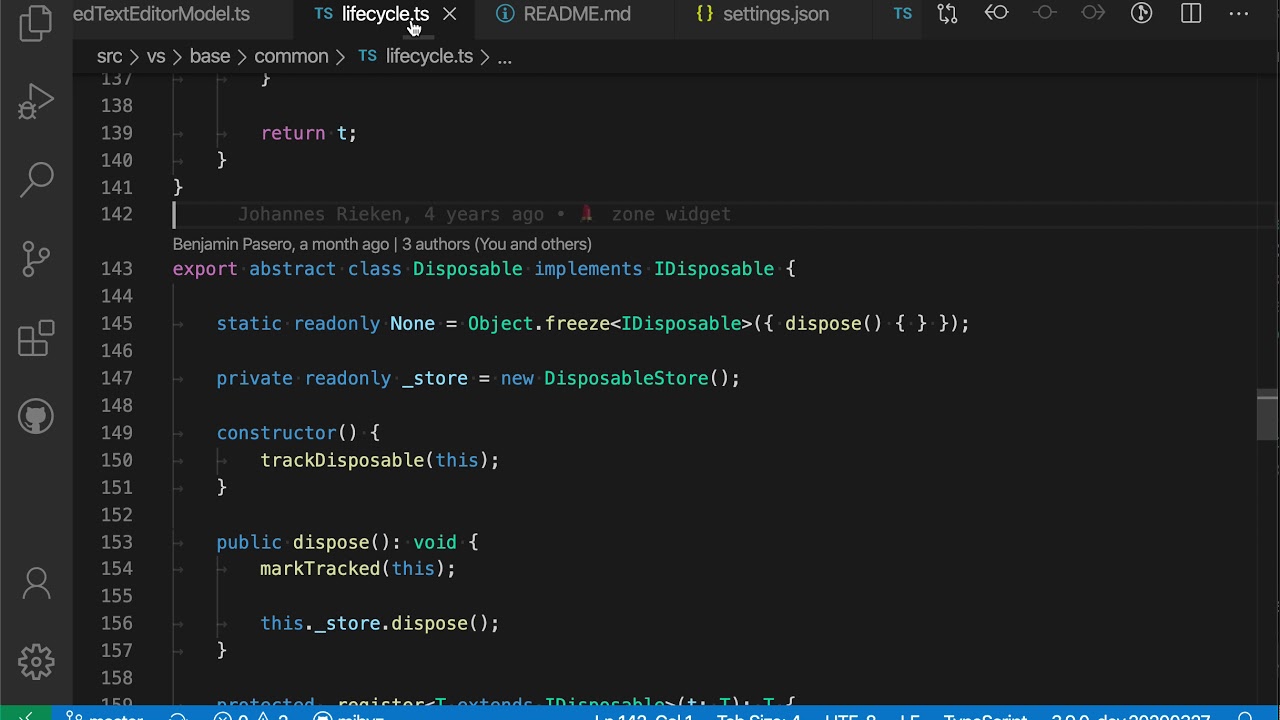
This is one of the more underused parts of the configuration system. You can scope any setting to a specific language using bracket notation.
The syntax wraps settings inside a language identifier block:
“[python]”: { “editor.defaultFormatter”: “ms-python.black-formatter”, “editor.tabSize”: 4 }, “[javascript]”: { “editor.defaultFormatter”: “esbenp.prettier-vscode”, “editor.tabSize”: 2 }, “[markdown]”: { “editor.wordWrap”: “on”, “editor.quickSuggestions”: false }
Each block overrides any user-level or workspace-level setting for that language. Language scope beats both.
Practical use cases for language scoping
Different formatters per language is the most common reason to use this. Python shops often run Black, JavaScript projects run Prettier, Go runs gofmt. Setting defaultFormatter per language means no conflicts, no prompts.
Tab size differences matter too. Python’s PEP 8 standard calls for 4 spaces. Many JavaScript and TypeScript style guides use 2. Without language-specific scoping, you’re either picking one and living with it everywhere, or fighting the editor constantly.
Quick suggestions in Markdown (“editor.quickSuggestions”: false) is a good one – IntelliSense autocomplete in prose files is more annoying than helpful.
Language identifiers are case-sensitive and must match VSCode’s internal IDs: javascript, typescript, python, json, markdown, css, html. You can find the right ID for any open file by clicking the language indicator in the bottom status bar.
Appearance and Theme Settings
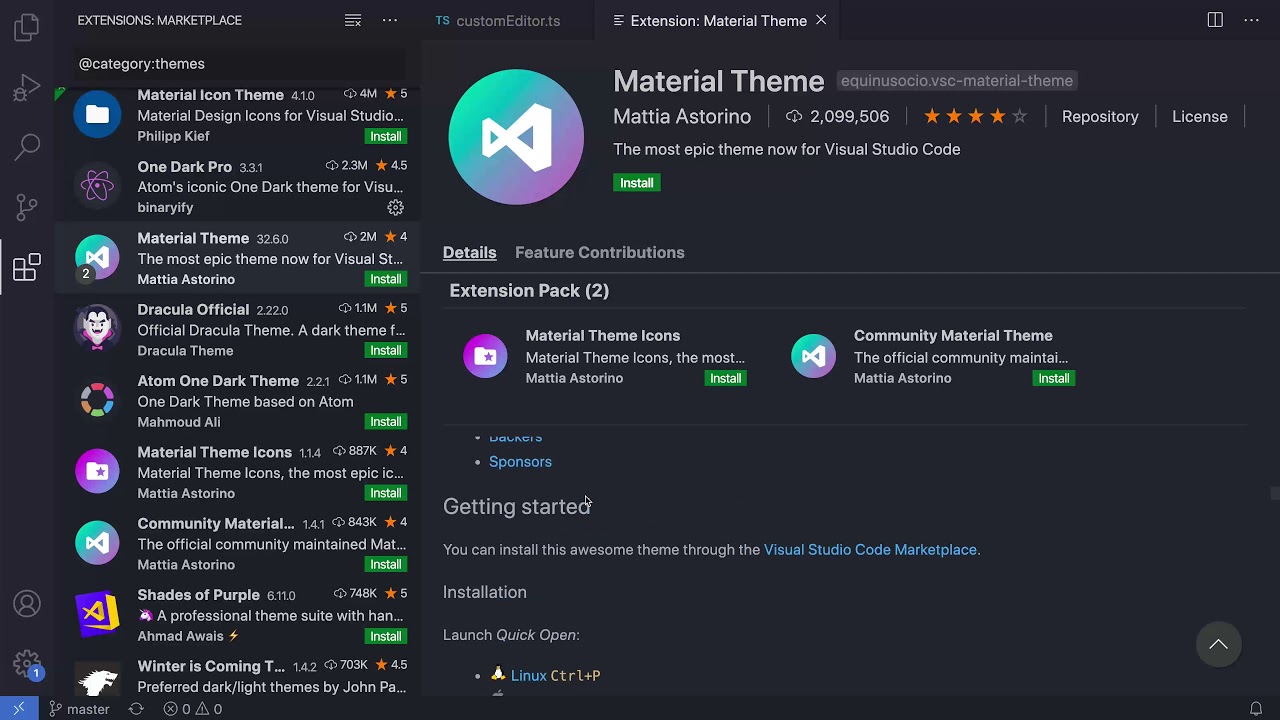
Appearance settings don’t affect code quality. But they affect how long you can sit in the editor without your eyes getting tired, which affects everything else.
Color themes and icon themes
Two separate settings, often confused:
- “workbench.colorTheme” – controls the editor’s color scheme (syntax colors, UI panels, sidebar)
- “workbench.iconTheme” – controls the file icons in the Explorer sidebar
Popular pairings: One Dark Pro with Material Icon Theme, or GitHub Dark with vscode-icons. These come from the Extensions Marketplace and get installed separately from the editor itself.
Font settings and ligatures
Font rendering in VSCode is controlled by three settings working together:
“editor.fontFamily”: “Fira Code, Consolas, monospace”, “editor.fontSize”: 14, “editor.fontLigatures”: true
Fira Code and JetBrains Mono both support ligatures – special combined glyphs for character sequences like =>, !==, and >=. Some developers love them, some find them disorienting. Worth trying for a week before deciding.
The editor.fontFamily value accepts fallbacks separated by commas. VSCode tries each font in order and uses the first one it finds installed. Including monospace as a final fallback is a good habit.
Sidebar and UI toggles
Several UI elements can be toggled through settings rather than the View menu:
- “workbench.activityBar.location”: “hidden” – removes the icon sidebar on the left
- “workbench.statusBar.visible”: false – hides the bottom status bar
- “breadcrumbs.enabled”: false – removes the file path breadcrumb at the top of each editor tab
Hiding these recovers screen real estate, which matters on smaller monitors. On a 13-inch laptop screen, every pixel counts.
Cursor style and blink settings are also configurable: “editor.cursorStyle”: “line”, “editor.cursorBlinking”: “smooth”. Small thing, but it changes how the editor feels in extended sessions.
Terminal Settings in VSCode

The VSCode terminal is one of the most configured parts of the editor. Most developers do at least a few things to it before the default setup feels usable.
Shell selection is the obvious first step. VSCode defaults to PowerShell on Windows and the system shell on macOS/Linux.
Default shell and profile configuration
Terminal profiles are configured per OS using separate keys:
- “terminal.integrated.defaultProfile.windows” – PowerShell, Git Bash, Command Prompt
- “terminal.integrated.defaultProfile.osx” – zsh (default on modern macOS), bash, fish
- “terminal.integrated.defaultProfile.linux” – bash, zsh, or any installed shell
Each profile also accepts custom arguments. Running bash as a login shell, for example, requires “args”: [“-l”] in the profile config.
VSCode automatically detects installed shells and lists them in the terminal dropdown. Worth checking that list before manually editing JSON.
Terminal appearance and behavior settings
Font settings in the terminal are independent from the editor. Set them separately or the terminal reverts to the system monospace font:
“terminal.integrated.fontFamily”: “MesloLGS NF”, “terminal.integrated.fontSize”: 13, “terminal.integrated.lineHeight”: 1.2
MesloLGS NF is a common choice for developers using Oh My Zsh with Powerlevel10k, since it supports the special glyphs those prompts use.
Two other settings that are worth setting early:
- “terminal.integrated.scrollback” – default is 1000 lines; raise it if you debug long-running processes
- “terminal.integrated.persistentSessionReviveProcess” – controls whether terminal sessions restore after reloading the window
Shell integration settings
Shell integration is enabled by default in modern VSCode versions and adds command decorations, run-length tracking, and IntelliSense inside the terminal.
If it’s not working, check this setting:
“terminal.integrated.shellIntegration.enabled”: true
The terminal.integrated.env setting per OS lets you inject environment variables directly into the terminal process without touching shell config files. Useful for tokens or paths that need to be consistent across projects.
Extension-Specific Settings in VSCode

Every extension installed from the VSCode Marketplace can add its own settings, visible under the Extensions section in the Settings UI or directly in settings.json.
Extension settings use the extension’s namespace as a prefix. Prettier settings start with prettier., ESLint with eslint., GitLens with gitlens.. That pattern is consistent across the ecosystem.
Prettier and ESLint configuration in settings.json
The most common pain point: Prettier and ESLint both running on save and conflicting with each other.
Root cause: ESLint has formatting rules that disagree with Prettier’s output, so save triggers a loop of corrections.
Fix in settings.json:
“editor.defaultFormatter”: “esbenp.prettier-vscode”, “editor.formatOnSave”: true, “editor.codeActionsOnSave”: { “source.fixAll.eslint”: “explicit” }, “eslint.validate”: [“javascript”, “typescript”, “javascriptreact”, “typescriptreact”]
This runs Prettier first (via formatOnSave), then applies ESLint autofixes. The order matters. Prettier last means it overwrites ESLint’s formatting opinions.
Also install eslint-config-prettier as a dev dependency. It disables all ESLint formatting rules that conflict with Prettier, so both tools stay in their lane. ESLint handles code quality, Prettier handles style.
Extension settings scope and conflicts
Extension settings can be scoped to workspace, just like core editor settings. This matters when different projects use different tools.
| Setting | Extension | Scope recommendation |
|---|---|---|
| prettier.singleQuote | Prettier | Workspace (varies by project) |
| eslint.validate | ESLint | Workspace (language-specific) |
| gitlens.hovers.enabled | GitLens | User (personal preference) |
| python.defaultInterpreterPath | Pylance | Workspace (per-project venv) |
Disabling an extension per workspace is possible too: right-click the extension in the Extensions panel and select “Disable (Workspace).” Its settings still exist but have no effect while disabled.
Sync Settings Across Devices

VSCode’s built-in Settings Sync keeps your editor configuration consistent across machines. No third-party extensions needed since it became a native feature.
Enable it through the Accounts menu at the bottom of the Activity Bar, then select “Backup and Sync Settings.” Sign in with a Microsoft or GitHub account and choose what to sync.
What Settings Sync includes
Six categories sync by default:
- Settings (settings.json)
- Keybindings
- Extensions
- Snippets
- UI state (panel positions, visible views)
- Profiles
What it does not sync: workspace settings in .vscode/settings.json, remote window extensions (SSH, dev containers, WSL), and machine-scoped settings like interpreter paths.
Handling conflicts and sync failures
Conflicts happen when settings differ between machines. VSCode surfaces three options:
Accept Local – overwrites the cloud version with what’s on this machine.
Accept Remote – pulls the cloud version onto this machine.
Show Conflicts – opens a diff editor where you can merge changes manually.
One thing to watch out for: Settings Sync can push a broken configuration to all your machines at once. If the editor starts behaving strangely after a sync, sign out of Settings Sync temporarily before wiping and rebuilding the config. Otherwise the cloud version overwrites the fresh state on next launch.
For team environments, skip Settings Sync entirely and commit a shared .vscode/settings.json instead. That gives explicit control over what’s shared, with full version history through source control management.
VSCode Profiles for Different Workflows

Profiles let you maintain separate editor environments. One for web development, one for Python data work, one stripped-down profile for writing documentation. Each profile carries its own settings.json, extensions, keybindings, and snippets.
Profiles were introduced in VSCode 1.75 (January 2023) and have been stable since. The idea is that a Rust profile doesn’t need Azure extensions loaded, and a data science profile doesn’t need Angular tooling slowing things down.
Creating and switching profiles
Access profiles through File > Preferences > Profiles or via the gear icon at the bottom-left of the Activity Bar.
Three creation options:
- Empty profile – starts with nothing, build from scratch
- Copy from current profile – duplicates the active settings as a starting point
- Temporary profile – resets to default on next VSCode restart, useful for testing extensions
Switching profiles is instant. The editor reloads with the new profile’s extensions and settings applied.
Exporting and sharing profiles
Profiles export as .code-profile files or GitHub gists, which makes sharing them across teams straightforward.
Export via the Profiles panel, choose “Export,” and pick either a local file or GitHub gist. The gist URL can be shared directly and imported into any VSCode installation through the Command Palette with Profiles: Import Profile.
One known limitation: profiles don’t inherit from each other. If you want a “Python web” profile that builds on your base Python profile, you have to duplicate it manually. There’s no live link between profiles, only copies at the time of creation. The VSCode team is tracking this feature request.
Profiles and Settings Sync interaction
Profiles sync across machines when Settings Sync is enabled. The active profile per workspace is also stored, so switching to a different machine opens the right profile for each project automatically.
Well, mostly. Extensions inside profiles don’t sync to remote windows (SSH, devcontainers), which can catch you off guard if you expect the same setup on a cloud VM.
Resetting and Troubleshooting VSCode Settings

Settings drift happens. After months of tweaks and extension installs, the editor starts behaving in ways that are hard to trace. Knowing how to diagnose and reset configurations cleanly saves a lot of time.
Resetting individual settings vs. full reset
Single setting reset: hover over any setting in the Settings UI, click the gear icon that appears, select “Reset Setting.” Done.
Full reset: open settings.json and delete everything between the curly braces, then save. VSCode falls back to defaults for every unset key. The file doesn’t need to be deleted, just emptied to {}.
Warning: if Settings Sync is active, VSCode will re-push the cloud version on next launch and undo the reset. Sign out of Settings Sync before doing a full reset, then sign back in once you’ve rebuilt a clean config.
Common settings issues and fixes
Three patterns show up most often in broken configurations:
Formatter not applying on save – usually caused by multiple formatters installed for the same language with no defaultFormatter set. Fix: add an explicit editor.defaultFormatter for the affected language in a language-scoped block.
Settings applying in some projects but not others – workspace settings are overriding user settings. Check the .vscode/settings.json in the project root. Use the @modified filter in the Settings UI search bar to see all keys that differ from default across both scopes.
Extension settings not working – the extension may be disabled for that workspace. Check the Extensions panel filter for “Disabled” to confirm.
Using default settings as a reference
Run Preferences: Open Default Settings (JSON) from the Command Palette.
This opens a read-only file listing every available setting key with its default value and a description. It’s the fastest way to find the exact key name when IntelliSense isn’t surfacing it, or when you’ve forgotten whether a setting is called editor.formatOnSave or editor.format.onSave.
Microsoft’s VSCode team updates the default settings file with every release. If a setting seems to have disappeared after an update, checking the defaults file against your settings.json is the first place to look. Settings that were renamed or deprecated usually have a note in the description field pointing to the replacement key.
If you’re working across multiple environments, it’s worth also checking out VSCode Remote SSH configuration, which has its own remote-scoped settings separate from user and workspace settings.
FAQ on VSCode Settings
How do I open VSCode settings?
Press Ctrl+, on Windows/Linux or Cmd+, on macOS to open the Settings UI. To edit the settings.json file directly, open the Command Palette with Ctrl+Shift+P and run Preferences: Open User Settings (JSON).
What is the difference between user settings and workspace settings?
User settings apply globally across every project you open. Workspace settings live inside .vscode/settings.json in your project folder and override user settings when that workspace is active.
Where is the settings.json file located?
On Windows: %APPDATA%CodeUsersettings.json. On macOS: ~/Library/Application Support/Code/User/settings.json. On Linux: ~/.config/Code/User/settings.json. Workspace settings always live in the project’s .vscode folder.
How do I enable format on save in VSCode?
Add “editor.formatOnSave”: true to your settings.json. Also set “editor.defaultFormatter” to your preferred formatter, like esbenp.prettier-vscode, so VSCode knows which tool to use on save.
How do I set language-specific settings in VSCode?
Wrap settings inside a language block using bracket notation. For example, “[python]”: { “editor.tabSize”: 4 }. This overrides both user and workspace settings for that specific language only.
How do I sync VSCode settings across multiple machines?
Enable Settings Sync via the Accounts menu at the bottom of the Activity Bar. Sign in with a Microsoft or GitHub account. VSCode syncs settings, keybindings, extensions, and snippets automatically across all your machines.
How do I fix formatter conflicts between Prettier and ESLint?
Set “editor.defaultFormatter”: “esbenp.prettier-vscode” and use “source.fixAll.eslint”: “explicit” inside editor.codeActionsOnSave. Install eslint-config-prettier as a dev dependency to disable ESLint rules that conflict with Prettier’s formatting output.
How do I reset VSCode settings to default?
Open settings.json and replace all content with an empty {}. For a single setting, hover over it in the Settings UI, click the gear icon, and select Reset Setting. Sign out of Settings Sync first to prevent cloud overwrite.
What are VSCode Profiles and how do they affect settings?
Profiles let you maintain separate settings.json configurations, extensions, and keybindings for different workflows. Switch between a Python data science profile and a web dev profile instantly, without manually reconfiguring the editor each time you change context.
How do I configure the integrated terminal in VSCode settings?
Set your default shell using “terminal.integrated.defaultProfile.windows” or the equivalent macOS/Linux key. Adjust font, scrollback, and line height with terminal.integrated.fontFamily and related settings inside your user settings.json.
Conclusion
This conclusion is for an article presenting VSCode settings as a system worth understanding, not just clicking through.
Getting your settings.json right pays off fast. Consistent indentation, a locked-in default formatter, language-specific overrides, and a properly configured integrated terminal add up to a noticeably smoother workflow.
Workspace configuration committed to version control keeps teams aligned without manual coordination. Settings Sync handles the rest across your own machines.
Profiles take it further, letting you separate extension sets and editor preferences by project type without touching your base setup.
Start with the settings that affect you daily. Build from there. The editor configuration that works best is the one that stops being something you think about.

- Notepad++ Android Options: Apps That Come Close - October 21, 2026
- Data Management Services: A Practical Guide for Growing Companies - October 21, 2026
- MongoDB Cheat Sheet - October 20, 2026