

Your iPhone storage is full again, and you’re not ready to delete anything permanently. That’s exactly what the offload app feature on iPhone was built for.
Available since iOS 11, offloading removes an app’s binary from your device while keeping all its documents and data intact. The app icon stays on your home screen. One tap reinstalls it completely.
Most users don’t know offloading exists until they’re desperate for space. Fewer still know which apps are worth offloading, which ones to avoid, and when a full delete makes more sense.
This guide covers all of it: how offloading works, how to do it manually or automatically, the best apps to target, and the problems you might run into along the way.
What Is Offloading an App on iPhone
App offloading is a feature Apple introduced with iOS 11 in September 2017. It removes the app’s binary (the executable code) from your device while keeping all its documents, settings, and data exactly where they are.
The app icon stays on your home screen. A small cloud symbol appears next to the name, indicating the app is offloaded but still connected to your account and recoverable instantly.
Tap the icon, and iOS downloads the app binary from the App Store and restores everything automatically. No reconfiguration. No lost progress. You pick up exactly where you stopped.
This is fundamentally different from how storage management worked before iOS 11. Prior to this feature, apps were binary: installed or deleted. There was no middle ground.
Why this matters for iPhone storage
SafetyDetectives research from 2026 found that installing the top 50 iOS apps takes up roughly 17.5 GB of storage space, compared to just 6.4 GB on Android. iOS apps are consistently larger, without exception across the 50 apps analyzed.
On top of that, 8% to 15% of an iPhone’s advertised storage is reserved for the operating system and essential system files before you install a single app.
Offloading lets iOS reclaim the largest portion of an app’s footprint, the binary, without destroying what makes the app useful to you personally.
Offloading vs. Deleting an App

These two actions look similar on the surface. They are not the same thing.
| Action | App Binary | Documents & Data | App Icon | Recoverable |
|---|---|---|---|---|
| Offload | Removed | Kept on device | Stays (cloud icon) | Yes, fully |
| Delete | Removed | Permanently deleted | Removed | App only (data gone) |
When you delete an app, you lose everything tied to it locally: saved files, preferences, account data, game progress. Reinstalling from the App Store gives you a fresh install, not your previous state.
Offloading removes the executable portion only. The container that holds your data stays intact on the device.
When deletion makes more sense
Deletion is the right call when you know you won’t use an app again. There’s no reason to preserve data for something you’re done with.
It also makes sense when an app’s “Documents & Data” is the actual storage problem. Some apps accumulate hundreds of megabytes in cached files and local databases. Offloading in that situation saves very little because the binary is a small fraction of the total footprint.
Key difference: Offloading saves the binary size. Deletion saves the binary size plus all local data. For apps with large data footprints, only deletion actually solves the space problem.
What actually uses more space: the app or its data?
It depends on the app category. Games tend to have large binaries. Social media apps tend to have large data caches.
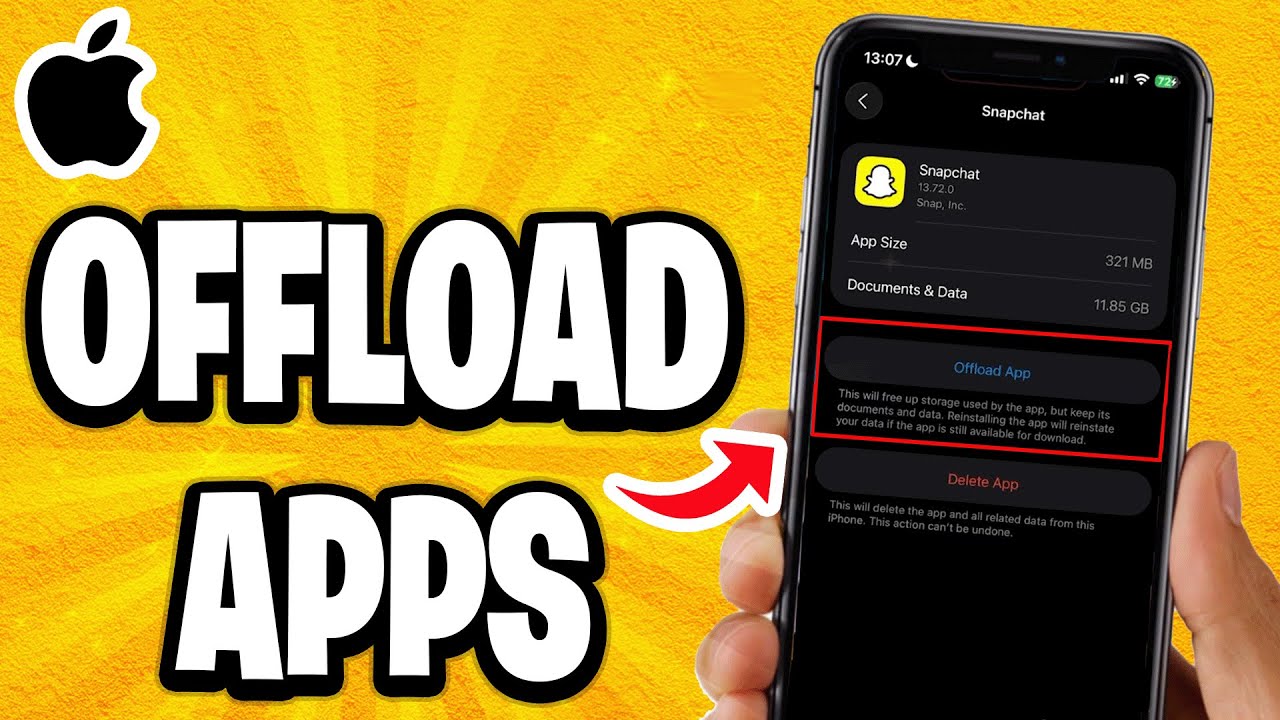
To check: go to Settings > General > iPhone Storage and tap any app. iOS shows two separate numbers: App Size and Documents & Data. If Documents & Data is significantly larger than App Size, offloading will barely help. Deletion or clearing the app’s cache is the better option.
How to Offload Apps on iPhone
There are two ways to do this: manually, one app at a time, or automatically through a system toggle that handles it for you.
Manual offload through iPhone Storage
- Open Settings
- Tap General
- Tap iPhone Storage
- Scroll through the app list and tap any app
- Tap Offload App
- Confirm when prompted
The cloud icon appears on the home screen icon within seconds. The app is offloaded.
This is the method to use when you want full control over which apps get removed. iOS shows you each app’s size before you act, so you can prioritize by storage impact.
Manual offload through the home screen
Long-press any app icon on your home screen. Tap Remove App from the menu that appears. iOS gives you two choices: Delete App or Offload App. Select Offload.
Faster than going through Settings. Useful when you’re not planning which apps to target, just quickly clearing something you haven’t opened in a while.
How to Enable Automatic App Offloading
Go to Settings > App Store and toggle on Offload Unused Apps.
With this enabled, iOS monitors app usage patterns and offloads apps it determines are unused when your device runs low on storage space. The criteria iOS uses are based on how recently you opened an app, its size, and how often you use it.
You’ll see an estimate of potential savings on the iPhone Storage screen before you enable it. That number is worth looking at before you decide.
One real downside: iOS can offload an app you actually need. Parking apps, transit apps, boarding pass apps. If you’re offline and need one of those urgently, being greeted by a cloud icon and no internet connection is genuinely annoying. For that reason, consider managing offloading manually if you rely on any apps that need to work without a connection.
How Much Storage Offloading Actually Frees
Offloading frees the app binary only. If you’re expecting it to reclaim several gigabytes, the results can feel underwhelming depending on the app.
What you actually save depends entirely on the app’s binary-to-data ratio.
| App Category | Typical Binary Size | Data Footprint | Offload Savings |
|---|---|---|---|
| Large games | 1–4 GB+ | Moderate | High |
| Apple creative apps | 600 MB – 1 GB | Low (unless heavy use) | High |
| Social media | 100–300 MB | Very high (cache) | Low to moderate |
| Streaming apps | 50–150 MB | High (offline downloads) | Low (unless downloads cleared) |
| Productivity apps | 30–150 MB | Varies | Moderate |
Sensor Tower data shows the top 10 U.S. apps were collectively 2.2 GB in 2021, up 298% from 2016. App binaries have grown dramatically, which actually makes offloading more effective than it used to be.
Real examples: what you’d actually reclaim
GarageBand and iMovie are two of Apple’s own apps and both have large binary sizes. Offloading either one frees several hundred megabytes at minimum, with your recordings and projects staying intact.
Call of Duty Mobile and similar titles? Different story. The binary alone can exceed 2–3 GB. Offloading those during stretches when you’re not actively playing is one of the most effective storage moves you can make.
Instagram, TikTok, Snapchat: the binary sizes are reasonable, but these apps cache enormous amounts of video data locally. Their Documents & Data often exceeds the app binary several times over. For those, offloading saves the binary but leaves the cache behind. A full delete and reinstall clears both. I’ve seen Snapchat hit 1.5 GB of cached data on an iPhone that hadn’t been wiped in a while.
How to check before you act
Go to Settings > General > iPhone Storage. Apps are sorted by total size. Tap any app to see the App Size and Documents & Data split.
If App Size is the large number: offloading will help significantly.
If Documents & Data is larger: offloading saves only part of the storage. Consider whether a full delete or cache clear is the better move.
Best Apps to Offload on iPhone for Maximum Storage
Not all apps are worth offloading. The best candidates combine two things: large binary size and infrequent use.
All About Cookies research found that 70% of iPhone users pay for extra iCloud storage after running out of local space, versus 31% of Android users. Knowing which apps to offload first reduces how often you hit that wall.
Large games
Best category for offloading, by far. Mobile games have the largest binaries of almost any app type, often 1–4 GB for titles like Call of Duty Mobile, Minecraft, or Genshin Impact.
Most games sync progress through an account login or iCloud, so reinstalling after an offload picks up exactly where you stopped. The main exception: games that store progress locally without cloud sync. Always verify before offloading.
Apple’s own creative apps
GarageBand, iMovie, Clips, Keynote, Pages, and Numbers come pre-installed or free from the App Store. Combined, they take up significant storage.
If you use GarageBand once a year, keeping it installed full-time makes no sense. Offload it. Your projects stay safe. Tap the icon when you need it again and it reinstalls in the background.
Seasonal and single-purpose apps
- Tax prep apps (used once a year)
- Travel apps tied to a specific trip
- Holiday retail apps
- Event apps for concerts, conferences, sports
These are perfect offload targets. You know exactly when you’ll need them again, and they’re usually not small. A tax prep app from H&R Block or TurboTax can sit at several hundred megabytes while you don’t look at it for 11 months.
Streaming apps with offline downloads
Netflix, Spotify, Apple TV+, and similar apps let you download content for offline playback. Those downloads sit in Documents & Data, not the binary. Offloading the app won’t clear downloaded episodes or playlists.
To actually reclaim space from streaming apps, delete the downloads inside the app first, then offload if you want to go further. Or just delete and reinstall clean.
Rarely used productivity and reference apps
Dictionary apps, language learning apps, reference tools, niche utilities. Things you downloaded for a specific purpose and haven’t opened since. Check your iPhone Storage list and sort by size. Anything you haven’t opened in 60+ days that’s over 100 MB is a candidate.
You can also check how long it’s been since you used specific apps on your iPhone to make better decisions about which ones to target.
Apps You Should Not Offload
Offloading is convenient, but there are apps where it creates real problems. Some categories behave unexpectedly after reinstall. Others you just don’t want going offline at the wrong moment.
Apps that require offline access
If you need an app to work without a connection, don’t offload it.
- Navigation and maps apps with downloaded offline maps
- Boarding pass and travel document apps
- Parking and transit apps
- Emergency or medical apps
Reinstalling requires an internet connection and enough time for the download. Neither of those is guaranteed when you’re standing at a parking gate or airport security.
Banking and authenticator apps
Some banking apps treat reinstallation as a new device registration. That means re-verification through SMS, email, or a physical bank visit. Your data isn’t lost, but the hassle factor is high.
Two-factor authenticator apps like Google Authenticator (older versions) or apps without iCloud backup can lose their configured accounts on reinstall. Check whether your authenticator backs up to iCloud or a linked account before offloading it.
Authenticator apps specifically are ones I’d never offload without verifying the backup situation first. Getting locked out of accounts because of a storage management decision is a bad trade.
Apps with large local-only data
Some apps store data locally that doesn’t sync anywhere. Certain note-taking apps, journaling apps, and local database tools keep everything on device by design. Offloading preserves that data in theory. But it’s worth confirming the app actually holds its data through an offload cycle before you rely on it.
If the app hasn’t been updated recently or has known bugs around this, verify first. The iOS promise of data preservation is general, not app-specific. Developers have to build their apps to support it properly.
Apps tied to hardware features
Health tracking apps, VPN clients running as always-on connections, smart home automation tools, and similar apps tied to background hardware functions may lose their active state when offloaded. They’ll work again after reinstall, but any continuous tracking or connection they maintained will have a gap.
For anything connected to your iPhone’s battery usage or background processes, check what happens to its active monitoring when the app binary isn’t present.
How to Reinstall an Offloaded App

Reinstalling is one tap. The cloud icon on the home screen is the trigger. Tap it and iOS starts downloading the app binary immediately, reconnecting it to all the data still sitting on the device.
You need an active internet connection. That’s the only hard requirement.
Two ways to reinstall
From the home screen: Tap the app icon showing the cloud symbol. iOS begins the download automatically and alerts you that the app needs to re-download before opening.
From iPhone Storage: Go to Settings > General > iPhone Storage, tap the app in the list, and tap Reinstall App. Useful if you’ve offloaded something that’s no longer visible on the home screen or buried in a folder.
One thing worth knowing: reinstalling always pulls the most current version of the app from the App Store, not necessarily the version you had before the offload. If there were updates while it was offloaded, you get the latest one. Your data reconnects either way.
What if the app was removed from the App Store?
This is a real problem and more common than people expect. According to Apple’s own policies, apps removed from the App Store cannot be reinstalled once offloaded. The data stays on your device, but there’s no binary to download.
There are two types of removal to understand:
- Developer removed: The app may still appear in your purchase history under App Store > Account > Purchased. Some previously purchased apps remain available for re-download even after being pulled from general sale.
- Apple removed (kill switch): The app is gone from your purchase history entirely. No recovery path exists through the App Store.
If you’re using a niche app that’s no longer in active development, don’t offload it. This comes up with diary apps, legacy productivity tools, and older games that haven’t been updated in years. The data orphaning issue is real.
Spotlight search and offloaded apps
One behavior Macworld flagged: if you search for an offloaded app using Spotlight, the cloud icon doesn’t appear in the search results. Tapping it from Spotlight will alert you that the app needs to download first. It works, but it’s less obvious than the home screen icon.
Reinstallation speed depends entirely on the app’s binary size and your connection. A 50 MB productivity app on a good Wi-Fi connection takes seconds. A 2 GB game can take several minutes.
What about iCloud region or Apple ID issues?
If you purchased the app under a different Apple ID or in a different App Store region, reinstalling may fail or redirect you to a storefront where the app isn’t available. This is uncommon but happens with apps that have regional availability restrictions.
You can also view recently deleted and offloaded apps on your iPhone through the App Store purchase history if you lose track of what you’ve removed.
Common Problems with App Offloading
Most of the time, offloading works exactly as described. But there are edge cases worth knowing before you rely on it heavily.
Offload option greyed out or missing
Some apps cannot be offloaded. System apps and certain apps with special entitlements don’t show the Offload option at all. Apple doesn’t publish a full list, but you’ll notice it when you tap an app in iPhone Storage and only see “Delete App” with no offload alternative.
Also: if an app is actively running or has a background process in progress, the offload option may be temporarily unavailable. Force-close the app first, then try again.
Data appears missing after reinstall
This happens with apps that store data locally without any cloud sync. The data should remain, but a few specific scenarios cause problems:
- Apps that store data in the app bundle itself rather than in a separate Documents directory
- Apps with known bugs where offload cycles corrupt local databases
- Apps that use temporary file paths that iOS clears during low-storage conditions
Before offloading any app with irreplaceable data, check whether it backs up to iCloud or exports data. Notes apps, journaling apps, and task managers vary significantly in how they handle this.
Automatic offloading removed the wrong app
This is the most common complaint from users who leave the automatic toggle enabled. iOS uses usage recency, app size, and storage pressure to decide what to offload. The logic is reasonable but not perfect.
MacReports found users with 32GB devices particularly affected, where iOS may aggressively offload apps during iOS updates or large downloads, sometimes hitting apps that get used infrequently but matter a lot when needed.
Practical fix: Disable automatic offloading in Settings > App Store, then manage it manually. You get full control and avoid surprises.
The offload option saves far less than expected
Users on older iPhones dealing with bloated System Data often discover that offloading apps barely moves the needle. The Mac Observer notes that System Data can legitimately reach 15+ GB, driven by app caches that offloading doesn’t touch.
For those cases, the more effective approach is deleting and reinstalling specific apps (especially Spotify, YouTube, and Discord, which are known cache offenders) to clear their accumulated data entirely.
You can also clear app cache on your iPhone through specific in-app settings on apps that expose that option, which is more targeted than a full offload or delete cycle.
Offloading and the app library
Offloaded apps stay visible in the iPhone App Library with the cloud download icon. If you’ve organized apps into folders, they remain in their folders too. The home screen layout is fully preserved through the offload and reinstall cycle.
| Problem | Likely Cause | Fix |
|---|---|---|
| Offload greyed out | System app or app running | Force-close app, retry |
| Data missing after reinstall | App stores data in bundle, not Documents | Check app’s iCloud backup first |
| Wrong app offloaded automatically | Auto-offload setting enabled | Disable toggle, offload manually |
| Can’t reinstall after offload | App removed from App Store | Check purchase history in App Store |
Offloading Apps on Older iPhones with Limited Storage
On a 64GB device in 2025, storage pressure is real but manageable. On a 32GB device, it’s a constant negotiation. The offload strategy on older hardware needs to be more deliberate.
Consumer Intelligence Research Partners data shows that in 2024, 48% of buyers of older iPhone models (SE, 14, 15) opted for higher storage variants specifically because they’d already run into space limitations on their previous device. That number tells you something about how often low storage actually becomes a problem in practice.
Priority offload list for tight storage
On a 32GB or 64GB device, the order matters. Go after the biggest binary sizes first.
Tier 1 (offload immediately):
- Any mobile game over 500 MB you haven’t played in 30+ days
- GarageBand and iMovie if unused
- Keynote and Pages if you don’t use them regularly
Tier 2 (offload if still tight):
- Seasonal apps (tax, travel, event)
- Reference apps and offline dictionaries
- Backup and sync apps with large local caches
Combining offloading with iCloud photo offloading
Offloading apps and offloading photos work independently but stack well together. Enabling Optimize iPhone Storage in Settings > Photos moves full-resolution originals to iCloud and keeps compressed previews on-device.
For a 32GB iPhone user with a large photo library, that combination can free several gigabytes. App offloading reclaims binary space. Photo optimization reclaims media space. Together they address the two largest storage consumers on most devices.
If you’re also managing how your kids use a shared device, combining offload management with iPhone parental controls lets you control which apps stay installed and which can be offloaded without requiring manual intervention each time.
When offloading is no longer enough
Offloading is a delay tactic, not a permanent solution. If a 32GB iPhone is consistently at 95%+ capacity even with aggressive offloading, the actual constraint is the device’s total storage, not app management strategy.
At that point, the realistic options are:
- Move media to iCloud, Google Photos, or an external drive
- Delete rather than offload apps with large data footprints
- Accept that some apps just can’t live on this device at the same time
Offloading buys time and flexibility. But on a 32GB device running iOS 18 with Apple Intelligence features eating up additional system storage, there’s a ceiling to what app management alone can accomplish.
Using the iPhone Storage recommendations screen
iOS generates personalized recommendations at the top of the iPhone Storage screen based on your usage patterns. These include specific apps it has identified as large and infrequently used, along with an estimate of how much space would be reclaimed.
These recommendations are worth reviewing regularly. They’re not always perfect, but they surface apps you may have forgotten about and give you a one-tap offload path without needing to scroll through the full list manually.
You can also dig deeper into what’s running and using resources beyond storage by checking what apps are running in the background on your iPhone, which sometimes reveals apps consuming storage through background activity you weren’t aware of.
FAQ on Offload App iPhone
What does it mean to offload an app on iPhone?
Offloading removes the app binary from your device but keeps all documents and data intact. The app icon stays on your home screen with a cloud symbol. Tap it to reinstall. Your settings, progress, and files are exactly where you left them.
Will I lose my data if I offload an app?
No. The app data and documents remain on your device after offloading. Only the executable portion is removed. When you reinstall, everything reconnects automatically. The exception is apps that store data inside the app bundle rather than a separate Documents directory.
How do I offload an app on iPhone?
Go to Settings > General > iPhone Storage, tap any app, then tap Offload App. You can also long-press an app icon on the home screen and select Remove App, then choose Offload App from the options.
How is offloading different from deleting an app?
Deleting removes the app and all its local data permanently. Offloading removes only the binary and keeps your data. If Documents & Data is larger than the App Size, deleting saves significantly more space than offloading does.
How do I turn on automatic app offloading?
Go to Settings > App Store and toggle on Offload Unused Apps. iOS will automatically remove apps you haven’t opened in a while when storage runs low, based on usage recency, size, and how often you open each app.
Can I reinstall an offloaded app for free?
Yes. Offloaded apps reinstall from the App Store using your existing Apple ID at no additional cost. Paid apps you previously purchased download again for free. You need an internet connection and the app must still be available in the App Store.
What happens if an offloaded app is removed from the App Store?
You won’t be able to reinstall it. The data stays on your device, but there’s no binary to download. Check your App Store purchase history under Account > Purchased. Some developer-removed apps remain available there, but Apple-removed apps are gone entirely.
Which apps should I offload first to free up the most storage?
Target large games like Call of Duty Mobile or Minecraft first. Apple’s own apps like GarageBand and iMovie are also strong candidates. Seasonal apps (tax prep, travel) and rarely used reference tools are worth offloading too.
Does offloading apps affect iPhone performance?
Not directly. Offloading actually helps performance on low-storage devices since iOS struggles when storage is nearly full. The only impact is the brief download delay when you reinstall. On a good Wi-Fi connection, most apps are back within seconds.
Why is the offload option greyed out for some apps?
System apps and certain Apple apps cannot be offloaded. If an app is actively running a background process, the option may also be temporarily unavailable. Force-close the app first, then return to iPhone Storage and try again.
Conclusion
This conclusion is for an article presenting how to offload app iPhone as a practical way to manage storage without losing anything that matters.
The offload feature sits between two extremes. You don’t have to delete apps permanently, and you don’t have to live with a full device either.
Used correctly, it keeps large games, seasonal apps, and Apple’s own creative tools like GarageBand off your device during stretches when you don’t need them. Your app data and documents stay intact the entire time.
Manual offloading gives you control. Automatic offloading saves effort but occasionally gets it wrong.
Know the difference between app size and Documents & Data before you act, and you’ll always make the right call for your iPhone storage.

- MongoDB Cheat Sheet - October 20, 2026
- Adding AI Video Generation to a Software Product: Architecture, Cost Guardrails and QA - October 20, 2026
- Show Hidden Characters, Spaces, and Line Endings in Notepad++ - October 19, 2026


