Your iPhone battery drains faster than expected. Something is running when it should not be.
Learning how to see what apps are running in the background on iPhone gives you control over hidden processes consuming power and data.
iOS manages background activity automatically, but that does not mean every app behaves well. Some refresh content constantly. Others track your location without clear reason.
This guide walks you through the App Switcher, Background App Refresh settings, and Battery usage data. You will identify problem apps in under 3 minutes.
No technical knowledge required. Just your iPhone and the Settings app.
How to See What Apps Are Running in the Background on iPhone: Quick Workflow
There are two ways to check this. The App Switcher shows your recently used apps (though, to be fair, these are frozen snapshots, not actively running processes). Background App Refresh in Settings is where the real control lives.
Using the App Switcher
- Face ID iPhones: Swipe up from the bottom of the screen and pause in the middle. Don’t lift your finger too early or you’ll just go to the home screen.
- Home Button iPhones: Double-click the Home button.
- Swipe left or right to browse through your recent apps.
- Swipe up on any app card to remove it from the list (but honestly, this doesn’t save battery. iOS handles memory on its own).
Checking Background App Refresh
- Open Settings.
- Tap General.
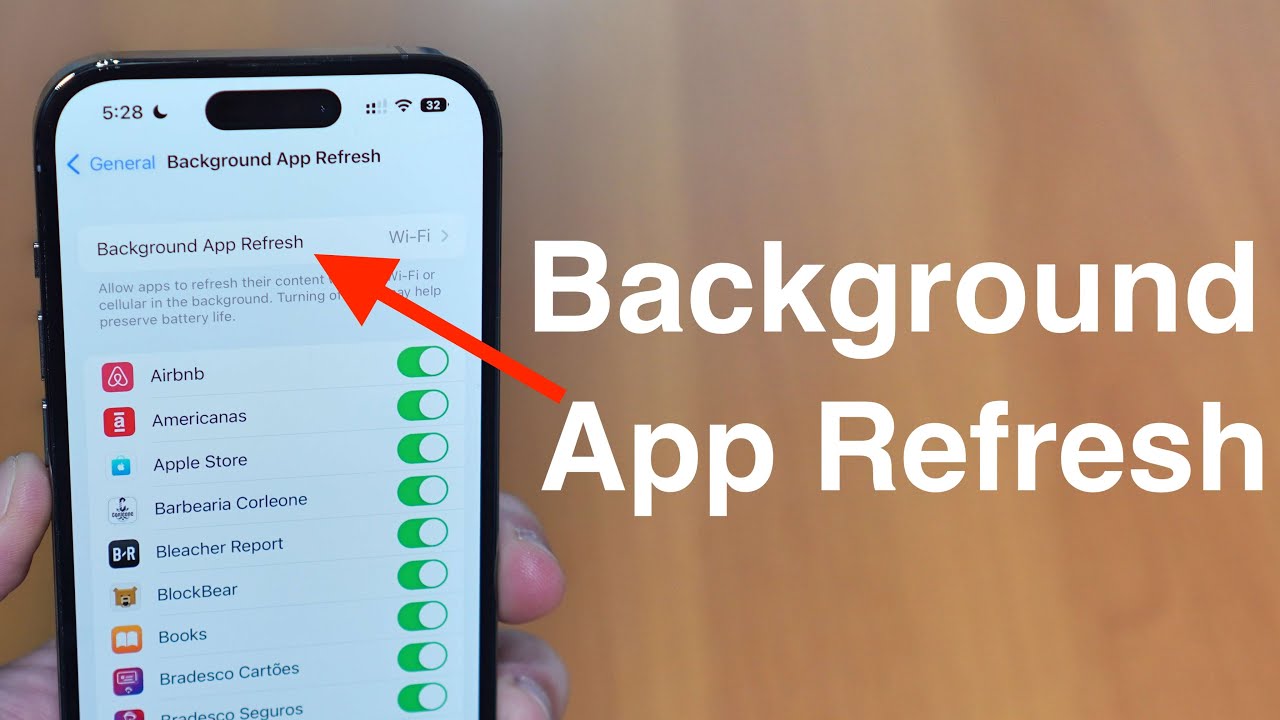
- Tap Background App Refresh.
- You’ll see every app with background permissions listed. Green toggle means it’s active, gray means off.
- Turn off refresh for apps you barely use. Social media and mail apps are usually the worst offenders here.
Checking Battery Usage (the Actually Useful Part)
- Go to Settings > Battery.
- Scroll down to see which apps used battery in the last 24 hours or 10 days.
- Look for apps showing high “Background Activity” percentages. That’s your real answer for what’s draining things behind the scenes.
Bonus: Location Services Check
- Go to Settings > Privacy & Security > Location Services.
- Look for apps set to “Always”. These run location tracking in the background constantly.
- Switch them to “While Using” or “Never” unless you actually need persistent location (like a navigation app).
Quick note: Stop force-closing apps from the App Switcher thinking it helps performance. It doesn’t. Apple’s own engineers have confirmed that reopening apps from scratch uses more energy than resuming them from memory. Your mileage may vary on how satisfying it feels, but the battery math doesn’t lie.
Prerequisites
- iPhone with iOS 15 or later (check via Settings > General > About)
- Access to the Settings app
- Basic familiarity with swipe gestures
- Time required: 2-3 minutes
If you have a newer iPhone model with Face ID, you can learn how to set up Face ID on iPhone before proceeding.
Step One: How Do You Open the App Switcher on iPhone?
The App Switcher displays all recently used apps as card-style previews. Swipe up from the bottom edge of your screen and pause in the center. Your iPhone shows suspended apps you can scroll through horizontally.
Action
- Home bar location: swipe up from the bottom edge and pause for 0.5 seconds
- For iPhones with Home button: double-click the Home button quickly
- Result: card-style view of recent apps appears on screen
Purpose
The App Switcher shows apps you have accessed recently. These are not actively running processes.
iOS automatically suspends apps within 5-10 seconds of switching away. The cards you see are frozen snapshots sitting in RAM.
If you want to remove apps from this view, check out our guide on how to close apps on iPhone.
Step Two: How Do You Check Which Apps Have Background Refresh Permissions?
Background App Refresh lets apps update content when you are not using them. Go to Settings > General > Background App Refresh to view every app with these permissions. Toggle individual apps on or off based on your needs.
Action
- Settings path: Settings > General > Background App Refresh
- Toggle status: green means enabled, gray means disabled
- Result: complete list of apps with background update permissions
Purpose
This setting controls which apps can fetch new data while inactive. Mail, social media apps, and news apps commonly use this feature.
Disabling background refresh for apps you rarely use saves battery and reduces cellular data consumption.
Apps like Facebook, Instagram, and WhatsApp often refresh content constantly. Consider turning off refresh for apps draining your battery without active use.
Want more control over specific applications? Learn how to restrict apps on iPhone through Screen Time settings.
Step Three: How Do You View Background Battery Usage Per App?
The Battery settings screen reveals which apps consume power through background activity. Navigate to Settings > Battery to see percentage breakdowns for the last 24 hours or 10 days. Each app displays both on-screen time and background usage.
Action
- Settings path: Settings > Battery
- Time filter: tap Last 24 Hours or Last 10 Days above the app list
- Result: percentage breakdown showing active and background power consumption
Purpose
This screen shows actual resource consumption, not just permissions. Look for the “Background Activity” label under app names.
Apps showing high background percentages without matching active use are your battery drainers.
Mail typically uses 15-25% through background refresh. Social media apps often hit 20-30% due to constant updates and location services tracking.
If you want detailed daily breakdowns, you can see app usage on iPhone through Screen Time for more granular data.
Cached data from background processes can also consume storage. Consider learning how to clear app cache on iPhone periodically.
Step Four: How Do You Identify Apps with High Background Activity?
Scroll below the battery graph in Settings > Battery to find specific apps with the Background Activity label. This label appears directly under app names that consumed power while your screen was off.
Action
- Battery list location: scroll below the battery level graph
- Activity label: look for “Background Activity” text under each app name
- Tap any app: reveals minutes on screen versus minutes in background
Purpose
Apps showing over 30% background activity without matching active use are problem apps. Disable Background App Refresh for these specific applications.
Common culprits include social media apps, email clients, and navigation apps like Google Maps.
Some apps run background processes you may not want. Learn how to disable apps on iPhone to stop them completely without deleting.
Verification
Cross-reference three sources to confirm you have identified all background processes:
- App Switcher shows recently accessed apps
- Background App Refresh list shows apps with update permissions
- Battery settings reveal actual power consumption data
An app appearing in all three with high battery usage confirms it as a resource drain.
Check battery percentages again after 24 hours of disabling background refresh for problem apps. You should see reduced background activity numbers.
You can also check screen time on iPhone to verify which apps are actually getting used versus just running silently.
Troubleshooting
Issue: App Switcher Shows Too Many Apps
Solution: Swipe up on individual app cards to remove them from the switcher. This does not save battery but declutters your view.
iOS manages memory automatically. Force closing apps actually wastes more battery because your iPhone must fully reload them next time.
Issue: Battery Draining Despite Disabling Background App Refresh
Solution: Check Settings > Privacy & Security > Location Services. Apps using location in background drain battery even with refresh disabled.
Look for apps set to “Always” under location permissions. Change to “While Using” or “Never” for apps that do not need constant location access.
Some apps may also be listening through your microphone. Learn how to stop iPhone from listening to reduce this activity.
Concerned about suspicious background activity? You might want to detect spyware on iPhone if battery drain seems abnormal.
Issue: Cannot Find Background App Refresh Setting
Solution: Check your iOS version in Settings > General > About. Background App Refresh requires iOS 7 or later.
If enabled but grayed out, Low Power Mode may be active. Low Power Mode automatically disables background refresh for all apps.
Issue: Specific App Keeps Running Despite Closing
Solution: Some apps have special permissions for music playback, navigation, or VoIP calls. Check Settings > [App Name] for app-specific background permissions.
Want music apps to keep playing? See how to play music in the background on iPhone while controlling other apps.
You can also mute apps on iPhone to reduce notification-related background activity.
Alternative Method: Using Screen Time for Background Monitoring
Screen Time provides detailed daily and weekly breakdowns of app behavior across all your Apple devices.
App Switcher Method (Steps 1-4)
- Time: 2 minutes
- Detail level: permissions and battery usage
- Best for: identifying resource-heavy apps quickly
Screen Time Method
- Path: Settings > Screen Time > See All Activity
- Time: 3 minutes
- Detail level: daily and weekly breakdowns with notification counts
- Best for: understanding app behavior patterns over time
Screen Time also shows pickups and notification frequency. Apps sending excessive push notifications often run background processes to fetch that content.
If you need to limit certain apps during specific hours, learn how to block apps at certain times on iPhone using Screen Time scheduling.
Related Processes
After identifying background apps, you may want to take additional actions:
- Delete apps on iPhone that you no longer use
- Block apps on iPhone to prevent specific applications from running
- Find hidden apps on iPhone that may be running without your knowledge
- See most used apps on iPhone to understand your actual usage patterns
- Organize apps on iPhone for easier access to frequently used applications
If you have removed apps and want to restore them later, check how to see recently deleted apps on iPhone or view all the apps you have ever downloaded on iPhone through your purchase history.
FAQ on How To See What Apps Are Running In The Background On iPhone
Does closing apps in the App Switcher save battery?
No. Apple confirms that force closing apps wastes more battery than leaving them suspended. iOS automatically manages memory and suspends inactive apps within seconds. Reopening requires more energy than resuming from RAM.
What is the difference between the App Switcher and Background App Refresh?
The App Switcher shows recently accessed apps as frozen snapshots. Background App Refresh is a Settings toggle controlling which apps can update content while inactive. Different functions entirely.
Why do some apps show Background Activity in Battery settings?
Apps with Background App Refresh enabled, location permissions, or special privileges like music playback consume power while inactive. The Battery settings reveal actual background activity duration and percentage for each app.
Can I completely stop apps from running in the background?
Yes. Disable Background App Refresh for specific apps in Settings > General. Also check Location Services permissions and app-specific settings. Some apps require background access for core features like notifications.
Which apps typically drain the most battery in the background?
Social media apps like Facebook and Instagram commonly hit 20-30% through constant refreshing. Mail apps use 15-25%. Navigation apps like Google Maps drain heavily when tracking location with screen off.
How do I check background data usage on iPhone?
Go to Settings > Cellular and scroll down. Each app displays cellular data consumed. Apps using data without matching active screen time are refreshing content in the background.
Does Low Power Mode stop background apps?
Yes. Low Power Mode automatically disables Background App Refresh for all apps, reduces visual effects, and limits background downloads. Battery settings show reduced background activity percentages when enabled.
Why does my iPhone get hot when certain apps run?
Apps performing intensive background tasks like location tracking, content syncing, or processing data generate heat. Check Battery settings for apps with high background percentages. Disable their background refresh permissions.
Can apps run in the background without my permission?
Some apps have system-level permissions for VoIP calls, audio playback, or navigation. Check Settings > Privacy & Security for location and microphone access. You can find spyware on iPhone if activity seems suspicious.
How often should I check background app activity?
Check Battery settings weekly or when noticing unusual battery drain. After installing new apps, monitor their background behavior for 24-48 hours. iOS 17 provides more detailed reporting than earlier versions.
Conclusion
Knowing how to see what apps are running in the background on iPhone puts you in control of your device performance and battery life.
The Battery settings screen reveals actual power consumption. Screen Time shows behavioral patterns over days and weeks.
Stop guessing which apps drain your resources. The data is right there in your iPhone settings.
Remember that iOS handles memory management automatically. Force closing suspended apps does more harm than good.
Focus on disabling Background App Refresh for apps you rarely use. Check location permissions for anything set to “Always.”
Your iPhone runs dozens of processes silently. Now you know exactly where to look and what to do about them.

- Notepad++ Vulnerability History and How to Stay Safe - October 27, 2026
- Application Performance Monitoring Beyond the Code: Why Infrastructure Matters - October 26, 2026
- How to Share GitHub Repository Access With Collaborators - October 25, 2026