

Your iPhone storage is full again. Apps are slowing down, photos won’t save, and that “Storage Almost Full” notification keeps interrupting everything.
Clearing app cache on iPhone fixes this, but Apple doesn’t make it obvious how. Unlike Android, there’s no universal button to wipe all cached data at once.
This guide shows you exactly how to clear app cache on iPhone using multiple methods, from offloading apps to clearing Safari browsing data. You’ll learn which apps hoard the most cache, how to free up gigabytes of space without losing important data, and how to prevent cache buildup going forward.
Most users reclaim 2-5GB of storage in under five minutes.
How to Clear App Cache on iPhone
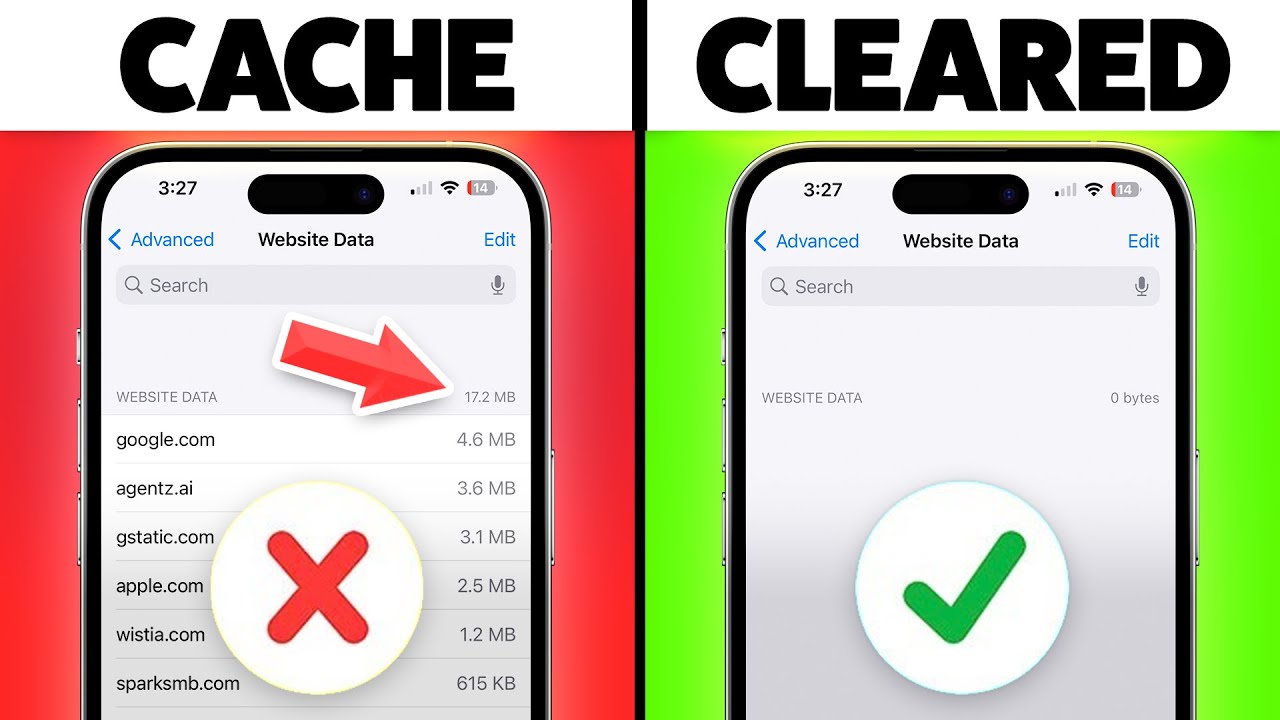
Your iPhone doesn’t have a single “clear all cache” button. You’ll need to hit it from a few different angles. Here’s the short version.
Offload Apps (Fastest Method)
- Go to Settings > General > iPhone Storage
- Wait for the app list to fully load
- Tap the app eating the most space
- Check the “Documents & Data” size (that’s your cache)
- Tap “Offload App” to remove the app but keep your data
- Reinstall later by tapping the grayed-out icon on your home screen
Clear Safari Cache
- Go to Settings > Safari
- Tap “Clear History and Website Data”
- Confirm the action
Delete and Reinstall Heavy Apps
- Delete the app entirely (long-press the icon, tap Remove)
- Reinstall from the App Store
- This wipes all cached data but also resets your app settings
Use Built-in App Cache Settings
- Open apps like Spotify, Netflix, Instagram, or Snapchat
- Look for a Storage or Cache option inside the app’s settings
- Clear cache directly from there (not all apps have this)
Follow iOS Storage Recommendations
- Go to Settings > General > iPhone Storage
- Check the suggestions at the top of the screen
- “Review Large Attachments” to delete old videos and photos in Messages
- “Offload Unused Apps” to auto-remove apps you haven’t opened in months
- “Empty Recently Deleted” to permanently wipe trashed photos
Clear Mail Cache
- Go to Settings > Mail > Accounts
- Remove the email account
- Add it back again (your emails stay on the server, nothing lost)
Most people free up 2 to 5GB doing all of this. Takes about five minutes. Social media apps are usually the worst offenders, so start there.
What Is App Cache and Why It Fills iPhone Storage
App cache stores temporary files so apps load faster next time you open them. Images you’ve scrolled past on Instagram, video thumbnails from TikTok, website data from Safari-all get stored locally on your iPhone.
This data accumulates fast. A few weeks of normal use and you’re looking at gigabytes of cached content taking up space meant for photos and apps.
iOS doesn’t automatically delete old cache files the way it should. Apps like Spotify and Netflix download content for offline use, and that stays on your device until you manually remove it.
Cache serves a purpose-faster loading times-but when your iPhone storage is full, it becomes dead weight.
Which iPhone Apps Store the Most Cache Data
Social media apps are the worst offenders. Instagram alone can accumulate 1-2GB of cache in a month if you’re an active user.
Streaming apps like Netflix, Spotify, and YouTube cache video thumbnails and audio files. These can hit 500MB to 1GB depending on your usage.
Browsers store the most varied cache. Safari holds website images, cookies, and browsing history that can reach several gigabytes over time.
Messaging apps aren’t innocent either. WhatsApp and Telegram store media files, voice messages, and chat backups that eat through storage capacity fast.
Here’s what typically uses the most cache:
- Instagram, TikTok, Facebook: 1-3GB combined
- Netflix, YouTube, Spotify: 500MB-2GB total
- Safari, Chrome: 500MB-1.5GB
- WhatsApp, Telegram: 300MB-1GB
Gaming apps also cache updates and resources. Some mobile games store 500MB or more in temporary files.
Clear Safari Cache and Browsing Data on iPhone
Open Settings, scroll to Safari, tap “Clear History and Website Data.”
This wipes browsing history, cookies, cached images, and site data in one shot. You’ll get logged out of websites, so have your passwords ready.
Want to keep history but clear cache? Go to Settings > Safari > Advanced > Website Data > Remove All Website Data. This targets stored files without touching your browsing history.
Safari’s cache grows surprisingly fast-500MB to 1GB isn’t unusual after a few months of regular browsing.
Some websites will load slower the first time you revisit them after clearing cache. That’s normal. The speed returns once Safari re-caches the site data.
Offload Apps to Clear Cache Without Losing Data
Offloading removes the app but preserves all your documents and data. When you reinstall from the App Store, your settings and login info come back intact.
Go to Settings > General > iPhone Storage. Wait for the list to load-this takes 30 seconds sometimes.
Tap any app eating significant storage. You’ll see app size versus “Documents & Data” size. The latter is cache.
Hit “Offload App.” iOS removes the app but leaves a placeholder icon on your home screen. Tap that icon later to reinstall from the App Store automatically.
This works great for apps you don’t use daily but want to keep configured. Photo editing apps, fitness trackers, and productivity tools are good candidates for offloading.
Delete and Reinstall Apps to Remove All Cache
Sometimes offloading isn’t enough. Apps like Instagram and TikTok rebuild cache fast after reinstalling.
For a complete wipe, delete the app entirely. Long-press the app icon, tap “Remove App,” select “Delete App.”
Head to the App Store, search for the app, reinstall it. You’ll need to log back in and reconfigure settings from scratch.
This method clears everything-cache, documents, data, settings. Use it when an app is acting buggy or when you want maximum storage reclaimed.
Social media apps benefit most from full deletion. You’ll lose downloaded content and need to re-enter login credentials, but you’ll recover 1-2GB per app.
Streaming services also respond well to this. Netflix’s downloaded shows and Spotify’s offline playlists vanish along with all cached data.
Clear Cache for Specific Apps Through Settings
Some apps have built-in cache clearing options buried in their settings menus. Most don’t.
Messages auto-deletes attachments after 30 days if you enable that in Settings > Messages > Keep Messages > 30 Days. Older threads with photos and videos eat storage fast.
Photos app stores deleted items for 30 days in “Recently Deleted.” Open Photos, tap Albums, scroll to Recently Deleted, select Delete All. Instant storage recovery.
Mail requires a workaround. Remove your email account in Settings > Mail > Accounts, then add it back. This clears cached messages without losing anything permanently.
Music and Podcasts let you delete downloaded content directly. Open the app, find Downloads, swipe left on items you don’t need offline anymore.
Use iPhone Storage Recommendations to Free Space
iOS analyzes your usage and suggests specific actions. Settings > General > iPhone Storage shows these at the top.
“Review Large Attachments” lists the biggest files in Messages. Tap it, delete old videos and photos you don’t need.
“Offload Unused Apps” can run automatically. Enable it and iOS removes apps you haven’t opened in months while preserving their data.
“Empty Recently Deleted” appears when you’ve got photos waiting permanent deletion. One tap clears them all.
These recommendations are smarter than they look. iOS knows which apps you ignore and which files waste space.
Clear System Cache and Other Storage on iPhone
System cache lives in that mysterious “Other” category in iPhone Storage. It includes system files, Siri voices, cached updates, and logs.
Restart your iPhone. Hold power and volume buttons, slide to power off, wait 30 seconds, turn it back on. This clears 200-500MB of temporary system files immediately.
Update to the latest iOS version. Settings > General > Software Update. New iOS versions often optimize storage and clear outdated cache during installation.
The “Other” storage shrinks over time if you leave your iPhone alone. iOS does maintenance when the device is locked and charging overnight.
Reset all settings as a last resort. Settings > General > Transfer or Reset iPhone > Reset > Reset All Settings. This won’t delete apps or data but clears deep system cache.
Check iPhone Storage Usage Before Clearing Cache
Open Settings > General > iPhone Storage. The bar graph at the top shows how your storage breaks down by category.
Gray sections labeled “Other” or “System” indicate cached data and iOS files. Apps show two numbers: app size and documents/data size.
Documents and data equals cache plus user files. Instagram showing 500MB app size with 2GB documents means 2GB of cache is sitting there.
Scroll through the app list. Sort by size if needed (though iOS does this automatically). Apps at the top are your biggest storage hogs.
Tap any app to see detailed breakdown. “Documents & Data” reveals exact cache size. The larger this number compared to app size, the more you’ll reclaim by clearing cache.
Prevent Cache Buildup on iPhone
Enable “Offload Unused Apps” in Settings > App Store. iOS automatically removes apps you haven’t used in months, keeping their data intact for quick reinstall.
Turn off background app refresh for apps that don’t need it. Settings > General > Background App Refresh. Social media and news apps can wait until you open them.
Adjust photo and video quality. Settings > Camera > Record Video. Choose 1080p at 30fps instead of 4K at 60fps unless you actually need that resolution. Smaller files mean less cache.
Clear Safari weekly. Make it a habit every weekend or month-end depending on usage.
Clear Cache on iPhone vs. Android Differences
Android has a system-wide “Clear Cache” button in Settings > Storage. Tap it once, all app cache vanishes.
iPhone treats each app as a sealed unit. No universal cache button exists. You handle apps individually through offloading, deletion, or app-specific settings.
This design reflects Apple’s philosophy about iOS development-apps operate in sandboxes with limited system access. Cache management stays locked down for security and stability.
Android gives users more control. iPhone prioritizes simplicity and security over granular access.
What Happens After Clearing App Cache on iPhone
Apps load slower on first launch. Instagram takes 5-10 extra seconds to populate your feed. Safari reloads website images from scratch.
You’ll need to log back into websites if you cleared Safari cache. Banking apps, social media, email services-have your passwords ready.
Storage space comes back immediately. Check Settings > General > iPhone Storage to confirm. Numbers update within seconds of clearing cache.
Downloaded content disappears. Spotify offline playlists, Netflix shows, podcast episodes-all gone. Re-download what you actually need.
App settings stay intact if you offloaded. Delete and reinstall wipes preferences too. Choose your method based on whether you want to preserve configurations.
Performance might improve temporarily if cache corruption caused slowdowns. Most of the time you won’t notice speed differences beyond initial load times.
FAQ on How To Clear App Cache On iPhone
Does clearing cache delete everything on iPhone?
No. Clearing cache removes temporary files like images, website data, and app loading resources. Your photos, messages, contacts, and app settings stay intact unless you fully delete the app instead of offloading it.
How do I clear hidden cache on my iPhone?
Restart your iPhone to clear system cache. Hold power and volume buttons, slide to power off, wait 30 seconds, restart. For app-specific hidden cache, go to Settings > General > iPhone Storage, tap the app, select Offload or Delete.
Will clearing cache speed up my iPhone?
Sometimes. If apps are sluggish due to corrupted cache files, clearing helps. For general slowness caused by older hardware or too many background processes, cache clearing won’t make a noticeable difference in iPhone performance.
How often should I clear cache on iPhone?
Monthly for Safari if you browse heavily. Social media apps like Instagram and TikTok benefit from quarterly clearing. Streaming apps (Netflix, Spotify) only need it when storage runs critically low or content won’t download properly.
What is the fastest way to clear all app cache on iPhone?
Enable “Offload Unused Apps” in Settings > App Store for automatic cache management. For immediate results, manually offload your largest apps through Settings > General > iPhone Storage. No single-button solution exists on iOS.
Does offloading an app clear its cache?
Yes. Offloading removes the app and its cache but preserves documents and data. When you reinstall from the App Store, your login info and settings return, but cached temporary files start fresh at zero.
How do I clear cache without deleting apps?
Impossible for most apps-iOS doesn’t separate cache from the app itself. Safari is the exception: Settings > Safari > Clear History and Website Data removes browser cache while keeping Safari installed and functional on your device.
Why does my iPhone storage say “Other”?
“Other” includes system files, Siri voices, cached updates, app logs, and temporary data. This grows over time through normal use. Restart your iPhone or update to the latest iOS version to reduce Other storage size.
Can I clear cache for specific apps only?
Yes, but methods vary by app. Messages lets you auto-delete old attachments. Photos has Recently Deleted album. Music and Podcasts show downloadable content you can manually remove. Most apps require full offloading or deletion.
Does clearing Safari cache log me out of websites?
Yes. Clearing Safari cache removes cookies and website data, which store your login sessions. You’ll need to re-enter usernames and passwords for banking sites, social media, email services, and any other accounts.
Conclusion
Learning how to clear app cache on iPhone gives you control over storage management without relying on iCloud upgrades or constant app deletions. The methods vary-offloading preserves data while clearing cache, Safari has dedicated settings, and some apps need full reinstallation.
Most iPhone users reclaim 2-5GB by targeting social media apps, streaming services, and browser data. Instagram, TikTok, Netflix, and Spotify accumulate the most temporary files through regular use.
Check Settings > General > iPhone Storage monthly to catch cache buildup early. Enable automatic offloading for apps you rarely open, clear Safari quarterly, and restart your device when system storage creeps into “Other” territory.
Your iPhone runs smoother with freed space. Downloads complete faster, photos save without errors, and iOS updates install without storage warnings interrupting your workflow.

- How to Run a React App in VS Code Step by Step - October 23, 2026
- Transactional or marketing email: which messages your app should send itself - October 23, 2026
- How Software Teams Write SOPs for Releases and Deployments - October 22, 2026


