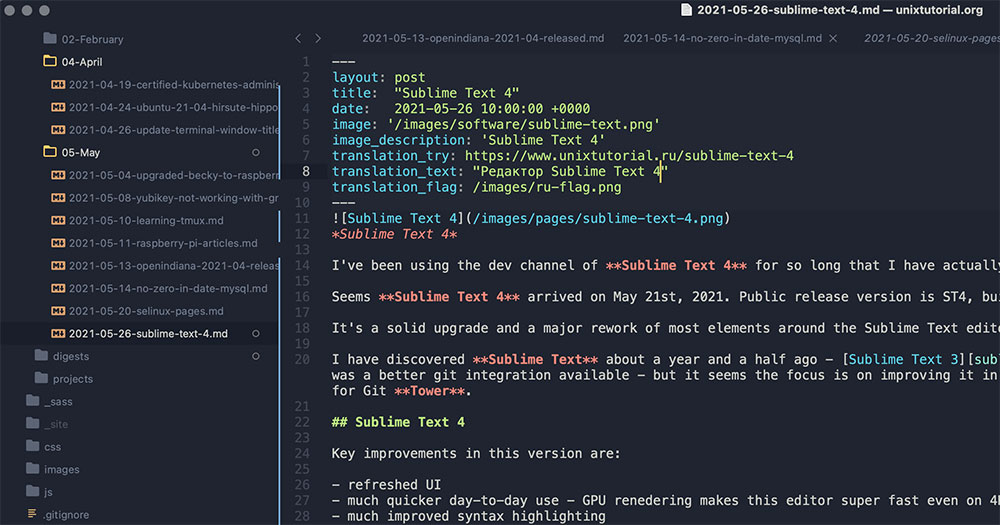
Most text editors either do too little or ask too much of you. Notepad++ sits in the middle: free, fast, and capable enough to handle real work.
Knowing how to use Notepad++ properly cuts the time you spend on repetitive edits, config file changes, and multi-file searches. The 2025 Stack Overflow Developer Survey puts it third globally among development environments, used by 27.4% of developers worldwide.
This guide covers everything from installation and the interface to syntax highlighting, macros, plugins, and keyboard shortcuts.
By the end, you’ll know how to get the most out of every feature that makes Notepad++ worth using.
What Is Notepad++?

Notepad++ is a free, open-source text and source code editor for Windows, built on the Scintilla editing component and written in C++ using the Win32 API. It was created by Don Ho in 2003 and has stayed one of the most widely used editors ever since.
According to the 2025 Stack Overflow Developer Survey, Notepad++ ranks third globally among development environments, behind only VS Code and Visual Studio. That’s a consistent position it has held for years.
It supports over 80 programming and markup languages with syntax highlighting, runs with low memory overhead, and ships with a plugin system that extends its functionality without adding bloat. The current stable release is v8.9.5, available at notepad-plus-plus.org.
GetApp’s analysis of 2,004 verified user reviews identifies source code management as the top use case, cited by 64% of reviewers. The most praised traits: speed, lightweight footprint, and zero licensing cost.
It’s not a full IDE. There’s no built-in debugger, no compiler, and no project scaffolding. What it does well is fast file editing, multi-language support, and text manipulation at scale. For a lot of developers, that covers 80% of daily editing tasks without opening anything heavier.
Compared to a web development IDE, Notepad++ is the lighter-weight alternative: fewer features, faster startup, and far less resource usage.
| Feature | Notepad++ | Full IDE |
|---|---|---|
| Startup time | Under 1 second | 5–30+ seconds |
| Memory usage | ~30–60 MB | 500 MB–2+ GB |
| Built-in debugger | No | Yes |
| Plugin support | Yes (Plugins Admin) | Yes (marketplace) |
| Platform | Windows only | Cross-platform |
How to Install Notepad++ on Windows

Download the installer directly from notepad-plus-plus.org/downloads. The page lists both the current release and several prior versions. Most users want the standard installer, not the portable build.
Installer vs. Portable Version
Installer: sets up context menu integration, auto-updater, and file associations. Best for a primary machine where you want Notepad++ fully embedded in your workflow.
Portable (zip or 7z): runs from any folder or USB drive, leaves no registry entries, and ignores system-wide settings. Good for shared machines or environments where you can’t install software normally.
The portable build has one real downside: no automatic updates. You pull new versions manually. For most setups that’s a small price, but worth knowing upfront.
32-bit vs. 64-bit Selection
Choose x64 unless you’re on a legacy 32-bit Windows system. The 64-bit build handles large files better and runs more stably with memory-intensive plugins.
The download page labels these clearly. If you’re unsure which Windows version you’re running, check Settings > System > About.
Installation Options to Know
- Context menu integration – adds “Edit with Notepad++” to right-click menus in Explorer. Useful for quick file access.
- Auto-updater (WingUp) – prompts when a new version is available. Can be disabled after install if you prefer manual control.
- Localization – 90+ language packs available during setup. Select your language or leave it as English.
First launch opens with a default theme, no open files, and all panels hidden. The interface looks sparse until you open a file or enable panels from the View menu.
What Does the Notepad++ Interface Include?
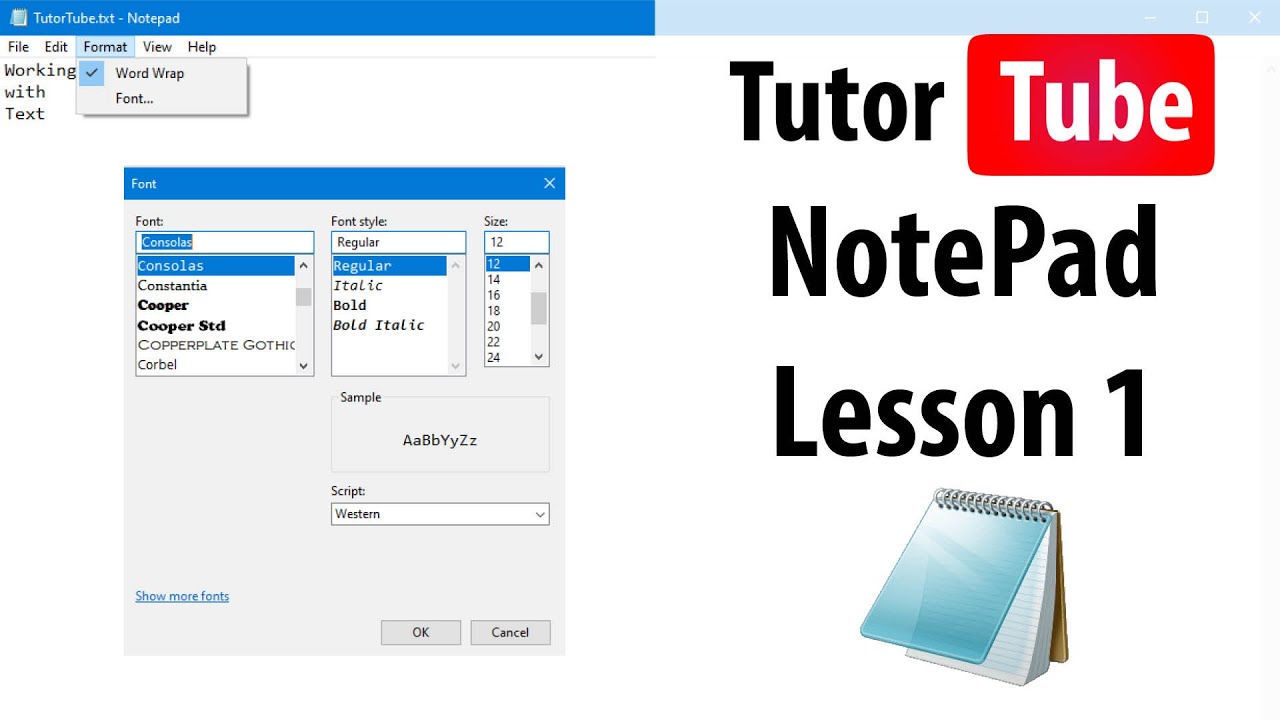
The interface has 6 distinct zones. Knowing what each one does cuts the learning curve significantly for beginners and saves time for users who’ve been clicking around without a clear mental map.
| Zone | Location | Purpose |
|---|---|---|
| Menu bar | Top | All commands, settings, plugins |
| Toolbar | Below menu bar | Shortcut buttons for common actions |
| Tab bar | Below toolbar | Open files, tabbed multi-document editing |
| Editor area | Center | Main text and code editing surface |
| Document Map | Right panel (optional) | Miniature scrollable view of the full file |
| Status bar | Bottom | Line/column, encoding, EOL format, file length |
The status bar alone is underused by most people. It shows the current file encoding (UTF-8, UTF-16, ANSI), end-of-line format (Windows CRLF, Unix LF, Mac CR), document length in characters and lines, and cursor position. When files behave unexpectedly in other tools, that encoding display is usually where the answer is.
Document Map and Folder Workspace
The Document Map panel (View > Document Map) renders a scaled-down version of your full file on the right side. Click anywhere in it to jump to that position instantly. For config files or long scripts, this is genuinely faster than scrolling.
The Folder as Workspace panel (View > Folder as Workspace) lets you browse a directory tree directly inside Notepad++. It replaced the older Project Panel for most users. Not as full-featured as a sidebar in VS Code, but functional for navigating a flat project structure.
How to Customize the Toolbar and Panels
Go to View in the menu bar. Every panel has a toggle there. Panels can be docked (attached to the editor edge) or floated as standalone windows by dragging their title bar.
The toolbar has no built-in customization UI. To hide it entirely: View > Hide Toolbar. For anything more granular, editing the toolbarIcons.xml file in the Notepad++ config directory works but requires a restart.
How Does Syntax Highlighting Work in Notepad++?

Notepad++ identifies the language of a file from its extension on open and applies the matching color scheme automatically. Open a .py file and it highlights Python. Open a .html file and it switches to HTML rules. No configuration needed for the 80+ supported languages.
Manual Language Selection
Auto-detection fails when files have non-standard extensions or no extension at all. Fix it manually: Language menu > select the language you want.
That setting applies only to the current session for that file. Notepad++ won’t permanently associate a custom extension with a language unless you configure it through the Style Configurator or User Defined Language system.
User-Defined Languages (UDL)
The UDL system handles formats that aren’t in the built-in list. Go to Language > User Defined Language > Define your language. You specify keywords, comment syntax, operators, and delimiters. Notepad++ then highlights them like any built-in language.
A large community library of pre-built UDL files exists at github.com/notepad-plus-plus/userDefinedLanguages. Formats like Markdown, NGINX config, and various proprietary scripting languages are already there. No need to build one from scratch in most cases.
Style Configurator and Themes
Settings > Style Configurator controls every color, font, and size rule for every language. Changes apply per-language and per-element type (keywords, strings, comments, background).
Built-in dark themes include Obsidian and Zenburn. Both are usable out of the box. For a fully dark interface including menus and panels (not just the editor), Notepad++ added native dark mode support in v8.0, toggled under Settings > Preferences > Dark Mode.
How to Use Find and Replace in Notepad++

The Find and Replace system in Notepad++ is one of its strongest features. Most editors do basic search. Notepad++ adds regex, multi-file search, bookmarking, and a Mark tab that highlights every match without replacing anything.
Notepad++ uses the Boost regex library (v1.90 as of NPP v8.9.1), which originated from PCRE syntax. Most PCRE patterns work, though exact behavior follows Boost’s implementation rather than the PCRE2 library directly.
Basic Find, Replace, and Count
Ctrl+F opens Find. Ctrl+H opens Replace. Both share the same dialog with different tabs active.
- Find Next: moves to the next match
- Count: shows total match instances in the file
- Replace All: replaces every match in one operation
- Replace All in All Opened Documents: runs Replace All across every open tab simultaneously
The “Replace All in All Opened Documents” option is the one most users miss. It’s in the Replace tab, below the standard Replace All button. Took me longer than I’d like to admit to find it.
Regular Expression Mode
Switch to regex mode in the Find or Replace dialog: select the Regular expression radio button under Search Mode. Standard Boost/PCRE patterns apply: d+ for digits, ^ and $ for line anchors, capture groups with parentheses, backreferences in replace with 1, 2, etc.
The . matches newline checkbox controls whether the dot metacharacter crosses line boundaries. Off by default, which is the safer setting for most single-line pattern work.
How to Search Across Multiple Files
Use Ctrl+Shift+F to open Find in Files. This is a separate dialog from the standard Find.
Set the directory path under “Directory” and add a file filter under “Filters” (e.g., .php or .txt). Results land in a dockable Search Results panel at the bottom. Each match shows the file path, line number, and the matching line content. Double-click any result to jump directly to that line in the file.
Replace across files works the same way. Switch to the “Replace in Files” tab, set your find and replace terms, and click Replace in Files. Notepad++ modifies each matching file on disk. There’s no undo across files, so make sure you have backups or use source control before running bulk replacements on a production directory.
How to Use Macros in Notepad++

Macros in Notepad++ record a sequence of editing actions and replay them on demand. No scripting knowledge required. If you can perform an edit manually, you can record it as a macro and run it 500 times in a row.
Recording and Running a Macro
Macro > Start Recording. Perform your edits. Macro > Stop Recording. That’s it.
To replay: Macro > Playback (runs once) or Macro > Run a Macro Multiple Times (runs a set number of times, or once per line in the file). The “run on each line” option is where macros get genuinely powerful for bulk text processing.
Practical examples where this saves real time:
- Adding a prefix to every line in a CSV (e.g., adding
INSERT INTO table VALUES (before each row) - Stripping trailing whitespace from 3,000 lines
- Reformatting date strings from MM/DD/YYYY to YYYY-MM-DD across an entire export file
- Adding closing tags after each line of an HTML list
Saving Macros Permanently
Macro > Save Current Recorded Macro. Give it a name and assign a keyboard shortcut. Saved macros appear in the Macro menu on every future launch.
Macros are stored in shortcuts.xml inside the Notepad++ config directory (typically %APPDATA%Notepad++). Back this file up if you build a library of macros worth keeping.
How to Use Notepad++ Plugins

Plugins extend Notepad++ into a genuinely different tool. The base editor handles text editing well. Plugins add FTP access, file comparison, JSON formatting, Markdown preview, and much more. GetApp reviewers rate custom development capabilities as highly important, with 88% of users citing them as a critical feature.
Installing Plugins via Plugins Admin
Plugins > Plugins Admin opens the plugin manager. It shows available, installed, and updatable plugins in separate tabs.
Check the box next to any plugin, click Install, and Notepad++ restarts with the plugin active. No manual DLL copying required for anything in the official list. For plugins not in Plugins Admin, you drop the .dll file into C:Program FilesNotepad++plugins[PluginName] manually.
NppFTP for Remote File Editing
NppFTP adds FTP, FTPS, and SFTP support directly inside Notepad++. After installing, a panel appears on the side where you save server profiles, browse remote directories, and open files for editing locally. Save the file and NppFTP uploads it back automatically.
One known limitation: NppFTP keeps only one SFTP connection open at a time. Opening a second server closes the first. For developers managing multiple servers, this means switching back and forth rather than running parallel sessions.
Compare Plugin for File Diffs
The Compare plugin adds a side-by-side diff view. Open 2 files, run Plugins > Compare > Compare. Changed lines highlight in orange, additions in green, deletions in red.
Navigation shortcuts within a diff:
- Alt+Down: jump to next difference
- Alt+Up: jump to previous difference
- Plugins > Compare > Clear Results: exit the diff view
This works well for quick code review on config files, SQL scripts, or any text-based output where you need to spot changes fast without opening a full version control tool.
Other Plugins Worth Installing
JSON Viewer: formats and tree-views JSON files. Useful when dealing with raw API responses or config data dumped as a single line.
XML Tools: validates, formats, and runs XPath queries on XML documents. Developers working with SOAP services or XML-heavy configs use this constantly.
Markdown Panel: live preview of Markdown as rendered HTML in a side panel. Not as polished as a dedicated Markdown editor, but functional for quick documentation edits.
Startup performance note: every active plugin adds a small load time cost. If Notepad++ starts feeling slow, check Plugins Admin for installed plugins you’re no longer using and remove them.
How to Use Column Editing and Multi-Cursor in Notepad++

Column editing and multi-cursor are 2 distinct modes in Notepad++. Most users discover one and assume they’re the same thing. They’re not, and the difference matters when you’re choosing which one to use for a given task.
| Mode | How to activate | Best for |
|---|---|---|
| Column (block) select | Alt + click and drag | Editing the same column position across lines |
| Multi-cursor (multi-edit) | Ctrl + click at each location | Editing multiple non-adjacent positions |
| Keyboard column select | Shift + Alt + arrow keys | Column selection without a mouse |
Column Mode Editing
Alt + click and drag selects a vertical rectangle of text across multiple lines. Type while the selection is active, and every selected line gets the same edit simultaneously.
Practical use: add a SQL comment prefix (--) to 40 lines at once, or delete the first 3 characters from every line in a log file. Without column mode, that’s 40 individual edits.
Keyboard-only version: position the cursor, hold Shift + Alt, then use the down and right arrow keys to expand the column block without touching the mouse.
Multi-Cursor Mode
Multi-cursor is different. Enable it under Settings > Preferences > Editing > Multi-Editing Settings. Then Ctrl + click places an independent cursor at each location you click.
Each cursor behaves independently. You can navigate with Ctrl + Arrow to move by word across all cursors at once. This is better than column mode when your edit targets are on different columns per line.
Known limitation: auto-completion only fires on one cursor when multi-cursor is active. Type the full word manually rather than relying on completion popups in this mode.
How Does the Auto-Completion System Work in Notepad++?

Notepad++ has 2 types of auto-completion: word completion (pulls from text already in the current file) and function completion (pulls from language-specific XML API files). Both are controlled under Settings > Preferences > Auto-Completion.
Word Completion vs. Function Completion
Word completion: suggests any word that already appears in the open file. Language-agnostic. Works in plain text files.
Function completion: requires an AutoComplete XML file for the active language. These files live in C:Program FilesNotepad++autoCompletion. If Notepad++ ships a file for your language, function names and parameter hints appear automatically as you type.
Trigger threshold: set the minimum number of characters before suggestions appear (default is 1, but 2 or 3 reduces noise significantly for most users).
Function Parameter Hints
When your cursor sits between the parentheses of a function call, Ctrl + Shift + Space triggers the parameter hint tooltip. It shows the expected arguments based on the AutoComplete XML definition.
If a function has multiple signatures, small arrows appear in the tooltip. Alt + Up / Alt + Down cycles through them. This was added in v8.4.5.
One real limitation worth knowing: Notepad++ auto-completion reads from static XML files, not live analysis of your actual codebase. It won’t pick up custom functions you’ve defined elsewhere. For that kind of IntelliSense-style completion, a full IDE like VS Code handles it better.
Completion Key Configuration
As of v8.3.1, both Tab and Enter confirm a completion suggestion by default. Earlier versions briefly changed this to Tab-only (v8.2.1 through v8.3), which caused widespread confusion.
If completions trigger when you just want a line break, go to Settings > Preferences > Auto-Completion and uncheck Enter as a completion key. Tab-only is the safer setup for heavy keyboard users.
How to Compare Files in Notepad++

File comparison in Notepad++ requires the Compare plugin (not included by default). Once installed, it adds a side-by-side diff view with color-coded change markers. 97% of GetApp reviewers rated search and comparison capabilities as important or highly important (GetApp, 2024).
Setting Up and Running a Comparison
Install the Compare plugin via Plugins > Plugins Admin. Search “Compare,” check the box, click Install. Notepad++ restarts.
Open both files you want to diff. Then: Plugins > Compare > Compare. The editor splits into 2 panes. Changed lines appear in orange, added lines in green, removed lines in red. A summary panel at the top shows the total number of differences found.
Navigation shortcuts inside a diff:
- Alt + Down: next difference
- Alt + Up: previous difference
- Plugins > Compare > Clear Results: exit the diff view and return to normal editing
Practical Use Cases
Config file audits. Teams maintaining server configs across environments (dev, staging, prod) use the Compare plugin regularly to catch mismatches before deployment.
Log comparison. Before and after a deployment run, comparing two log snapshots in Notepad++ takes about 10 seconds: open both files, run Compare, scan the diffs. No separate diff tool needed.
The Compare plugin doesn’t replace source control management tools for version history. But for quick 2-file diffs without opening a terminal or a Git client, it’s the fastest option on Windows.
How to Configure Notepad++ Settings for Better Performance

Out of the box, Notepad++ runs fast on most machines. Performance issues appear when files get very large, plugin count grows, or session restore loads dozens of files on startup. A few targeted settings changes fix most of these.
Large File Handling
Notepad++ shows a built-in warning when opening files over 200 MB and offers to disable syntax highlighting automatically for them. Accept this. Highlighting 500,000 lines of a CSV or log file serves no purpose and causes real slowdown.
For files over that threshold, also disable word wrap. Go to View > Word Wrap and turn it off. Long lines with forced wrapping add rendering overhead that’s noticeable on files with thousands of entries per line.
Session and Backup Settings
Session restore (Settings > Preferences > Backup) controls whether Notepad++ reopens all previously open files on launch. Useful in principle. Annoying when you have 30 tabs from last week that you don’t need.
Set session backup to “Remember current session for next launch” and enable periodic backup with a reasonable interval (every 5 minutes works for most). The snapshot backup writes unsaved content to a temp folder, so a crash doesn’t lose work.
Plugin Load Optimization
Every active plugin adds to startup time. Plugins Admin shows everything installed.
- Remove plugins you haven’t used in 3+ months
- Keep NppFTP only if you actively use remote editing
- Compare plugin loads on demand, not on startup (low overhead)
Cloud settings sync (Settings > Preferences > Cloud & Link) can also slow startup if Notepad++ is checking a network path on launch. Turn it off if you don’t use it. Local config is faster.
What Keyboard Shortcuts Does Notepad++ Use?

Notepad++ ships with over 175 default keyboard shortcuts (DiGiTAL BiRYANi, 2024). Nobody needs all of them. The shortcuts below cover the operations most developers use daily, across file management, editing, navigation, and code folding.
Essential File and Tab Shortcuts
| Shortcut | Action |
|---|---|
| Ctrl + Tab | Switch to next open tab |
| Ctrl + Shift + Tab | Switch to previous tab |
| Ctrl + W | Close current tab |
| Ctrl + Shift + T | Reopen last closed tab |
| Ctrl + Shift + S | Save As |
| Ctrl + Shift + R | Start / stop macro recording |
Line and Code Editing Shortcuts
These are the ones that feel invisible once you’ve used them for a week. Duplicating or moving lines without copy-paste is genuinely faster.
- Ctrl + D: duplicate current line
- Ctrl + Shift + Up / Down: move current line up or down
- Ctrl + L: delete current line
- Alt + 0: fold all code blocks
- Alt + Shift + 0: unfold all code blocks
Customizing Shortcuts with the Shortcut Mapper
Settings > Shortcut Mapper lists every command and its current binding. Select a command, click Modify, press your preferred key combination.
The Shortcut Mapper also covers plugin commands, macro shortcuts, and run commands. Exporting your shortcut configuration: Notepad++ doesn’t have a native export button, but the full shortcut setup lives in shortcuts.xml inside %APPDATA%Notepad++. Copy that file to back up or share your key bindings.
The 2025 Stack Overflow Developer Survey put Notepad++ at 27.4% usage among developers, a consistent share that reflects its role as a complement to heavier tools rather than a replacement. For the workflows it’s built for, especially fast file editing, config management, linting support via plugins, and bulk text processing, it’s hard to beat the speed-to-feature ratio on Windows.
FAQ on How To Use Notepad++
Is Notepad++ free to download and use?
Yes. Notepad++ is completely free and open-source, released under the GNU GPL 3.0 license. There are no paid tiers, no feature limits, and no licensing fees. Download it directly from notepad-plus-plus.org.
How do I enable syntax highlighting in Notepad++?
Notepad++ detects the language automatically from the file extension and applies syntax highlighting on open. To set it manually, go to the Language menu and select the language you need.
How do I install plugins in Notepad++?
Go to Plugins > Plugins Admin. Find the plugin you want, check the box, and click Install. Notepad++ restarts with the plugin active. Plugins like NppFTP, Compare, and JSON Viewer are all available there.
How do I use Find and Replace across multiple files?
Press Ctrl+Shift+F to open Find in Files. Set the directory path and file filter, enter your search term, and click Find All. Results appear in the Search Results panel at the bottom of the editor.
How do I record and run a macro in Notepad++?
Go to Macro > Start Recording, perform your edits, then Macro > Stop Recording. To replay it across every line in a file, use Run a Macro Multiple Times and select the “run on each line” option.
How do I compare two files in Notepad++?
Install the Compare plugin via Plugins Admin. Open both files, then go to Plugins > Compare > Compare. The editor splits into two panes with color-coded differences: orange for changes, green for additions, red for deletions.
How do I use column editing in Notepad++?
Hold Alt and click and drag vertically to select a column block across multiple lines. Type to insert or delete text on every selected line at once. For keyboard-only selection, use Shift+Alt with the arrow keys.
How do I change the theme or enable dark mode in Notepad++?
Go to Settings > Preferences > Dark Mode to switch the full interface to dark. For editor-level color schemes, open Settings > Style Configurator and choose from built-in themes like Obsidian or Zenburn.
How do I use regular expressions in Notepad++ search?
Open Find or Replace with Ctrl+F or Ctrl+H. Under Search Mode, select Regular expression. Notepad++ uses the Boost regex library. Standard PCRE patterns apply, including capture groups, backreferences, and line anchors.
How do I make Notepad++ run faster on large files?
Accept the prompt to disable syntax highlighting when opening files over 200 MB. Also turn off word wrap via View > Word Wrap, reduce active plugins in Plugins Admin, and disable cloud settings sync if unused.
Conclusion
This conclusion is for an article presenting how to use Notepad++ as a practical, no-cost tool for everyday text editing, code management, and file processing on Windows.
The tabbed interface, macro recording, column editing, and Find in Files cover most editing tasks without ever opening a heavier tool.
Plugins like Compare and NppFTP extend the core editor into territory most lightweight tools can’t reach.
The Shortcut Mapper, Style Configurator, and User Defined Language system let you shape Notepad++ around your specific workflow rather than adapting to it.
Start with the features you need most. Add plugins as gaps appear. The editor rewards the time you put into learning it.

- Build or Buy an AI Chatbot for E-commerce: The Costs Nobody Budgets For - October 24, 2026
- How to Run a React App in VS Code Step by Step - October 23, 2026
- Transactional or marketing email: which messages your app should send itself - October 23, 2026