Most people have no idea how many active subscriptions are quietly billing their Google account every month.
Knowing how to manage Google Play subscriptions saves you from paying for apps you stopped using, fixes billing errors before they spiral, and puts you back in control of your recurring payments.
This guide covers everything: finding your subscription list, canceling, pausing, updating payment methods, requesting refunds, handling family group billing, and managing subscriptions from an iPhone.
What Is Google Play Subscription Management?
Google Play subscription management is the set of controls inside Google Play that let users view, modify, pause, cancel, and reactivate recurring app purchases tied to their Google account.
Subscriptions are not tied to a device. They follow your Google account across every Android phone, tablet, or browser you sign in to.
With consumer spending on Google Play reaching $55.5 billion in 2024, subscriptions make up a significant share of that total (Business of Apps, 2024). The average monthly subscription price across mobile apps sits at $10.20, with annual plans averaging $49.60 (Business of Apps).
3 places where you can manage subscriptions:
- Google Play app on Android (profile icon > Payments & subscriptions)
- play.google.com in any desktop or mobile browser
- Google One app, for Google One subscriptions specifically
One thing that trips people up: if you subscribed through a developer’s own website or a third-party billing system, Google Play cannot manage that subscription. Only purchases made through Google Play’s billing library appear in your subscriptions list.
What the Subscriptions List Shows
Active status: whether the subscription is currently billing or in a canceled but still-accessible state.
Renewal date: the exact date your next charge is scheduled.
Billing cycle and price: monthly, annual, or a custom period set by the developer.
If a subscription is paused or in account hold, that status also shows here, which matters when you’re troubleshooting a billing error.
What Google Play Cannot Manage
Subscriptions purchased outside Google Play’s billing system won’t appear in your list at all. That includes purchases made on a developer’s own website, through the Apple App Store, or via PayPal directly with the app company.
The rule is simple: if you didn’t pay through Google Play when you subscribed, Google Play is not your billing manager.
Where Do You Find Your Google Play Subscriptions?

Your subscriptions live under Payments & subscriptions inside the Google Play app or at play.google.com. This is the starting point for every management action, so knowing the exact path saves time.
| Device / Access Point | Navigation Path |
|---|---|
| Android (Google Play app) | Profile icon → Payments & subscriptions → Subscriptions |
| Desktop browser | Google Play → Profile → Payments & subscriptions → Subscriptions |
| iPhone/iPad (mobile browser) | Open Google Play in Safari or Chrome → Sign in → Payments & subscriptions → Subscriptions |
| Google One app | Manage Google One plans only; it does not manage third-party app subscriptions purchased through Google Play |
Why a Subscription Might Not Appear
The most common reason: you’re signed into the wrong Google account. Subscriptions are account-specific, so switching accounts in the Play app often solves the “missing subscription” problem immediately.
Other reasons a subscription won’t show up:
- You subscribed through the developer’s website, not Google Play
- The app was removed from Google Play (subscription was auto-canceled)
- The subscription expired and is no longer listed as active
What Each Subscription Entry Displays
According to Google Play’s official support documentation, each subscription entry in the list shows the renewal date, billing cycle, current price, and subscription status.
Statuses you might see: Active, Paused, Canceled (with access remaining), or Account Hold. The account hold state means a payment failed and Google is retrying the charge.
How Do You Cancel a Google Play Subscription?
Canceling a Google Play subscription stops the auto-renewal. You keep access until the end of the billing period you already paid for. No immediate loss of service, no automatic refund.
This is one of the most searched actions related to subscription management. Knowing the exact steps for each platform avoids the confusion of hunting through menus.
How to Cancel on Android
Open the Google Play app and tap your profile icon in the top right.
Go to Payments & subscriptions > Subscriptions. Select the subscription you want to cancel, then tap Cancel subscription and follow the on-screen steps.
Google sometimes shows a retention offer before confirming, like a discounted month or a pause option. You can skip past these if you want to proceed with cancellation.
How to Cancel on Desktop (Browser)
Go to play.google.com and sign in. Click your profile icon, then navigate to Payments & subscriptions > Subscriptions.
Click the subscription, then select Cancel subscription. The desktop flow is nearly identical to the Android app but works from any computer, including Macs and Chromebooks.
What Happens After You Cancel
Access continues until the renewal date you already paid for. For example, if you cancel a monthly subscription on the 10th but your billing date is the 28th, you have access through the 28th.
Canceling does not uninstall the app. And uninstalling the app does not cancel the subscription. These are two completely separate actions. People assume uninstalling stops billing, but that is not how Google Play works.
Cancellation also does not trigger a refund. A refund requires a separate request through Google Play’s order history, covered in the refund section below.
How Do You Pause a Google Play Subscription?
Pausing temporarily suspends billing and access without canceling the subscription entirely. When the pause period ends, the subscription resumes automatically and billing restarts.
Not all subscriptions support pausing. The option only appears if the app developer has enabled it for that specific subscription. Spotify, for instance, does not offer a pause through Google Play.
Pause Duration Options
Google Play offers pause durations between 1 week and 3 months, depending on what the developer allows for that app (Google Play Help, 2024).
Available durations typically include:
- 1 month
- 2 months
- 3 months
Some developers limit pausing to shorter windows. The options shown in the pause screen are the only ones available for that subscription.
How to Pause and What Changes
To pause: Google Play app > Subscriptions > select the subscription > Manage > Pause payments > choose your duration.
The pause takes effect at the end of your current billing period, not immediately.
During the pause: access ends, billing stops, and the app reverts to its free-tier features (or locks entirely). The subscription resumes automatically when the pause period expires, charging your payment method at that point.
To unpause early, go back to the same subscription in the Play app and select Resume subscription. Billing restarts from that date, not from the original billing cycle.
How Do You Change the Payment Method for a Google Play Subscription?

Payment methods on Google Play are managed at the Google account level, not per subscription. Changing your default payment method affects all future charges across your Google account, including subscriptions and one-time purchases.
An authorization hold may be placed on your payment method up to 48 hours before the renewal date (up to 5 days in India or Brazil), per Google Play’s official billing documentation.
How to Update a Payment Method
In the Google Play app: go to Subscriptions, select the subscription, tap Manage, then Update payment method.
From there you can select an existing card saved to your Google account or add a new payment method through Google Pay settings. The change applies to all future renewals of that subscription immediately.
What Happens If Payment Fails
When a renewal charge fails, Google places the subscription into a grace period of up to 7 days. Access continues during the grace period. Google notifies the user and retries the charge while sending prompts to update the payment method.
If the payment is not fixed within the grace period, the subscription moves to account hold. Access is revoked during account hold. As of December 1, 2025, Google extended the default account hold duration from 30 days to an automatically calculated period (up to 60 days minus the grace period), giving users more time to fix payment issues before the subscription is fully canceled (Google Play Console, 2025).
| Billing State | User Access | Typical Duration | What to Do |
|---|---|---|---|
| Grace Period | ✅ Maintained | Up to 7 days (developer configurable) | Update the payment method in Google Play settings. |
| Account Hold | ❌ Revoked | Varies; can last several weeks depending on subscription settings | Update the payment method. Access resumes automatically if payment succeeds. |
| Expired / Canceled | ❌ None | Until the user resubscribes | Resubscribe through the app or Google Play Store. |
How Do You Change or Upgrade a Google Play Subscription Plan?
Plan changes are only available when the developer offers multiple subscription tiers or billing cycles for the same app. Not every app supports this through Google Play directly.
How to Switch Plans
Google Play app > Subscriptions > select the subscription > Manage > Change plan.
The available plans for that subscription appear on screen. Select the new plan and confirm. If the Change plan option does not appear, the developer either offers only one tier or manages plan switching inside the app itself.
Upgrade vs. Downgrade Timing
Upgrades (moving to a higher-priced plan): typically take effect immediately. Google prorates the unused days from your current plan and applies the credit toward the new plan’s cost.
Downgrades (moving to a lower-priced plan): usually take effect at the next billing cycle, not immediately. You stay on the current plan until renewal, then switch.
When Switching Happens Outside Google Play
Some apps redirect users to their own website to manage plan changes. YouTube Premium, for example, handles billing through Google Play but manages plan tier changes (like family vs. individual) through its own account settings page at youtube.com.
If tapping “Change plan” takes you out of the Play app to a browser, that is intentional. The developer controls where plan management happens.
How Do You Reactivate a Canceled Google Play Subscription?
Reactivation is available as long as the subscription’s access window has not yet expired after cancellation. The option appears in the Subscriptions list while the paid period is still active.
How to Reactivate Within the Access Window
Google Play app > Subscriptions > select the canceled subscription > tap Resubscribe or Rejoin.
Billing restarts from the original renewal date, not from the date you reactivate. So if you canceled on the 5th and your renewal was the 28th, reactivating before the 28th keeps your billing date the same.
Reactivating After Access Has Expired
Once the paid period ends and the subscription fully expires, you re-subscribe as a new subscriber.
Original pricing may not apply. Promotional rates tied to your original signup, like an introductory offer, are often not available to returning subscribers. The developer sets this policy, not Google.
Some developers show a win-back offer at the resubscribe screen. Duolingo, for example, has been known to show discounted rates when lapsed subscribers attempt to return. These offers are developer-controlled and appear at the developer’s discretion, not through any Google Play setting.
Reactivation vs. Re-subscribing
| Situation | User Action | Billing Behavior |
|---|---|---|
| Canceled, still within the paid period | Tap Resubscribe in Google Play | Subscription resumes on the original renewal date, with no interruption in access. |
| Canceled and access has already expired | Subscribe again from the app or Play Store listing | A new subscription starts immediately and a new billing cycle begins. |
| Subscription in Account Hold | Update or fix the payment method in Google Play settings | If payment is recovered in time, the subscription resumes automatically and continues from the original billing schedule. |
How Do You Manage Google Play Subscriptions for a Family Group?
Google Play Family Library lets up to 6 family members share eligible purchases, including certain app subscriptions, under one Google account group.
Not every subscription is shareable. Whether a subscription can be shared through Family Library depends entirely on the developer opting in. Google Play Pass, for example, supports family sharing. Most third-party app subscriptions do not.
How Family Subscriptions Work
Family manager role: one person sets up the family group and assigns the family payment method. All shared purchases are charged to this method.
Individual accounts: each family member uses their own Google account. No login credentials are shared. Downloads go to each person’s device separately (Google Play support, 2024).
Purchase approval: the family manager receives email receipts for every family member’s purchase and can enable approval settings for children aged 13-17.
How to Set Up Family Library
Open the Google Play app, tap the profile icon, go to Settings > Family > Sign up for Family Library.
The family manager must be 18 or older and have a valid credit or debit card set as the family payment method. A Google account from a work or school organization cannot be used to create or join a family group.
Who Controls Cancellation
Only the family manager can cancel a shared subscription.
If the family manager cancels Google Play Pass, all family members lose access at the end of the current billing period. Individual members can deactivate their own access without affecting others, but they cannot cancel the subscription itself (Google Play support, 2024).
The Google Play Family Library setup process covers eligibility requirements for content sharing across movies, apps, and subscription plans.
| Action | Family Manager | Family Member |
|---|---|---|
| Cancel a shared subscription | ✅ Yes | ❌ No |
| Deactivate or stop using their own access | ✅ Yes | ✅ Yes |
| Change the family payment method | ✅ Yes | ❌ No |
| Approve purchases for supervised children | ✅ Yes | ❌ No |
How Do You Request a Refund for a Google Play Subscription?
Subscription refunds on Google Play follow a 48-hour window from the initial purchase or renewal charge. After that window, canceling stops future billing but does not refund the current period.
At least 1% of subscribers request refunds on any given subscription, according to Business of Apps data. The reasons most likely to get approved are technical failures, undelivered content, or misleading app descriptions, not buyer’s remorse.
How to Submit a Refund Request
Go to play.google.com in a browser. Sign in, click your profile icon, then navigate to Payments & subscriptions > Budget & order history.
Find the charge, click Report a problem, select the reason that matches your situation, add a short explanation, then click Submit.
Google typically sends a decision by email within 1 business day, though it can take up to 4 days (Google Play Help, 2024). Approved refunds to credit or debit cards process in 3-5 business days. Refunds to a Google Play balance land within 24 hours.
What Reduces Approval Chances
Filing more than 3 refund requests in 30 days triggers a manual review, where approval rates drop to around 54% (Google Play Console data, 2024).
Other factors that lower approval odds:
- Extensive use of the app before requesting a refund
- Generic reasons like “I didn’t like it” or “changed my mind”
- A history of frequent refund requests on the account
Requests tied to a specific, verifiable problem (crashes on launch, features missing from what was advertised) have significantly higher approval rates than subjective complaints.
When to Contact the Developer Instead
Google acts as a billing intermediary. The developer sets their own refund policies alongside Google’s baseline rules.
Contacting the developer directly is often the fastest path to a resolution, especially for subscription billing issues that fall outside Google’s standard 48-hour window. Find the developer’s contact info on the app’s Google Play listing under Developer contact.
For a deeper look at the full refund process including how to handle denied requests, the guide on how to get a refund from the Google Play Store covers every scenario by purchase type.
How Do You Fix Google Play Subscription Problems?
Most subscription problems fall into 2 categories: billing errors and access errors. The fix for each is different, and confusing them wastes time.
Google Play Protect performs daily scans on 125 billion apps to protect users, but billing and access issues come from account and payment states, not security threats (Google Play, 2024).
Payment and Billing Errors
Payment declined: update your payment method under Payments & subscriptions in the Play app. Check that the card has not expired and that the billing address matches what your bank has on file.
Unexpected charge: check the subscription renewal date in the subscriptions list. An authorization hold of up to 48 hours can appear before the actual charge clears, which sometimes looks like a double charge but is not.
Carrier billing suspended: from July 31, 2024, Idea and Vodafone Mobile billing were suspended as accepted payment forms on Google Play in India (Google Play Help, 2024). Users on those carriers need to add an alternative payment method to avoid subscription interruptions.
Access and Account Errors
Subscription shows active but the app locks features. The fix: sign out of the app and sign back in using the same Google account that holds the subscription. Most apps verify entitlement at login, not continuously.
Two other common access problems and their fixes:
- Subscription not in the list: you may be signed into the wrong Google account. Switch accounts in the Play app and check again.
- App removed from Play Store: if the developer removed the app, future renewals are automatically canceled. Past charges are not refunded.
When to Contact Google vs. the Developer
Contact the developer for: in-app access issues, missing features, content problems, or billing disputes where you have a specific technical complaint.
Contact Google Play support for: payment processing errors, duplicate charges, refund requests outside what the developer can resolve, or account-level billing issues.
Google Play support is reachable at support.google.com/googleplay. The developer’s contact details are on the app’s Play Store listing page.
How Do You Manage Google Play Subscriptions on iPhone or iPad?
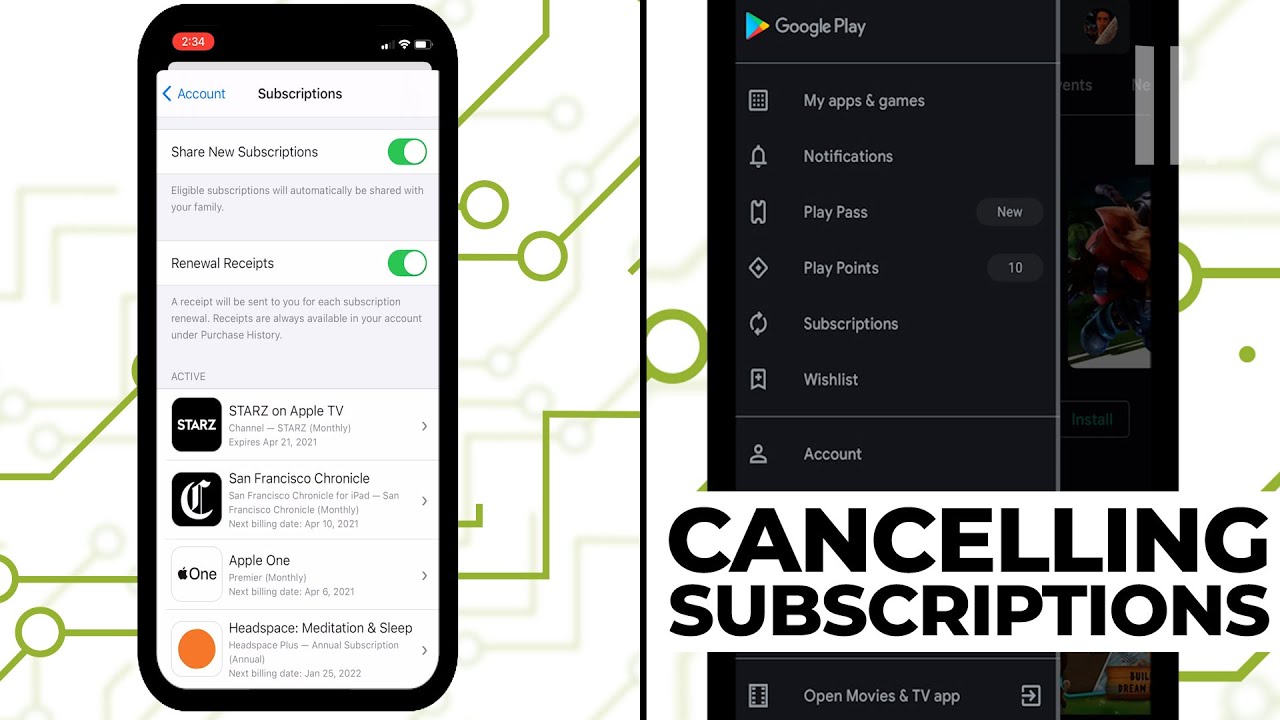
There is no Google Play app for iOS. All Google Play subscription management on iPhone or iPad happens through play.google.com in a mobile browser like Safari or Chrome.
A 2024 CNET study found that U.S. adults spend an average of $91 per month on subscriptions. For users who switch between Android and iPhone, understanding which platform billed them is the most common source of confusion about where to manage those charges.
How to Access Subscriptions on iOS
Open Safari or Chrome on your iPhone or iPad.
Go to play.google.com and sign in with the Google account that holds the subscription. Tap your profile icon, then navigate to Payments & subscriptions > Subscriptions. From here, you can cancel, pause (if available), update payment methods, and view renewal dates exactly as you would on Android.
The iOS vs. Google Play Billing Confusion
This is a genuine problem. If you downloaded an app on iPhone and subscribed through the App Store, that subscription is not managed through Google Play. It lives in your Apple account under Settings > [your name] > Subscriptions.
The fastest way to confirm which platform billed you: check your email for the original subscription confirmation. Google Play receipts come from google.com. Apple receipts come from apple.com. The sender address ends the confusion immediately.
| Scenario | Where to Manage |
|---|---|
| Subscribed on Android via Google Play | Google Play Subscriptions Page (accessible from any device) |
| Subscribed on iPhone via the App Store | Settings → [Your Name] → Subscriptions |
| Subscribed directly on the developer’s website | The developer’s Account Settings, Billing, or Subscription Management page |
Switching from Android to iPhone
Google Play subscriptions keep running after you switch to iPhone. They do not transfer to Apple’s billing system automatically.
To move a subscription (like Apple Music) from Google Play billing to Apple billing: cancel the Google Play subscription first, wait for the access period to end, then re-subscribe through the iOS app. Some services, like Spotify, cannot be subscribed to through the iOS app at all due to Apple’s in-app purchase policies, so the web-based Google Play subscription is actually the only option for those.
The guide on how to cancel a subscription on Google Play covers the iOS browser steps in detail alongside the Android and desktop flows.
FAQ on How To Manage Google Play Subscriptions
How do I find all my Google Play subscriptions?
Open the Google Play app, tap your profile icon, then go to Payments & subscriptions > Subscriptions. On desktop, visit play.google.com and follow the same path. All active and recently expired subscriptions tied to your Google account appear here.
Does uninstalling an app cancel its Google Play subscription?
No. Uninstalling and canceling are separate actions. Your billing cycle continues even after you delete the app. You must cancel manually through the Google Play subscriptions page to stop future charges.
Can I manage Google Play subscriptions from an iPhone?
Yes, through a browser. Open Safari or Chrome, go to play.google.com, sign in, then navigate to Payments & subscriptions. The Google Play app is not available on iOS, but the website works fully on any mobile browser.
What happens to my access after I cancel a subscription?
Access continues until the end of the period you already paid for. Google does not cut off service immediately. After the renewal date passes without a charge, access ends and the subscription status changes to expired.
How do I pause a Google Play subscription instead of canceling?
Go to Subscriptions, select the subscription, tap Manage, then choose Pause payments. Pause durations range from one week to three months. Not all subscriptions support pausing. The option only appears if the developer has enabled it.
Can I get a refund on a Google Play subscription?
Refunds are available within 48 hours of the initial charge. Go to play.google.com, find the order in Budget & order history, and click Report a problem. After 48 hours, canceling stops future billing but does not refund the current period.
How do I update my payment method for a subscription?
Open the Google Play app, go to Subscriptions, select the subscription, tap Manage, then Update payment method. Payment methods are managed at the Google account level and apply to all future charges, not just one subscription.
Why is my subscription not showing up in Google Play?
You are likely signed into the wrong Google account. Switch accounts in the Play app and check again. If it still does not appear, the subscription may have been purchased through the developer’s website or the Apple App Store, not Google Play.
Can I share a Google Play subscription with family members?
Only if the developer has enabled sharing and you have Google Play Family Library set up. Up to 6 members can share eligible content. Most third-party app subscriptions are not shareable. Google Play Pass is one example that does support family sharing.
What is the difference between a grace period and account hold on Google Play?
A grace period (up to 7 days) keeps your access active while Google retries a failed payment. If payment is not fixed, the subscription moves to account hold, access is revoked, and Google continues retrying for up to approximately 53 days before canceling.
Conclusion
This conclusion is for an article presenting how to manage Google Play subscriptions across every common scenario, from canceling and pausing to fixing payment failures and handling family group billing.
The subscription management page at play.google.com works on any device, including iPhone, so there is no situation where you are locked out of controlling your recurring charges.
Keep an eye on your renewal dates, add a backup payment method to avoid account hold, and submit refund requests within 48 hours if a charge catches you off guard.
Managing your Google account subscriptions is not complicated once you know where everything lives.

- How Software Teams Write SOPs for Releases and Deployments - October 22, 2026
- Notepad++ Android Options: Apps That Come Close - October 21, 2026
- Data Management Services: A Practical Guide for Growing Companies - October 21, 2026